If you have ever zoomed into a photo only to find a blurry mess of pixels where a sharp face or detailed landscape should be, you already know the problem. AI upscaling tools promise to fix exactly that, using neural networks to reconstruct detail that simply was not there before. Two names dominate every conversation on the topic: Topaz Photo AI and Magnific AI. Both claim to deliver the sharpest, most realistic results. But they work differently, cost differently, and excel at different tasks. This article breaks down exactly what each tool does well, where it struggles, and which one deserves your money.
What AI Upscaling Actually Does
Beyond Simple Pixel Stretching
Old-school upscaling tools like bicubic interpolation just averaged existing pixel values and filled gaps with guesses. The result: soft, smeared images that looked worse at larger sizes than the original. AI upscaling is fundamentally different. It uses convolutional neural networks trained on millions of image pairs, low-resolution and high-resolution versions of the same shot, to predict what missing detail should look like.
When you upscale a portrait, the model does not just stretch the face. It adds plausible skin texture, reconstructs individual hair strands, sharpens eyelash definition, and restores subtle variation in iris color. The output looks like a photo taken with a higher-resolution camera, not a stretched version of the original.
The Neural Network Difference
The quality gap between tools comes down to three factors:
- Training data volume and diversity: Models trained on broader datasets handle more edge cases without breaking down on unusual content.
- Architecture choices: Some models prioritize hallucinated detail (adding new information), others prioritize fidelity (keeping what was there, just sharper).
- Post-processing pipeline: Noise reduction, sharpening, and artifact removal all happen in sequence and interact in ways that vary significantly between platforms.
💡 Pro tip: The best upscaler depends entirely on your source material. A noisy smartphone photo needs different treatment than a scanned 35mm film negative from the 1970s.
Topaz Photo AI at a Glance
Topaz Photo AI has been the go-to desktop upscaler for photographers and studios since it consolidated the older Topaz Gigapixel, DeNoise, and Sharpen products into one platform. It runs locally on your machine, meaning no per-image subscription fees and no internet required after the initial download.
What Makes It Stand Out
Batch processing is where Topaz dominates. You can drop 500 RAW files and let it run overnight with consistent, predictable results. For professional photographers delivering large volumes to clients, this is a genuine workflow advantage that cloud tools simply cannot match.
Its Autopilot feature analyzes each image individually and selects the right combination of models automatically. Portrait shots get face-recovery treatment. Landscape images get a different sharpening profile. You do not need to manually configure every job when you are processing a full shoot.
Topaz also offers the most granular control of any consumer upscaler:
| Feature | Topaz Photo AI | Magnific AI |
|---|
| Local Processing | Yes | No (cloud only) |
| Batch Mode | Yes (unlimited) | Limited by credits |
| RAW File Support | Yes (CR3, ARW, NEF) | JPEG and PNG only |
| Face Recovery | Dedicated model | General upscaling only |
| Max Scale Factor | 6x | 2x base (8x on Pro plans) |
| Noise Reduction | Fully integrated | Requires separate step |
| Offline Use | Yes | No |
| One-Time Price | $199 | N/A (subscription) |
Where It Falls Short
The results can feel over-processed on high-frequency textures like fabric weave, grass, or fur. The AI sometimes hallucinates detail that was not there, creating a slightly artificial look under close inspection at 100 percent zoom. The software is also resource-intensive: without a capable dedicated GPU, processing times stretch into uncomfortable territory.
The user interface, while functional, feels dated compared to newer cloud-based tools. And for non-photographers who only need to upscale a few images occasionally, the one-time purchase price of $199 is a significant barrier.
Magnific AI at a Glance
Magnific AI arrived in late 2023 and immediately became a favorite among digital artists, social media creators, and anyone working with AI-generated imagery. It is a cloud-based platform: upload your image, set your parameters, and receive results in your browser. No installation, no hardware requirements.
What Makes It Stand Out
Magnific's creativity slider is what sets it apart from every other tool on the market. At low creativity settings, it behaves like a traditional upscaler. Push the slider up and it starts adding new, coherent detail that was not present in the original. For AI-generated images, this produces striking results because the model can hallucinate plausible continuation of the image's own visual style.
It also handles artistic and stylized content better than Topaz. Illustrations, digital paintings, and AI art from generators like Midjourney or SDXL-based models often look extraordinary after Magnific processing. Topaz, trained primarily on photographic data, struggles more with non-photographic source material.
Where It Falls Short
The subscription pricing means ongoing costs that add up fast. Plans start around $39 per month for basic usage, making Magnific expensive compared to Topaz's one-time fee for anyone processing images regularly.
Cloud-only processing raises privacy concerns for commercial work. Sensitive product shots, unreleased brand imagery, or confidential client photos all leave your local environment when you upload to Magnific.
The creativity-added detail is a double-edged feature. At higher settings, it can introduce elements that were not in the original. For strict photo documentation, archival work, or forensic use cases, that is a serious drawback.
Head-to-Head: Quality Results
Portrait Photography
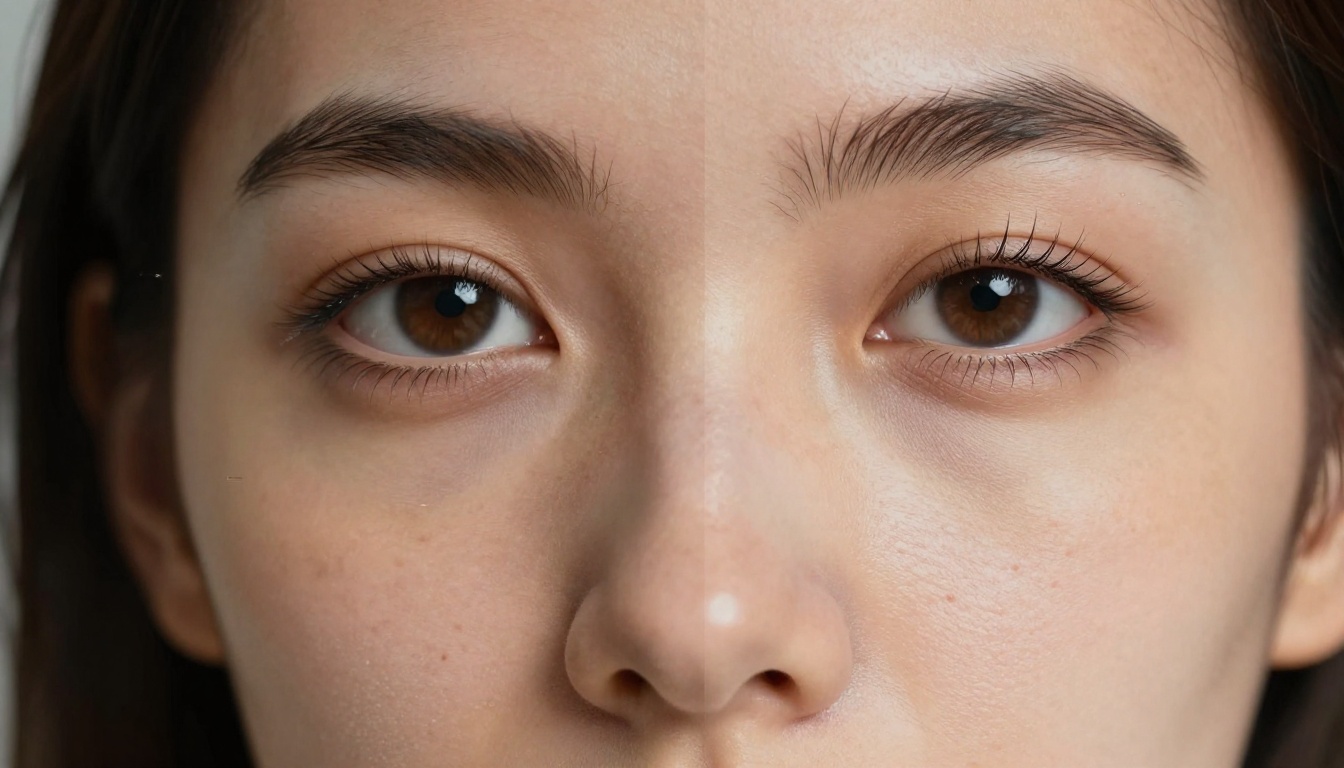
For portraits, Topaz Photo AI takes a clear lead. Its dedicated face recovery model handles extreme close-ups, adding realistic skin texture, eye catchlights, and hair detail without the over-smoothing that affects many AI tools. Skin tones stay natural. Freckles, moles, and fine lines are preserved rather than erased.
Magnific at low creativity settings delivers comparable sharpness, but results can trend toward an artificially smooth skin appearance. Push the creativity slider up and you risk inventing facial features that were not there, which is a deal-breaker for professional portrait photographers.
Winner for portraits: Topaz Photo AI
Landscape and Nature Shots
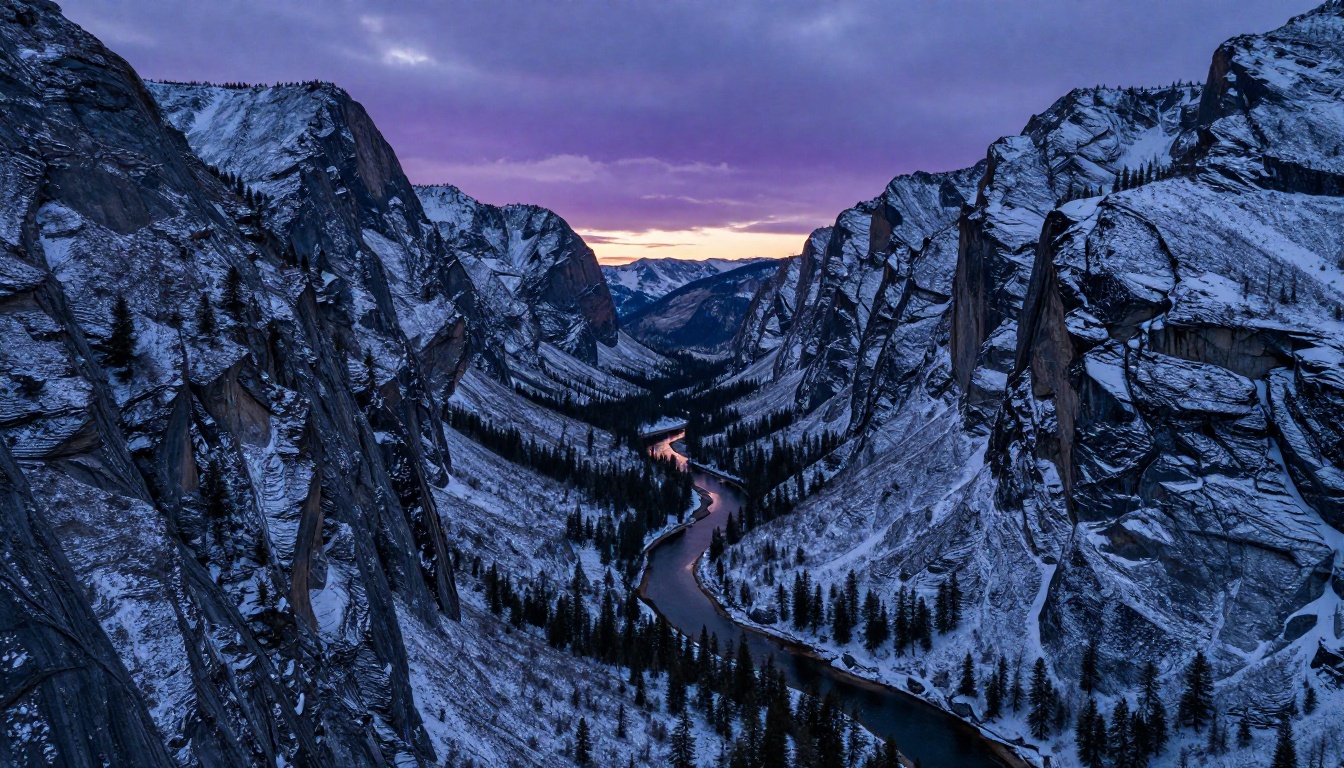
This is where the contest gets closer. Topaz handles high-frequency natural textures well. Rock faces, tree canopies, and water surfaces all benefit from its sharpening models. But Magnific's creative hallucination works surprisingly well for landscapes, adding plausible rock texture and foliage detail that tends to improve rather than distort the image.
For aerial photography and drone shots where subtle atmospheric haze is part of the image character, Topaz preserves that quality better. Magnific sometimes overcorrects haze, producing a more clinical, over-sharpened result that loses the mood of the original capture.
Winner for landscapes: Tie (depends heavily on subject)
Old and Scanned Photos
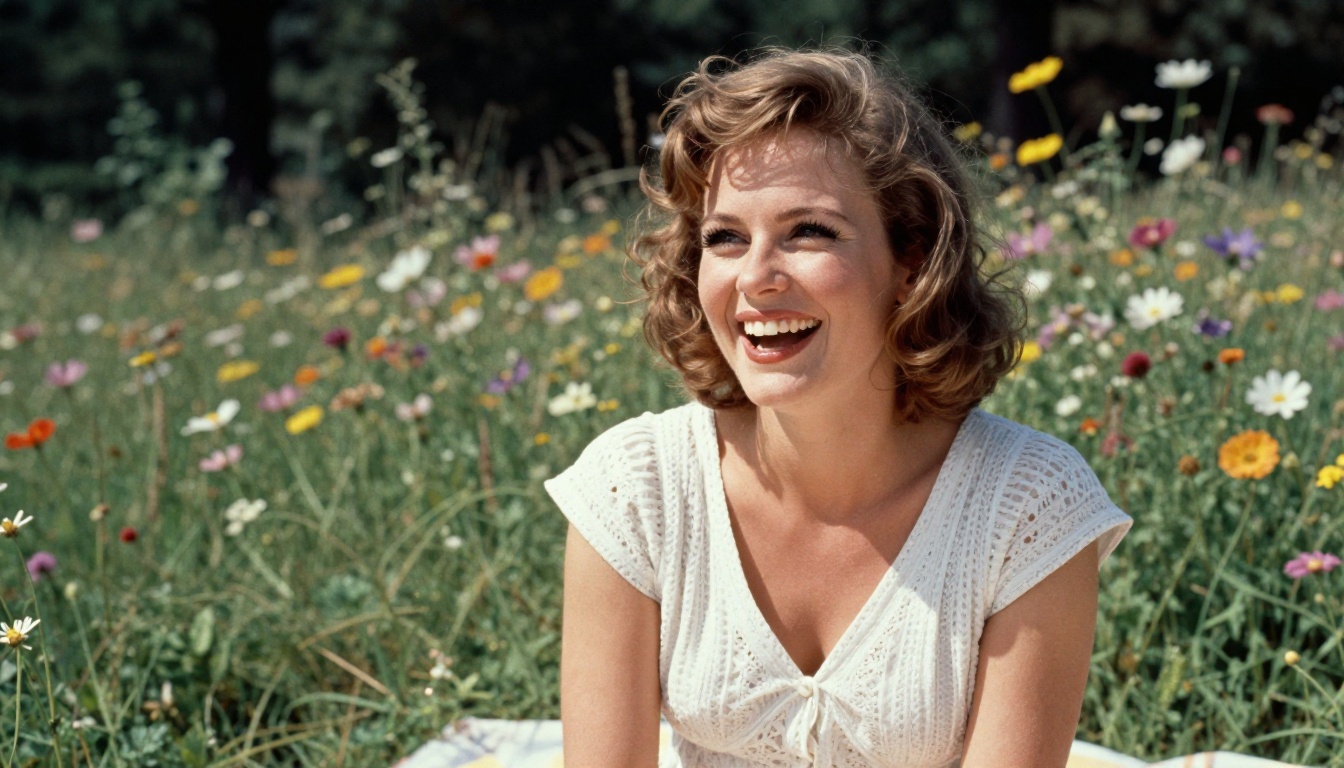
Old photographs, scanned film negatives, and digitized prints combine severe resolution limitations with noise, color degradation, and sometimes physical damage. This is one of the most emotionally important use cases for AI upscaling.
Topaz wins on noise reduction and technical restoration of genuine photographic content. Its integrated denoising handles silver halide grain authentically without destroying the analog film character of the image. For family archive projects, it is the more trustworthy tool.
Magnific can produce visually striking results on old photos, but the creativity it adds may diverge from what was actually captured. When exact authenticity matters, that creative freedom becomes a liability.
Winner for photo restoration: Topaz Photo AI
Speed, Pricing, and Workflow
Speed and cost are often the deciding factors for working professionals. Here is a direct comparison across the metrics that matter most:
| Metric | Topaz Photo AI | Magnific AI |
|---|
| Pricing Model | One-time $199 | From $39 per month |
| Processing Location | Local (GPU-accelerated) | Cloud servers |
| Single Image Speed | 10 to 60 seconds (GPU-dependent) | 30 to 90 seconds |
| Batch Processing | Unlimited, fully automated | Credit-based limits |
| Max Output Resolution | 600 megapixels | Varies by plan tier |
| API Access | No | Yes (Pro plans only) |
| Offline Use | Full offline capability | No |
| Privacy | Files never leave your machine | Files uploaded to cloud |
For studios and photographers processing hundreds of images weekly, the math strongly favors Topaz. A $199 one-time investment pays for itself within months compared to an ongoing $39 to $99 monthly subscription.
For occasional users, social media creators, or AI artists who upscale a handful of images each month, Magnific's cloud convenience and no-install approach makes more sense economically and practically.
💡 Cost reality check: If you upscale 50 or more images per month, Topaz Photo AI costs less than Magnific within 5 months and then operates at zero ongoing cost. For under 20 images per month, Magnific's base plan may be the better deal for casual workflows.
How to Use Topaz Upscaling on PicassoIA
PicassoIA includes the Topaz Image Upscale model directly in its platform. You can access the same professional-grade upscaling technology without installing any software or committing to a standalone subscription. Here is exactly how to use it.
Step 1: Open the Model
Navigate to Topaz Image Upscale on PicassoIA. You will see the model interface with upload controls and parameter settings ready to configure.
Step 2: Upload Your Image
Click the upload area or drag and drop your JPEG or PNG file. For best results, start with a reasonably clean source image. Severely corrupted or extremely low-quality files may benefit from a noise reduction pass first using Real-ESRGAN before upscaling.
Step 3: Set Your Scale Factor
Choose your upscaling multiplier based on your output needs:
- 2x for images that need a resolution boost for print or large-format display.
- 4x for significant resolution increases, web images going to billboard size, or older smartphone photos.
- 6x for maximum output when you need the largest possible result from limited source material.
Step 4: Enable Face Recovery
If your image contains people, toggle on the face recovery option. This applies a secondary model specifically tuned for facial reconstruction, recovering detail in eyes, skin, and hair that the primary upscaling pass alone may not fully address.
Step 5: Download Your Result
Processing typically completes within 30 to 60 seconds on PicassoIA's infrastructure. Download your upscaled file in full resolution. The output retains the color profile information from the source image.
💡 Parameter tip: For portraits, set scale to 2x with face recovery on rather than a higher scale without it. You will get better facial detail at 2x with face recovery than a raw 4x without it. Less is more when the subject has fine facial features.
More Upscalers Worth Testing
Topaz and Magnific are not the only options worth considering. PicassoIA gives you access to several powerful upscaling models, each with a distinct approach to the problem.
Real-ESRGAN for Versatile Upscaling
Real-ESRGAN is an open-source model that has become an industry staple for general upscaling. It includes a face restoration component that makes it strong for portraits. The results sit between Topaz's clinical precision and Magnific's creative approach. It handles illustrations, digital paintings, and photographs reasonably well, making it the most versatile option for users working across content types.
Bria Increase Resolution
Bria's Increase Resolution model is built for commercial photography applications. It produces cleaner, more neutral results that preserve the original image's color grading and tone curve without the AI overcooking fine details. For product photography and e-commerce where color accuracy matters, this model often outperforms more aggressive approaches.
Crystal-Upscaler for Maximum Detail
Crystal-Upscaler is built for situations where you need the most aggressive detail recovery possible. It pushes high-frequency texture detail harder than most models, making it excellent for architectural photography, product shots with fine material textures, or any image where you want every possible detail extracted from the source. The tradeoff is a risk of slight over-sharpening on soft or smooth subjects.
Google Upscaler for Reliable Results
The Google Upscaler delivers consistent 2x and 4x results with minimal artifacts. It is the safest choice when you need predictable output across diverse image types without tuning parameters. Less surprising than the alternatives, but reliably solid.
Recraft Options for Creative Work
For AI-generated images and illustrations, Recraft Crisp Upscale and Recraft Creative Upscale offer purpose-built processing tuned for synthetic imagery. If you are working with outputs from text-to-image generators, these models understand the visual language of AI-generated content and upscale accordingly.
Which One Should You Use?
The honest answer is that Topaz Photo AI and Magnific AI are built for different people doing different work. Choosing between them comes down to how you work, what you shoot, and how often you need to upscale.
Choose Topaz Photo AI if you:
- Process large volumes of photographs on a regular basis.
- Work with RAW files from professional camera systems.
- Need offline processing or have privacy requirements for client files.
- Restore old, damaged, or scanned photographs where authenticity matters.
- Want one-time pricing without recurring subscription costs.
Choose Magnific AI if you:
- Primarily work with AI-generated images from tools like Midjourney or Stable Diffusion.
- Upscale occasionally and do not want to install or maintain desktop software.
- Need to add creative detail to stylized or artistic images.
- Work entirely in a browser-based workflow.
- Want API access for automation without local hardware requirements.
Neither tool is universally better. Photographers and retouchers in professional studios will almost always find Topaz more practical and cost-effective. Digital artists, prompt engineers, and social media creators building visual content around AI generation will find Magnific's creative approach more aligned with their process and output style.

The best way to settle the debate for your specific workflow is to test both on your own images. PicassoIA gives you access to professional-grade upscaling from multiple models in one platform, including Topaz Image Upscale, Real-ESRGAN, Crystal-Upscaler, and Recraft Creative Upscale. Upload your photos, run the same image through different models, and see which approach delivers the result your specific content actually needs. That hands-on comparison on your own images will tell you more than any spec sheet or review article ever could. Try it now and see the difference quality upscaling makes.


