Phone creators no longer need a studio, a DSLR, or an expensive subscription to produce content that looks like it came from a professional agency. Free AI tools have changed what is possible with just a smartphone and a strong idea. Whether you shoot street photography, make short-form videos, or run a social media page from your bedroom, the apps covered here will change the way you work. Every tool on this list runs in a mobile browser, with no app download required, and the free tiers are genuinely usable.
Why Phone Creators Need AI Right Now
The bar for visual content has risen sharply. Audiences can tell the difference between a rushed edit and something that was thought through. The challenge is that professional-grade production tools have historically required a desktop, a fast GPU, and hours of learning. AI collapses that gap.
Today's best free AI apps handle the heavy lifting: generating photorealistic images from a text prompt, animating still photos into cinematic clips, removing backgrounds with one tap, and upscaling blurry phone shots to print quality. The creator only needs to supply the idea.
The Shift From Desktop to Mobile AI
Two years ago, running a model like Stable Diffusion required a machine with a dedicated graphics card. Now the same outputs are available through a browser tab on any phone. Cloud-based inference means the model runs on a remote server, the phone just sends the prompt and receives the result. This is what makes free mobile AI creation genuinely viable in 2027.
Platforms like PicassoIA have built an entire ecosystem around this model, putting over 90 text-to-image models and 87 video generation models behind a single mobile-friendly interface. You pick the model, type a prompt, and the result is ready in seconds.
AI Image Generation on Your Phone
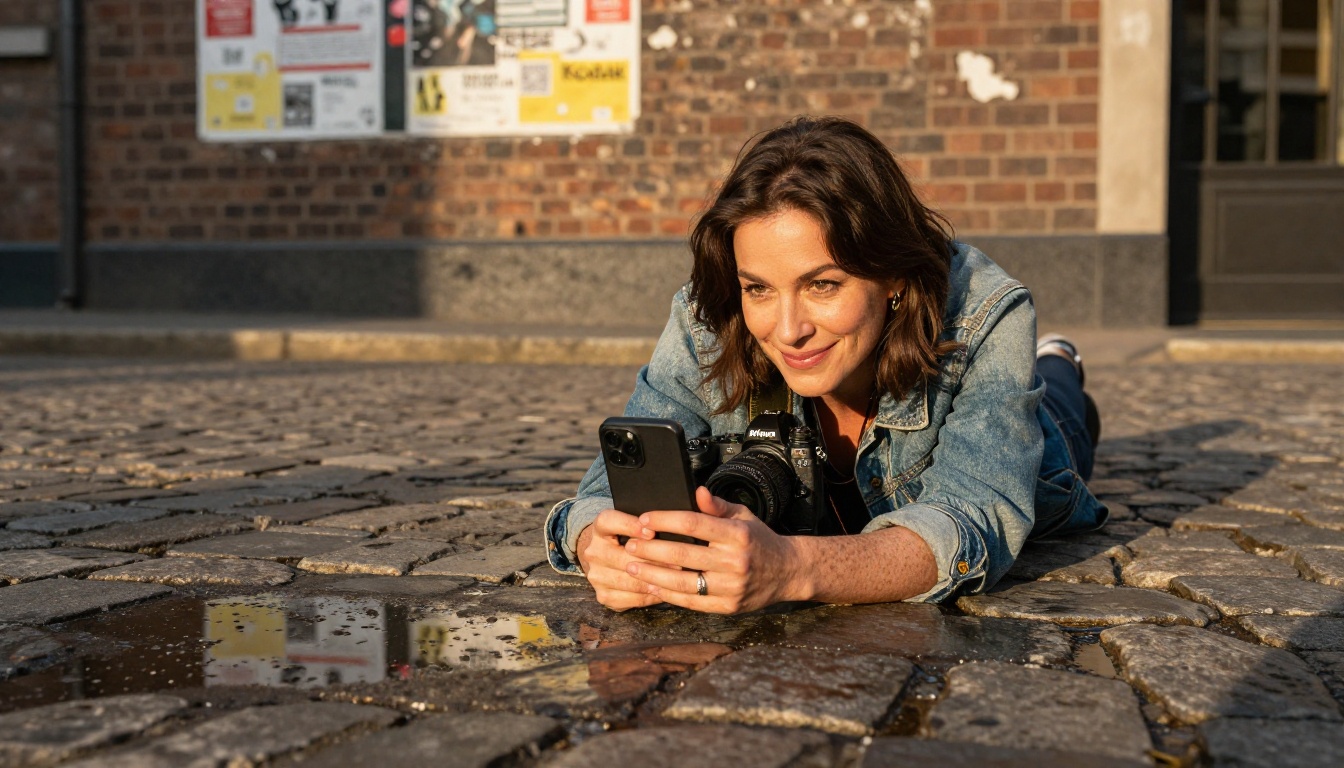
Generating images from text on a phone used to produce low-resolution, uncanny results. That changed completely when models like Flux, Seedream, and Juggernaut entered the scene. Today, a single prompt can produce an 8K-resolution photorealistic image in under ten seconds.
Text-to-Image: From Idea to Visual in Seconds
The core use case is simple: you type what you want to see, and the model produces it. Phone creators use this for social media posts, YouTube thumbnails, product mockups, and ad creatives. The quality difference between free and paid tools has narrowed to the point where free tiers are now viable for professional use.
PicassoIA's text-to-image collection gives mobile creators access to over 91 models with no download required. You can generate up to several images for free daily, with unlimited options available on the pro tier. The interface is built for touch, with large buttons and a clean prompt input that works on any screen size.
💡 Tip: For social media images, always describe your lighting. "Warm golden hour sunlight from the left" produces a dramatically different result than "studio lighting." The more specific your prompt, the better the output.
What to look for in a free AI image app:
- Resolution output (aim for 1024px minimum on the long edge)
- Speed per generation (under 15 seconds is usable on mobile)
- Style range (photorealistic, illustration, product photography)
- No watermarks on free tier outputs
- Direct download to camera roll
Upscaling Phone Photos to Print Quality
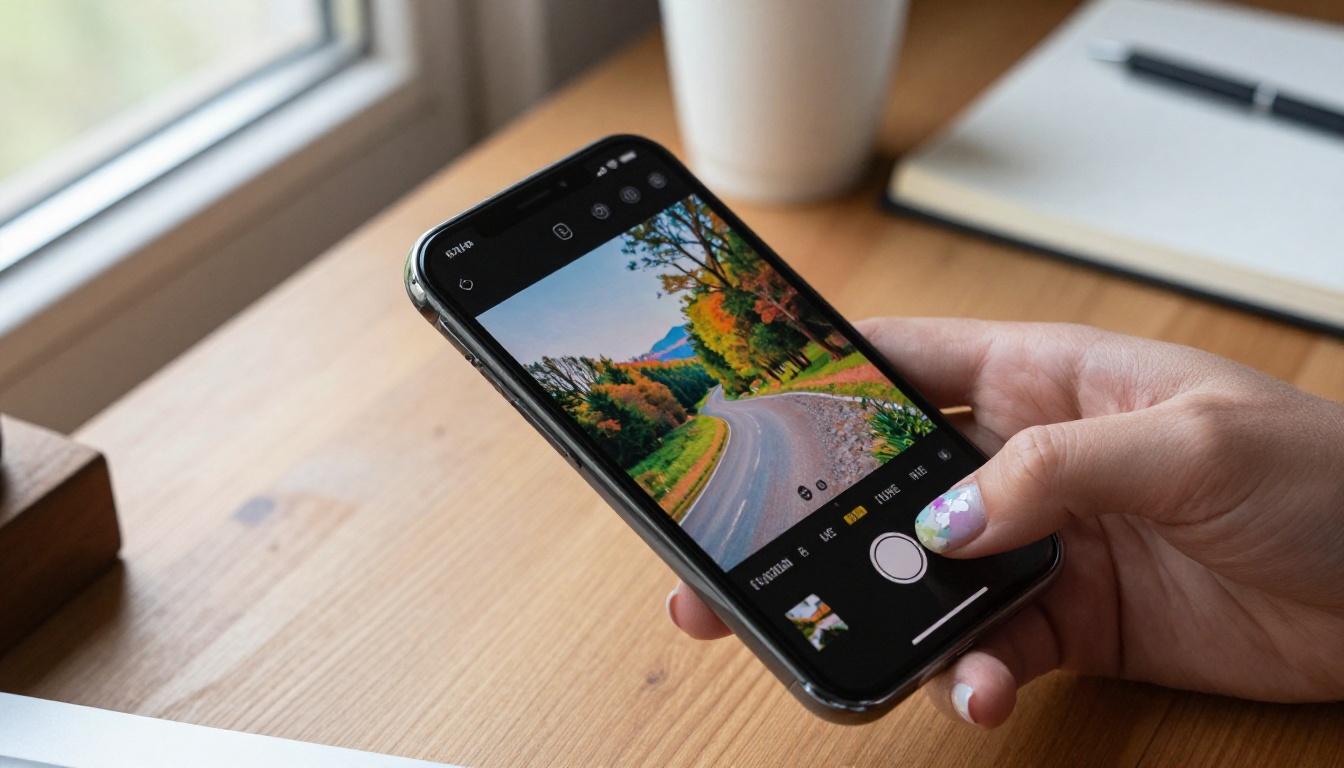
AI image upscaling solves one of the oldest mobile photography problems: small sensors produce images that look great on a phone screen but fall apart when you zoom in or try to print them. AI upscaling reconstructs detail that was never in the original capture.
Real ESRGAN is one of the most accurate free upscalers available. It adds realistic texture and sharpness without the smearing artifacts that plagued older interpolation methods. For portrait work, Crystal Upscaler is specialized for faces and skin tones.
For the highest precision, Topaz Image Upscale handles up to 6x magnification while preserving fine detail. P Image Upscale delivers results in about one second and is fast enough to use in a mobile workflow without frustration.
| Upscaler | Max Scale | Best For | Speed |
|---|
| Real ESRGAN | 4x | General photos | Fast |
| Crystal Upscaler | 4x | Portraits and faces | Medium |
| Topaz Image Upscale | 6x | Maximum detail | Medium |
| P Image Upscale | 4x | Quick mobile use | Very fast |
| Clarity Pro Upscaler | 4x | Photorealistic output | Medium |
Short-form video is where phone creators spend most of their time, and AI video generation is the biggest leap forward in mobile content creation in years. You can now turn a text description into a five-second cinematic clip without a camera or an editor.
Text to Video Without a Computer
The best text-to-video models available free in 2027 include several that are genuinely competitive with anything produced on a desktop workstation. The difference is the cloud: the GPU is somewhere else, and your phone just receives the file.
Seedance 2.0 from ByteDance produces 1080p video with built-in synchronized audio. It handles camera movement, lighting, and subject motion with a consistency that was only possible with expensive tools two years ago. Seedance 2.0 Fast delivers the same quality with shorter wait times, which matters when you are creating content from a phone.
Veo 3 from Google generates video with native audio directly from a text prompt. The ambient sound, music, and dialogue sync naturally to the visual. For social media content, this means you can produce a complete clip with no post-production audio work.
Kling v3 Video delivers cinematic output at 1080p and handles complex motion well. It is a strong choice for product demonstrations, travel content, and narrative short-form clips.
Pixverse v5 is among the fastest video generators available and produces consistent 1080p output. Phone creators who publish daily benefit most from its speed. LTX 2 Pro pushes further, generating at 4K resolution for creators who want to future-proof their content for larger screens.
Wan 2.7 T2V rounds out the top tier, generating 1080p video from text with strong motion coherence across the full clip.
Animate Your Own Photos
Image-to-video tools take a still image and generate a short clip in which the subject or scene comes alive. This is particularly powerful for phone photographers who want to repurpose their best stills as video content.
Wan 2.7 I2V animates any image into a short video clip. You upload a photo, write a short motion description ("camera slowly drifts left as wind moves through the trees"), and the model does the rest.
Hailuo 02 Fast is optimized for speed at 512p, making it the right choice when you need a quick animated version of a photo without waiting. For higher resolution outputs, Hailuo 02 generates at full 1080p with more detail.
P Video supports both text-to-video and image-to-video, covering both use cases in a single model. Ray Flash 2 720p from Luma is a free 720p video generator that delivers clean results quickly and is well-suited to a mobile workflow.
💡 Tip: When animating a portrait photo, describe only subtle movement in the prompt. "Slight head turn, hair moving gently" produces more realistic results than asking for complex actions. Overly ambitious motion prompts often produce distortion.
Visual Effects and Filters AI Can Apply Instantly
Visual effects that used to require hours in After Effects are now available as one-click operations through AI. For phone creators, this category has the most immediate practical value because it solves real production problems fast.
Background Removal in One Tap
Clean background removal used to require careful manual masking. Remove Background cuts out subjects from any photo in one step. The AI handles hair, fine fabric edges, and complex outlines that traditional selection tools routinely miss.
Phone creators use background removal to:
- Place themselves or products against custom backgrounds
- Clean up busy environments in product shots
- Create transparent-background assets for social media overlays
- Repurpose old photos with distracting backgrounds
The result is a clean PNG with a transparent background that can drop directly into any editing app.

AI Upscale: Rescuing Blurry Shots
Every phone creator has an archive of photos that were too good to delete but too blurry to use. AI upscaling is the most practical way to recover those images.
Clarity Pro Upscaler adds photorealistic detail during the upscaling process rather than simply enlarging existing pixels. A photo taken in poor light at a concert, blurry from a fast shutter or low resolution, can become a sharp, usable image.
Recraft Crisp Upscale is free and fast, making it a practical choice for mobile editing workflows where waiting is not an option. It handles most phone photography well, especially for social media sizing requirements.
Not every tool fits every workflow. The table below shows which free AI tools are strongest for each type of mobile content creation use case.
| Use Case | Best Free Tool | Output Quality | Speed |
|---|
| Generate images from text | PicassoIA Text-to-Image | 8K photorealistic | Fast |
| Create short videos | Seedance 2.0 | 1080p with audio | Medium |
| Animate a photo | Wan 2.7 I2V | 1080p smooth | Medium |
| Remove background | Remove Background | Clean edge accuracy | Very fast |
| Upscale blurry photo | Topaz Image Upscale | Up to 6x detail | Medium |
| Quick video clip | Ray Flash 2 720p | 720p clean | Fast |
| Cinematic video | Kling v3 Video | 1080p cinematic | Medium |
| Video with native audio | Veo 3 | 1080p with sync audio | Medium |
What "free" actually means across platforms:
Most free tiers give you a limited number of credits per day or per month. The table below breaks down what you actually get for free on PicassoIA versus typical standalone apps.
| Feature | PicassoIA Free Tier | Typical Standalone App |
|---|
| Image models | 91 models available | 1-3 models |
| Video models | 87 models available | 1 model |
| Watermarks | None | Often yes |
| Resolution | Up to 8K | Limited |
| Mobile interface | Built for touch | Often desktop-first |
| Downloads | Unlimited | Often restricted |
How to Use PicassoIA on Your Phone
PicassoIA runs entirely in the browser, which means no app installation, no storage used on your device, and access from any phone with an internet connection.
Step-by-Step: Generating Your First Image
- Open picassoia.com in your phone's browser.
- Tap the image generation section or browse to any text-to-image model.
- Type your prompt in the text field. Be specific about subject, lighting, and style.
- Tap Generate and wait for the result (typically 5-15 seconds).
- Tap the image to view at full resolution, then save to your camera roll.
💡 Prompt structure that works: Start with the subject ("a woman in a red coat"), add the environment ("standing on a wet cobblestone street"), then add lighting ("golden afternoon sun from the left"), then camera details ("shot on 85mm f/1.4"). This four-part structure consistently produces better results than a single-sentence prompt.
Step-by-Step: Creating Your First Video
- Browse to any text-to-video model, such as Seedance 2.0 or Kling v3 Video.
- Write a motion-focused prompt describing what happens in the clip, not just what the scene looks like.
- Select resolution (720p is typically included in free tiers; 1080p may use credits).
- Tap Generate and wait for the video to render (usually 30-90 seconds).
- Preview, then download the MP4 directly to your phone.
For image-to-video, use Wan 2.7 I2V: upload any photo from your camera roll, add a motion description, and download the animated result.
3 Common Mistakes Phone Creators Make with AI
Most people who try AI tools and are disappointed by the results are making one of three predictable mistakes. These are worth knowing before you start.
Using Prompts That Are Too Short
"A woman at sunset" will produce a generic image. "A woman in her late twenties standing on a rooftop at sunset, wearing a denim jacket, soft amber light from the left, shallow depth of field, Kodak Portra 400 film grain" will produce something you actually want to post. The model needs information to produce specificity. Vague prompts produce generic outputs.
The same principle applies to video prompts. Instead of "a person walking," write "a woman in a white dress walking slowly through a field of tall grass, camera panning right, warm afternoon light casting long shadows." Describe the motion, the camera, and the atmosphere.
Ignoring Resolution Settings
Free tiers often default to lower resolution outputs to conserve server resources. Always check the resolution setting before generating. Many models on PicassoIA allow you to select 16:9 aspect ratio and higher resolutions even on free credits. A 512x512 image will not work for a YouTube thumbnail. A 1024x576 or larger image will.
For video, 720p is the minimum usable resolution for most platforms. Several free models on PicassoIA, including Ray Flash 2 720p and Wan 2.1 I2V 720p, deliver this on their free tier.
Skipping the Upscale Step
AI-generated images often have soft edges at 100% zoom. Running the output through P Image Upscale or Real ESRGAN before publishing adds the sharpness and micro-detail that makes the image look like it was produced by a professional. This step takes ten seconds and makes a visible difference.
The same principle applies to AI videos. If you generated a clip at 480p, run it through AI video enhancement before posting. The upscaled version will perform significantly better in feed algorithms that reward high-quality visual output.
Start Making Something Now
The tools are ready. The models are free. The only thing standing between your idea and a finished image or video is a prompt.
If you have never generated an AI image before, start with PicassoIA's text-to-image collection. Pick any model, type a description of something visual you have been imagining, and see what comes back. Most people are surprised by how good the first result is when the prompt is specific.
If you shoot and post photos regularly, add an AI upscaler to your workflow. Run your best phone shots through Clarity Pro Upscaler before posting and compare the results. The difference in sharpness and detail is usually visible immediately.
For video creators, pick one model from the text-to-video list above and generate one clip today. Seedance 2.0 is a strong starting point because it produces 1080p with audio from a single text prompt. The gap between what you imagine and what you can produce is smaller than it has ever been.
💡 Where to find all available models: picassoia.com/en/all-models lists every AI tool on the platform, organized by category. If there is a visual task you need to do on your phone, there is almost certainly a free model there that handles it.


