If you've spent any time in the AI image creation space, you've probably bumped into Krea AI. It's got a clean interface, a real-time canvas mode that feels satisfying to use, and a growing community of digital artists behind it. But if you're a content creator who needs volume, variety, and real photorealistic output, Krea starts to show its limits fast.
The good news is there's a stronger option, and it's one that content creators, photographers, and digital artists are moving to right now.
Why Creators Are Leaving Krea AI
What Krea Does Well
Krea AI carved out a strong niche with its real-time generation canvas. You sketch something rough, and it starts producing interpretations on the fly. For brainstorming and live creative exploration, that's genuinely useful. Its upscaling tools are also solid, and the interface feels polished for beginners.
The Limits Show Up Quickly
The problem starts when you need production-level output. Krea's model selection is narrow. If the models available don't match what you're building, you're stuck. The platform also struggles with photorealistic human subjects, which is a significant gap for anyone producing fashion content, portrait series, or lifestyle imagery.
Pricing is another friction point. The free tier is restrictive, and the paid plans jump in cost before you've had the chance to test everything you need. For creators who bill clients by the image or run high-output content pipelines, that math gets uncomfortable quickly.
💡 The core issue with Krea AI: when you outgrow the default models and need precise photorealistic control, the platform doesn't have enough depth to grow with you.
What a Real Alternative Looks Like
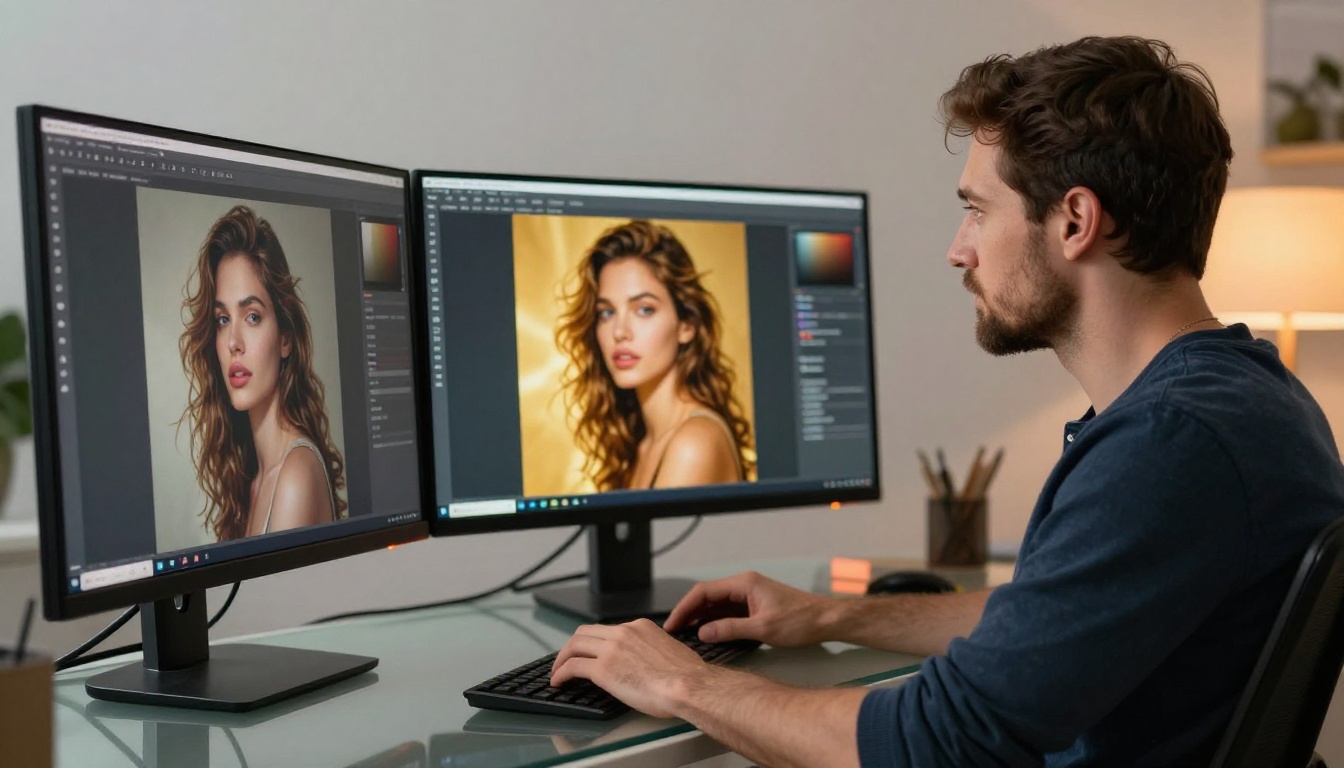
The best Krea AI alternative for image creators isn't just another text-to-image box. It needs to deliver across several fronts:
- Model variety: Access to dozens of production-grade models, not just one or two
- Photorealism: Consistent, believable human subjects with accurate skin tones, lighting, and texture
- Editing tools: Inpainting, outpainting, and style control without switching platforms
- Workflow speed: Fast generation for creators working under deadline pressure
- Accessible pricing: Free access to real functionality before committing to a plan
PicassoIA checks every one of these boxes. With over 90 text-to-image models available and a full suite of editing, upscaling, and video tools, it's built to handle the full creative workflow from a single platform.
The Model Library Makes the Difference
More Than 90 Text-to-Image Models
When you have access to one or two models, you learn to work around their weaknesses. When you have 90+, you pick the right tool for the right job. PicassoIA's text-to-image catalog includes models tuned for portraits, fashion, product shots, landscapes, and editorial-style photography.
Some of the standout options:
Portrait and Fashion Output
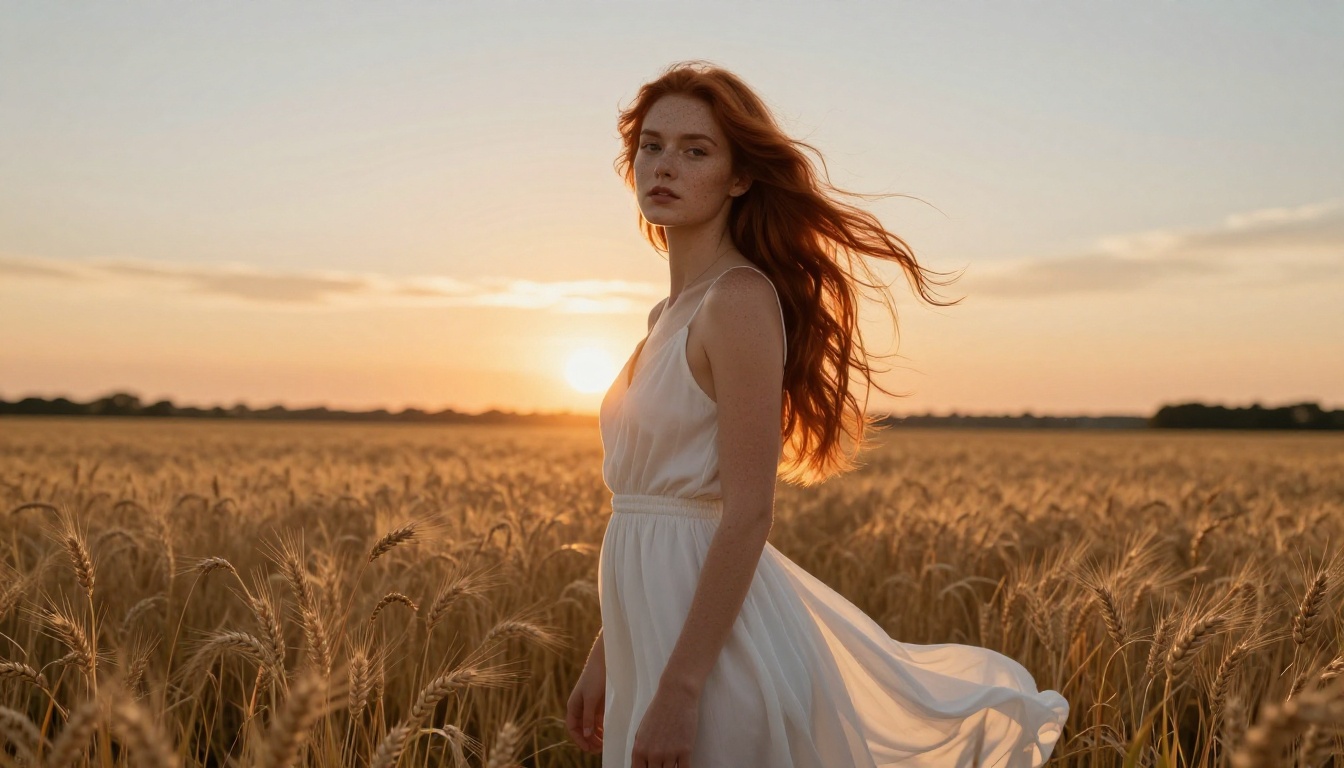
Portraits are where AI image generators get exposed. Skin tones go muddy. Eyes lose their depth. Lighting flattens out into something that looks painted rather than photographed. Krea AI has this problem across most of its default models, particularly with detailed close-ups.
PicassoIA's top models handle skin texture at a different level. Seedream 4.5 in particular produces portraits with visible pore detail, natural subsurface scattering in skin tones, and lighting behavior that responds realistically to the scene description. The result looks like it came from a real camera, not from an algorithm guessing what a face should look like.
For fashion and lifestyle content, Wan 2.7 Image Pro handles high-contrast outdoor scenes, fabric textures, and body proportions with consistency that content creators can actually use in production.
Photorealistic Results Across Scene Types
Outdoor and Lifestyle Photography
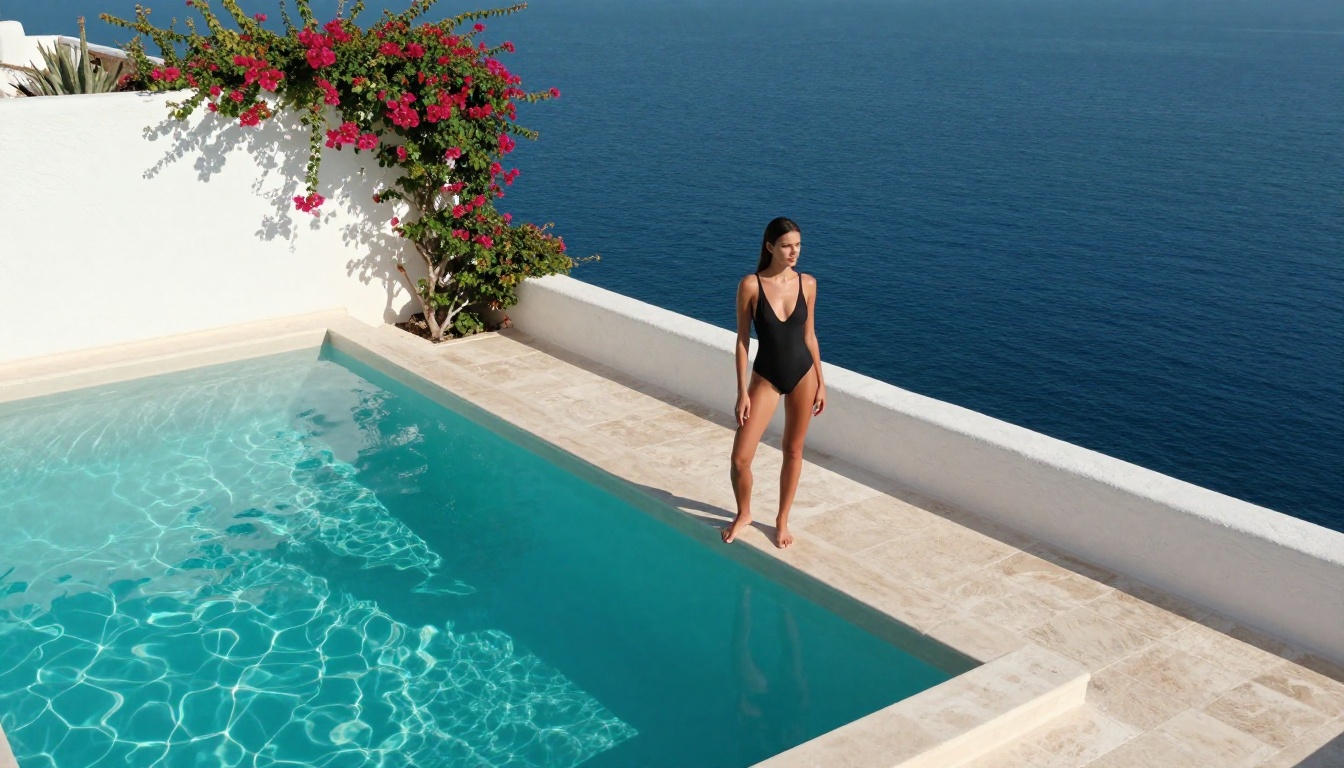
The difference between a good AI image and a great one often comes down to how the platform handles environmental light. Soft golden hour backlighting, harsh midday sun casting real shadows, overcast diffused light on a beach, these are the conditions photographers spend careers learning to use. The best models on PicassoIA simulate them with striking accuracy.
When you describe a sunset scene with volumetric light through trees, or a rooftop pool reflecting afternoon sun onto a stone terrace, models like Hunyuan Image 2.1 read those cues and produce images with believable caustics, shadow gradients, and atmosphere. Krea AI often flattens these details into something that reads as artificial.
Product Photography Without a Studio
For creators producing product imagery, the ability to place objects in natural-looking environments, lighting setups, and compositional contexts is worth a significant amount of production budget. PicassoIA's models handle product photography prompts with enough precision to replace studio setup costs for early-stage brands, social content, and catalog mock-ups.
💡 Pro tip: When prompting for product shots, always specify the light source direction, surface material, and whether you want a reflective or matte environment. The model responds to these details directly.
Fast Workflow for High-Output Creators
Prompt to Image in Seconds
Speed matters when you're producing content at volume. Social media managers, art directors, and freelance photographers often need dozens of images per day, each with slight variations in composition, lighting, or subject styling. A platform that takes 30 seconds per image adds up to hours of waiting.
PicassoIA's generation pipeline moves fast. Most models return results within 10 to 20 seconds per image, and the interface doesn't add friction between prompt entry and final result. No waiting for queues to clear or dealing with server limits during peak hours.
For teams producing batch content, the breadth of available models means you can run multiple styles simultaneously. Portrait series on one model, product shots on another, lifestyle imagery on a third, without switching tools or losing context.
Editing Without Leaving the Platform
One of the real workflow wins is not having to export an image to another tool just to fix one element. PicassoIA includes:
- Inpainting with Fibo Edit: select any region and regenerate it with a new prompt while keeping everything else intact
- AI photo editing with Qwen Image Edit Plus: text-based image editing that modifies the scene without full regeneration
- LoRA-powered editing via P Image Edit LoRA: style-consistent edits that respect the original image's visual language
- Image variations through Flux Redux Dev: generate multiple interpretations of an existing image while preserving core elements
This is significantly more flexible than what Krea AI offers for post-generation editing, where your options for targeted modification are limited.
How to Use GPT Image 2 on PicassoIA
GPT Image 2 is one of the most prompt-accurate models available on PicassoIA. It handles complex scene descriptions with multiple subjects, specific lighting conditions, and precise compositional requirements better than most alternatives.
Here's how to get the best results:
- Go to the GPT Image 2 model page at PicassoIA and open the generation interface
- Write a detailed scene description starting with the main subject, then environment, then lighting, then camera angle
- Add texture and material details for subjects, surfaces, and backgrounds
- Specify the aspect ratio — for content creation, 16:9 works well for banners and 1:1 for social posts
- Use style references by including phrases like "Kodak Portra 400, 85mm f/1.4, photorealistic, RAW photography" at the end of your prompt
- Run multiple iterations with small prompt adjustments to find the variation that hits exactly what you need
💡 For portrait prompts: Describe the light direction first ("soft diffused light from the upper left"), then skin detail ("visible pore texture, natural subsurface scattering"), then lens ("85mm f/1.4 shallow depth of field"). This order tends to produce the most realistic skin rendering.
Refining with Image Editing Models
Once you have a base image you're happy with, the editing models let you iterate without starting over. Use Fibo Edit to replace backgrounds, change clothing colors, or swap in a different expression. Use Qwen Image Edit Plus to make broader scene adjustments through natural language instructions.
Glamour and Lifestyle Content That Converts
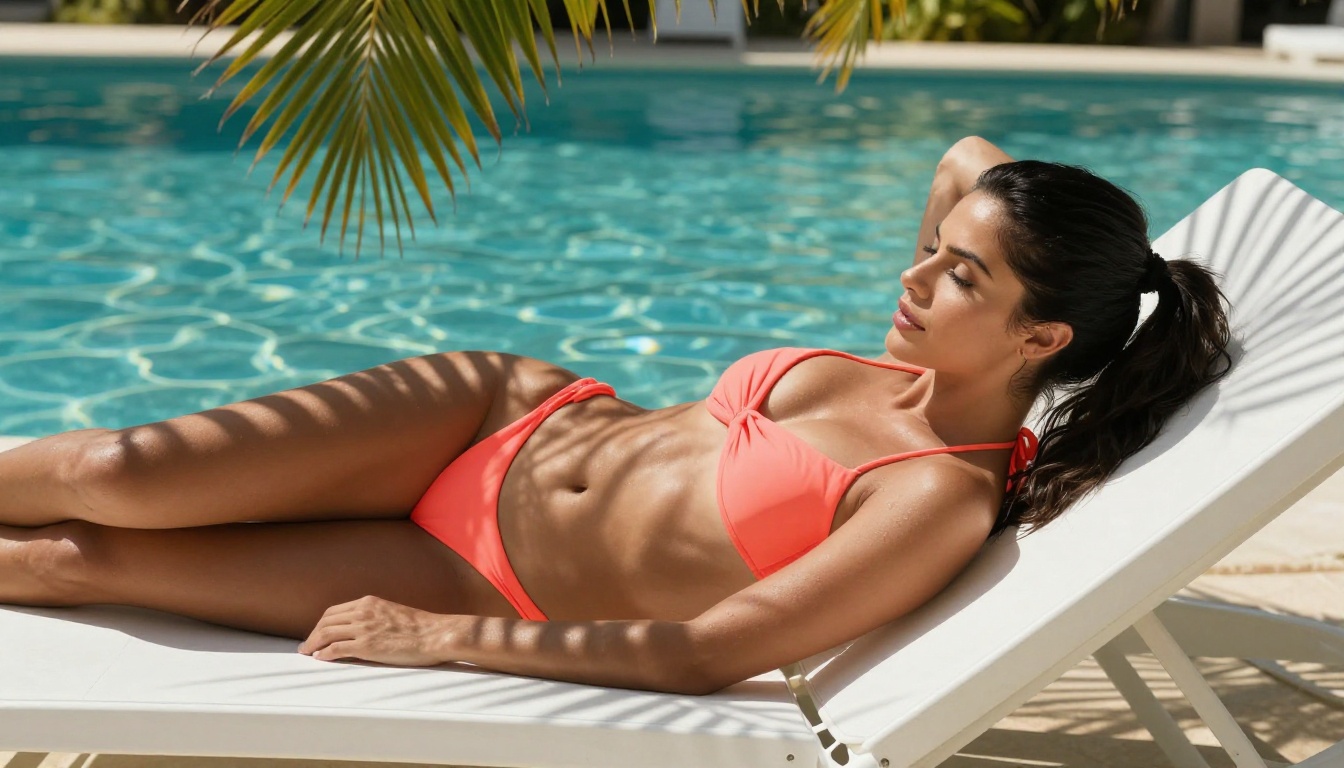
For creators producing glamour photography, swimwear content, or aspirational lifestyle imagery, the AI model you choose has a direct impact on how professional the final output looks. The difference between a model that handles skin tones and natural light correctly and one that doesn't is visible to any trained eye.
PicassoIA's top text-to-image models produce lifestyle content with the kind of natural color grading and subject rendering that brands expect. Skin tones stay consistent across a series. Fabric textures read as real materials rather than painted approximations. Water, sand, and natural light behave the way they should.
This level of quality is what separates work that gets used by real clients from work that gets passed on. Krea AI's models, particularly for human subjects in fashion or lifestyle contexts, consistently fall below this standard.
Avoiding the "AI Look"
The fastest way to spot an AI image is oversmoothing on skin and the absence of realistic light falloff. To avoid this on PicassoIA:
- Always specify film grain: "Kodak Portra 400, visible grain, film photography"
- Describe imperfections: "slight wind movement in hair, natural flyaways"
- Request specific lens behavior: "85mm f/1.4, shallow depth of field, foreground bokeh"
- Avoid the word "perfect" in prompts, it signals the model to smooth everything into artificiality

PicassoIA isn't only a text-to-image platform. The same tools that make it a strong Krea AI alternative for image creators also extend into adjacent workflows:
- Super Resolution: upscale images 2x to 4x without losing sharpness, critical for print-ready output
- Background Removal: clean cutouts for product photography, e-commerce, and compositing
- Face Swap AI: swap faces realistically for creative projects and character consistency
- Video Generation: 87 text-to-video models for motion content creation
- AI Music Generation: create original background audio for video content directly on the platform
For a creator who needs to produce an Instagram carousel, a product catalog, short-form video content, and background music for a reel, PicassoIA covers all of it without leaving the platform. That's not something Krea AI can match.
The Pricing Reality
What You Get Before Paying Anything
One of PicassoIA's strengths for new users is that you can generate real images with production-quality models before committing to any paid plan. The free tier isn't a crippled demo — it gives you access to the actual model library so you can test output quality, compare results across models, and build a workflow before spending anything.
Krea AI's free tier is more restrictive by comparison, with lower resolution outputs and usage caps that hit quickly during a proper testing session.
Scaling Without Overpaying
For creators who need volume, PicassoIA's paid plans are structured around what image creators actually need: more generation credits, access to premium models, and faster processing during high-demand periods. There's no forced bundling with features you won't use, and the credit system is transparent about what each generation costs.
💡 For freelancers: PicassoIA's credit model means you only pay for what you actually generate. If a client project requires 200 images one month and none the next, your costs scale accordingly, with no flat subscription eating into margins during slow months.
Start Creating Right Now
The fastest way to see the difference between PicassoIA and Krea AI is to run the same prompt through both and compare the results side by side. Pick a portrait scene with specific lighting, a lifestyle shot with a textured environment, or a product image with material detail. The output quality difference becomes obvious immediately.
PicassoIA has over 90 text-to-image models available, each with its own strengths for different creative scenarios. Whether you're producing content for social media, building a portfolio of photorealistic portraits, or generating editorial-quality imagery for clients, there's a model in the library that fits exactly what you're trying to do.
Start with GPT Image 2 for your first test. Write a detailed prompt, specify your lighting and lens, and see what comes back. Then try Seedream 4.5 with the same prompt and compare the texture and color rendering. The variety alone makes PicassoIA worth trying for any serious image creator who has been working within the limits of what Krea AI offers.
Your creative output is only as strong as the tools behind it. Use better tools.


