You typed a single sentence, and the photo changed. Not through a plugin or a script. Just plain language, typed into a text box, applied directly to your image. This is where AI photo editing is right now, and the best tools are free.
Whether you want to fix a background, remove an unwanted object, retouch a portrait, restore an old scan, or push a color grade, modern AI image editors respond to text instructions with results that would have taken significant manual effort just two years ago. This article breaks down the specific tools, the exact workflow, and the prompt patterns that produce the best output.
What Text-Based AI Editing Does
Old Editing vs. This
Traditional photo editing software gives you direct pixel control. You paint selection masks, adjust curves manually, use the clone stamp on blemishes, and cut subjects with the pen tool. The output quality is entirely proportional to how skilled you are with the tools.
Text-based AI editing works differently. You describe the result you want. The model handles the pixel-level decisions. There is no tool to set up, no shortcut to memorize. The only skill involved is writing a clear, specific description of the change.
This is not a simplified mode of editing. The results are genuinely competitive with manual work for the majority of common editing tasks.
How the Model Reads Your Prompt
When you upload a photo and type an instruction into a model like Flux Kontext Max, the model processes the entire image before applying any change. It identifies what the scene contains, maps the lighting conditions, reads the spatial relationships between objects, and then applies your instruction within that full context.
This is why the outputs look cohesive rather than pasted together. A new sky picks up the horizon light. A removed object leaves behind the surface it was covering. A color grade respects the original subject colors unless you specifically ask it not to.
💡 The quality of your output equals the specificity of your text. Vague instructions produce average results. Specific, anchored prompts produce precise ones.
5 Photo Edits You Can Do with a Sentence
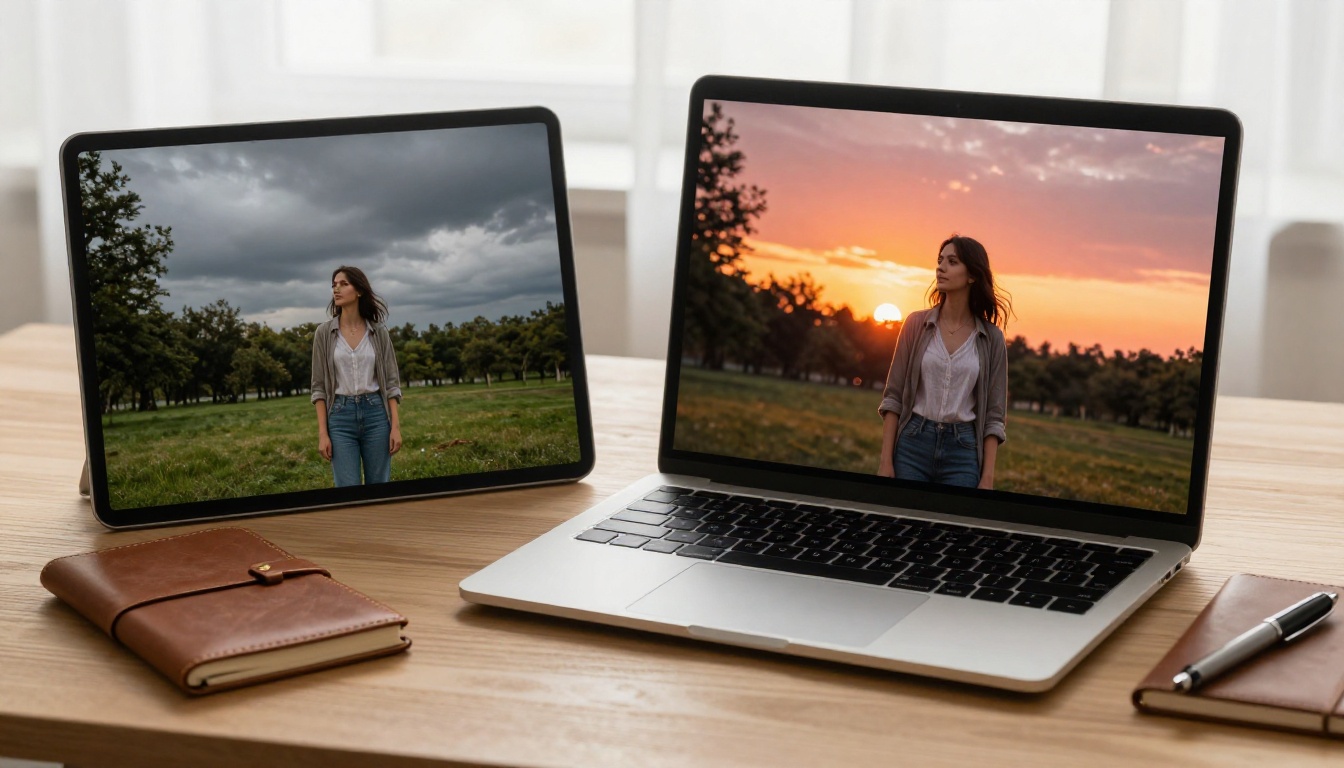
These are the edits people need most. All of them are possible through text alone on the right platform.
Change the Background
Background replacement used to require precise cutout work. With models like Flux Kontext Dev and Qwen Image Edit Plus, you write a prompt like "replace the background with a golden-hour mountain landscape" and the model handles subject isolation and environmental lighting automatically.
The results preserve subject edges without hard cutouts, and the background light adjusts to match the original subject exposure.
Remove Objects with Generative Fill
Removing an object from a photo means the gap needs to be filled convincingly. Models like Flux Fill Pro and Flux Fill Dev are trained specifically for this task. They know what "should" be behind an object based on surrounding context.
Prompts that work:
- "remove the person standing in the background"
- "erase the power line across the sky"
- "remove the trash can from the lower left corner"
Retouch Portraits Without Masks
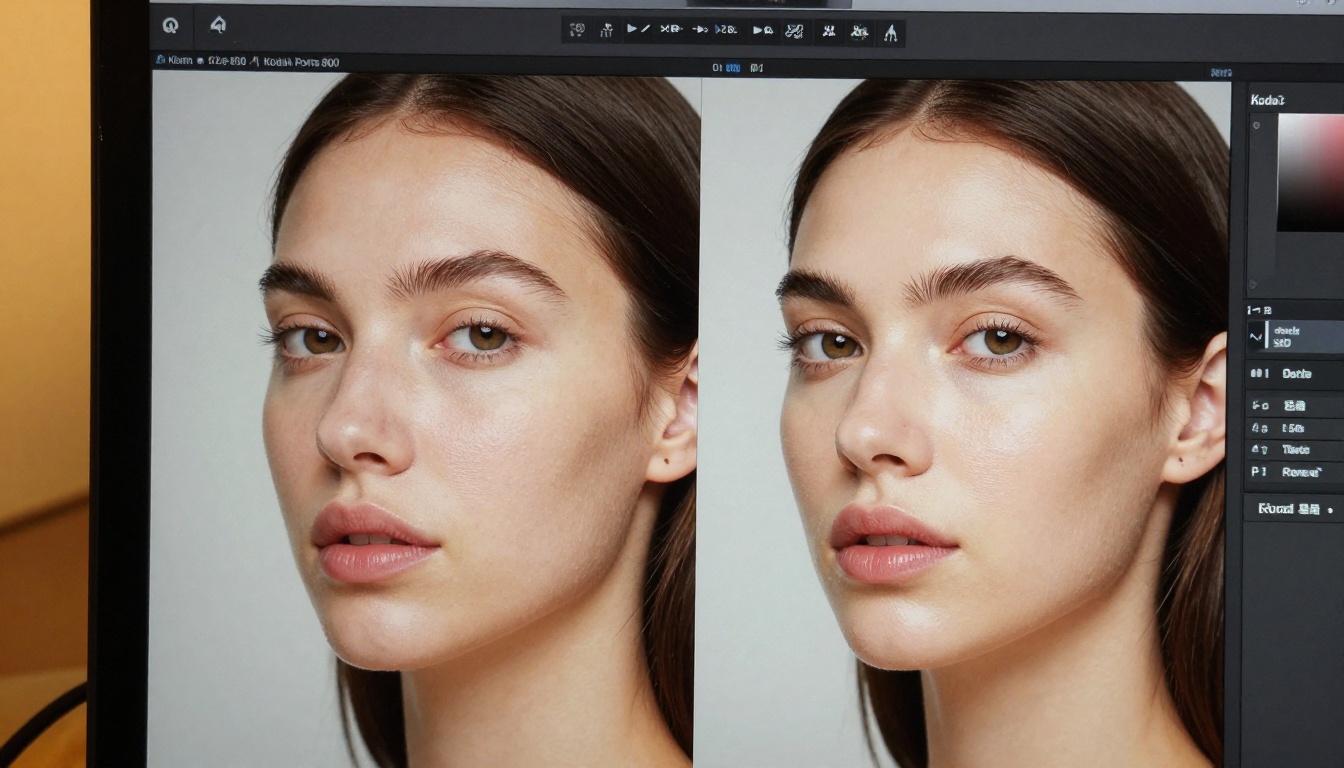
Portrait retouching is where text-based editing proves its worth most clearly. Instead of painting over blemishes manually or adjusting local HSL sliders, you instruct the model at a high level:
- "make the skin look natural and healthy"
- "soften under-eye shadows while keeping natural skin texture"
- "adjust the lighting to be more flattering on the face"
The model knows what "natural" and "flattering" mean in the context of real portrait photography because it was trained on exactly that content.
Apply a Color Grade in Seconds
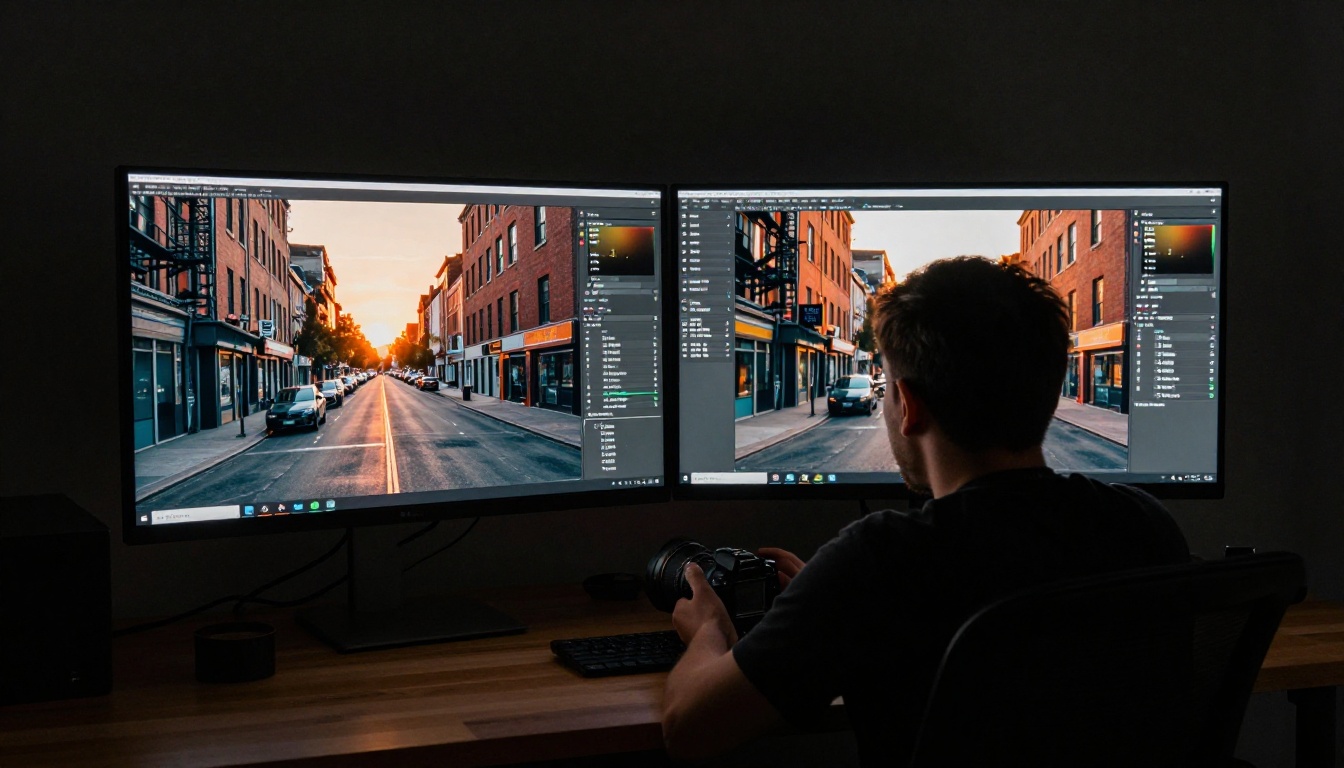
Applying a full color grade with one instruction is one of the most underused capabilities of AI photo editors. Instead of building a LUT from scratch or adjusting 12 Lightroom sliders, you type:
- "apply a warm cinematic film look with lifted shadows"
- "give this a cool blue-toned editorial magazine style"
- "make this look like it was shot on Kodak Portra 400"
Flux Kontext Pro handles these stylistic shifts while preserving the original composition and subject.
Extend the Frame with Outpainting
Sometimes the problem is not what is in the photo, it is what got cut off. Outpainting uses AI to extend the canvas beyond the original edges, generating new content that matches the existing scene.
This matters when:
- A portrait crops too tight
- You need a wider composition for a header or banner
- The horizon needs more sky above it
Flux Depth Pro reads the spatial structure of the scene before extending it, so the generated content stays geometrically consistent rather than looking like a random continuation.
The Best Free AI Photo Editors Right Now
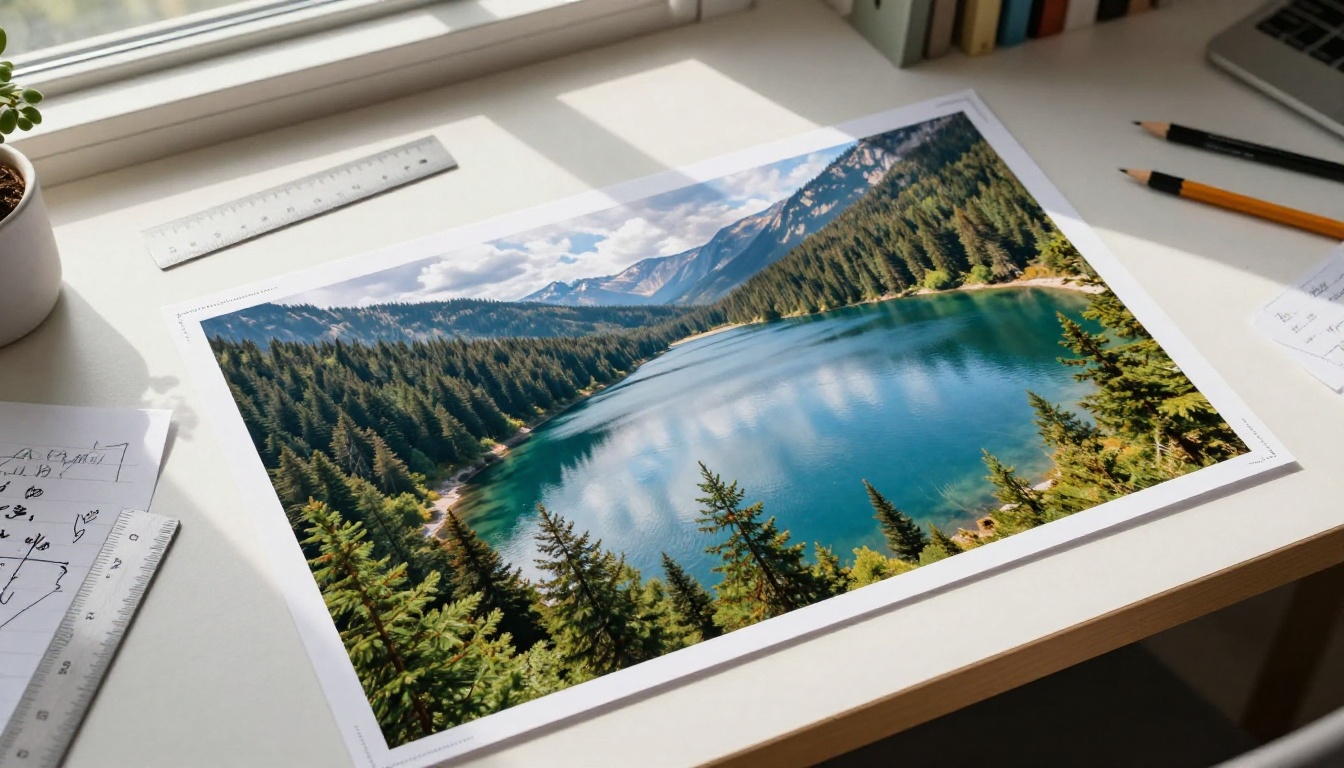
Not all text-based AI photo editors deliver the same quality. Here is how the best current free tools compare:
Flux Kontext Max: The Most Precise Option
Flux Kontext Max processes the entire image before applying any change. This matters because edits that ignore surrounding context produce visible seams. A background replacement that does not account for the original subject lighting looks pasted on. Flux Kontext Max avoids this by reading the full scene first.
It is the right choice when output quality is the priority and you can afford to wait a few extra seconds per generation.
Qwen Image Edit Plus: Accurate Region Editing
Qwen Image Edit Plus is built for precision. When you need to change a specific part of the image without affecting everything else, this model follows spatial instructions accurately. Changing the color of a jacket, adjusting only the sky, removing one person from a group shot: these are exactly the edits it handles well.
PicassoIA Image Editor Pro: No Usage Limits
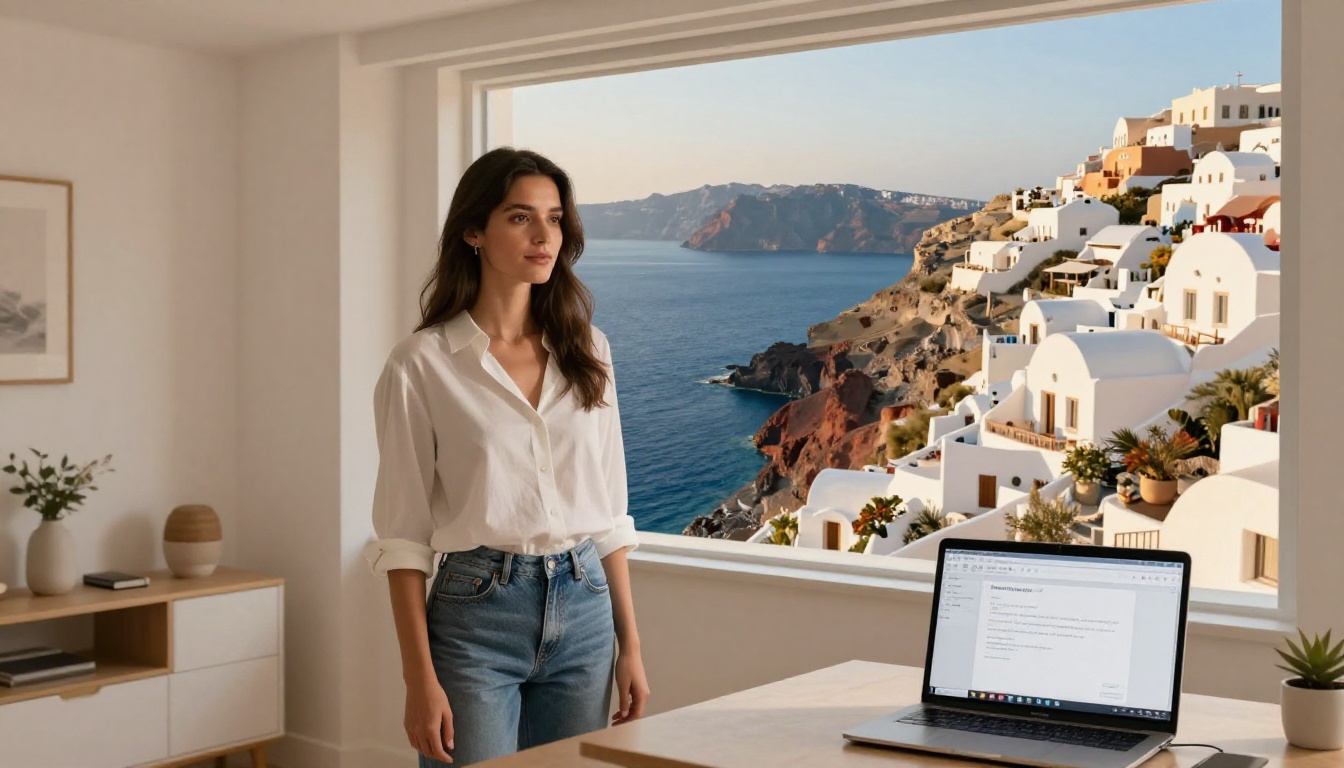
PicassoIA Image Editor Pro is the choice when you are working through a large batch of images or iterating repeatedly on a single edit. It supports the full range of text-prompted edit types with no usage cap, which matters when you are working at volume.
The platform is built around the photo editing workflow rather than treating text prompts as an add-on feature.
How to Edit Photos with Text on PicassoIA
The workflow is direct, but a few choices along the way determine whether your output is good or exceptional.
Step 1: Pick the Model for the Edit Type
Not every edit needs the most powerful model. For background swaps and quick object removals, Flux Kontext Fast delivers solid results in less time. For complex edits where lighting consistency matters, Flux Kontext Max is worth the extra generation time. For targeted regional changes, Qwen Image Edit Plus is the right tool.
Step 2: Upload a High-Resolution Source
The AI works with what you give it. A heavily compressed or low-resolution input limits the output quality regardless of the model. Upload the highest-resolution version of your image available.
Step 3: Write a Specific, Anchored Prompt
This is where most users leave output quality on the table. A specific prompt tells the model what to change. An anchored prompt also tells it what to preserve. Both parts matter.
Less effective: "change the background"
More effective: "replace the background with a bright sunny beach, keep the subject lighting and colors exactly as they are"
The second version gives the model a clear target and a clear boundary. The output will be more consistent and more convincing.
Step 4: Iterate Fast
One real advantage over traditional editing: regenerating with a slightly adjusted prompt takes seconds, not minutes of manual rework. If the first result moves too far from the original, add more specificity about what to preserve. If it does not move far enough, strengthen the instruction.
💡 Save your best result before trying variations. AI outputs are not always reproducible across generations.
Prompts That Actually Work

Prompt quality is the biggest factor in output quality. These patterns produce consistently better results.
Describe Both Sides of the Edit
Every effective editing prompt has two parts: what should change, and what should stay the same. Most users only write the first part.
| Edit Type | Change | Constraint |
|---|
| Background swap | "replace background with snowy forest" | "keep the subject pose and lighting" |
| Object removal | "remove the bench on the left" | "fill with matching grass and path texture" |
| Color grade | "apply a warm golden-hour color grade" | "preserve natural skin tones on the subject" |
| Portrait retouch | "smooth blemishes and even skin tone" | "keep natural texture and pores intact" |
Use Spatial Language
Words like "left", "behind", "in the foreground", and "along the bottom edge" help the model identify which part of the image your instruction applies to. Without spatial anchors, the model has to guess what "the object" refers to.
Use Real-World References
Abstract instructions produce inconsistent results. Concrete references that the model knows from training data produce predictable ones: "Kodak Portra 400 film colors", "studio portrait lighting", "overcast daylight", "noon direct sun". These are stable reference points that give the model a clear target.
Make Your Edits Sharper with Upscaling
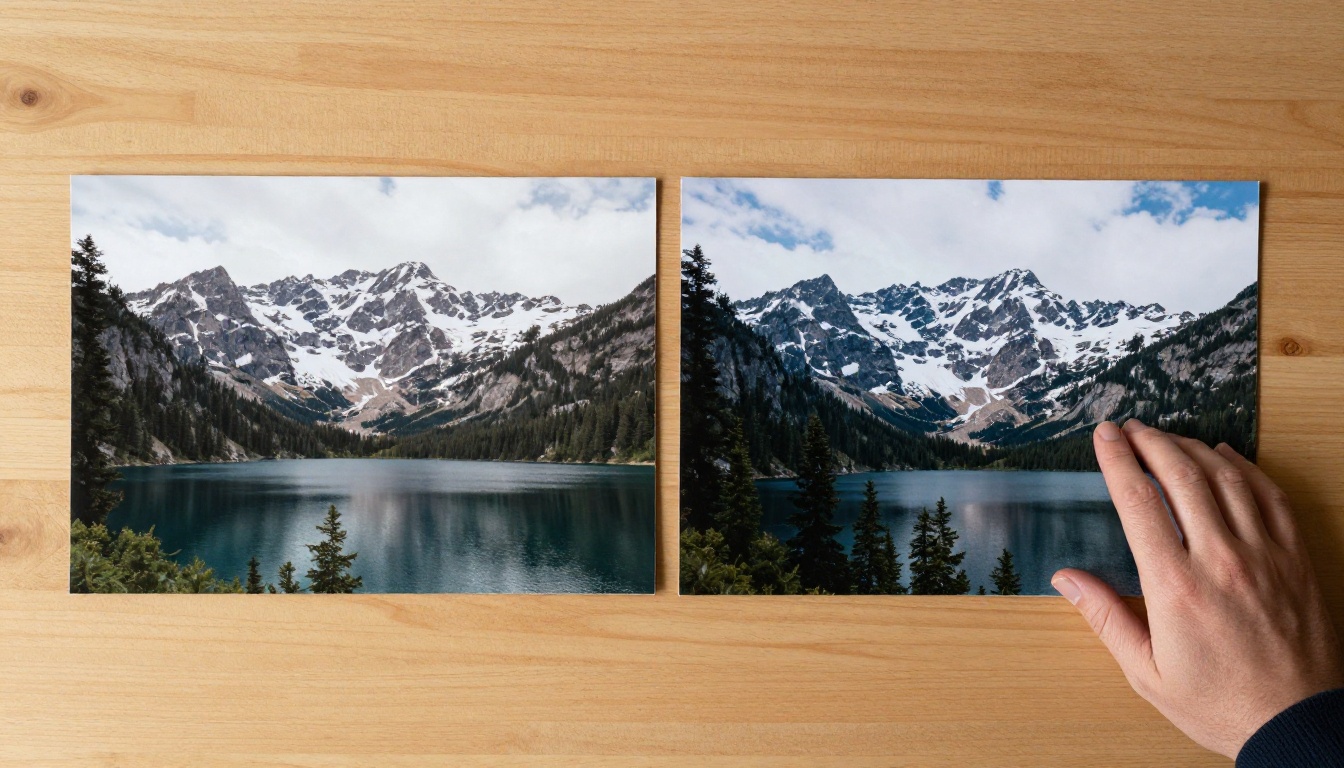
AI-edited photos sometimes lose fine detail in the areas that were regenerated. Running the result through a dedicated upscaler recovers texture and brings the edited image up to full resolution for print or high-DPI display.
Clarity Pro Upscaler
Clarity Pro Upscaler is built specifically for photorealistic images. It recovers micro-detail including skin texture, fabric weave, foliage grain, and surface reflections that diffusion models tend to soften during generation. The output is sharp without looking artificially processed.
Real ESRGAN
Real ESRGAN upscales images up to 4x and runs fast. It is the right tool when you need to increase resolution quickly for social media headers, print output, or high-DPI screens. Its training on real photographic content means it handles photographic subjects accurately.
For maximum final quality, Topaz Image Upscale offers up to 6x enlargement and delivers the sharpest results when output size is critical.
Upscaling matters most when:
- The edited area covers a large portion of the image
- You are outputting for print or large-format display
- The original source was lower resolution
- Fine detail like hair or fabric texture was in the regenerated region
Remove Backgrounds Without Masking
Background removal used to be tedious. Cutting around hair, loose fabric edges, and complex shapes with selection tools required both skill and time.
Bria Remove Background handles this automatically. It delivers clean cutouts that preserve fine hair strands, transparent elements, and loose fabric edges. The output is a clean transparent-background file ready for compositing or standalone use.
Pair it with Flux Kontext Dev for a two-step workflow: remove the original background precisely, then place the subject into a new scene with natural lighting integration via text prompt.
Restore Old and Damaged Photos
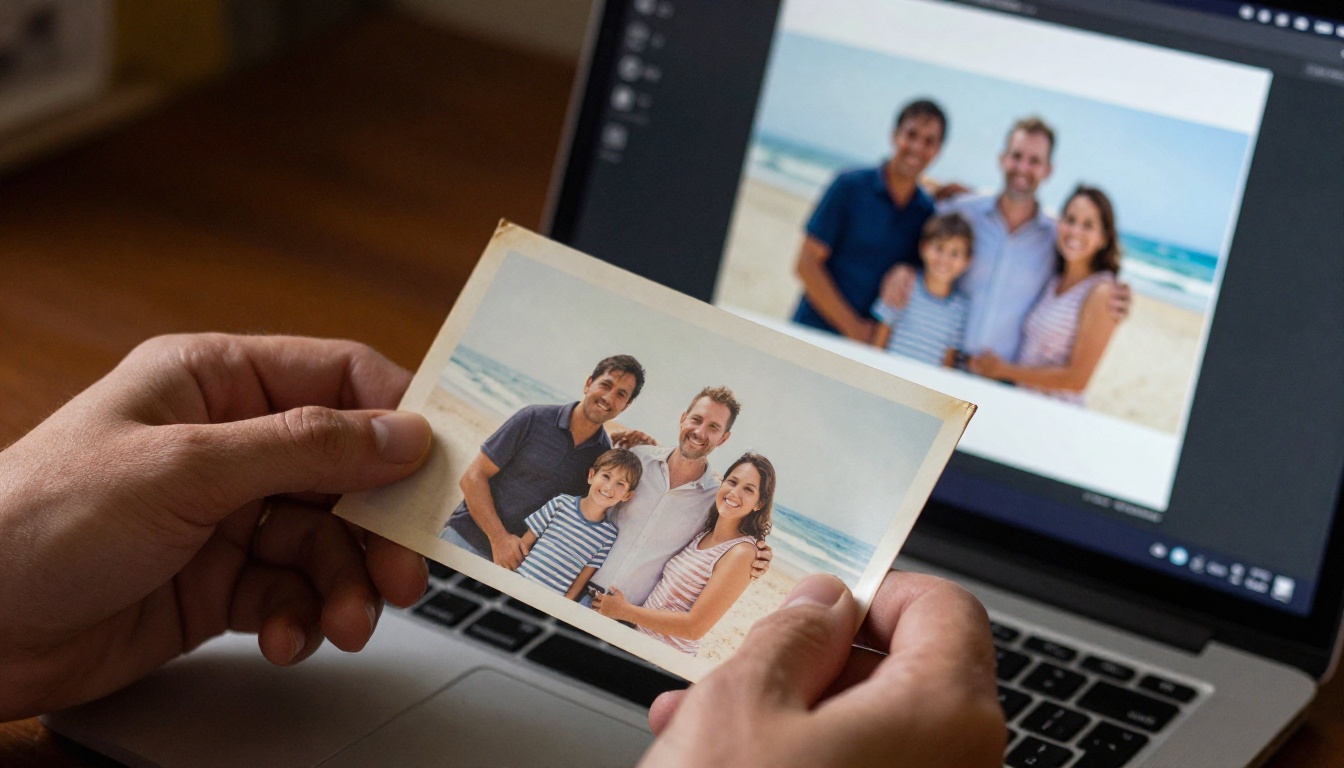
Beyond editing current photos, text-based AI editing works well on restoration tasks. Faded colors, film grain artifacts, dust scratches, and soft focus from old scanned photographs all respond to natural language instructions.
Prompts like "restore the colors to natural daylight tones and sharpen the image" or "reduce noise and correct the faded yellowing throughout" apply across the full image using the model's reading of what the original conditions should look like.
Follow restoration edits with Clarity Pro Upscaler to recover fine detail that the original scan may have lost. The combination of AI restoration plus upscaling produces results that are significantly better than either step alone.
Your Next Edit Takes One Sentence
You now have the full picture. Free AI image editors that respond to text are accessible without technical setup, and they produce professional-quality results for the edits that matter most.
Open PicassoIA Image Editor Pro and upload any photo you have been wanting to fix. Type one specific sentence about what needs to change. See what the output looks like in seconds.
For complex edits where every detail matters, try Flux Kontext Max. For fast iterations across multiple versions, switch to Flux Kontext Fast. For precise changes to specific regions, use Qwen Image Edit Plus.
The tools are free. The results are immediate. Pick a photo and start.


