Every week, thousands of people search for a free uncensored AI image maker for beginners, but most of what they find is either paywalled, heavily filtered, or simply broken. The honest answer is that truly open, unrestricted image generation has existed for years. The problem was never the technology. It was knowing where to look, and knowing how to use it once you got there.
This article cuts through the noise. You will find real tools, real models, and a working process for creating AI images without filters, from your first prompt to a polished result worth keeping. No credit limits, no content warnings for everyday creative subjects, no dead ends.
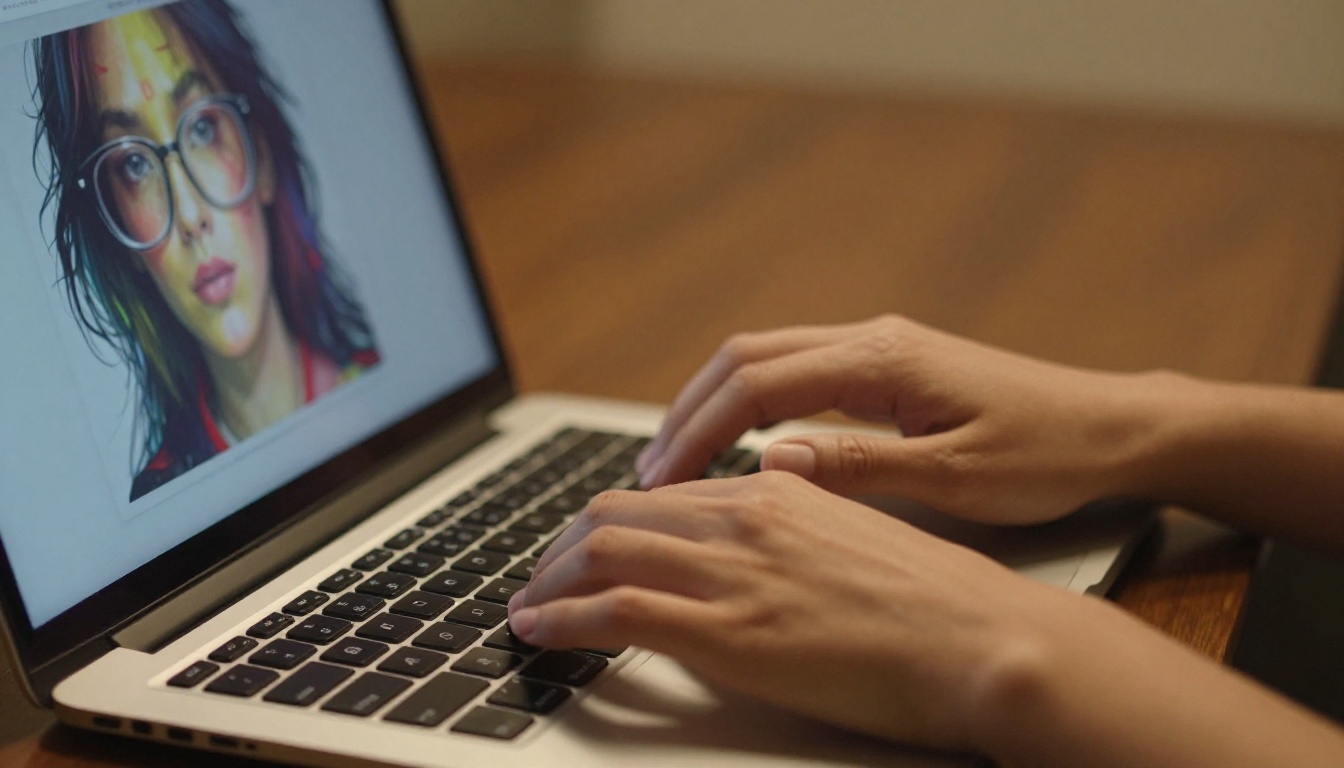
What "Uncensored" Really Means
The word "uncensored" gets used loosely in AI art circles, so let me be precise. Most mainstream AI image tools run every prompt through a content moderation layer before generating anything. That layer blocks specific words, topics, body parts, and styles. The result is an AI that refuses to draw a woman in a bikini, won't render artistic nudity, and throws an error when you try anything remotely suggestive.
Uncensored tools skip that layer, or give you control over how restrictive it is. That does not mean anything goes. It means the AI generates what you describe, within the limits of what the model was trained on, without a corporate filter making creative decisions for you.
Filtered vs. Open Models
Filtered models are not inherently bad. They work well for corporate marketing assets, educational content, or anything that needs to stay strictly professional. The problem is when beginners want to create glamour photography, fantasy art, or human figures in natural states and hit a wall at every attempt.
Open models, by contrast, are trained on broader datasets. They understand the full spectrum of visual art, including work that filtered tools would refuse. They treat you as a creator capable of making your own editorial decisions.
Why Beginners Hit Walls
The frustration usually follows a recognizable pattern. Someone tries a mainstream AI tool, gets a refusal message, searches for alternatives, lands on a confusing list of tools that require API keys or local GPU installation, and gives up. The gap between "I want to try this" and "I am actually creating" is filled with friction that should not exist.
The good news: platforms like PicassoIA have built that bridge. You open a browser, choose a model, type a prompt, and generate. No API key, no GPU, no installation required.
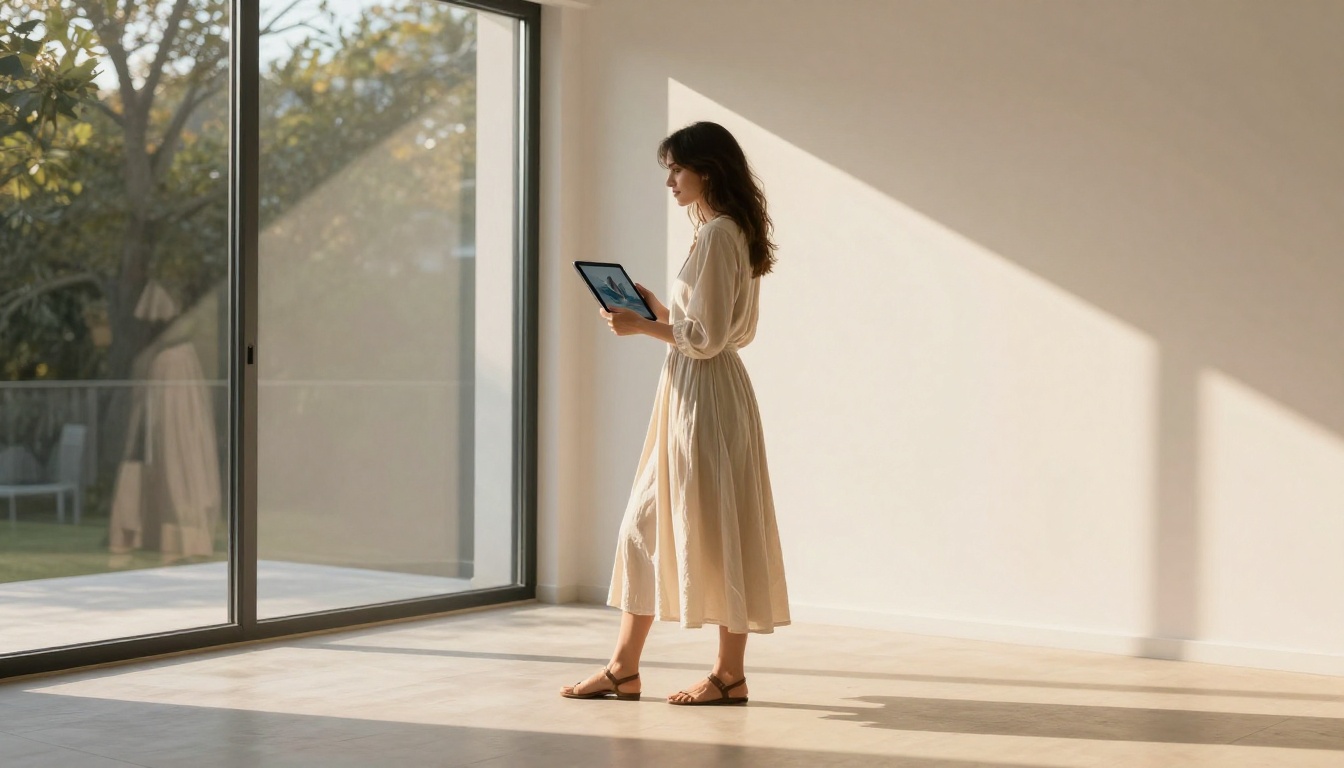
Seedream 4.5 Leads the Pack
If you only try one model, make it Seedream 4.5. Developed by ByteDance, Seedream 4.5 produces 4K-grade photorealistic images with a level of detail, skin texture, and lighting accuracy that most people associate with professional photography, not AI output. For a free uncensored image maker, it sets a very high bar.
The speed is also worth noting. Most generations come back in under 20 seconds. When you are running dozens of test prompts, waiting three minutes per image kills creative momentum. Seedream 4.5 keeps the pace fast enough that you can iterate in real time.
💡 Why Seedream 4.5 for NSFW and adult creative work? It handles human anatomy, fabric, skin, and lighting with the nuance that filtered models avoid entirely. Results look photographic rather than rendered, which is exactly what glamour, portrait, and artistic nude work requires.
Speed and Quality at Zero Cost
One of the surprising things about Seedream 4.5 on PicassoIA is that free access is real access. You are not getting a watered-down preview version. The same model that produces professional-quality output runs on the free tier.
The quality shows especially in faces. Facial structure, eye detail, lip texture, and skin tone gradients all render with accuracy. That matters enormously for portrait and glamour work, where an uncanny or plastic-looking face ruins everything.
Your First Prompt, Step by Step
Start simple. Here is a working beginner prompt for Seedream 4.5:
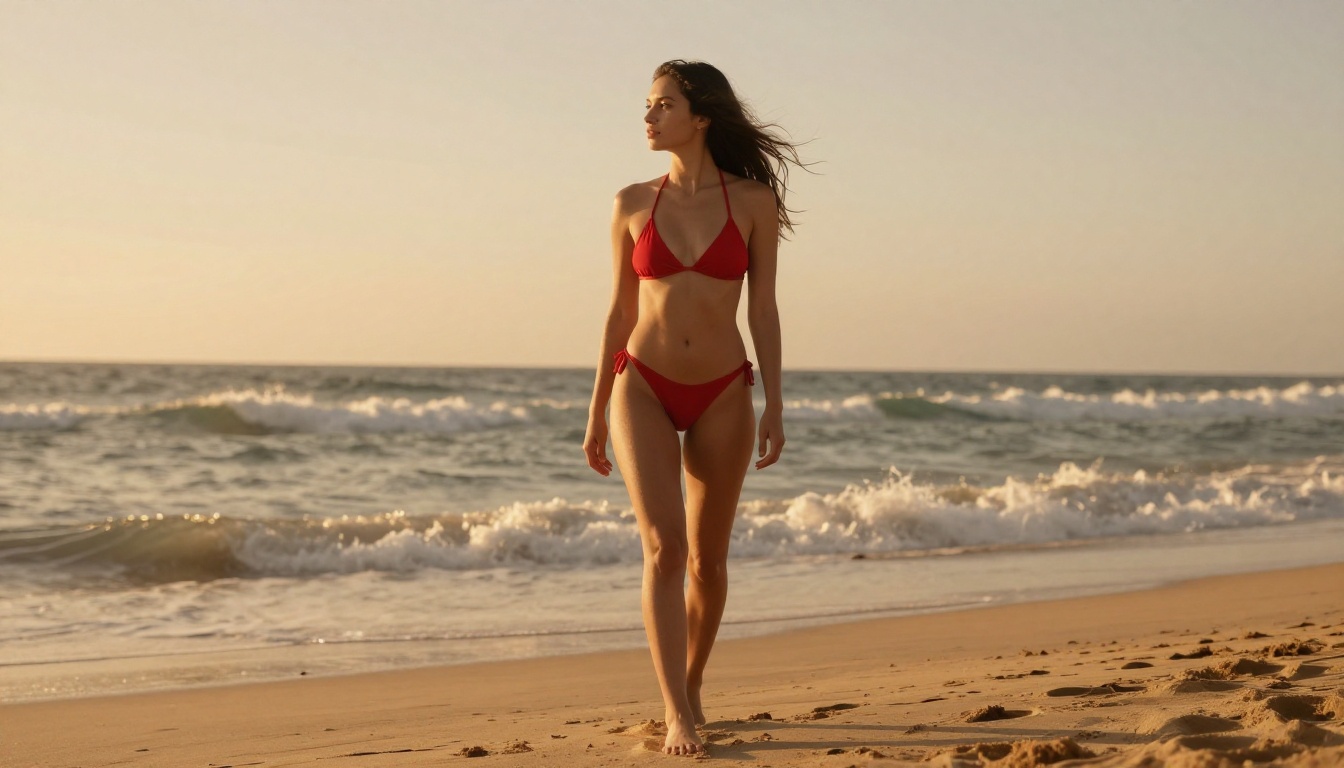
A woman in a red bikini standing on a sandy beach at golden hour, natural skin, wind in her hair, photorealistic, 8K
That description of a scene, combined with style keywords at the end, is enough to get a strong first result. Once you see what the model does with it, you can add specificity: the angle of light, the texture of fabric, the expression on her face. Each addition sharpens the output.
PicassoIA Image Editor Pro Has No Caps
PicassoIA Image Editor Pro is the second tool every beginner should use, and for a specific reason: unlimited generations. No daily limits, no credit timers, no waiting for your allowance to reset. You can run 200 images in a session if you want to. For beginners who need volume to build instinct, that matters enormously.
The model underneath Image Editor Pro is capable, covering a wide range of styles and subjects with consistent output quality. But the real value is the workflow it enables. You can iterate fast, compare outputs, build an instinct for prompt writing, and do it all without watching a counter.
Unlimited Generations, Explained
Most free AI image tools ration your usage. Five generations per day. Fifty credits per month. It sounds generous until you are deep in a creative session and hit the wall at the worst moment.
PicassoIA Image Editor Pro removes that friction entirely. The unlimited model means you create at the speed you want to create, not at the speed the platform allows. For beginners, removing that constraint is the difference between casual experiment and real creative practice.
Editing What You Generate
Beyond generation, PicassoIA Image Editor Pro lets you take what you created and keep refining it. You can inpaint specific areas (fix a hand, change the background, adjust clothing), outpaint to extend the canvas, and replace objects without touching the rest of the image.
That edit-in-place workflow is critical for creative control. You are not starting over every time something is slightly off. You are making surgical adjustments, which is how professional image creators actually work.
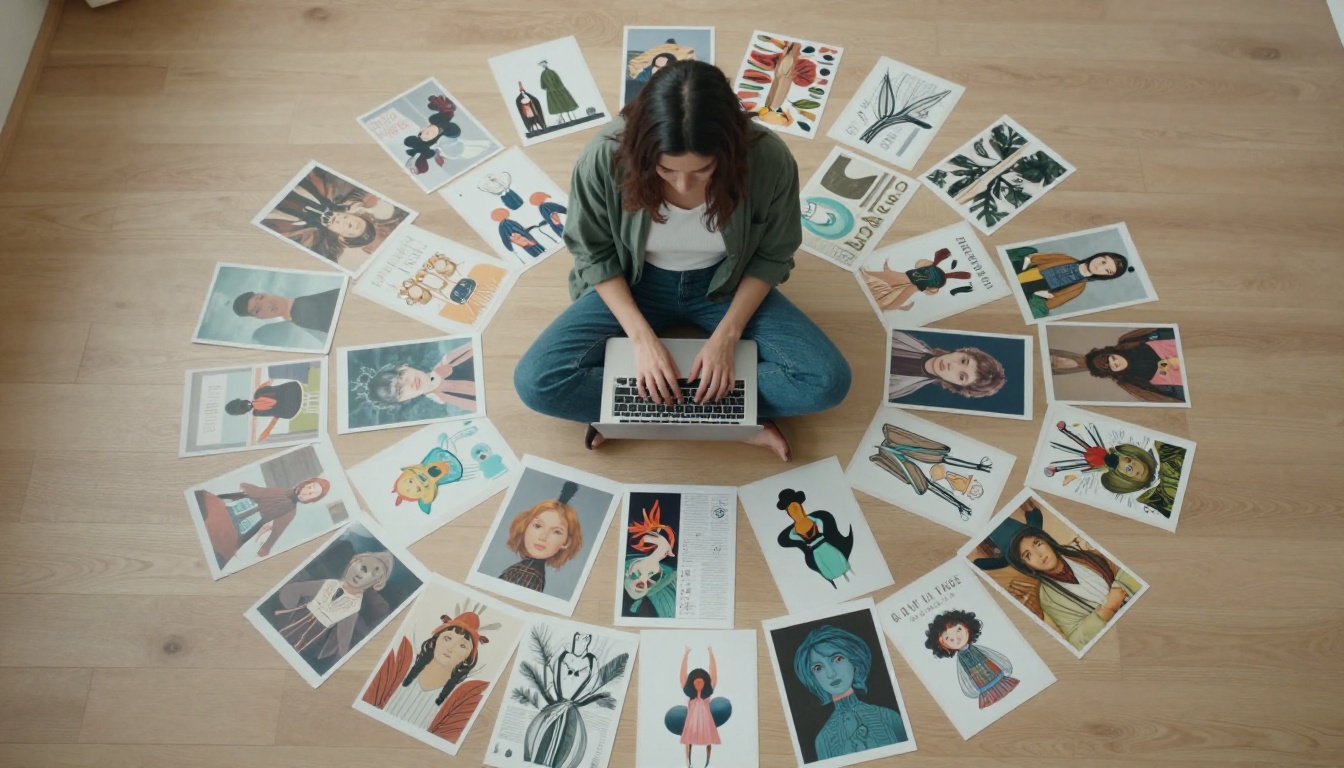
Flux and Stable Diffusion for Beginners
Beyond Seedream 4.5 and Image Editor Pro, PicassoIA gives beginners access to several models from the Flux and Stable Diffusion families. These models have different strengths, and matching the right model to the right task produces noticeably better results.
Flux Schnell LoRA: Instant Results
Flux Schnell LoRA is built for speed. Schnell means "fast" in German, and the name is accurate. Where Seedream 4.5 might take 15 to 20 seconds, Flux Schnell LoRA can return results in under five. For rapid prototyping where you are testing many prompt variations to find the right direction, that speed advantage is significant.
The LoRA layer on top of the base Flux architecture adds stylistic flexibility. You can push it toward photorealistic portraits, editorial fashion, or artistic illustration depending on how you write the prompt. For uncensored content, it handles human figures with the same openness as the other models on this list.
💡 Best use case: When you are testing 20 prompt variations and need to see which direction works, Flux Schnell LoRA lets you do that in minutes rather than hours.
Stable Diffusion 3: The Open Classic
Stable Diffusion 3 is the model that made open-source AI art accessible to the world. The version available on PicassoIA gives you browser access to one of the most tested, most community-refined models in existence without installing anything locally.
For beginners, that history matters. There is an enormous body of community knowledge about prompting Stable Diffusion effectively. Documentation, community examples, and parameter explanations are everywhere. When you are starting out, using a model with that depth of community support means you are never stuck without a reference.
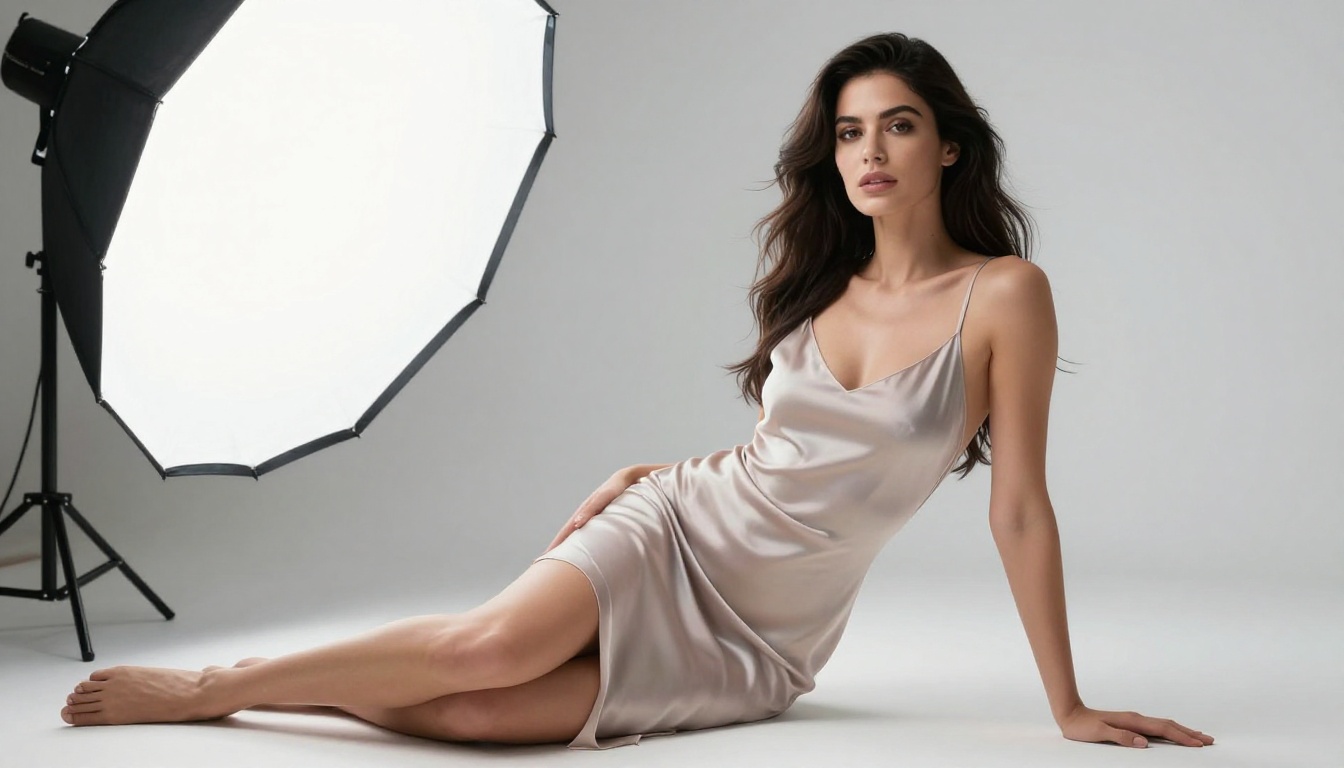
Writing Prompts That Get Results
The most common reason beginners get weak results from free uncensored AI image makers is not the tool. It is the prompt. A vague description produces a vague image. Specific, structured prompts produce specific, controlled results. Building that skill takes practice, but the principles are simple.
The Anatomy of a Strong Prompt
A strong prompt for photorealistic image generation typically follows this structure:
[Subject] + [Action or Pose] + [Environment] + [Lighting] + [Camera and Lens] + [Style Keywords]
Here is that structure in practice:
A woman sitting on a velvet chaise lounge, one arm draped over the backrest, in a candlelit baroque bedroom with heavy curtains, warm low-angle light from the left, shot with an 85mm f/1.4 lens, photorealistic, 8K, film grain
Each element adds a layer of control. The subject is clear. The pose is specific. The environment grounds the image. The lighting direction tells the AI where shadows fall. The lens tells it how much blur to add. The style keywords anchor the output in reality rather than abstraction.
| Element | What It Controls | Example |
|---|
| Subject | Who or what is in the image | "A woman in her thirties" |
| Pose or Action | Body language and motion | "reclining, gaze toward camera" |
| Environment | Background and setting | "sunlit beach, waves behind her" |
| Lighting | Tone, shadows, mood | "golden hour from the left" |
| Camera and Lens | Perspective and blur | "85mm f/1.4, shallow depth of field" |
| Style Words | Overall rendering quality | "photorealistic, 8K, Kodak Portra 400" |
3 Mistakes Every Beginner Makes
1. Vague subjects. "A beautiful woman" tells the AI almost nothing. "A woman with long auburn hair, early thirties, relaxed expression, natural makeup" gives it something to work with.
2. No lighting direction. Lighting is what makes an image feel real. Without it, the AI defaults to flat, directionless illumination that looks artificial.
3. Missing style anchors. Words like "photorealistic," "8K," "film grain," "RAW photography," and specific film stocks (Kodak Portra 400, Fujifilm Pro 400H) tell the model what quality level you are aiming for. Without them, results drift toward a generic AI aesthetic.
Upscaling What You Create
Most AI-generated images come out at 512x512 or 1024x1024 pixels. That is fine for web use but falls short for printing, large displays, or anything that requires cropping and reframing. Upscaling extends the resolution of your image without regenerating it, using a separate AI model trained specifically on super-resolution tasks.
Why Resolution Matters
A 512px portrait looks sharp on a phone screen and blurry on a monitor. The same image upscaled to 2048px or 4096px holds detail at any viewing size. For anyone planning to use AI-generated images beyond social media thumbnails, upscaling is a necessary step in the workflow.
Free Super-Resolution on PicassoIA
PicassoIA includes dedicated super-resolution models in its catalog. The Qwen Image Edit Plus LoRA Upscale model handles upscaling while simultaneously adding fine detail, not just stretching existing pixels. It sharpens textures, clarifies edges, and recovers facial detail that compression sometimes loses.
The workflow is simple: generate with Seedream 4.5 or Image Editor Pro, upscale the best result, and you have an output that holds up at any size.
💡 Tip: Upscale only your keepers. Running every generation through super-resolution adds time. Pick the one or two images per session worth keeping, then upscale those.
Ideas for Your First Images
One of the most common questions from beginners is not about tools or prompts. It is about what to actually create. Starting with a clear subject in mind produces better results than opening a blank prompt box and staring at it. Here are three categories worth trying first.
Glamour and Beauty Portraits
Glamour photography is one of the areas where uncensored AI image makers genuinely outperform their filtered counterparts. Filtered models refuse to generate women in swimwear, lingerie, or low-cut clothing. Uncensored models treat these as what they are: standard fashion and beauty photography subjects.
Start with a specific character. Give her a look, a setting, a mood. Then describe it precisely. Beach portraits at golden hour, rooftop shoots at dusk, studio work with dramatic lighting. The variety possible within the glamour genre is enormous, and Seedream 4.5 handles it with exceptional naturalness.
Fantasy and Character Art
AI image generation produces remarkable results for fantasy character work: warriors in armor, sorceresses in elaborate robes, elven archers in forest settings. These subjects generate beautifully with Flux Krea Dev and Stable Diffusion 3, giving beginners an intuitive starting point where creative possibilities are immediately obvious.
The difference between generic and memorable is specificity in costume detail. "A warrior" is generic. "A female warrior in worn iron plate armor, leather bracers, standing in a mist-covered pine forest at dawn, 85mm portrait lens" is a starting point for something worth keeping.
Artistic Nudes and Fine Art
Artistic nudity has a centuries-long history in visual art. Painting, sculpture, photography, and illustration have all treated the human body as a subject of beauty, form, and emotional resonance. AI image generation extends that tradition into a new medium.
For this category, framing is everything. Describe the setting, the lighting, the mood, and the emotional quality of the image before describing the subject. A baroque-lit figure study reads as art. A clinical description produces something clinical. The framing in your prompt shapes the framing of the output.
Seedream 4.5 handles this category with exceptional quality, particularly for skin tone accuracy, lighting subtlety, and the kind of anatomical detail that distinguishes genuine artistic output from generic generation.
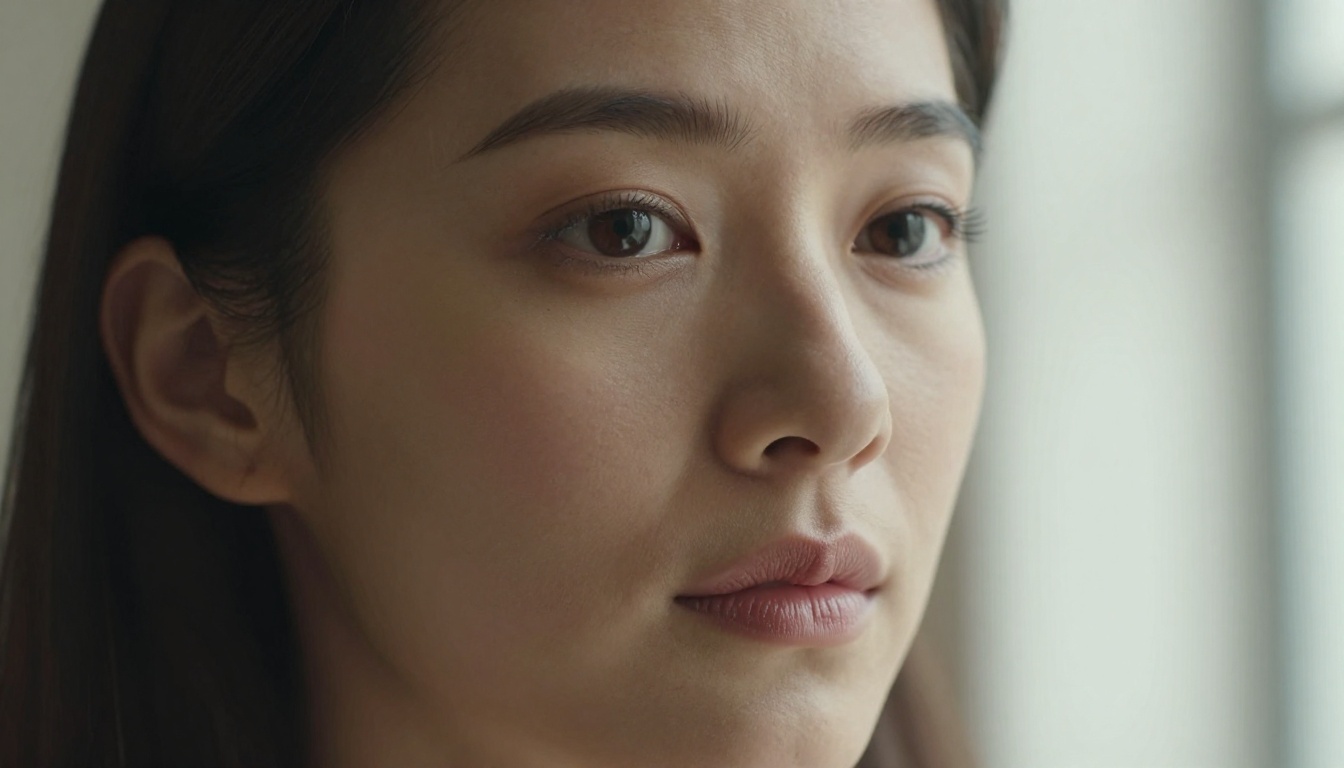
All the Models Worth Knowing
Here is a quick reference for the PicassoIA models mentioned in this article, along with their primary strength:
| Model | Best For | Link |
|---|
| Seedream 4.5 | Photorealistic portraits, NSFW, 4K output | Open Model |
| PicassoIA Image Editor Pro | Unlimited generation, editing, iterations | Open Model |
| Flux Schnell LoRA | Fast prototyping, style testing | Open Model |
| Stable Diffusion 3 | Open-source classic, deep community support | Open Model |
| Flux Krea Dev | Natural, non-AI-looking output | Open Model |
| Flux Fill Pro | Inpainting, editing specific areas | Open Model |
| Qwen Image Edit Plus LoRA Upscale | Super-resolution, sharpening generated images | Open Model |
Your First Image Is Waiting
The tools exist, they are free, and they are ready right now. Seedream 4.5 is where to start for the highest quality output. PicassoIA Image Editor Pro is where to go when you want to run unlimited experiments without hitting a ceiling. And the full catalog at picassoia.com/en/all-models gives you the complete range when you are ready to go deeper.
Pick a subject you are genuinely curious about. Write a detailed prompt using the structure in this article. Generate, adjust, and iterate. The first image you make will not be perfect. The tenth will be closer. The fiftieth will surprise you.
That progression, from curious first-timer to someone who can pull a specific image from an AI model with precision, starts with a single prompt. Open PicassoIA and write yours.


