Your phone is already a production studio. The only thing missing is the right software.
That's the reality in 2027: free video generator tools that work on mobile have gone from "good enough" to genuinely impressive. AI models that used to require a desktop GPU and an API key are now accessible through a browser tab on your phone. If you're still waiting to get to your laptop before creating video content, you're leaving time and reach on the table.
This piece covers the best no-cost options available right now, what to watch out for, and how to get clean, shareable results straight from your smartphone.
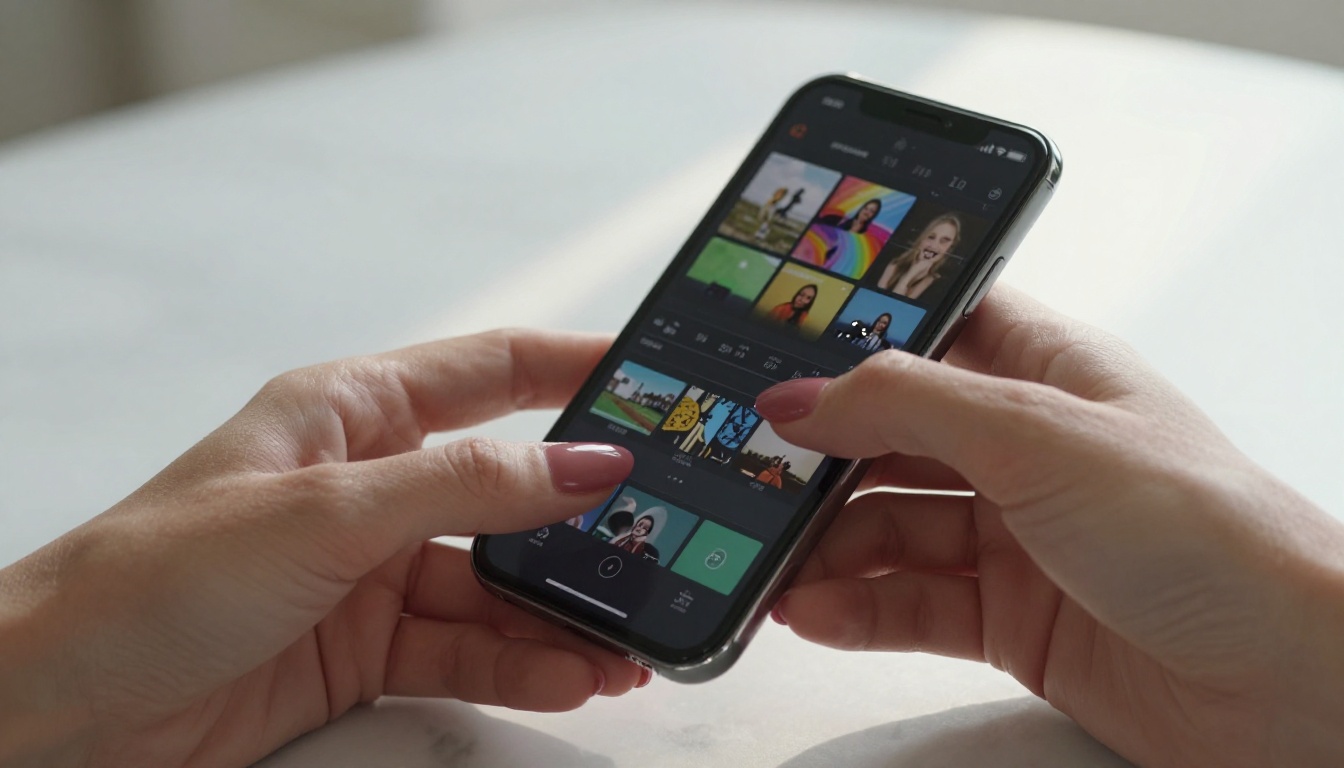
Why Mobile Video Creation Took Over
Two years ago, most "mobile-friendly" video tools were just scaled-down desktop apps with broken touch interfaces. That changed fast. Compute costs dropped, browser capabilities expanded, and AI inference got fast enough that generating a short video clip on a phone became realistic.
The shift isn't just technical, it's behavioral. Content creators, small business owners, and everyday people don't want to sit at a desk to make a 30-second clip. They want to shoot something, add a generated scene, and post it, all from the same device, in under ten minutes.
What changed in the last two years
Mobile chipsets caught up to the demand. Modern iPhones and high-end Android devices can now handle real-time video processing that would have required cloud rendering two years ago. On top of that, browser-based AI platforms removed the need for native apps entirely. You open a URL, type a prompt, and get a video back.
The other big shift: the free tiers got real. Platforms compete hard for user acquisition, which means genuinely usable credits for free accounts, not just a watermarked 5-second demo.
App vs. browser: the real difference
Apps give you a native experience with better touch controls and offline editing capability. Browser-based tools give you access to more powerful AI models without needing to manage app updates or storage. For free AI video tools, browser-based options are usually ahead on raw output quality because they can run larger models server-side.
Tip: For the best of both worlds, use a browser tool for AI generation and a native app for final trimming and export formatting.

Not all free plans are created equal. Some are generous enough to build a real workflow around. Others are demo traps designed to get you to upgrade after one clip.
Watermarks are a dealbreaker
A watermark on a social media video tanks your credibility instantly. Before committing to any free tool, check the export policy carefully. Some platforms offer watermark-free exports on free plans up to a certain resolution or clip length. Others watermark everything.
Free tools with no watermarks at limited usage:
- PicassoIA free tier community models
- PixVerse free daily credits
- LTX-2 Distilled community access
Resolution and export limits
720p is the bare minimum for anything going online in 2027. Most free tools cap resolution at 720p or 1080p, which is usable. Watch for:
- Clip length caps: many free tiers cap at 5-10 seconds per generation
- Daily generation limits: credits reset daily on most platforms
- Queue times: free users often wait longer than paid accounts
| Feature | Free Tier Average | What You Actually Need |
|---|
| Resolution | 720p | 1080p minimum |
| Clip Length | 5-8 seconds | 10-15 seconds |
| Daily Credits | 10-20 | 15+ for regular use |
| Watermark | Sometimes | None |
| Queue Priority | Low | Medium or higher |

These are the platforms worth your time in 2027, based on free tier usability on a mobile device.
LTX-2 Distilled: fastest free generation
LTX-2 Distilled by Lightricks is built for speed. It's the free-tier version of the LTX line and generates short clips in seconds rather than minutes. The quality is solid for social content, and there's no watermark on standard exports through supported platforms.
It handles text-to-video entirely, meaning you describe a scene and it creates the footage. Works in-browser with no app installation, so your phone can access it without giving up storage space.
Best for: Quick social content, testing creative ideas before committing to a longer generation.
PixVerse v5.6: generous credits, great motion
PixVerse v5.6 consistently delivers some of the most fluid motion quality among platforms with free access. The free credit allowance resets daily and is enough for 3-5 quality clips per day, which covers most casual creators.
The mobile web interface is cleaner than most, with easy prompt input and preview playback that works smoothly on touchscreens.
Best for: Short-form video with smooth motion, Instagram Reels content.
Kling V3: highest output quality
Kling V3 is the flagship model from Kwai and produces noticeably sharper, more cinematic output than most free competitors. The free tier is more limited in daily credits, but each generation is worth spending them on.
Motion control options make it stand out: you can influence camera movement and subject behavior more precisely than most text-to-video tools allow.
Best for: High-quality clips where every second needs to look polished.
Seedance 1 Lite: fast results for Android
Seedance 1 Lite by ByteDance is optimized for speed without totally sacrificing quality. Generation times are short, and the free tier is accessible enough for daily use. On Android devices specifically, the browser interface renders cleanly without the lag some heavier tools produce.
Best for: Android users who need fast turnaround on short clips.
LTX-2.3-Fast: balance of speed and quality
LTX-2.3-Fast sits between the distilled free version and the full Pro model. It's faster than LTX-2.3-Pro while producing noticeably better output than the Distilled tier. A solid option if you want more than the bare minimum without waiting on premium generation queues.

This distinction matters more than most people realize when working on mobile.
When your browser is enough
For AI video generation, the browser is almost always the right choice. The AI model runs on the platform's servers, so your phone just needs to send a prompt and receive the output. A five-year-old phone can use Veo 3 or LTX-2.3-Pro in a browser just as well as a flagship device.
WAN 2.6 T2V and Hailuo 2.3 are both accessible via browser with free credits, producing results that most native apps can't match on their own.
Tip: Save the page to your home screen on iOS or Android for a near-app experience without the download.
Apps that do it better
For editing footage you've already shot, native apps win. Touch controls on a timeline editor work better in a dedicated app. For AI-assisted trimming, auto-captions, and format adjustment (converting 16:9 to 9:16 for vertical video), native apps are faster and more reliable.
A practical workflow: generate in-browser using AI tools, edit in a native app for final formatting and audio.
Using PicassoIA for Text-to-Video on Mobile
PicassoIA gives you access to over 87 text-to-video models from one platform, all accessible from your phone's browser. That's a significant advantage over hunting down individual tools with separate accounts and credit systems.
How to generate a video from your phone
The workflow is straightforward:
- Open PicassoIA in your mobile browser
- Go to the Text to Video collection
- Pick a model based on your goal (speed vs. quality vs. style)
- Type your prompt in the text field
- Adjust available parameters (duration, aspect ratio, motion intensity)
- Hit generate and wait for the output
- Download directly to your phone's camera roll
The whole process takes 2-3 minutes on fast models, up to 10 minutes on premium quality ones.
Best models to try first
If you're new to AI video generation on mobile, start here:
For speed: LTX-2.3-Fast or Seedance 1 Lite
For quality: Kling V3 or LTX-2.3-Pro
For cinematic footage: Gen-4.5 by Runway or Veo 3
For fast free generation: LTX-2 Distilled
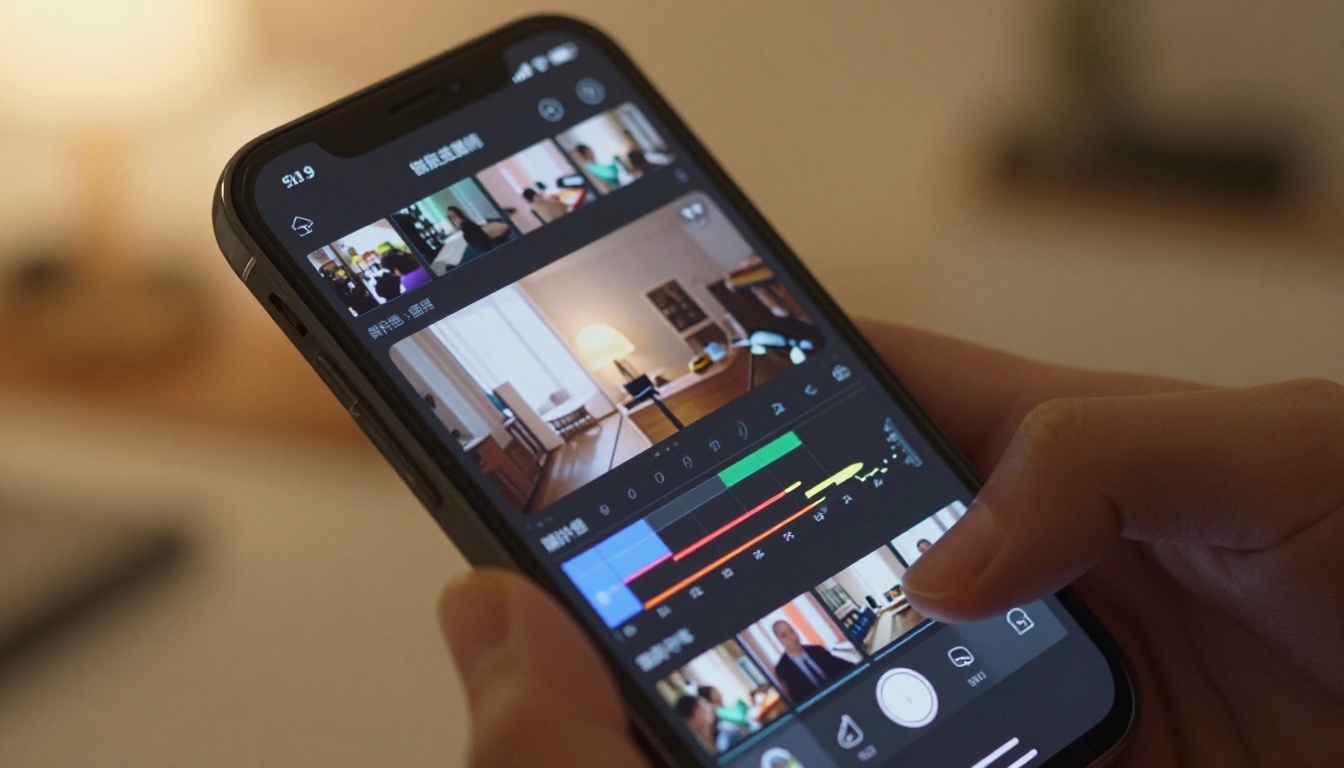
The platform you're posting to determines the format you need. Most AI tools default to 16:9 landscape, but social media in 2027 skews vertical.
TikTok and Instagram Reels
Both platforms favor 9:16 vertical video. Check your chosen tool's aspect ratio options before generating. PixVerse v5.6 and Kling V3 both support vertical output natively.
For TikTok, clip lengths of 15-30 seconds perform well. Most AI tools generate 5-10 second clips, so plan to either loop your output or chain multiple generations together in a native editing app.
YouTube Shorts
YouTube Shorts uses vertical 9:16 at 1080x1920. The minimum quality requirement is higher than TikTok, so lean toward quality-focused models like Kling V3 or Gen-4.5 for Shorts content.
Tip: Generate at 16:9 first to see the full scene, then crop to 9:16 in your native editing app. This gives you more control over what gets cut at the edges.

Common Problems with Free Plans (and What to Do)
Watermarks on exports
If a tool adds a watermark on the free tier, your options are: upgrade, switch to a platform offering clean exports, or use the watermarked version only for internal review. PicassoIA's community model access doesn't add watermarks to generated output, which makes it a strong default for free-tier smartphone video production.
Credit exhaustion mid-project
Running out of credits halfway through a project is frustrating. The fix: plan your generations before starting. Write out all the prompts you need, run them sequentially, and save outputs immediately. Spreading generations across two days is a common workaround when daily limits are the constraint.
Long queue times on free tiers
Premium users get priority in generation queues. On high-traffic models, free users can wait 5-15 minutes per clip. Use faster models like LTX-2.3-Fast during peak hours and save quality-intensive models like LTX-2.3-Pro for off-peak generation.
| Problem | Quick Fix |
|---|
| Watermarks on export | Switch to a platform with clean free exports |
| Out of daily credits | Plan all prompts in advance, split across days |
| Long queue times | Use faster models during peak hours |
| Poor video quality | Add more scene detail to your prompt |
| Wrong aspect ratio | Check tool settings before generating, not after |

Real Tips for Better Mobile Video Output
Lighting makes or breaks it
For footage you're shooting yourself, lighting matters more than the camera. Natural window light from the side is almost always better than the built-in LED panels most people use. Shoot facing a window or door, not with the light source behind you. The quality difference between good and bad lighting is larger than the difference between most free and paid AI tools.
For AI-generated clips, lighting is a prompt parameter. Include it explicitly: "warm afternoon sunlight from the left," "overcast soft daylight," "golden hour backlight." Vague prompts produce generic results.
Prompt writing for AI video tools
The single biggest factor in AI video quality is the specificity of your prompt. Compare these two:
Weak prompt: "a woman dancing"
Strong prompt: "a woman in a red summer dress spinning slowly on a rooftop terrace at golden hour, warm light from the left, slow motion, cinematic, 35mm"
The second prompt gives the model composition, lighting, movement, and style. Every detail you add reduces the model's guesswork and raises output consistency.
Prompt structure that works:
- Subject and action
- Setting and environment
- Lighting direction and quality
- Camera angle and movement
- Style or mood modifiers
Tip: Write prompts in present tense, describing what's happening in the scene. AI video models respond better to descriptive scene language than instructional commands.
Chain short clips for longer videos
Most free tiers cap clips at 5-10 seconds. For longer content, generate multiple clips with consistent subject descriptions and chain them in your native editing app. P-Video adds image-to-video capability: generate a still image first, then animate it, maintaining visual consistency across a sequence of clips.

Start Creating Your First AI Video Right Now
The barrier to making a sharp AI-generated video from your phone in 2027 is basically zero. You have a browser, you have a phone, and you have access to models like LTX-2 Distilled, PixVerse v5.6, and Kling V3 for free.
PicassoIA puts all of these in one place, with a mobile-optimized browser experience and over 87 text-to-video models to experiment with. You're not locked into one model's aesthetic or one platform's credit system. Try Gen-4.5 by Runway for cinematic output, switch to Seedance 1 Lite for fast social clips, and use WAN 2.6 T2V when you want more motion control, all from the same account.
Pick a model, type a scene description, and see what comes back. The first clip is free.


