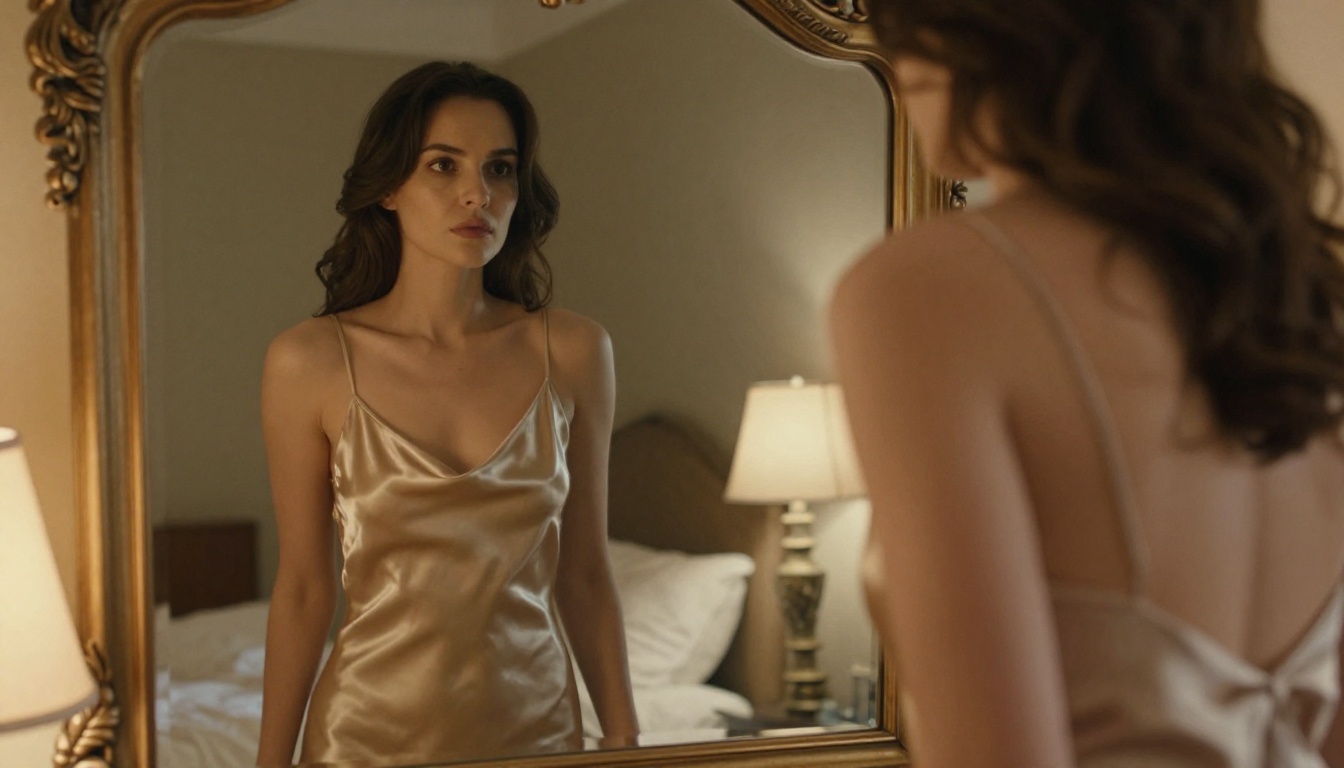
If you've tried generating NSFW AI images on your phone and got bland, generic, or flat-out disappointing results, the problem probably wasn't your idea. It was the model and the prompt. The good news: with the right setup, your phone is a completely capable device for producing photorealistic, suggestive, and glamorous AI images, no desktop required.
This article walks you through exactly how to do it, from picking the model to writing prompts that convert into the images you actually want.
What "NSFW AI Images" Actually Means
Not all NSFW content is the same. There's a wide spectrum, and understanding where you're working within it saves you wasted generations.
Artistic vs. explicit: where the line sits
For the purposes of this article, we're focused on non-explicit NSFW, which includes:
- Bikini and swimwear photography
- Glamour and lingerie-style imagery
- Artistic implied nudity (tasteful, aesthetic, non-pornographic)
- Editorial fashion with suggestive styling
This type of content sits in the creative and artistic tier. It's what you'd see in a fashion magazine, a high-end swimwear campaign, or a contemporary boudoir photography portfolio. Most AI platforms, including Picasso IA, support this range.
💡 Important: Explicit pornographic content falls outside what most AI generation platforms allow. Stick to the artistic tier for the best results and the most model options.
Why mobile AI image generators improved fast
Two years ago, generating decent images on mobile meant waiting 40+ seconds per image and dealing with watermarks or resolution caps. That changed dramatically. Today's best models like Flux 1.1 Pro Ultra and Flux 2 Pro run through web interfaces that work perfectly on any modern phone browser. No app download, no waiting for software updates, no compatibility issues.

The Best AI Models for NSFW on Mobile
The model you choose has a bigger impact on the result than the prompt. Here's what's available and what each one does well.
Flux 1.1 Pro Ultra: the benchmark
Flux 1.1 Pro Ultra is the top pick for photorealistic NSFW imagery. It handles human anatomy, skin texture, and lighting with a level of accuracy that older models struggled with. It's particularly strong for:
- Close-up portrait and beauty shots
- Bikini and swimwear in outdoor natural lighting
- Fashion editorial with implied sensuality
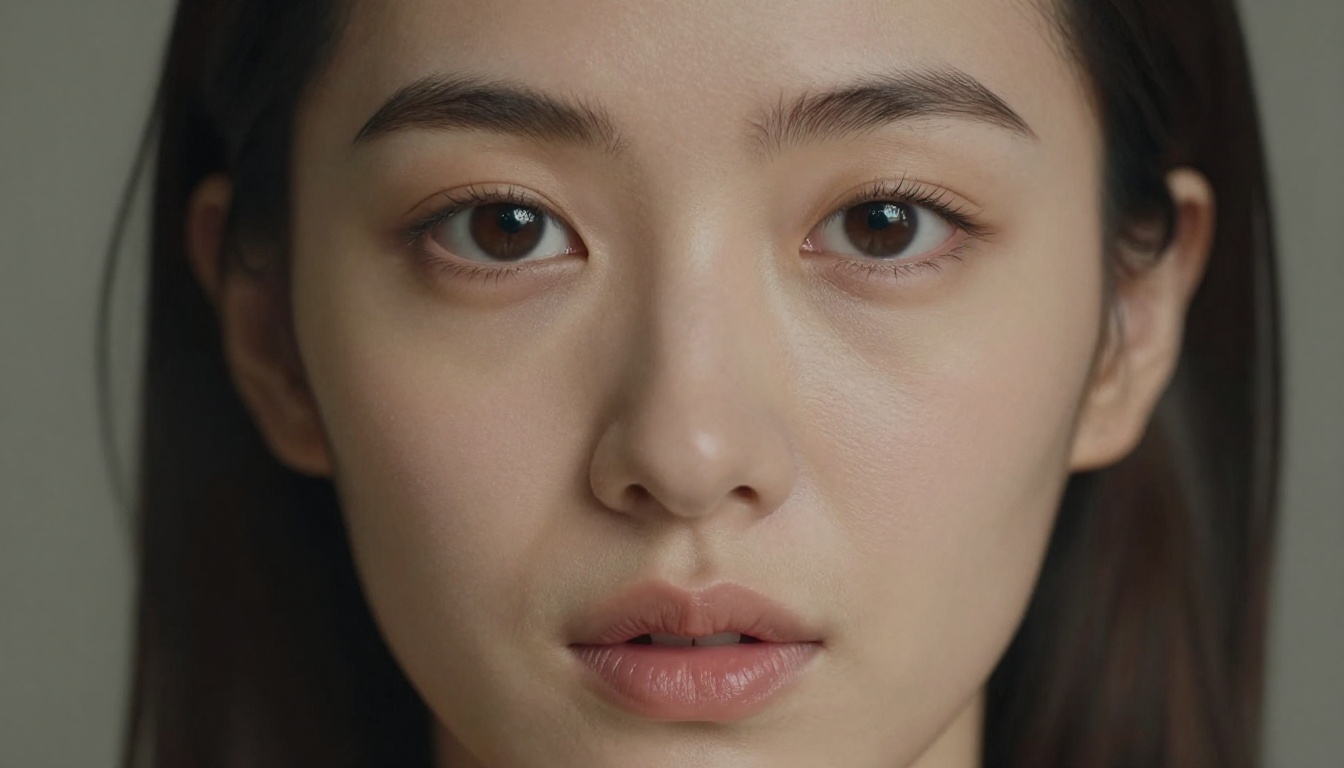
The detail fidelity at 16:9 ratio is exceptional. You'll see actual skin pores, light reflections on lips, individual hair strands rendered with precision.
Realistic Vision v5.1: built for realism
Realistic Vision v5.1 was purpose-built for photorealism. It handles body proportions accurately and produces natural skin tones across different ethnicities and lighting conditions. For boudoir-style or implied nudity, it's one of the most consistent performers.
SDXL with LoRA combinations
SDXL paired with LoRA models via SDXL Multi ControlNet LoRA opens up style-specific control. You can fine-tune the model's behavior toward specific aesthetic sub-types (like soft glamour vs. high-contrast fashion) while maintaining photorealism.
Other strong options
How to Use Picasso IA on Your Phone
Picasso IA runs fully in-browser. No app, no lengthy account setup beyond a free registration. Here's the step-by-step.
Step 1: Open the browser
Open any mobile browser (Chrome, Safari, or Firefox all work). Navigate to picassoia.com. The site is fully responsive and designed for mobile interaction. Tap Collection in the top navigation to browse all available models.
Step 2: Pick your model
For your first NSFW generation, go with Flux 1.1 Pro Ultra or Realistic Vision v5.1. These give you the best photorealism without needing to fine-tune technical settings.
Tap the model card, then tap Try it to open the generation interface.
Step 3: Write your prompt
The prompt input field appears at the top of the interface. This is where most people stumble. More on exactly how to write prompts in the next section, but for now, type a starting prompt like:
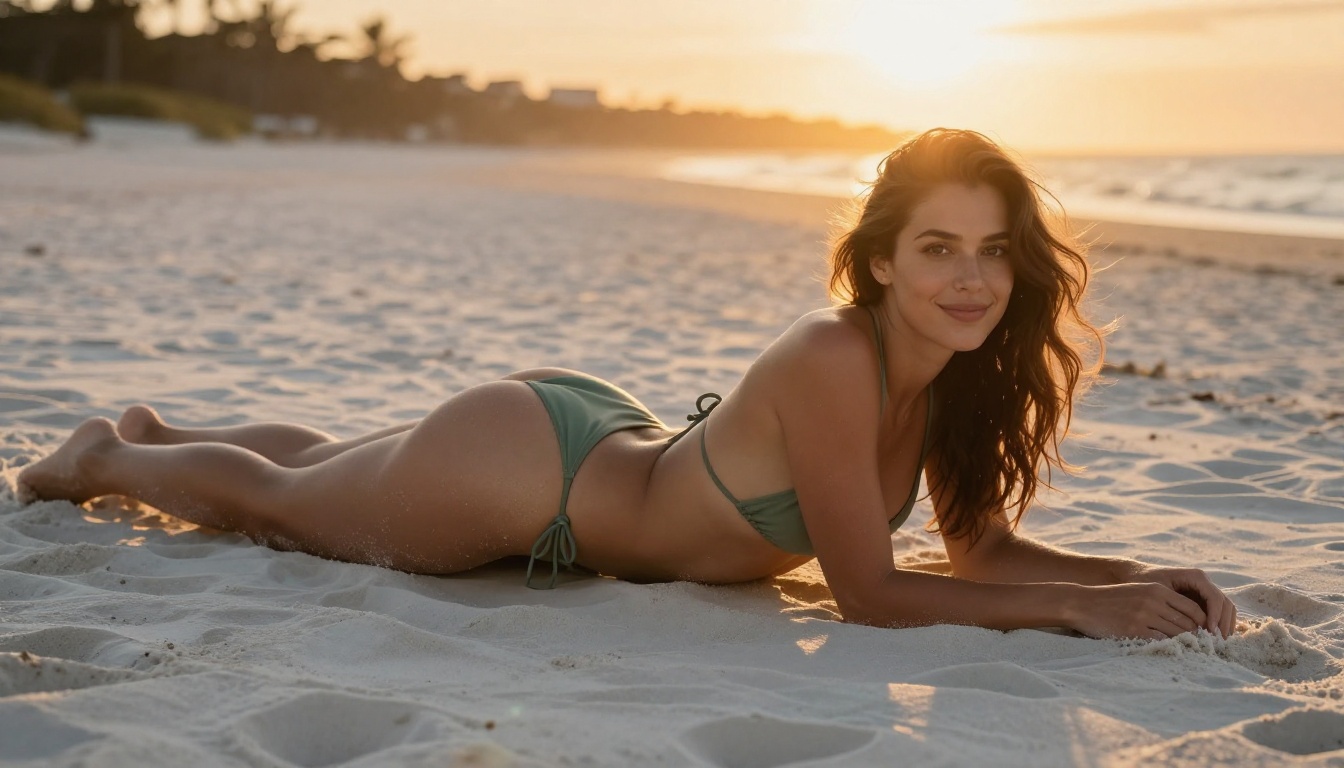
"A woman in a sage green string bikini lying on a white sand beach at sunset, photorealistic, 8K, Kodak Portra 400, cinematic lighting, 85mm f/1.8"
Step 4: Set the aspect ratio
Tap the Aspect Ratio selector and choose 16:9 for widescreen, or 9:16 for vertical portrait orientation. For full-body shots, 9:16 tends to work better. For landscape scenes or editorial-style wide shots, stick with 16:9.
Step 5: Generate and iterate
Hit Generate. The first result is a starting point. From there, refine:
- If the lighting looks flat, add "volumetric side light from the left" to the prompt
- If the skin texture looks synthetic, add "realistic skin pores, Kodak film grain"
- If body proportions are off, add "natural body proportions, anatomically accurate"
💡 Tip: Run 3-4 variations before editing the prompt. Model results vary significantly between seeds. Sometimes the second or third generation is dramatically better than the first.

Writing Prompts That Actually Work
The prompt accounts for roughly 60% of the final result. A weak prompt with a strong model still produces mediocre images. A detailed, structured prompt transforms the same model into a precision tool.
The anatomy of a strong NSFW prompt
A high-performing prompt has these five layers, in order:
- Subject + Action/Pose: Who are they, what are they doing, what they're wearing
- Environment/Background: Where the scene takes place, what surrounds them
- Lighting: Direction, color temperature, quality (soft vs. hard)
- Camera/Lens: Angle, focal length, aperture, shooting distance
- Style/Atmosphere: Film stock, texture keywords, mood descriptors
Weak prompt: "Beautiful woman in lingerie"
Strong prompt: "A woman in a silky champagne slip dress sitting sideways on a velvet chaise lounge in a sun-filled studio apartment, floor-to-ceiling windows behind her, diffused morning light wrapping around her silhouette, 85mm f/1.8, shallow depth of field, Fuji 400H grain, editorial fashion photography, photorealistic 8K"
The difference in output quality between these two prompts, on the same model, is significant.
5 prompt mistakes people make
- Too short: Fewer than 15 words gives the model almost nothing to work with
- No lighting direction: "Good lighting" is meaningless. "Soft diffused window light from the left" is specific and actionable
- Forgetting film grain: Adding "Kodak Portra 400" or "Fuji 400H" immediately makes skin tones look far more natural
- Missing the camera spec: Without a focal length like "85mm f/1.4," the model defaults to generic, flat perspectives
- Generic descriptors: Words like "beautiful," "sexy," and "hot" are so overused they barely register. Describe specifically what you want visually
Ready-to-copy prompt templates
Beach Glamour:
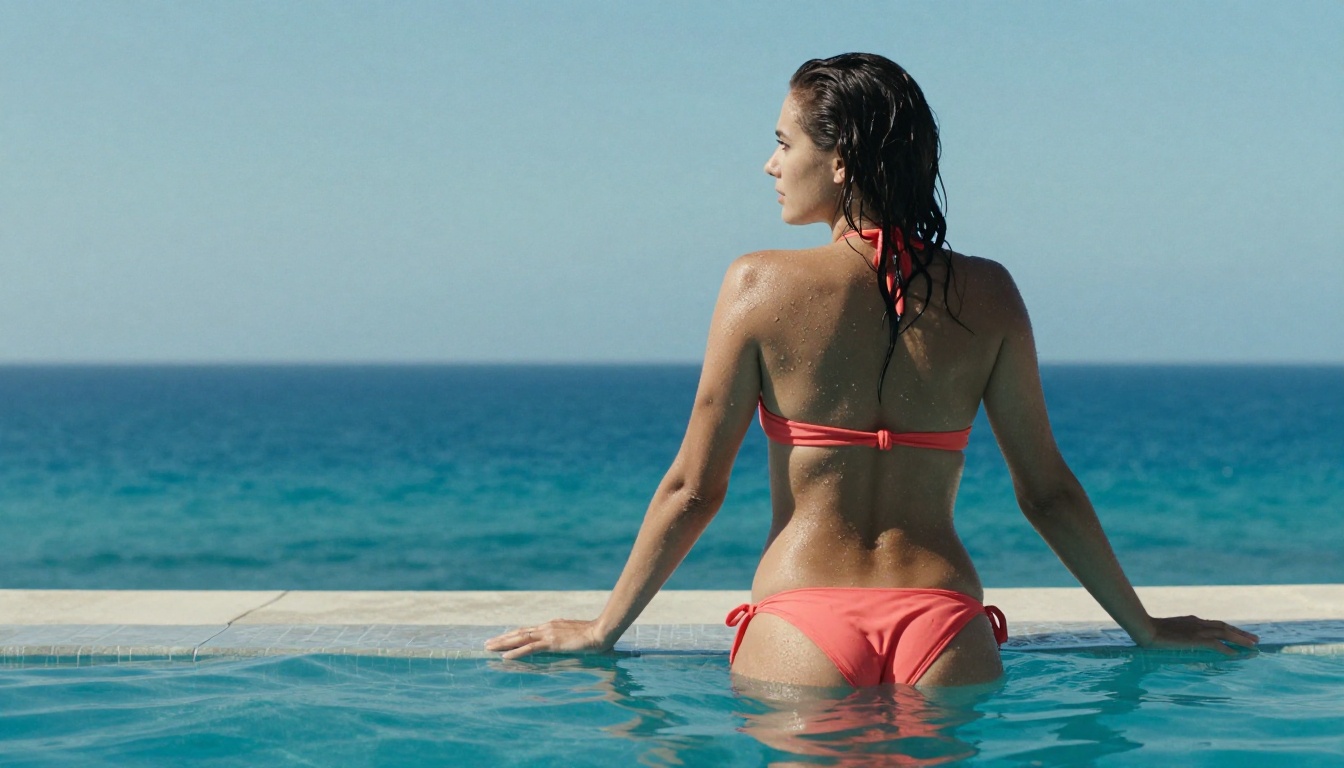
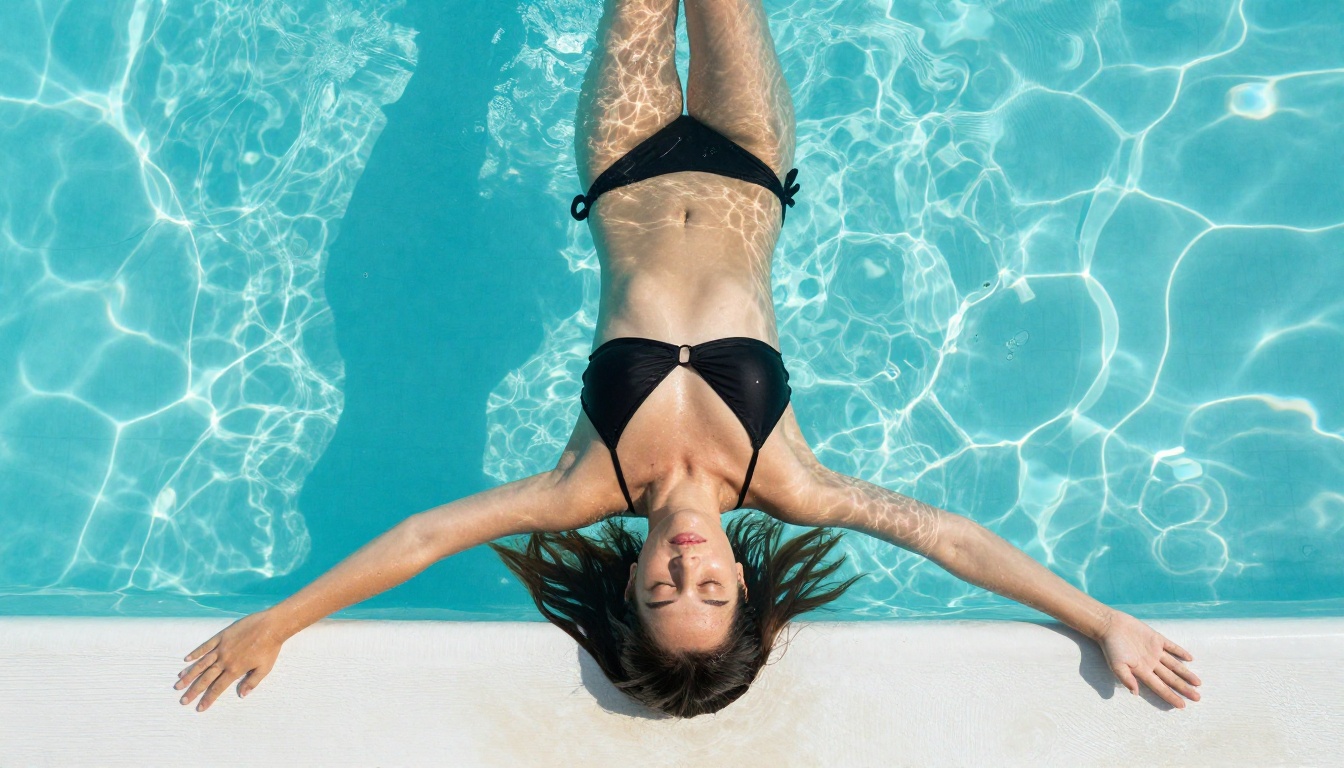
"Woman in a coral bikini at an infinity pool edge, turquoise water behind her, midday tropical sun creating sharp rim light on her shoulders, water droplets on skin, 50mm f/2.0 from pool deck level, fine skin texture, Kodak Portra 400, photorealistic 8K"
Boudoir Editorial:
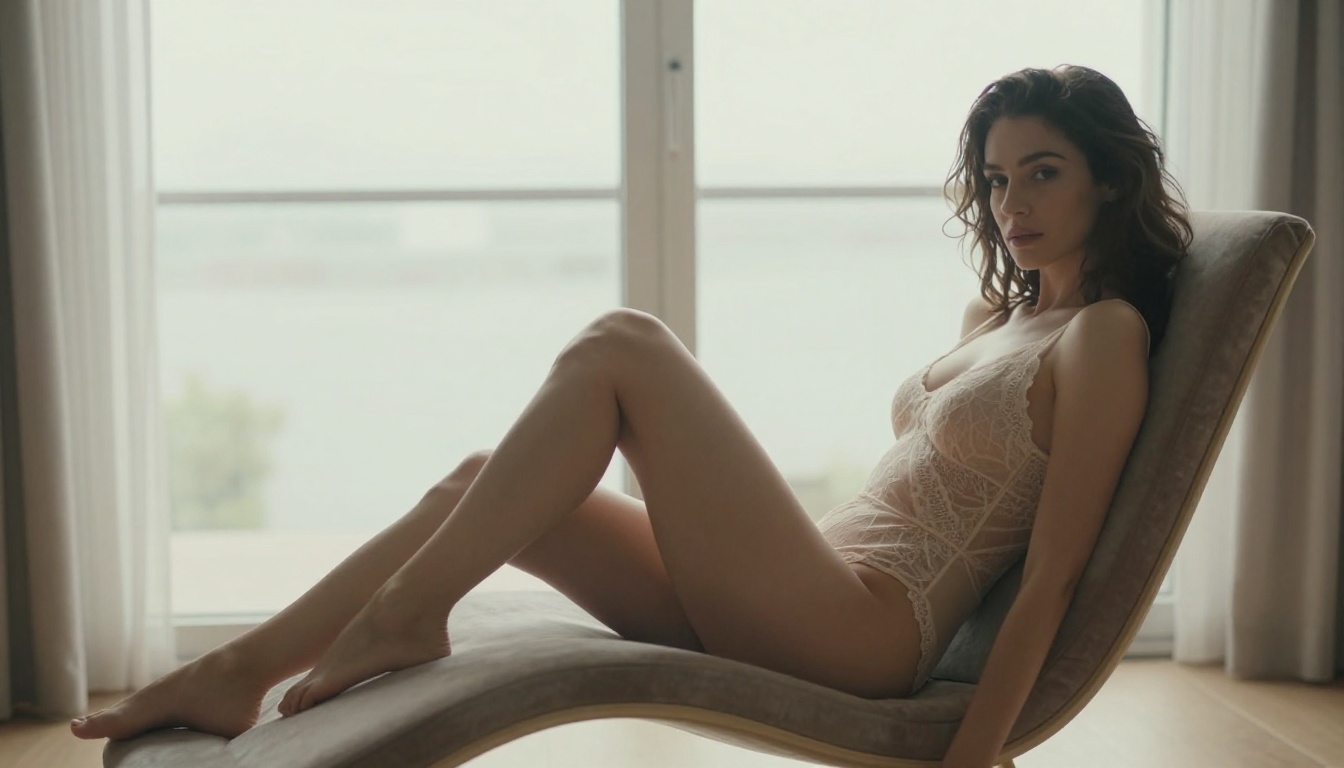
"Woman in a sheer ivory lace bodysuit on a velvet chaise lounge, diffused morning light through floor-to-ceiling windows, 85mm f/1.8, editorial fashion photography, fine pores visible, Fuji 400H, cinematic photorealistic 8K"
Beauty Portrait:
"Close-up portrait of a woman, direct eye contact, single soft box light from upper right, individual eyelash strands visible, 85mm f/1.2, extreme shallow depth of field, Kodak Portra 800, photorealistic beauty photography, 8K"
Mobile vs. Desktop: What Changes
The core generation experience is identical on both. Same models, same prompts, same outputs. But there are a few real differences worth knowing before you go in.
Screen size and parameter visibility
On mobile, some parameter panels are collapsed by default. If you don't see the seed control, guidance scale, or negative prompt field, look for a Settings or Advanced toggle. On Picasso IA's mobile interface, these options slide up from the bottom of the screen when you tap the settings icon.
Most useful mobile-specific tips:
- Use landscape mode when reviewing generated images for better color and detail evaluation
- Pinch-to-zoom works on all generated images for quality inspection before saving
- Long-press any generated image to save directly to your phone's camera roll
Speed on mobile connections
Over 4G or 5G, generation times for most models range from 8-25 seconds. On WiFi, this can drop to 5-12 seconds for faster models like Flux 1.1 Pro. The model size matters more than your connection speed since the actual inference happens server-side.
💡 Tip: If generation is timing out, try switching from a cellular connection to WiFi, or select a faster model variant like Flux 2 Max while on a slower connection.

Super Resolution and Finishing Touches
Raw AI outputs at 1024x576 or 1024x1024 look fine on a phone screen, but if you want to print, share at high resolution, or crop into fine details, you need more pixels.
Why upscaling matters for NSFW images
Detail authenticity is central to the appeal of photorealistic NSFW imagery. A 2x or 4x upscale using AI super-resolution doesn't just add pixels. It adds texture coherence: clearer skin pores, sharper individual hair strands, more defined fabric texture. The result looks significantly more like an actual photograph and holds up at full zoom.
Picasso IA's Super Resolution category includes dedicated upscaling models accessible within the same interface you used to generate the image.
How to use AI enhance on mobile
After generating, copy the image URL or download it. Then open the Super Resolution model in a new tab and upload the image. For photorealistic NSFW content, 2x upscaling is usually the sweet spot: it roughly doubles perceived sharpness without introducing artificial over-sharpening artifacts that can make skin look unnaturally smooth.
3 Common Questions About NSFW AI Images
Do I need to create an account to generate NSFW images on Picasso IA?
You need a free account to generate images. Registration takes under a minute with an email address and no credit card required for free tier generations.
What's the difference between "NSFW" and "explicit" on these platforms?
NSFW covers suggestive, glamorous, and artistically implied nudity. Explicit content involves graphic sexual material. Most platforms, including Picasso IA, support the former but not the latter. Prompts that push toward explicit content typically get filtered or produce degraded results.
Why do my images sometimes look plastic or synthetic?
Usually a prompting issue. Add "natural skin texture, realistic skin pores, Kodak film grain, photorealistic" to your prompt. Also try switching to Realistic Vision v5.1 or Flux 1.1 Pro Ultra, which are specifically optimized for lifelike human skin rendering.
Editing and Refining Your Results
A first-pass generation is rarely the final image. The real workflow involves iteration and targeted editing.
Inpainting for precise fixes
If a generated image is almost perfect but has one problem area (an awkward hand, a lighting inconsistency on the face, fabric that looks slightly off), inpainting is the fix. It lets you mask a specific region and regenerate only that part while keeping everything else identical.
Picasso IA includes inpainting tools accessible on mobile. Select the image, open Edit, draw a mask over the problem area, and enter a corrective prompt for just that region.
Using ControlNet for pose consistency
SDXL Multi ControlNet LoRA gives you structural control over the output. You can upload a reference pose image and the model follows the body position while generating a completely new scene around it. This is particularly useful when you have a specific body angle or composition in mind that's difficult to describe through text alone.
Try It Yourself
Everything described in this article is available directly at picassoia.com, from your phone browser, right now. Start with Flux 1.1 Pro Ultra and one of the prompt templates above. Run a few generations, compare the outputs, then start adjusting individual prompt layers to see exactly what each element does to the result.
The fastest way to improve is to isolate variables. Change only the lighting descriptor and generate. Then change only the camera spec. Each iteration teaches you something concrete about how that model responds to language, and within a dozen generations you'll have a clear intuition for what works.
The models available on Picasso IA include some of the most technically advanced photorealistic generators currently available, including Flux 2 Pro, Stable Diffusion 3.5 Large, and the full Flux Dev LoRA stack. All of them run beautifully on mobile, and all of them respond dramatically to well-structured prompts.