There are not many AI video models that produce genuinely cinematic results without charging you by the second. Seedance 2.0 is one of them. Built by ByteDance, this model generates high-fidelity videos with synchronized audio from nothing but a text prompt or a static image, and you can run it for free right now on PicassoIA. This article breaks down exactly what Seedance 2.0 does, how to access it without spending money, and how to write prompts that produce results worth keeping.
The speed at which AI video has developed is hard to overstate. Not long ago, free tools produced choppy, low-resolution clips that flickered and distorted around moving subjects. Today, Seedance 2.0 generates 1080p footage with ambient sound, realistic motion, and strong prompt adherence, all at no cost. If you have been waiting for AI video to become genuinely usable before investing time in it, that moment has arrived.
What Seedance 2.0 Actually Does
Before writing your first prompt, it helps to know what this model is built for. Seedance 2.0 is a text-to-video and image-to-video model from ByteDance. It generates short video clips, typically up to 10 seconds, with native synchronized audio baked directly into the output. You are not adding music after the fact. Ambient sound, environmental audio, and subtle motion effects are all generated alongside the visual track in a single pass.
The Two Modes: Text-to-Video and Image-to-Video
The model works in two distinct modes:
Text-to-video: You write a prompt describing what you want to see, and Seedance 2.0 synthesizes the scene from scratch. The model handles camera movement, lighting, subject motion, and background detail simultaneously.
Image-to-video: You supply a still image as the first frame, and the model generates motion that extends naturally from it. This mode is exceptionally good at keeping subjects consistent, because the model has a visual reference to work from rather than building everything from language alone.
Both modes are available for free on Seedance 2.0 via PicassoIA, with no local GPU required.
Built-In Audio: What That Means for You
Most free AI video models produce silent clips. You get the visuals, then manually layer sound on top in a separate editing step. Seedance 2.0 generates audio natively alongside the video. If you prompt for a beach scene, the model generates wave sounds. A busy street scene gets ambient city noise. A forest generates wind and birdsong. This is not a small detail. It eliminates an entire post-production step and makes the output feel immediately more polished and complete.
💡 Note: Audio quality varies by scene complexity. Simple environments like forests or beaches produce cleaner audio than dense urban scenes with multiple overlapping sound sources.
Resolution Options and When to Use Each
Seedance 2.0 outputs at multiple resolution levels. The 1080p option gives you broadcast-quality footage suitable for social media, short films, and marketing content. The 480p mode is faster and better suited for rapid iteration when testing multiple prompt variations before committing to a full-quality render. For most creative projects, start at 480p to nail your prompt, then re-run the final version at 1080p.
Why Seedance 2.0 Beats Other Free Models
There are over 100 text-to-video models on PicassoIA. The question is why Seedance 2.0 sits near the top of that list for free users.
Seedance 2.0 vs. Seedance 1.5 Pro
The previous generation, Seedance 1.5 Pro, was already a strong performer. Seedance 2.0 improves on it in three specific areas:
| Feature | Seedance 1.5 Pro | Seedance 2.0 |
|---|
| Native audio | No | Yes |
| Motion realism | Good | Very High |
| Prompt adherence | Moderate | High |
| Image-to-video | Yes | Yes (improved) |
| Max resolution | 1080p | 1080p |
| Free access | Yes | Yes |
The gap in prompt adherence is the most practically important one. Seedance 2.0 follows complex, multi-element prompts more reliably than its predecessor. You spend less time iterating through bad outputs and more time refining good ones.
How It Compares to Other Top Models
PicassoIA gives you access to models like Veo 3 from Google, Kling v3 Video from Kwai, and Hailuo 2.3 from MiniMax. Each model has a specific strength:
- Veo 3: Exceptional at photorealistic human subjects and detailed environments. Uses more credits per generation.
- Kling v3 Video: Strong at cinematic camera movement and high-action sequences.
- Hailuo 2.3: Fast generation with solid quality for social media clips.
- Seedance 2.0: Best balance of quality, built-in audio, and free access without heavy credit consumption.
For anyone building a content workflow without a budget, Seedance 2.0 is the right starting point.

How to Access Seedance 2.0 for Free
The simplest path is through PicassoIA. No installation, no GPU requirements, no subscription required. You open a browser, navigate to the model page, and start generating.
Using Seedance 2.0 on PicassoIA
PicassoIA hosts Seedance 2.0 alongside its full library of over 100 video models. The interface is consistent across all models, so once you know how to use one, you can switch between them without relearning controls. The platform handles rendering on cloud infrastructure, which means your laptop does not need to meet any specific hardware requirements.
You can also try PicassoIA Video, which offers free unlimited AI video generation from text or image. It is a solid companion tool for rapid ideation before committing to a full Seedance 2.0 render.
Step-by-Step: Your First Video in Under 3 Minutes
Here is the exact flow for your first generation:
- Go to the Seedance 2.0 model page on PicassoIA
- Select your input mode: Text for a scene from scratch, or Image for image-to-video
- Write your prompt (or upload your source image for image-to-video mode)
- Choose your resolution: 480p for testing, 1080p for final output
- Click Generate and wait for the render to process
- Preview the result and download your MP4 file
The average render time at 480p is under 60 seconds. At 1080p, expect 2 to 4 minutes depending on server load. Both are fast by AI video standards.
💡 Tip: If you are doing image-to-video, crop your source image to a 16:9 ratio before uploading. This prevents the model from adding black bars or distorting your composition during generation.
Writing Prompts That Actually Work
Prompt quality is the single biggest variable in Seedance 2.0 output quality. A vague prompt produces a generic video. A well-structured prompt produces exactly what you visualized.

The 4-Part Prompt Formula
Break every prompt into four sections:
- Subject: Who or what is the primary focus?
- Action: What is happening? What motion occurs?
- Environment: Where does this take place? What is in the background?
- Camera: How is the shot framed? Is the camera moving?
Example using the formula:
A woman in a red dress [Subject] walks slowly along a wet cobblestone street, her hair moving gently in the wind [Action], in an old European city at dusk, warm amber streetlights reflecting in puddles on the ground [Environment], the camera follows from behind at a slow walking pace, gradually pulling back to reveal the full street [Camera]
That one prompt, written with this formula, produces a significantly more controlled and cinematic result than a loose description like "woman walking in a city." The model responds to specificity. Every extra detail you provide is a constraint that narrows the space of possible outputs toward what you actually want.
10 Prompt Examples by Category
Nature and landscapes
- "Ocean waves crash against dark volcanic rocks at dawn, sea foam catching the first light, camera positioned at water level, slow push-in toward the horizon"
- "A pine forest in heavy rain, individual droplets visible on needles, mist rising between trees, static camera with gentle rack focus from foreground to mid-ground"
Urban scenes
- "A crowded Tokyo crossing at night, pedestrians moving in every direction, neon signs reflecting on wet asphalt, high wide shot slowly descending toward street level"
- "An empty European café terrace at sunrise, chairs still stacked on tables, a single espresso machine steaming inside visible through the window, slow left-to-right pan"
People in motion
- "A surfer paddling out through early morning glass-calm water, only their silhouette visible against a pale gold horizon, camera tracking alongside at water level"
- "Two children running through tall golden wheat field in late afternoon sun, laughing, camera low and tracking from behind at their pace"
Abstract and atmospheric
- "Slow close-up of ice melting on a dark stone surface, water pooling and running in irregular channels, directional morning light from the left, macro lens shallow depth of field"
- "Smoke rising from a single extinguished candle in a dark room, curling upward in complex patterns, soft backlight from behind, static camera"
Architecture
- "Interior of a modernist concrete church, light shafting through narrow high windows and cutting across the floor in slow motion as clouds move outside, static camera"
- "A brutalist apartment block reflected in a still canal on a clear blue morning, a single boat creating ripples that distort the reflection, slow zoom out"
What to Avoid in Your Prompts
Some elements reliably degrade Seedance 2.0 output quality:
- Multiple subjects in conflict: "A man and a woman and a dog and a car" overloads the model. Pick one primary subject and let secondary elements be background context.
- Rapid or chaotic camera movement: "Spinning, rotating, whipping around" creates unstable output. Prefer "slow pan," "gentle dolly-in," or "static with subtle zoom."
- Contradictory lighting: "Moonlight and bright sunshine" confuses the model's rendering. Pick one light source and describe it specifically, including direction and color temperature.
- Overly abstract concepts: "The feeling of nostalgia" is too conceptual. Translate emotions into physical, visual elements instead. "Empty playground at dusk, a swing moving slowly with no one on it" conveys the same feeling concretely.

Getting the Most from Image-to-Video
Image-to-video mode in Seedance 2.0 is arguably its strongest feature. When you supply a well-composed still image, the model has something concrete to extend from, which results in far more consistent subject rendering than text-only generation.
Which Images Work Best
Not every image performs equally in image-to-video mode. The best source images share these qualities:
- Clear primary subject: The model needs to know what to animate. A single dominant subject works better than a busy composition with many competing elements.
- Natural, diffused lighting: Harsh directional light can cause flickering artifacts in the generated motion as the model struggles to maintain shadow consistency frame to frame.
- No motion blur in the source: Start from a crisp, sharp still image. The model adds motion, you do not want motion already baked into your source frame.
- Simple or bokeh backgrounds: Complex, highly textured backgrounds can distort during animation as the model tries to maintain frame-to-frame consistency.
💡 Tip: AI-generated images often make ideal source material for image-to-video, because they are clean, artifact-free, and visually consistent. Generate a still with any of PicassoIA's text-to-image models, then feed it straight into Seedance 2.0.
Controlling Motion with Your Prompt
In image-to-video mode, your prompt describes the motion rather than the scene (the scene is already defined by your source image). Focus your prompt entirely on what moves and how:
- "Camera slowly dollies in, subject remains still, background gradually defocuses as we approach"
- "Light shifts from morning to midday, shadows rotate across the scene, subject stationary"
- "Subject turns their head slowly to the right while the camera remains completely static"
- "Wind moves through the trees in the background, leaves rustling, subject stays in place in the foreground"
The more specific your motion description, the more predictable and controlled the output. Generic prompts like "make it move" produce random results. Specific motion instructions produce intentional ones.
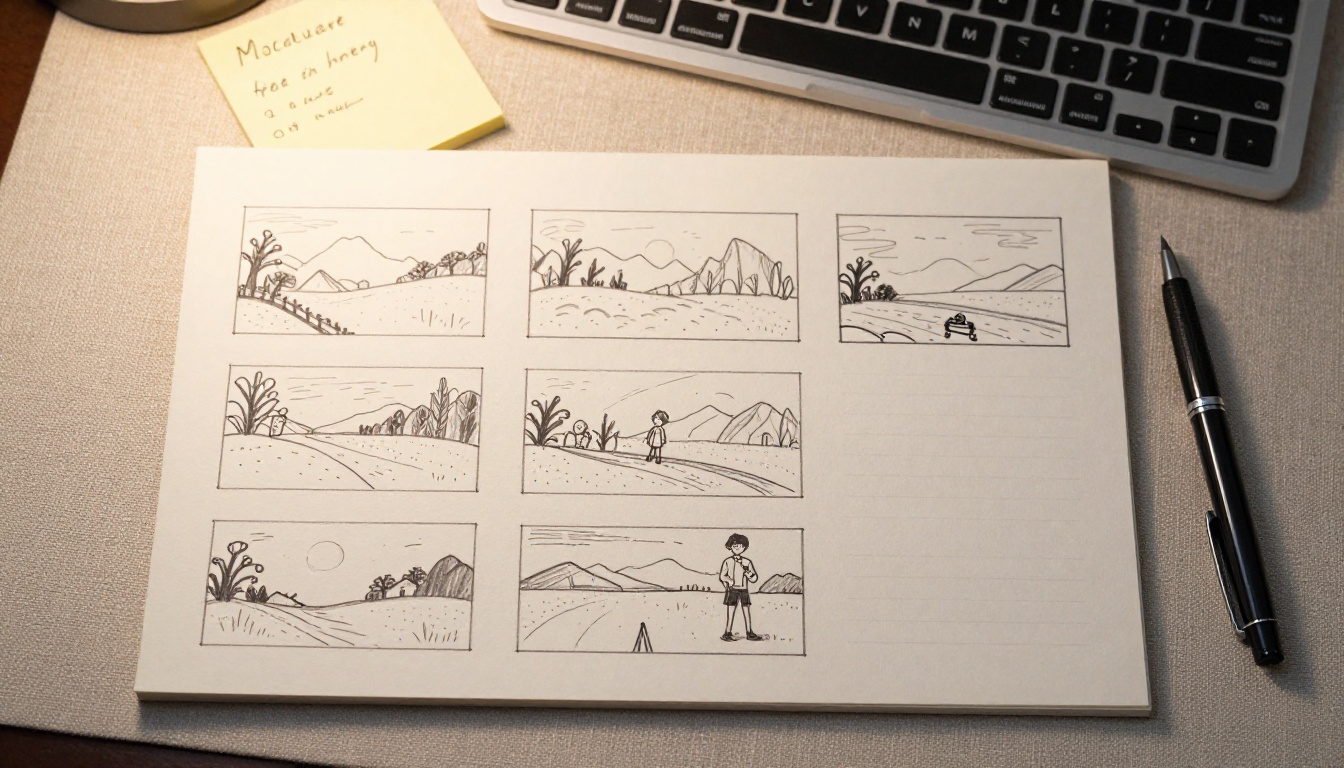
Seedance 2.0: Full Settings Reference
Here is a reference table for every setting available on Seedance 2.0 through PicassoIA:
| Setting | Options | Recommendation |
|---|
| Input mode | Text or Image | Image for maximum consistency |
| Resolution | 480p, 720p, 1080p | 480p for testing, 1080p for finals |
| Duration | Up to 10 seconds | 5 to 6 seconds for social content |
| Aspect ratio | 16:9, 9:16, 1:1 | 16:9 for most use cases |
| Audio | On by default | Leave enabled |
The model does not currently expose seed control through PicassoIA's interface, which means exact reproducibility requires you to save your prompt text and settings manually. Keep a plain text file with your successful prompts and the resolution you used. Over time, this becomes a valuable personal prompt library worth more than any external resource.
For even faster iteration, try Seedance 2.0 Fast, which is the accelerated version of the same model. It cuts render time significantly at the cost of some output quality, making it the right tool when you are running through many prompt variations quickly and need fast feedback before committing to a final render.
Other Top Free Video Models on PicassoIA
Seedance 2.0 is the flagship, but PicassoIA's text-to-video collection has 112 models worth knowing about. Several are particularly valuable for specific use cases:
For 1080p landscape content: Wan 2.7 T2V outputs at 1080p with particularly strong motion realism for nature and landscape subjects. If your work is primarily outdoor cinematic content, this model is worth testing alongside Seedance 2.0.
For precise camera control: Kling v2.6 includes motion control tools that let you define camera trajectories more precisely than pure prompt-based approaches allow. If you need a specific camera move on a specific subject, this is the model to reach for.
For image animation: Wan 2.7 I2V animates any photo with excellent subject consistency, making it a strong alternative when you want a different visual aesthetic than Seedance 2.0 produces.
For free unlimited generation: PicassoIA Video offers unlimited video generation from text or image at no cost, making it the best option for high-volume rapid prototyping when credit limits become a constraint.
For 4K output: LTX 2 Pro generates at 4K resolution. It is overkill for most social content but essential if you are producing for large-format displays or professional broadcasting workflows that require ultra-high-resolution source files.
For cinematic HDR video: Ray 3.2 from Luma produces HDR video output with a cinematic color profile that is particularly striking for dramatic and artistic content. The color grading it applies natively saves significant post-production time.
For talking video avatars: Avatar V from HeyGen lets you create realistic talking avatar videos, which opens a completely different category of content creation from the cinematic video generation that Seedance 2.0 specializes in.
The Fastest Workflow for Content Creators
If you are building a content production pipeline around free AI video tools, here is the sequence that produces the highest quality output in the least time:
- Plan your scene in writing before opening any tool. Write the four-part prompt (subject, action, environment, camera) offline first. This takes two minutes and saves ten by preventing wasted renders.
- Generate a test still using a text-to-image model on PicassoIA to visualize the scene before committing to a video render. This costs almost nothing and gives you a visual reference point.
- Run image-to-video using your generated still as the source frame. This combines subject consistency with the visual reference from step 2.
- Test at 480p first. If the motion and composition look right, re-run at 1080p for the final output. This workflow eliminates wasted high-resolution renders.
- Save every successful prompt with its settings in a plain text file. Your own prompt library becomes one of your most valuable creative assets over time.
This approach uses fewer credits than running repeated text-to-video attempts at full resolution and produces more consistent results because you have a visual reference point at every step of the process.
Start Creating Right Now
The barrier to making quality AI video is lower than it has ever been. Seedance 2.0 on PicassoIA removes the cost, removes the installation friction, and removes the need for a powerful local GPU. What remains is the creative work: writing precise prompts, choosing the right source images, and iterating toward the result you actually want.
The fastest way to develop a feel for AI video generation is to run the same prompt through three or four different models and compare the outputs. PicassoIA's catalog of 112 text-to-video models is right there waiting. Within a few sessions, you will start to know which models suit which types of content, and your output quality will improve quickly from there.
Head to picassoia.com/en/all-models to see the full library, or go straight to Seedance 2.0 and run your first generation right now.
Pick your scene. Write your prompt. Hit generate.


