If you type a sentence and a video appears, that is Sora 2. OpenAI's second-generation video model turns plain text into cinematic footage, and right now you can run it without paying a cent. This article walks you through every step: from creating your account, to crafting prompts that actually produce something worth watching, to finding the free-tier access points that most people overlook.
What Sora 2 Actually Does
Most text-to-video tools produce clips that look like dreams trying to hold their shape. Objects morph unexpectedly. Physics breaks. Faces flicker. Sora 2 is different in one important way: it was trained with a much deeper understanding of how objects move through real space.
The result is footage where a ball thrown against a wall actually bounces with realistic momentum. Where water flows without looking like it was piped through a screensaver. Where people walk in a way that looks like they have mass.
The Physics Engine Underneath
Sora 2 was trained on a massive corpus of real-world video, not just image-video pairs. That training gives it what researchers call "world simulation" properties: an internal model of how physical events unfold over time. You do not need to know any of this to use it. But it is why your prompts can include phrases like "a wave crashing over rocks" and the result actually looks like water and rocks, not a CGI sequence from 2003.
Resolution and Duration
The standard Sora 2 model outputs clips up to 1080p at up to 20 seconds. The Pro variant, Sora 2 Pro, extends this to 4K with longer clip lengths. Both are accessible through PicassoIA's platform.
| Feature | Sora 2 | Sora 2 Pro |
|---|
| Max Resolution | 1080p | 4K |
| Max Duration | 20 seconds | Extended |
| Audio | Synced | Synced |
| Free Access | Yes | Limited credits |
How to Access Sora 2 for Free
Free access to Sora 2 exists in two main places. The first is through OpenAI's own platform, where new accounts receive a set of generation credits. The second, and arguably more practical, is through PicassoIA, which pools access to Sora 2 alongside dozens of other models under one roof.
Free Credits Explained
On PicassoIA, new users receive free credits that can be applied to any model, including Sora 2. Each generation costs a fixed number of credits based on clip length and resolution. A 5-second, 720p clip is significantly cheaper than a 20-second 1080p output. This means you can stretch free credits further by working with shorter clips first, iterating on prompts, then generating the full-length version once you have something worth keeping.
💡 Tip: Start every new concept as a 5-second clip. It costs fewer credits and lets you verify that the motion, lighting, and composition match your intention before committing to a longer generation.
Account Setup in 3 Minutes
- Go to PicassoIA and create an account (no credit card required)
- Navigate to the Text-to-Video section
- Select Sora 2 from the model list
- Your free credits are applied automatically
- Write your first prompt and generate
That is it. No API keys. No local installation. No hardware requirements beyond a browser.
How to Use Sora 2 on PicassoIA
This section covers the actual step-by-step process for running Sora 2 on PicassoIA from start to a finished, downloadable clip.

Step 1: Find the Model
Once logged in, use the search bar at the top of PicassoIA to search "Sora 2" or browse to Collection > Text to Video. You will see two options: Sora 2 and Sora 2 Pro. For free usage, start with the standard version.
Step 2: Write Your Prompt
The prompt field accepts plain English. Unlike image generators that benefit from tags and style keywords, Sora 2 responds better to scene descriptions written in full sentences.
Weak prompt: A sunset. Mountain. Cinematic.
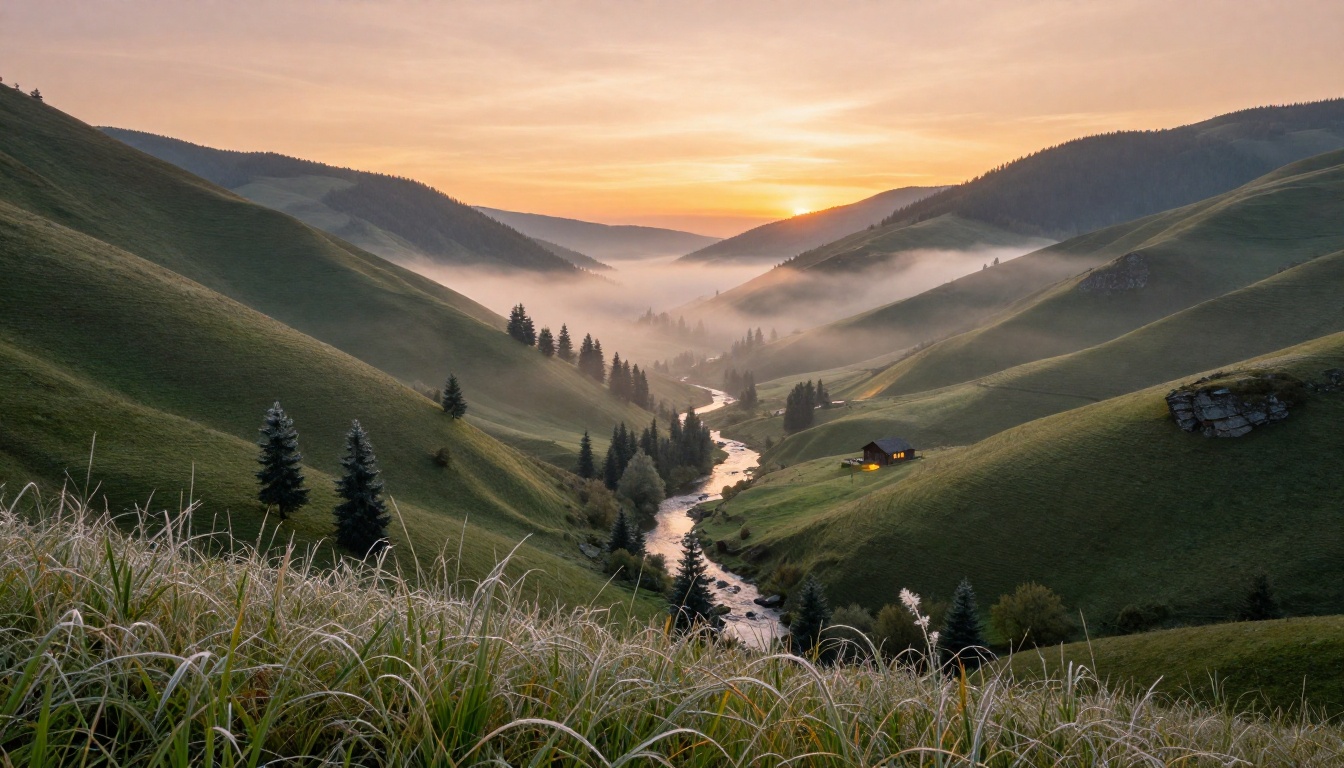
Strong prompt: A wide shot of a mountain valley at sunset, pine trees silhouetted against a deep orange sky, a narrow river in the foreground catching the fading light, mist rising slowly from the valley floor, camera slowly pulling back.
The difference in output quality is dramatic. Sora 2 interprets sentence structure, pacing cues ("slowly"), and spatial relationships ("in the foreground").
Step 3: Set Parameters and Generate
After writing your prompt, set the following:
- Duration: 5 seconds for testing, 10-20 for final output
- Resolution: 720p for drafts, 1080p for finals
- Aspect Ratio: 16:9 for standard video, 9:16 for vertical/social
Click Generate. Depending on server load, generation takes between 30 seconds and 3 minutes for a standard clip.
Step 4: Download and Share
Once the clip appears in your results panel, you can preview it inline, download the MP4 file, or copy the share link directly. PicassoIA stores your generated clips in your account history, so nothing is lost if you close the browser before downloading.
Prompts That Actually Work
Writing prompts for Sora 2 is a skill you build fast. The model has strong defaults for motion and lighting, so your job is primarily to describe the scene with enough specificity that the model does not have to guess.
The Formula for Good Results
A reliable structure for Sora 2 prompts:
[Shot type] + [Subject + action] + [Environment] + [Lighting] + [Camera movement]
- Shot type: Wide shot, close-up, aerial view, tracking shot
- Subject + action: What is happening, present tense
- Environment: Where and what surrounds the subject
- Lighting: Time of day, artificial/natural, quality (soft, harsh, dappled)
- Camera movement: Static, slow pan, pull back, push in, orbit
5 Prompt Examples That Deliver
1. Urban Morning
Close-up of a woman's hands wrapping around a warm coffee cup on a rainy window ledge, steam rising, blurred city lights reflected in the rain-streaked glass behind, soft gray morning light, camera static.
2. Nature Wide Shot
Aerial shot of a single red canoe on a still lake surrounded by dense autumn forest, the reflection of orange and yellow trees perfectly mirrored in the water, misty morning light, camera slowly rising.
3. Street Scene
Tracking shot following a bicycle weaving through a narrow European market street, vendors on both sides with colorful produce displays, golden afternoon light slanting between buildings, camera at handlebar height.
4. Interior Atmosphere
Wide shot of an empty jazz bar at night, low Edison bulb lighting, a lone microphone on a small stage, wooden chairs stacked on tables, dust particles floating in a single light beam from an above spotlight, camera slow orbit.
5. Architectural
Low-angle upward shot of a modern glass office tower against a deep blue twilight sky, the building's windows reflecting pink and orange sunset gradients, a flock of birds passing in front, camera tilting slowly upward.
💡 Tip: Add camera movement to every prompt. Without it, Sora 2 defaults to a static shot. Even a subtle "camera slowly pushing in" adds cinematic life to otherwise static scenes.
Sora 2 is one of many text-to-video models available on PicassoIA. Depending on your use case, another model may actually serve you better.
Where Sora 2 Wins
Sora 2 specifically excels at:
- Physical realism: Liquid behavior, falling objects, natural phenomena
- Scene coherence over time: Characters and objects remain consistent across the clip
- Lighting transitions: Sunsets, flickering candles, moving through light and shadow
- Following complex prompts: Multi-element scenes that require the model to manage spatial relationships
Where to Use Something Else
If you need audio-native video with dialogue, Veo 3 from Google is currently ahead. If you are generating fast-turnaround social content and do not need 1080p, Luma Ray or Wan 2.6 T2V will give you results in seconds instead of minutes.
What to Expect from Results

No AI video generator produces perfect results every time. Sora 2 is exceptionally good, but understanding its failure modes will save you credits.
3 Common Mistakes
1. Overloading the prompt
Listing 15 different elements in one prompt divides the model's attention across too many variables. Keep the primary focus on 2-3 elements maximum.
2. Skipping camera direction
A static prompt produces a static shot. This is rarely what you want. Always include a camera movement or specify "camera static" intentionally.
3. Vague motion descriptions
"A man walking" produces a generic result. "A man in a grey coat walking slowly through shallow puddles on an empty sidewalk, his breath visible in cold air" produces something specific and cinematic.
Handling Failures
If a generation does not match your intent:
- Identify the single biggest problem: composition, motion, or atmosphere?
- Edit only that part of the prompt. Do not rewrite the whole thing.
- Re-run with the same seed number for variation on the same structure
💡 Tip: Save prompts that produced good results in a text document. PicassoIA stores your generation history, but having prompts locally means you can iterate across sessions without losing your starting point.
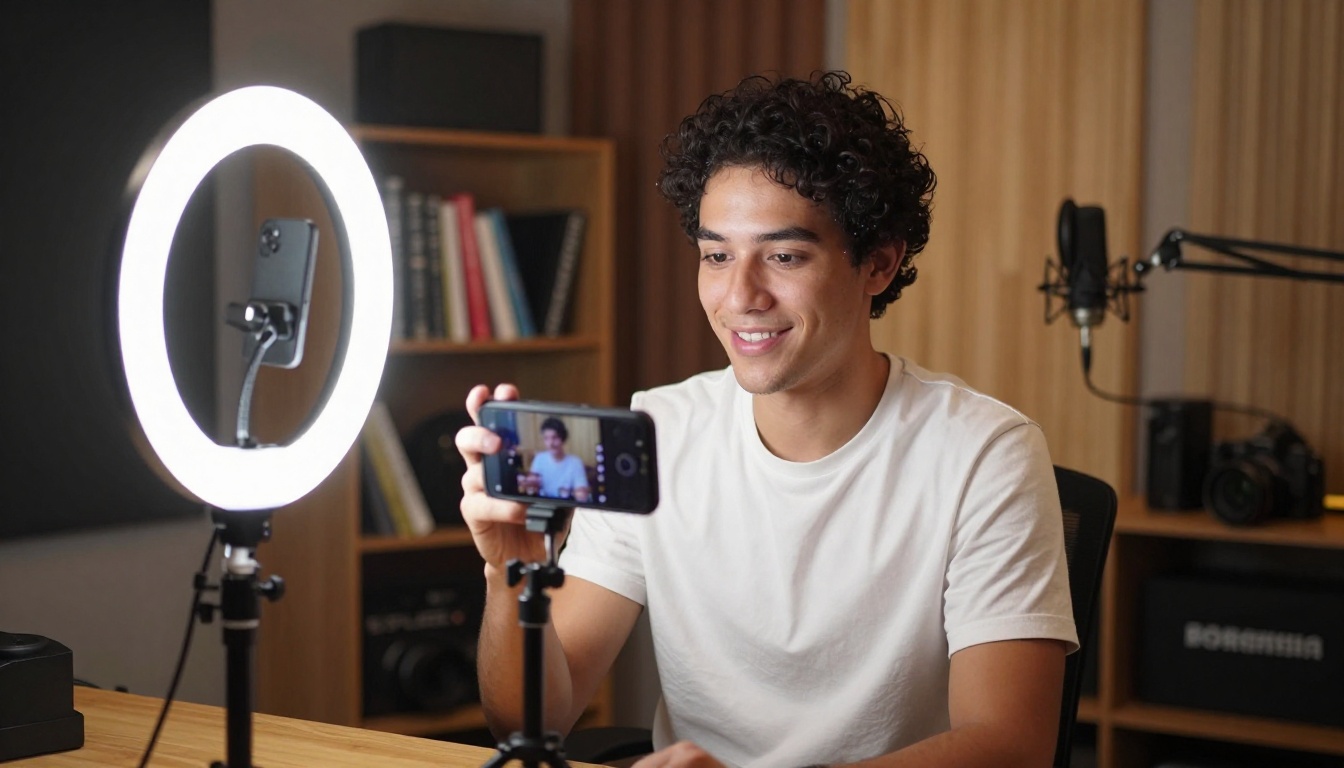
Once you have generated a clip with Sora 2, the PicassoIA platform gives you options for taking it further.
Enhancing What You Created
If your output looks good but lacks sharpness, the AI Video Enhancement tools on PicassoIA can upscale and stabilize the footage. If you want to add a voiceover, the Text to Speech section has multiple voice models. If the video needs background music, AI Music Generation can produce a track that fits your visual mood.
Combining Video with Image Generation
A strong workflow for social content:
- Generate a still image using a text-to-image model (PicassoIA has 91+ options)
- Feed that image into Wan 2.6 I2V to animate it
- Use Sora 2 for purely text-driven sequences that need full scene generation
This hybrid approach gives you more control over the visual style of the result while still leveraging the motion quality of Sora 2 where it matters most.
Lipsync for Talking Content
If you need to create video where a person is speaking, the Lipsync tools on PicassoIA can sync mouth movements to an audio track. Combined with Sora 2's ability to generate a realistic person in a real-feeling environment, this opens up content creation options that would have required full production teams two years ago.
3 Workflow Ideas to Put This Into Practice

Abstract advice is easy to ignore. Here are three specific workflows you can actually run today:
Workflow 1: Social Media Content Creator
- Use Sora 2 to generate 5-10 second atmospheric clips (sunrise, city morning, nature scene)
- Add a text overlay using any video editor
- Post as Reels or TikTok with trending audio
- Cost: Free tier credits only
Workflow 2: Product Video for Small Business
- Generate a 10-15 second scene that matches your brand aesthetic
- Use AI Music Generation for background sound
- Download and use in website headers or ads
- Cost: A handful of credits per final clip
Workflow 3: Storyboard Prototyping
- Generate quick 5-second clips for each scene in a concept
- Use them as placeholders in a presentation to pitch a video idea
- Replace with live footage later if needed
- Cost: Draft-quality clips at minimum credit cost
Cinematic AI Video Starts with One Prompt
The gap between knowing about Sora 2 and actually producing something with it is exactly one prompt. That is the only action that produces a result.
PicassoIA puts Sora 2, Sora 2 Pro, and over 85 other video models in one place, with free credits for new accounts and no software to install. Whether you want to test a single scene concept, produce a social clip for tomorrow, or build a repeatable content workflow, the tools are already there.
Write your first prompt. See what the model does with it. Then adjust one variable and run it again. That is how you get good at this fast.


