How to Fix Blurry AI Images Fast: The No-Nonsense Approach
AI images don't have to stay blurry. This article digs into the root causes of pixelation and softness in AI-generated photos, then shows you the fastest tools to fix them, from AI upscalers to smarter prompting. Nine models compared and ranked by use case so you pick the right one every time.
Blurry AI images are frustrating. You spend time crafting a prompt, wait for the generation, and what comes back looks like it was shot through a foggy window. The good news: this is almost always fixable, and in most cases you can get a sharp, publication-ready result in under a minute. This article goes into exactly why AI images blur, which tools fix it fastest, and how to stop it from happening in the first place.
Why AI Images Come Out Blurry
Not all blur is the same. Before throwing an upscaler at the problem, it helps to know what type of blur you are dealing with. The fix differs depending on the root cause.
The Resolution Problem
Most AI image generators default to 512x512 or 1024x1024 pixels. That sounds like a lot until you try to display it on a 4K screen or print it at A4 size. At those dimensions, the pixel density drops below what the eye accepts, and the image looks soft or smeared. This is not the model failing. It is a settings problem.
The fix is either generating at a higher native resolution (when the model supports it) or running the output through an AI upscaler immediately after generation. Upscalers reconstruct detail rather than just stretching pixels, which is why they look dramatically better than a simple resize in any standard photo editor.
Weak Prompts Create Soft Images
This is the one people overlook. When a prompt does not tell the model what to focus on, the model spreads its attention evenly across the whole image. Everything becomes equally average, and average in AI image generation means soft edges and undefined textures.
Compare these two prompts:
Weak: "a woman outside"
Strong: "close-up portrait of a woman, sharp eyes, detailed skin texture, volumetric afternoon sidelight, 85mm f/1.4, photorealistic, 8K"
The strong version forces the model to commit to specific visual decisions. That specificity creates sharpness.
💡 Tip: Add quality modifiers to every prompt: 8K, sharp focus, photorealistic, film grain, high detail. These signal to the model that you want crisp output, not a painterly interpretation.
Model Limitations
Some models are simply not built for photorealistic sharpness. Older SDXL-era architectures, for example, produce beautiful images but often lack the fine detail that newer models deliver. If you keep getting soft outputs on the same model, that is a signal to switch, not to keep prompting harder.
PicassoIA gives you access to over 90 text-to-image models, which means if one is not performing, another almost certainly will.
The Fastest Fix: AI Upscalers
Upscalers are the single most effective tool for fixing blurry AI images after the fact. They work by analyzing the existing pixel data and using a trained neural network to intelligently reconstruct what the missing detail should look like.
What Upscaling Actually Does
Standard image resizing (bicubic, lanczos) simply interpolates between existing pixels. You end up with a larger image that looks exactly as blurry, just bigger. AI upscaling is fundamentally different: the model has been trained on millions of image pairs to predict real-world detail. It does not stretch your pixels. It replaces them with reconstructed information.
The result is that a 512x512 image run through a 4x AI upscaler produces a 2048x2048 output where edges are sharper, textures are more defined, and fine details like hair strands or fabric weave appear where there was previously just blur.
2x vs 4x vs 6x: Which Scale to Use
Scale
Best For
Output Size (from 1024px)
Notes
2x
Social media, web use
2048px
Fast, subtle improvement
4x
Print, presentations
4096px
Sweet spot for most use cases
6x
Large format print
6144px
Use Topaz Labs Image Upscale
For most AI image workflows, 4x is the right default. It produces significant quality gains without over-processing the image.
9 Upscalers on PicassoIA: Which One to Use
PicassoIA has nine dedicated super-resolution models, each with different strengths. Here is a direct breakdown so you can pick the right one without guessing.
Clarity Pro Upscaler
Clarity Pro Upscaler is built for photorealistic outputs. It adds genuine texture reconstruction rather than just sharpening edges. If you are working with portraits or natural scenes, this is the starting point.
Best for: Portraits, landscapes, detailed scenes
Scale: Up to 4x
P Image Upscale
P Image Upscale from Prunaai prioritizes speed. Results come back in under a second, making it the right choice when you are iterating quickly and cannot afford to wait.
Best for: Fast iteration, social content
Scale: 2x-4x
Real ESRGAN
Real ESRGAN is the classic open-source upscaler with strong performance across a wide range of image types. It handles both photorealistic and stylized outputs well, making it the most reliable general-purpose option here.
Best for: General purpose upscaling
Scale: 4x
Crystal Upscaler
Crystal Upscaler is portrait-specific. It pays special attention to facial features: eyes, skin texture, hair strands. If your blurry image is a face, this is the right tool.
Best for: Portraits, faces, headshots
Scale: 4x
Recraft Crisp Upscale
Recraft Crisp Upscale lives up to its name. It produces very clean, defined edges without halos or ringing. Great for product photography or architectural images where you need precise lines.
Best for: Products, architecture, graphic-heavy images
Scale: 2x-4x
Recraft Creative Upscale
Recraft Creative Upscale takes a different approach: it does not just sharpen, it adds hallucinated detail that enriches the image. The output looks more like a fully rendered photograph than a reconstructed one.
Best for: Artistic images where added texture depth is welcome
Scale: 4x
Google Upscaler
Google Upscaler is Google's take on image super-resolution. It handles 4x upscaling with strong performance on fine textures and detail-dense backgrounds.
Best for: Complex scenes with many details
Scale: 4x
Bria Increase Resolution
Increase Resolution from Bria goes up to 4x with a focus on commercial-quality outputs. Good for product imagery that needs to be publication-ready.
Best for: Commercial, e-commerce, marketing
Scale: Up to 4x
Topaz Labs Image Upscale
Image Upscale from Topaz Labs is the heavy option. It goes up to 6x and is the only model here that can take a low-resolution image to large-format print quality in a single pass.
Best for: Maximum quality, print, large-format output
Scale: Up to 6x
How to Use Clarity Pro Upscaler on PicassoIA
Since Clarity Pro Upscaler is one of the most used tools for fixing blurry AI portraits and scenes, here is a step-by-step walkthrough.
Step 1: Open the Model
Head to Clarity Pro Upscaler on PicassoIA. The upload interface is immediately visible on the page, no account setup required to try it.
Step 2: Upload Your Image
Click Upload Image and select the blurry AI-generated image you want to fix. Accepted formats include JPG, PNG, and WEBP. There is no need to resize or pre-process the file before uploading.
Step 3: Set Your Scale Factor
Choose your upscale multiplier. For most AI images, 4x produces the best balance of speed and quality. If you are preparing for print or large-format display, push to the maximum available.
Step 4: Run the Upscale
Click Generate. Processing typically takes 10 to 30 seconds depending on image size and server load. The model analyzes your image and reconstructs fine detail rather than interpolating pixels.
Step 5: Download and Compare
Once done, download the result and compare it to the original at 100% zoom. Pay attention to edge definition, texture in skin or fabric, and overall sharpness. If it is not sharp enough, try Crystal Upscaler for portraits, or run a second pass.
💡 Pro tip: If skin texture looks over-processed after upscaling (too smooth or waxy), switch to Recraft Creative Upscale for a more natural-looking result. It adds texture rather than stripping it.
Fixing Blurry Portraits Specifically
Portraits are the hardest category to fix. Human faces are the thing our brains are most wired to analyze critically. Any softness in the eyes, any smearing of skin texture, any loss of hair strand definition jumps out immediately.
Eyes First
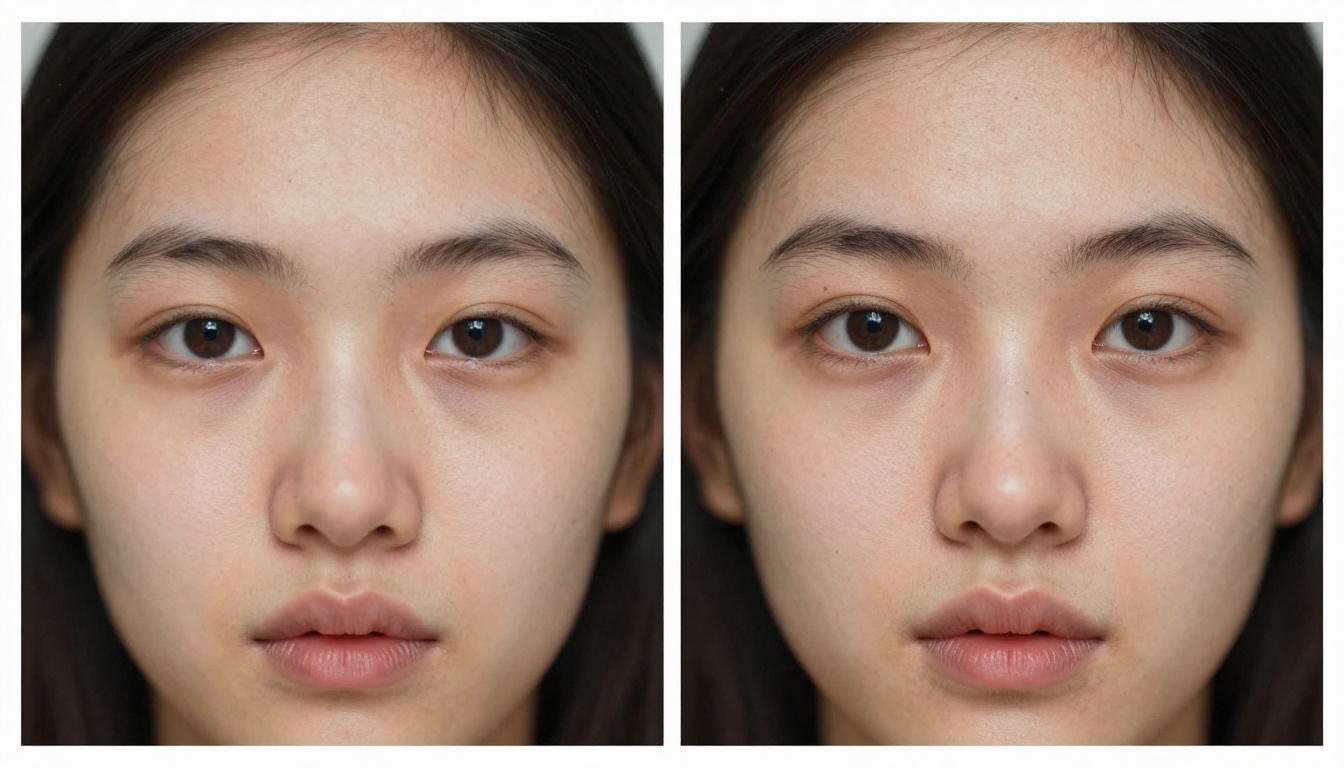
The eyes are the most critical area in any portrait. If the eyes are sharp, the brain accepts the rest of the image more easily. When reviewing an upscaled portrait, zoom in to 200% on just the eyes. They should show:
Defined iris patterns with visible color variation
Sharp eyelash separation, not merged into a single mass
Clear catchlights that are crisp and not smeared
If the eyes are still soft after a 4x upscale with Clarity Pro, run the image through Crystal Upscaler as a second pass. It is specifically trained on facial feature detail.
Skin Texture Without Over-Processing
A common problem with aggressive upscaling is that skin texture gets replaced with noise or an unnatural plastic appearance. The fix is usually to choose P Image Upscale instead, which is more conservative with texture reconstruction and tends to preserve natural skin imperfections.
If you want to go up to 4x and keep natural skin, Clarity Pro Upscaler remains the best bet. Just avoid running multiple aggressive upscale passes on the same image, as each pass can compound artifacts.
Prompt Fixes That Stop Blur Before It Starts
The best fix for blurry AI images is not having them in the first place. These prompt adjustments make a measurable difference in output sharpness.
Resolution and Detail Keywords That Work
Add these to any prompt where you want a sharp result:
8K resolution
ultra sharp focus
photorealistic
RAW photo
film grain
high detail
85mm f/1.4 or any specific lens reference
shot on Canon EOS R5 or equivalent camera body
The camera and lens references work because the model has absorbed thousands of photography tutorials and gear reviews. Mentioning a specific camera body signals a photorealistic, technically precise output.
Terms That Actively Hurt Sharpness
These terms blur your images, often without you realizing it:
painterly
soft light (in isolation, without specifying a direction)
dreamy
watercolor
impressionist
bokeh everywhere
Bokeh in the background is fine and looks photorealistic. Bokeh specified across the whole scene tells the model to blur the entire frame.
Negative Prompts
Most models support negative prompts. This block consistently reduces blur in outputs:
blurry, out of focus, low resolution, pixelated, grainy, noisy, soft, hazy, overexposed, watercolor
💡 Tip: Negative prompts behave differently across models. On some they have a strong effect, on others almost none. Test both with and without to see the impact on your specific model before committing to a workflow.
Comparing Upscalers Side by Side
When you have a specific use case, picking the wrong upscaler wastes time. This decision matrix cuts straight to the recommendation.
Sometimes the blur is structural, not a resolution problem. If your AI image has motion blur baked in from a bad prompt, or heavy compression artifacts from a previous save, upscaling alone will not fully fix it.
In those cases:
Regenerate: Go back to the source model and regenerate with a sharper prompt. A 30-second regeneration often beats a 5-minute post-processing session.
Use AI Image Restoration: PicassoIA's image restoration capabilities can repair noise, blur, and compression damage simultaneously in a single pass.
Inpainting: If only part of the image is blurry (a common issue with AI-generated hands or backgrounds), use inpainting to regenerate just that region with a sharper prompt while preserving the rest of the image intact.
Sometimes the most efficient workflow is simply generating again with better settings rather than trying to salvage a fundamentally flawed output. Knowing when to regenerate versus when to upscale saves a lot of time.
Start Generating Sharper Images Right Now
You do not have to accept blurry outputs as the cost of using AI image generation. The tools to fix it are fast, free to start, and already on PicassoIA waiting for you.
The workflow is simple: generate your image, run it through the right upscaler for your use case, and adjust your prompt for the next generation. Most people see a dramatic improvement on the first try.
PicassoIA has nine super-resolution models ready to use right now, all accessible without downloading software or setting up local environments. If you have not tried Clarity Pro Upscaler yet, start there. For portraits, go straight to Crystal Upscaler. For the sharpest possible output at maximum scale, Image Upscale by Topaz Labs is the benchmark.
Pick an image that has been frustrating you. Run it through one of these models. The difference will be immediate.