Your phone already has everything you need to generate stunning AI images, and it won't cost you a cent. Whether you're on an iPhone or Android device, the barrier to creating photorealistic AI art from a mobile browser has basically collapsed. What used to require a powerful GPU and a monthly subscription can now happen in under 30 seconds, from your couch, on the same device you use to scroll social media.
This article breaks down the best free models, the fastest workflows, and the practical techniques that separate mediocre outputs from images that genuinely stop people mid-scroll. No app downloads, no credit card, no experience needed.

Your Phone Is Already a Capable AI Studio
The idea that AI image generation requires a desktop setup is outdated. In 2027, the real computation happens on remote servers, streamed directly to your browser. Your phone just needs a stable internet connection and a decent screen to see the results. That's it.
Why browser-based tools win on mobile
Dedicated apps often compress output quality, limit resolution, or lock the best models behind paywalls. Browser-based platforms give you direct access to over 91 text-to-image models without installing anything. You open a tab, type your prompt, and get a result.
Mobile browsers today render these tools almost identically to desktop. The input fields, sliders, and download buttons all work. The only real difference is screen size, and that's actually useful for reviewing fine detail on a high-resolution display.
What your phone can realistically do
| Capability | Mobile Browser | Desktop App |
|---|
| Access 90+ AI models | ✅ Yes | ✅ Yes |
| Free generation | ✅ Yes | Often limited |
| Download full-resolution | ✅ Yes | ✅ Yes |
| No install needed | ✅ Yes | ❌ No |
| Works on all operating systems | ✅ Yes | OS-dependent |
For purely free, zero-friction AI image generation, a mobile browser is not a compromise. It is the right tool.
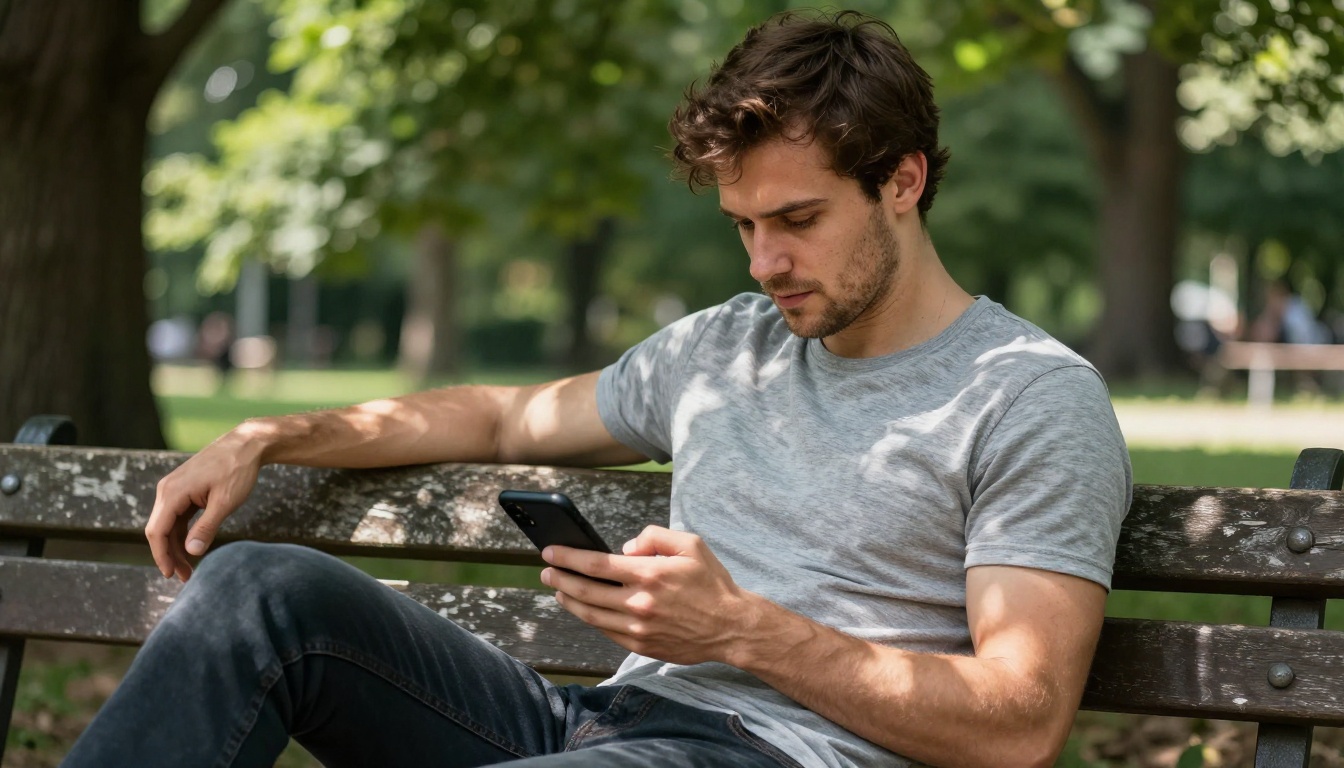
The Free Models Worth Using in 2027
Not every free model is worth your time. Some produce soft, muddy images. Others are sharp but stylistically inconsistent. Here are the models that consistently deliver on free tiers, all available through PicassoIA.
Flux Schnell: The Fastest Free Option
Flux Schnell by Black Forest Labs is the gold standard for speed on mobile. Results arrive in a few seconds, the quality is genuinely impressive for a free model, and it handles both photorealistic and stylized prompts without complaining. For iterating quickly, especially when you're testing different prompt variations, nothing beats it.
💡 Pro tip: Flux Schnell responds especially well to prompts that specify lighting direction and lens type. "Soft volumetric light from the left, 50mm f/1.8" will produce noticeably better results than a generic description.
Seedream 5 Lite: ByteDance's Free Powerhouse
Seedream 5 Lite punches well above its weight. ByteDance built this model with mobile-first generation in mind, and the results reflect that. Skin tones are handled exceptionally well, and the model has a natural eye for composition that many competitors lack at the free tier.
It's particularly strong for portrait-style images, lifestyle photography aesthetics, and anything involving natural daylight scenes.
Stable Diffusion 3.5 Large Turbo: Speed Meets Detail
Stable Diffusion 3.5 Large Turbo by Stability AI remains one of the most reliable free-tier options for detailed scenes. "Turbo" in the name signals fast inference, and in practice it lives up to that. Complex prompts with multiple subjects, specific environments, and unusual lighting conditions tend to resolve more accurately here than with lighter models.
If your prompt has a lot of specific detail, this is where to go first.
SDXL: The Community Standard
SDXL by Stability AI remains the most widely benchmarked free model in the world. Its community of users has produced millions of reference images, which means you can easily find prompt templates and visual references calibrated specifically for this model. For anyone new to AI image generation, SDXL is a reliable starting point precisely because its behavior is so well documented.
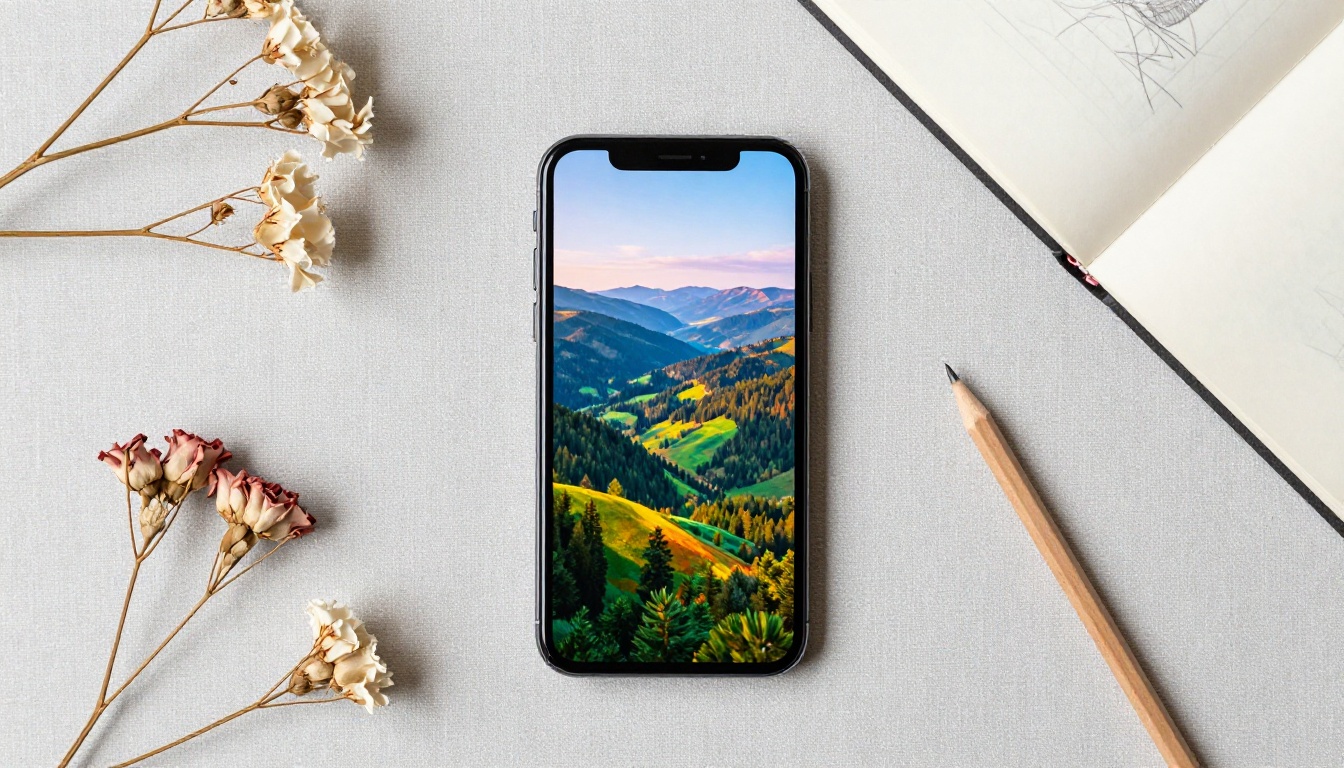
How to Write a Prompt That Works
The single biggest variable in AI image quality is not the model. It is the prompt. A weak prompt fed into a powerful model will produce mediocre results. A strong prompt given to a modest free model will outperform it. Here is what separates prompts that work from prompts that don't.
The anatomy of a strong prompt
Every effective AI image prompt has the same basic structure:
- Subject: Who or what is in the image, and what are they doing
- Environment: Where they are, what surrounds them
- Lighting: Direction, quality, and color temperature of light
- Camera: Lens type, aperture, and angle of shot
- Texture and atmosphere: Film grain, color grading, mood
- Technical suffix: Resolution and style markers
Example of a weak prompt:
"A woman at the beach"
Example of a strong prompt:
"A young woman sitting on a sandy beach at golden hour, soft warm side light from the left, Canon 50mm f/1.8, light sea breeze lifting her hair, Kodak Portra 400 grain, photorealistic 8K RAW"
The difference in output quality between these two prompts is dramatic, even on the same model.
Common mistakes on mobile
Typing on a phone is slower, which often means people write shorter prompts. That is understandable, but it is also the most common reason free-tier results disappoint. A few specific habits to avoid:
- Vague adjectives: "Beautiful" and "stunning" tell the model nothing. Describe what makes it beautiful.
- Missing light source: Without a defined light source, models default to flat overhead lighting, which is almost always unflattering.
- No camera specification: Adding a lens focal length and aperture dramatically improves subject-background separation.
- Ignoring aspect ratio: If you are generating content for Instagram Stories, specify 9:16. For blog headers and YouTube thumbnails, use 16:9.
💡 Tip: Save your best-performing prompts in your phone's notes app. A good portrait prompt can be reused dozens of times with minor edits to the subject or setting.
Prompt templates by use case
Here are three ready-to-use templates:
Portrait photography:
"[Subject description], [outfit and style], [location], soft window light from the left, Canon 85mm f/1.4, shallow depth of field, photorealistic, Kodak Portra 400 grain, 8K"
Landscape and environment:
"[Scene type] at [time of day], [weather and atmosphere], [foreground detail], wide angle 24mm f/8, golden hour light, cinematic color grading, photorealistic, 8K RAW"
Product mockup:
"[Product] placed on [surface], [background description], studio lighting with key light from the left, product photography, 50mm f/5.6, crisp focus, 8K commercial photography"
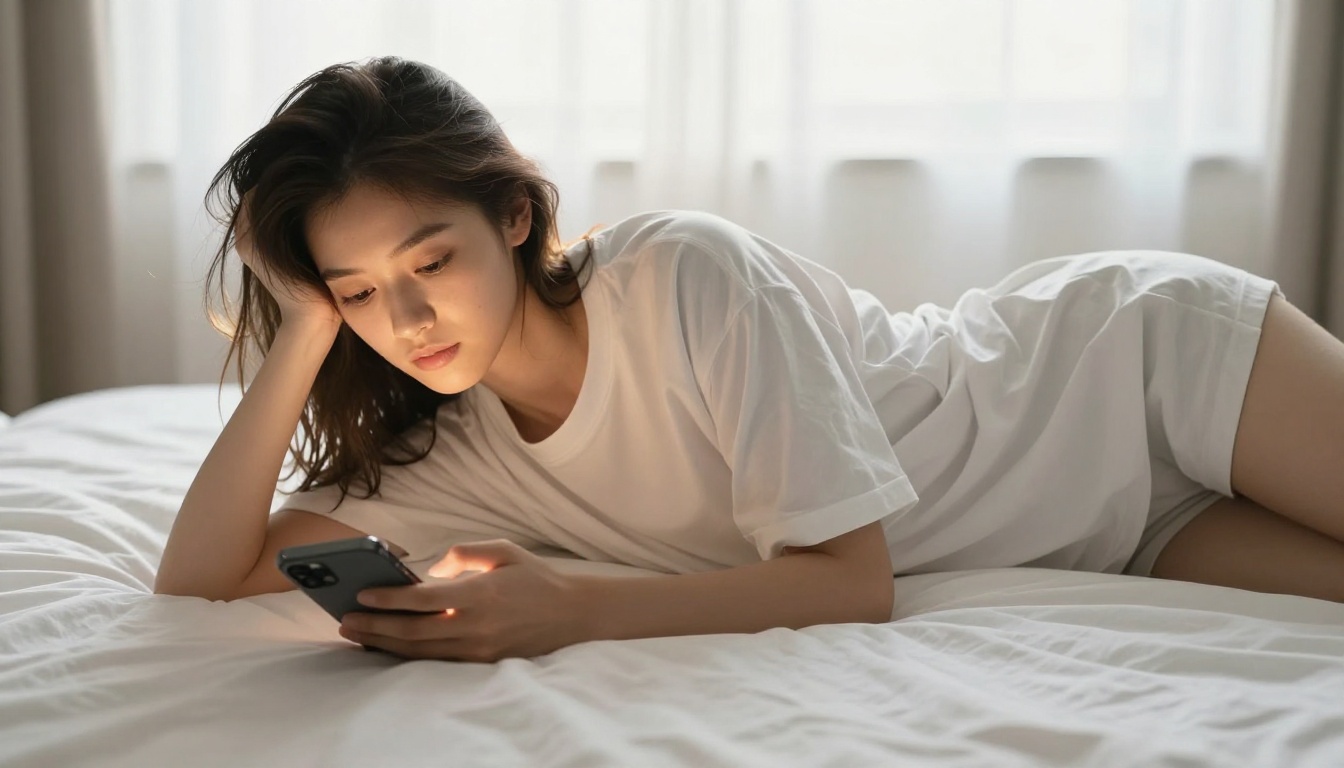
Step-by-Step: How to Generate AI Images Free on Your Phone
PicassoIA gives you access to every major free AI image model from a single mobile-optimized interface. Here's the exact workflow from zero to finished image.
Step 1: Open PicassoIA in your mobile browser
No app install required. Open Chrome, Safari, or Firefox on your phone and navigate to PicassoIA. The interface loads quickly even on slower mobile connections, and no account is required to start generating.
Step 2: Choose your model
Go to the Text to Image category. You'll find 91 available models. For beginners, start with Flux Schnell for speed, or Seedream 5 Lite for richer portrait detail.
Each model page shows example outputs, which is the fastest way to understand what style and quality to expect before you commit to a prompt.
Step 3: Write your prompt
Tap the prompt field and type your description using the structure from the section above: subject, environment, lighting, camera, texture. Keep a few template bases saved in your notes app and paste them as a starting point for faster mobile typing.
Step 4: Set your aspect ratio
Match the generation ratio to your intended output format:
- 9:16 for Stories and Reels
- 1:1 for feed posts
- 16:9 for YouTube thumbnails and blog headers
Getting this right before generating saves you from cropping and quality loss afterward.
Step 5: Generate and iterate
Tap generate and wait. With fast models like Flux Schnell, results arrive in a few seconds. Don't stop at one generation. The fastest workflow is generating three to five variations of the same prompt with small adjustments, then selecting the strongest result. Free credits make this entirely viable.
Step 6: Download to your phone
Every generated image has a download button. On mobile, this saves directly to your camera roll or downloads folder, ready to share to any platform or continue editing in your preferred app.
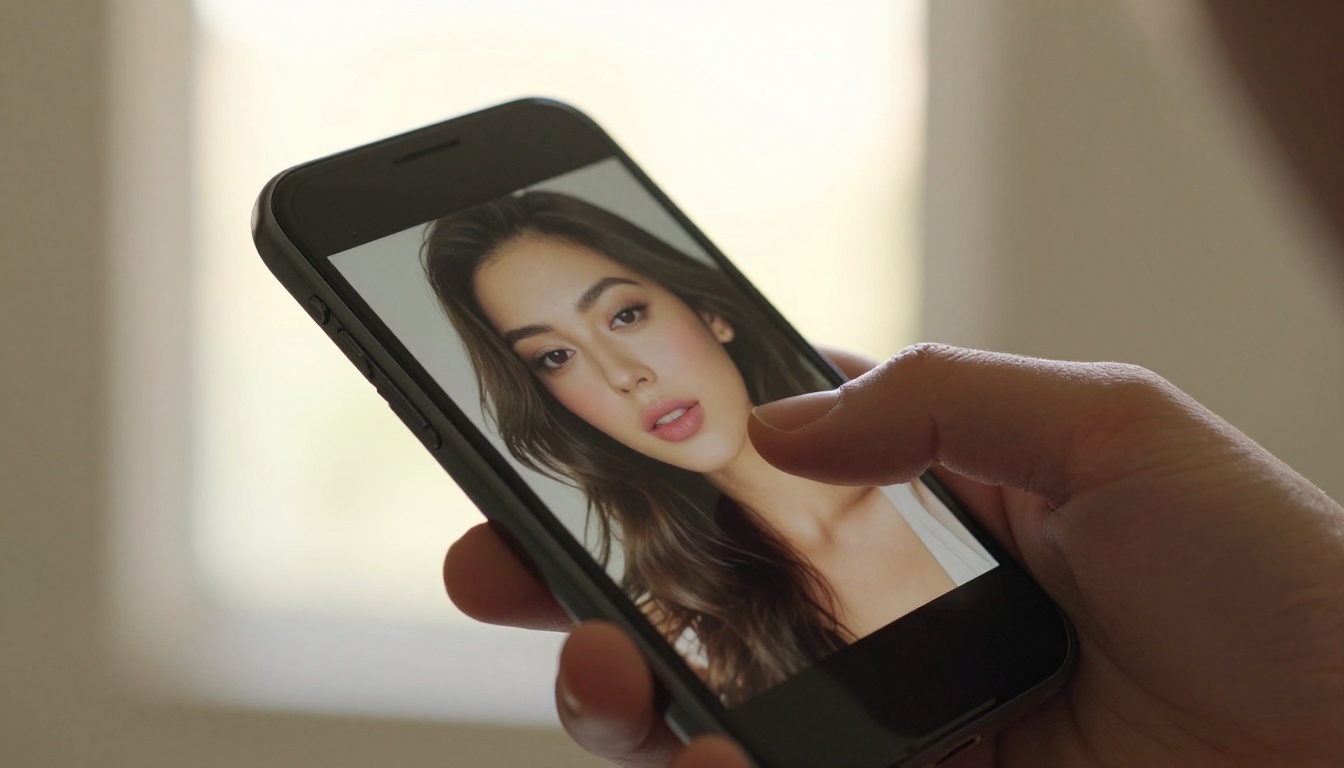
Free vs Paid: What You Actually Miss
The honest answer is: not much, for most use cases. Here's a direct comparison.
| Feature | Free Tier | Paid Tier |
|---|
| Access to top models | ✅ Most | ✅ All |
| Image resolution | Up to 1024px | Up to 4K and above |
| Generation speed | Standard | Priority queue |
| Daily generation limit | 20 to 50 images | Unlimited or high limit |
| Super resolution upscale | Limited | Full access |
| Commercial use license | Varies by model | Full commercial |
| ControlNet pose control | Limited access | Full access |
For personal projects, social media content, experimentation, and learning, the free tier handles everything you need. The main limitations become relevant when you need extremely high resolution for print output, commercial licensing for client work, or batch production at scale.
💡 If you hit the daily free limit, switching to a different free model like Imagen 3 Fast by Google or Flux Dev restores your access without paying anything.
7 Tips That Actually Improve Results on Mobile
1. Specify film stock for photorealism
Adding "Kodak Portra 400" or "Fujifilm Superia 400" to any portrait prompt pushes results toward warm, organic photorealism. These references are deeply embedded in model training data and consistently shift output toward film-like quality.
2. Use lens focal length as composition control
- 24 to 35mm: Wide angle, environmental context, slight edge distortion
- 50mm: Natural human perspective, versatile for most scenes
- 85mm: Flattering portrait compression, strong subject isolation
- 100 to 200mm: Compressed background, telephoto drama
3. Control depth of field with aperture numbers
Low f-stop numbers (f/1.4, f/1.8, f/2.0) produce a blurred background and foreground separation. High f-stops (f/8, f/11) keep everything sharp from near to far. This single detail changes the professional feel of an image more than almost anything else in the prompt.
4. Describe light direction, not just light type
"Soft morning light" is okay. "Soft diffused morning light from the left at 45 degrees, creating a gentle shadow on the right side of the face" is significantly better. Specific directional language gives the model geometry to work with.
5. Iterate in variations, not rewrites
Rather than completely rewriting a failed prompt, change one element at a time. If the composition is right but the lighting is wrong, only change the lighting description. This systematic approach identifies what is and isn't working much faster.
6. Use explicit negative space descriptions
Phrases like "no text, no logos, minimal background clutter, no harsh shadows" reduce unwanted elements. Telling the model what you don't want is often as effective as describing what you do want.
7. End every photorealistic prompt with quality markers
Closing any realistic prompt with "photorealistic, 8K, RAW photography, cinematic lighting, high dynamic range" consistently improves output sharpness and color fidelity across most models. It costs nothing to include and rarely hurts.
What You Can Create With Just Your Phone
The range of practical uses for free mobile AI image generation is wider than most people realize.
Social media visuals
Profile photos, cover images, promotional graphics, and Story backgrounds. Models like Flux 1.1 Pro produce social-media-ready images at no cost. With the right prompt, you can generate a full month of visual content in a single afternoon.
Portrait and glamour photography
Photorealistic portrait generation is where free-tier models have improved the most dramatically. Realistic Vision v5.1 specializes specifically in lifelike human portraits, handling skin texture, hair physics, and natural expressions at a level that was behind a paywall just 18 months ago. For glamour aesthetics, combining it with a strong lighting prompt produces results that rival professional studio photography.
Landscape and environment art
Sweeping outdoor scenes, architectural environments, and abstract natural phenomena. Stable Diffusion 3.5 Large handles complex environmental prompts with multiple layers of depth and atmosphere particularly well. Sunsets, fog, dramatic skies, and architectural interiors all render with strong compositional integrity.
Concept and moodboard visuals
Designers, marketers, and creators use AI image generation to quickly prototype visual concepts before committing to photography budgets. On mobile, this means you can sketch a visual concept in five minutes, in a meeting, using only your phone.
Why Free-Tier Quality Keeps Getting Better
The economics of AI image generation have shifted significantly. As model efficiency improves, the cost per inference drops, and platform providers can afford to give more away. The result is a steady upward trend: what required a paid subscription two years ago is now free, and what's free today will be even better in six months.
Models like GPT Image 1.5 by OpenAI and Imagen 4 by Google represent the current ceiling of what's achievable in text-to-image generation. Access to both is available on PicassoIA without a subscription.
When you need to push beyond the base resolution of a free generation, PicassoIA's Super Resolution tools upscale any generated image 2x to 4x, recovering fine detail and print-ready resolution from a mobile generation. The AI Image Restoration tools can fix noise, sharpness issues, and compression artifacts from any source, making free-tier outputs even more versatile.
For video, if you want to animate any still image you've created, Flux Kontext Pro lets you continue editing and remixing images with text instructions, building on your original generation without starting from scratch.
Start Creating Right Now
There is no setup, no waiting list, and no budget required to start generating AI images on your phone today. Open PicassoIA in your mobile browser, pick a free model, and type a prompt. You will have your first image in under a minute.
The skill gap between a beginner and an experienced AI image creator is almost entirely in the prompting, not the tools. Every image you generate teaches you something about how to describe what you want more precisely. After a dozen generations, you'll start developing an intuition for what language produces what results.
Pick a subject you care about, whether that's a place you want to visualize, a person you want to depict, or a concept you want to see rendered in photorealistic detail. Type it into the prompt field on PicassoIA. Hit generate.
That first image won't be perfect. The second will be better. The fifth will surprise you. The platform is there, the models are free, and the only thing standing between you and a library of stunning AI-generated images is the prompt you haven't typed yet.


