Your Instagram profile picture is the first thing anyone sees. Before they read a caption, tap a story, or follow you back, that tiny circle sets the tone for everything. And right now, the gap between a forgettable selfie and a scroll-stopping profile photo has never been easier to close, because AI avatar generators have gotten genuinely, impressively good.
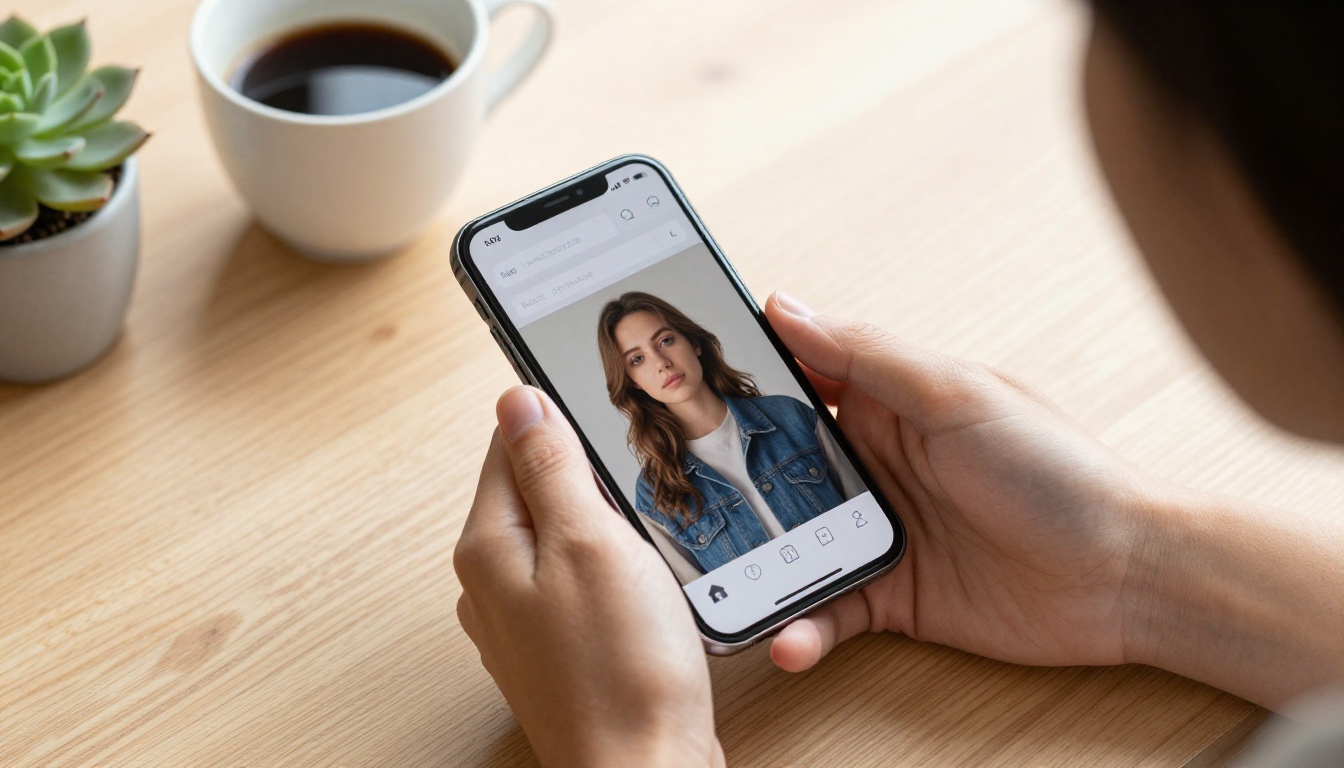
This is not about cartoon filters or anime-style illustrations. The best AI portrait tools today produce photorealistic results that look indistinguishable from a professional shoot. If you want to know exactly how to make AI avatars for Instagram that actually hold up under scrutiny, this article walks you through the whole process, from choosing the right tool to writing prompts that produce real results.
Why Your Instagram Avatar Actually Matters
Profile photos get overlooked in social media strategy conversations, but the data tells a different story. Accounts with clear, high-quality profile photos consistently receive more follower conversions than accounts with blurry, poorly lit, or generic images. That small circle carries more weight than most people realize.
Here is what your avatar communicates before you say a single word:
- Professionalism: A polished, well-lit portrait signals credibility and attention to detail
- Personality: Color, style, and expression convey who you are before anyone reads your bio
- Trust: Real-looking photos build immediate connection with new visitors
- Brand: Consistency between your avatar and your content creates visual recognition
The challenge for most people is that getting a genuinely great profile photo requires a photographer, good lighting, editing skills, and often significant cost. AI avatar generators eliminate all of those barriers entirely.
What Makes an AI Avatar Look Real
Before jumping into tools, it is worth understanding what separates a convincing AI avatar from one that instantly reads as artificial. The uncanny valley is real, and most people can spot AI-generated faces that miss on even one of these elements.
The Realism Checklist
Skin texture is the biggest tell. Real skin has pores, subtle variation in tone, fine hairs, and imperfections. AI avatars that smooth everything into a plastic-looking surface register as fake immediately, even when viewers cannot articulate why.
Lighting consistency matters just as much. Natural light falls in predictable ways: it creates catchlights in eyes, soft shadows under the nose, and warm fill on the shadow side. When lighting does not follow the physics of real-world illumination, something feels off at a subconscious level.
Background coherence seals the deal. The best AI portraits place the subject in a believable environment with appropriate depth of field, not floating against an obviously generated backdrop. The relationship between subject and background needs to feel like they exist in the same physical space.
Eye detail is where most generators fail. Eyes need genuine catchlights, slight natural asymmetry, and realistic iris texture. Perfectly symmetrical, overly polished eyes read as computer-generated the moment you look closely.
The models covered in this article handle all of these challenges well, which is why their results can be genuinely difficult to distinguish from photography.
The Best AI Models for Instagram Avatars
Not all AI image generators are equal when it comes to portrait quality. Some are built for landscapes, others for illustration. These are the ones that consistently deliver results worth using as an Instagram avatar or AI headshot generator for professional profiles.
Flux Pro Delivers Studio-Grade Portraits
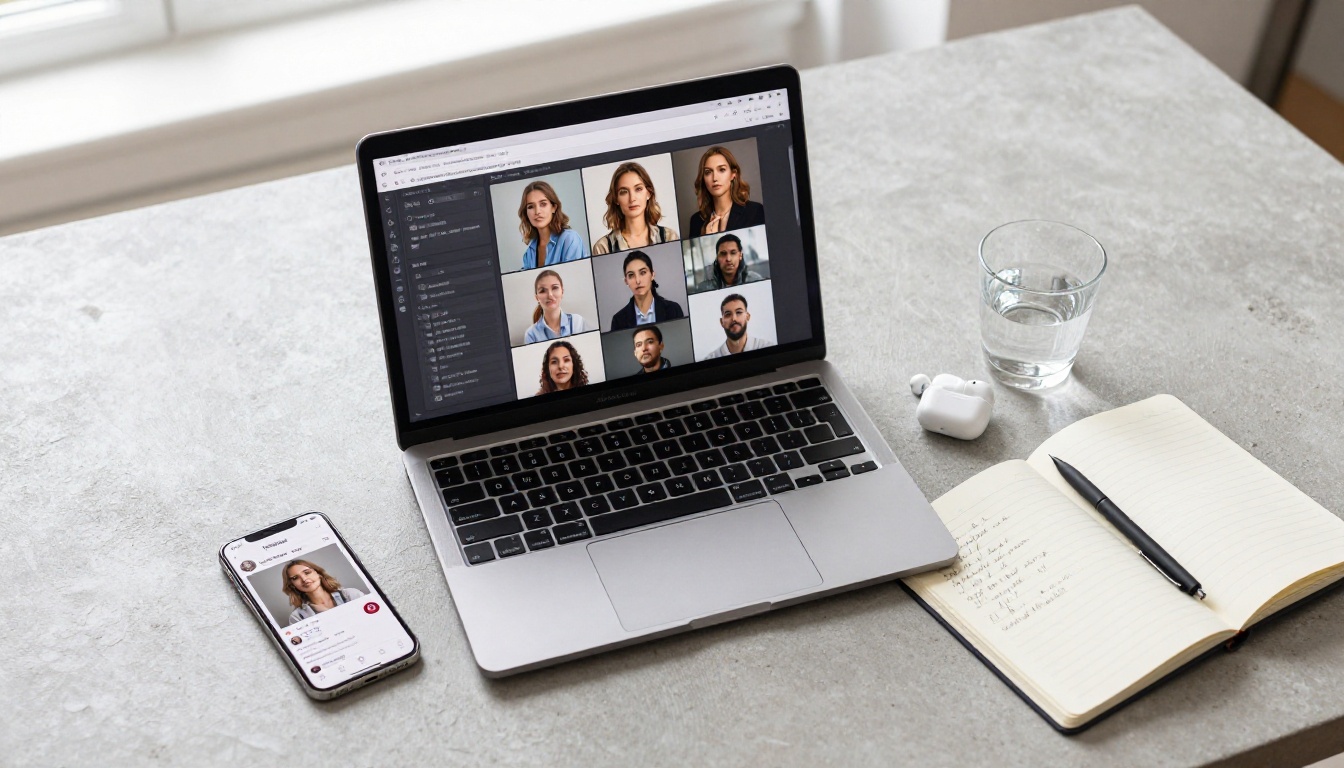
Flux Pro from Black Forest Labs is the current benchmark for photorealistic portrait generation. It handles skin texture with exceptional accuracy, renders hair with realistic strand-level detail, and produces consistent lighting across the face that reads as genuinely photographic rather than rendered.
What sets Flux Pro apart for Instagram avatars specifically is its ability to hold fine detail at portrait crop sizes. When you crop to a 1:1 ratio for an Instagram profile picture, the quality holds. The face does not dissolve into mush when scaled down to the circle display size used in follower lists.
For those who want even higher resolution output with more pixels to crop from, Flux 1.1 Pro Ultra pushes to 4 megapixels, giving you far more detail to work with before cropping down to Instagram's display size.
Imagen 4 Ultra for Natural Skin Tones
Google's Imagen 4 Ultra excels in one specific area that matters enormously for avatar creation: skin tone accuracy. It renders a wider range of skin tones with more fidelity than most competitors, avoiding the common problem of AI models defaulting to certain skin types while struggling with others.
If you have found that other AI avatar generators consistently misrepresent your skin tone or flatten its natural variation, Imagen 4 Ultra is worth trying specifically for this reason.
Realistic Vision v5.1 for Hyperrealistic Headshots
Realistic Vision v5.1 was built with portrait photography as its primary use case. It specializes in the tightly composed headshot that works perfectly as an Instagram profile picture, with strong default handling of portrait lighting conditions that most other models require significant prompt engineering to replicate.
This model tends to produce images with slightly warmer, more flattering tones by default, which works well for social media contexts where you want the subject to look naturally appealing without heavy post-processing.
Flux Dev for Creative Control
Flux Dev gives you more room to push the prompt in specific creative directions while maintaining photorealism. If you want an AI avatar that places you in a particular environment, such as golden hour outdoors, a soft studio with colored gels, or a city rooftop, Flux Dev responds well to detailed environmental descriptions.
💡 Tip: Use Flux Dev when you have a specific visual concept in mind. Use Flux Pro when you want consistently excellent results with less prompt engineering.
How to Create Your AI Avatar Step by Step
Here is the exact process to go from nothing to a finished Instagram avatar using AI image generation tools available on PicassoIA.
Step 1: Define Your Look Before You Generate
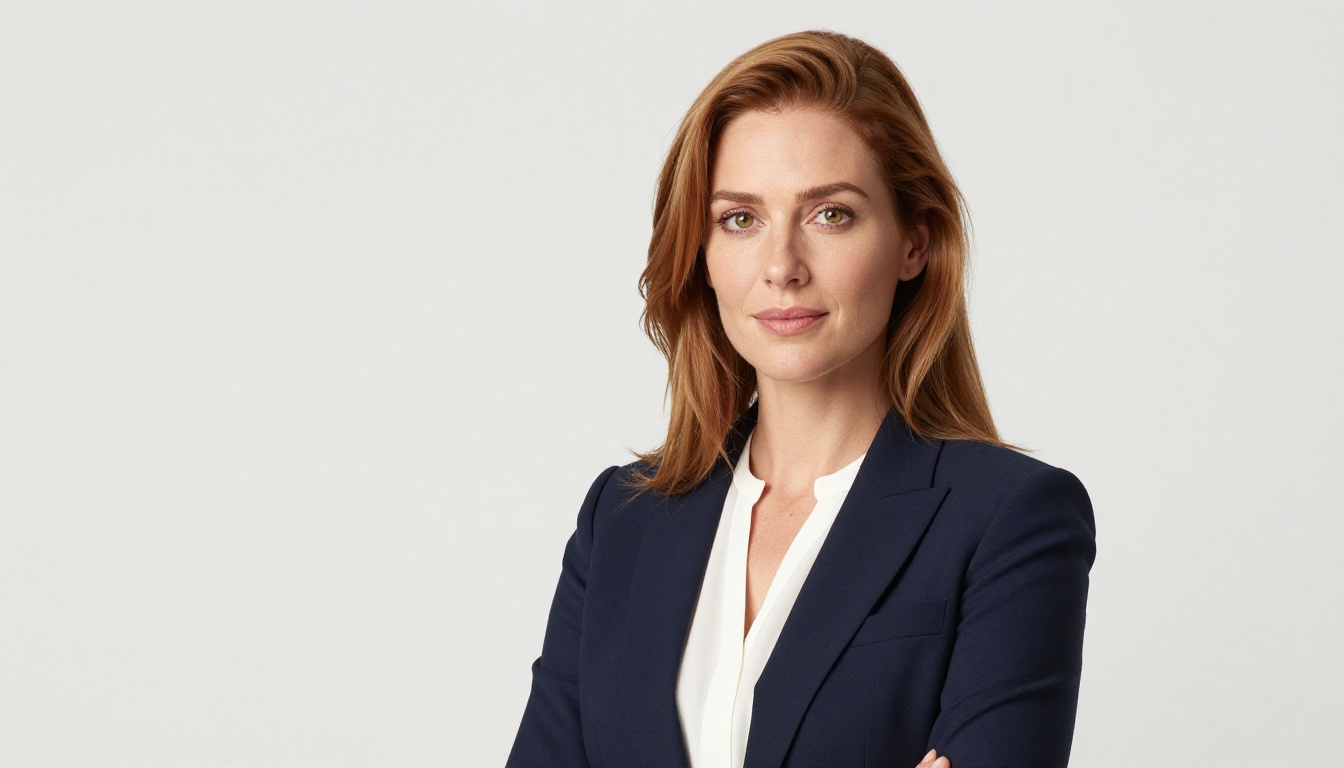
Before writing a single prompt, decide what you want your avatar to communicate. This is not a small question. Your profile picture shapes how people perceive everything else you post.
Ask yourself:
- Professional or casual? A headshot in a blazer reads very differently from a relaxed outdoor portrait
- Indoors or outdoors? Studio lighting creates a polished, controlled feel. Natural light reads as authentic and approachable
- Close crop or mid-shot? Instagram displays profile pictures as small circles, so tight crops showing primarily the face perform better than wide shots
- Color palette? Warm tones feel inviting. Cool tones feel modern and editorial. Neither is wrong, but they send different signals
Write your answers down before opening any tool. This becomes the foundation of your prompt and saves you from generating dozens of variations that all miss the mark in the same way.
Step 2: Write a Specific Prompt
Vague prompts produce generic results. The more specific you are about what you want, the better the output. Here is a prompt formula that consistently works for AI portrait generation:
[Subject description] + [Clothing and style] + [Environment] + [Lighting] + [Camera and lens] + [Quality modifiers]
Example prompt (poor):
"Beautiful woman with good lighting"
Example prompt (strong):
"Portrait of a woman in her late twenties, wearing a soft sage green crewneck sweater, seated near a large window in a minimalist apartment, warm diffused morning light from the left side creating gentle shadows on the right, 85mm f/1.8 lens, shallow depth of field with soft background bokeh, Kodak Portra 400 film grain, photorealistic, 8K, natural skin texture"
The second prompt gives the model everything it needs: subject, clothing, environment, lighting direction, camera settings, and quality targets. The result will be specific rather than generic.
Step 3: Choose Your Model on PicassoIA
Navigate to the text-to-image collection on PicassoIA. For portrait work, start with Flux Pro or Realistic Vision v5.1.
Set your aspect ratio to 1:1 if your tool allows it, since Instagram profile pictures display as circles cropped from square images. If you generate in 16:9, you will need to crop afterward, which risks cutting off the top of the head or chin.
Generate 3 to 5 variations before judging the model. AI image generation has an element of randomness, and your first output is rarely your best.
Step 4: Upscale Before You Post
AI-generated images often come out at resolutions that look fine on a computer screen but degrade when Instagram compresses them during upload. Instagram recommends profile photos at 110x110 pixels minimum, but uploading at 320x320 or higher prevents compression artifacts that blur the face.
Use a Super Resolution tool (available directly on PicassoIA) to upscale your chosen avatar 2x or 4x before downloading. The difference in sharpness after Instagram's compression algorithm runs on it is significant and immediately visible.
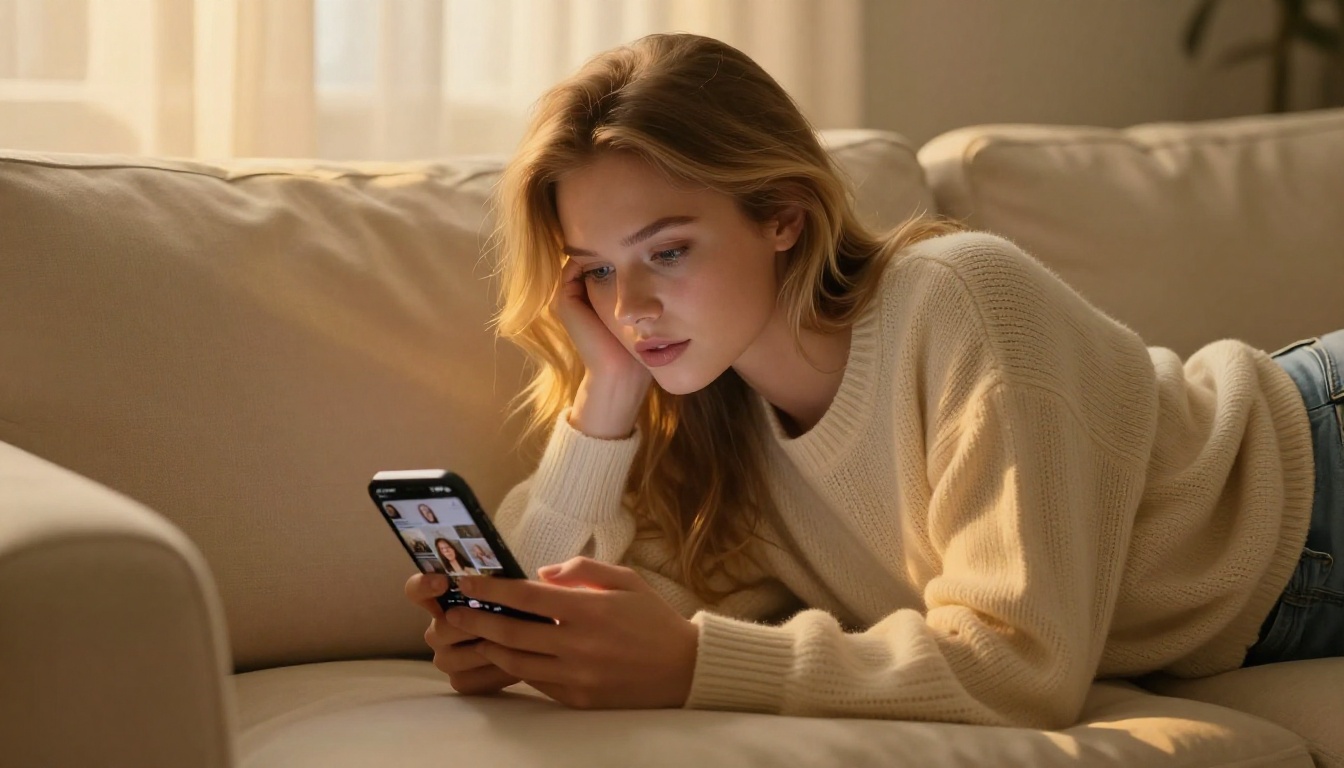
The gap between a mediocre AI avatar and a stunning one usually comes down to the prompt. These are the specific elements that consistently improve portrait quality for Instagram-ready AI headshots.
Lighting Descriptors That Matter
| Descriptor | Effect on the Portrait |
|---|
| "Volumetric morning light from the left" | Creates dimensional, warm light with visible directional shadows |
| "Soft octabox from above" | Simulates professional studio beauty lighting |
| "Golden hour backlight" | Warm rim light, creates glowing hair separation from background |
| "Overcast natural daylight" | Even, flattering, virtually shadow-free illumination |
| "Rembrandt lighting" | Classic dramatic portrait with small triangle of light on shadow cheek |
Camera and Lens Terms to Use
These terms signal to the model that you want photography-style realism rather than illustration or digital art:
85mm f/1.4 portrait lens creates shallow depth of field, face sharp, background softly blurred35mm f/2.8 environmental portrait keeps face sharp with some background context visible100mm macro f/2.8 produces extreme close-up facial detail ideal for tight avatar cropsKodak Portra 400 film grain adds photographic texture that reads as analog rather than digitalRAW 8K photography signals maximum resolution and detail preservation
Quality Modifiers That Work
Add these at the end of any portrait prompt:
photorealistic, natural skin texture, visible pores, authentic lighting, Kodak Portra 400 film grain, RAW 8K photography, no digital art, no illustration, no CGI
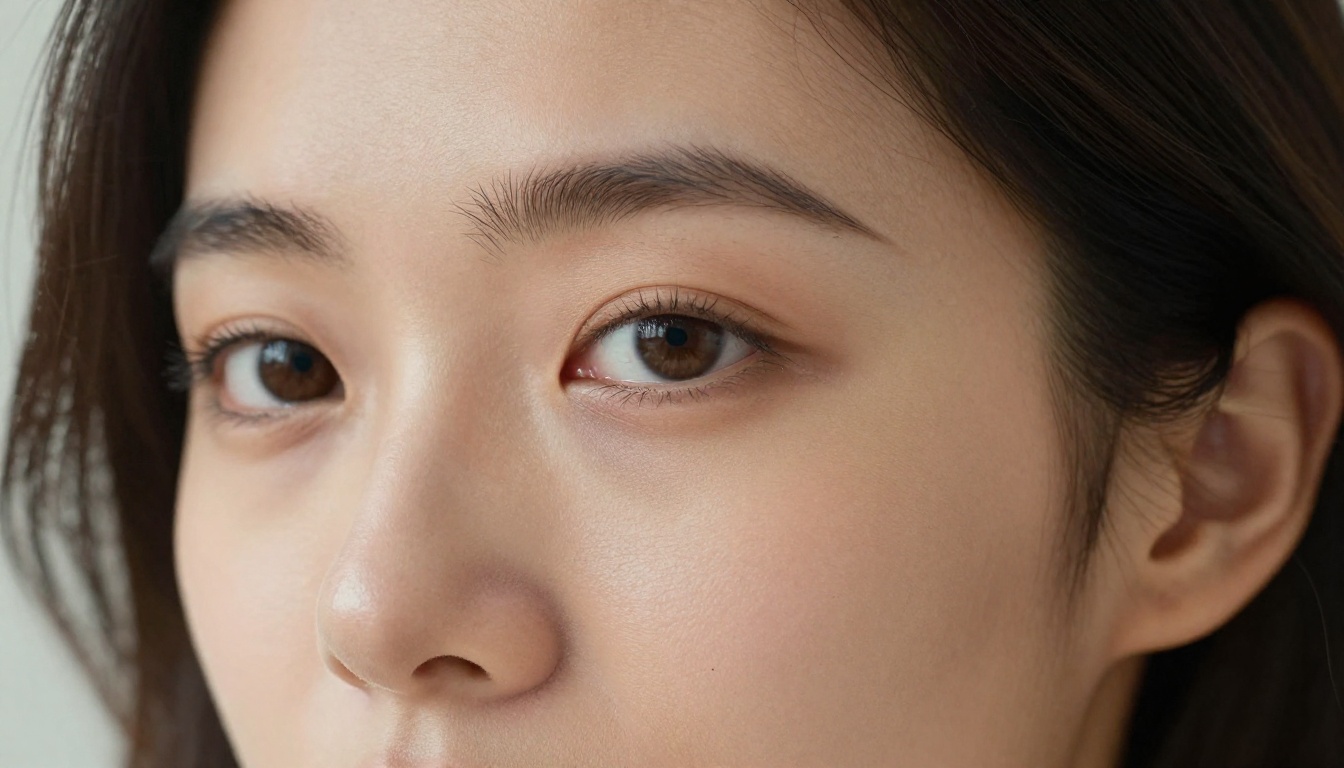
Sizing and Cropping for Instagram
Getting the photo right is only half the job. Instagram has specific requirements and display quirks around profile photos that most tutorials skip over entirely.
Instagram Profile Photo Specs
- Display size: 110x110 pixels (but always upload larger than this)
- Recommended upload: 320x320 pixels minimum for crisp display
- Format: JPG or PNG both work, JPG at high quality is fine
- Shape: Displayed as a circle, so avoid placing important elements in corners
- File size: Keep under 5MB for fastest upload without compression issues
Cropping Strategy
When you generate your avatar, mentally draw a circle centered on the face. Everything outside that circle will not be visible in feeds and follower lists. This means:
- The face should fill 60 to 75 percent of the frame
- Eyes should sit in the upper third of the circle
- Avoid busy backgrounds that compete visually with your face inside the crop
- Keep the background simple within the circle crop area, even if the full image has more going on outside it
For story views and tagged posts, the full image may be visible, so the overall composition still matters even beyond the circle crop.
Common Mistakes to Avoid
Even experienced users make these mistakes when generating AI avatars for Instagram. Knowing them in advance saves significant time.
1. Generating Without a Clear Concept
People who go straight to generating without deciding what they want end up with technically competent but personally meaningless avatars that could belong to anyone. Spend five minutes defining your concept before opening any tool.
2. Using Prompts That Are Too Short
Short prompts produce generic results. "Portrait of a woman" will give you a portrait that looks like it could be anyone. Add clothing, environment, lighting direction, camera lens, and mood to get something specific to your vision.
3. Accepting the First Output
Run at least five variations before deciding the model is not working for you. AI generation has variance, and the fifth iteration is often dramatically better than the first. Most platforms let you use the same seed to iterate on a specific composition you like while varying other elements.
4. Skipping Upscaling
This is the most common technical mistake people make with AI-generated profile photos. Posting a non-upscaled AI portrait to Instagram typically results in visible compression artifacts that blur the face. Always upscale before uploading.
5. Ignoring the Circle Crop
Generated portraits often have faces centered perfectly in a rectangle. When cropped to a circle by Instagram, the top of the head or chin can get clipped in ways that look strange. Test your image in a circle crop tool before uploading to catch this.
💡 Tip: Take a screenshot of your profile after uploading and zoom in to the profile circle at the size it appears in a follower list. What you see at that small size is what actually matters, not the full-size version.
More Ways to Refine Your Avatar
Once you have a base avatar you like, additional tools on PicassoIA let you push the result further in several useful directions.
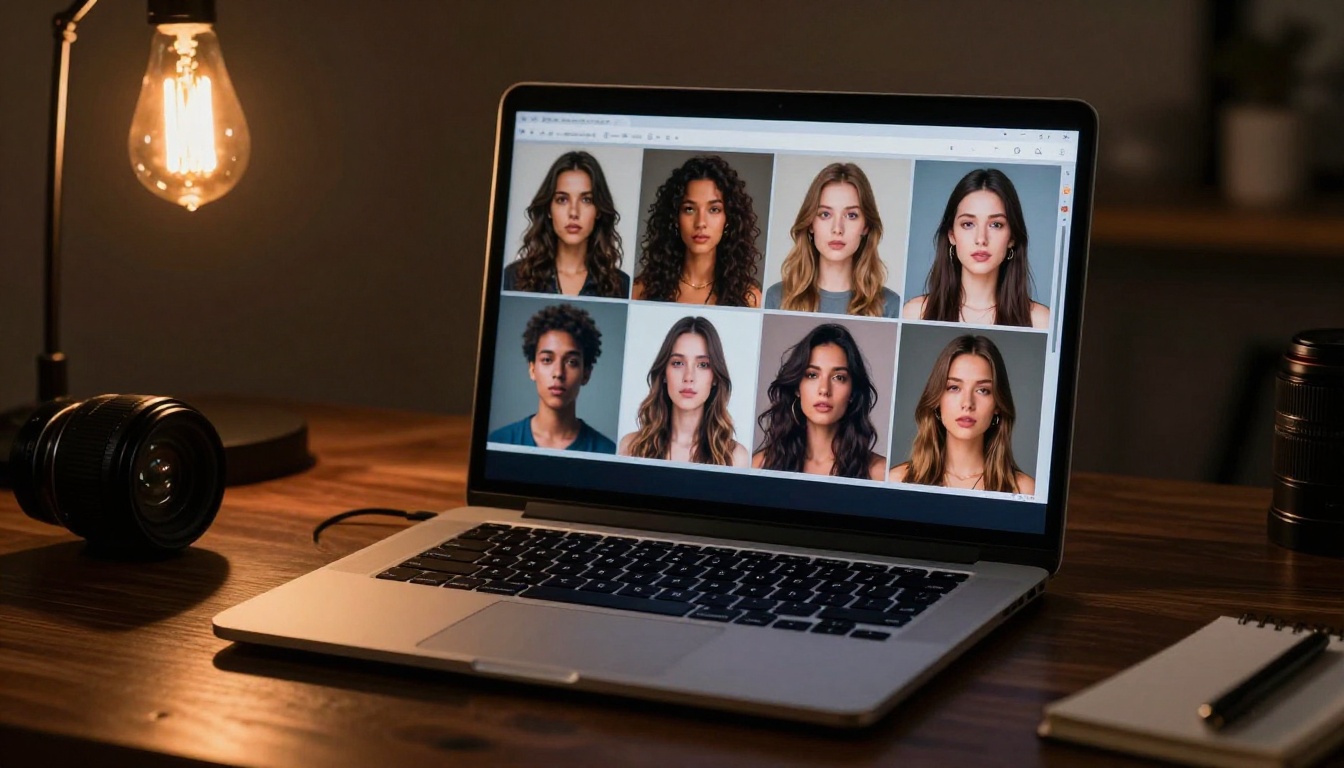
Face Swap AI for Better Likeness
If the generated portrait does not look enough like you, Face Swap AI tools can transfer your facial features onto the generated image, preserving the lighting, environment, and overall composition while replacing the generated face with a more accurate version of yours. This is useful when you want a specific creative setup but need the face to match more closely.
Background Removal for Versatility
Background Removal tools let you isolate the portrait from its generated background, so you can drop it onto any backdrop you choose. This is particularly useful for creators who want consistent visual branding by always appearing against the same color or environment in their profile photo across multiple platforms.
Image Restoration for Existing Photos
If you have a great photo of yourself but it is blurry, noisy, or damaged, AI Image Restoration tools can recover detail, reduce noise, and sharpen the image before you use it as a reference for further generation. This workflow (restore first, then use as a reference for a new generation) can produce highly realistic avatars that genuinely resemble you while still looking professionally shot.
How to Use Flux Pro on PicassoIA
PicassoIA gives you direct access to Flux Pro in your browser with no software installation or local GPU required. Here is exactly how to use it for your Instagram avatar:
1. Open the model page at Flux Pro on PicassoIA
2. Enter your prompt in the text field, using the formula from earlier in this article: subject description, clothing, environment, lighting, lens, quality modifiers.
3. Set aspect ratio to 1:1 for Instagram profile photos, or 16:9 if you plan to crop manually.
4. Click Generate and wait for the result. Flux Pro typically produces results in under 30 seconds.
5. If unsatisfied, adjust your prompt. Add more specifics about lighting direction, change the environment description, or add quality modifiers. Do not simply regenerate the same prompt and expect a different result.
6. Upscale the result using the Super Resolution tool before downloading for Instagram upload.
💡 Tip: If Flux Pro is generating slightly too stylized results, try Flux Dev with the same prompt. The two models respond differently to identical inputs and one may suit your style better.
Comparing Top Models for AI Avatars
Start Generating Your Avatar Now
The gap between the Instagram profile you have and the one you actually want has never been smaller. These tools exist, they work, and they are accessible without a subscription fee, expensive software, or any photography background whatsoever.
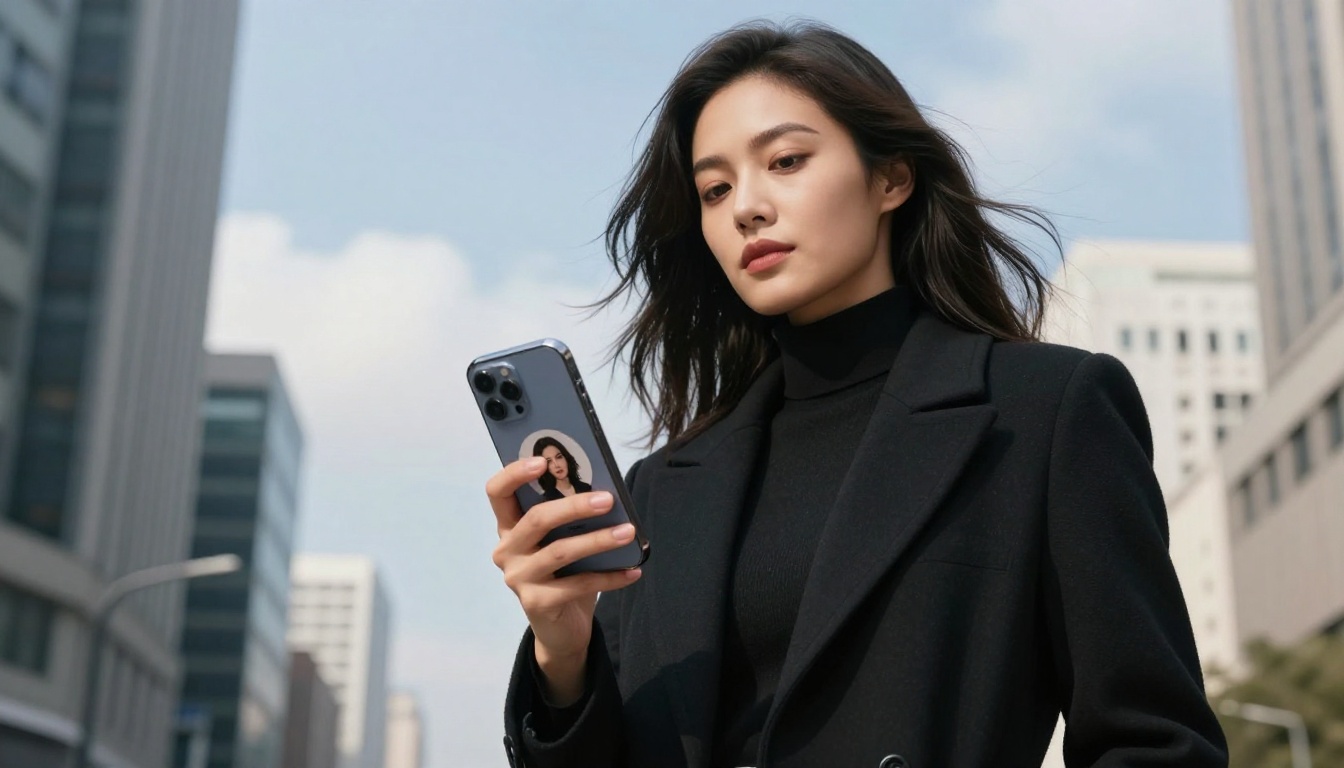
Start with Flux Pro on PicassoIA. Write a detailed prompt using the formula in this article. Generate five variations. Pick the strongest one, upscale it, test the circle crop, and upload it to Instagram.
The whole process takes about 15 minutes the first time. After that, you will have the muscle memory to iterate in under five. PicassoIA gives you access to every model mentioned in this article in one place, so you can switch between Flux Pro, Imagen 4 Ultra, Realistic Vision v5.1, and Seedream 4 without switching between different tools or platforms.
Your Instagram profile picture deserves more than a hurried selfie taken in bad light. The AI avatar tools to fix that are available right now, and the results speak for themselves.


