Selling online without professional product cutouts is like running a store with the lights half off. Shoppers on Amazon, Shopify, or Instagram scroll past cluttered, unprofessional images in under a second. The products you worked hard to source deserve better than a messy garage background or a supplier photo plastered with watermarks. And if you have 50, 200, or 1,000 products to list, doing this manually is simply not a viable option for a lean team. AI-powered bulk background removal changes the math entirely, turning hours of Photoshop labor into a process that takes minutes per batch.
Why Product Images Make or Break Your Sales
Your product photo is doing the selling. In physical retail, customers can touch, hold, and examine products up close. Online, all they have is your image. Research consistently shows that high-quality product imagery is the single largest factor influencing purchase decisions for e-commerce shoppers, outranking price comparisons and even review counts in many categories.
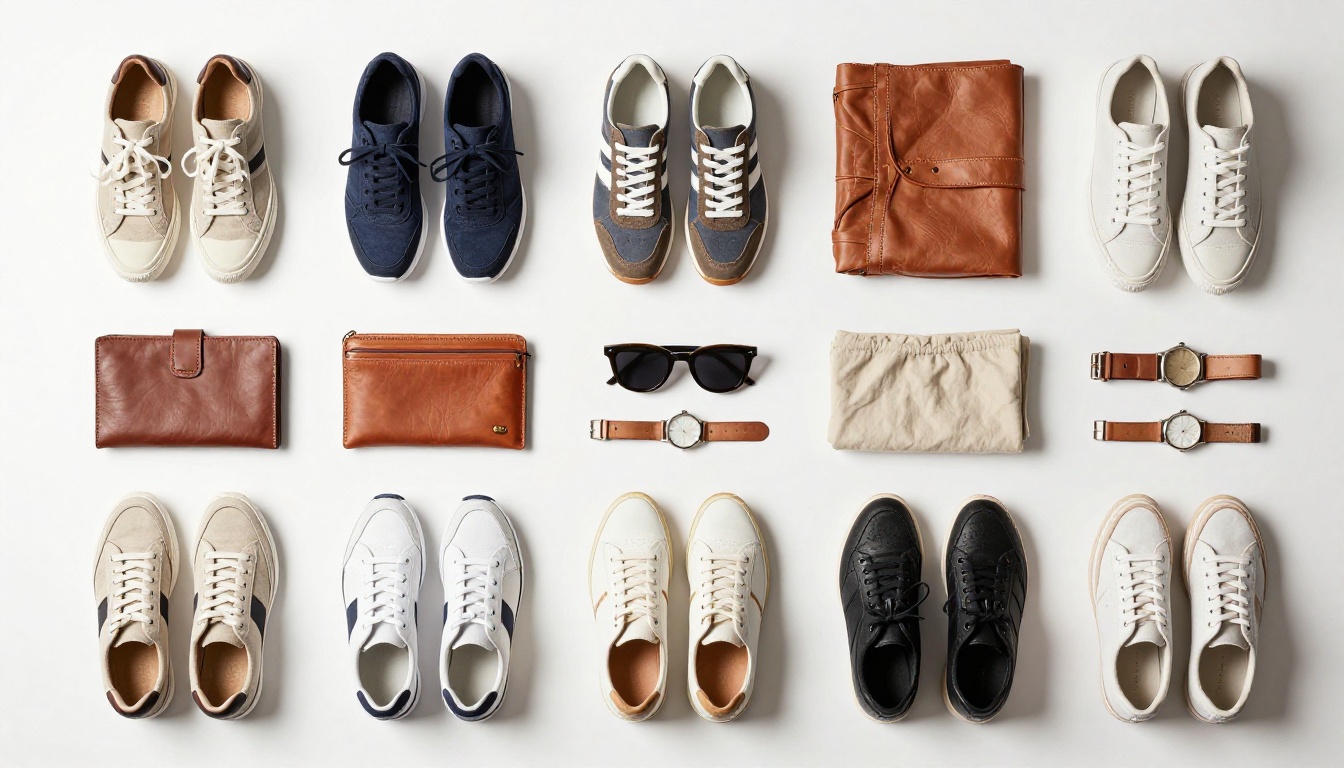
A clean cutout, a product isolated on a white or transparent background, signals professionalism, builds instant trust, and lets the product itself command full attention. There is no competing background, no distracting shelf, no accidental reflection of a messy room. Just the product.
The First 3 Seconds Rule
Attention spans online are brutally short. When a shopper lands on a product listing or category page, they make a judgment call almost instantly. A cluttered, distracting background pulls attention away from what you're actually selling. A clean white background forces the eye directly onto the product. Bold, isolated product images convert significantly better than lifestyle shots cluttered with context, particularly in search results where your image competes against dozens of others in a grid layout.
What Marketplaces Actually Require
Most major selling platforms enforce strict image requirements, and failing to meet them means your listings get suppressed, rejected, or ranked lower in search:
| Platform | Background Requirement | Minimum Resolution |
|---|
| Amazon | Pure white (RGB 255,255,255) | 1000px on longest side |
| eBay | White or light background | 500px minimum |
| Shopify | Consistent background | Recommended 2048x2048 |
| Google Shopping | White or transparent | 250x250 minimum |
| Etsy | Clean, uncluttered | 2000px recommended |
| Walmart Marketplace | White background | 1000px minimum |
Consistency across your catalog is equally critical. When 47 products use 47 different background styles, your store looks amateurish regardless of how good each individual photo is. Customers who browse your catalog notice the inconsistency even if they can't articulate why something feels off.
Why Manual Editing Fails at Scale
If you have 10 products, manual editing in Photoshop is annoying but manageable. If you have 500 products, it becomes an operational bottleneck that actively slows your business.
The Time Math Nobody Does
A skilled Photoshop user takes between 5 and 20 minutes per product image depending on complexity. Jewelry, eyewear, and items with transparent or fine-detail edges take longer still. Consider the realistic numbers:
- 100 products x 10 minutes = 16.7 hours of focused editing
- 500 products x 10 minutes = 83 hours of focused editing
- Freelancer cost at $25/hour for 500 products = $2,075
That is before accounting for revision rounds, quality inconsistencies between different editors, or the coordination overhead of managing a freelancer relationship. For a new product drop or seasonal catalog refresh, this timeline often means missing the launch window entirely. The market moves while you wait on edits.
Inconsistency Kills Your Brand
Even skilled human editors produce slightly different results across a large batch. One image has a warmer white background. Another has a faint shadow left beneath the product. A third has a slightly rough edge around a complex silhouette. Individually these differences seem minor. Across a 200-product catalog, they create visual noise that makes your brand look unpolished and inconsistent. AI processes every image with the same algorithm, producing pixel-level consistent results whether you run 5 images or 500.
💡 Pro tip: Catalog-wide visual consistency is one of the most underrated conversion rate optimization tactics for e-commerce stores. Shoppers subconsciously trust stores that look uniform and intentional. Inconsistent imagery reads as "small operation" before they have even read a product description.
How AI Background Removal Actually Works
Not all background removal tools are built the same. The gap between a basic color-key tool from 2010 and a modern AI model is enormous in both output quality and the range of products it handles correctly.
Early Tools vs. Modern AI
Early background removal tools worked by identifying the dominant color in an image (usually white from a photography sweep or blue from a chroma key setup) and deleting pixels matching that color. This approach worked for simple products on perfectly uniform backgrounds. It failed completely on anything involving:
- Fine hair or fur edges
- Transparent or semi-transparent materials (glass bottles, plastic packaging, sheer fabrics)
- Products that contained white or background-similar colors in the product itself
- Complex silhouettes with interior negative space (wire racks, chair legs, wicker baskets)
- Products shot on imperfect or gradient backgrounds
The result was fringing, haloing, incomplete masking, and manual cleanup that defeated the purpose of automation.
Why Semantic Segmentation Changed Everything
Modern AI uses semantic segmentation, which means the model actually understands what it is looking at rather than just comparing pixel colors. It identifies the product as an object, recognizes its category and material type, understands its boundaries at the sub-pixel level, and separates it from the background with precision that matches or exceeds skilled human retouching.
The Remove Background model on PicassoIA is built on this architecture, trained on millions of product images across every e-commerce category. It handles:
- Fine textile edges: Lace, mesh, fringe, and fur trim are cleanly separated
- Transparent materials: Glass and plastic maintain their refraction and translucency
- Metallic surfaces: Jewelry and hardware are isolated without losing surface detail
- Complex silhouettes: Chairs, racks, and products with interior holes are correctly processed
- Multi-component products: Shoes with laces, watches with bands, and accessories with straps are handled as single objects
Bulk Cutouts on PicassoIA (Step-by-Step)
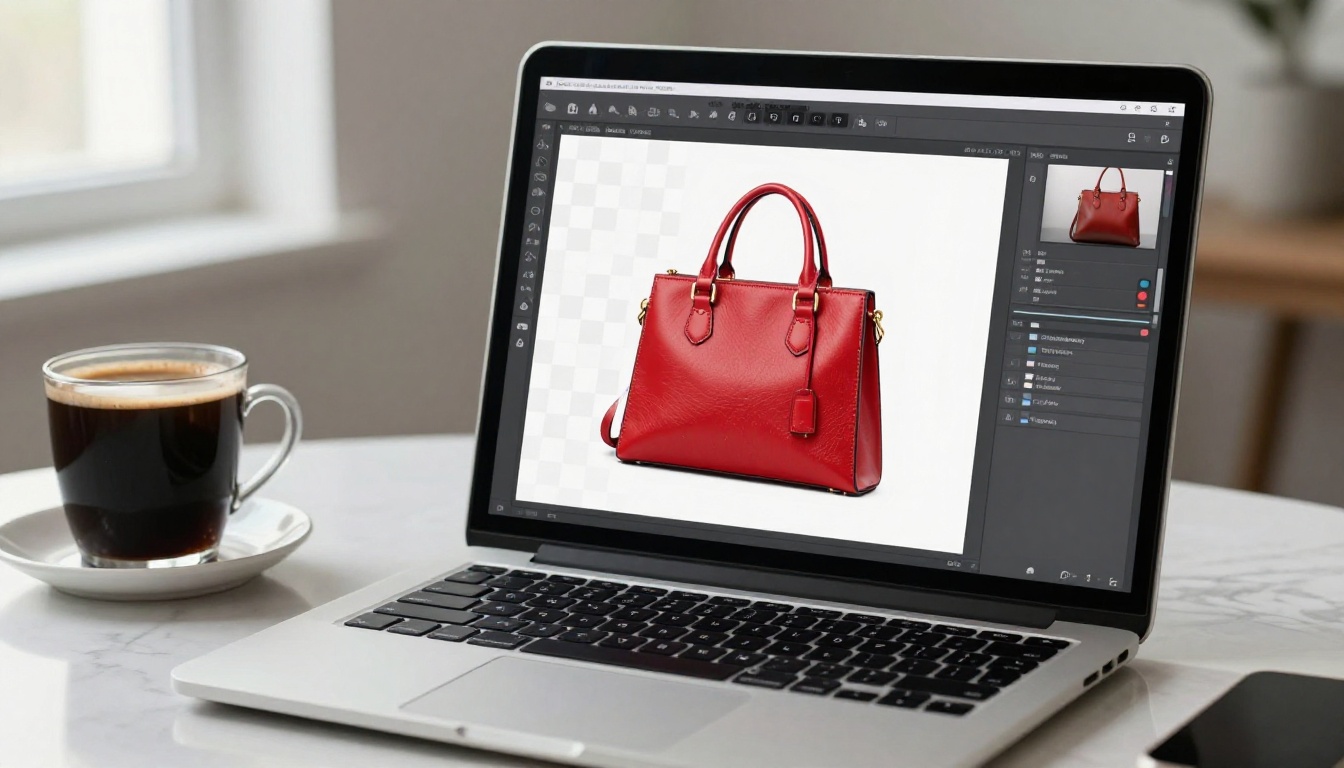
The Remove Background tool makes this workflow accessible without any technical setup, design software, or prior editing experience. Here is the full process from raw photos to finished, deployment-ready cutouts.
Step 1: Prepare Your Product Photos
Before uploading anything, set yourself up for the best possible AI results. Better input images produce cleaner cutouts with less need for manual touch-up.
- Shoot on a contrasting background: A light gray or white sweep works well for dark products. For white products, use a very light gray or pale blue backdrop to give the AI clear edge signals.
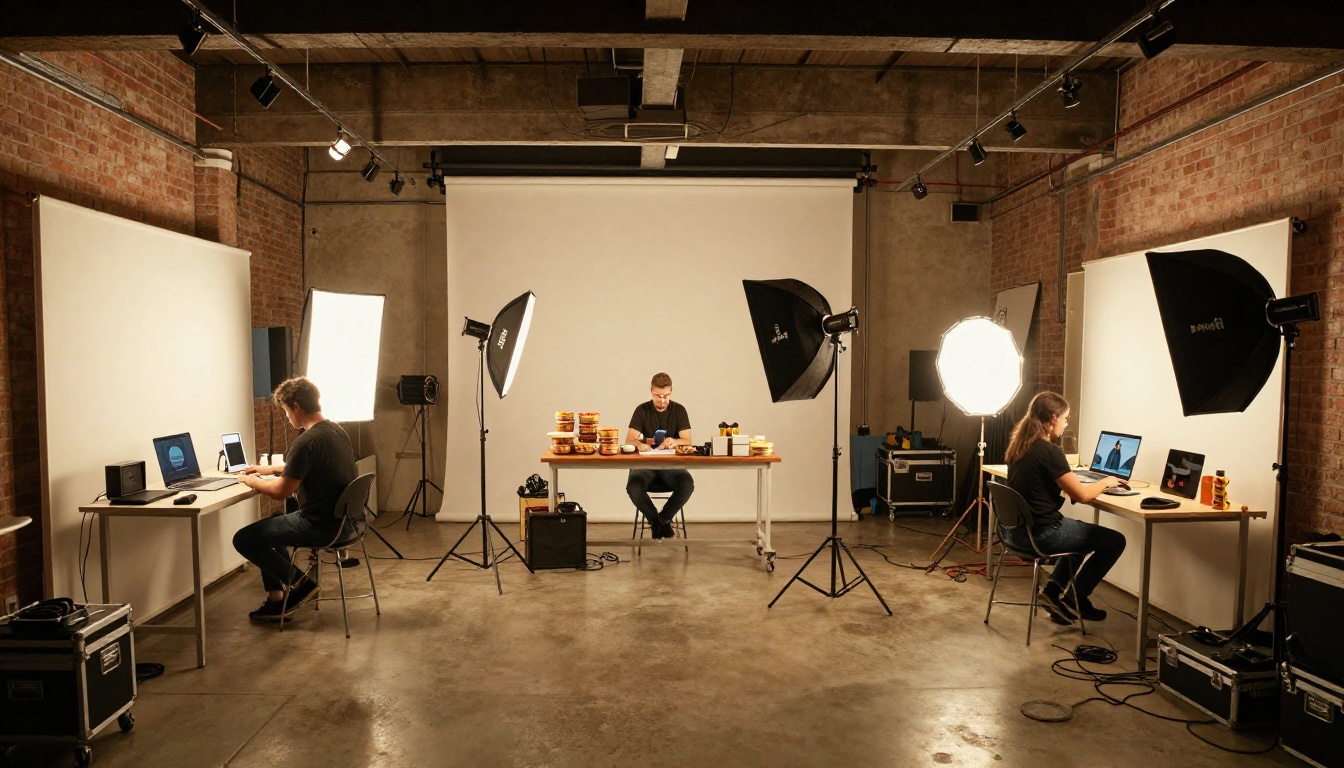
- Use consistent, even lighting: Soft lighting from two sides (a classic two-softbox setup) eliminates harsh shadows that can create ambiguous edges near the product base.
- Fill the frame intentionally: Make sure your product takes up at least 60% of the frame. Tiny products surrounded by large background areas reduce the model's effective resolution on the product edges.
- Shoot at maximum resolution: More image data gives the AI more to work with. Avoid compressing before upload. Use RAW or high-quality JPEG from your camera.
- Keep angles consistent across SKUs: If you're processing an entire product category, shoot every item from the same angle and distance. This creates visual uniformity before the AI even touches the images.
💡 Pro tip: You do not need an expensive studio. A $30 foldable white backdrop and two daylight LED panels produce images the AI handles perfectly. The goal is a clean, non-distracting background, not perfection. The AI will handle the precision work.
Step 2: Upload and Process
Once your images are ready:
- Go to the Remove Background tool on PicassoIA.
- Upload your product image directly from your device.
- The model processes the image automatically. No manual selection tools, no lasso, no pen tool required.
- Download the result as a transparent PNG, or place it directly on a white background if your platform requires JPEG.
- Repeat the process systematically through your product catalog, working category by category.
For large catalogs, batch your products into groups of 20 to 30 and work through them in focused sessions. This makes quality-checking more manageable and lets you catch any problem product types before processing hundreds of images.
Step 3: Quality Check and Deploy
After processing each batch, do a quick quality pass before deploying:
- Zoom to 100% on the product edges. Look for rough edges, haloing (a faint ring of background color left around the product), or areas where the product itself has been partially clipped.
- Pay special attention to the most complex parts of each silhouette: handles, straps, ties, laces, and any fine-detail areas.
- For images that did not produce a clean result, check if the source photo had poor lighting, a non-contrasting background, or motion blur. Fix the photography and reprocess rather than manually patching the AI output.
- Export your final images in the format each platform requires.
Getting the Best Results Every Time
The AI does the heavy lifting, but certain habits improve output quality consistently.
Shoot for the AI (Not Against It)
Certain photography choices make AI background removal significantly more accurate:
- Avoid white products on white backgrounds: The model handles this but produces softer edges. Shoot white products on a light gray sweep instead.
- Keep products off glass surfaces: Glass tables create reflections and refractions that generate ambiguous pixel data at product edges. Use matte white acrylic or paper instead.
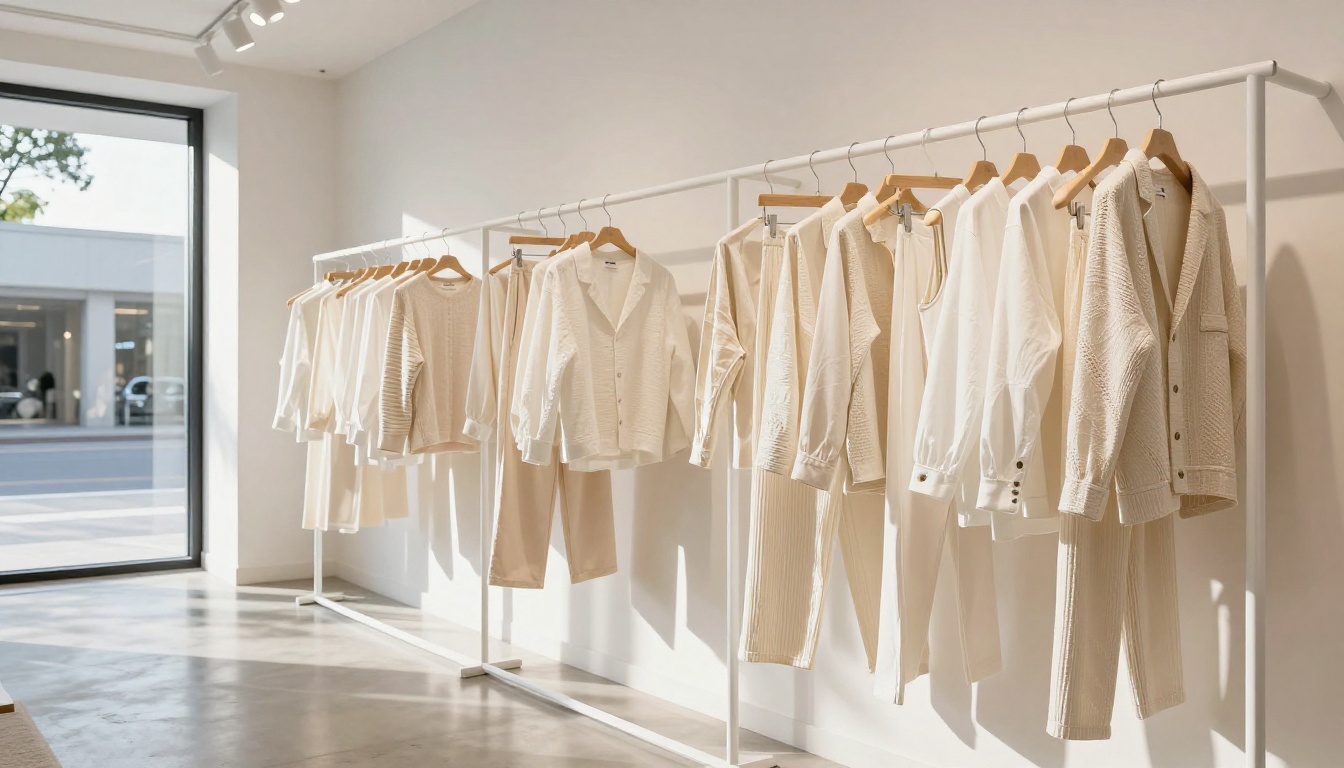
- Hang or display garments structurally: A flat-lay garment with complex wrinkles and folds is harder to process than one hanging on an invisible mannequin or wire form. Structured garments produce cleaner cutouts.
- Eliminate motion blur entirely: Even slight motion blur creates soft, ambiguous edges that reduce cutout quality. Use a tripod and fast shutter speed.
File Format and Resolution Tips
| Format | Best Use Case | Transparency |
|---|
| PNG | Transparent backgrounds, web listings | Yes |
| JPEG | White background, compressed catalogs | No |
| WebP | Web-optimized listings | Yes |
| TIFF | Print catalogs, high-resolution archives | Yes |
Always process at the highest resolution available. Compressing after the fact is easy. Recovering quality from a low-resolution source is not.
💡 Pro tip: After background removal, if your source images are low resolution (under 1000px), run them through a Super Resolution tool before deploying. This increases image size 2x to 4x while preserving sharp product edges and fine surface details.

Who Needs Bulk Product Cutouts
AI background removal at scale serves a wide range of businesses and creators, not just large retailers with dedicated photo teams.
Dropshippers and Resellers
Dropshippers typically receive supplier-provided images with branded watermarks, cluttered backgrounds, or heavily inconsistent styling. Running every supplier image through AI background removal and placing it on a clean white background instantly professionalizes your listings, removes third-party branding, and creates a store aesthetic that looks like a real brand rather than a resale operation.
Fashion and Apparel Brands
Fashion is one of the most image-intensive e-commerce categories. A single product SKU often requires multiple angles:
- Front shot
- Back shot
- Detail shots (fabric, stitching, closures)
- Size comparison or scale reference shot
Multiply that by 40 SKUs in a seasonal collection and you have 160+ images to process. AI cuts that workflow from days of editing to an afternoon of upload-and-download.
Jewelry and Accessories
Jewelry is notoriously difficult to cut manually. The combination of metallic surfaces, gemstone facets, fine chain links, and small physical scale makes Photoshop masking painfully slow even for experts. Modern AI handles prong settings, chain links, and surface reflections with precision that previously required dedicated jewelry retouching specialists charging premium rates.
Food and Packaged Goods
Bottled beverages, boxed products, canned goods, and packaged food all need clean cutouts for retail shelf renders, wholesale catalogs, menu design, and marketplace listings. The consistent, defined silhouettes of packaged products are actually ideal for AI processing, producing clean, accurate edges even in bulk batches.
The Real Cost Comparison
Before committing to any workflow, it is worth seeing the actual numbers side by side:
| Method | Time per Image | Estimated Cost | Consistency |
|---|
| DIY Photoshop | 10 to 20 min | Your time | Variable |
| Freelance Editor | 10 to 20 min | $0.50 to $5.00 each | Variable |
| Offshore Editing Service | 24 to 48 hr turnaround | $0.25 to $1.50 each | Variable |
| AI (PicassoIA) | Under 1 minute | Fraction of above | Pixel-perfect |
For a catalog of 500 products, the difference between a freelance editing workflow and AI processing is measured in days versus hours, and in hundreds or thousands of dollars versus a fraction of that. More importantly, AI produces results the same day you need them, not after a 48-hour turnaround.
When Human Editing Still Makes Sense
AI background removal handles the vast majority of e-commerce product types exceptionally well. There are niche cases where manual refinement still adds value:
- Hero images for major campaigns: A single hero image for a brand campaign launch might warrant a human retoucher spending 60 minutes on pixel-perfect masking and lighting compositing.
- Very complex transparent products: Certain high-end crystal or glassware products with intricate refractive patterns may benefit from human review and cleanup after AI processing.
- Products with fine pet hair or feathers: While AI handles this better than older tools, very fine or wispy edges on products like feather trim or pet products may occasionally need minor cleanup.
For everything else, which is the overwhelming majority of everyday e-commerce inventory, AI delivers results that are indistinguishable from manual editing.

Beyond Background Removal
Clean product cutouts are the foundation. Once you have transparent PNGs in hand, a range of additional workflows become available.
Lifestyle Background Compositing
A transparent PNG product cutout is the perfect starting asset for AI-generated lifestyle imagery. Rather than booking expensive lifestyle photography sessions with models and props, you can generate a realistic scene with an AI image generator, drop your product cutout into it, and add subtle shadow and light matching. This produces lifestyle imagery at a fraction of traditional photography costs.
Building a Seasonal Visual System
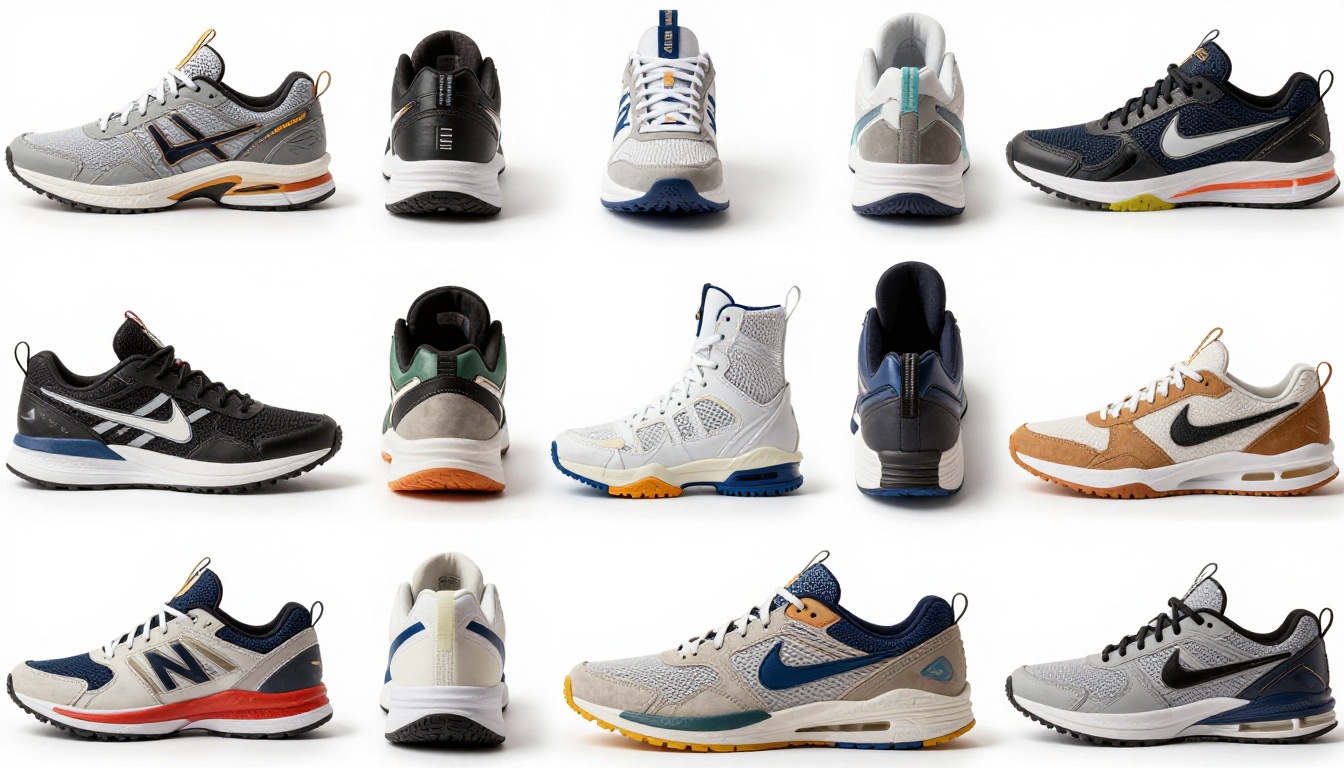
Once all your products are cut out on transparent backgrounds, you have total control over presentation. White backgrounds are your catalog standard. For seasonal campaigns, swap in themed backgrounds across your entire catalog in bulk. Use a warm orange-red tone for holiday campaigns, soft pastels for spring drops, or deep navy for premium positioning. The cutout is the reusable asset. The background becomes a variable you control.
Try It on Your Own Products
The only way to see how AI background removal performs on your specific product type is to run your own images through it. Upload a few of your most challenging products, the ones with complex edges, fine details, or difficult materials, and see the output for yourself.
PicassoIA's Remove Background tool is built specifically for this use case. Whether you are processing 10 images or 1,000, the workflow is the same: upload, process, download. No Photoshop subscription required. No freelancer coordination. No waiting.
Start with your current product backlog. Pick your 20 most important listing images, run them through the tool today, and compare the results to what you have now. The difference in quality and time will be immediately apparent.
Your products deserve images that sell them. The tool to create those images is already waiting for you.


