Grok Imagine is one of the fastest ways to generate AI art today, and most people are barely scratching the surface of what it can do. Whether you want photorealistic portraits, atmospheric landscapes, or conceptual illustrations, the same tool that answers your questions can now produce images that rival dedicated art platforms, if you know how to prompt it right.
This article covers everything from the basics of using Grok's image generation to the prompt strategies that consistently produce high-quality results. You'll also find out when it makes sense to use a dedicated platform like PicassoIA for more control, unlimited generations, and professional-grade outputs.
What Grok Imagine Actually Is
Grok Imagine is the image generation feature built into xAI's Grok assistant. It runs on Aurora, xAI's proprietary text-to-image model, which xAI developed specifically for photorealistic and artistic output. The same interface you use to chat with Grok handles image requests without switching apps or tabs.
The Aurora Model
Aurora sits at the core of Grok's visual capabilities. It was trained on a large dataset optimized for realism, fine detail, and prompt adherence. Compared to earlier image models, Aurora handles complex scenes, realistic lighting, and human anatomy with notably fewer artifacts. It performs well above what most people expect from a chat-based tool.
Where to Access It
You can reach Grok Imagine in three places:
- grok.com in the web browser
- X.com via the Grok tab in the sidebar
- X mobile apps (iOS and Android)
An X Premium or Premium+ subscription is required for full access. Free users get limited generations per day. Simply type a prompt into the Grok chat field and include a clear visual description. Grok will automatically recognize image-generation requests, but you can also prefix your message with "Generate an image of..." to be explicit.
Writing Prompts That Get Results
The prompt is everything. A vague request produces a mediocre image. A structured, specific prompt produces something worth sharing or building on.
The Basic Formula
The most reliable prompt structure follows this order:
- Subject: What or who is in the image
- Action/Pose: What the subject is doing
- Environment: Where the scene takes place
- Lighting: The type and direction of light
- Style: The visual aesthetic
- Camera: Lens, angle, distance
Example prompt:
"A young woman reading in a sunlit loft, warm morning light filtering through dusty windows, surrounded by stacked books and trailing plants, shot from a low angle with a 50mm lens, photorealistic, shallow depth of field"
That single prompt contains all six elements. Compare it to "a woman reading a book" and the difference in output quality is substantial.
Art Styles That Work
Grok Imagine responds well to style references that are well-defined in its training data. These consistently produce strong results:
| Style | Prompt Addition | Best For |
|---|
| Photorealistic | "RAW 8K photography, natural lighting" | Portraits, environments |
| Oil painting | "textured oil on canvas, impressionist brushwork" | Landscapes, figures |
| Watercolor | "soft watercolor washes, paper texture visible" | Botanical, lifestyle |
| Concept art | "cinematic concept art, dramatic atmosphere" | Fantasy, sci-fi scenes |
| Film noir | "high contrast, deep shadows, 1940s atmosphere" | Urban, moody scenes |
💡 Tip: Combining a photography style with an art style often produces interesting hybrid results. Try "shot on Kodak Portra 400, painted by Vermeer" to blend film photography aesthetics with classical painterly light.
What to Avoid in Prompts
Several prompt habits consistently degrade output quality:
- Abstract adjectives like "beautiful" or "amazing" — describe why it looks good instead
- Conflicting styles in one prompt — pick one visual direction and commit
- Overloading with details — more than 80 words can fragment the model's attention
- Asking for text in images — AI models notoriously struggle with legible text
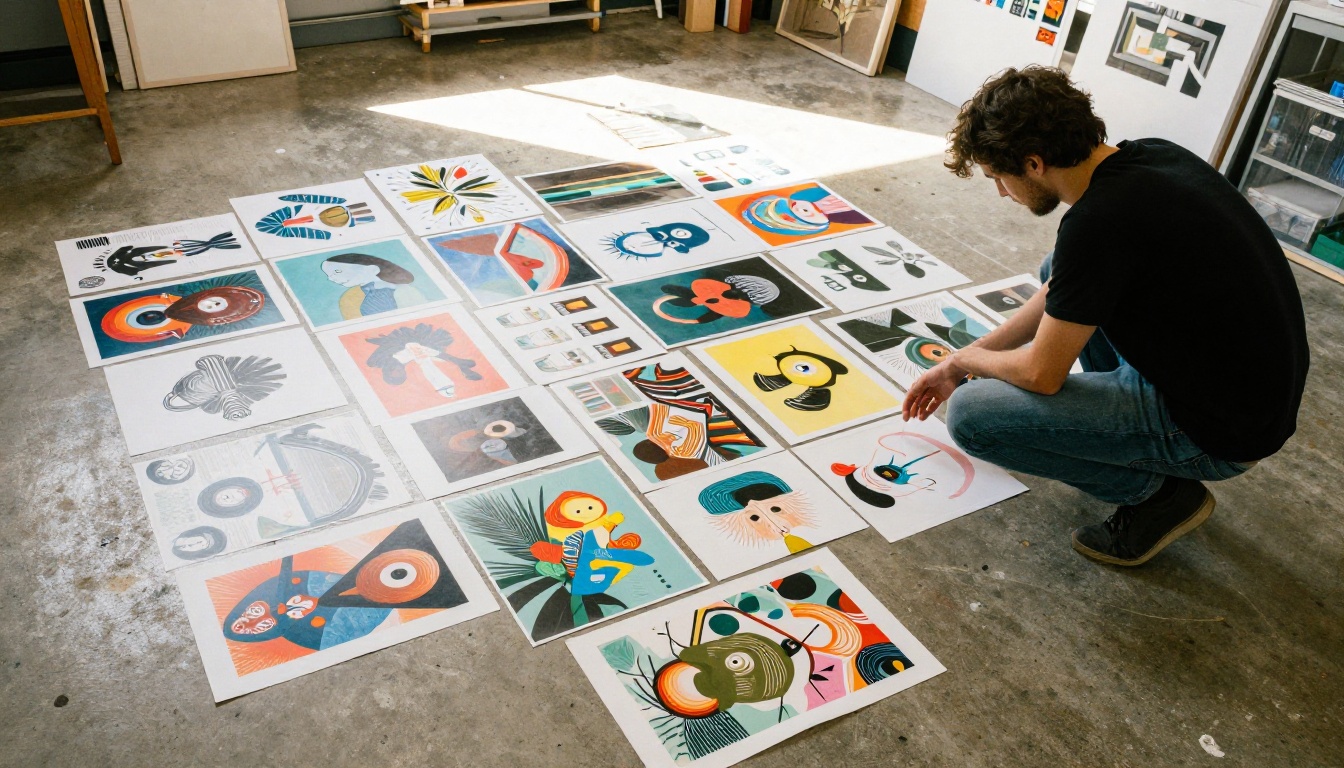
Creating Different Art Styles
Photorealistic Art
Photorealism is where Aurora performs best. Use camera and lens terminology: "85mm portrait lens," "wide-angle 24mm," "macro 100mm." Add lighting descriptors: "volumetric morning light," "golden hour backlight," "overcast diffused daylight." Mention film stock for color science: "Kodak Portra 400," "Fuji Provia," "Ilford HP5 black and white."
The more you frame your prompt like a professional photographer giving instructions to a cinematographer, the more cinematic and real the output looks.
Painterly and Illustrative Styles
For painterly results, reference specific movements or broad historical aesthetics:
- "in the style of 19th century Romanticism"
- "Pre-Raphaelite oil painting with fine botanical detail"
- "flat graphic illustration, mid-century modern design"
- "gouache painting, Studio Ghibli color palette"
These give Aurora enough stylistic latitude to produce something distinct without being constrained by a single narrow reference.
Abstract and Conceptual Art
Abstract prompts need anchor points. A completely open prompt like "abstract art" produces noise. Instead, describe the feeling and composition:
"Dense overlapping geometric shapes in warm ochre and deep indigo, motion blur suggesting movement, textured like aged fresco, square format"
Give the model something to organize spatially, even in abstract work.
Grok Imagine is convenient, but convenience has tradeoffs. Here's how it compares to dedicated platforms:
| Feature | Grok Imagine | PicassoIA |
|---|
| Image quality | High (Aurora model) | Very High (91+ models) |
| Generations per day | Limited (subscription) | Unlimited on Pro |
| Model variety | 1 model | 91 text-to-image models |
| Image editing | None | Full inpainting and outpainting |
| Upscaling | None | 9 dedicated upscale models |
| Video generation | None | 87 video models |
| Custom LoRA | None | Yes |
Grok Imagine is excellent for quick ideation. When you need to iterate, upscale, edit, or produce commercial-quality work, a dedicated platform with more tools makes the difference.
💡 Tip: Use Grok Imagine to explore ideas quickly, then take your best result to a dedicated platform to refine and upscale it.
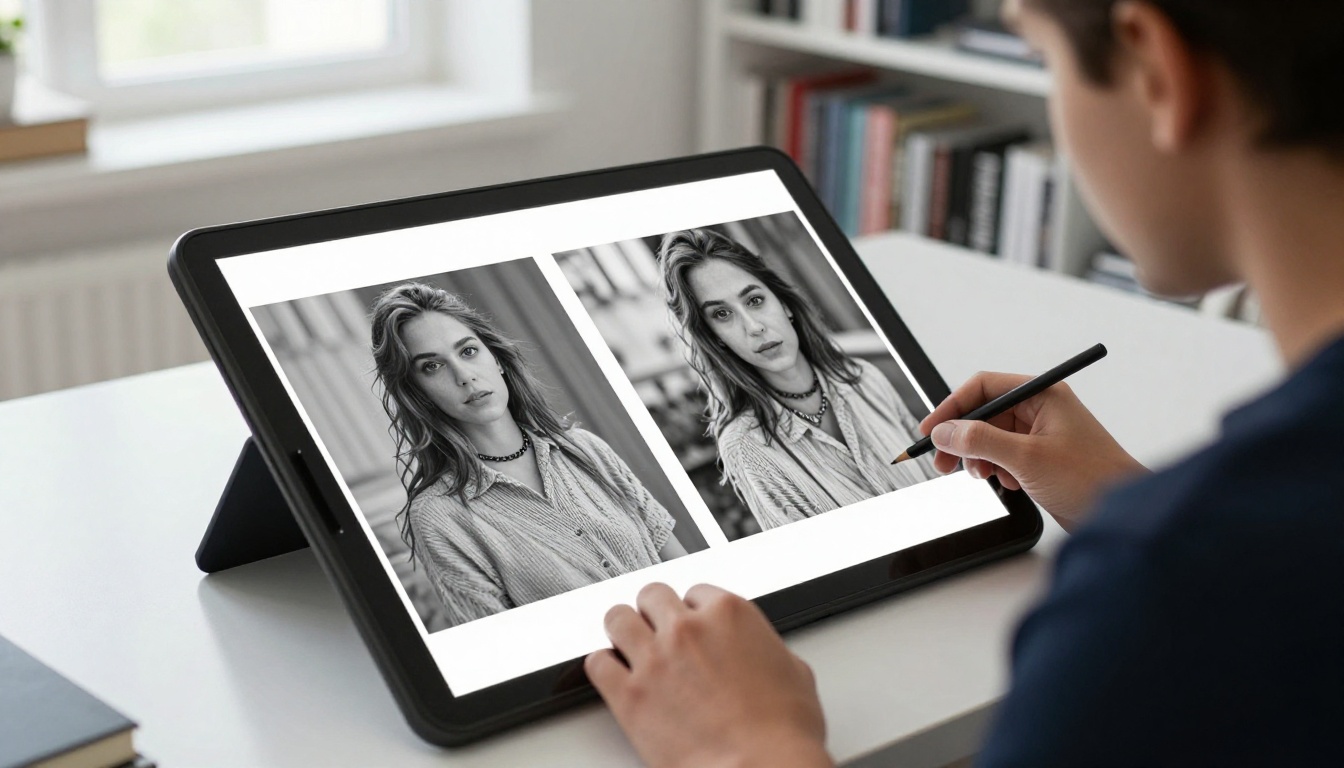
Upscaling and Refining Your Art
Grok Imagine outputs images at a standard resolution. For print, large-format display, or detailed examination, you need to upscale. AI-powered upscaling adds realistic texture and sharpness where the original had none, far beyond what a standard resize can produce.
Why Resolution Matters for Art
When you print an AI-generated image larger than about 8x10 inches, pixel artifacts become visible. Upscaling with a regular resizing algorithm blurs the image. AI-powered upscalers hallucinate detail, filling in realistic texture at the new resolution.
Best Upscaling Tools on PicassoIA
PicassoIA offers nine specialized upscaling models. Here are the top picks by use case:
- Clarity Pro Upscaler: Best for photorealistic images. Adds fine skin texture, fabric detail, and background sharpness at up to 4x the original resolution.
- Crystal Upscaler: Specifically optimized for portraits. Produces exceptional skin and hair detail in face-focused images.
- Topaz Image Upscale: The professional choice. Enlarges images up to 6x without introducing artifacts, matching the output of Topaz Labs' desktop software.
- Real ESRGAN: Fast 4x upscaling, great for landscapes and non-portrait images where processing speed matters.
- Google Upscaler: Enlarge any photo 4x while preserving fine detail across the whole frame.
- Recraft Crisp Upscale: Ideal for flat graphic and illustrative styles where you want clean edges rather than photorealistic texture.
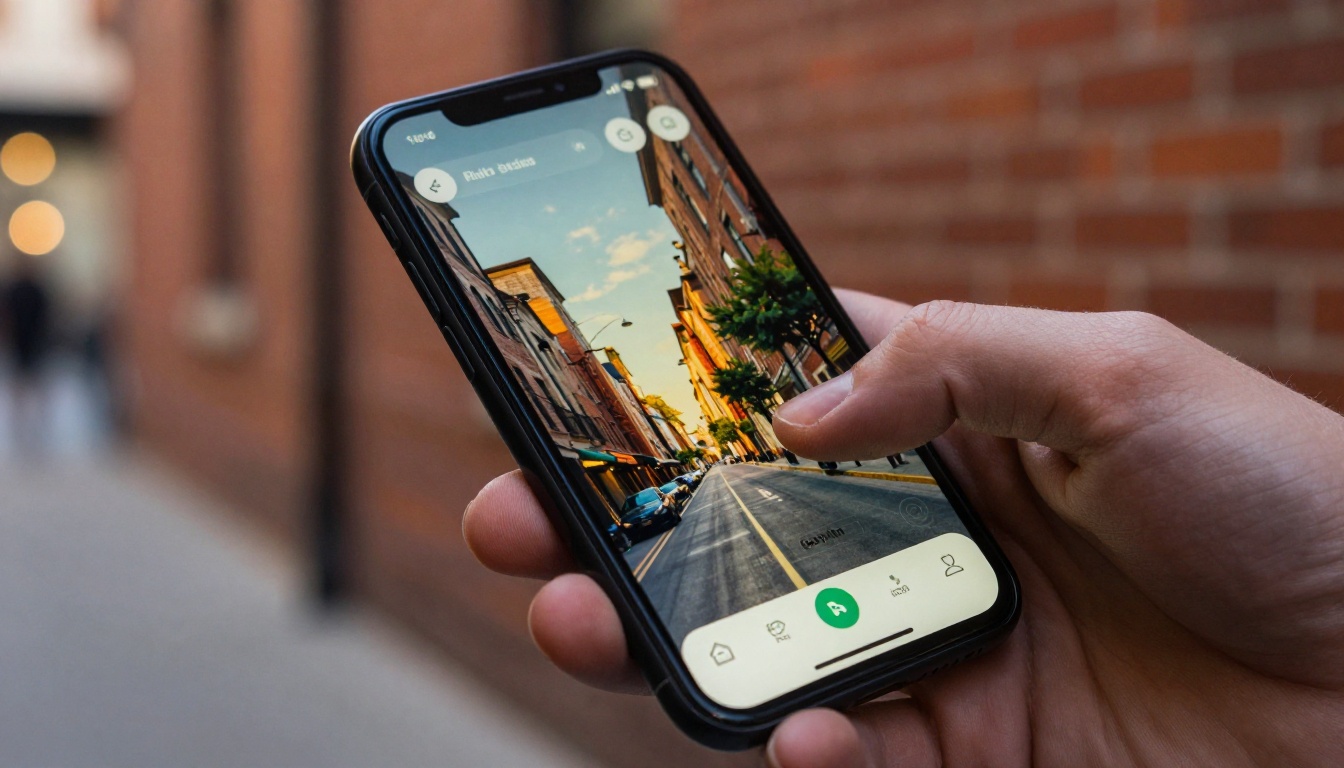
For most AI art from Grok Imagine, start with Clarity Pro Upscaler. Upload the generated image, set the scale factor to 2x for web use or 4x for print, and the model adds genuine detail rather than blurry enlargement.
How to Use PicassoIA for Unlimited Art
When you need more than Grok Imagine's daily limit, or when a project requires image editing, custom styles, or video, PicassoIA provides a full ecosystem of AI tools under one roof.
Text-to-Image Models Worth Trying
PicassoIA hosts 91 text-to-image models, ranging from fast generators to premium quality options. Here are the ones most relevant to artistic work:
- PicassoIA Image: The platform's own unlimited generator. Produces high-quality images from text with no daily cap on Premium plans.
- Seedream 4.5: ByteDance's flagship model for 4K image generation. Exceptional prompt adherence and fine photorealistic detail.
- Hunyuan Image 2.1: Tencent's 2K image model. Strong on complex compositional prompts with multiple subjects and environments.
- Wan 2.7 Image Pro: 4K outputs with Pro-tier quality. Best for commercial product photography and realistic architectural renders.
- Flux Redux Dev: Black Forest Labs' variation model. Takes an existing image and generates consistent style variations, useful for developing a visual series.
- GPT Image 2: OpenAI's latest model with strong instruction-following for precise compositional control.
Image Editing Tools
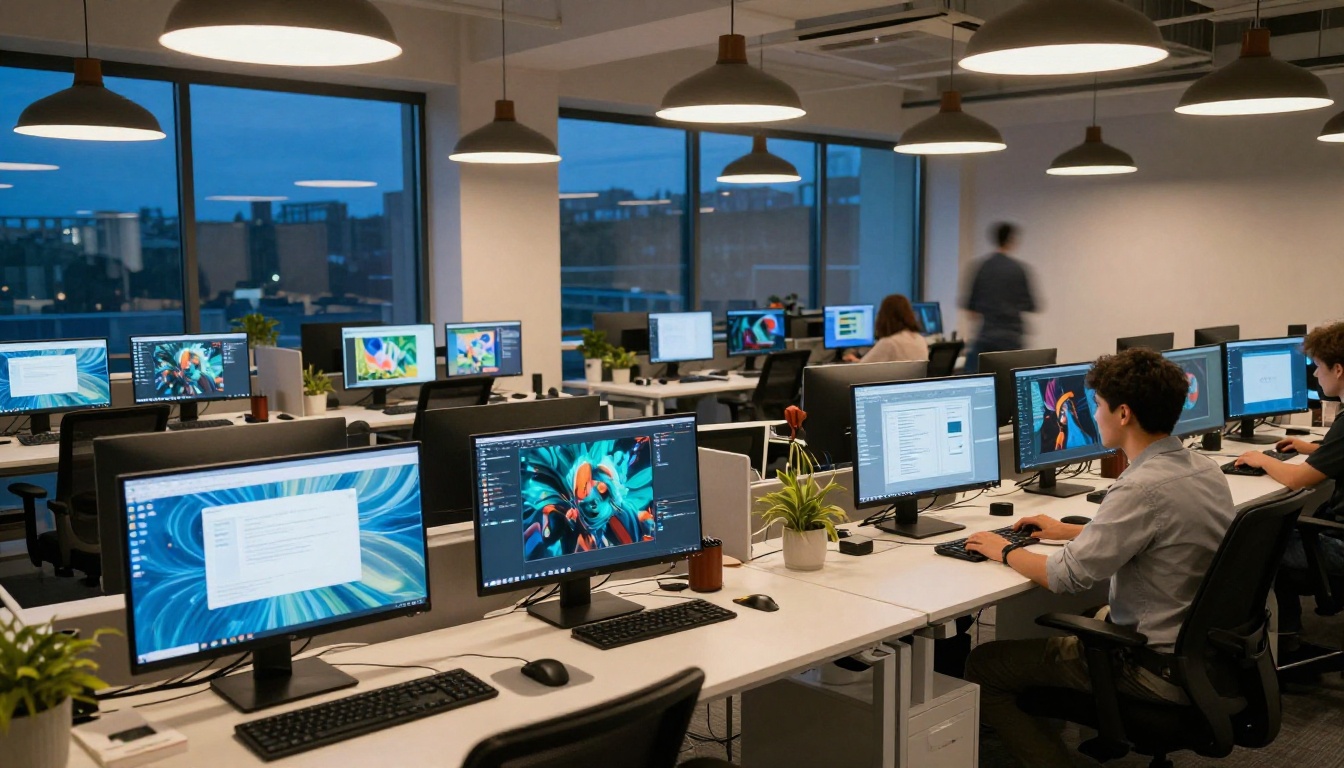
One major gap in Grok Imagine is that it doesn't allow you to edit generated images. PicassoIA fills that gap with several tools:
- PicassoIA Image Editor Pro: Full-featured editor for inpainting, outpainting, object replacement, and restoration. Unlimited generations.
- Qwen Image Edit Plus: AI-powered editing for targeted changes. Describe what you want to change in plain text and the model applies it accurately.
- P Image Upscale: Sharp upscaling in under a second, good for rapid iteration workflows.
Getting More From Your Art Workflow
Iterating on Prompts
No prompt is ever final. The best results come from treating image generation as a loop, not a one-shot operation. Start with your core subject and lighting, generate 3-4 variations, then identify what's working and what isn't. Carry the working elements forward and fix the failing ones.
Example iteration loop:
- First prompt: "Portrait of a woman in a wheat field, golden hour"
- Review: lighting is good, composition too centered
- Second prompt: same base + "rule of thirds composition, subject positioned left, looking right, 85mm shallow depth of field"
- Review: composition improved, background too blurred
- Third prompt: add "f/4 aperture for more background context"
Three passes will consistently outperform one complex prompt.
Combining Grok and PicassoIA
The most efficient workflow for serious AI art uses both tools:
- Ideate with Grok Imagine: Fast iterations, explore concepts, find the right direction
- Refine on PicassoIA: Use Seedream 4.5 or Wan 2.7 Image Pro to generate the final high-resolution version
- Edit with PicassoIA Image Editor Pro: Fix specific elements, extend the canvas, or swap objects
- Upscale with Topaz Image Upscale: Bring the image to print quality at 4-6x the original resolution
This pipeline takes about 15 minutes per final image and consistently produces portfolio-quality work.
Common Mistakes That Kill Image Quality
These are the errors that most commonly produce disappointing results:
- Using Grok Imagine for final outputs: It's a starting point, not the finish line
- Skipping upscaling: Every AI image benefits from upscaling before sharing or printing
- Neglecting lighting in prompts: Lighting is the single biggest factor in perceived image quality
- Trying to fix everything in one prompt: Iterate instead of overloading
- Not using reference images: When editing on PicassoIA, reference images dramatically improve consistency
Visual Effects and Artistic Finishing Touches
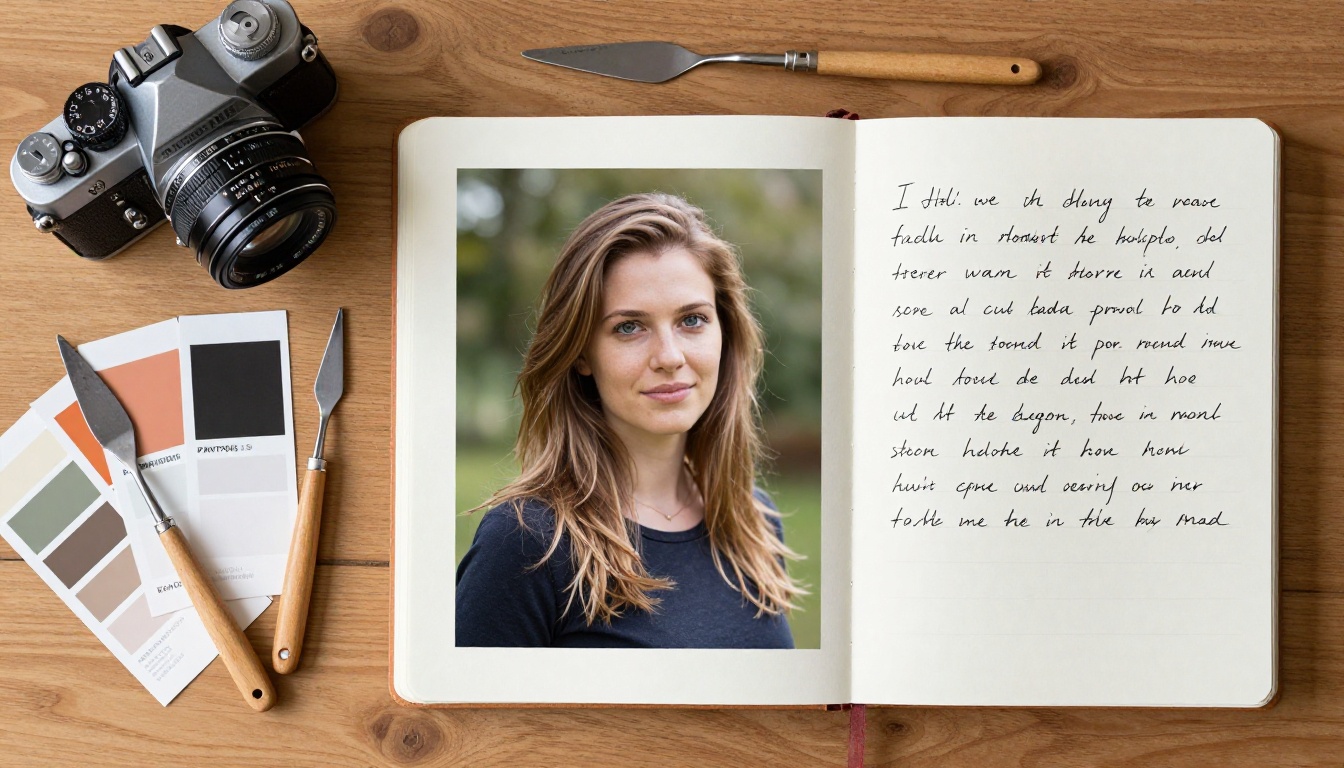
Beyond basic generation and upscaling, AI art workflows increasingly include visual effects. Whether you want to add cinematic color grading, atmospheric lighting effects, or stylistic filters, these finishing touches separate competent AI art from work that looks genuinely crafted.
On PicassoIA, the Recraft Creative Upscale model does more than enlarge images. It interprets the image creatively, adding texture, sharpening focal points, and enriching atmospheric depth in a way that flat upscaling never matches. For illustrative and graphic styles specifically, this model adds a hand-crafted quality that other upscalers miss.
The Bria Increase Resolution model handles 4x enlargement while maintaining the exact color science of the original. If you've spent time getting the color grading right in your prompt, this preserves it exactly while adding resolution.
💡 Tip: After upscaling, run the image through Qwen Image Edit Plus LoRA Relight to adjust the scene's lighting in post. You can shift from morning light to golden hour, or add studio lighting to an outdoor scene, entirely through text instructions.
Visual Effects Worth Knowing
Color grading prompts that work consistently with both Grok Imagine and PicassoIA models:
- "Teal and orange color grade" for cinematic blockbuster aesthetics
- "Desaturated matte finish with lifted blacks" for editorial photography feel
- "High key bright whites, minimal shadows" for clean commercial photography
- "Cross-processed film simulation, shifted greens and reds" for vintage editorial
- "Moody low-key lighting, deep blacks, single light source" for dramatic portraiture
These color descriptors should go near the end of your prompt, after subject and environment details. The model reads prompts roughly left-to-right in terms of priority, so front-load the compositional elements and use the end for stylistic flourishes.

When to Add Effects vs. When to Re-Generate
A common mistake is trying to add effects to a poorly composed base image. The rule of thumb:
Upscaling and editing tools are refinement tools, not rescue tools. They make good images great. They don't fix fundamentally weak compositions.
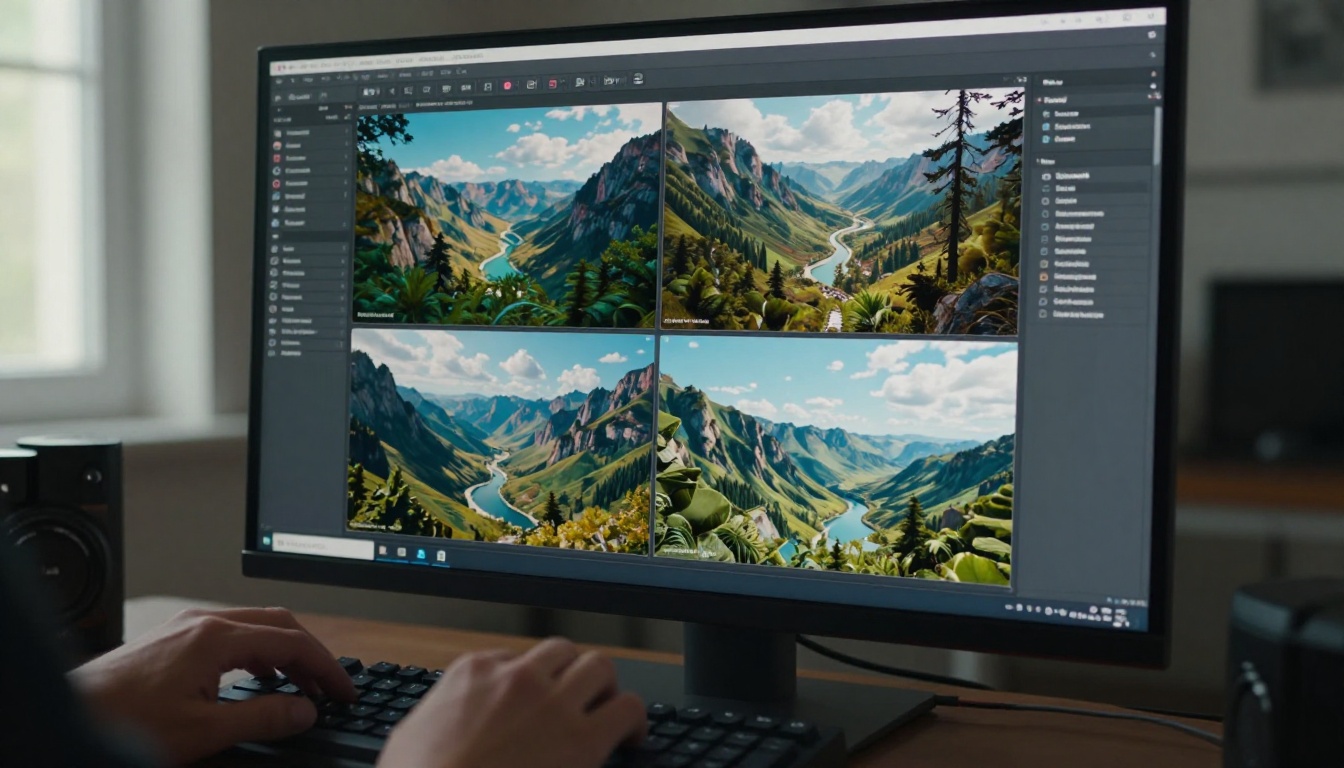
Start Creating Right Now
Grok Imagine is genuinely impressive for what it is: a fast, accessible image generator embedded in a conversational AI. The Aurora model produces photorealistic results from reasonably simple prompts, and for quick creative exploration it's hard to beat.
But the ceiling is low. No editing, no upscaling, limited generations, one model. When you want to push a concept to professional quality, build a visual series, or produce images for print, you need more than one tool.
PicassoIA brings together over 91 text-to-image models, 9 upscalers, full editing tools, and 87 video models in one platform. Start with any image you generated on Grok Imagine and take it further. Try Seedream 4.5 for your first 4K generation, run it through Clarity Pro Upscaler for print quality, and use PicassoIA Image Editor Pro for anything that needs a precise edit. The full toolkit is there whenever you're ready.


