Ideogram 3.0 is one of the most capable AI image generators available right now, and the single biggest reason is text. While other models still fumble with words inside images, Ideogram has been relentlessly focused on getting typography right since day one. Version 3.0 takes that obsession further, adding photorealism options, sharper compositions, and three distinct generation modes that give you far more control over the output. Whether you're building social media visuals, product mockups, or concept artwork, this version delivers.
What Ideogram 3.0 Actually Does
Ideogram is a text-to-image AI platform built by former Google Brain researchers. The platform became popular almost immediately after launch because it solved one of the most persistent failures in AI image generation: readable, accurate text inside images. Logos, posters, banners, and typographic artwork that other models would mangle are handled cleanly by Ideogram.

Version 3.0 (also referred to as Ideogram v3) shipped in early 2025 and brought significant upgrades across all categories: better photorealism, more coherent compositions, improved prompt adherence, and faster inference speed on the Turbo tier.
Text Rendering That Actually Works
The standout capability is still text. Place any word or short phrase in quotes inside your prompt and Ideogram will attempt to render it accurately inside the image. This works for:
- Posters and flyers with headlines
- Product packaging with brand names
- Social media graphics with slogans
- T-shirt designs with printed text
- Book covers with titles
💡 Tip: Keep in-image text short. Single words or short 2-4 word phrases produce the most reliable results. Full sentences tend to degrade past 8-10 words.
Three Generation Modes
Ideogram 3.0 ships with three distinct quality tiers:
| Mode | Speed | Quality | Best For |
|---|
| Quality | Slowest | Highest | Final outputs, client work |
| Balanced | Medium | High | Daily creative work |
| Turbo | Fastest | Good | Rapid iteration, testing prompts |
Each mode maps to a different model variant available on PicassoIA: ideogram-v3-quality, ideogram-v3-balanced, and ideogram-v3-turbo.
Setting Up Your Ideogram Account
Creating an account on Ideogram.ai is free and takes under two minutes. You'll need a Google account or email address to register.

Free vs. Paid Plans
The free tier gives you a limited number of slow-queue generations per day. For volume work, the paid plans (Basic and Plus) offer:
- Priority queue with faster generation times
- More daily generation credits
- Private generations (free tier is public by default)
- Access to all v3 model modes
If you want to skip the account setup entirely, you can run all three Ideogram v3 variants directly on PicassoIA without any separate Ideogram subscription. More on that in the tutorial section below.
How to Use Ideogram 3.0 for AI Generated Images Step by Step
Once you're in the Ideogram interface, the workflow is straightforward. Here's the full process from prompt to download.

Step 1: Write Your Prompt
The prompt box is front and center. This is where you describe what you want. Ideogram responds well to natural language descriptions, but adding specific details like color, mood, composition, and lighting will sharpen your results significantly.
Example prompt:
A minimalist coffee shop interior with warm Edison lighting, wooden tables, plants, and a chalkboard sign that says "Open"
Notice the chalkboard text is in quotes. That signals to Ideogram that those words should appear verbatim inside the image.
Step 2: Choose a Style
Ideogram v3 offers several style presets on the interface:
- Auto – Ideogram decides based on the prompt
- Realistic – Photorealistic photography look
- Design – Clean, graphic, layout-focused output
- Illustration – Flat or stylized illustrated look
- 3D – Rendered three-dimensional visuals
- Anime – Manga and animation-inspired style
For the most lifelike AI generated images, select Realistic. For branded social graphics or poster designs, Design tends to produce more polished results.
Step 3: Set the Aspect Ratio
Aspect ratio options include:
| Ratio | Use Case |
|---|
| 1:1 | Instagram posts, profile pictures |
| 16:9 | YouTube thumbnails, presentations |
| 9:16 | Instagram/TikTok Stories, Reels |
| 4:3 | Blog headers, website banners |
| 2:3 | Pinterest pins, posters |
Pick the ratio before generating. Cropping after generation works but you'll lose edge detail. Setting the right ratio upfront consistently produces better compositions.
Step 4: Generate and Refine
Hit Generate. Ideogram produces four image variations by default. From there:
- Select the best variation
- Click Remix to iterate with a modified prompt
- Use Edit to inpaint specific areas (available on paid plans)
- Download at full resolution
💡 Tip: If the text in the image has minor errors, try using the Remix function with emphasis on the specific text. Reducing prompt complexity elsewhere while keeping the quoted text often fixes rendering issues on a second pass.
Prompt Writing That Gets Results
The gap between a mediocre and a stunning Ideogram output often comes down to the prompt. Here's how to consistently write prompts that produce exactly what you're picturing.

The Anatomy of a Good Prompt
A well-structured prompt for Ideogram follows this order:
[Subject] + [Action/State] + [Environment] + [Style/Mood] + [Lighting] + [Optional Text in Quotes]
Weak prompt:
a beach at sunset
Strong prompt:
A wide empty beach at golden hour sunset, soft waves, warm amber sky with a few pink clouds, long shadows on wet sand, moody and cinematic, shot from low angle, photorealistic
The second version tells Ideogram exactly what to render. The first leaves too much to chance.
5 Common Prompt Mistakes
- Too vague – "Nice photo of a city" tells the model almost nothing. Add time of day, weather, architecture style, and mood.
- Too many subjects – Asking for 5-6 distinct subjects in one image usually causes composition chaos. Pick 1-2 focal points.
- Conflicting styles – Asking for "photorealistic anime" sends mixed signals. Commit to one aesthetic.
- Forgetting quoted text – Text inside images won't render accurately unless it's in quotation marks in the prompt.
- Ignoring negative prompts – Use the negative prompt field to exclude unwanted elements: "blurry, low resolution, extra fingers, watermark".
💡 Tip: If you're generating for a specific brand, always include the color palette in the prompt. "Blue and white color palette, minimal, clean" dramatically reduces the need for post-editing.
Ideogram 3.0 Styles Explained

Photorealism Mode
When you select Realistic in Ideogram v3, the model targets photographic output. Skin tones render with natural texture. Environments carry believable lighting. Objects have real material qualities: fabric drapes, glass reflects, metal gleams.
The model handles:
- Portrait photography with accurate face proportions
- Architectural photography with correct perspective
- Product photography on clean white or gradient backgrounds
- Lifestyle photography showing people in natural settings
This is where Ideogram v3 has made the most noticeable leap over ideogram-v2. The previous version was excellent for typography but soft on photorealism. Version 3 closes that gap substantially.
Design Mode
Design mode shifts the model toward graphic output: posters, flyers, ads, social media cards, infographic-style layouts. This mode handles text placement more deliberately, aligning it with visual hierarchy principles rather than just dropping it somewhere in the frame.
Use cases where Design mode excels:
- Event posters with multiple text elements
- Product launch announcements
- Social media carousel slides
- Logo concepts (rough exploration)
How does it actually stack up? Here's an honest comparison across the dimensions that matter most for practical creative work.

| Feature | Ideogram 3.0 | Flux 1.1 Pro Ultra | GPT Image 1.5 | Imagen 4 |
|---|
| Text in images | Excellent | Poor | Good | Good |
| Photorealism | Very Good | Excellent | Very Good | Excellent |
| Prompt adherence | High | High | Very High | High |
| Speed (Turbo) | Fast | Medium | Slow | Medium |
| Design/layouts | Excellent | Average | Good | Average |
| Free tier | Yes | No | No | No |
For text-heavy creative work, Ideogram 3.0 has no serious competition. For pure photorealism without text, Flux 1.1 Pro Ultra and Imagen 4 still edge ahead on raw image fidelity.
How to Use Ideogram v3 on PicassoIA
All three Ideogram v3 variants are available directly on PicassoIA. This means you can run Ideogram 3.0 without needing a separate Ideogram account, and you can compare it against 90+ other text-to-image models in the same session.

Available Ideogram v3 Models on PicassoIA
Older versions also remain available: ideogram-v2, ideogram-v2-turbo, ideogram-v2a, and ideogram-v2a-turbo.
Step-by-Step: Running Ideogram v3 on PicassoIA
Step 1: Open the model page
Go to ideogram-v3-balanced (or quality/turbo based on your needs).
Step 2: Enter your prompt
Type your prompt in the input field. For text-in-image results: wrap any words that should appear inside the image in double quotation marks within your prompt text.
Step 3: Select aspect ratio
Choose the output ratio from the available options: 1:1, 16:9, 9:16, 4:3, and others. Match the ratio to your platform target.
Step 4: Set the Magic Prompt option
PicassoIA surfaces the Magic Prompt parameter from Ideogram. Setting this to Auto lets the model enrich your prompt automatically. Setting it to Off preserves your exact wording, which is better when precision matters.
Step 5: Generate
Hit the Generate button. Results typically arrive in under 30 seconds on Balanced mode.
Step 6: Download or iterate
Download the output at full resolution, or copy the prompt and adjust for another generation pass.
💡 Tip: PicassoIA lets you run multiple models in the same session. After generating with ideogram-v3-balanced, switch to flux-2-pro with the same prompt to compare photorealistic output side by side.
Real-World Use Cases
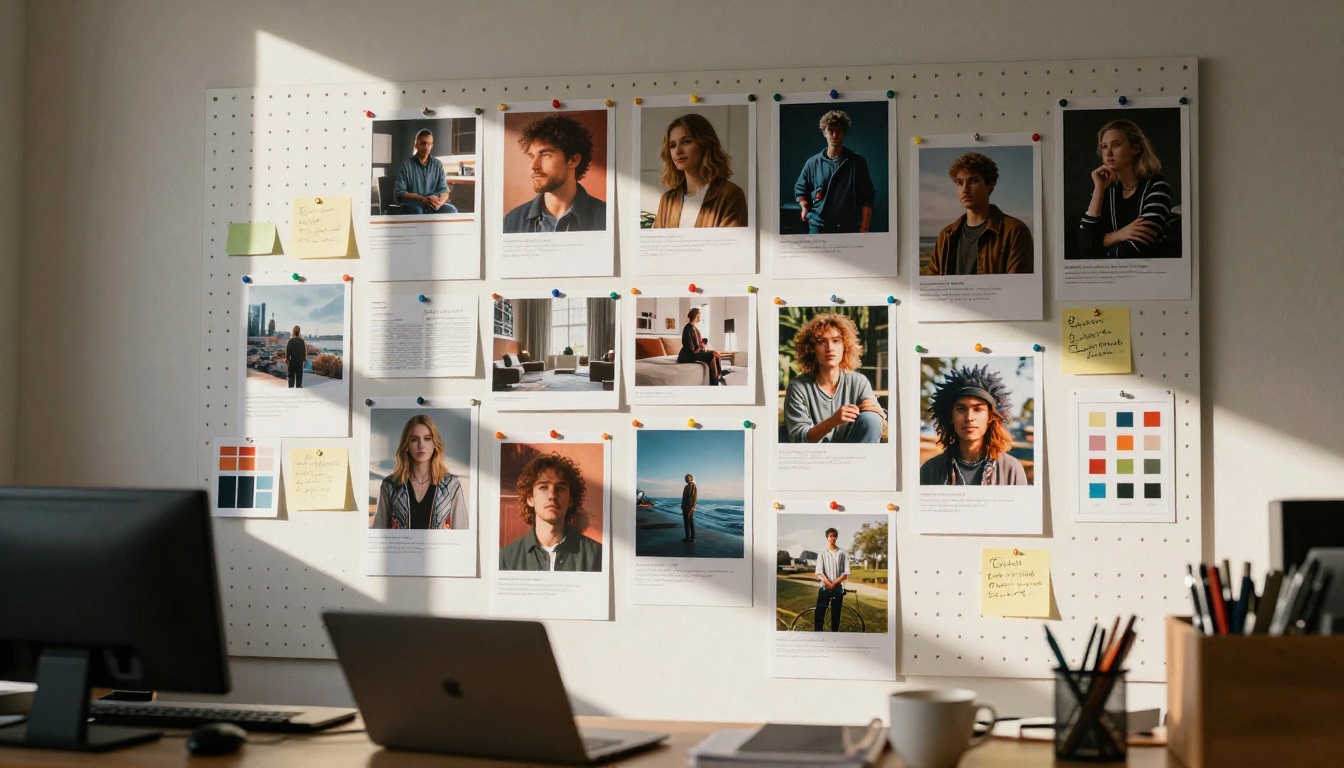
Ideogram 3.0 fits into a wide range of practical creative workflows. Here are the scenarios where it consistently outperforms the alternatives.
Social Media Content at Scale
Marketing teams generating weekly content at volume use Ideogram for one specific reason: the text is reliable. A branded quote card that needs the exact headline "Sale ends Sunday" to be legible and accurate requires a model that nails typography. Ideogram v3 gets this right consistently where other models don't.
Poster and Print Design
Designers working on event posters, concert flyers, or retail promotional materials use Ideogram to generate initial concepts before moving into Illustrator or InDesign. The Design mode produces layouts with strong visual hierarchy that work as starting points, cutting concept iteration time significantly.
Product Mockups with Text
E-commerce teams that need product label concepts or packaging mockups find Ideogram particularly useful. You can generate dozens of label variations with different text treatments, taglines, and color palettes in an afternoon, a workflow that used to require a dedicated designer.
Content Creator Thumbnails
YouTube creators and newsletter writers use Ideogram for attention-grabbing thumbnails and header images. The combination of photorealistic backgrounds with clean text overlays is exactly where this model operates at peak performance.
Getting the Best Out of Color and Composition
Color and composition often determine whether an AI-generated image looks professional or flat. Ideogram v3 responds well to explicit color direction.
Color prompt examples that work:
- "Warm terracotta and cream color palette, earthy tones"
- "Deep navy and gold, luxury feel"
- "Pastel pink and mint, soft and minimal"
- "High contrast black and white, dramatic"
Composition cues:
- "Rule of thirds composition"
- "Subject centered with negative space on the right"
- "Low angle looking up at the subject"
- "Bird's eye view, flat lay arrangement"
The more specific you are about color relationships and compositional intent, the less time you spend selecting from variations. Strong directional prompts regularly yield a usable result in the first generation batch.
When to Upgrade from Balanced to Quality Mode
The ideogram-v3-quality model is worth the slower generation time for:
- Client-facing deliverables where fidelity matters
- Images that will be printed at large format
- Complex compositions with multiple text elements
- Detailed product photography requiring material accuracy
For everything else, ideogram-v3-balanced produces quality that's indistinguishable in most digital contexts.
Start Creating with Ideogram v3 Right Now
Every AI image model has its strengths. Ideogram 3.0 has carved out a specific, highly valuable niche: it's the most reliable text-in-image generator available today, with photorealism that's finally competitive with the field's best.
If you want to put it to work immediately, PicassoIA gives you direct access to all three Ideogram v3 variants: ideogram-v3-quality, ideogram-v3-balanced, and ideogram-v3-turbo, alongside over 90 other text-to-image models including Flux 2 Pro, GPT Image 1.5, and Imagen 4.
Pick a prompt, choose your model, and start generating. The first result is usually more surprising than you expect.


