You no longer need a camera to have stunning, beautiful photos of yourself. No studio rental, no professional lighting rigs, no awkward direction from a photographer whose name you'll forget by Tuesday. Today, the best AI image generators produce photorealistic portraits so convincing that even trained eyes struggle to identify them as artificial. Whether you want beach bikini shots, intimate boudoir compositions, or bold glamour portraits with dramatic lighting, you can create all of it from a text prompt in under thirty seconds.
This is not about filters or face-swap tricks. It's about generating entirely new images from scratch, using models trained on billions of photographs, capable of producing 4K-resolution results that capture natural skin texture, realistic fabric drape, and perfect golden-hour light. And the best part? You control everything.
Why a Virtual Photoshoot Beats the Real Thing
No Scheduling, No Cost, No Limits
A professional photoshoot for a single set of spicy, glamour-style images can cost anywhere from $300 to $2,000 once you factor in the photographer's rate, studio rental, hair and makeup, wardrobe, and post-production retouching. The entire session might produce fifteen usable shots. An AI portrait generator produces fifteen shots per minute, each one unique, each one adjustable with a single sentence.
Beyond cost, there's complete creative control. Want to switch from a sunset beach scene to a candlelit boudoir with different lighting, different wardrobe, different background? You type it. No set changes, no wardrobe assistant, no second-guessing. The iteration cycle that would take a professional team an entire day collapses to minutes.
💡 The real advantage: You can generate fifty variations of the same concept and pick only what works. Traditional photographers charge for every shot whether you use it or not.
Privacy Is the Other Big Win
For many people, the idea of hiring a photographer for suggestive personal content involves a level of trust that feels uncomfortable. An AI selfie generator removes that entirely. Your prompts stay on your screen. Nothing is shared with a human intermediary. You generate, you keep, you use however you choose.
This privacy angle is one reason NSFW AI image generation has grown so dramatically. People want creative control over how they look without compromising their personal boundaries.
The Right Model Changes Everything
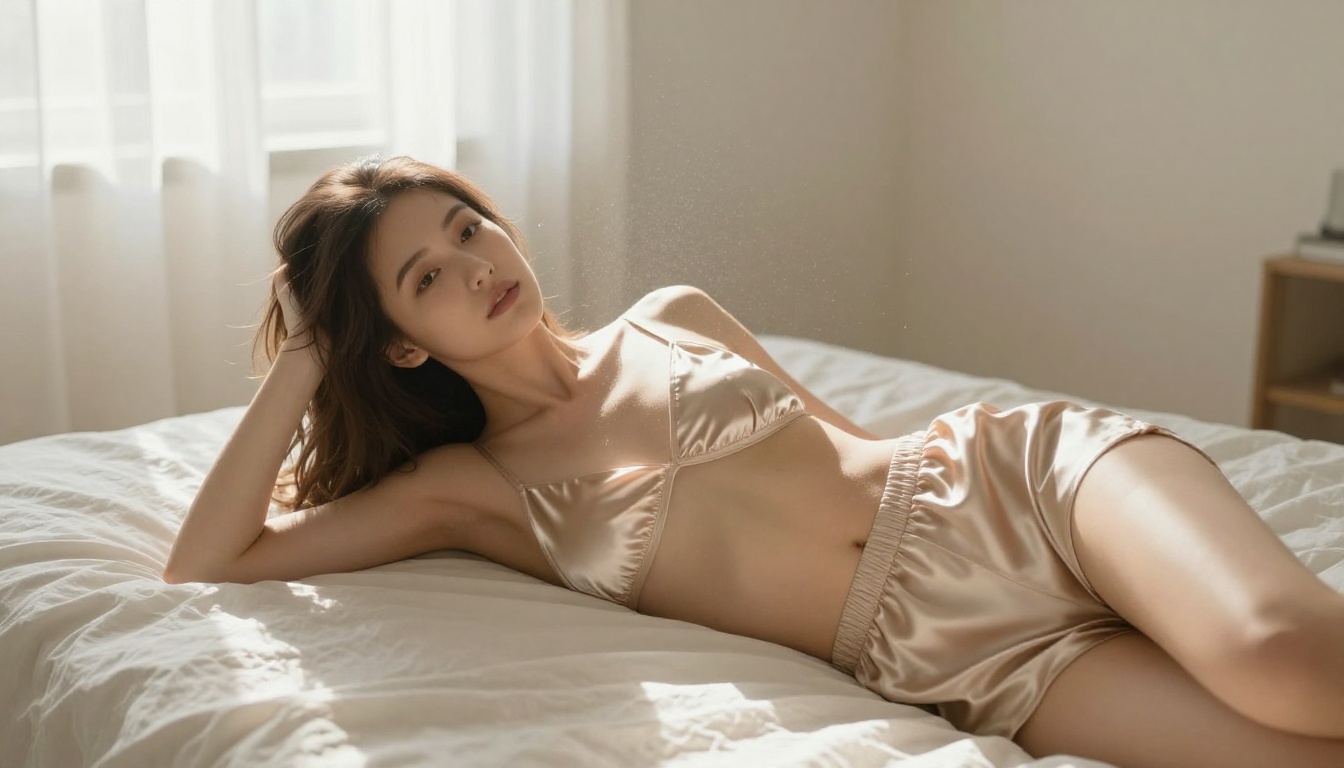
Not all AI image generators are built for realistic portrait work. Some flatten skin texture into a plastic-looking finish. Others struggle with natural body proportions or realistic fabric behavior. The difference between a convincing AI selfie and an obvious fake often comes down to which model you're using.
Seedream 4: The Best Starting Point
Seedream 4 from ByteDance is currently one of the strongest text-to-image models available for photorealistic portrait generation. It handles skin texture, hair, and fabric rendering at a level that most models can't match, and it runs up to 4K resolution natively, which means your outputs are print-ready from the start.
What makes it stand out for spicy AI selfies specifically:
- Skin realism: Fine pores, natural flushing, subsurface light scattering that makes skin look genuinely alive rather than airbrushed
- Clothing accuracy: Fabric drape, wrinkle physics, and texture rendering that makes a silk slip dress actually look like silk
- Lighting response: Strong response to lighting descriptions, so phrases like "Rembrandt lighting from camera left" produce accurate results
- Reference image support: You can feed it an existing photo to anchor the style, face structure, or wardrobe, then generate variations from there
On PicassoIA, Seedream 4 is available free with no watermarks and no daily cap on generations. You pick your resolution (1K, 2K, or 4K), your aspect ratio, write your prompt, and get results in seconds.
💡 For spicy selfies, always generate at 2K minimum. The difference in skin detail between 1K and 2K is dramatic, and upscaling a weak 1K image later produces artifacts that are difficult to remove.
PicassoIA Image Editor Pro for Unlimited Refinement
Once you have a base image you like, the real work of personalization starts. Maybe the lighting is perfect but the wardrobe isn't right. Maybe you want to swap the background while keeping the subject identical. That's where PicassoIA Image Editor Pro becomes essential.
This is PicassoIA's native editing model, and it does something other editors don't: it's unlimited. No per-edit cap, no daily quota. You can iterate thirty times on the same image without worrying about running out of credits. That matters enormously when you're dialing in a specific look, because most prompting work involves many small corrections.
Feed it your generated image, describe the change you want in plain language, and get the edit in seconds:
- "Change the bikini from white to deep burgundy"
- "Replace the pool background with a luxury hotel suite"
- "Add dramatic rim lighting from the right side"
- "Increase contrast and add a warm amber grade to the skin tones"
Each edit builds on the last, non-destructively, so you're sculpting the image toward exactly what you want rather than starting over.
Writing Prompts That Get Realistic Results
The gap between a generic AI selfie and a convincing photorealistic portrait comes almost entirely from prompt quality. Weak prompts produce generic outputs. Precise prompts produce images that look like they came from a real camera.
The Four-Part Prompt Formula
Every strong portrait prompt has the same four components:
| Component | What to Include | Example |
|---|
| Subject | Pose, expression, wardrobe, visible skin | "woman in a strappy black bodysuit, one hand on hip, direct eye contact" |
| Environment | Background, surface, props | "standing on a hotel balcony, white marble railing, evening cityscape" |
| Lighting | Direction, quality, color temperature | "warm amber backlight from low sun at 25-degree angle, subtle front fill from below" |
| Camera | Lens, aperture, angle, film stock | "Canon EOS R5, 85mm f/1.4, slight low angle, Kodak Portra 400 grain" |
The camera specs are the most commonly skipped element, and they make the biggest visible difference. Specifying an 85mm lens at f/1.4 tells the model to apply a specific depth of field relationship that automatically looks more like a professional shoot than a smartphone snapshot.
Lighting Is Everything
Photographers spend the majority of their setup time on lighting. You should spend the majority of your prompt on it. The phrases that produce the most realistic results:
- "Rembrandt lighting from camera left" for dramatic shadow-and-highlight portraits
- "Volumetric morning light through sheer curtains" for soft, intimate interior shots
- "Magic-hour backlight with warm amber rim" for the classic outdoor golden-hour look
- "Single bare bulb overhead creating strong downward shadow" for high-contrast moody shots
- "Soft overcast diffused light from north-facing window" for even, flattering skin tones
💡 Avoid phrases like "good lighting" or "professional lighting" as they're too vague for the model to interpret precisely. The more specific your lighting description, the more it reads as a photographer's intent rather than a random request.
Wardrobe and Fabric Details
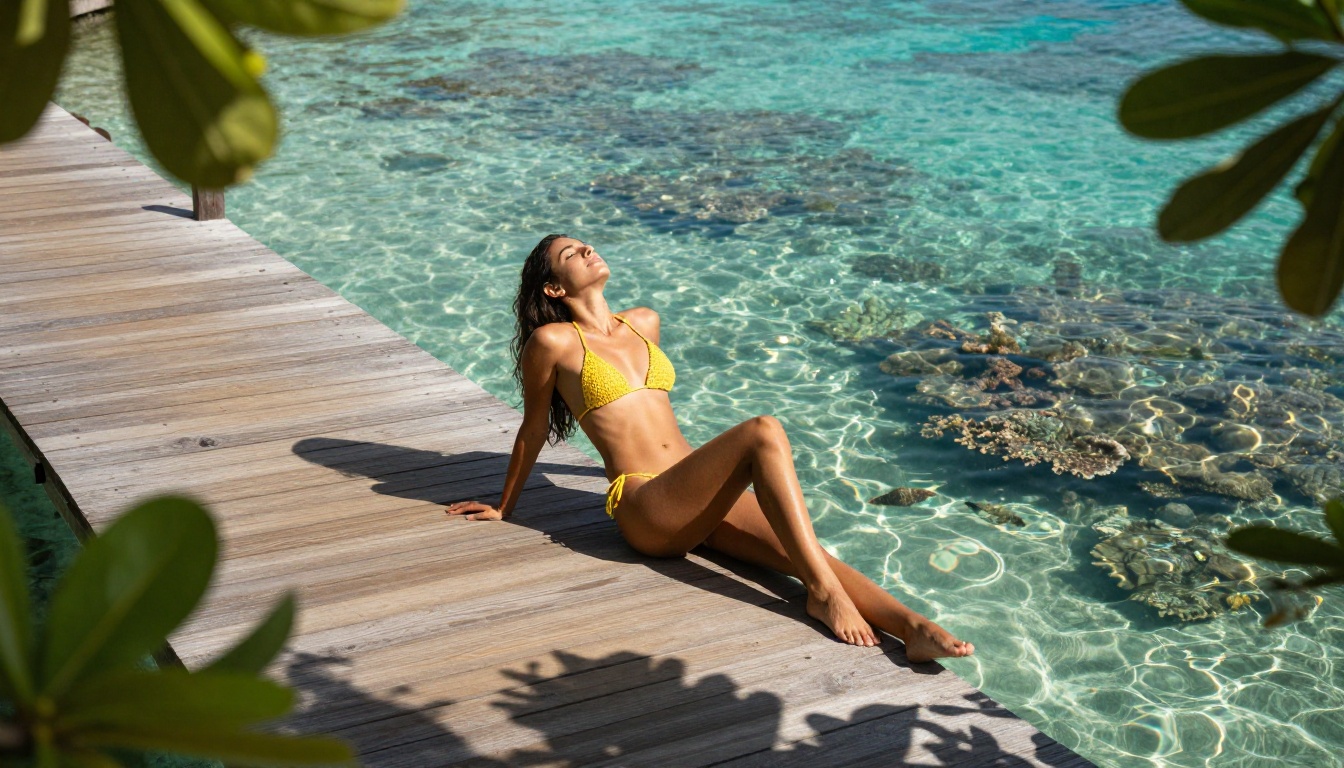
"Wearing a bikini" and "wearing a minimal ivory triangle bikini with hand-tied side strings in fine cotton fabric showing natural wash texture" produce completely different outputs. The second prompt tells the model exactly what material, cut, and finishing it's rendering, and the result shows it.
For spicy AI selfies specifically, high-performing wardrobe descriptors include:
- Fabric specifics: satin, silk charmeuse, sheer chiffon, thin ribbed cotton, stretch lace
- Fit descriptions: body-skimming, barely-there, fitted, draped, backless
- Movement cues: moving in the breeze, slight lift at hem, strap falling off one shoulder
- Color accuracy: Use precise color names (deep bordeaux, warm ivory, dusty rose) rather than generic ones (red, white, pink)
How to Use Seedream 4 on PicassoIA
Seedream 4 is available directly on PicassoIA with no account setup required for your first generations. Here's the fastest path from blank page to finished AI selfie.
Step 1: Open the Model
Go to Seedream 4 on PicassoIA and you'll see the generation interface immediately. No download, no installation.
Step 2: Write Your Prompt Using the Formula
Paste your four-part prompt into the text field. Start with the subject, add the environment, include the lighting description, close with camera specs. Keep it in one continuous paragraph rather than using line breaks inside the prompt field.
Step 3: Set Resolution and Ratio
For portrait and selfie work:
- Resolution: 2K for fast iteration, 4K for your final kept outputs
- Aspect Ratio: 16:9 for landscape or environmental shots, 9:16 for portrait-orientation selfies, 1:1 for social media square format
Step 4: Generate and Refine
Hit generate. Review the output. If the lighting is right but the wardrobe needs adjustment, don't regenerate from scratch. Open PicassoIA Image Editor Pro, upload your output, and type a single edit sentence. The model preserves everything that's working and changes only what you describe.
💡 Batch tip: Use Seedream 4's sequential generation mode (set max_images to 6-10) to get multiple variations of the same prompt in one run. Then choose the strongest and refine it with the editor rather than re-prompting from zero.
Upscaling Your AI Selfies to 4K
Even when you generate at 2K, there are times when you need more resolution for printing, detailed display, or platform requirements. PicassoIA has multiple upscalers designed for different use cases, and portrait work has specific needs that generic upscalers don't always handle well.
Which Upscaler to Use
| Model | Best For | Max Scale | Link |
|---|
| Crystal Upscaler | Portraits, fine face detail | 4x | Open |
| Clarity Pro Upscaler | Photorealistic images, skin texture | 4x | Open |
| Topaz Image Upscale | Maximum resolution, up to 6x | 6x | Open |
| Real ESRGAN | General purpose, fast processing | 4x | Open |
| Google Upscaler | Balanced quality, large images | 4x | Open |
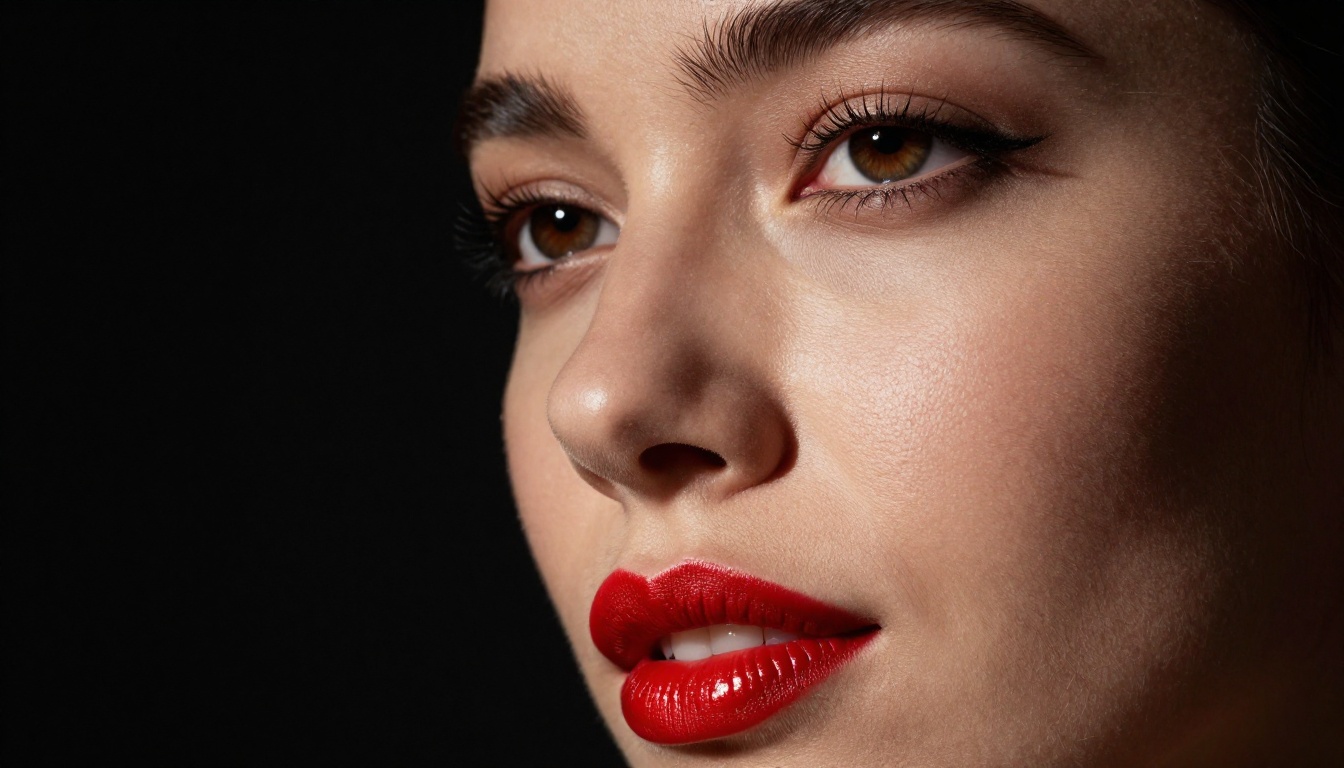
For AI selfies specifically, Crystal Upscaler produces the best results on faces and skin, adding micro-detail in pores, hair, and eye texture that makes the image look even more photographically real. Clarity Pro Upscaler is the stronger choice when fabric and background texture matter as much as the face.
When Upscaling Actually Helps
Upscaling adds the most value when:
- The original image is compositionally strong but lacks fine detail
- You're printing or displaying at large format
- A specific area (face, eye detail, fabric texture) needs more resolution for a particular use
- You're comparing options and the strongest composition was generated at a lower resolution than ideal
Upscaling adds the least value when the original has quality issues like incorrect anatomy, blurry edges, or inconsistent lighting. Fix those first with the editor, then upscale the corrected result.
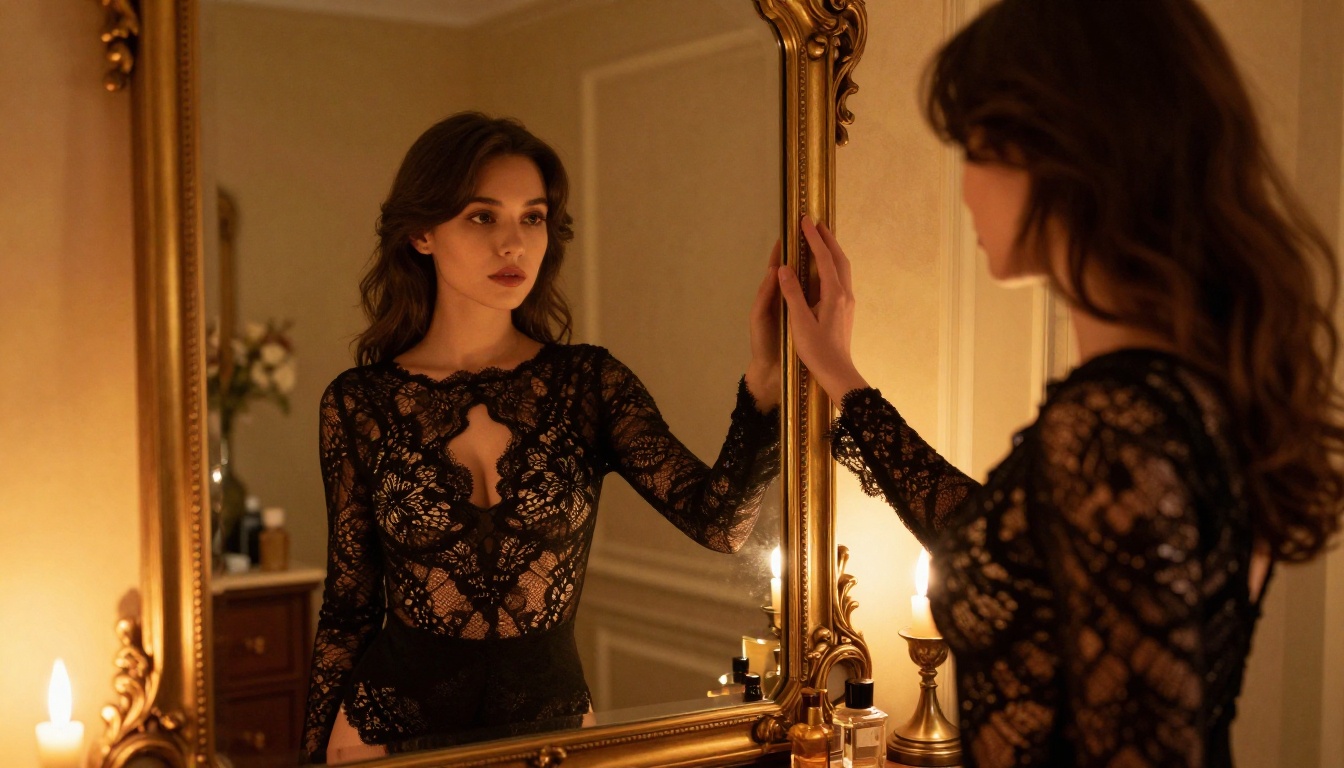
Visual Effects That Elevate the Shot
Beyond standard portrait generation, PicassoIA includes visual effects tools that can dramatically change the mood of an image without rebuilding it from scratch.
Lighting Passes That Change Everything
The most impactful single-sentence edits you can make through PicassoIA Image Editor Pro involve lighting shifts:
- Add a warm sunset backlight to a flat noon-lit outdoor shot
- Convert a soft daytime interior to a moody evening scene with candle light
- Shift a neutral-temperature portrait to a golden-hour warm amber grade
- Add fog or haze to a background to separate the subject from the environment
Each of these can be applied with one sentence, and the editor preserves the subject perfectly while transforming the atmosphere around it.
Background Replacement Without a Green Screen
One of the most common requests in AI portrait work is swapping backgrounds while keeping the subject intact. The editor handles this well with precise language:
"Replace the plain white wall behind her with a luxury Santorini terrace at blue hour, keeping the subject and lighting on her unchanged"
The key phrase is "keeping the subject and lighting on her unchanged." Without it, the model may attempt to relight the subject to match the new background rather than preserviting the original composition naturally.
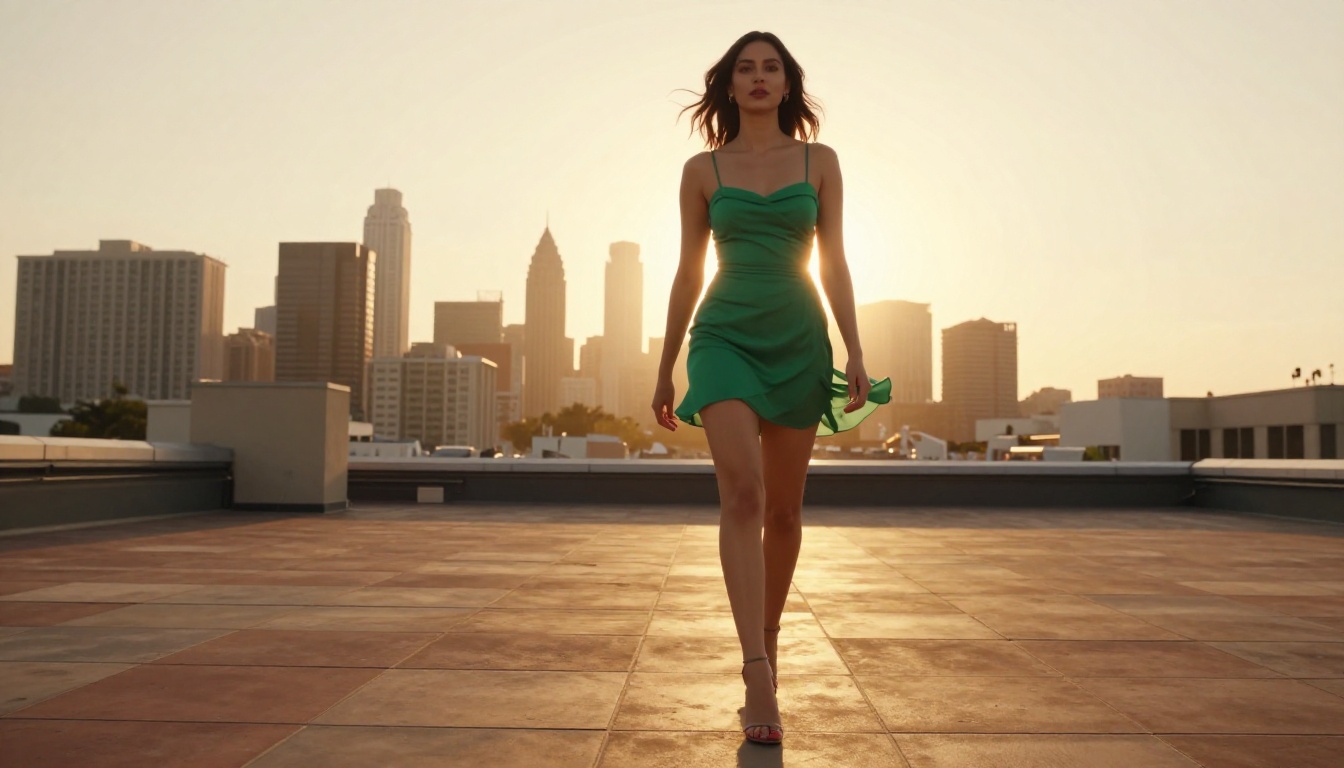
Mistakes That Kill Realism
A handful of common errors account for the majority of obviously-fake AI selfie outputs:
| Mistake | What It Causes | Fix |
|---|
| Vague lighting description | Flat, frontlit, department-store-catalog look | Add direction, angle, and color temperature |
| Generic wardrobe terms | Cartoonish fabric rendering | Describe material, cut, and movement |
| Skipping camera specs | Smartphone-snapshot depth of field | Add lens (85mm), aperture (f/1.4), film stock |
| Over-prompting beauty | Plastic skin, artificial symmetry | Include "natural skin texture, fine pores, natural asymmetry" |
| Wrong aspect ratio | Awkward cropping of body | Match ratio to intended composition before generating |
| Ignoring film grain | Digital-sterile look | Add "Kodak Portra 400 grain" or "Fuji Pro 400H texture" |
The most important fix on that list is the last one. Film grain is the single fastest way to make an AI image read as a photograph rather than a render. It adds organic texture that the brain associates with real cameras, and it works in combination with everything else in the prompt.
💡 If your output still looks too polished after adding grain, reduce the "perfection level" of your subject description. Real photographs show real imperfections. Add "slight natural flush on cheeks," "a small natural mole above the lip," or "one strand of hair slightly out of place" to push toward authentic human appearance.
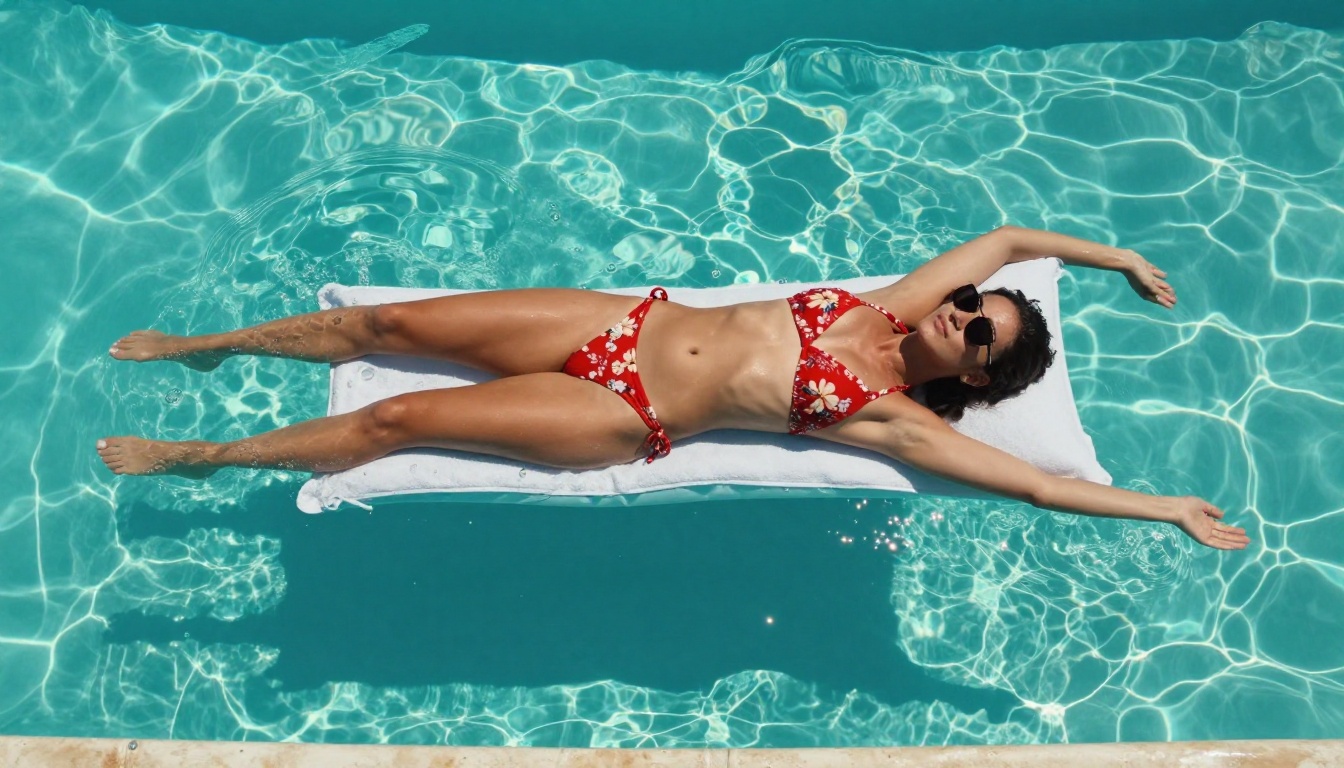
Pose and Composition Reference Points
Even with perfect prompts, knowing what compositions work in portrait photography helps significantly. These are the most reliable framing choices for AI selfie generation:
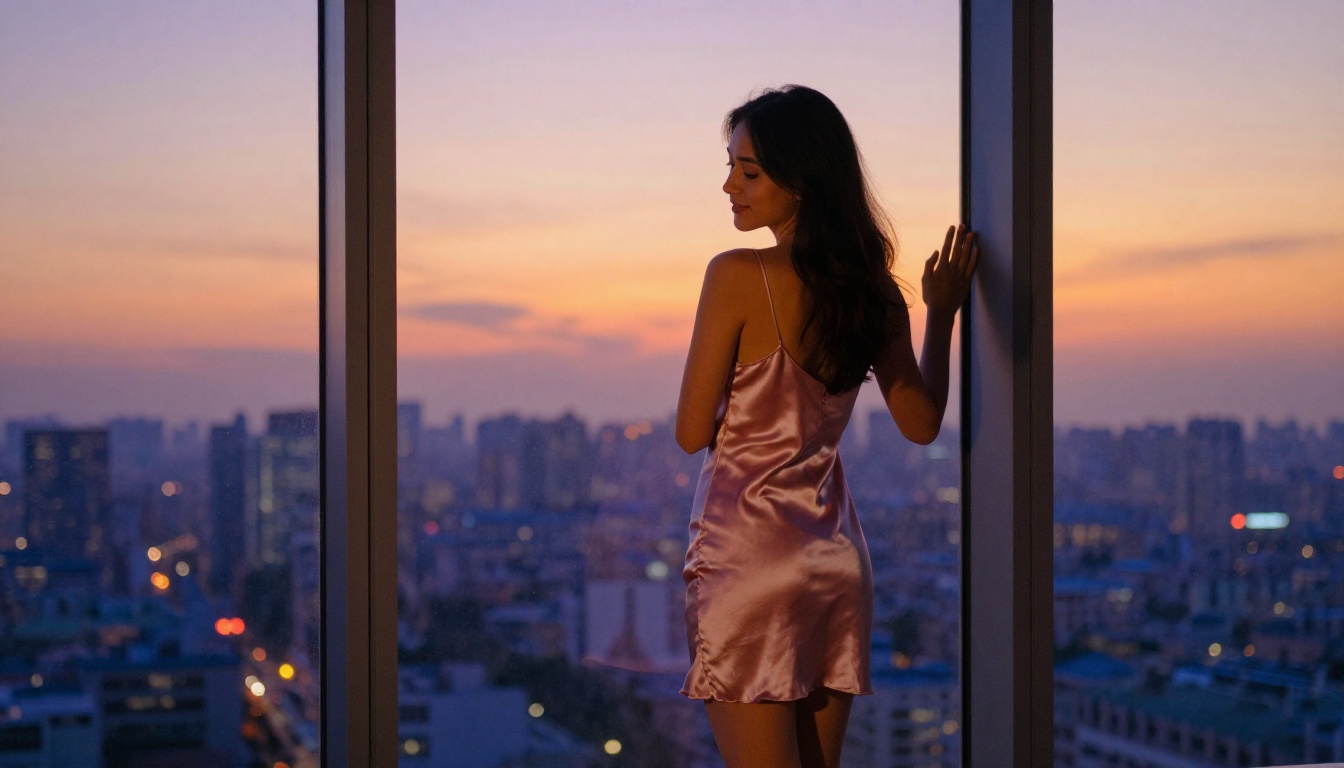
- The look-back: Subject facing away, turning back over one shoulder. Works consistently because it creates implied movement and shows both face and figure
- The lean: Subject leaning against a wall or surface, weight on one hip. Creates natural body lines without needing explicit anatomy instructions
- The overhead reach: Arms above the head, face tilted up. Naturally lengthens the figure in frame and produces flattering light on the face
- The window seat: Subject seated by a large window, partial profile. Provides built-in directional lighting and a natural environment anchor
- The mirror: Subject partially reflected in a mirror or glass surface. Adds compositional depth and allows two angles simultaneously
Combining a named composition type with your lighting and camera specs produces significantly more consistent results than describing specific anatomical positions.
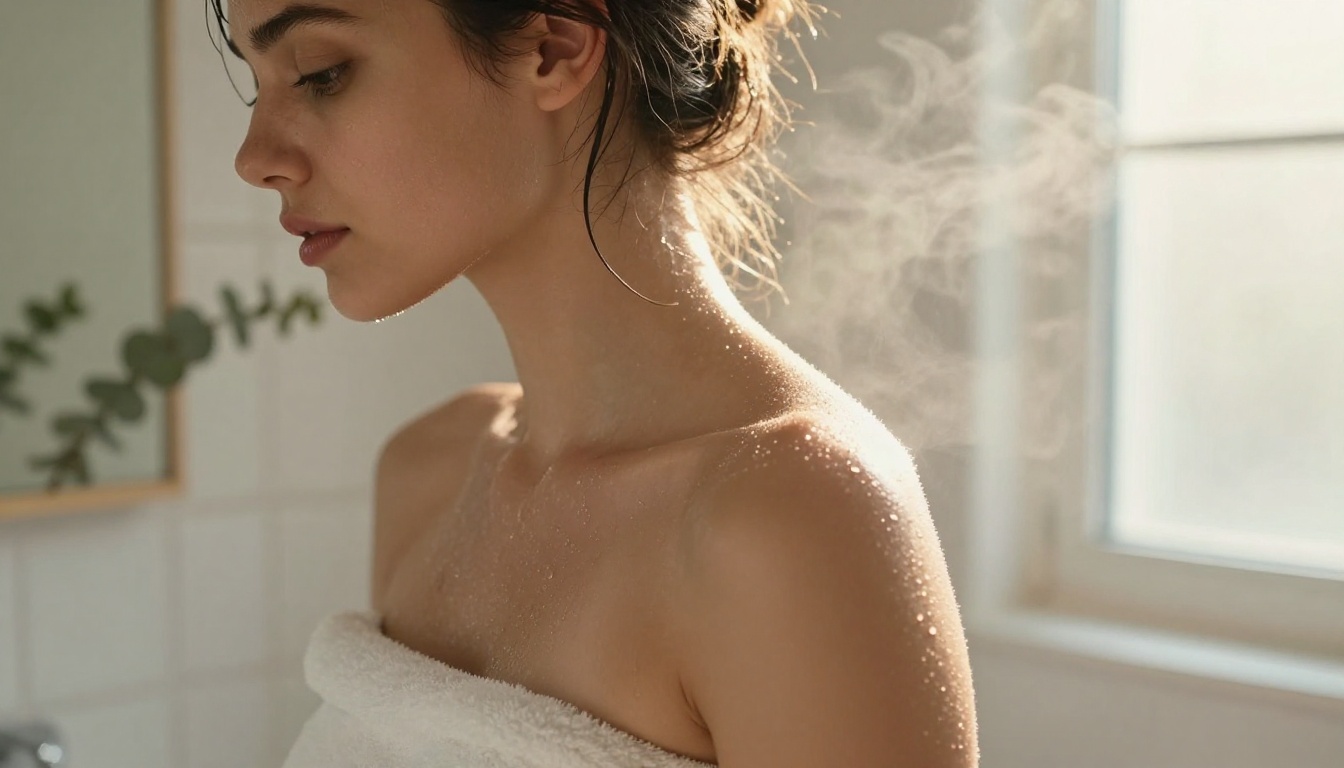
Create Yours Right Now
Everything described in this article is available right now, free, with no download required. Start with Seedream 4 for your first generation. Use the four-part prompt formula from the table above. Iterate with PicassoIA Image Editor Pro until the result matches what you had in mind. Upscale your favorite to 4K with Crystal Upscaler.
The full range of tools, including over 90 text-to-image models, upscalers, effects, and editors, is at picassoia.com/en/all-models. Spicy, beautiful, photorealistic AI selfies without a photoshoot, a photographer, or a studio. Just a prompt and a few seconds.


