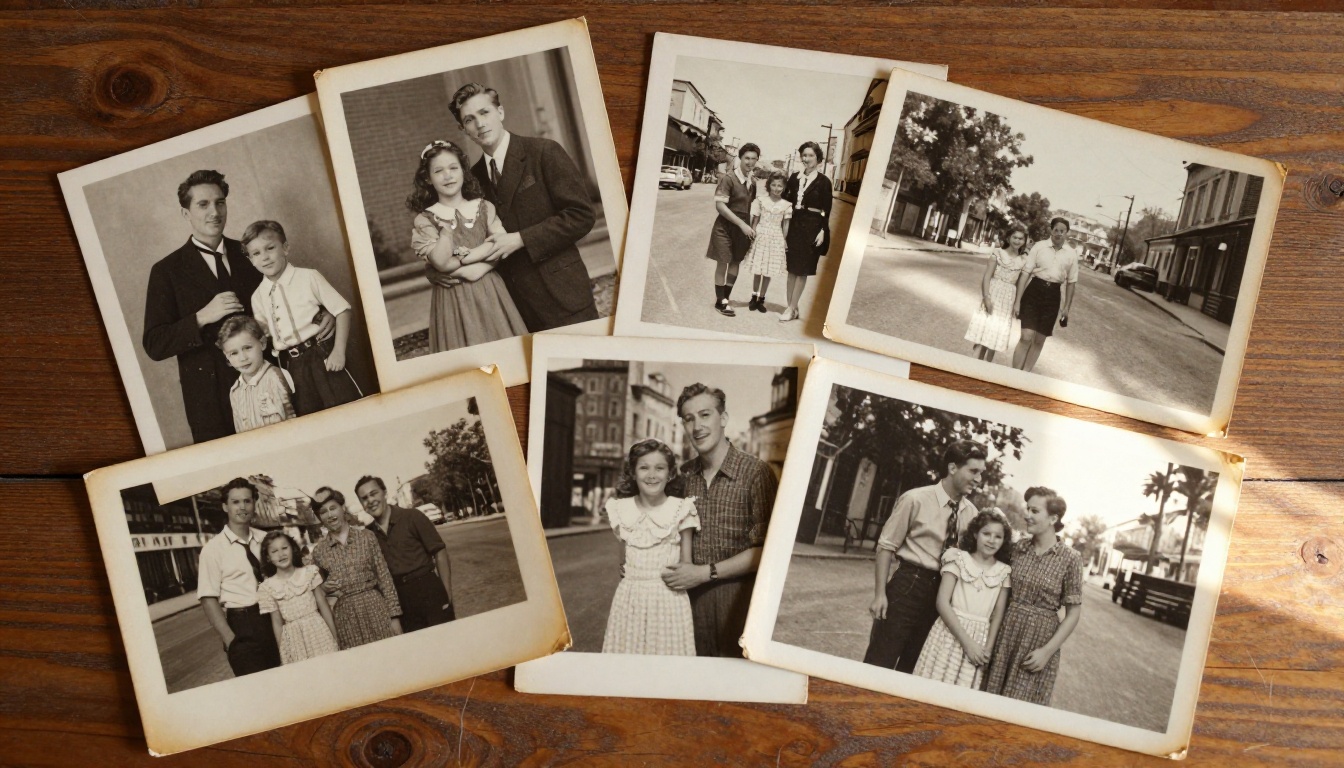
That faded portrait of your grandfather from 1948 is not gone. The detail is still there, locked beneath decades of grain, physical damage, and photographic decay. AI photo upscaling tools now reverse that process with remarkable accuracy, recovering faces, fabric textures, and tonal depth that traditional scanning simply cannot reproduce. If you have a box of deteriorating family photos or a hard drive full of low-resolution scans, this is the moment to act. The results are faster and sharper than most people expect, and the tools are accessible to anyone without any design or editing background.
Why Vintage Photos Lose Their Detail
The physics of photographic aging
Silver halide crystals in black-and-white film oxidize over decades, causing a gradual brownish shift called silvering out. Color prints suffer dye fading at different rates across their three dye layers, which is why old color photos often look reddish or greenish rather than evenly faded. Physical paper becomes brittle, surface scratches accumulate, and humidity causes water staining that bleeds into the emulsion itself.
The result is a layered problem: structural damage on the print surface, chemical degradation within the emulsion, and information loss at the pixel level when the print is scanned. Each of these problems requires a different approach, and AI upscaling addresses all three simultaneously in a way that manual retouching cannot.
Three types of damage AI addresses
- Grain and noise: Film grain appears as random variation in tone across the image. AI models trained on millions of degraded images recognize noise patterns and separate them from actual photographic detail, suppressing grain while preserving genuine edge information.
- Blur and soft focus: Low-quality optics, camera movement during exposure, or degraded film resolve into soft, low-contrast areas with no sharp edges. Super-resolution AI predicts missing high-frequency detail from contextual clues in the surrounding image structure.
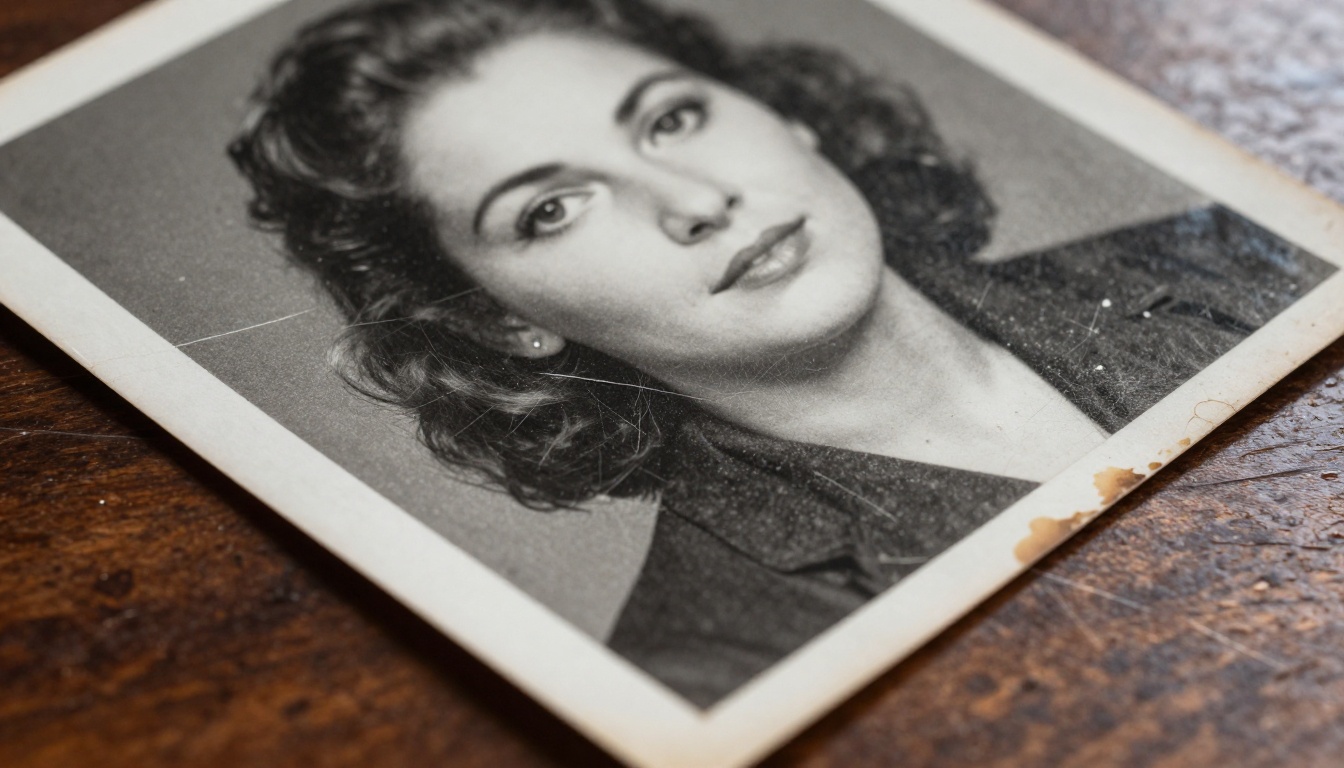
- Physical damage: Scratches, tears, stains, and cracked emulsion create structured artifacts that AI inpainting can detect and fill with plausible reconstructed content based on surrounding patterns.
💡 The worst damage is not always visible at normal viewing size. AI upscalers detect subtle tonal gradients and use them to reconstruct detail that appears completely lost when you look at the image at 100%.
How AI Upscaling Actually Works
What the model detects
Modern super-resolution models do not simply enlarge pixels. They analyze the structure of an entire image, recognize faces, clothing patterns, architectural details, and foliage, and synthesize the high-frequency detail that those structures would contain if photographed at a higher resolution. The model is making informed predictions about what was there, drawing on training data that includes millions of photographic examples across every era and subject matter.
This is why AI upscaling produces dramatically different results from traditional interpolation methods like bicubic scaling. Bicubic scaling blurs. AI upscaling reconstructs.
AI restoration vs. traditional scanning
Traditional flatbed scanning captures exactly what exists on the physical print at a given resolution, typically 600 to 1200 DPI for consumer scanners. That is a faithful reproduction of the damage as well as the image. AI upscaling processes that scan and applies trained photographic knowledge to reconstruct probable detail beyond what the scan captured. The two methods work best together: scan at maximum resolution first, then run the result through an AI upscaler.

| Method | What It Does | Best For |
|---|
| Flatbed scanning | Faithful digital capture of the physical print | Archiving original state |
| AI upscaling | Reconstructs lost detail, removes noise | Producing sharp, printable output |
| Manual retouching | Targeted repair by a skilled editor | Critical restoration with specific needs |
| Two-pass AI workflow | Clean with one model, scale with another | Severely damaged vintage photos |
The Best AI Models for Vintage Photo Restoration
Clarity Pro Upscaler
Clarity Pro Upscaler is one of the most reliable options for photorealistic upscaling of portrait photographs. It operates at 4x resolution scaling with strong attention to facial detail preservation, making it particularly well-suited for old portrait photos where face recovery is the priority. The model avoids the over-smoothing tendency that makes some older upscalers produce results that look painted rather than photographic.
Real ESRGAN
Real ESRGAN was originally trained on severely degraded image datasets, which gives it a natural advantage with genuinely damaged vintage prints. It handles compression artifacts, film grain, and sensor noise particularly well. For heavily deteriorated photographs where other models produce halos or ringing artifacts, Real ESRGAN often produces the cleanest baseline output.
Crystal Upscaler
Crystal Upscaler is optimized specifically for portrait photographs, making it an excellent fit for old family photos. It pushes 4x scaling with strong attention to skin texture and hair detail, two areas where vintage portrait restoration is most visually impactful. If you are restoring a photo of a person, this is often the first model to try.
Topaz Image Upscale
Image Upscale by Topaz scales up to 6x and is particularly strong on fine structural detail like clothing patterns, architectural lines, and handwriting. For vintage photos that include inscriptions on the back that were photographed into the image, printed text on signs in street scenes, or intricate textile patterns in formal portraits, this model frequently recovers detail that others miss.
P Image Upscale and Bria Increase Resolution
P Image Upscale delivers results in under one second, which makes it practical for processing large batches of photographs from a family archive without waiting minutes between each image. Increase Resolution by Bria provides up to 4x scaling with a clean, artifact-free output style that works particularly well for photos you plan to print rather than display digitally.
How to Restore Vintage Photos on PicassoIA
Step 1: Prepare your starting file
Begin with the best quality scan you can make. Even if your goal is AI restoration, a higher-resolution scan gives the model more signal to work from. For prints smaller than 4x6 inches, scan at 1200 DPI. For larger prints, 600 DPI is sufficient. If you are working from an existing digital copy, make sure it is at least 500x500 pixels before uploading. Smaller files give the AI less context and typically produce weaker results.
Step 2: Choose the right model for the damage type
The best model depends on what your photo needs most:
Step 3: Upload, process, and compare
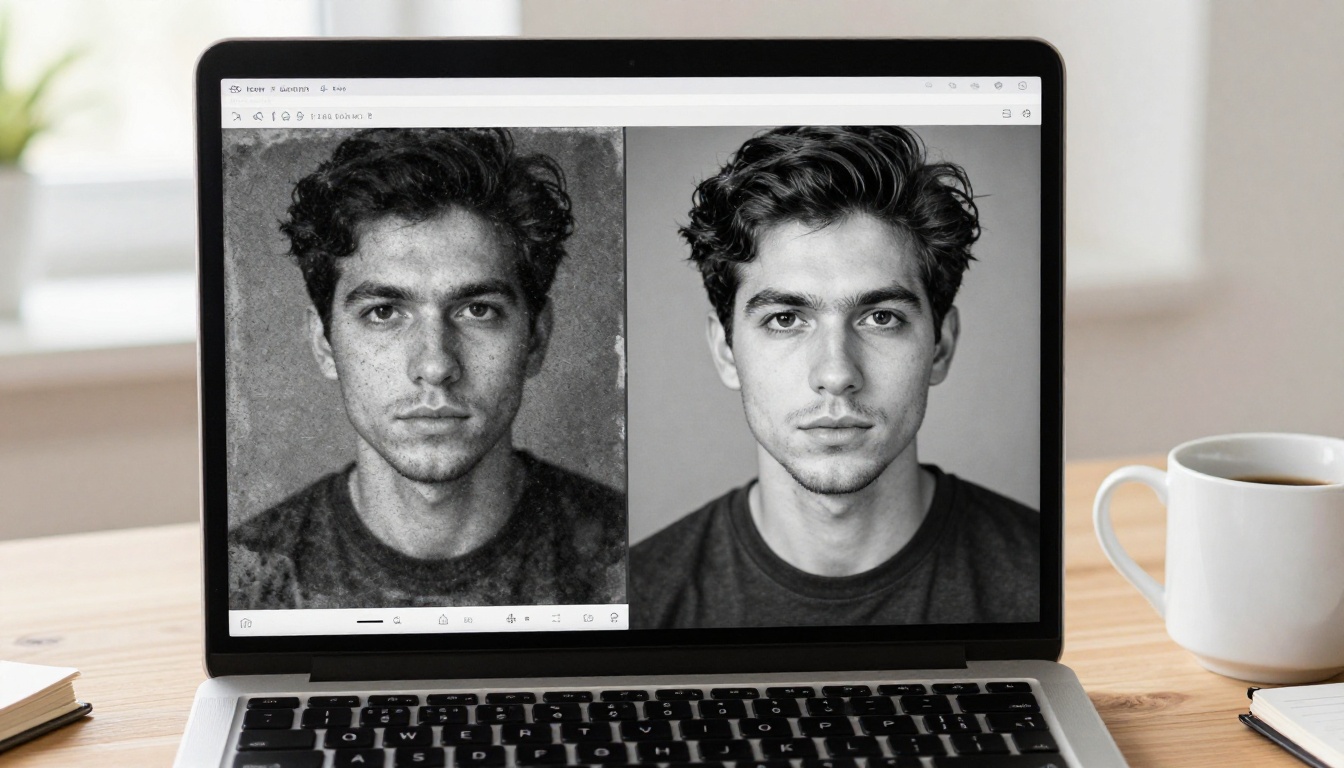
Upload your image on the model page. Processing typically takes between 3 and 30 seconds depending on the model and file size. Once complete, use the comparison slider to evaluate the output before downloading. If the result shows over-smoothing on faces, switch to a portrait-specific model and rerun. If structural halos appear around edges, try Recraft Crisp Upscale.
💡 For severely damaged photos, run a two-pass workflow: process through Real ESRGAN first to clean grain and artifacts, then run the cleaned output through Clarity Pro Upscaler for the final scale. This two-pass approach consistently outperforms single-pass restoration on heavily degraded images.
What the Results Actually Look Like
Portrait recovery
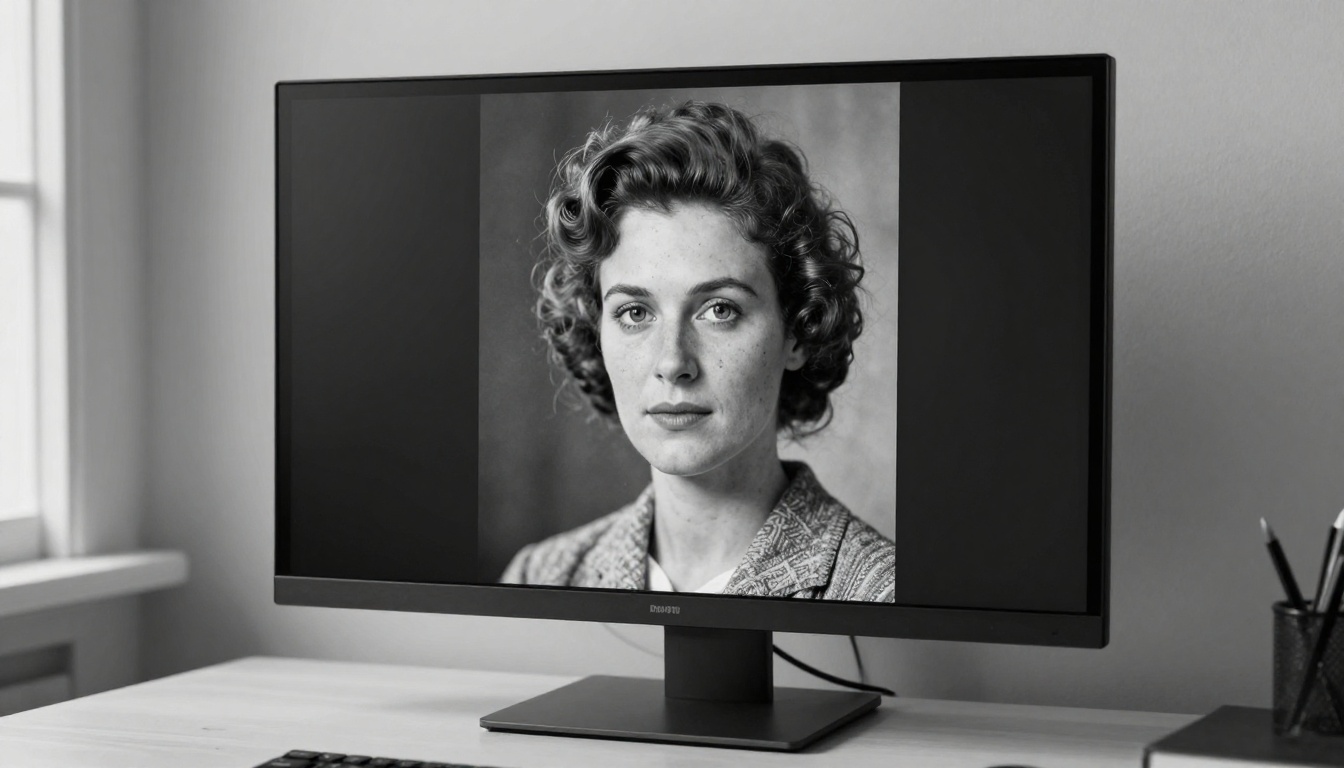
The most dramatic results appear in portrait photographs. A blurry 1940s studio portrait with barely visible facial features can often be restored to a state where individual hairs, natural skin texture, and fine clothing details are visible in the output. The AI does not invent these details arbitrarily; it predicts them from the structural context of the face shape, lighting direction, and photographic style of the era.
Group photos and street scenes
Group photographs and outdoor scenes from the early 20th century present more variables: architecture, clothing, multiple faces at small scale, and wide tonal range. Real ESRGAN and Image Upscale by Topaz handle these scenes well because they are trained to recognize structural patterns across diverse image content rather than optimizing exclusively for close-up faces.
Common Restoration Problems and How to Fix Them
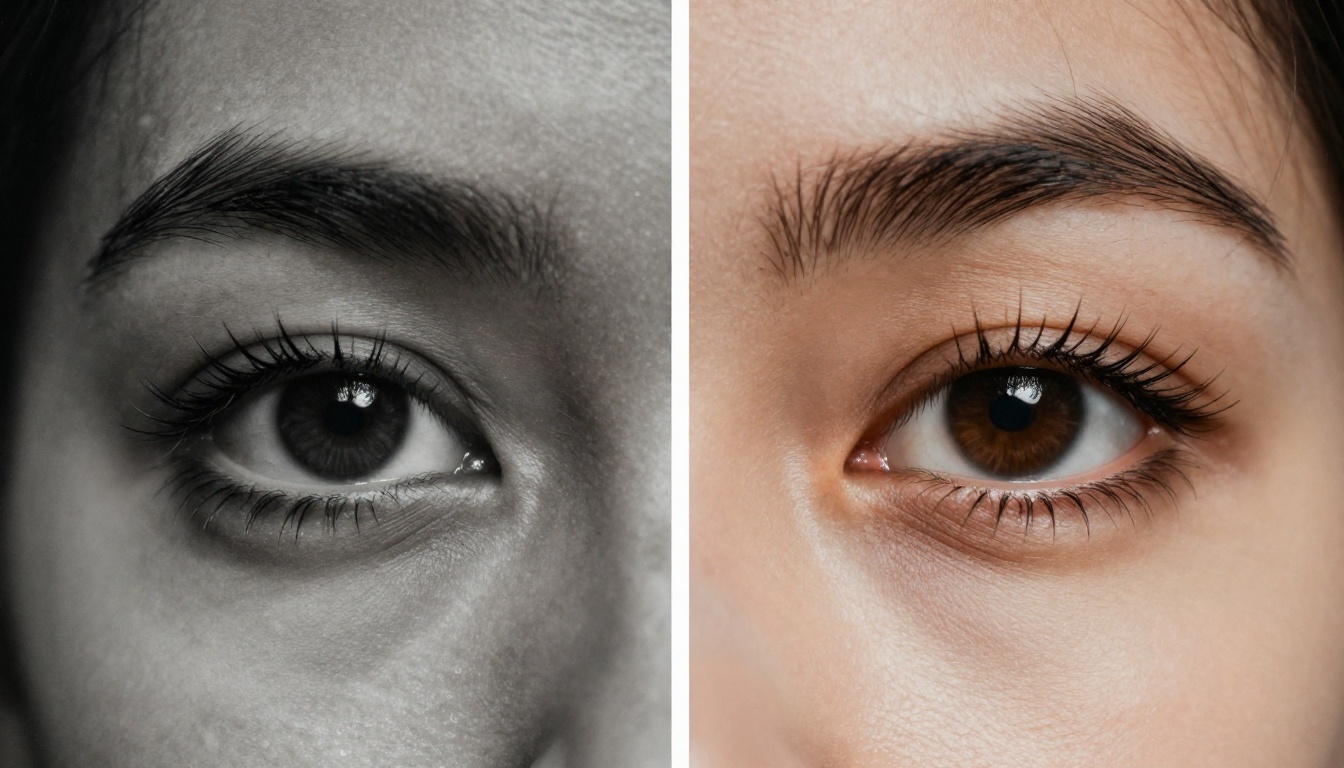
Over-smoothed faces
This is the most frequent complaint about AI upscaling results. Some models apply overly aggressive noise reduction that removes genuine photographic texture and produces a waxy, plastic-looking result on skin. If you see this, switch from a general-purpose upscaler to a portrait-specific model. Crystal Upscaler is calibrated specifically to preserve natural skin texture and hair detail at the 4x scale.
Halos around edges
Halos are bright outlines that form around high-contrast edges, typically caused by over-sharpening. Recraft Crisp Upscale and Recraft Creative Upscale from Recraft AI use a sharpening approach that minimizes halo artifacts while maintaining clear edge definition. If halos appear in your output, these are the models to try next.
Color shifts in faded color prints
Color vintage photographs often show uneven dye fading, with certain channels more degraded than others. When AI upscaling processes these images, it can amplify existing color imbalance. For best results with color vintage prints, manually white-balance the image in any basic photo editor before uploading, then run it through the upscaler. This single preparation step eliminates most color shift problems.
Inpainting for physical damage
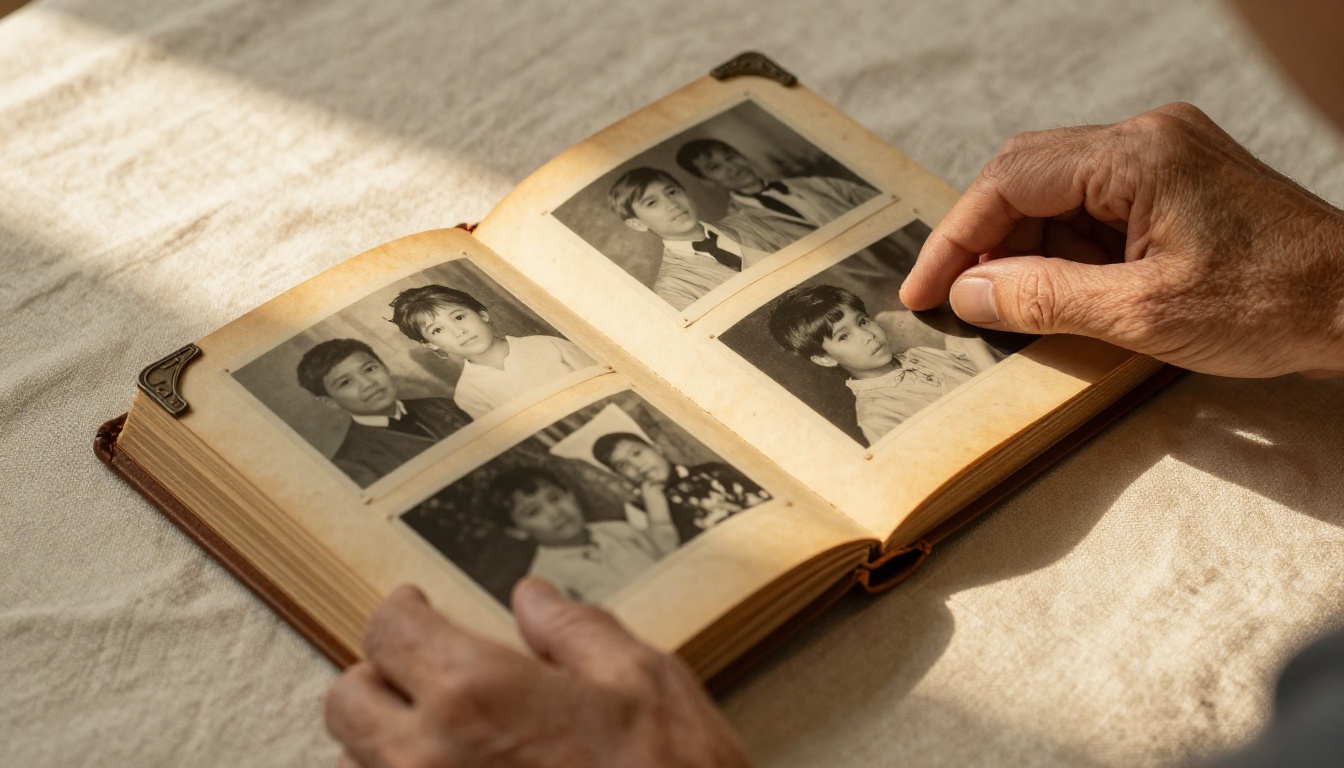
Scratches, tears, and water stains are structural damage that upscalers can soften but rarely eliminate completely. PicassoIA's inpainting tools let you select damaged areas and fill them with AI-generated content based on the surrounding image context. For photographs with major physical damage, run an inpainting pass before upscaling. Removing a deep scratch first gives the upscaler clean information to work with rather than trying to upscale through the damage.
AI colorization for black-and-white prints
Many vintage photographs are black and white by necessity of the era, not artistic choice. AI colorization models analyze grayscale content and apply statistically probable colors based on the subject matter: blue skies, green foliage, skin tones appropriate to the detected faces. Combined with upscaling through Clarity Pro Upscaler or Crystal Upscaler, the results create a vivid, emotionally resonant version of the restored image that connects differently with younger family members who never knew the subjects.
Building a Vintage Photo Archive That Lasts
Batch processing a family collection
If you are working through a large family archive, processing images one at a time is impractical. P Image Upscale is the most practical choice for batch work given its under-one-second processing speed. For photos that need more thorough restoration, establish a triage system: sort by damage level first, run quick passes on lightly degraded photos, and reserve the two-pass workflow for the most important or most damaged images.
Output formats and print sizes
For printing, save restored images as TIFF or high-quality JPEG at the native output resolution. Most upscalers produce files large enough for excellent prints at 8x10 inches or larger from a 4x6-inch original scan. For digital sharing and social media, a compressed JPEG at 2000 to 3000 pixels on the long edge is sufficient without excessive file size.
| Print Size | Recommended Resolution | Best Model |
|---|
| 4x6 inches | 1200x1800px | Any upscaler |
| 8x10 inches | 2400x3000px | Image Upscale by Topaz (6x) |
| 16x20 inches | 4800x6000px | Clarity Pro + Topaz two-pass |
| Digital sharing | 2000px long edge | P Image Upscale |
Google Upscaler is well-suited for photographs that contain both portrait subjects and complex background environments. It scales to 4x with a balanced approach that avoids over-prioritizing either face detail or background structure, which makes it reliable for group shots in outdoor or interior settings where both elements matter equally.
Start With One Photo Right Now
Old photographs carry irreplaceable memories. The people in them, the places, the moments they captured, they existed once and were committed to film when photography was still a deliberate and considered act. AI restoration does not replace the original, but it gives you a version that can be seen clearly, printed at full size, and shared with people who may never have known the subjects.
Every model mentioned in this article is available right now on PicassoIA. You can upload your first vintage photograph and see a restored result in under a minute. Start with Clarity Pro Upscaler for portrait photos, Real ESRGAN for heavily damaged prints, or P Image Upscale if you have a full archive to work through. Compare the results side by side, run a second pass if the first is not sharp enough, and work through the collection systematically. The difference between a barely visible face and a clear one is a single upload away.