The world of AI image generation has transformed how creators produce visual content. For artists and content creators working with mature themes, finding AI models that respect creative freedom while maintaining quality can be challenging. Nano Banana Pro stands out as a powerful solution that balances these needs.
This model provides the flexibility to create artistic content across all themes, including mature and adult-oriented work, without the restrictive filters found in many mainstream AI tools. The key lies in understanding how to configure its safety settings and optimize your prompts for the best results.
Why Nano Banana Pro for Adult Content?
Unlike many commercial AI image generators that impose strict content policies, Nano Banana Pro offers adjustable safety filter levels that give creators control over content moderation. This makes it particularly valuable for professional artists, photographers, and content creators who work with mature themes.
The model's ability to generate high-resolution images up to 4K resolution means your output maintains professional quality suitable for commercial use. Whether you're creating artistic nudes, fashion photography with provocative themes, or conceptual art exploring mature subjects, the technical capabilities support your creative vision.
Open-Source Advantage
PicassoIA hosts several open-source models specifically chosen for their permissive approach to content creation. While major platforms restrict adult content, these models recognize that artistic expression encompasses a full spectrum of themes and subjects.
Key benefits include:
- Flexible content policies that respect artistic freedom
- Professional-grade output quality suitable for commercial projects
- No arbitrary censorship of artistic or mature themes
- Transparent control over safety filter settings
Safety Filter Settings Explained
Nano Banana Pro offers three distinct safety filter levels, each serving different creative needs. The choice you make directly impacts what content the model will generate.
block_only_high represents the most permissive setting. This level only blocks extremely explicit content while allowing the vast majority of artistic and mature themes. For most adult content creators, this setting provides the right balance between creative freedom and basic content standards.
block_medium_and_above takes a moderate approach, filtering out content that exceeds medium intensity thresholds. This setting works well for provocative fashion photography or artistic nudes that maintain a softer aesthetic.
block_low_and_above applies the strictest filtering. This setting blocks even mildly suggestive content and is best suited for projects requiring mainstream-appropriate imagery.
For mature content creation, setting the safety filter to block_only_high gives you maximum creative control while the model still maintains some basic guardrails.
Crafting Effective Prompts
Prompt engineering for mature content requires the same principles as any other AI generation task, but with added attention to descriptive detail. Vague prompts produce inconsistent results, while specific, well-structured descriptions yield professional output.
Start with the subject and setting. Rather than simply describing an action or pose, establish the complete scene. Include lighting conditions, environmental details, and mood. This foundation helps the model understand the context of your generation.
Add style and aesthetic modifiers. Terms like "cinematic lighting," "professional photography," "artistic composition," or "high-fashion editorial style" guide the model toward polished, professional-looking results rather than amateur snapshots.
Specify technical parameters. Include details about camera angles, depth of field, color palettes, and image quality descriptors like "8k resolution" or "photorealistic detail." These elements contribute significantly to the final output quality.
Consider this example for fashion photography with mature themes:
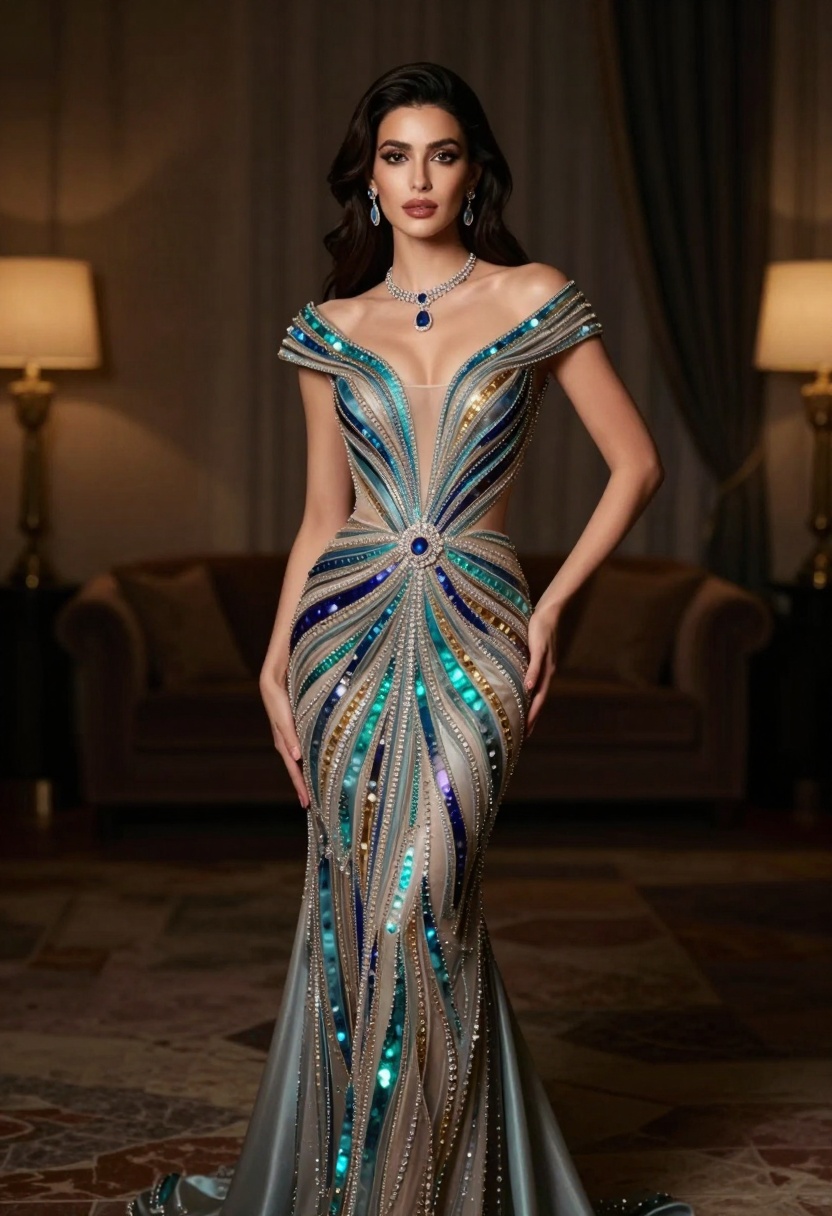
"A confident fashion model in elegant evening wear with dramatic lighting, professional studio photography, cinematic composition, shallow depth of field, warm color tones, sophisticated atmosphere, high-end editorial style, photorealistic, 8k detail"
This prompt establishes subject, setting, lighting, style, and technical quality without being overly explicit, allowing the model to interpret artistic direction naturally.
Working with Reference Images
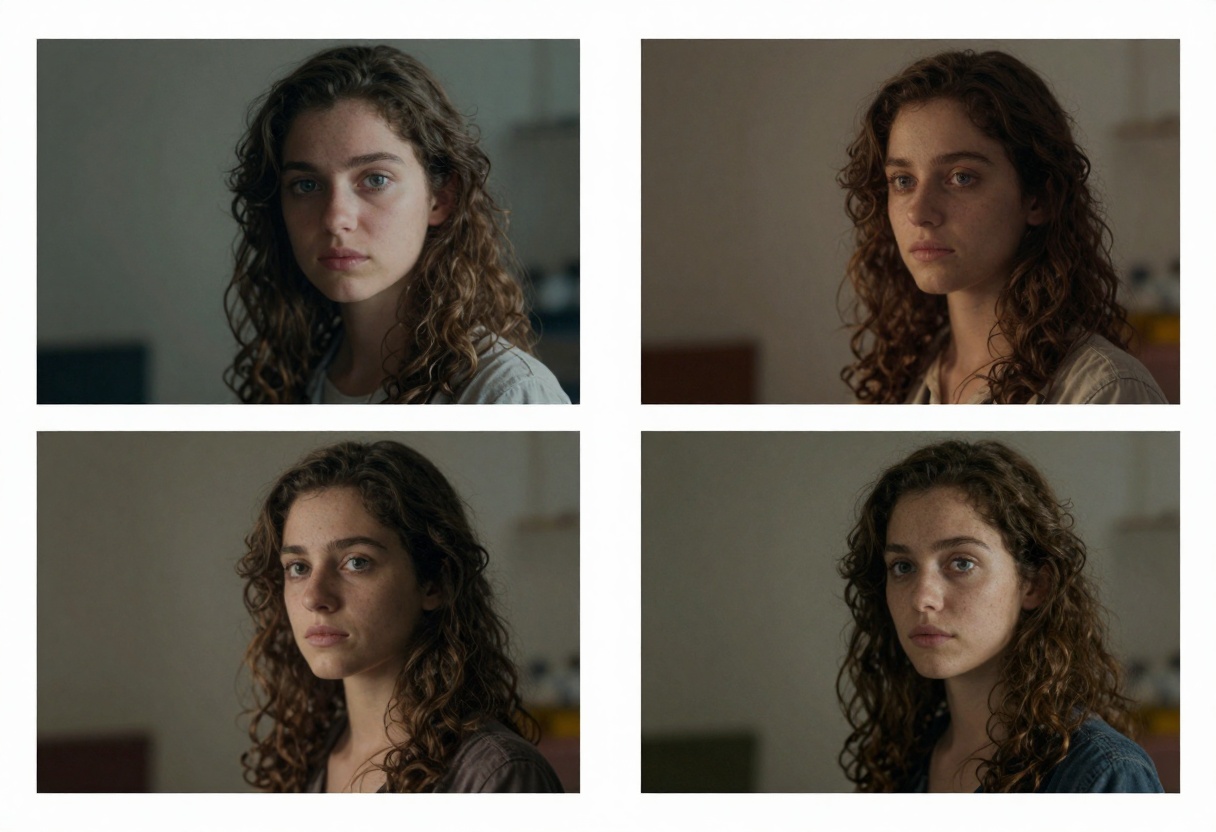
Nano Banana Pro accepts up to 14 reference images, opening creative possibilities for style transfer and composition guidance. This feature proves particularly valuable when you want to maintain consistency across a series or adapt existing aesthetics to new subjects.
Reference images work differently than direct editing. The model uses them as visual inspiration rather than modifying them directly. Think of references as providing the model with examples of composition, lighting, color schemes, or styling that you want reflected in the new generation.
When selecting reference images, consider what specific elements you want the model to adopt. If you're aiming for a particular lighting style, choose references that showcase that lighting clearly. For pose and composition guidance, select images with strong, readable poses.
You can combine multiple references to blend different aspects. One image might establish the lighting and mood, while another defines the pose or composition. The model synthesizes these inputs to create something new that reflects the combined influences.
Keep in mind that reference images work best when they align with your text prompt. Contradictions between visual references and text descriptions can produce unpredictable results. Consistency between all inputs yields the most reliable output.
Resolution and Output Settings
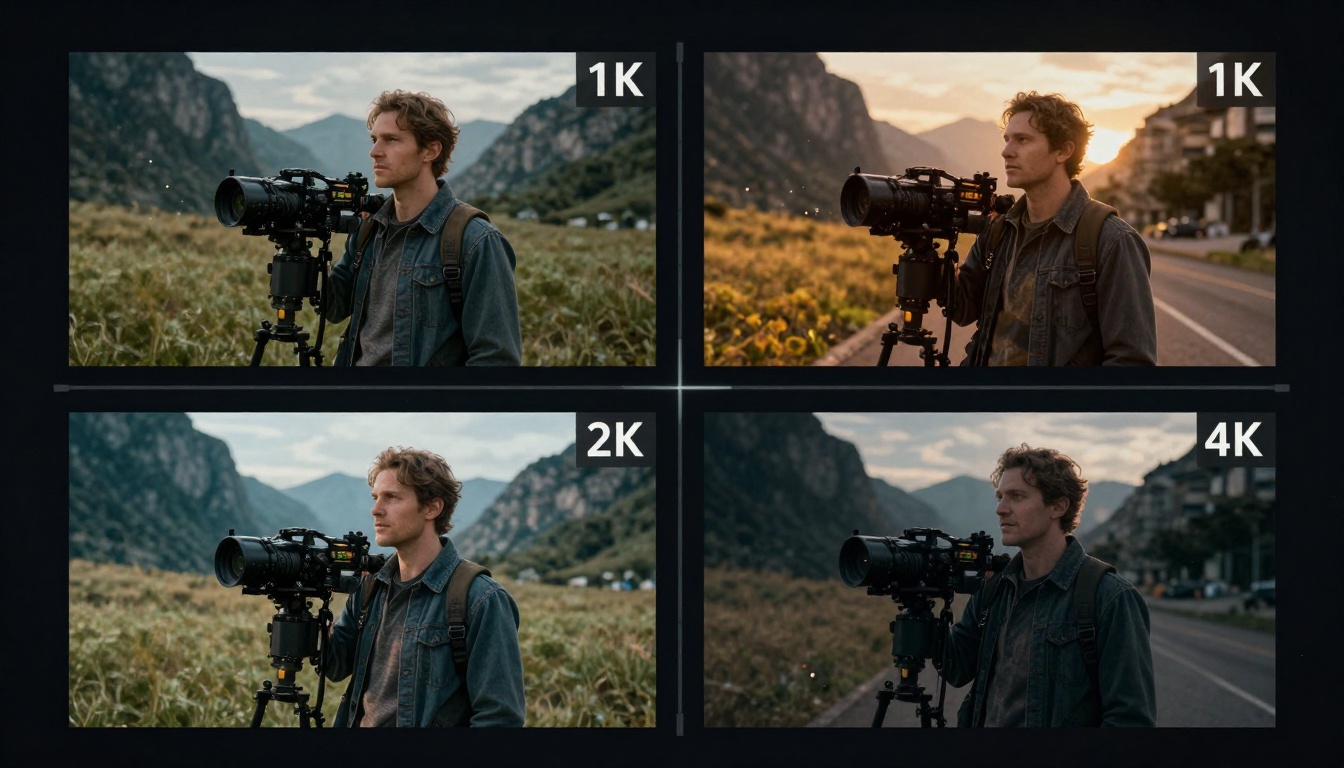
The choice between 1K, 2K, and 4K resolution depends on your intended use and the importance of fine detail in your final image. Each resolution level offers distinct advantages.
1K resolution generates images quickly and works well for concept development, rough drafts, or social media content where maximum quality isn't essential. This setting lets you iterate rapidly on ideas before committing to higher-resolution generations.
2K resolution serves as the default sweet spot. It delivers sharp, detailed images suitable for most professional applications without excessive generation time. Print materials, digital publications, and portfolio work typically look excellent at 2K.
4K resolution produces maximum detail and clarity. Choose this setting when preparing images for large-format prints, detailed retouching work, or situations where you need to maintain quality after cropping or zooming. The trade-off is longer generation time.
Output format choices between JPG and PNG also matter. JPG files use compression that slightly reduces file size, making them practical for web use and general applications. PNG files maintain perfect quality without compression artifacts but create larger files. For most purposes, JPG at high quality settings provides an optimal balance.
Aspect Ratios for Different Projects
Aspect ratio selection shapes how your composition works and determines suitability for various platforms and media. Nano Banana Pro supports multiple aspect ratios, each serving specific creative needs.
1:1 (Square) works perfectly for Instagram posts, profile images, and designs that need to work across multiple orientations. The balanced format creates stable, centered compositions.
16:9 (Widescreen) matches video formats and works well for website headers, YouTube thumbnails, and cinematic compositions. This format emphasizes horizontal space and works beautifully for landscapes or scenes with multiple subjects.
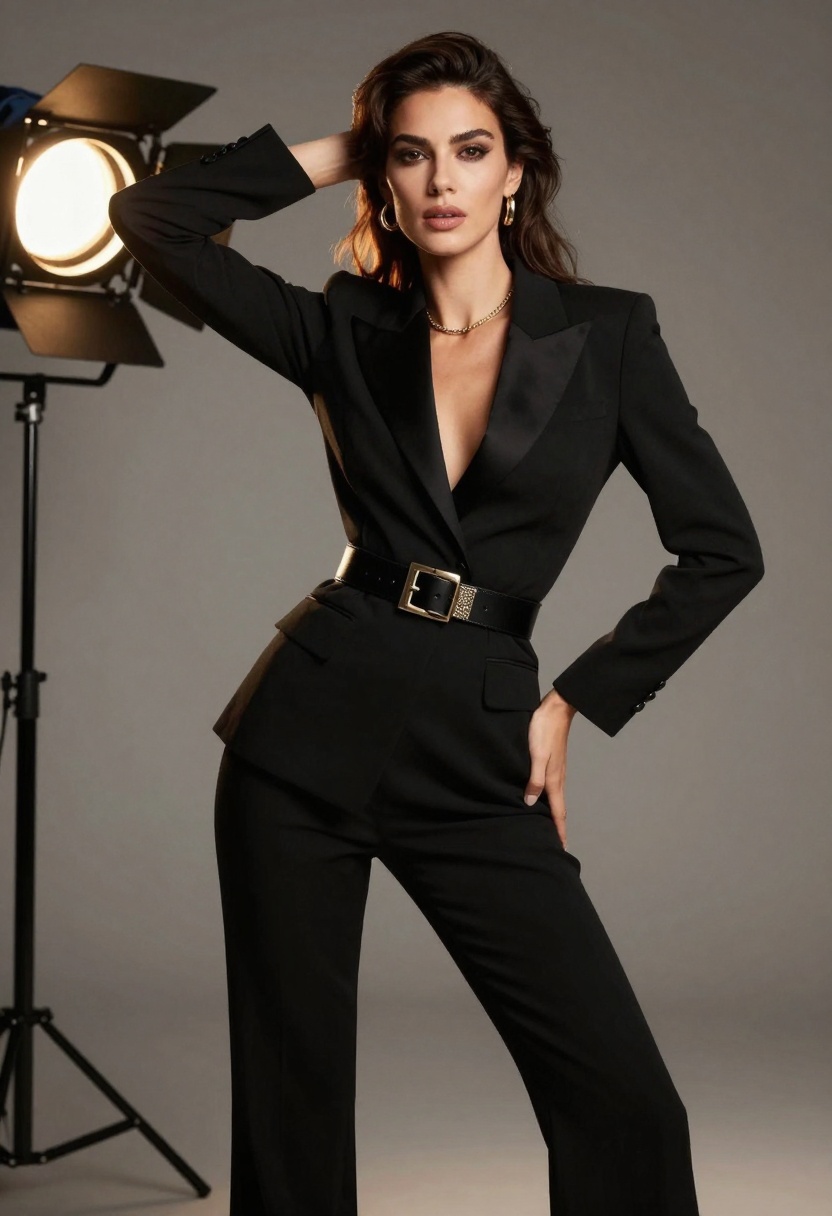
9:16 (Vertical) optimizes for mobile viewing and social media stories. Instagram Stories, TikTok, and similar platforms favor this tall format. Portraits and fashion photography often work exceptionally well in vertical orientation.
3:2 and 2:3 represent traditional photography ratios. These formats feel natural for editorial work, print publications, and portfolio presentations. The 3:2 horizontal format suits landscapes and group shots, while 2:3 vertical excels for portraits.
4:3 and 3:4 offer slightly boxier proportions than 3:2 ratios. These formats work well when you need more vertical or horizontal space than 16:9 provides but want a less extreme ratio than square format.
21:9 (Ultra-wide) creates dramatic cinematic compositions perfect for panoramic scenes or establishing shots that emphasize width and scope.
Alternative Models for Adult Content
While Nano Banana Pro excels at text-to-image generation, PicassoIA offers additional models that complement mature content workflows. Understanding when to use each model helps you work more efficiently.
p-image-edit specializes in rapid image editing and transformation. When you already have an image that needs adjustments, refinements, or style changes, this model processes edits in under a second. It accepts multiple reference images and performs precise modifications based on text prompts. The optional safety checker can be disabled, making it suitable for editing mature content without artificial restrictions.
This model shines when you need to iterate quickly on existing images, adjust specific elements, or create variations of successful generations. Think of it as your editing tool rather than your creation tool.
wan-2.2-image focuses on cinematic, highly stylized image generation. It produces beautiful 2-megapixel images in just 3-4 seconds, making it ideal for rapid concept development. The cinematic quality gives images a polished, professional appearance that works particularly well for artistic and fashion-oriented content.
The faster generation time compared to Nano Banana Pro makes wan-2.2-image valuable when you need to explore multiple concepts quickly. Once you identify promising directions, you can switch to Nano Banana Pro for higher-resolution final outputs.
All three models work together in a professional workflow. Start with wan-2.2-image for rapid exploration, refine concepts with Nano Banana Pro at high resolution, and use p-image-edit for final adjustments and variations.
Professional Workflow Tips
Building an efficient workflow around these tools requires understanding how to use each model's strengths while minimizing generation costs and time.
Begin each project with rapid exploration using lower resolutions or faster models. Generate multiple variations of your concept, testing different prompts, compositions, and styles. This exploration phase helps you identify what works before committing to expensive high-resolution generations.
Once you identify promising directions, create a reference library. Save successful prompts, note which settings produced desired results, and organize reference images that guide future work. This library becomes increasingly valuable as you develop your style and understand what works for your specific content needs.
Batch similar requests when possible. If you need multiple images with similar aesthetics or subjects, prepare all your prompts in advance and generate them in sequence. This approach helps maintain consistency across a set and lets you optimize your time.
Use iterative refinement rather than trying to perfect everything in a single generation. Start with a good prompt and generate an image. Analyze what works and what doesn't, then refine your prompt for the next attempt. This approach often reaches your goal faster than trying to craft the perfect prompt from the start.
Consider the end use from the beginning. Images destined for Instagram may not need 4K resolution, while print work absolutely does. Starting with appropriate settings saves both time and processing resources.
Common Challenges and Solutions
Even experienced creators encounter obstacles when generating mature content with AI models. Recognizing common issues and their solutions saves time and frustration.
Inconsistent results often stem from insufficiently detailed prompts. When output varies wildly between generations using the same prompt, add more specific descriptors about lighting, composition, style, and technical quality. The more guidance you provide, the more consistent your results become.
Filtered or blocked generations happen when safety settings clash with your prompt. If you encounter unexpected filtering with block_only_high selected, try rephrasing your prompt to emphasize artistic and aesthetic elements rather than explicit descriptions. Focus on mood, lighting, and composition instead of direct descriptions of content.
Composition problems where subjects appear awkwardly positioned or cropped often result from insufficient compositional guidance. Add terms like "centered composition," "rule of thirds," "full-body shot," or "medium shot" to guide framing decisions.
Quality inconsistencies can result from conflicting style modifiers. Mixing terms like "photorealistic" with "illustration" or "cartoon" confuses the model. Choose one aesthetic direction and reinforce it with consistent modifiers throughout your prompt.
Color and lighting issues frequently respond to more specific color palette and lighting descriptions. Instead of general terms like "good lighting," specify "warm studio lighting," "cool natural light," or "dramatic rim lighting."
Using Nano Banana Pro on PicassoIA
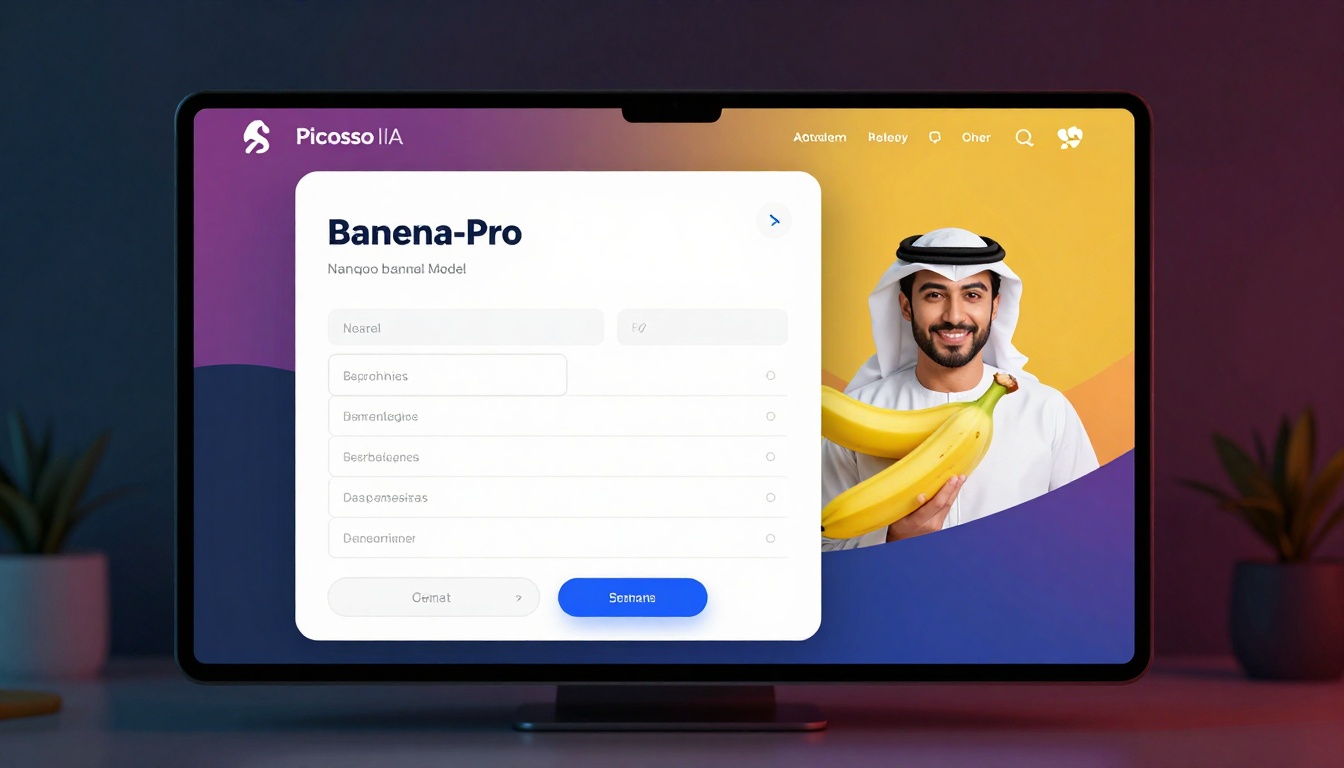
Getting started with Nano Banana Pro on PicassoIA takes just a few minutes. The interface provides straightforward access to all the model's capabilities without requiring coding knowledge or API integration.
Step 1: Access the Model Page
Navigate to the Nano Banana Pro model page on PicassoIA. The interface displays all available parameters and options for the model.
Step 2: Write Your Prompt
Enter your text description in the prompt field. This required parameter tells the model what you want to create. Remember to be specific about subject, setting, lighting, style, and quality level.
Take time crafting this prompt, as it forms the foundation of your generation. A well-written prompt typically includes:
- Subject description (who or what)
- Setting and environment details
- Lighting and mood specifications
- Style and aesthetic modifiers
- Technical quality descriptors
Step 3: Configure Safety Filter
Set the safety_filter_level according to your content needs. For mature content, select block_only_high to maximize creative freedom while maintaining basic content standards.
This setting significantly impacts what the model will generate, so choose carefully based on your specific project requirements.
Step 4: Select Resolution
Choose between 1K, 2K, or 4K resolution based on your intended use. Remember that higher resolutions take longer to generate but provide more detail for professional applications.
The default 2K setting works well for most projects, offering a good balance between quality and generation time.
Step 5: Choose Output Format
Select either JPG or PNG format. JPG works well for general use with slightly smaller file sizes, while PNG maintains perfect quality without compression artifacts.
For most web and digital applications, JPG provides excellent results with practical file sizes.
Step 6: Set Aspect Ratio
Pick the aspect ratio that matches your project needs. Consider where the final image will be displayed and choose the format that best suits that context.
You can select match_input_image if you're using reference images and want the output to maintain their aspect ratio.
Step 7: Add Reference Images (Optional)
If you want to guide the generation with visual references, upload up to 14 images in the image_input array. These references influence style, composition, and aesthetic without being directly edited.
Reference images work best when they clearly demonstrate the visual qualities you want in your output.
Step 8: Generate Your Image
Click the generate button to start processing. Generation time varies based on resolution and complexity, with typical generations completing within a few minutes.
Step 9: Download and Refine
Once generation completes, review your result. Download the image if it meets your needs, or refine your prompt and settings to generate improved versions.
The iterative process of generation and refinement helps you zero in on exactly what you want. Each attempt teaches you more about how the model interprets different prompts and settings.
Best Practices for Mature Content
Creating professional mature content requires thoughtful approach beyond just technical settings. These practices help ensure your work maintains artistic merit and professional quality.
Focus on artistic intent. The strongest mature content serves a creative purpose beyond shock value. Consider composition, lighting, and aesthetic choices that elevate your work from explicit to artistic.
Maintain technical excellence. Use high resolutions, proper aspect ratios, and quality output formats. Professional technical execution distinguishes artistic work from amateur content.
Respect boundaries even with permissive settings. Just because a model allows certain content doesn't mean every creation serves your professional goals. Consider how your work represents your artistic vision and brand.
Document successful prompts. When you create something exceptional, save the complete prompt with all settings. This documentation becomes invaluable for maintaining consistency across projects and learning what works for your style.
Experiment with abstraction. Sometimes the most powerful mature content suggests rather than shows everything explicitly. Shadows, silhouettes, and careful framing can create more interesting and artistic results than fully explicit depictions.
The goal is creating work that stands out for its artistic merit and professional execution, not just its mature themes. Technical mastery combined with artistic vision produces content that succeeds professionally.
Final Thoughts
Nano Banana Pro on PicassoIA represents a powerful option for creators who need flexibility in mature content generation without sacrificing quality or control. The adjustable safety filters, high-resolution outputs, and reference image support provide a complete toolkit for professional adult content creation.
The key to success lies in understanding how to configure the model's settings appropriately while crafting detailed, well-structured prompts that guide the AI toward your creative vision. Combined with complementary tools like p-image-edit and wan-2.2-image, you have everything needed for a professional workflow.
Whether you're creating artistic nudes, provocative fashion photography, or mature-themed concept art, these open-source models on PicassoIA offer the creative freedom many mainstream platforms restrict. The technical capabilities support professional applications while the permissive approach respects artistic expression across all themes.
Start experimenting with different prompt styles, safety filter settings, and resolution options. Each project teaches you more about how to achieve your specific aesthetic goals. The more you work with the model, the more precisely you can translate your creative vision into finished images.


