You have a photo. Maybe it's a glamour shot, a beach selfie, or an artistic portrait. And you want to see it move, uncensored, the way the AI actually sees it. That's not a fantasy anymore. In 2027, image-to-video AI has reached a point where a single still image becomes a fluid, realistic clip in seconds, without the content filters that block most mainstream tools.
The problem is that most platforms aggressively restrict what you can generate. Upload anything suggestive and you get an error, a vague refusal, or a sanitized output that looks nothing like what you submitted. This article is about the models that don't do that, and how to use them to turn any photo into an 18+ AI video with real results.
How Photo-to-Video AI Works
What happens inside the model
When you upload a photo to an image-to-video model, the AI doesn't just add a wiggle animation on top. It reads the full spatial structure of the image, including body proportions, lighting direction, fabric texture, and background depth. Then it generates a sequence of frames that maintain visual consistency while introducing motion.
The motion itself comes from two sources: the model's training data (which teaches it how bodies, hair, water, and fabric naturally move) and your text prompt (which directs specific actions, camera movement, or atmosphere). The model blends both to produce a clip where the original image serves as frame zero and everything after is synthesized.
For 18+ content, the model's training data and its safety configuration are what determine whether it will follow your prompt honestly or quietly replace your content with something sterile. Most commercial models are trained to deflect. The ones worth using for adult content are specifically not set up that way.
Why your source photo matters
The output will only be as good as the input. A sharp, well-lit photo with clear subject definition gives the model accurate spatial data to work from. A blurry, low-resolution, or heavily filtered image forces the model to guess, which introduces artifacts, warping, and face drift.
For best results:
- Use photos at minimum 1024x576px
- Make sure the subject is clearly separated from the background
- Avoid heavy Instagram filters or extreme contrast edits
- Natural lighting reproduces more realistically than studio strobe
The model also preserves the original aspect ratio when possible. If you upload a portrait-format photo to a model that outputs in 16:9, the edges get filled in. That fill quality varies by model, so when you can, match your source image ratio to the output format.
The Models That Don't Censor You
Not all uncensored models are equal. Some produce realistic motion but struggle with anatomy consistency. Others are fast but soft on detail. Here's what actually works for 18+ photo animation.
Seedream 4.5 — speed and realism
Seedream 4.5 is the top recommendation for NSFW AI content. It accepts adult prompts, supports image editing workflows, and delivers ultra-realistic output in under 3 seconds. That's not a typo. While most high-quality models take 30 to 90 seconds, Seedream 4.5 is running before you've finished reading the result.
It handles skin texture, hair physics, and fabric drape better than most models at its speed. The realism comes from its training on diverse, uncurated datasets that include adult content, which is why it doesn't substitute safer alternatives when you push boundaries in your prompt.
💡 Note: Seedream 5 Lite, the newer version, does NOT support NSFW content. Stick with Seedream 4.5 for adult generation.
PicassoIA Image Editor Pro — unlimited runs
PicassoIA Image Editor Pro works differently. It's an img2img model, meaning you feed it a photo and it outputs a transformed version based on your prompt. You can use it to modify outfits, apply style changes, or produce suggestive variations of a source image that you then feed into a video model.
Its biggest structural advantage is unlimited generations on Elite and Infinite plans. If you're iterating on a workflow, testing poses, or producing multiple variations of the same scene, that unlimited model means you run 200 generations for the same price as 20. For reference, producing 1,000 images on a credit-metered model like Nano Banana 2 costs around $100. Here, it's included.
Results land in under one second. There's also a free trial of 3 generations with no credit card required.
Wan 2.2 I2V Fast — turning stills into motion
Wan 2.2 I2V Fast is the image-to-video specialist in this list. You upload your still image and describe the motion, and it generates a smooth clip with natural physics. It handles adult content without substituting filtered output.
The "Fast" variant balances quality and speed well. You get HD output without the full render time of the Pro version. For 18+ animation specifically, Wan 2.2's handling of body movement and cloth physics is noticeably above average. Hair flows rather than jerks. Fabric moves with weight. That matters more than raw resolution when you're watching the result back.
P-Video — safety filter off by default
P-Video by PrunaAI does something most models won't: it ships with the safety filter disabled by default. You don't have to opt out, find a workaround, or hope your prompt sneaks through. The filter is off, and prompts are processed as written.
It accepts text, image, or audio as input and outputs clips up to 1080p at 24 or 48fps. Duration is adjustable from 1 to 10 seconds across seven aspect ratios. For image-to-video workflows specifically, upload your source photo and describe the motion. The draft mode previews a low-res version instantly before you commit to the full render.
How to Animate Your Photo on PicassoIA
Getting your source image right
Before you upload anything to a video model, it's worth passing your photo through an image model first. Qwen Image 2 is open source and edits or creates any image in seconds with very detailed realism. Use it to sharpen a soft photo, fix uneven lighting, or adjust the composition before the video model ever sees it.
Grok Imagine Image is another strong option for image prep. It converts a source photo into a desired style, including more revealing formats, in a realistic way. A quick pass through Grok Imagine Image before upload can give the video model a cleaner starting frame.
💡 Pre-process your source photo through an image editor before the video model. A better input image produces a dramatically better animated output.
Writing the motion prompt
The motion prompt is where most people make mistakes. Vague prompts like "make her move" produce minimal, choppy motion. Specific, chronological prompts produce fluid, intentional animation.
Structure your prompt like this:
- Subject position at frame start — where is she, what's her pose
- Specific motion over time — what moves, in what direction, how
- Camera behavior — slow dolly, gentle pan, static
- Atmosphere — lighting changes, wind, water
Weak prompt: "woman at beach, move"
Strong prompt: "Woman standing ankle-deep in ocean, arms relaxed at sides. Over 5 seconds, a gentle wave rolls in around her feet as she shifts her weight slightly to the left. Hair drifts forward in the sea breeze. Camera holds static with a slow, barely perceptible zoom toward her face. Warm late-afternoon light from the right."
The second prompt gives the model a complete physical and temporal description. The output quality difference is significant.
Resolution and output settings
For 18+ content specifically, 720p is the baseline you should aim for. At 480p, fine detail like skin texture, hair strands, and fabric weave are approximated rather than rendered, which produces an uncanny quality that breaks immersion.
| Setting | Result |
|---|
| 480p | Fast, lower detail, softer skin texture |
| 720p | Clear detail, realistic texture, recommended |
| 1080p | Highest quality, slower render, some models only |
Most models on PicassoIA default to 480p for speed. Pass resolution: "720p" explicitly when the model supports it. For the highest-fidelity option, LTX 2.3 Pro goes up to 4K at 50fps.
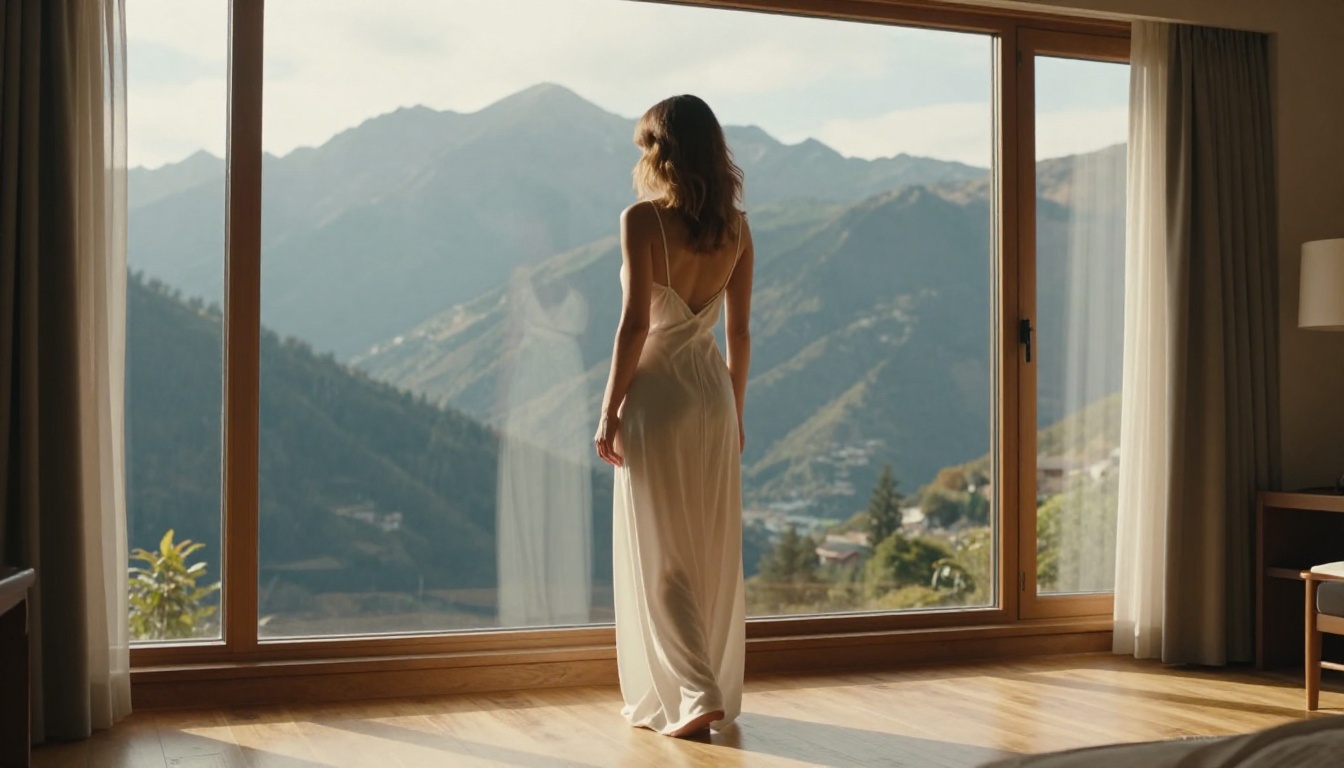
What Real Outputs Look Like
Speed comparison across models
Here's what to expect from real generation times on PicassoIA, not marketing estimates:
720p vs 480p quality
The difference isn't just pixel count. At 720p, the model has more information budget per frame, which it allocates to detail consistency across the animation. At 480p, it's cutting corners that become visible during motion, especially on faces, lips, and hair. If realism matters to your output, 720p isn't optional.
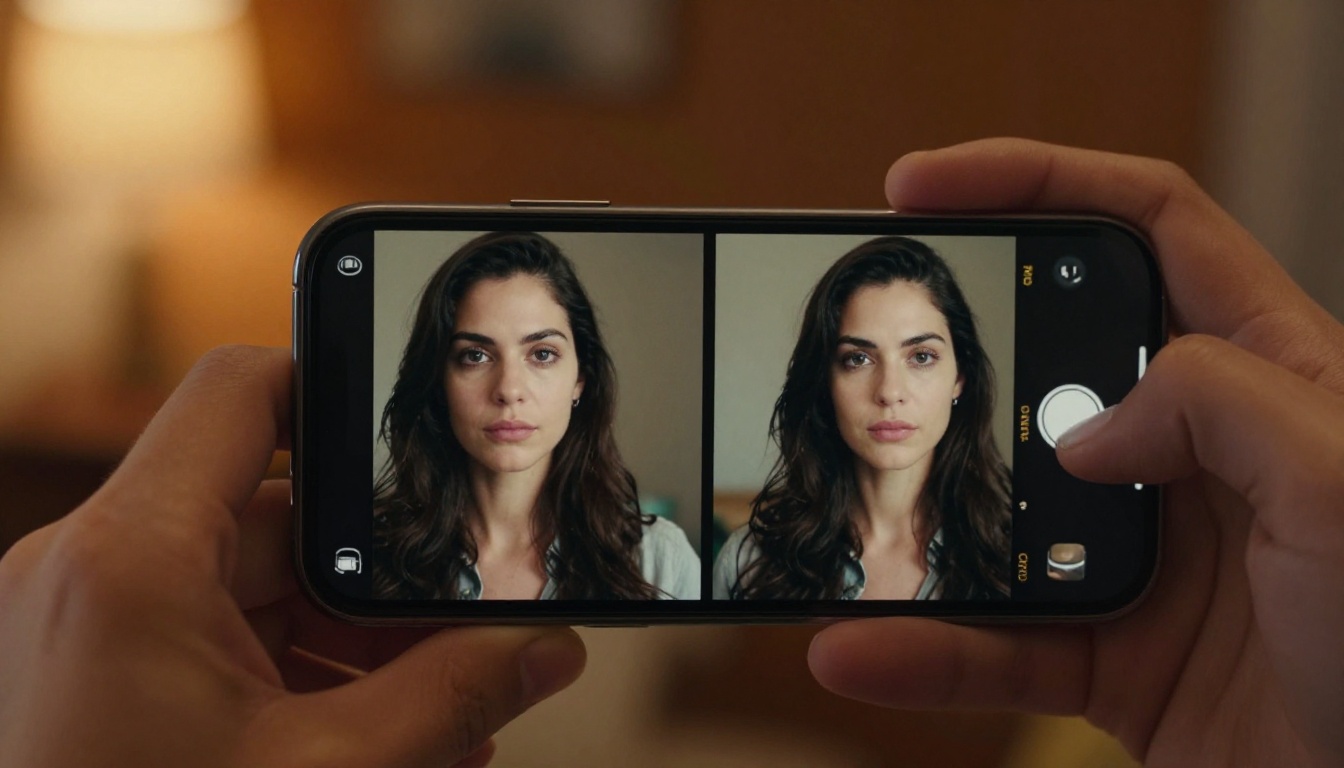
Problems You'll Actually Hit (and Fixes)
Blurry or morphing faces
This is the most common complaint with NSFW video generation. The face starts correct in frame one and slowly drifts across the clip. The cause is almost always a source image where the face is too small in the frame, partially obscured, or at an extreme angle.
Fix: Crop your source photo so the face occupies at least 30% of the frame height before uploading. If the subject is far from the camera in the original, run it through a super-resolution model first. Recraft V4 produces very realistic upscaled output from text-to-image, and the super-resolution tools on PicassoIA can upscale a small face 2x to 4x before you feed it into the video pipeline.
For persistent face drift, add this to your motion prompt: "face remains sharp and consistent throughout, no morphing, no deformation." It doesn't fully prevent the issue on all models, but it reduces frequency significantly.
Stiff motion or barely moving output
If your output looks like the image is barely breathing rather than actually moving, you have a prompt that's too abstract. The model defaulted to minimal motion because it didn't receive clear direction.
Fix: Be specific about body parts, magnitude, and timing. Instead of "moving gracefully," try: "arms slowly lift from sides to just below shoulder height over the first 3 seconds, hair catches a breeze from the left and drifts across the right shoulder, subtle chest movement from natural breathing throughout."
You can also increase the motion intensity parameter if the model exposes one. P-Video and several Kling variants allow you to dial up motion strength explicitly.
💡 If the output is too static, re-run with 2x more specific motion description. The model responds to detail, not to adjectives.
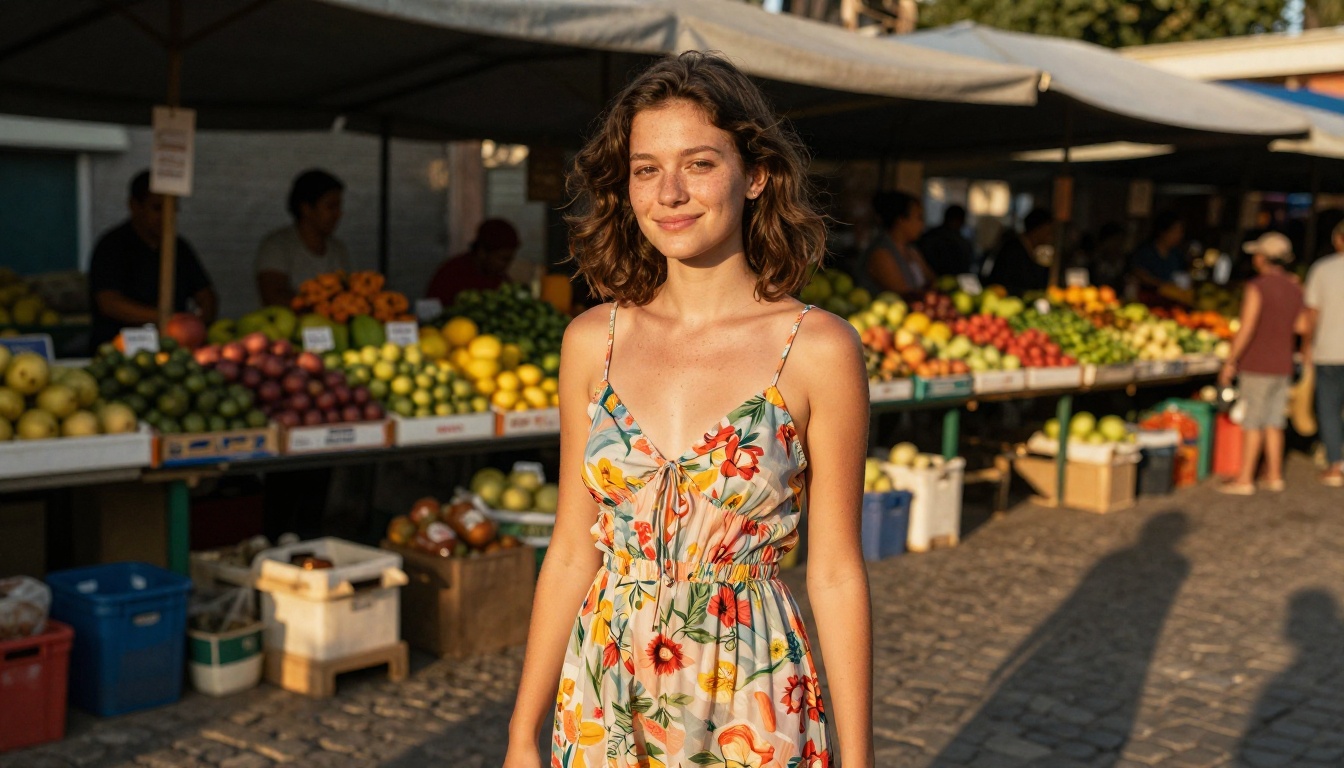
More Uncensored Video Models Worth Using
Grok Imagine Video
Grok Imagine Video is one of the strongest options for longer clips. It generates up to 15 seconds from a text prompt, a reference image, or an existing video you want to re-edit. Output is at 720p or 480p across eight aspect ratios with no watermarks.
Its image-to-video mode auto-matches the source photo's proportions, which means no awkward cropping or letterboxing. The companion image model, Grok Imagine Image, is already a top NSFW pick for converting photos to specific formats realistically.
LTX 2.3 Pro
LTX 2.3 Pro by Lightricks is the highest-fidelity option on the platform. It exports up to 4K at 50fps, which puts it in a different category from everything else. It runs five modes from a single interface: text-to-video, image-to-video, audio-to-video, retake (replace a specific segment without re-rendering the whole clip), and extend (append footage to the start or end).
Camera motion presets include dolly, jib, and focus-shift. First and last frame interpolation lets you pin both endpoints if you have a specific opening and closing image in mind. For professional-quality adult AI video where render time isn't the limiting factor, LTX 2.3 Pro is the ceiling.
PicassoIA Video
PicassoIA Video is the platform's own unlimited video model. You get unlimited video generation from text prompts at up to 720p and 5 seconds per clip. No per-generation credit consumption for basic video. If you're running a large batch of animated content and don't want to watch credits drain, this is where you go.
It accepts NSFW prompts and produces solid output for the unlimited tier. Resolution and motion quality won't match P-Video or LTX 2.3 Pro, but for volume workflows where you're generating many variations and selecting the best ones, the economics are unbeatable.
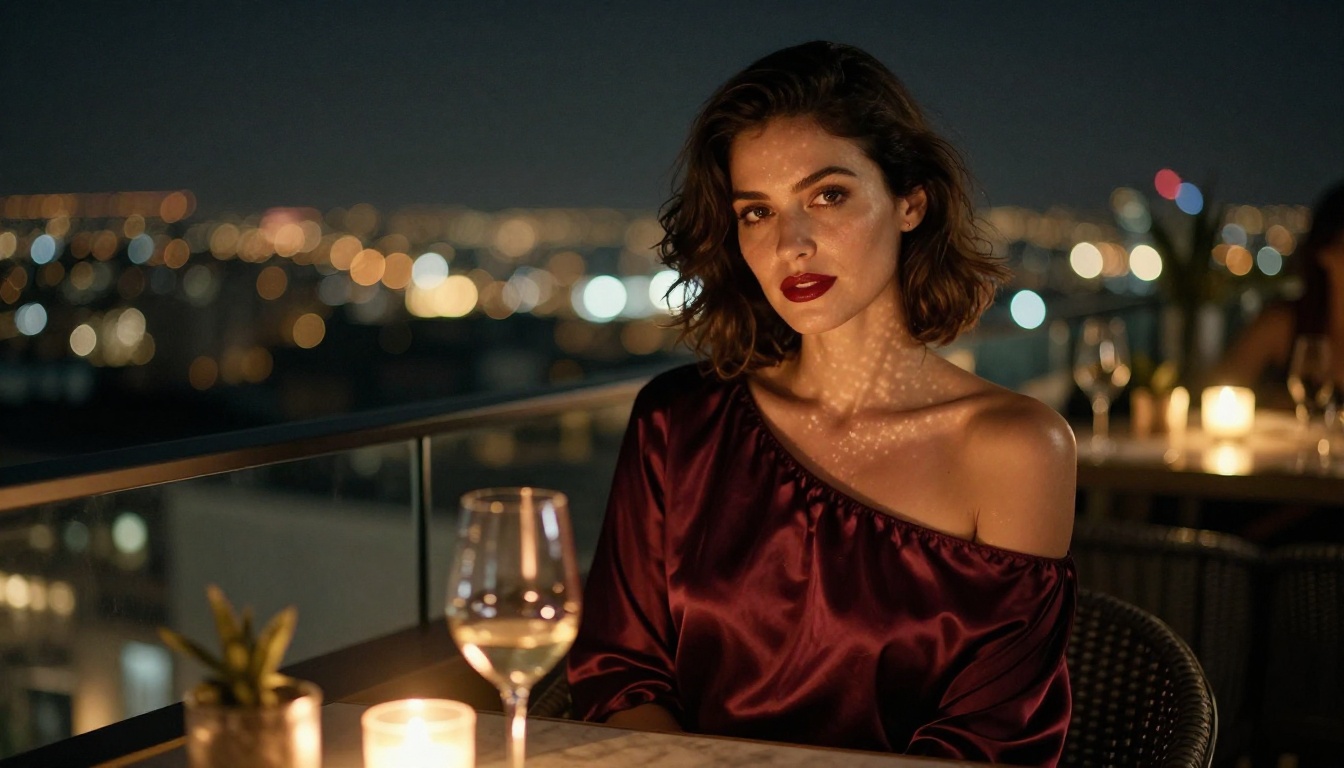
Full Model List for 18+ AI Content
When you're ready to build a workflow, here's the complete set of models worth knowing about for adult AI image and video generation on PicassoIA:
Image models:
- Seedream 4.5 — Top overall. Ultra-realistic, under 3 seconds, full NSFW support.
- PicassoIA Image Editor Pro — Unlimited img2img. 1,000 images for free on Elite/Infinite plans.
- Qwen Image 2 — Open source, edit or create any image with very detailed realism.
- Grok Imagine Image — Converts any photo to bikini format realistically.
- Recraft V4 — Very realistic text-to-image results.
- P-Image — NSFW text-to-image in under 1 second.
Video models:
7. Wan 2.2 I2V Fast — Best dedicated image-to-video for smooth, natural animations.
8. PicassoIA Video — Unlimited video generation at 720p.
9. P-Video — Safety filter off by default. Text, image, or audio input. Up to 1080p.
10. Grok Imagine Video — Up to 15 seconds, no watermarks.
11. LTX 2.3 Pro — Up to 4K at 50fps. Retake and extend editing.
Remember: Seedream 5 Lite does not support NSFW content. Use Seedream 4.5 instead.
Unlike most mainstream AI platforms, PicassoIA gives you access to these models without the restrictive content layers that turn every suggestive prompt into something generic and sanitized.
Start Generating Now
Every model in this article is live on PicassoIA. You don't need a developer account, API access, or a local GPU setup. Upload your photo, pick a model, write a specific motion prompt, and watch the output. The entire workflow from photo to video takes under two minutes on most models.
Start with Seedream 4.5 if you want to prep and refine your source image first. Move to Wan 2.2 I2V Fast or P-Video when you're ready to animate. If you want volume without watching credits disappear, PicassoIA Video with its unlimited tier is the right call.
The full catalog of uncensored AI models, including ones not covered in this article, is at picassoia.com/en/all-models. Browse by category, filter by output type, and find the model that fits exactly what you're trying to create.


