Your pet photo is sitting in your camera roll right now, probably one of fifty you took trying to get the perfect angle. What if you could take that one great shot and turn it into a cartoon that actually looks good? Not a blurry Instagram filter, not a low-res mess from a free app, but something you'd genuinely want to print and hang on the wall.
AI has made that possible, and the results are genuinely surprising.
Why Pet Cartoons Are Everywhere Right Now
There's a reason stylized pet portraits have taken over social media. People are emotionally attached to their pets in ways that go beyond a regular photograph. A great photo captures a moment, but a cartoon captures a character. It highlights the personality, the quirky tilt of the head, the perpetually skeptical expression your cat maintains 24/7.
The Appeal of Stylized Pet Portraits
Stylized pet images are more shareable, more eye-catching, and more versatile than standard photographs. You can use them as profile pictures, phone wallpapers, birthday card illustrations, custom merchandise, or even personalized gifts for other pet owners in your life.
The demand for this kind of content has grown enormously over the past two years, driven by how much better AI image generation has gotten. The gap between "AI image" and "professional illustration" has closed to almost nothing for certain styles.
Why AI Beats Photo Filters
Photo filters are passive. They apply a fixed algorithm to every pixel without understanding what's in the image. An AI pet cartoon generator works differently: it actually analyzes the subject, identifies the animal's features, and constructs a stylized representation based on that understanding.
The difference in output quality is immediately obvious. Filters flatten your pet. AI models preserve the character.
What AI Does to Your Photo
Understanding how the technology works helps you use it better. The short version: AI models are trained on millions of image pairs that show what a subject looks like in one style versus another. When you upload your pet photo, the model uses that training to reconstruct the image in a new style while preserving the essential features.
Image-to-Image Models
Most pet cartoon generators use what's called an image-to-image approach. You provide the source photo, and the AI generates a new image that maintains the composition and key features while applying a different visual style. The strength parameter controls how heavily the style is applied. Low strength means a subtle shift, high strength means dramatic transformation.
Style Transfer vs. Full Regeneration
There are two main approaches in the tools available today:
Style Transfer preserves the original photo more closely. The AI takes your image and repaints it in the target style, keeping poses and positions largely intact.
Full Regeneration gives the AI more creative freedom. You get more dramatically styled results, but the output may deviate more from the source image.
For most pet cartoon results, a middle-ground approach gives the best output: enough creative interpretation to look genuinely illustrated, while still clearly being your specific pet rather than a generic cartoon animal.
| Approach | Style Accuracy | Likeness | Best For |
|---|
| Style Transfer | High | Very High | Subtle stylization |
| Full Regeneration | Very High | Moderate | Dramatic art styles |
| Balanced (mid-strength) | High | High | Most use cases |
The Best AI Models for Pet Cartoon Generation
Not all AI models handle animal fur, eyes, and expressions equally well. Some are optimized for portraits, others for stylization. Here are the ones worth using.
Cartoonify: The Direct Choice
If you want a cartoon output specifically, Cartoonify is the model built exactly for this. It runs on the Flux Kontext architecture and is designed to take realistic photos and output clean cartoon-style renders. The results have clear linework, bright colors, and simplified shading that read immediately as illustrated rather than photographed.
It handles pet fur particularly well because the Flux Kontext base understands how to simplify complex textures into coherent stylized shapes rather than noisy approximations.
Photo to Anime Conversion
If you prefer an anime aesthetic, the Photo to Anime model does something slightly different. It converts realistic photos into anime-style illustrations, which works especially well for dogs and cats since the style tends to emphasize large expressive eyes and clean, bold shapes.
Anime-style pet portraits have their own dedicated audience online, and this model outputs results that genuinely fit the aesthetic rather than looking like a rough approximation of it.
Flux Redux Dev for Creative Control
Flux Redux Dev gives you more creative control over the stylization process. You can use it to apply specific art styles to your pet image with greater precision. It's a good option if you want watercolor, sketch, or other artistic styles rather than a standard cartoon look.
Flux Kontext Pro for Detailed Portraits
Flux Kontext Pro excels at preserving fine details while applying style changes. For pets with distinctive markings or unique facial features you want to keep intact, this is worth considering. It tends to produce cleaner, more professional-looking outputs than faster alternatives.
How to Use Cartoonify on PicassoIA
Since Cartoonify is the most directly relevant model for this topic, here's how to use it effectively.
Step 1: Choose Your Source Photo
Open the Cartoonify model page on PicassoIA. Before you upload anything, pick your source photo carefully. The single biggest factor in output quality is the quality of the input.
Best source photo characteristics:
- Clear focus on the pet's face
- Good lighting with no harsh shadows cutting across features
- Neutral or simple background (makes the cartoon conversion cleaner)
- High resolution (at least 1MP, ideally 2MP or more)
- Frontal or three-quarter angle (profiles are harder to cartoonify convincingly)
Step 2: Upload and Set Your Prompt
Upload your photo to the model interface. For Cartoonify, you can add a text prompt to guide the style further. Some useful additions:
cartoon style, bold outlines, vibrant colors for classic cartoon resultscute cartoon, soft colors, Disney-inspired for a softer lookcartoon portrait, expressive eyes, simplified fur to emphasize character
Step 3: Adjust Style Strength
If the model offers a style strength or influence slider, start at around 0.6 to 0.7. This gives a solid cartoon transformation while keeping your pet clearly recognizable. Go higher for more dramatic stylization, lower if you want to keep more photographic detail.
Step 4: Check and Iterate
Your first result may not be perfect, and that's normal. If the likeness isn't quite right, try:
- Reducing the style strength slightly
- Choosing a source photo with better lighting
- Adding more specific prompts about which features to emphasize
💡 Tip: Run 3 to 4 variations with different settings before settling on a final result. AI generation has randomness built in, so the second or third attempt sometimes produces noticeably better likeness than the first.
Getting the Perfect Source Photo
The source photo does about 60% of the work. A bad input photo will produce mediocre output regardless of which AI model you use.
What Actually Matters
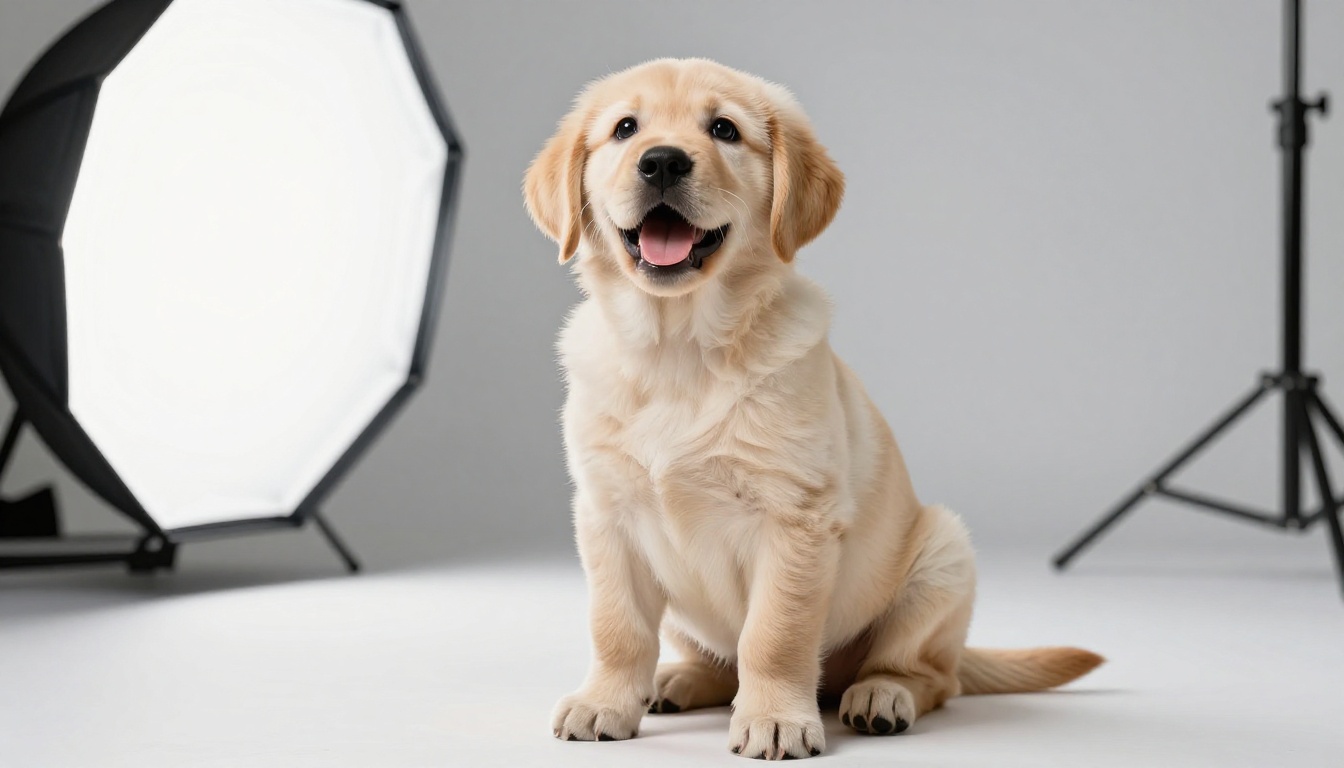
Lighting is the most critical factor. Even, natural light works best. Overcast daylight through a window is nearly ideal. Avoid direct sunlight that creates harsh shadows, and avoid night photos taken with flash since the flat frontal lighting destroys depth information the AI needs.
Focus and sharpness matter more than resolution. A slightly lower-resolution photo that's in sharp focus beats a high-resolution shot that's slightly blurry. AI models can add detail, but they cannot reconstruct detail that was never there.
Background simplicity helps, but isn't essential. A busy background can be cropped or managed, but a simple one makes the AI's job noticeably easier and the output cleaner.
Common Mistakes to Avoid
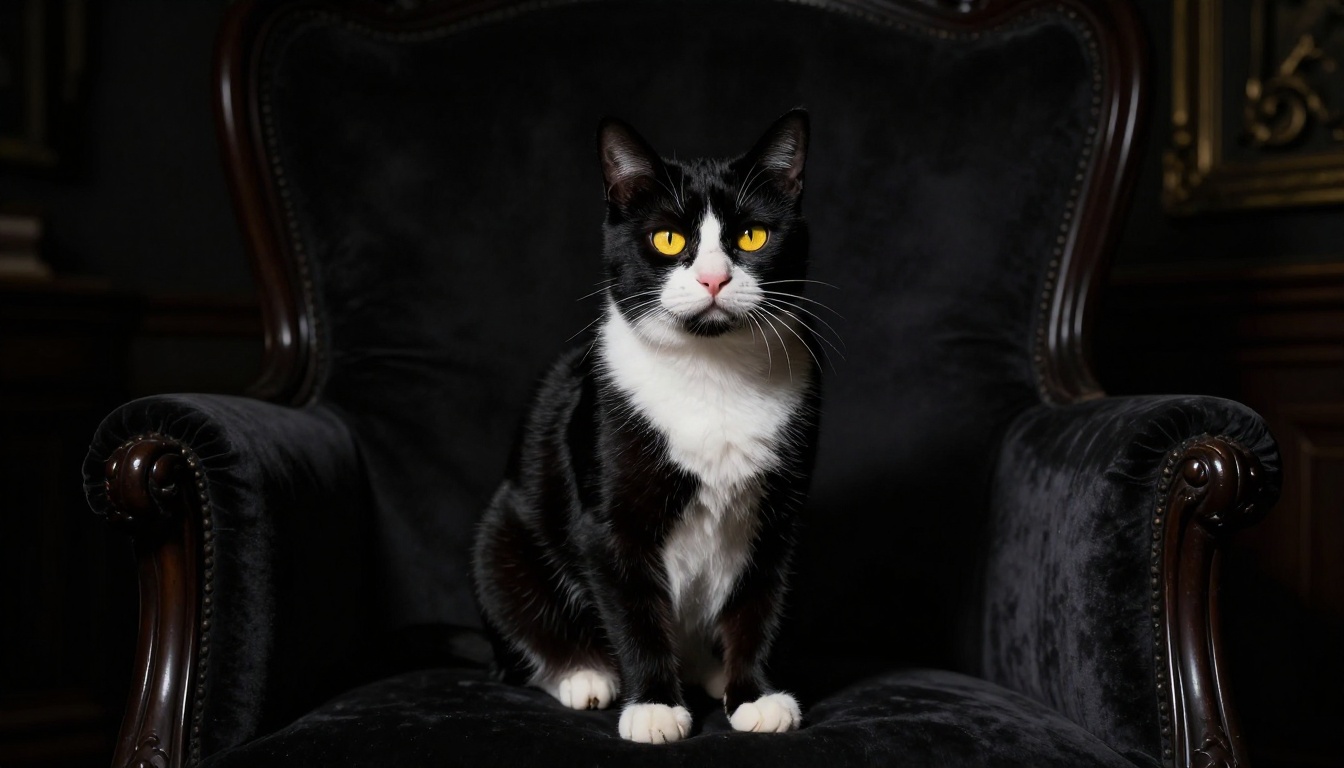
- Using a photo taken at night: The artificial lighting creates color casts and flattened shadows that cartoon conversion handles poorly.
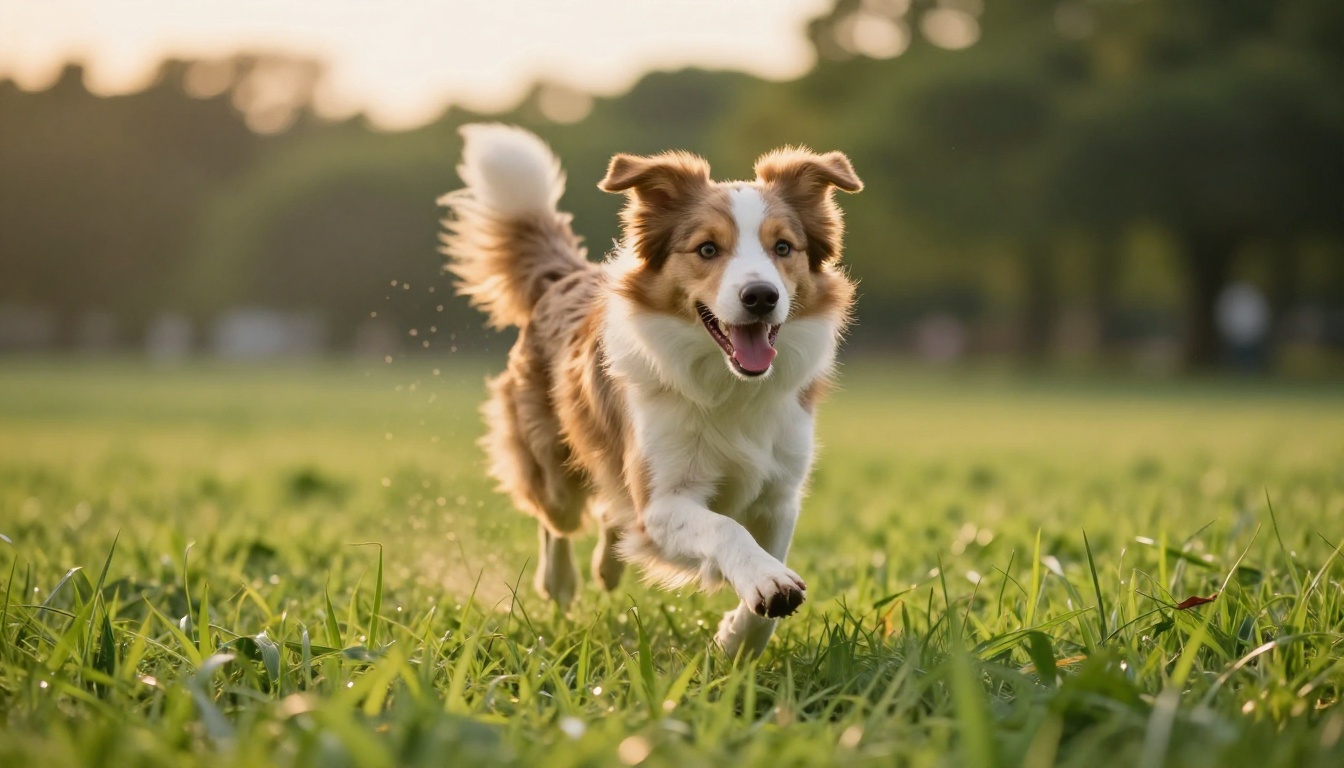
- Using a photo where the pet is mid-motion: Slight motion blur on fur is subtle in a photo but becomes obvious in a stylized render.
- Cropping too tight: Leave some space around your pet's head. Some models slightly adjust the crop during generation, and a tight original can lead to clipping.
- Multiple pets when you want one cartoon: Multi-subject inputs confuse some models. Use a photo where one pet is clearly the main subject.
Styles Worth Trying
Cartoon is a broad category. The style you aim for affects which model and settings work best.
Classic Cartoon
Bold outlines, saturated colors, simplified shading. This is what most people mean when they say "cartoon." Works great for dogs with expressive faces. The Cartoonify model is built specifically for this.
Anime and Manga
Larger eyes, cleaner lines, pastel or highly saturated palettes. Particularly popular for cats. The Photo to Anime model handles this style natively and produces results that genuinely fit the aesthetic.
Watercolor and Painterly
Soft edges, blended colors, visible brushstroke texture. This works well for pets with flowing fur such as long-haired cats, setters, and spaniels. Flux Redux Dev with a watercolor-specific prompt handles this beautifully.
Chibi and Cute
Exaggerated proportions, oversized head, tiny body, enormous eyes. Extremely popular for small dogs and cats. Use Flux.1 Dev with prompts specifying chibi proportions for this style.
Improving Your Output Quality
Once you have a cartoon you like, a couple of additional tools push the result from "pretty good" to "actually impressive."
Super Resolution
AI-generated cartoons sometimes come out at a lower resolution than you'd want for printing or large-screen display. The Super Resolution tools on PicassoIA can upscale your cartoon 2x or 4x while adding genuine detail, not just stretching pixels. This makes a real difference if you're planning to print or use the image beyond a phone screen.
Background Removal
If you want to use your cartoon pet on a custom background, stickers, or merchandise, the Background Removal tools on PicassoIA give you a clean cutout from the cartoon image. AI-generated cartoon backgrounds tend to be simple enough that the removal is very clean and precise.
Image Restoration
For some models, the face detail on small or distant subjects can be slightly degraded. The AI Image Restoration tools can reconstruct face detail on cartoon images just as effectively as on photos, sharpening expression details and cleaning up any artifacts.
What to Do with Your Cartoon Pet
A good cartoon portrait deserves more than sitting in your downloads folder.
Social Media and Profile Pictures
Cartoon-style profile pictures are more distinctive than photos and perform well in comment sections and community feeds where you want to stand out. Many people use their cartoon pet as their own avatar across multiple platforms simultaneously.
Print and Merchandise
Print-on-demand services can put your cartoon pet on mugs, phone cases, tote bags, t-shirts, posters, and canvases. At 300 DPI for an 8x10 print, you need a source image of at least 2400x3000 pixels. Run your cartoon through Super Resolution first if the original output isn't that large.
Custom Cards and Gifts
A cartoon portrait of someone's pet makes an excellent personalized gift card. Simple to produce and genuinely personal in a way a generic illustration never is. Pet owners respond strongly to anything featuring their specific animal.
Sticker Packs
Cut out your cartoon pet using background removal, export at sticker size, and you have custom stickers for messaging apps or physical printing. A set of 6 to 8 poses and expressions makes a genuinely fun pet sticker pack that people actually want to use.
Try It on PicassoIA Right Now
Everything covered in this article is available on PicassoIA without any design software, drawing skills, or technical setup. Pick your best pet photo, head to the Cartoonify model, upload it, and run your first generation in seconds.
If you want an anime version, switch to Photo to Anime. If you want a watercolor or painterly style, try Flux Redux Dev. If you want maximum detail preserved in the cartoon portrait, Flux Kontext Pro gives you the most controlled output of any model available.
The platform has over 90 text-to-image models, background removal, super resolution, and image restoration, all in one place. Your pet deserves a portrait that matches how you see them, and now you have the tools to make it happen with a single photo and a few clicks.
💡 Start simple: Upload your best photo to Cartoonify with no extra prompts first. See what the default output looks like before you start tweaking. Most of the time, the baseline result is already very usable and you'll only need minor adjustments from there.


