If your product photos are blurry, pixelated, or simply under-resolved, you are losing sales before the shopper reads a single word of your description. Research from Etsy, Shopify, and Nielsen Norman consistently places product image quality as the top conversion driver in ecommerce, ahead of price, reviews, and copy. High-resolution shots can push conversion rates up by 25 to 40 percent on tested listings. The problem is that most sellers start with images taken on smartphones, sourced from suppliers at low resolution, or exported at compressed sizes for quick uploads. AI upscaling changes that equation, and it does so in seconds.
Why Blurry Product Photos Are a Silent Sales Killer
Most sellers optimize for price, ads, and copy. Very few stop to measure the revenue lost specifically to poor image quality. The pattern is consistent across categories: when a shopper pinches to zoom on a product detail and hits pixelation, they leave. The visual standard set by well-funded stores has conditioned buyers to expect crisp, zoomable, high-resolution imagery on every listing, regardless of price point.
The Resolution Gap Most Sellers Miss
A 600x600 image looks fine as a thumbnail. The problem surfaces when a customer zooms in on the texture of a fabric, the stitching on a shoe, or the ingredient label on a bottle. At that point, the image degrades, and trust degrades with it. Shopify recommends images between 2048x2048 and 4472x4472 pixels for best zoom performance. Amazon requires a minimum of 1000 pixels on the long side, with 2000 pixels as the recommended baseline. If your source file is 800x800, there is a substantial gap between what you have and what the platform needs to render the zoom function properly.
What Shoppers Actually See
Consider this scenario: a shopper compares your product against three competitors. Prices are within five percent of each other. All four have decent reviews. The difference they feel but rarely articulate is clarity. One listing feels precise and credible. The others feel careless. That sensation is almost entirely driven by photo resolution, lighting quality, and the ability to zoom in without visual degradation.
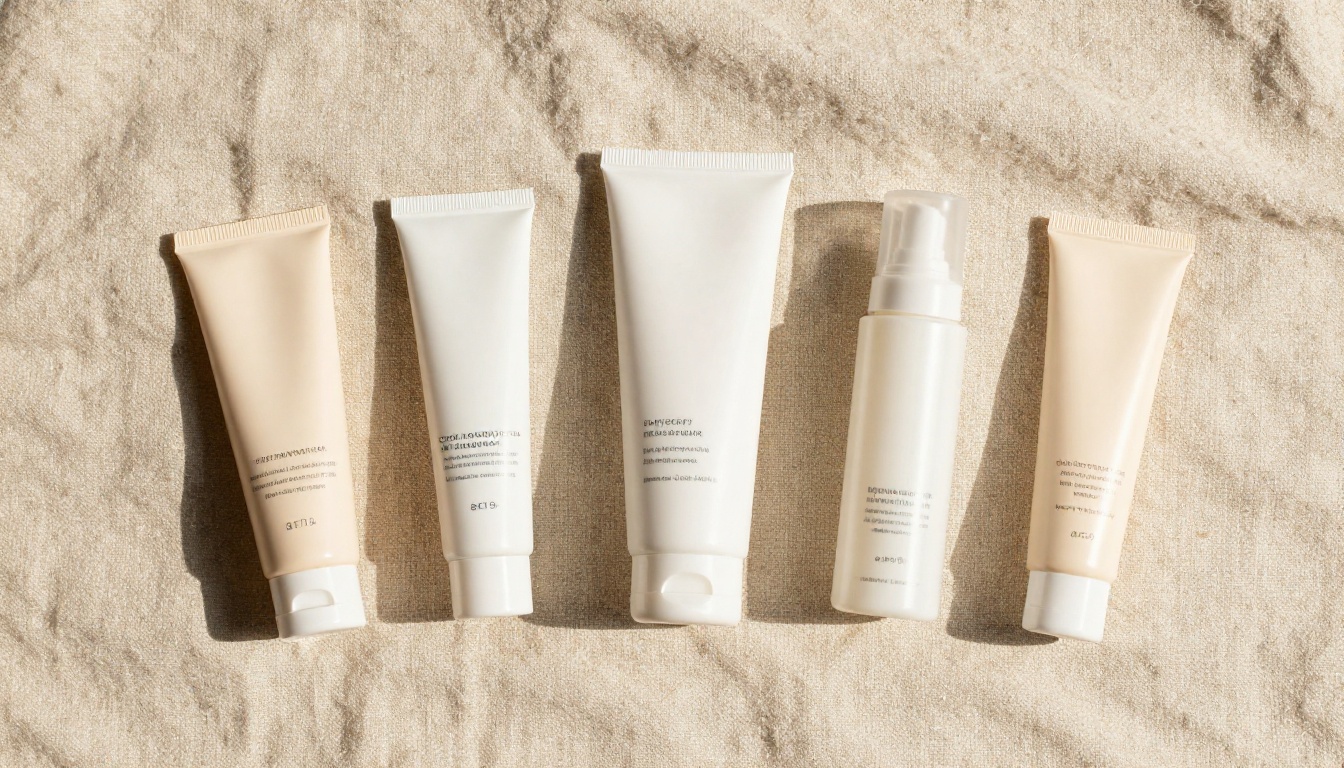
💡 Platform algorithm note: Shopify and Amazon both factor image quality signals into search ranking and Buy Box eligibility. Sharper images are not just a conversion lever. They also affect organic visibility on both platforms.
How AI Upscaling Actually Works
Upscaling a product image is not the same as resizing it. When you drag an image larger in Photoshop, the software uses bicubic or bilinear interpolation to estimate missing pixels by averaging adjacent values. The result is visibly soft, sometimes blurry, and never convincing under close inspection. AI-based super-resolution works on a fundamentally different principle.
Super Resolution vs. Simple Resizing
| Method | Output Quality | Detail Recovery | Processing Time |
|---|
| Bicubic Resizing | Low | None | Instant |
| Lanczos Filter | Medium | Minimal | Instant |
| AI Super Resolution | High | Significant | 3-30 seconds |
| AI Creative Upscale | Very High | Regenerative | 10-60 seconds |
AI upscalers use neural networks trained on millions of image pairs at different resolutions. The model learns to predict what missing texture and edge detail should look like based on the surrounding context. For a product image of a leather wallet, the AI identifies the cross-grain pattern, the stitching thread path, and the edge bevel, then fills in the detail that would be present at four times the original resolution.
Why Texture Recovery Matters for Products
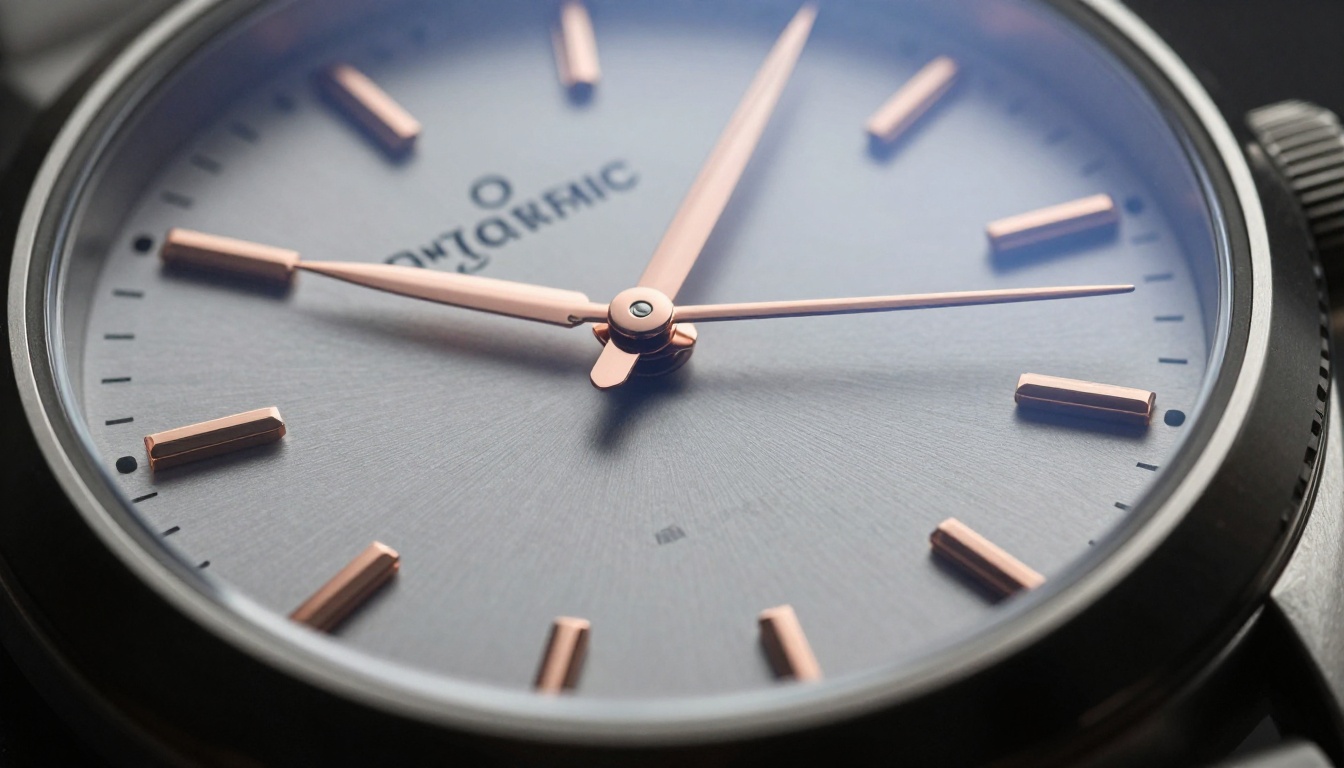
The difference is most visible on product categories where micro-texture is a direct quality signal: woven fabrics, natural leather, machined metal, ceramics, and printed packaging. A shopper looking at a wool sweater does not just want to see the color. They want to feel the texture through the image. An AI-upscaled shot that renders individual yarn fibers does that job in a way that a resized image never can.
The Best AI Models for Product Shot Upscaling
Not all upscalers perform equally across product categories. Some are optimized for faces and portraits. Some add creative detail that subtly alters the original look. For ecommerce applications, the priority is accuracy, faithfulness to the original product appearance, and sharpness on edges, label text, and surface texture.
Clarity Pro Upscaler
Clarity Pro Upscaler is built for commercial photography workflows. It runs a 2x or 4x processing pass that prioritizes micro-detail recovery and edge definition without introducing halos. For white-background product shots, which represent the majority of marketplace listings, it produces tight, clean edges around the product silhouette. Texture recovery on fabric, leather, and printed packaging is consistently strong. It is also forgiving with slightly underexposed source images.
Topaz Image Upscale
Topaz Image Upscale from TopazLabs reaches up to 6x magnification, making it the right choice when the source image is very small and the platform demands a large output. It also runs an integrated noise-reduction pass before the upscale stage, which is valuable when the original has JPEG compression artifacts from supplier-provided files. This two-stage process often produces cleaner results than upscaling a compressed JPEG directly.
Real ESRGAN
Real ESRGAN is a proven model that handles a wide range of product types reliably. Its 4x upscale performs especially well on hard surfaces: glass, ceramics, plastics, and machined metal. For sellers who need predictable, consistent results across a varied product catalog without tuning per-product settings, it is the most practical baseline option.

Google Upscaler
Google Upscaler is purpose-built to retain fine text and label detail through the upscaling process. This makes it specifically valuable for categories where the packaging label is part of the purchase decision: food products, supplements, cosmetics, and household goods. Label text that would otherwise degrade to mush at 2x or 4x scale stays sharp and readable, which matters both for customer trust and regulatory compliance in product display.
P Image Upscale
P Image Upscale delivers results in under one second, making it practical for batch processing large product catalogs. The quality-to-speed ratio is the best in the category. For sellers who need to process hundreds of SKUs in a single session without waiting minutes per image, this is the most operationally efficient choice. Output quality is solid across most product types, though for hero images where maximum detail matters, a slower model like Clarity Pro produces sharper results.
Recraft Crisp Upscale
Recraft Crisp Upscale targets hard-edge sharpness. It is ideal for flat-lay photography, packaged goods, and any product with strong geometric lines: boxes, bottles, folded garments, stacked products. The algorithm preserves clean contour lines with minimal haloing, which is exactly what you need for the controlled, precise look of professional ecommerce photography.
How to Use Clarity Pro Upscaler on PicassoIA
PicassoIA provides direct browser-based access to Clarity Pro Upscaler. No software to install, no file size compression on the output, and no subscription tier restrictions on the model.
Step 1: Open the Model
Go to Clarity Pro Upscaler on PicassoIA. The interface shows the image upload field on the left and the parameter controls on the right.
Step 2: Upload Your Product Photo
Drag your product image into the upload area or click to browse your files. The model accepts JPG, PNG, and WebP inputs. For best output quality, start with an image that is at minimum 500x500 pixels. The model performs better with cleaner source images, so if your file has significant JPEG compression artifacts, a denoising step first will improve the result.
Step 3: Choose Your Scale Factor
Select 2x for source images that are already 1000px or larger. Select 4x when you need to reach the 2000 to 3000px range from a smaller source. For most marketplace listing requirements, a 750x750 source upscaled at 4x delivers a 3000x3000 output that satisfies both Shopify's zoom threshold and Amazon's recommended image size.
Step 4: Generate and Download
Click generate. Processing takes between 5 and 30 seconds depending on file size and server load. The output is saved to your PicassoIA workspace at full resolution and available for immediate download. No watermarks and no output compression.
💡 Before batch processing: Always test on one image first. View the output at 100% zoom and compare the most detailed area against the original. Confirm that edge sharpness meets your standard and that no artifacts appear on label text or fine texture before running the rest of your catalog.
Pairing Upscaling with Background Removal
One of the most practical ecommerce workflows combines upscaling with background removal to produce clean, white-background marketplace images from raw product photography.
The sequence that delivers the cleanest result:
- Remove the background first, isolating the product against a transparent layer
- Upscale the isolated product to the required resolution
- Composite onto a white or custom background for the final listing image
The order of these steps matters. If you upscale first, the background texture is processed alongside the product, and the edge between product and background becomes noisier. This introduces visible artifacts at the product silhouette when you then cut the background. Starting with background removal gives you a clean edge to work with before the upscale pass.
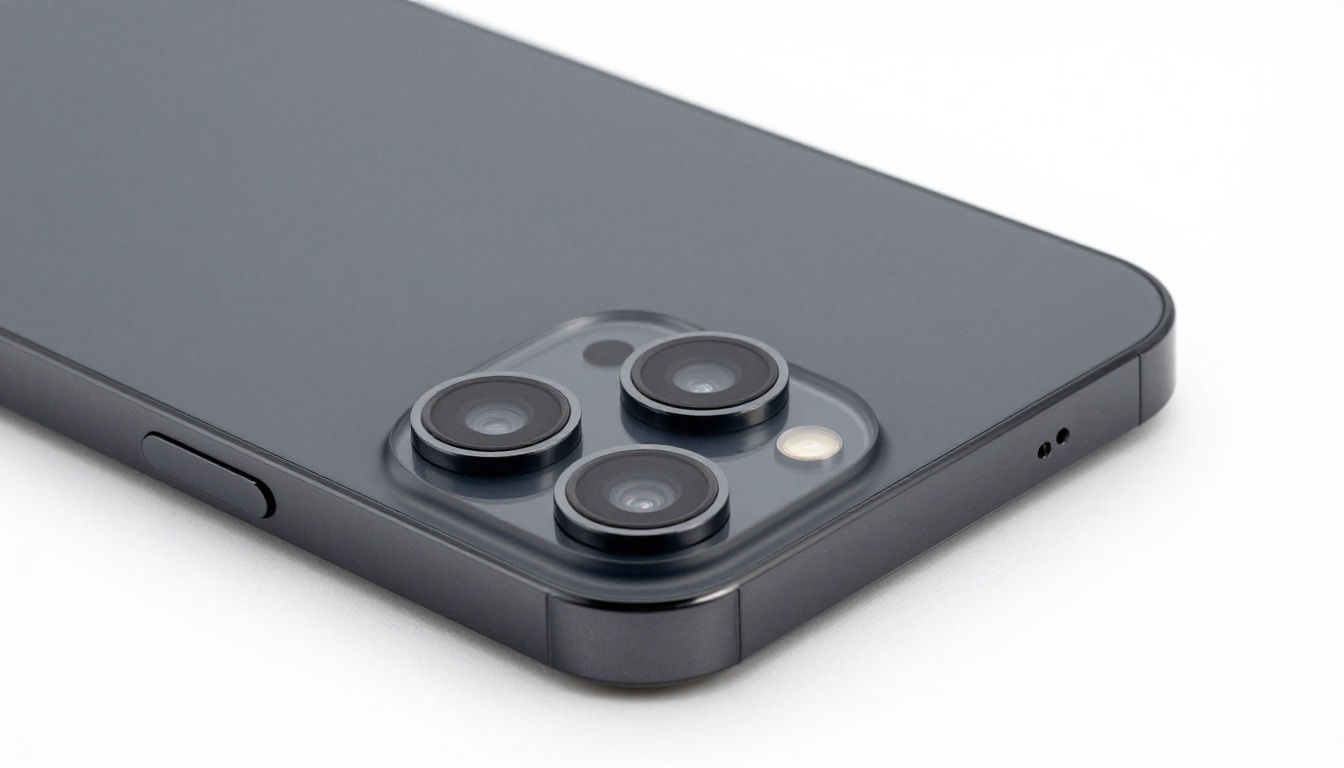
Recraft Creative Upscale works well in this workflow because it handles transparent PNG channels cleanly, preserving the removed background without reintroducing edge fringe during the upscale pass. For jewelry, glassware, and products with intricate cutout silhouettes, this matters significantly.
What Resolution Do You Actually Need?
There is a practical ceiling on resolution requirements. Upscaling a 500x500 image to 4000x4000 sounds impressive, but beyond a certain point, the additional resolution generates no visible benefit to the shopper and only increases file size, which slows page load time and can hurt your store's Core Web Vitals score.
Platform Requirements at a Glance
| Platform | Minimum | Recommended | Zoom Threshold |
|---|
| Shopify | 800x800 | 2048x2048 | 4472x4472 max |
| Amazon | 1000px long side | 2000x2000 | Not capped |
| Etsy | 2000px long side | 3000x3000 | Not capped |
| WooCommerce | 800x800 | 1920x1920 | Theme-dependent |
| Instagram Shopping | 1080x1080 | 1080x1080 | Fixed |
The practical sweet spot for most catalog work is 2x or 4x upscaling to reach the 2000 to 3000px range per dimension. Anything beyond that is optional unless your product is sold in very large display formats or your store theme supports extreme zoom.

When Creative Upscaling Adds Real Value
Standard upscaling is faithful: it recovers what was plausibly there. Creative upscaling goes further. Models like Recraft Creative Upscale and Crystal Upscaler can generate plausible texture detail that was not present in the original image. For products where texture richness is a primary selling point, knitwear, raw linen, reclaimed wood, stone surfaces, creative upscaling produces images that can outperform the original photograph in the tactile impression they create.
Use this approach selectively. For products where label accuracy is critical (supplements, packaged foods), stick to a faithful upscaler. For purely visual products where the impression of quality and materiality is the goal, creative upscaling adds a measurable lift to the perceived premium of the image.
3 Mistakes That Ruin Upscaled Product Photos
Upscaling compressed JPEGs without denoising first. JPEG compression introduces block artifacts that AI upscalers amplify rather than remove. If your source file shows visible compression squares or color banding, run a denoising pass before the main upscale. Topaz Image Upscale handles this internally. For other models, a preprocessing step using Bria Increase Resolution at conservative settings cleans the source before the main pass and produces noticeably cleaner output.
Using the wrong model for the product material. Fabric, leather, and organic textures benefit from creative upscalers that can regenerate plausible fiber-level detail. Hard goods like electronics, glass, and metal perform better with faithful upscalers like Real ESRGAN that preserve precise edge geometry without adding invented texture. Matching the model to the material is a 10-second decision that noticeably affects the output quality.
Skipping the 100% zoom review. Every upscaled image needs a final check at native resolution. Zoom into the most detailed area of the product and look for halos on edges, repetitive or artificial-looking texture patches, or degraded label text. Most issues are visible immediately at full resolution and can be resolved by switching models or adjusting scale factor.
When You Have No Good Source Photo
Some sellers start with nothing usable. The product was photographed in a warehouse at 480p, or the only available image is a watermarked, web-compressed supplier JPG. In these cases, upscaling alone will not be sufficient. The realistic recovery workflow is:
- Upscale to remove the worst pixelation and sharpen what is there
- Use inpainting to fix specific damaged zones: overexposed areas, compression blocks, torn backgrounds
- Remove the background to isolate the product cleanly
- Expand the scene using outpainting if a lifestyle context is needed
PicassoIA supports all four steps within the same platform, which means the entire workflow runs without exporting files to external software or switching between tools mid-process.
Start With Your Lowest-Converting Listings
The fastest way to see a real impact is to pick your three lowest-converting product listings and run them through Clarity Pro Upscaler today. Update the listing images and compare click-through rates before and after. For most sellers, the improvement shows up in weekly analytics within two to three weeks of the image update going live.

PicassoIA gives you the full toolkit without a photography studio or post-production budget. Real ESRGAN works across every hard-surface product in your catalog. Topaz Image Upscale handles the worst-quality source files with its built-in denoising stage. Google Upscaler protects the label text shoppers rely on to make purchase decisions. And P Image Upscale processes your entire catalog at speed when you need volume over perfection.
Product photo quality is one of the few conversion variables you can change in an afternoon. AI super-resolution makes it genuinely fast, and the models available today are accurate enough to treat upscaled images as production-ready files rather than approximations. If your listing images are below 2000 pixels, there is a measurable and immediate opportunity sitting in your current catalog. The tools to act on it are ready right now on PicassoIA.


