You open a companion app, the conversation is going nicely, and then you ask for a picture. The reply is a pop-up asking for a subscription. Sound familiar? That is the daily reality of adult AI chat with pictures, and it is why so many people end up comparing apps, free tiers and image settings instead of just chatting.
This article sorts out what free apps usually give you, where the limits sit, and which image settings decide whether a generated picture looks like a real photograph or a plastic mannequin. You will also see a faster route: skip the credit meters and generate the pictures yourself with models built for photorealism.
Everything here assumes adults only: adult users, adult characters, consenting use, and non-explicit, tasteful imagery. Glamour, swimwear, boudoir lighting and editorial portraits are the target. Nothing pornographic.
What This Kind of Chat Really Is
Before comparing apps, it helps to separate two things that get lumped together.
Two ways pictures show up
In-chat images. The character "sends" you a selfie or a scene during the conversation. The app quietly writes an image prompt from the chat context and sends it to an image model. You get little control over the result.
Separate generators. Some apps include a gallery or studio where you write the prompt yourself, pick a style and choose a size. You get more control, but it often uses a different credit pool from the chat.
The difference matters because most frustration comes from the first mode. You cannot fix a bad hand or a flat face when the app decides everything for you.
Why free tiers feel stingy
Image generation costs real compute. Text replies are cheap; a sharp picture is not. So free plans tend to ration images by one of three methods:
- A small daily or monthly image allowance
- Lower resolution or watermarked output
- A queue that makes free users wait while paying users skip ahead
💡 Tip: If an app advertises "free images" but never states a number, assume the allowance is small and test it with three or four requests before you invest time building a character.
Free Apps Worth Testing
Names come up again and again in reviews: MyLovely, Muah AI, Replika, CrushOn AI, Candy AI, Character.AI and Nomi. A word of caution first. Most roundup pages are written by affiliates, pricing changes often, and features move between free and paid tiers without much notice. Treat everything below as a starting point and check each app's current pricing page yourself.
What free usually includes
Based on what reviewers commonly report, here is the general pattern. It is not a promise from any of these companies.
| App | Free chat | Free pictures | Common catch |
|---|
| MyLovely | Yes | Basic generation reported | Limits on quality and quantity |
| Muah AI | Yes | Reported on the free plan | Voice and image extras can be credit based |
| Replika | Yes | Characters can share photos | Many features sit behind a subscription |
| CrushOn AI | Yes | Very limited | Meaningful image volume reported as paid |
| Candy AI | Trial style | In-chat images exist | Credits for extras |
| Character.AI | Yes | In-chat generation reported as paid | Subscription needed for pictures |
| Nomi | Limited | Selfies tied to memory | Free tier is restricted |
Red flags before you sign up
Free apps in this niche attract a lot of copycat sites. Watch for these signs:
- No clear company name or contact page. If you cannot tell who runs it, do not hand over personal details.
- Payment screens before any chat. A real free tier lets you try it first.
- Vague claims such as "unlimited images" with no resolution stated. Unlimited tiny, blurry pictures are not much of a feature.
- Requests for real photos of other people. Walk away. That is a consent problem, not a feature.
The honest trade-off
Free apps are good for testing a personality, a tone and a pace of conversation. They are weak for pictures. If the visuals matter to you, a dedicated image model gives better quality and a lot more control, and you can pair it with whatever chat app you prefer.
Image Settings That Change Results
Whether the picture comes from a chat app studio or a standalone generator, the same handful of settings decide the outcome.
Aspect ratio and resolution
Pick the ratio for the place the picture will live:
| Use | Best ratio |
|---|
| Phone wallpaper or chat avatar | 9:16 or 1:1 |
| Portrait with face detail | 3:4 or 2:3 |
| Scene with setting and mood | 16:9 or 3:2 |
Resolution matters more than people expect. Faces generated at low resolution lose pores, eyelash detail and fabric texture, and no prompt fixes that afterwards. Start at the highest size the model offers, then downscale if you need to.
Lighting and lens words
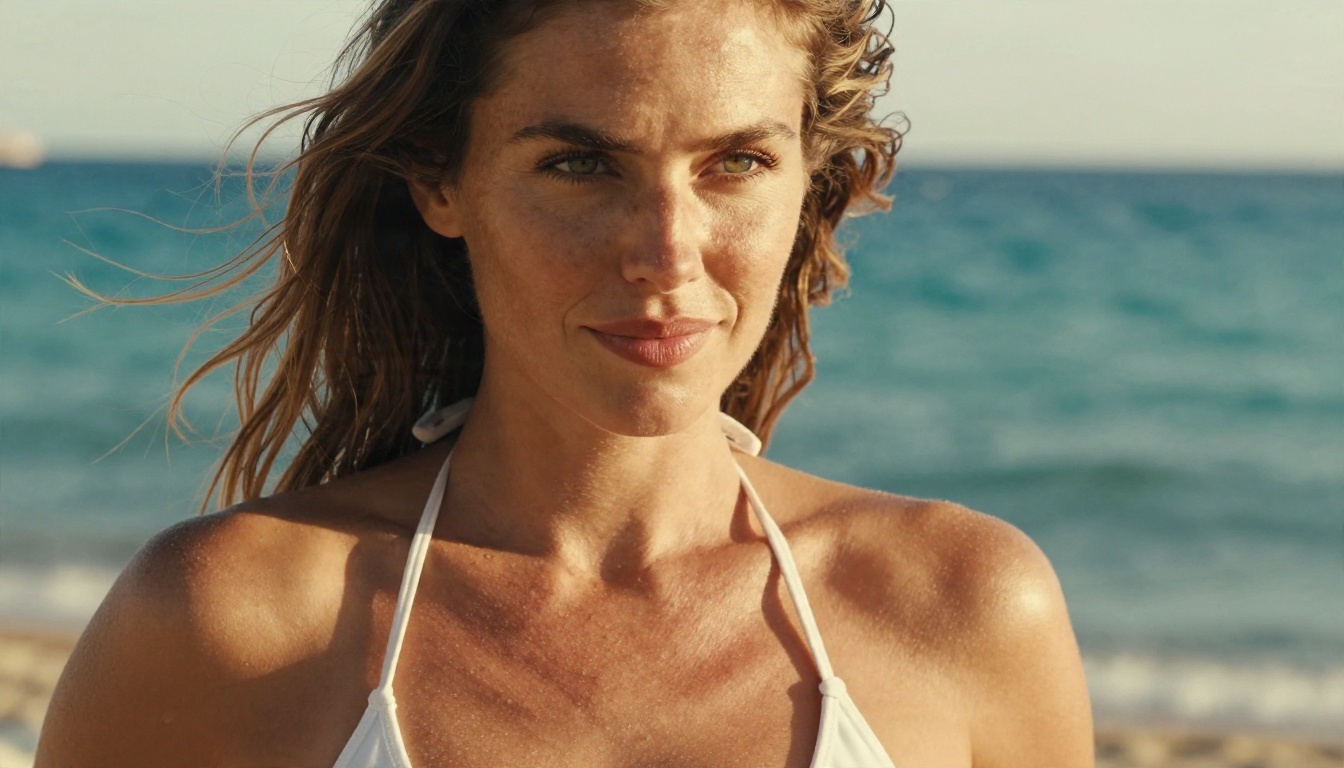
Photorealism is mostly about light. A prompt that says "beautiful woman, bedroom" gets a flat, generic result. A prompt that says "soft morning window light from the left, 85mm f/1.8, shallow depth of field, natural skin texture" gets something that looks photographed.
Words that reliably help:
- Light direction: "window light from the left," "backlight at golden hour," "soft lamp glow from the right"
- Lens: "35mm f/2 for environmental portraits," "85mm f/1.8 for close faces"
- Film feel: "Kodak Portra 400," "fine film grain," "natural highlight roll-off"
- Skin and fabric: "visible pores," "linen weave," "silk sheen"
Keeping the same character
The biggest complaint in adult companion apps is that the character's face changes from one picture to the next. Three habits fix most of it:
- Write a fixed description. Hair color and length, eye color, freckles, build, and one or two signature items such as a gold necklace. Paste the same block into every prompt.
- Use a reference image when the model supports it, so the face stays anchored.
- Change only one thing at a time. Outfit or location, not both.
💡 Tip: Save your favorite character block in a notes app. Fifteen words of consistent description beat five paragraphs of changing detail.
Negative choices that save time
Say what you want, not what you want to avoid, unless the model has a dedicated field for it. Instead of "no extra fingers," write "hands relaxed, resting on her knee, clearly visible." Giving the hands a simple job avoids most of the mess.
How to Use Seedream 4.5 on PicassoIA
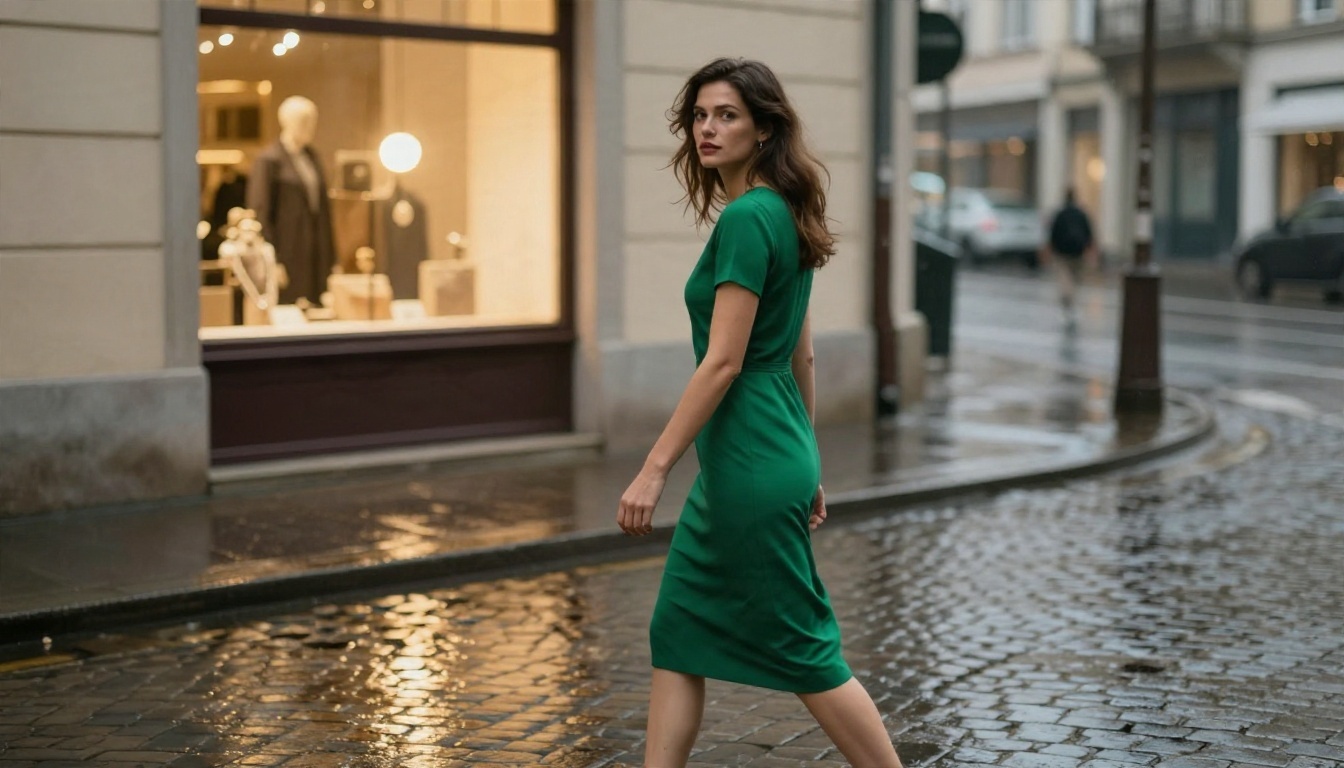
If you want pictures that look like real photography rather than app-style renders, Seedream 4.5 is the model to start with. It handles skin texture, fabric and lighting well, and it is comfortable with glamour, swimwear and boudoir style portraits that stay tasteful.
Step by step
- Open the Seedream 4.5 page on PicassoIA.
- Write your prompt in this order: subject and pose, setting, light direction, camera and lens, texture details.
- Choose the aspect ratio that fits where the picture will be used.
- Generate, then compare two or three variations before changing anything.
- Keep the character block unchanged and edit only the scene.
A working prompt looks like this:
"Adult woman in her late twenties reclining on a cream linen sofa, black silk top, warm smile, soft morning window light from the left, exposed brick wall, 85mm f/1.8, shallow depth of field, natural skin pores, Kodak Portra 400 grain."
Parameter tips
- Be specific about light. It does more than any other word.
- Describe one clear action. "Holding a phone and smiling" beats a list of five poses.
- Add texture words. Silk, linen, wool and wet stone give the model something concrete to render.
- Generate several versions. Variation is normal, so choose the strongest and refine from there.
Edit Pictures Without Limits
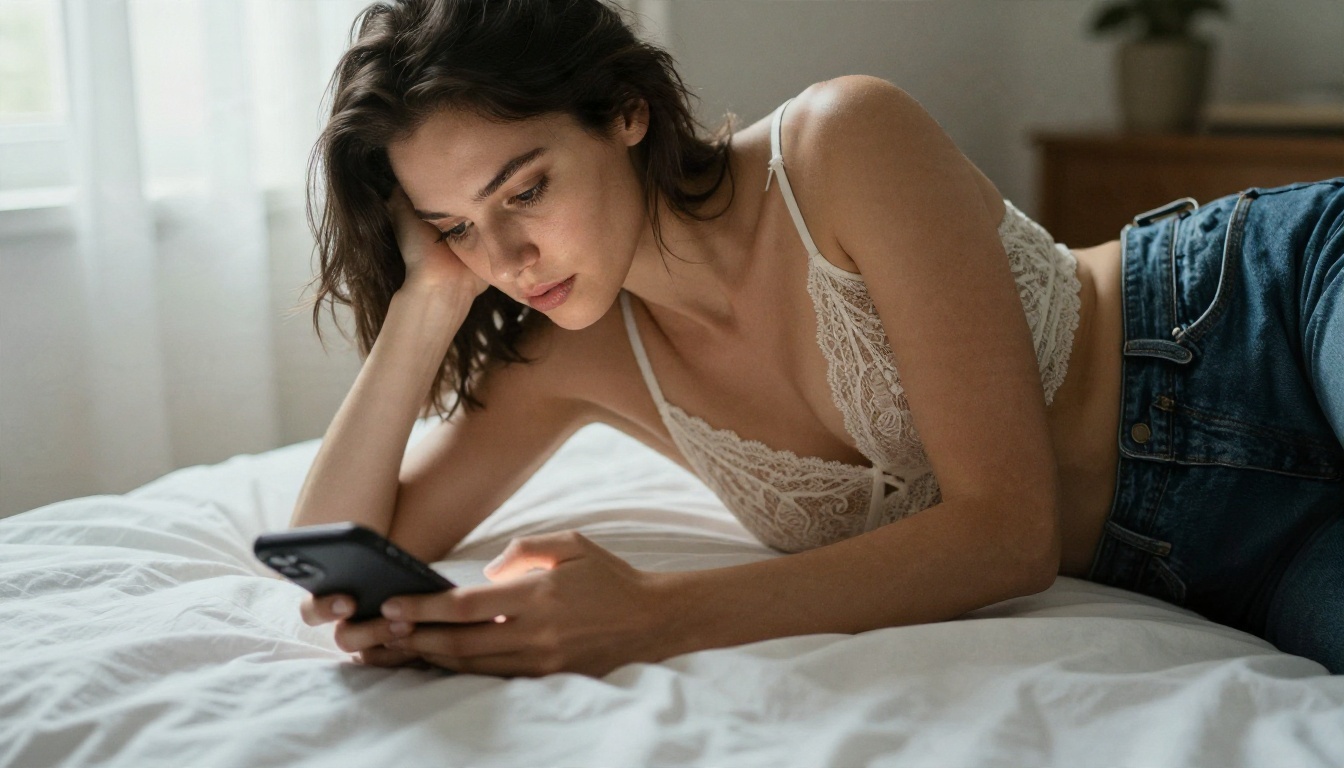
Generating is half the job. The other half is fixing the small things: a hand that looks odd, a background object you do not want, a colour that does not match the mood.
PicassoIA Image Editor Pro is built for this. It offers unlimited generations, so you can keep refining without watching a credit counter drop. That is the opposite of the typical free app, where every retry costs you.
What to use it for
- Change the outfit or the setting while keeping the same person
- Fix small flaws such as hands, hair strands or odd shadows
- Adjust mood, for example warmer evening light or a softer background
- Try variations of a favorite picture until it feels right
A simple editing loop
- Generate a base image with Seedream 4.5.
- Open it in Image Editor Pro.
- Write one instruction at a time, such as "change the dress to deep green."
- Keep the version you like and repeat.
💡 Tip: One instruction per edit gives cleaner results than a long list. If an edit goes wrong, you can back up one step instead of starting over.
Other Models Worth Testing
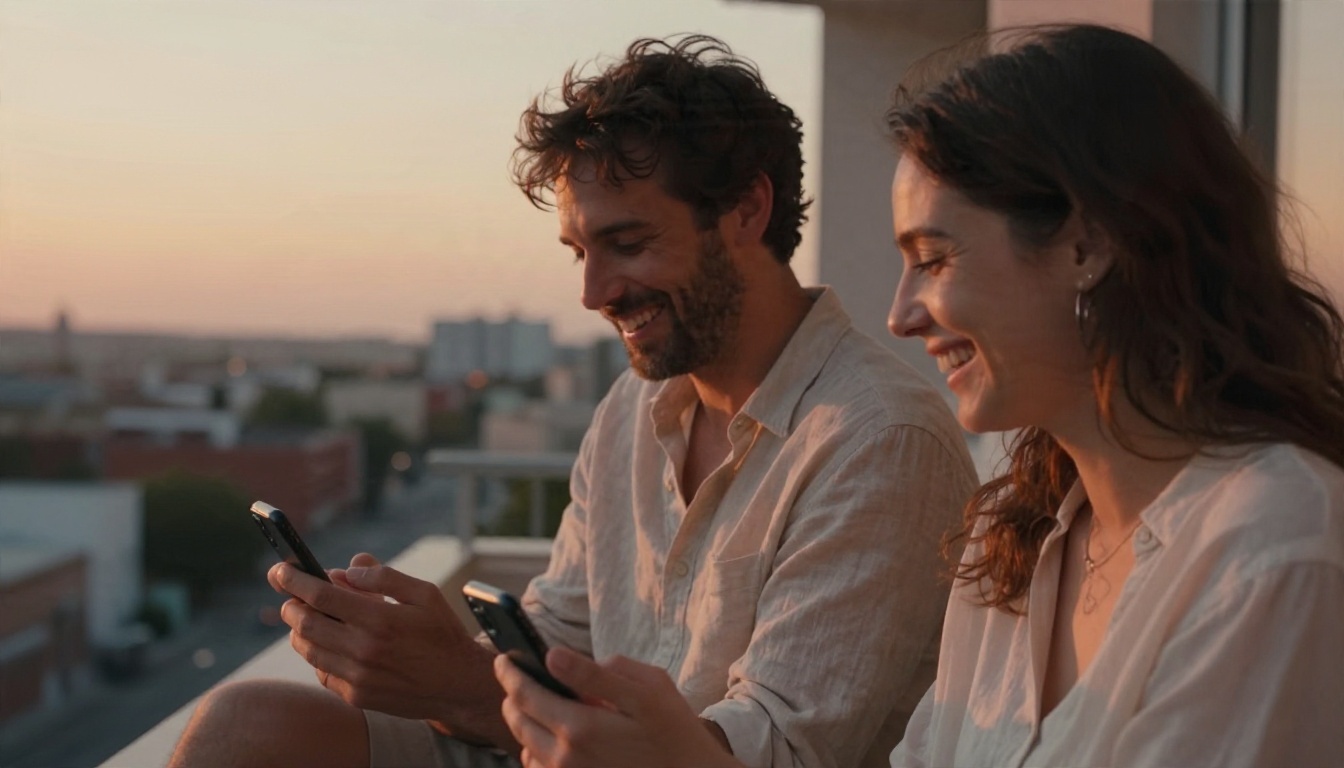
No single model wins at everything. If Seedream 4.5 is not giving you the look you want, try these on PicassoIA, in roughly this order:
A practical workflow: draft quickly with Z Image Turbo, pick the composition you like, then rebuild the final version with Seedream 4.5. You can browse the full catalog at picassoia.com/en/all-models.
Use a Chat Model for Prompts
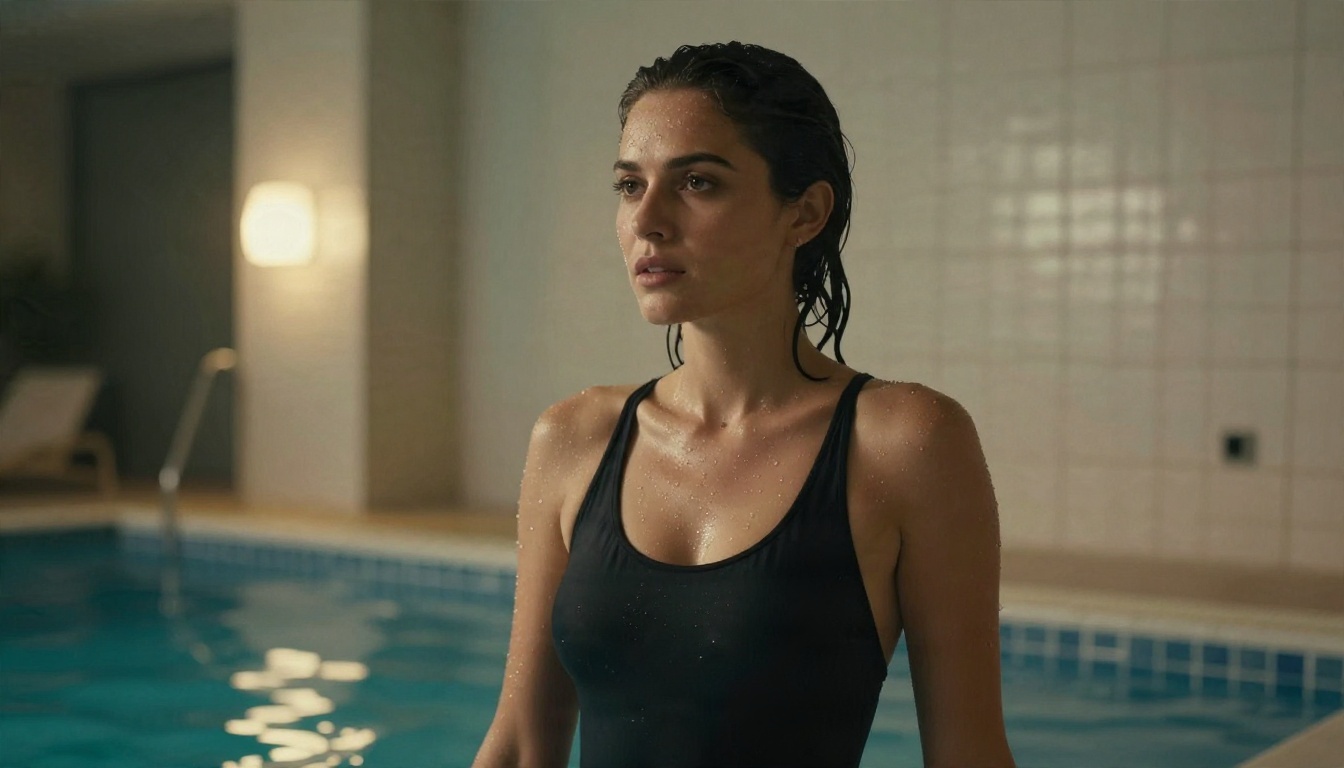
Chat and pictures work well together when you let a language model handle the writing. Instead of struggling to describe a scene, ask an assistant to turn your idea into a photographic prompt with light, lens and texture details.
Options on PicassoIA include Gemini 3.5 Flash for fast replies, Qwen3.7-Plus for text and image interpretation, and Granite 4.1 8B for lightweight chat. General-purpose assistants keep their own content rules, so use them to write character notes, scene descriptions and prompt wording, and keep the content tasteful.
A handy request to try:
"Write a photographic prompt for an adult woman in a sunlit loft, holding a phone, soft window light from the left, 85mm lens, natural skin texture. Keep it under 70 words."
Paste the result into Seedream 4.5 and adjust from there.
Privacy and Safety Rules
A few ground rules protect you and everyone else.
- Adults only. Every character you create should be clearly an adult, and users must be of legal age.
- Never use a real person's likeness without consent. That includes celebrities, coworkers and exes. Invent characters instead.
- Keep it non-explicit. Glamour, swimwear and artistic portraits are one thing; pornography is another and does not belong here.
- Guard personal data. Do not share your address, workplace or financial details with any chat app.
- Read the data policy. Some apps store chats and generated images indefinitely. Check whether you can delete your history.
- Use a separate email for apps you are only testing.
💡 Tip: If an app asks for a face photo to "personalize" a character, use a generated face, never a real one.
Make Your Own Pictures Today
Free apps are a decent place to test conversation style, but they are rarely the best place to make pictures. A dedicated generator gives you sharper skin, cleaner light and a consistent character, and you decide what happens in every frame.
Here is a simple plan for this afternoon:
- Write a 15-word character description and save it.
- Open Seedream 4.5 and generate your first portrait using the prompt format above.
- Refine details in PicassoIA Image Editor Pro, where generations are unlimited.
- Try one or two other models from the list and keep your favorite.
Fast, uncensored in the sense of not being blocked for tasteful glamour work, and free of the credit meters that slow down chat apps: that is the appeal. Head to PicassoIA, pick a model from picassoia.com/en/all-models, and build your first set of pictures. Your next favorite image is one good prompt away.


