Face swap used to mean an hour in Photoshop with a lasso tool and a lot of patience. Now it takes about ten seconds and a photo you already have on your phone. The catch is that the market is crowded with apps that promise "free, no watermark, no sign up" and then hit you with a paywall on the final download. This article sorts the real options from the bait, for photos, for video, and for people who just want to try a swap without creating an account.
Here is what you will find below: how modern face swap actually works, which type of tool fits which job, what to expect from the popular names, and a practical workflow on PicassoIA that gives you more control than a one tap app.
💡 Quick answer: For a single photo, a no sign up browser tool is the fastest path. For video, you need a tool built for motion and consistency. For anything you plan to publish, pick a workflow where you control the source files and the output quality.
How Face Swap AI Works Now
A face swap takes the identity of one face and places it on another person's head, matching pose, skin tone and lighting. Older apps did this with simple landmark mapping, which is why results looked like a sticker slapped on a forehead. Current tools use generative models that rebuild the face region from scratch, guided by the reference face.
Three things decide whether the output looks real:
- Source quality. A sharp, front facing, evenly lit photo gives the model clean identity data.
- Target angle. Extreme side profiles, hands in front of the face and heavy shadows cause the classic melted look.
- Blending. The best tools match grain, color temperature and skin texture, so the swapped face does not look cleaner than the rest of the photo.
Photo Swap vs Video Swap
A photo swap only has to be right once. A video swap has to be right 24 or 30 times per second, with the same identity, the same skin tone and no flicker around the jawline. That is why video tools are slower, more expensive and more often locked behind a plan. If a site offers unlimited free video swaps with no account, treat it with suspicion and check the output length, resolution and watermark before you commit.
Face Swap vs Head Swap
A face swap keeps the target's hair, ears and head shape. A head swap replaces the whole head. Head swaps suit costume photos and creative projects, but they are harder to blend because hair edges and neck shadows have to line up. Some tools offer both modes, so pick the one that matches your photo.
Before you test any app, run it through this short checklist. It saves you from the usual traps.
| Criteria | What good looks like | Red flag |
|---|
| Output resolution | Sharp at full size, no soft face patch | Face is blurrier than the background |
| Watermark | Clear policy before you upload | Watermark appears only on download |
| Sign up | Honest about limits | "No sign up" that stops after one try |
| Privacy | Files deleted after a stated period | No policy, no deletion info |
| Multi face support | Lets you pick which face to replace | Swaps the wrong person in group shots |
| Video length | Stated limit in seconds | Vague "unlimited" claims |
💡 Tip: Test every new tool with the same two photos: one easy portrait and one tricky angle. Comparing results side by side tells you more than any review.
Best No Sign Up Face Swap Options
"No sign up" is the most searched phrase around this topic, and also the most misleading. Several 2026 roundups point to the same group of names, but they are mostly written by the vendors or by affiliate sites, and the terms change often. Treat the list below as a starting point and verify the current limits yourself.
Browser Tools Worth a Try
- Magic Hour shows up most often as a top pick. Reports say free users get a handful of watermark free photo swaps per day, and short video swaps with a watermark. Photo face swap and head swap can reportedly start without an account.
- Remaker AI is recommended for single photos. Its basic photo swap runs in the browser, and reviewers mention watermark free photo downloads.
- Facy is frequently named as the best option without sign up, and it offers a video workflow that detects multiple faces.
- AIFaceSwap is described as watermark free, with uploads deleted automatically after about a day.
- Swapfaces AI and MiOffice also advertise browser based swaps with no account.
The Fine Print Nobody Reads
Free tiers are funded by something. It is usually one of three things: a watermark, a daily cap, or your data. Before you upload a photo of a real person, check three points:
- Does the site state how long it keeps your uploads?
- Does the free output carry a mark that you cannot remove?
- Are there limits on resolution that make the file unusable for anything but a chat?
If a site cannot answer those in plain language, skip it for anything personal.
Best Face Swap Apps for Photos
For mobile, the picture is simple. Most phone apps use the same few engines under different branding, so the differences are in the interface, the free limit and the price after the trial.
What Mobile Apps Do Well
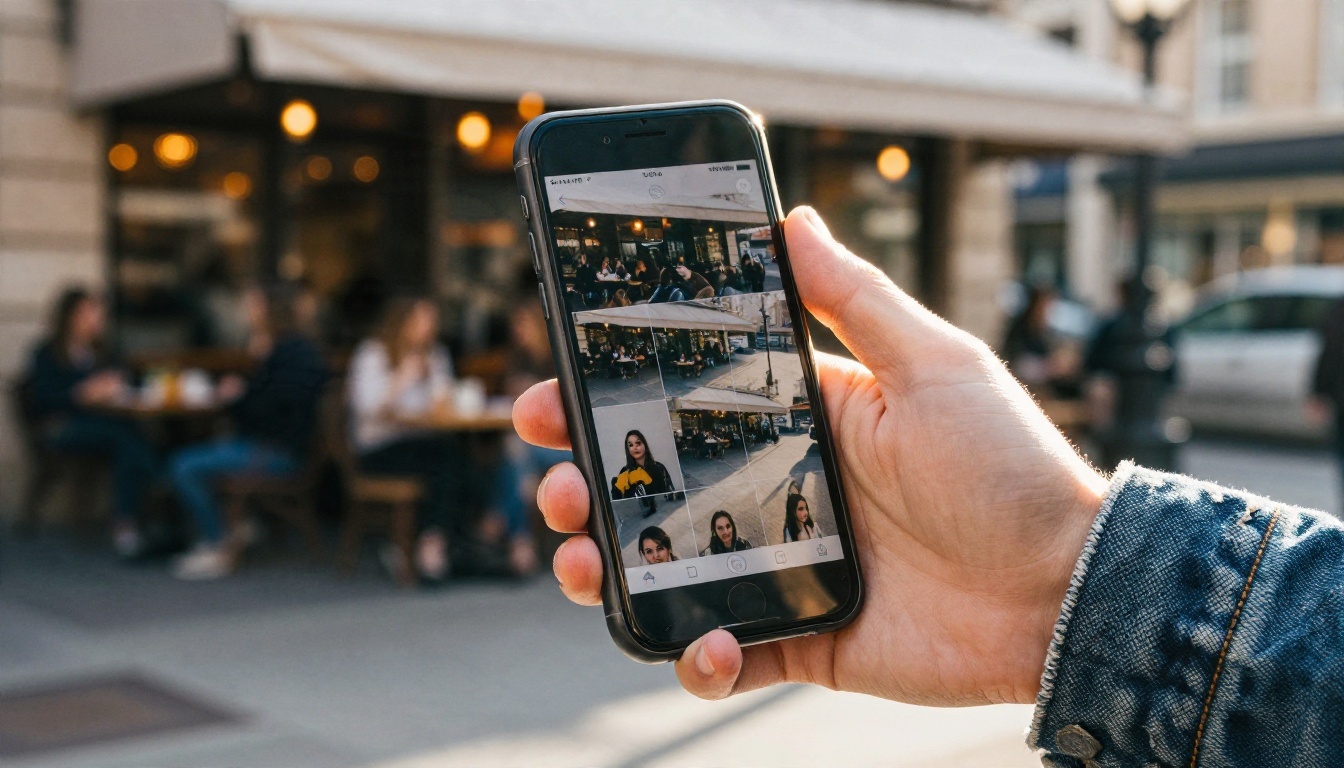
Apps are great for fast, casual swaps: a birthday photo, a meme, a group chat joke. They pull from your camera roll, apply the swap in seconds and share straight to social. If that is your use case, any of the popular apps will do, and a free tier is usually enough.
Where Apps Fall Short
- Output is often capped at a modest resolution.
- You rarely get control over lighting, expression or color matching.
- Subscriptions auto renew, and cancellation can be buried in settings.
- Group photos with several faces are hit or miss.
Vidnoz is recommended for both photos and video, and DeepSwap is the usual pick for longer or multi face video, though it generally needs a paid plan. FaceFusion is the open source option you run on your own machine, which gives you the most privacy but needs a decent GPU and some patience with installation.
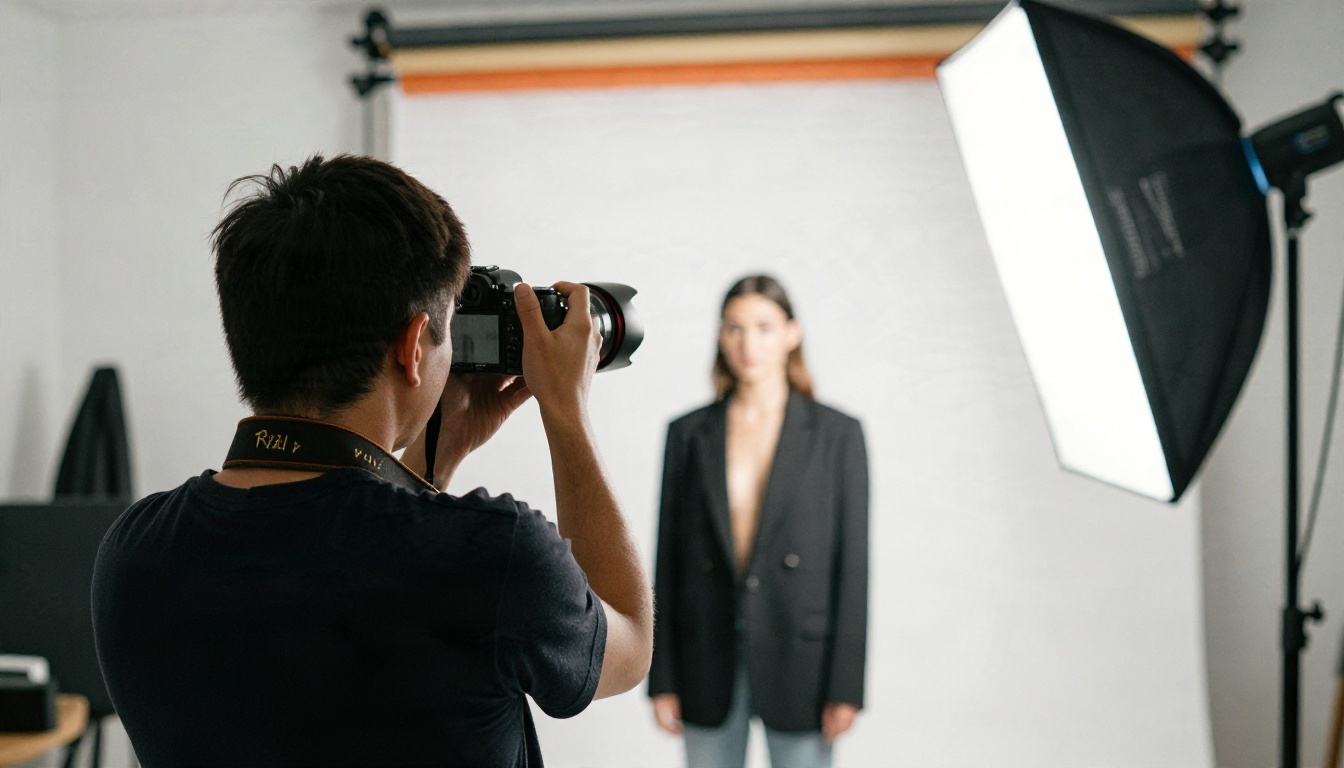
💡 Tip: If you swap faces on your own photos for a profile picture or a creative project, shoot a clean source photo first. Front facing, soft window light, no sunglasses. It improves every tool.
Pick a Good Source Photo
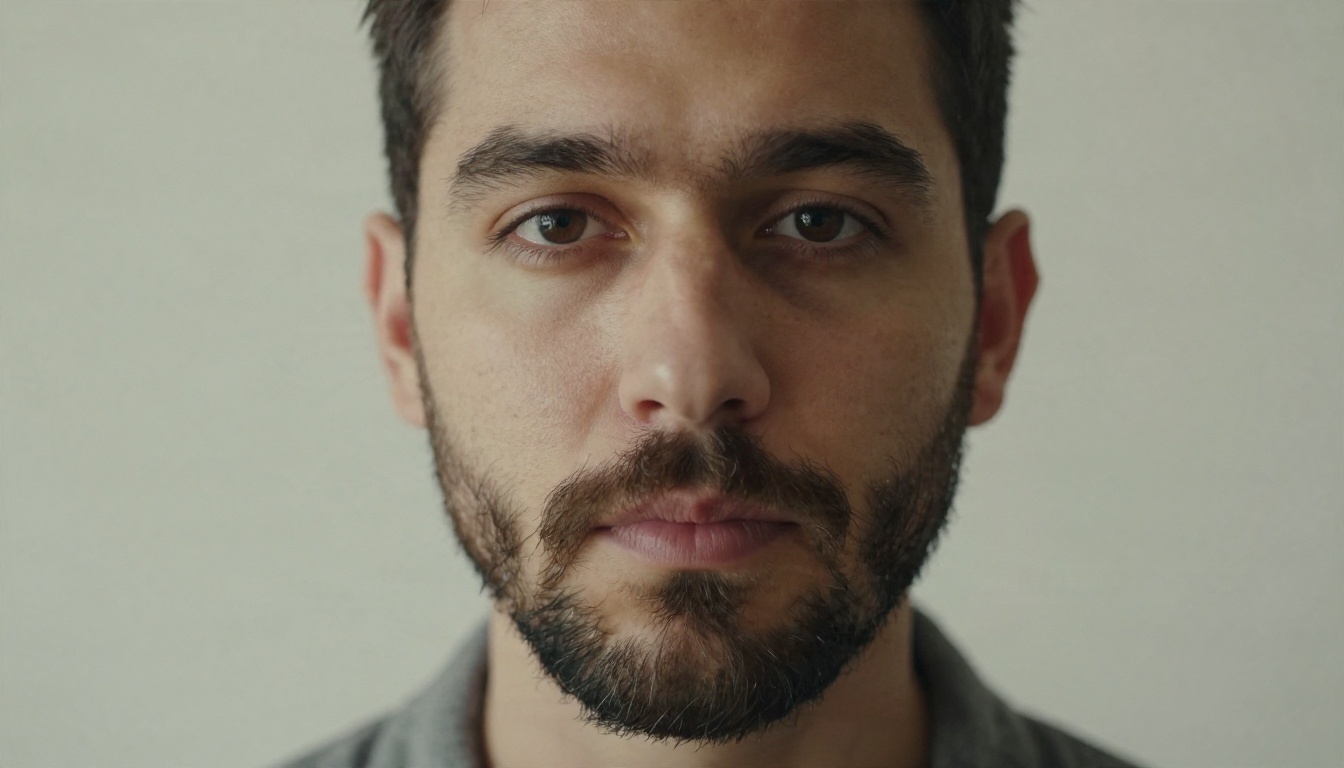
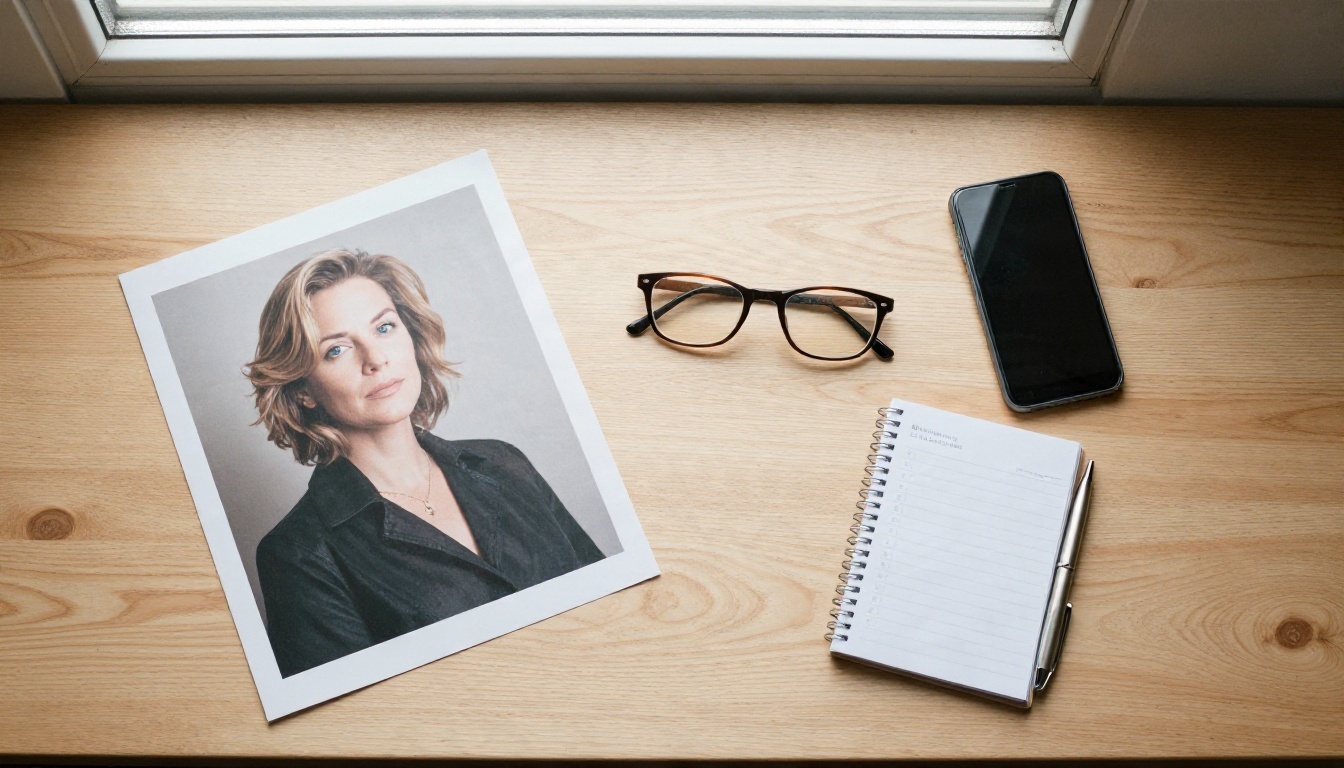
The photo above is the kind of source image that gives a model everything it needs: even light on both cheeks, visible skin texture, a neutral expression and an unobstructed face. Avoid heavy filters, strong beauty smoothing and low resolution crops. A blurry source produces a blurry identity, no matter how good the tool is.
Best AI for Face Swap in Video
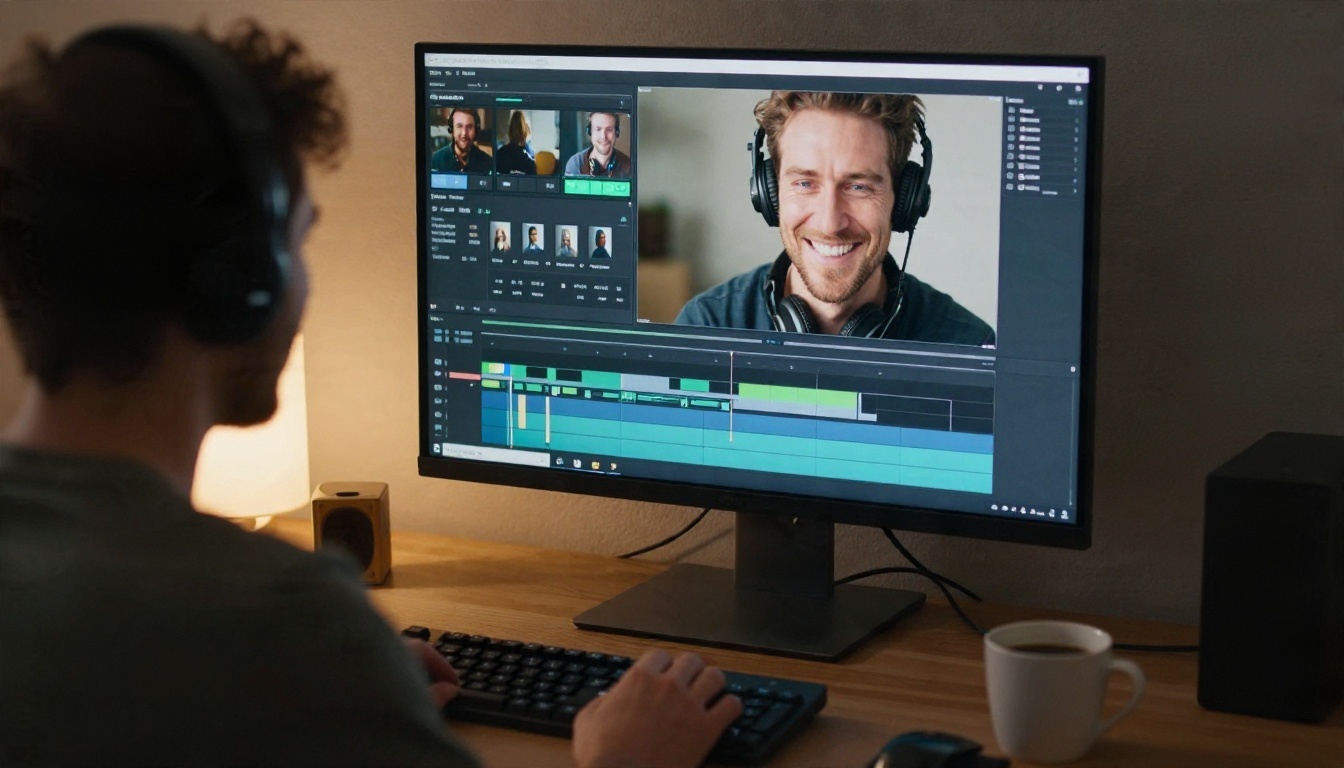
Video is where the gap between tools becomes obvious. A decent video swap keeps the identity stable, follows head turns and holds up through blinks, speech and fast motion.
What Makes a Video Swap Look Real
- Temporal consistency. The face should not shimmer or change shape between frames.
- Lighting match. If the scene has warm side light, the swapped face needs the same shadow direction.
- Motion handling. Fast head turns and partial occlusion (a hand passing in front of the face) are the stress tests.
- Audio sync. If the person speaks, mouth movement has to stay natural.
Video Tools on PicassoIA
Instead of a single "swap" button, PicassoIA gives you several video models that handle character and face replacement in different ways:
| Model | Best for | Notes |
|---|
| P Video Replace | Swapping a person into an existing clip | Good for replacing the subject while keeping the scene |
| Wan 2.2 Animate Replace | Replacing a character while keeping motion | Follows body and head movement from the source video |
| Kling Avatar v2 | Animating a face from a single photo | Useful for talking head clips |
| P Video Avatar | Talking avatar videos | Pairs with a voice track |
| Lipsync Precision | Matching mouth movement to new audio | Great for dubbing |
| Real ESRGAN Video | Upscaling the finished clip | Sharpens a soft result |
Where Video Swap Is Actually Useful
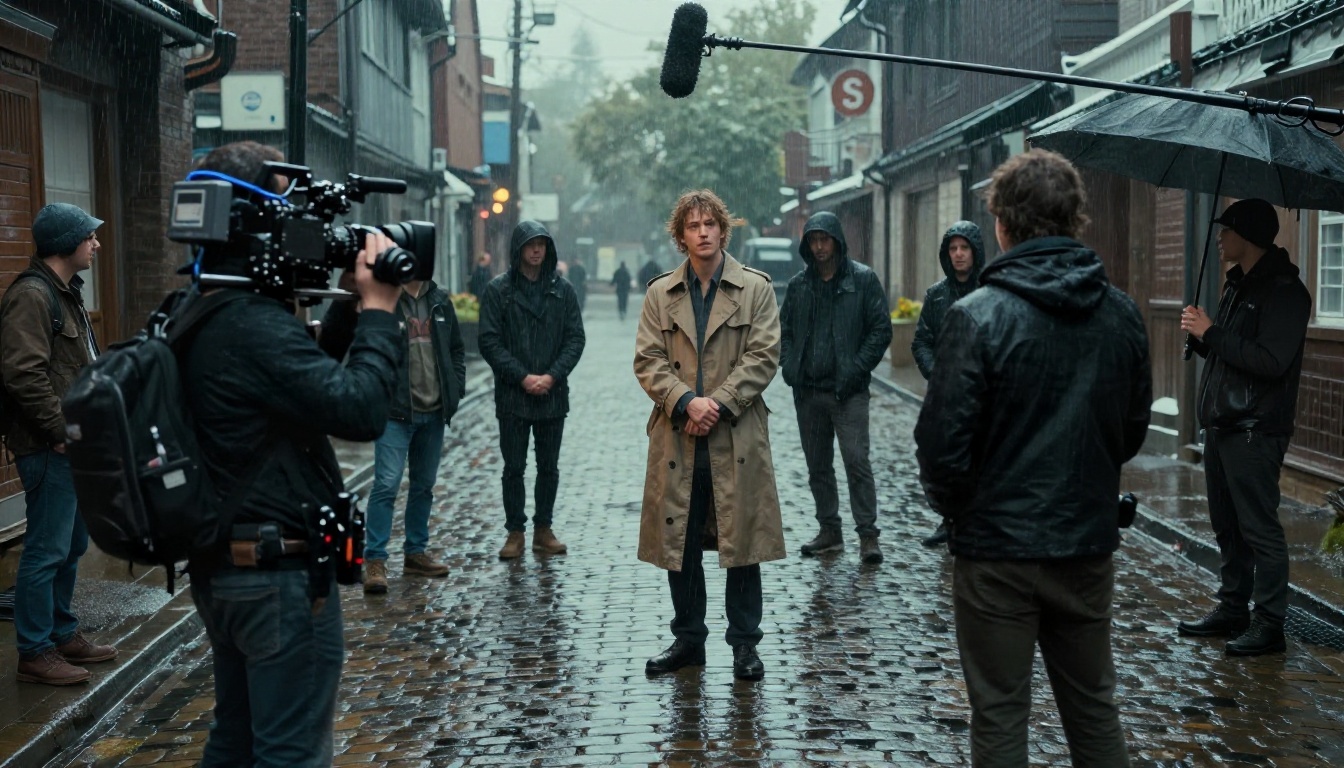
The legitimate uses are bigger than most people think. Filmmakers use swaps for stunt double shots, where an actor's face is placed on a performer who did the dangerous take. Small studios use it to fix a reshoot without calling the whole crew back. Creators use it for parody and character content, with the permission of everyone shown. These are the workflows where a controlled, higher quality tool beats a free toy.
How to Face Swap Photos on PicassoIA
A one tap app gives you one result. A model based workflow gives you a result you can steer. On PicassoIA you can use image models that accept a reference photo, then prompt the scene, lighting and style you want.
Step by Step Workflow
- Choose an editing capable model. Nano Banana Pro and Nano Banana handle edit style prompts with reference images. Flux Kontext Fast is another fast way to edit an existing photo, and Seedream 4.5 is a strong option when you want a polished 4K output.
- Upload your target photo. This is the picture whose scene, pose and clothing you want to keep.
- Add a clean reference of the face. Use a sharp, front facing source like the portrait shown earlier.
- Write a precise prompt. Describe what to keep and what to change, for example: "Keep the original pose, clothing and background. Replace the face with the person from the second photo. Match skin tone and lighting."
- Generate and compare. Run two or three versions. Small prompt changes can fix a color mismatch or a stiff expression.
- Upscale the winner. Send the best result through Real ESRGAN for a sharper 4x output.
💡 Tip: If the swapped face looks flat, add lighting words to your prompt: "soft window light from the left, subtle film grain". Matching the grain of the original photo is what makes a swap disappear into the picture.
Parameter Tips That Help
- Keep prompts short and literal. Long poetic prompts confuse the identity transfer.
- Name what must not change. "Keep the same hairstyle and background" prevents unwanted edits.
- One face at a time. In a group photo, swap one person, then run a second pass for the next.
- Fix small flaws with a follow up edit. Ask for "remove shine on forehead" or "match skin tone to neck" instead of regenerating from scratch.
Related Edits That Pair Well
Change Haircut lets you adjust the hairstyle after a swap so the head shape looks natural. Face To Many Kontext turns a portrait into different styles, and AI Avatars builds avatar images from a face photo.
How to Face Swap Video on PicassoIA
For a clip, the process is similar but the source files matter even more.
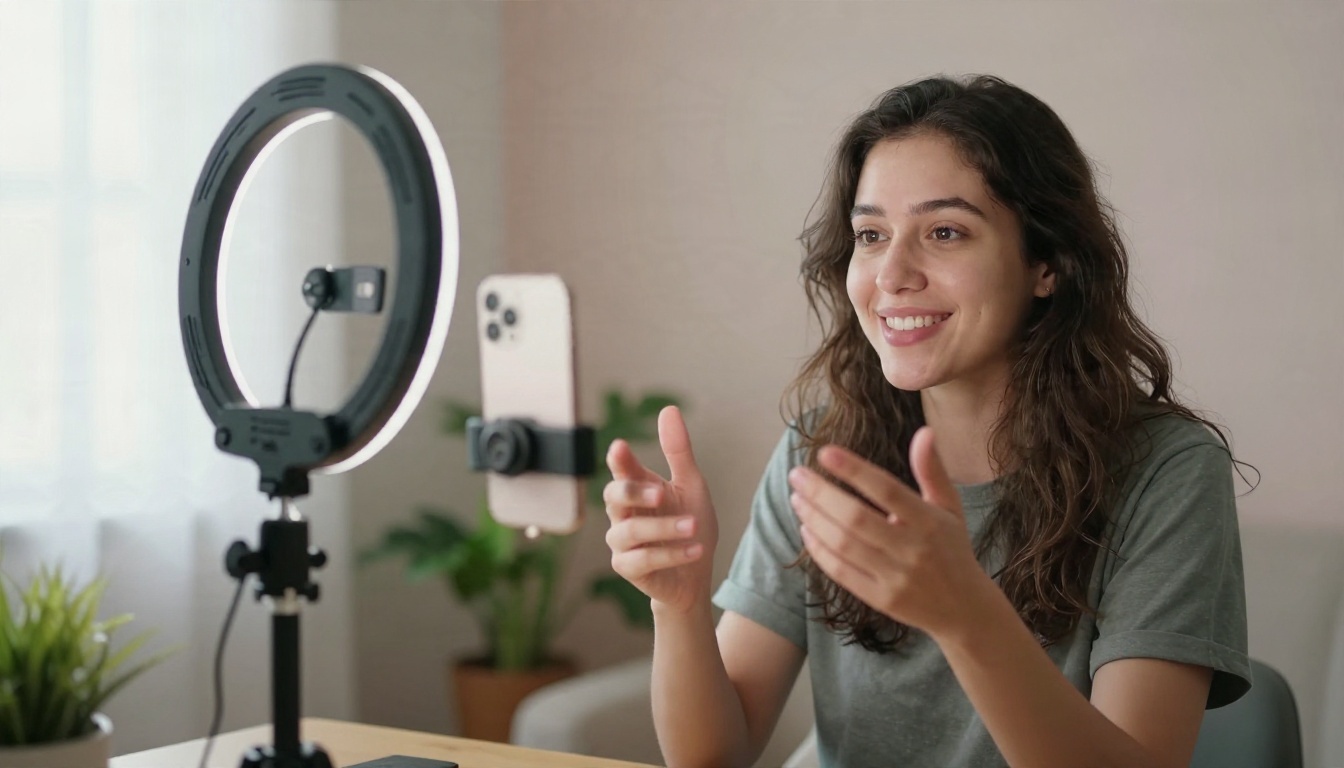
- Record or pick a steady clip. A stable shot with good light and a visible face for the full duration gives the model the best start. Short clips work better than long ones.
- Open a replace model. Try P Video Replace for swapping a person into the footage, or Wan 2.2 Animate Replace when you want a character to follow the original motion.
- Upload the reference face. Use the same kind of clean portrait you would use for a photo.
- Generate a short test. Check the jawline, the eyes and the moments of fast movement.
- Fix the audio if needed. If the voice changes, use Lipsync Speed or Lipsync Precision to realign the mouth.
- Upscale the final clip. Real ESRGAN Video brings back sharpness if the output is soft.
💡 Tip: Do one short test before processing the full clip. It saves time and credits.
Free vs Paid: What You Really Get
| Option | Typical free limit | Watermark risk | Best for |
|---|
| Browser tool, no sign up | A few swaps per day | Low to medium | Quick jokes, tests |
| Mobile app | Trial, then subscription | Medium | Casual sharing |
| Open source, local | Unlimited | None | Privacy and tinkering |
| Paid video swapper | Plan based | None on paid | Long or multi face clips |
| PicassoIA models | Credit based | Depends on model | Controlled, higher quality output |
Free is a good way to test the idea. It is rarely the best way to produce the final file. If the output goes on a website, in an ad or in a portfolio, quality and rights matter more than saving a few minutes.
Rules You Should Not Skip
Face swap is a powerful tool, and the rules are not optional. Several regions now require AI generated content to be labeled, and platforms remove deceptive swaps quickly.
A Short Responsible Use List
- Get consent. Only swap a face you have permission to use. That includes friends, clients and anyone in a public project.
- Never target someone with it. No harassment, no fake endorsements, no explicit content of a real person.
- Label your work. If you publish a swap, say it is AI generated. It protects you and builds trust.
- Check each tool's content rules. Tools differ on what they allow, and breaking them can get you banned.
- Store sources carefully. Delete reference photos you no longer need.
Mistakes That Ruin a Swap
- Using a low resolution source and expecting a sharp result.
- Mixing very different lighting between source and target.
- Choosing a target photo with a heavy side profile or sunglasses.
- Skipping the upscale step on a final image.
- Ignoring watermarks until the last minute.
Which Option Should You Pick?
If you want to try a swap right now, open a browser tool with a clear no sign up policy and test it with a sample photo. If you swap often on your phone, choose one app and check its cancellation terms before you pay. If you work with video, plan on a paid or credit based tool that handles motion properly, and always run a short test first.
If you want control over the result, including lighting, expression, resolution and the follow up edits, the model based workflow on PicassoIA is the better fit. You can start with a photo using Nano Banana Pro or Seedream 4.5, move to video with P Video Replace or Wan 2.2 Animate Replace, and finish by upscaling with Real ESRGAN. Every step stays in one place, and you decide what ships.
Try Your Own Face Swap Today
Pick one clean portrait, one target photo and one short prompt, then run your first swap on PicassoIA. Compare two or three versions, upscale the best one and see how far a controlled workflow goes beyond a one tap app. When you are ready for more models, browse the full catalog at picassoia.com/en/all-models and build your next image or clip from there.


