Most people who try an adult AI video maker burn through their first ten clips in an afternoon and walk away disappointed. The reason is rarely the tool. It is the settings they left on default, the prompts they typed in one breath, and a free plan they never read the fine print of. Fix those three things and the same generator that gave you rubbery faces and jittery hands starts producing smooth, glamorous, magazine-quality motion.
This article is about suggestive, non-explicit video: boudoir, swimwear, lingerie-style fashion, beach and hotel-suite glamour. That is where AI video is strongest, where moderation is most predictable, and where a good clip can be created in minutes. Below you will find the settings that matter, prompt formulas you can copy, a realistic look at free plans, and the limits that catch people out.

What an Adult AI Video Maker Really Does
An adult AI video maker is a video generation model that accepts text, a still image, or both, and returns a short clip of an adult subject in a glamour or sensual setting. Under the hood it is the same technology behind any other text to video tool. The difference is the content policy around it: some generators block anything involving swimwear or lingerie, while others allow tasteful adult aesthetics and stop at explicit material.
Text to video vs image to video
Text to video builds everything from your description. It is fast and flexible, but the face and body change every run, so it is poor for building a recognizable character.
Image to video starts from a still you already like and adds motion. This is the route most serious creators take, because the first frame locks in the look: the face, the outfit, the lighting, the location. The model only has to decide how things move.
💡 Rule of thumb: use text to video to brainstorm, then switch to image to video the moment you find a look worth keeping.
Why the still image matters most
A weak first frame gives you a weak video, every time. If the still has soft focus, warped hands, or flat lighting, motion will make those problems louder. Spend your effort on the image first, then animate.
For stills, Seedream 4.5 is the strongest starting point on PicassoIA: it produces sharp 4K images with believable skin and fabric, and it handles adult glamour themes where other models refuse. For edits, retouching and fixing small flaws, PicassoIA Image Editor Pro offers unlimited generations, so you can iterate on a frame as many times as you need before spending anything on video.
The Settings That Change Everything
Default settings are tuned for safe, average results. A few deliberate choices move you well beyond average.
Duration
Short clips look better. Most models hold a subject steady for the first three to five seconds, then drift: faces soften, jewelry changes shape, fabric behaves strangely. If your tool lets you pick duration, start at 5 seconds. Only go longer when the shot is simple, such as a slow walk or a static pose with wind in the hair.
Some models are built for length. Seedance 2.5 can reach 30 seconds, and Seedance 2.5 Lite goes up to 10 seconds. Treat those as tools for scenes with consistent motion, not as an excuse to write a long, complicated prompt.
Resolution and aspect ratio
Pick resolution based on where the clip will live.
| Use case | Aspect ratio | Resolution to aim for |
|---|
| Website banner or YouTube style preview | 16:9 | 720p or 1080p |
| Phone first social clips | 9:16 | 720p minimum |
| Square feed posts | 1:1 | 720p |
| Testing a prompt | Any | Lowest available, to save credits |
A smart habit: test at low resolution, finish at high resolution. If your plan has limits, never spend a premium render on a prompt you have not tried cheaply.
Motion strength and camera control
Many generators expose a motion slider or a camera option. Higher motion looks dramatic and breaks more often. For glamour content, low to medium motion is the sweet spot: hair moving in a breeze, a slow turn of the head, a gentle camera push. Big, fast body movement is where anatomy errors appear.
Seed and variations
If your tool shows a seed value, write down the seed of any clip you like. Keeping the seed fixed while editing one word in the prompt is the fastest way to learn what each word really does.
Audio
Several current models generate synchronized audio along with the picture. That is useful for ambient sound: waves, room tone, soft music. Keep audio prompts simple, and remember that you can always mute or replace it later.
Prompts That Actually Work
Good video prompts read like a shot list, not a wish list. You describe the subject, the motion, the camera and the light in the order a viewer would see them.
The four part formula
- Subject and starting pose. Who is in frame, what they wear, how they stand or sit.
- Motion over time. What happens in the five seconds, in order.
- Camera movement. Static, slow dolly in, gentle pan, handheld sway.
- Light and atmosphere. Direction, time of day, texture of the air.
Here is a prompt built with that structure:
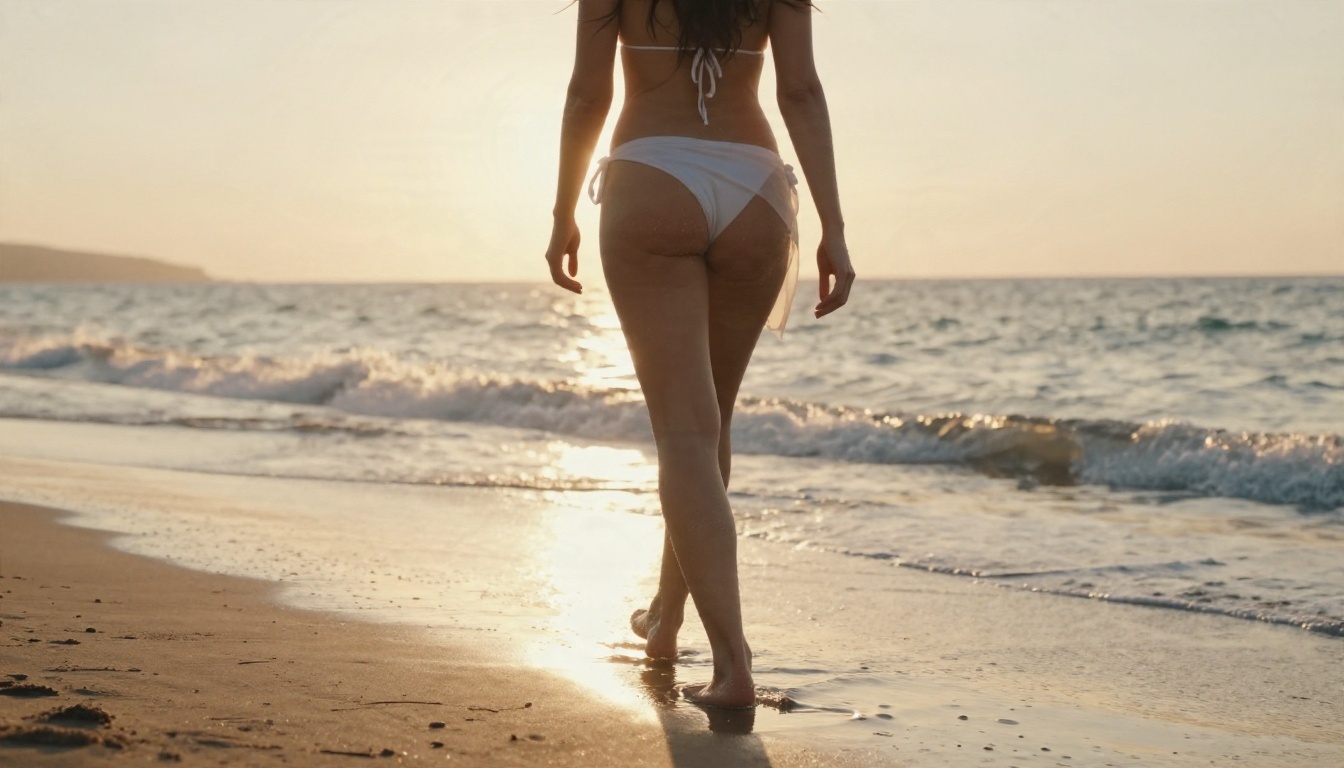
An adult woman in a white bikini and sheer sarong stands at the edge of the surf at golden hour. She turns her head toward the camera and smiles as the breeze lifts her hair. Slow dolly in at waist height. Warm backlight from the setting sun, wet sand reflecting the sky, soft film grain.
Words that help and words that hurt
| Helps | Hurts |
|---|
| "slow", "gentle", "subtle" | "fast", "explosive", "extreme" |
| Specific lens and light ("85mm, soft window light") | Vague quality tags ("masterpiece, best quality") |
| One main action | Three or four actions in a row |
| Fabric and texture words ("silk", "linen", "wet sand") | Long lists of adjectives about the body |
| Natural settings and daylight | Crowded scenes with several people |
Keep it to one action
The most common mistake is stacking motions: "she walks, turns, laughs, adjusts her hair, and picks up a glass." Models handle one clear action well and two with luck. Everything past that turns into a blur of half-finished gestures.
Use negative direction sparingly
If your tool has a negative prompt field, a short list is enough: deformed hands, extra fingers, flickering, text, watermark. A very long negative list tends to confuse the model more than it helps.
💡 Tip: write the prompt for the change, not the scene. When you start from an image, the scene already exists. Only describe what moves.
Free Plans: What You Really Get
"Free" in AI video comes in three flavors, and mixing them up is how people end up surprised by a paywall.
Trial credits
You get a small bundle of credits, enough for a handful of clips. Once they are gone, the free tier is over. This is fine for a quick test and useless for a project.
Daily or monthly allowances
A refreshing quota gives you a few generations per day or month. It is workable for casual use, but the queue is often slower, resolution is capped, and outputs may carry a watermark.
Unlimited free generation
This is the rare and genuinely useful kind. On PicassoIA, PicassoIA Video is a free, unlimited video generator that works from text or an image, and Seedance 2.5 Lite is described as a free and unlimited generator for clips up to 10 seconds. That means you can test dozens of prompt variations without watching a credit counter.
| Plan type | Best for | Watch out for |
|---|
| Trial credits | One quick test | Runs out in minutes |
| Daily or monthly quota | Casual use | Watermarks, slow queues, resolution caps |
| Unlimited free | Prompt testing and volume | Check duration and resolution caps per model |
What to check before you commit
Before you pick a platform, look for these five things on the plan page:
- Watermark: does the free tier add one?
- Resolution cap: is free output limited to 480p or 720p?
- Duration cap: 3, 5 or 10 seconds?
- Commercial use: can you publish the clip on a monetized channel?
- Content policy: does the model accept glamour and swimwear prompts, or will it reject them after you wait in a queue?
💡 Quick test: run the same swimwear prompt on any new generator before you pay for anything. If it refuses a simple bikini scene, it will not suit adult glamour work.
The Limits You Will Hit First
Even the best generator has walls. Knowing where they are saves hours.
Content moderation
Every serious model filters something. Prompts and images that become explicit are blocked, and some systems are stricter than others, even for swimwear or lingerie-style fashion. If a prompt is rejected, do not keep resubmitting the same text. Rephrase around fashion, setting and mood: editorial, poolside, boudoir lighting, silk robe. Keep the material suggestive rather than explicit and your hit rate improves a lot.
This also applies to the images themselves. During production of this article, an image prompt that described a lingerie-style bodysuit was blocked, while a champagne satin slip dress with a cardigan went through immediately. The wording around clothing and pose makes a real difference.
Clip length
Five to ten seconds is the practical norm, with a few models going further. To build something longer, generate several clips from related stills and join them in an editor. Cutting between short, strong clips almost always looks better than one long, drifting one.
Anatomy and hand errors
Hands, jewelry, and anything that overlaps (arms across the body, a hand holding a glass) are still the weak spots. Avoid prompts where the hands do detailed work. Hold a phone, rest a hand on a hip, or keep them out of frame.
Face drift
Over a longer clip, a face can slowly change. Fixes: shorter duration, a sharp starting still, and prompts that keep the head angle stable.
Queue times
Free, unlimited tools tend to be slower at peak hours. Run your batches off-peak, and test at low resolution first.
Choosing the Right Model
Different models suit different jobs. Here is a practical shortlist, all available on PicassoIA.
How to pick in under a minute
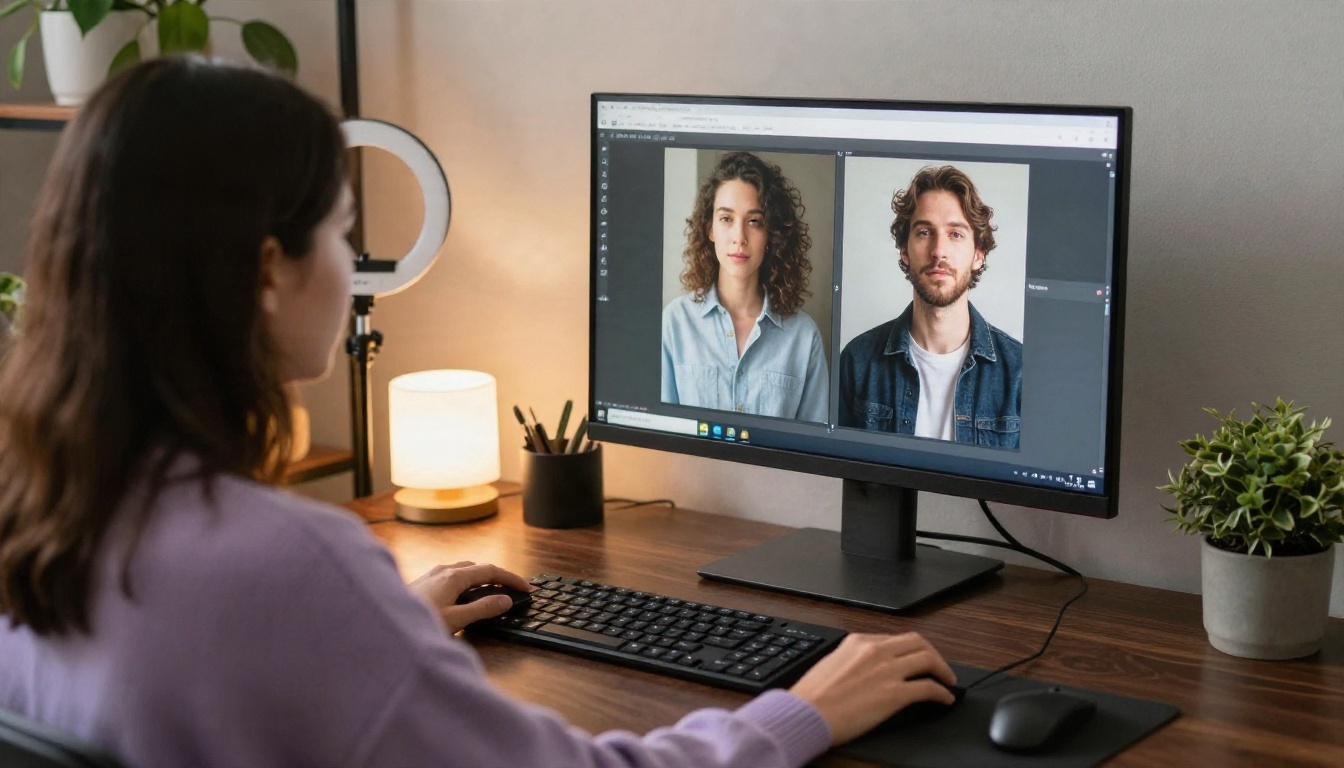
- Need a look first? Start with Seedream 4.5, then refine in Image Editor Pro.
- Need volume to test prompts? Use PicassoIA Video.
- Need length? Try Seedance 2.5 Lite, then Seedance 2.5 for the longest scenes.
- Need speed? Wan 2.5 I2V Fast or Hailuo 2.3 Fast.
- Need a cinematic finish with sound? Pixverse v6.
💡 For adult glamour work, begin with Seedream 4.5 and Image Editor Pro. They handle the themes that many mainstream models refuse, and the unlimited editing means you can fix a frame before you animate it.
Motion and Camera Moves That Look Real
Camera language is the easiest upgrade to any prompt. A shot that only has a subject will feel like a moving photo. Add a camera instruction and it feels directed.
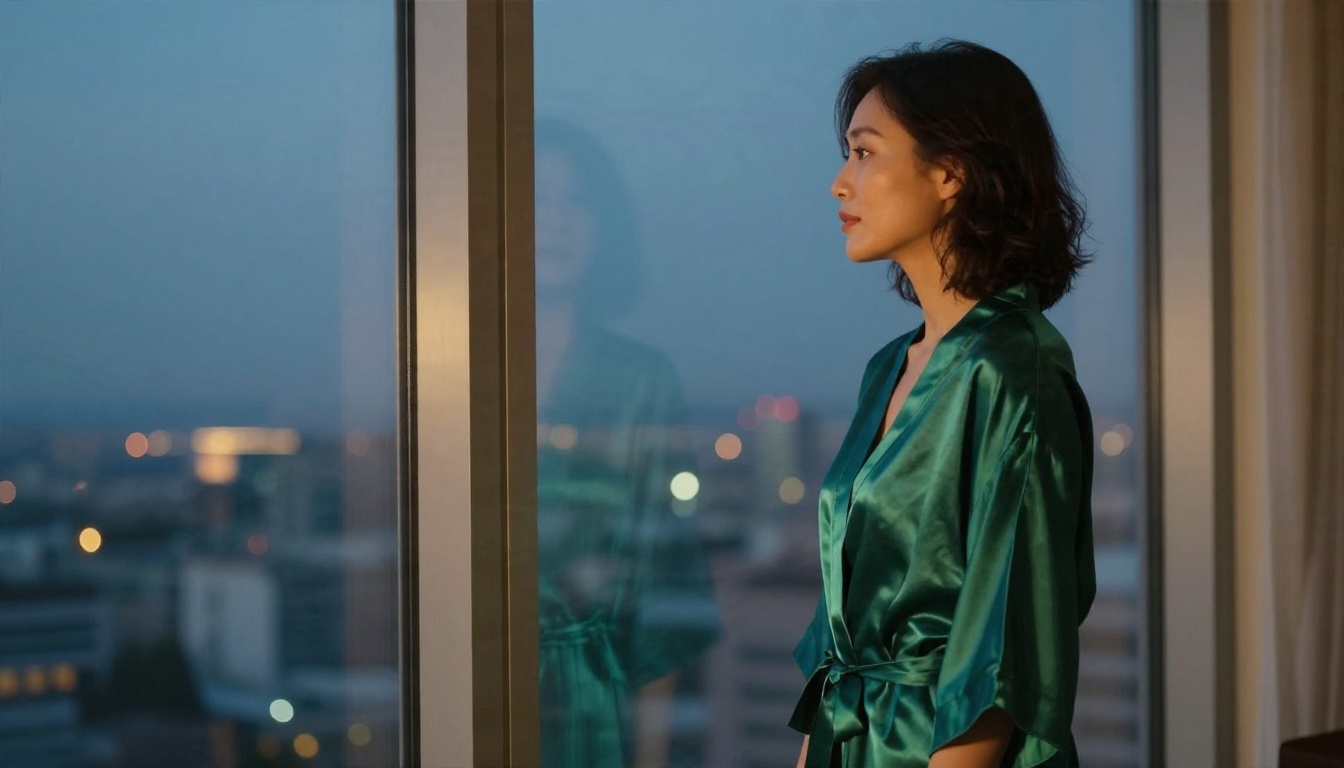
Camera moves that work
- Slow dolly in: the safest option, adds intimacy without changing the scene.
- Gentle pan: good for revealing a location, such as a pool or a window view.
- Slight handheld sway: adds life to a static pose, and hides small inconsistencies.
- Slow orbit: impressive, but riskier for faces, use it sparingly.
Motion that works on the subject
- Hair lifting in a breeze
- A slow head turn toward the lens
- A shoulder rolling as a robe slips slightly into place
- Fingers brushing through hair
- Fabric rippling in wind
- A soft smile appearing
Notice that none of these require the body to travel across the frame. Small, believable motion beats big motion nearly every time.
Lighting that survives animation
Warm, directional light such as golden hour, window light or a lamp behaves well. Flickering sources like candles, neon signs, and strobing club lights confuse temporal consistency. Natural light in the prompt gives smoother results.
Keeping the Same Character
If you want a series, such as a week of posts with the same model, you need a character that stays recognizable.
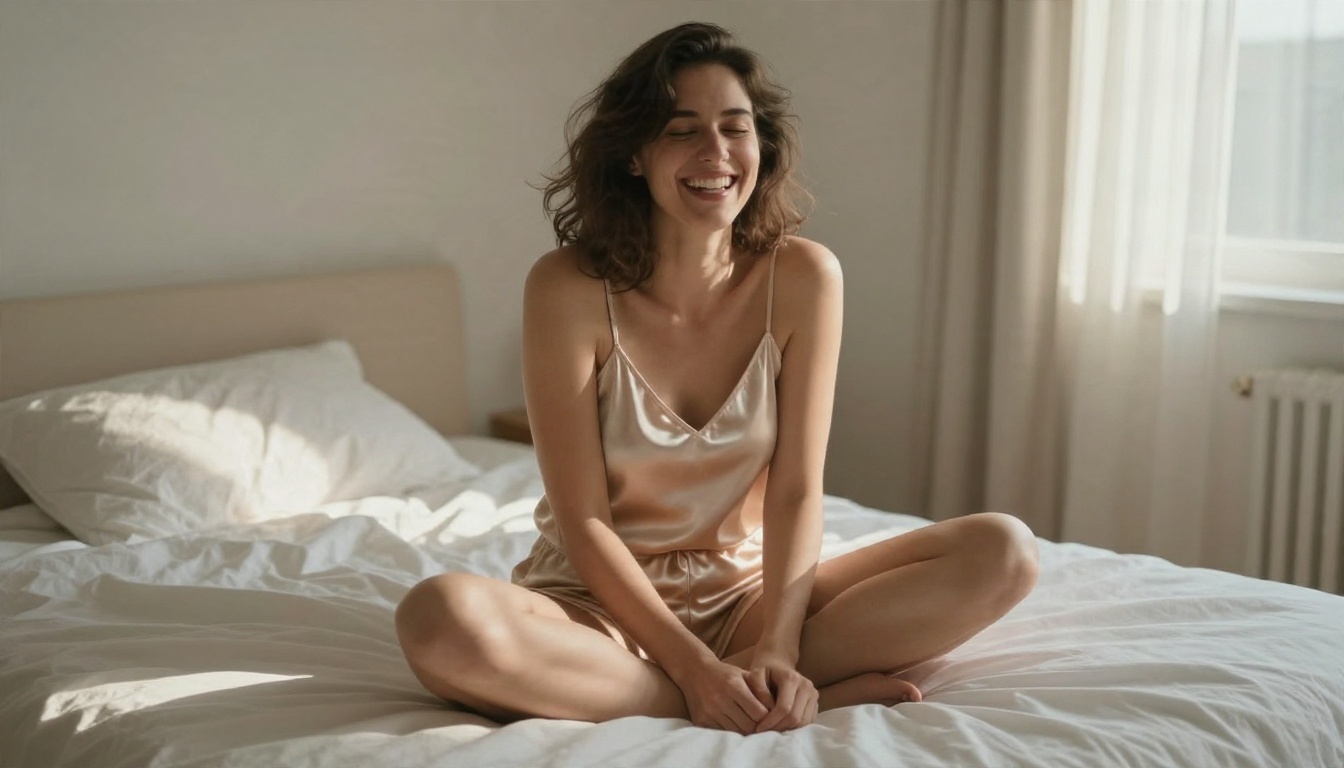
Build from one reference
Generate one strong portrait, then reuse it as the starting frame for every clip. Describe outfits and settings in the prompt, and keep the face description short. Long face descriptions get reinterpreted on every run.
Lock the look in the still
Use Image Editor Pro to adjust the outfit, background or lighting on the same face. That gives you a consistent set of first frames to animate, rather than a new person each time.
Change one thing at a time
When you want a new scene, change either the outfit or the location, not both. Small steps keep the face stable.
Reference based video
PicassoIA also offers PicassoIA Reference To Video, which builds video from your own reference images, clips and audio. That is useful when a single still is not enough to hold a character steady.
A Simple Workflow You Can Repeat
Here is the routine that produces the best results with the least wasted effort.

Step by step
- Write the still prompt. Describe subject, outfit, setting, lens and light. Keep it suggestive and tasteful.
- Generate with Seedream 4.5. Create three or four options and pick the sharpest.
- Fix flaws in Image Editor Pro. Clean up hands, jewelry, edges and background. Since generations there are unlimited, be picky.
- Draft the motion at low cost. Use PicassoIA Video or Wan 2.5 I2V Fast with a one action prompt and a 5 second duration.
- Adjust one variable. Change only the camera move or the motion word, keep the seed.
- Finish at the best quality. Move to Seedance 2.5 Lite, Seedance 2.5, Hailuo 2.3 Fast or Pixverse v6 for the final render.
- Edit and combine. Trim each clip, join several, add music or ambient sound.
Five quick fixes for common problems
| Problem | Fix |
|---|
| Face changes mid clip | Shorter duration, sharper first frame |
| Hands look wrong | Hide them, or give them a simple pose |
| Clip looks stiff | Add a camera move and one small body motion |
| Prompt rejected | Rephrase around fashion, setting and mood |
| Output looks plastic | Add natural light and fabric texture to the prompt |
Tips from the trenches
- Keep a text file of prompts that worked, and reuse their structure.
- Always run a very short test before a long render.
- Save the seed with each good clip.
- Never judge a prompt after one try, run it three times.
- Daylight scenes nearly always beat dark ones.
Try It Yourself
You do not need to pay to find out whether this works for you. Start with a single still: write a short prompt for a poolside or beach scene, generate it with Seedream 4.5, polish it in PicassoIA Image Editor Pro, then bring it to life with PicassoIA Video or Seedance 2.5 Lite.
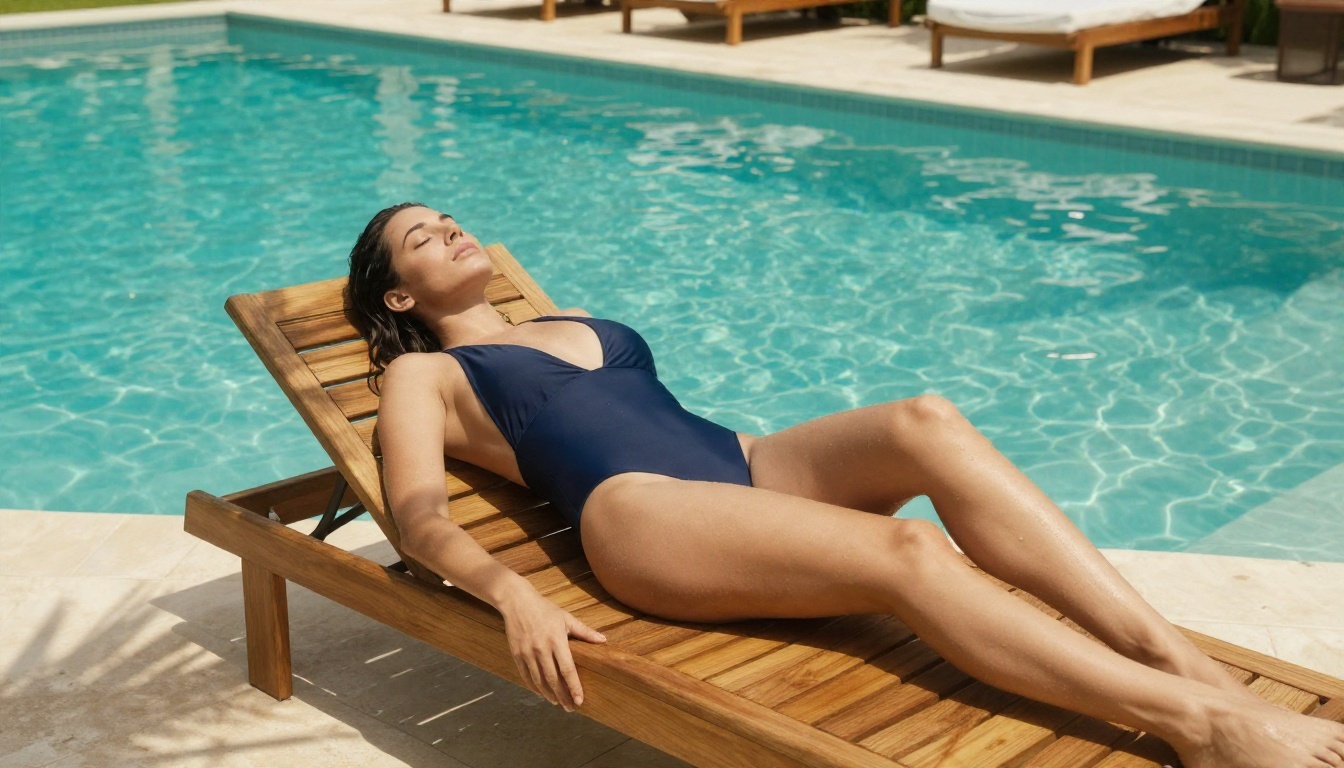
Run five variations, change one word each time, and compare. Within an hour you will know your own best settings, your own prompt style, and which model fits your look. When you want to try more options, browse every model at picassoia.com/en/all-models and build your own workflow.


