You can make a surprising amount of content with AI for exactly zero dollars. You can also burn through forty dollars a month on subscriptions you barely open. The gap between those two outcomes has little to do with talent and a lot to do with knowing how affordable AI tools are packaged: what the free tier really gives you, how credits drain, and which limits show up only after you have started a project.
This article lays it out plainly. You will see where free options are genuinely useful, how pricing models differ, which limits catch creators off guard, and how to stretch a small budget across images, video, voice and editing. Where a model is worth trying, it is linked straight to its page on PicassoIA so you can check it yourself.
What "Affordable" Really Means

"Affordable" is not the same as "cheapest". A tool that costs nothing but forces you to regenerate ten times, wait in a queue for an hour and then watermark your export is expensive in the one currency creators cannot refill: time. A fair definition is the lowest total cost per usable result, counting money, minutes and frustration.
Free vs Free Trial
Most "free" offers fall into three buckets, and mixing them up is the most common budgeting mistake.
| Type | How it works | Best for | Watch out for |
|---|
| Truly free tier | A small renewable allowance (daily, weekly or monthly) | Regular light use | Low caps, slow queues, watermarks |
| Free trial | A one time pool of credits that runs out | Testing before you commit | Auto renewal, card required |
| Lifetime cap | A fixed number of generations, ever | Quick experiments | Disappears after a few sessions |
Recent roundups of the market show all three in action. Some platforms refill a small number of image credits every few hours, others hand out weekly credits, and a few offer only a fixed lifetime allowance of around fifty generations on their free plan. A free plan that never refills is a trial wearing a free tier costume.
Hidden Costs Worth Counting
Beyond the sticker price, add up these quiet extras before you decide:
- Re-rolls: If one in four results is usable, your real cost per image is four times the listed price.
- Upscaling: Many tools generate at modest resolution and charge extra to sharpen.
- Storage and exports: Some apps limit how many projects you can keep or which formats you can download.
- Licence upgrades: Commercial use is sometimes reserved for paid plans.
- Your hours: Ten minutes of waiting per clip adds up to a full workday over a month of daily posting.
💡 Quick rule: Before paying for anything, write down what you need per month, such as 40 images and 6 short clips. Price tools against that number, not against their marketing page.
Free Options Worth Using
The free landscape in late 2026 is healthier than it was two years ago. Image generation in particular has become cheap enough that several platforms give away a respectable daily allowance. Video is still the expensive medium, so free video comes with tighter strings.
Free Image Generators
Images are where free tiers shine. Google's Gemini app has been described as one of the most generous options, offering Nano Banana 2 generation inside a regular chat. Playground AI has been reported to allow roughly ten images every three hours, with commercial use included on the free plan. Ideogram is popular for weekly free credits and for rendering readable text inside pictures.
On PicassoIA, several image models are worth a look if you want quality without a heavy bill:
- Z Image Turbo is built for sharp results in seconds, which matters when you re-roll a lot.
- Flux 2 Klein 4B Base is a lighter Flux variant that suits drafts and fine-tuning experiments.
- Nano Banana 2 Lite is tuned for fast generation when speed beats polish.
- Nano Banana Pro is the step up when you need 4K detail for a final piece.
- Seedream 4.5 handles photorealistic portraits and product scenes at high resolution.
Free Video Generators
Video burns compute, so free access is thin. Market reports describe a typical free allowance of one to five short clips per day, usually at reduced resolution, with duration caps and sometimes a watermark. CapCut advertises its generator as free without a published cap, though the exact allowance can shift. Canva's free plan leaves out its premium AI video tools. Grok has tightened daily limits on free image and video use, with fuller access tied to a paid X subscription.
If you animate stills rather than invent whole scenes from text, you spend less. Image-to-video keeps your composition fixed, so fewer clips get wasted. Two good places to start:
- Wan 2.5 I2V Fast animates an existing image quickly, which keeps experiments cheap.
- Wan 2.5 T2V Fast turns a text prompt into a clip when you have no source image.
For polished final shots, Kling v3 Video gives cinematic motion, and LTX 2.5 Fast targets quick turnaround at high resolution.
Free Voice and Audio
Voiceover is the cheapest way to lift a video from "silent slideshow" to "finished piece". AI speech models can narrate scripts in seconds, and browser-based tools let you try them before paying. Realtime TTS 1.5 Mini is a fast voice synthesis model suited to short narration, and Realtime TTS 2 handles more natural, expressive reads. If you publish in several languages, Dubbing translates a finished video into many languages without re-recording.
Pricing Without the Guesswork

Pricing pages are designed to make every plan look like a bargain. Strip them down and almost every AI tool uses one of four models.
Subscription vs Credits
| Model | How you pay | Good when | Bad when |
|---|
| Flat monthly plan | Fixed fee for a bundle of generations | Your usage is steady | You skip weeks, because unused value expires |
| Credit packs | Buy a pool, spend as you go | Usage is irregular | Prices per credit hide the real cost per clip |
| Pay per generation | A small fee for each image or video | You need a few finished assets | Heavy experimentation gets pricey |
| Hybrid | Small subscription plus extra credits | You have a base load and occasional spikes | Plans overlap and you pay twice |
Credits deserve extra suspicion. A plan that lists "1,000 credits" sounds generous until you see that a five second HD clip costs 150 of them. Always convert credits into cost per finished asset by dividing the plan price by the number of images or clips you can really produce.
A Quick Cost Check
Try this on any plan before subscribing:
- Note the monthly price.
- Find out how many credits or generations it includes.
- Find the credit cost of the exact thing you make most often, such as a 5 second 720p clip or a 2K image.
- Divide to get the price per output.
- Multiply by how many tries you usually need for one good result.
A $12 plan that gives 60 clips at a one in three success rate really costs about $0.60 per usable clip. A $30 plan that gives 100 clips at a one in two success rate costs about $0.60 as well. Same cost, very different commitment.
💡 Tip: Free tiers with a daily refill beat bigger one time credit pools for casual creators. Thirty small refills over a month often outproduce a single trial pot that you burn in a weekend.
Limits That Catch Creators Off Guard
Pricing is visible. Limits are tucked into small print and discovered mid project. Here are the ones that bite most.
Daily Caps and Queues
Free users usually wait behind paid users. A cap of five clips a day sounds fine until you realize two of them will be rejected by your own taste. Plan your free allowance like a daily budget: draft with the cheapest model, save your best prompts, and spend the final generation only on the shot you have already approved in your head.
Resolution and Watermarks
Free exports often arrive at 480p or 720p, with a small logo burned into a corner. That is fine for drafts and social previews. It is a problem for client work, ads or anything shown on a large screen. Check three things before building a workflow around a free tool: maximum resolution, watermark policy and export format.
Commercial Use Rules

This is the limit that causes real trouble. Some free plans allow commercial use, some restrict it to personal projects and some keep ownership terms vague. If you sell prints, run ads or make content for clients, read the licence line for your plan before you publish. Product shots like the candle scene above are a perfect budget use case, but only if the terms allow you to sell the result.
| Limit | Typical free tier | What to do |
|---|
| Generations per day | 1 to 10 | Draft small, finalize once |
| Video length | 3 to 5 seconds | Plan shots as short beats |
| Resolution | 480p to 720p | Upscale selected frames or clips |
| Watermark | Often present | Use for drafts only |
| Commercial rights | Varies by plan | Check licence before selling |
| Queue speed | Slower than paid | Generate off peak hours |
Apps for Creators on a Budget
Not every project happens at a desk. A lot of creators shoot, edit and post from a phone, so mobile friendliness matters as much as raw model quality.
Phone Apps Worth Having
Phone apps are best for fast edits and social formats. CapCut is a favourite for quick video editing with AI assists, Canva remains useful for layouts and thumbnails (just watch its lifetime caps on AI features) and the Gemini app doubles as a free image generator. Keep two or three apps you actually use rather than a screen full of subscriptions you do not.
Browser Tools That Pull Weight
Browser platforms are better for batch work, higher resolution and model variety. They let you switch between a fast draft model and a premium finishing model without changing apps. PicassoIA sits in this group: one place for text to image, image to video, upscaling, background removal and speech, so you are not paying three separate subscriptions for three separate steps.
A few utilities save real money because they fix what you already made rather than generating from scratch:
Smart Ways to Stretch Credits
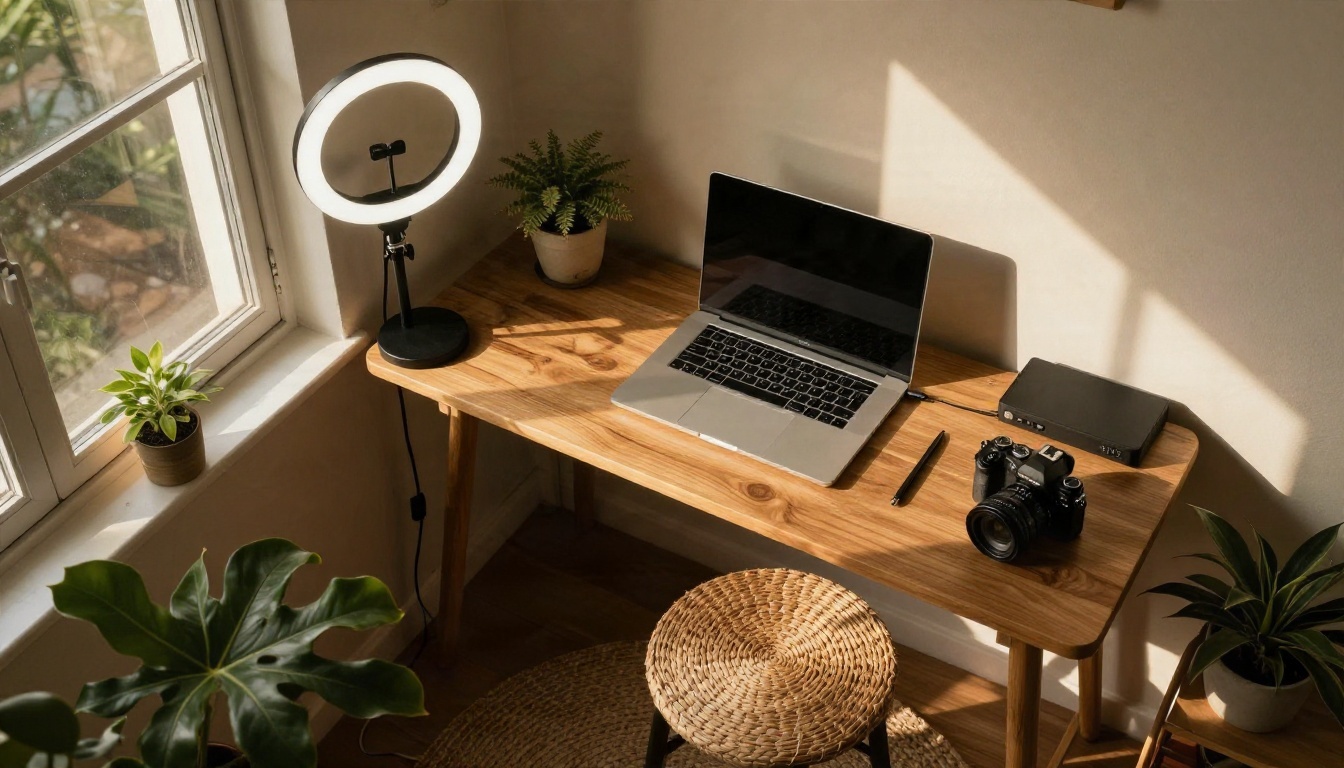
A small studio and a small budget can still produce professional looking work. The trick is to spend credits where they matter and nowhere else.
Draft Cheap, Finish Once
Treat your workflow as two stages. In stage one, use a fast, inexpensive model to test composition, wording and lighting. Run six or eight quick drafts. In stage two, take the single best prompt to a premium model for the final render. A fast model like Z Image Turbo is ideal for stage one, while Seedream 4.5 or Nano Banana Pro can handle stage two.
Here is what that looks like across a week of content:
- Monday: Write ten prompts and generate fast drafts of all of them.
- Tuesday: Pick the best three, refine wording and lock the style.
- Wednesday: Render finals at high resolution.
- Thursday: Animate two of the finals with an image-to-video model.
- Friday: Add voiceover, cut, caption and schedule.
Upscale Instead of Regenerate
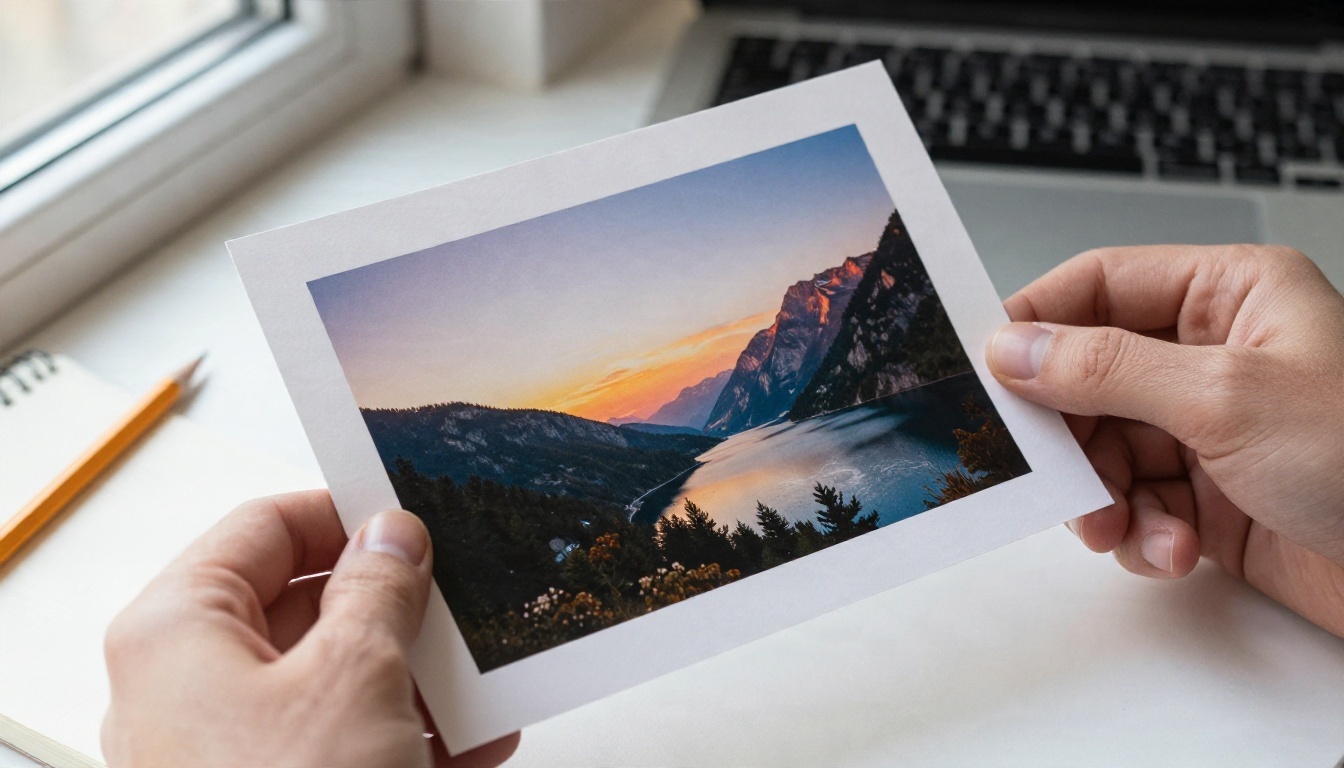
If an image is nearly right but soft, do not regenerate it ten more times. Run it through an upscaler instead. Upscaling is far cheaper than a fresh high resolution generation and keeps the composition you already like. The same logic works for video: generate at lower resolution, pick the clip that works, and upscale only that one.
💡 Budget habit: Keep a simple spreadsheet with three columns: prompt, model, result rating. After a month you will know which model gives you the best usable rate per dollar, and that number is worth more than any pricing page.
If you want a lean setup that covers a full content loop, this combination keeps spend low while still looking professional.
Model availability and per-run pricing can change, so open the model page for the current options before you plan a big batch. You can browse the full catalog at picassoia.com/en/all-models.
Start Creating Your Own Images
The cheapest AI tool is the one that gets you a usable result on the first or second try. Pick a task you repeat every week, such as thumbnails, product shots or short social clips. Run a few fast drafts, choose the best, finish it once with a stronger model, then sharpen only what you plan to publish.
Open PicassoIA, try a fast image model with a prompt from your own project, then animate your favourite result with an image-to-video model. In an hour you will have a real sense of what your budget buys. Your first batch of images is waiting at picassoia.com/en/all-models.


