You type a sentence, wait a minute, and get a clip that looks like it came off a cinema camera. That is the promise of an AI 4K video generator, and for the first time it is close to true. The catch is that three words in that promise, "4K", "free" and "length", each hide a trade-off. Some models render real 4K pixels. Others render 720p and upscale. Some are unlimited for members but stop at 10 seconds. Others run 30 seconds but cost more per clip.
This article sorts it out. You will see which models output genuine 4K, which free route gives the best result per minute, which prompts keep fine detail intact, and how long a single clip can run before you need to stitch.

What "4K" Really Means in AI Video
A 4K frame is 3840 by 2160 pixels, four times the pixels of 1080p. In AI video the label is used loosely, so it helps to separate what is actually happening under the hood.
Native 4K vs Upscaled
Native 4K means the model generates the frame at that resolution. Fine textures such as pine needles, fabric weave and skin pores are produced by the model itself, so edges look natural and not sharpened.
Upscaled 4K means the model renders at 720p or 1080p and a second model enlarges the result. Good upscalers recover a lot of detail, but they cannot invent facts the base clip never had. A distant face that was a smudge at 720p stays a cleaner smudge at 4K.
💡 Quick test: pause the clip on a frame with small repeating detail, like leaves or brick. If the detail looks painted or waxy, you are probably looking at an upscale.

Why "Free" Has Strings
Free AI video usually comes with at least one limit: lower resolution, a shorter clip, a watermark, a daily counter, or a slower queue. None of that is a problem if you know which limit you are accepting. On PicassoIA, for example, Seedance 2.5 Lite is listed as unlimited for Wonder members, tuned for 480p and 720p, with clips up to 10 seconds. That is a real trade: you give up native 4K and get unlimited drafting.
| Limit type | What you give up | Who it suits |
|---|
| Lower resolution | Pixel detail | Drafts, social clips, testing prompts |
| Shorter clip | Scene length | Loops, product shots, b-roll |
| Daily counter | Volume | Occasional use |
| Queue speed | Time | Anyone not on a deadline |
Best Models for 4K Output
Specs change fast, and vendor claims about 4K are not always consistent from one announcement to the next. The notes below follow what each PicassoIA model page lists, plus what the model makers have publicly described.
LTX 2.3 Fast and the LTX Family
The LTX line is the clearest answer to "which model gives me 4K". LTX 2.3 Fast renders up to 4K at 50 FPS with synchronized audio, supports text-to-video and image-to-video, offers camera presets such as dolly, jib and focus shift, and handles clips up to 20 seconds. If speed matters, this is the one to try first.
When you want more polish and can wait longer, look at LTX 2.3 Pro and LTX 2 Pro, both listed for 4K output from text. There is also LTX 2.5 Fast, which targets 4K generation in seconds.
Seedance 2.5 for Long Clips
Seedance 2.5 is the length champion. It produces up to 30 seconds in a single generation, with native audio, dialogue that matches lip movement, and character consistency using up to 30 reference images. For anything story-shaped, that means fewer cuts to stitch and fewer faces that drift between shots.
Its lighter sibling, Seedance 2.5 Lite, is the draft tool in the free workflow below.
Kling, Veo and Hailuo
Kling v3 Video is described by its maker as native 4K, with the PicassoIA page positioning it for cinematic 1080p video. Per-generation length tends to sit around 5 to 10 seconds, so it suits short, controlled shots. For motion transfer onto a character, Kling v3 Motion Control is built for that job.
Veo 3.1 is listed here at 1080p with native audio, with Veo 3.1 Fast as the quicker option. Hailuo 02 delivers 1080p with natural motion, and Hailuo 02 Fast trades resolution for speed at 512p.
| Model | Output on PicassoIA | Typical clip length | Best for |
|---|
| LTX 2.3 Fast | Up to 4K, 50 FPS | Up to 20 s | Fast native 4K |
| LTX 2.3 Pro | 4K | Short to mid | Polished 4K from text |
| Seedance 2.5 | High resolution with audio | Up to 30 s | Long, story-driven shots |
| Seedance 2.5 Lite | 480p and 720p | Up to 10 s | Unlimited drafts |
| Kling v3 Video | 1080p listed | About 5 to 10 s | Cinematic motion |
| Veo 3.1 | 1080p with audio | About 8 s base | Realistic scenes with sound |
| Hailuo 02 | 1080p | Short | Natural movement |
💡 Treat every length number as a ceiling, not a promise. Some settings, like higher resolution or frame rate, shorten the maximum allowed duration on certain models.

The Free Route: Draft, Then Upscale
Native 4K is the cleanest path, but it uses the most credits. A smarter way to stretch a free allowance is to separate finding the shot from finishing the shot.
Draft at 720p
Run your idea through Seedance 2.5 Lite first. Because it is unlimited for members, you can try ten variations of a prompt without counting. Change one thing per attempt: the camera move, the light, or the subject. Keep the version where motion and composition feel right.
Upscale the Winners
Once you have the keeper, send it through a video upscaler. PicassoIA lists several:
The draft-then-upscale route works best for landscapes, product shots and slow camera moves, where the base clip already has clear structure. It works worst for tiny text, crowds and fast hand movement, because the upscaler has little real detail to build on.
Prompts That Hold 4K Detail
A sharp prompt gives a 4K model something real to render. Vague prompts waste pixels.
A Simple Prompt Formula
Write in the order the viewer would see the shot:
- Subject and starting pose. Who or what is in frame at second zero.
- Motion over time. What moves, and how fast.
- Camera. Dolly in, slow pan, static, handheld.
- Light and atmosphere. Direction, time of day, weather.
- Texture cues. Wet stone, wool, brushed metal, morning mist.
💡 Mention a lens or focal length, such as "35mm, shallow depth of field". It nudges framing and background blur without needing extra adjectives.
Two Prompts to Copy
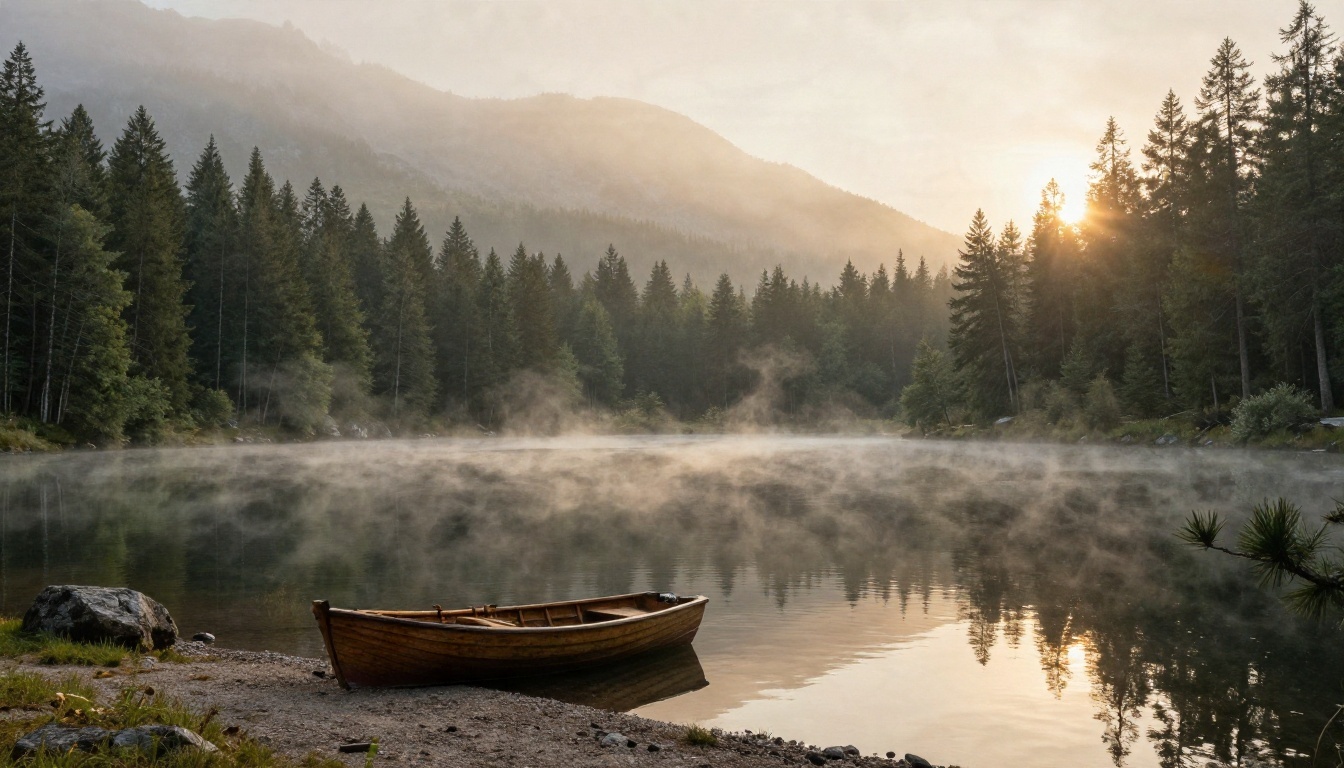
Landscape test (shows native detail):
A misty alpine lake at sunrise, a lone wooden rowboat drifting near the shore, slow dolly forward over the water, low golden light from the right, fog lifting between pine trees, sharp needle detail, natural color, soft ambient birdsong.
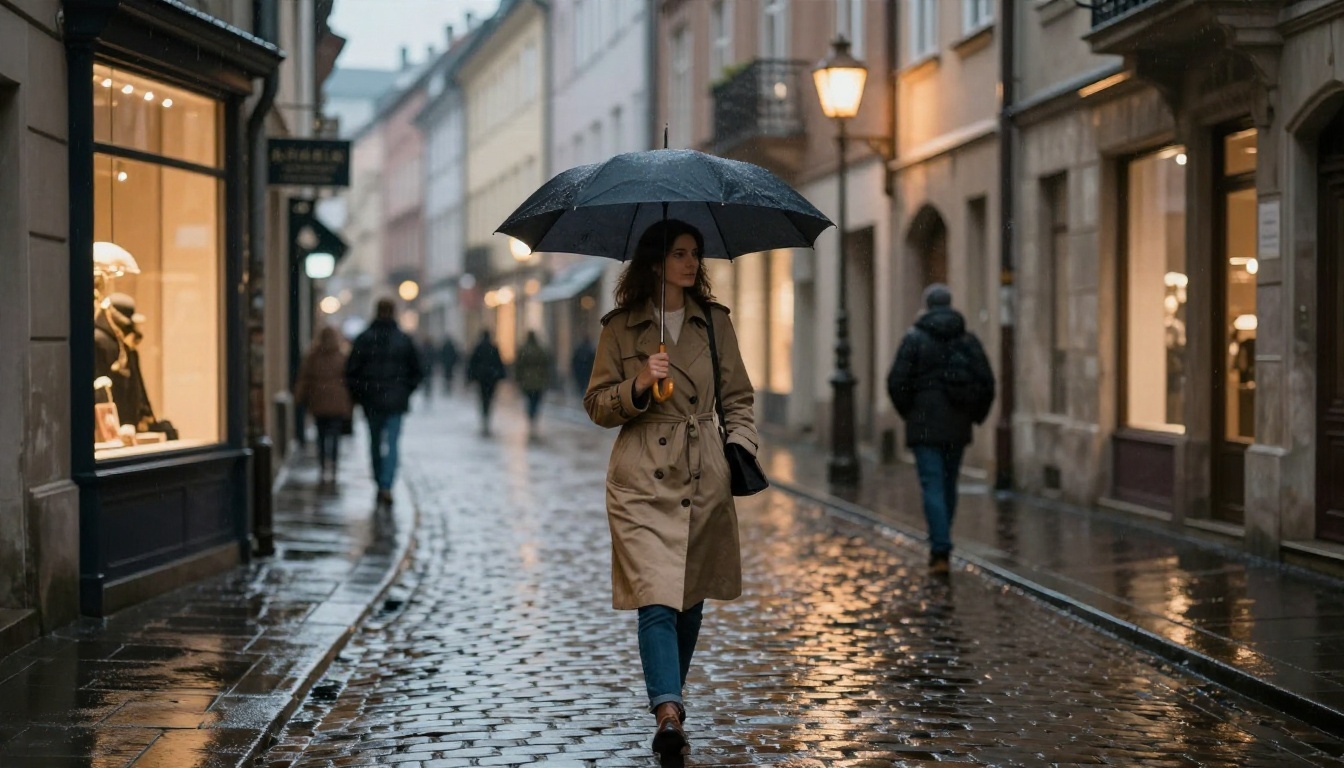
City test (shows motion and reflections):
A woman in a trench coat walks along a rainy old-town street at dusk, umbrella in one hand, wet cobblestones reflecting warm shop windows, camera tracks alongside at eye level, 85mm lens, gentle drizzle, footsteps and distant traffic.
Three Mistakes to Skip
- Overloading the scene. Five subjects, three actions and a camera spin give the model too much to resolve. Pick one main action.
- Asking for readable text. Signs and screens drift between frames. Leave text for editing.
- Ignoring the first frame. Image-to-video gives you control over composition. Start from a sharp, well-lit still and the clip inherits that quality.
Length Limits by Model
Clip length is where most "free 4K" promises fall apart. A model may advertise 4K, and also cap the clip at 5 seconds. Here is a realistic picture.
| Range | Models | What fits |
|---|
| 5 to 8 seconds | Veo 3.1 base clips, many Hailuo and Kling runs | One camera move, one action |
| Up to 10 seconds | Seedance 2.5 Lite | A short scene with a beginning and end |
| Up to 20 seconds | LTX 2.3 Fast | A small sequence in one pass |
| Up to 30 seconds | Seedance 2.5 | Dialogue scenes, ad spots |
What Fits in 5 Seconds
Five seconds is enough for a product turn, a pour, a head turn, or a single push-in. If your idea needs a setup and a payoff, plan for 10 seconds or more.
Stitching Longer Videos
When a clip must run beyond one generation, use first and last frame control where available. End clip one on a frame, then start clip two from that same frame. Seedance 2.5 supports defining both frames, and LTX 2.3 Fast can interpolate between a first and last frame. Keep the lighting and lens description identical across prompts so the cut feels invisible.
How to Use Seedance 2.5 Lite on PicassoIA
This is the fastest free-style workflow, since drafting is unlimited for members.
- Open the Seedance 2.5 Lite page.
- Paste a prompt using the formula above, or upload a still image to use as the first frame.
- Choose 720p for the final draft pass, or 480p for very fast tests.
- Pick a duration: 5 seconds for a single beat, 10 seconds for a fuller shot.
- Generate, watch the clip twice, and note what moved wrong.
- Edit one variable and generate again.
- When one clip is right, send it to Video Upscale for a 4K finish.
💡 Parameter tips: keep the prompt under about 80 words, name one camera move, and say what stays still. A static background gives the model more attention to spend on your subject.
If you need real 4K from the start, switch the same prompt to LTX 2.3 Fast and pick the 4K setting. Compare the two outputs side by side. You will usually see the difference in fine textures like hair, fabric and foliage.
Which Setup Should You Pick?
Make Your First 4K Clip Today
The best way to settle the "native or upscaled" question is to run the same prompt twice. Write one of the sample prompts above, draft it in Seedance 2.5 Lite, then render it again in LTX 2.3 Fast and compare the frames. Try your own scene next: a product on a table, a street at dusk, a lake at sunrise.
Every model mentioned here lives on PicassoIA, so you can switch between them without leaving the platform. Browse the full list at picassoia.com/en/all-models, pick a model, and send your first prompt. The clip you want is probably two or three tries away.


