Most people searching for an AI adult video generator want the same three things: a tool that does not flinch at glamour content, a price that is zero or close to it, and a result that looks like a real person filmed it, not a melted cartoon. That is a short list, and yet most tools fail at least one item. They block a simple bikini prompt, they hide the good settings behind a paywall, or they hand you five seconds of warped faces.
This article shows what actually works for private NSFW clips in the suggestive, glamour, boudoir style: satin, lace, swimwear, soft light, slow movement. You will see the image-first workflow that gives the most stable results, the models worth your time (several are free), prompts you can copy today, and the privacy habits that keep your clips yours.
💡 Scope note: everything here is about adult, consenting, fictional or self-owned content in a tasteful, non-explicit style. Think magazine boudoir shoot, not hardcore footage.
What an AI Adult Video Generator Does
An AI adult video generator takes a text prompt or a photo and produces a short moving clip, usually 5 to 10 seconds, sometimes longer. For the glamour and boudoir niche the output is typically a slow camera push, hair moving in a breeze, fabric shifting, a glance toward the lens.
Text to video vs image to video
There are two ways in, and they behave very differently.
| Method | You provide | Best for | Weak spot |
|---|
| Text to video | A written prompt only | Fast ideas, scene exploration, no source needed | Faces and hands drift, looks vary between runs |
| Image to video | A still photo plus a motion prompt | Consistent character, wardrobe and lighting | You need a good first frame |
For anything private and personal, image to video wins. The still image locks in the face, the outfit and the lighting. The video model only has to add motion, which is a much easier job than inventing everything at once.
Why "private" matters
A lot of people want this for themselves, for a partner who agreed to it, or for an original fictional character they invented. Privacy is a feature you should check before you pick a tool: where files are stored, whether your prompts are public, and whether the platform lets you delete a clip. We come back to this near the end.
Online and Free: What Is Realistic
Free is possible, but you should know which kind of free you are getting.
Three kinds of free
- Free trial credits: a handful of generations, then a paywall. Fine for testing, bad for iteration.
- Free with a watermark: usable for experiments, not for anything you want to keep clean.
- Free and unlimited: rare, and the one that matters if you plan to run dozens of attempts per clip.
AI video is a numbers game. A good clip often takes 4 to 8 tries because motion is unpredictable. A tool that charges per try makes you stingy with iterations, and that is exactly when results get worse.
The free options on PicassoIA
Seedance 2.5 Lite is listed as a free and unlimited video generator with clips up to 10 seconds. That is the one to start with when you want to test prompts without watching a credit counter. For the still image that becomes your first frame, PicassoIA Image Editor Pro offers unlimited generations, which means you can fix a hand, change a dress colour or adjust the light as many times as you like before spending any video attempts.
💡 Budget trick: do all your experiments on the still image. Images are cheap and quick. Only send the final frame to the video model.
The Image First Workflow That Works
This is the exact order that gives the most stable clips. Skip a step and you will feel it in the output.
Step 1: Build the first frame
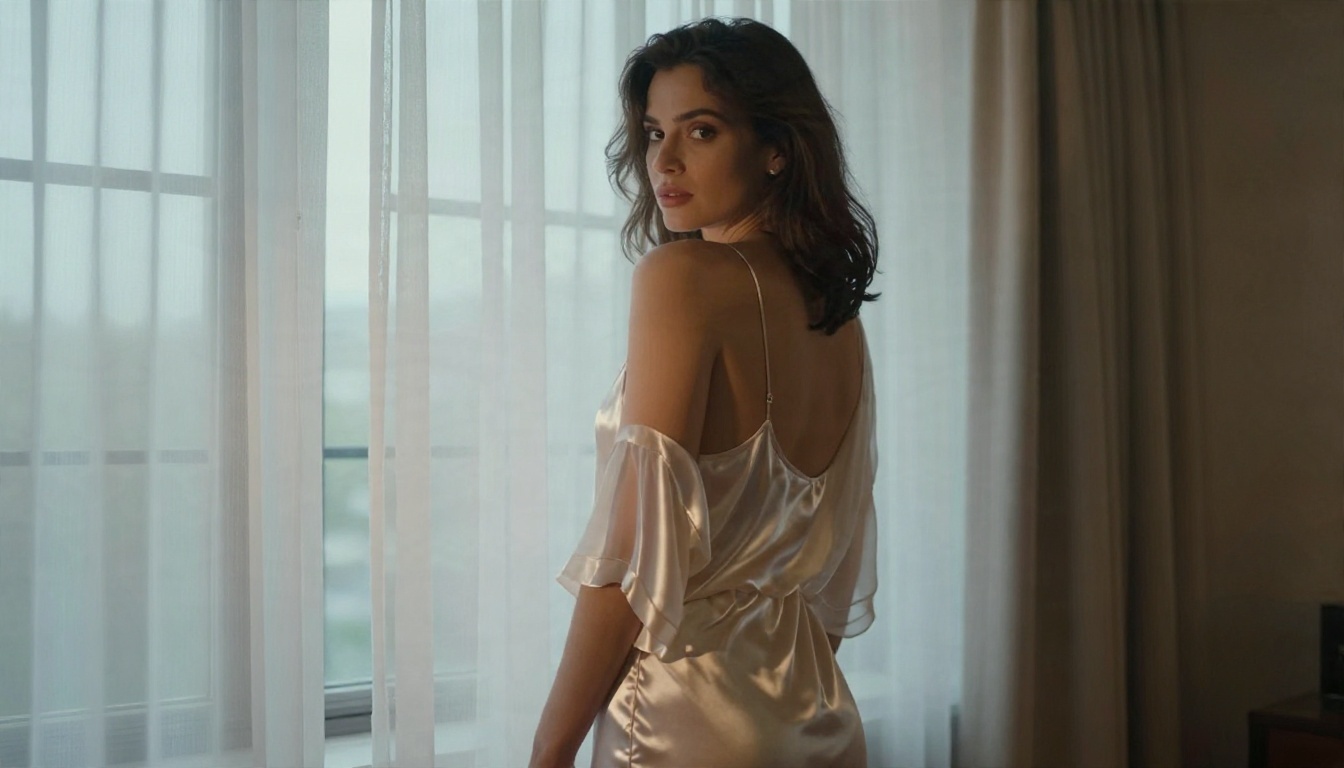
Start with a still that looks like the first frame of a film. Wide enough to show body and setting, a simple background, one clear light source. Seedream 4.5 is the model to lead with here. It produces up to 4K stills with natural skin texture, convincing fabric and lighting that looks photographed, and it is comfortable with glamour, swimwear and boudoir themes that other models refuse outright.
Step 2: Polish the still
Real photos have flaws, and AI stills have different ones: a sixth finger, a strap that merges into skin, a background lamp that bends. Run the still through PicassoIA Image Editor Pro and describe the fix in plain words. Because generations are unlimited, you can keep correcting until the frame is clean. This step saves more video attempts than any other.
Step 3: Animate with a short motion prompt
Now send the polished image to an image to video model. Keep the motion prompt short and physical. Describe what moves and how the camera moves, nothing else. The face, outfit and room are already defined by the image.
Step 4: Pick the best take and upscale
Generate several takes, pick the one with the calmest motion, and upscale if you need a sharper file. Calm clips look expensive. Frantic ones look fake.
Models Worth Using, in Order
Here is a straight comparison. Everything below is on PicassoIA and linked to its model page.
Why lead with Seedream 4.5
Video quality is capped by the first frame. A soft, plasticky still produces a soft, plasticky clip. Seedream 4.5 gives you sharp pores, believable satin highlights and sensible anatomy, so the video model has solid material to work with.
Why speed matters more than you think
Fast models change how you work. When a generation takes seconds, you try ten variants of a prompt and keep the best. When it takes minutes, you settle for the second one. Pair a fast still model with an unlimited video option and you will naturally end up with better clips, simply because you tried more.
Prompts You Can Copy Today
Prompts below are written for suggestive, tasteful clips. Replace the bracketed parts with your own details.
Prompts for the first frame
Use these in Seedream 4.5 or PicassoIA Image Editor Pro:
- Raw photograph of an adult woman in a [champagne satin robe] sitting on a rumpled white linen bed, soft window light from the left, 85mm f/1.8, natural skin texture, Kodak Portra 400 film grain.
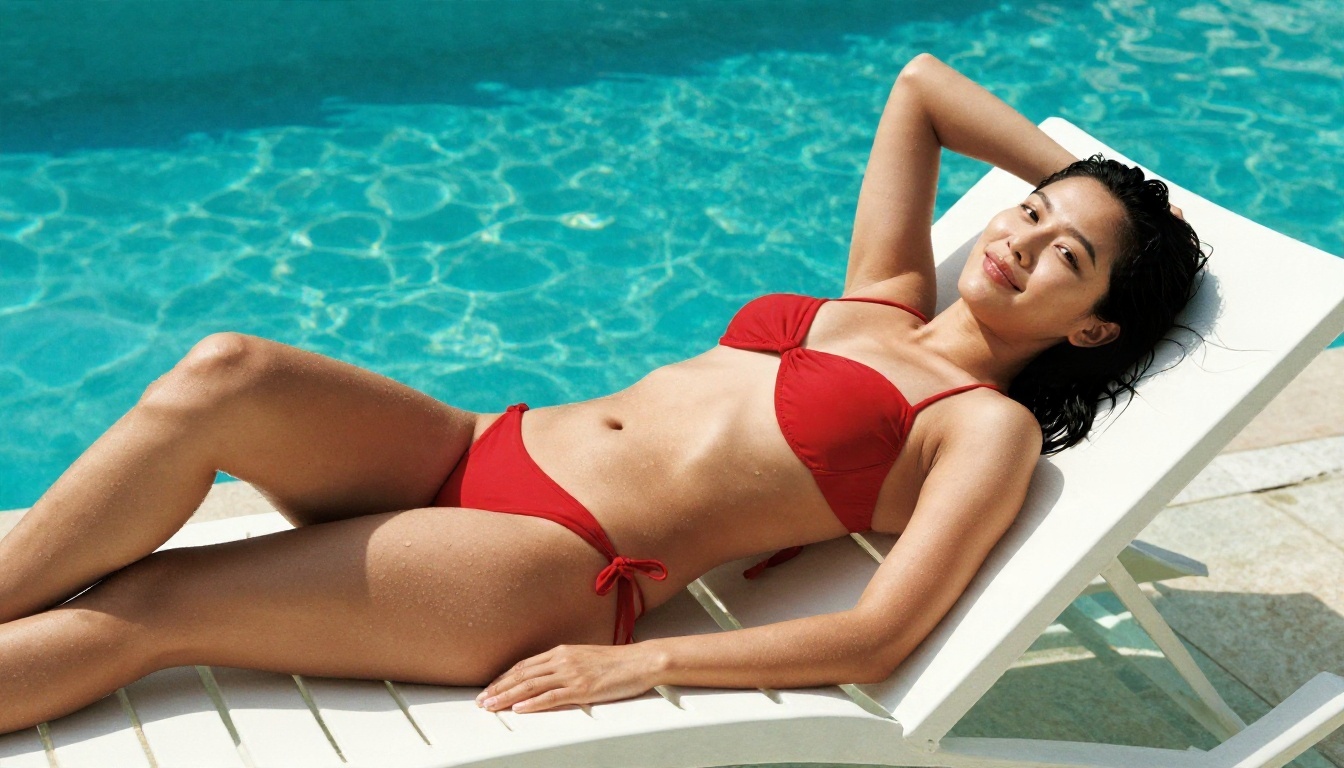
- Adult woman in a [red two piece swimsuit] on a white lounger beside a villa pool, bright midday sun, water droplets on skin, 70mm lens, low angle, realistic skin.
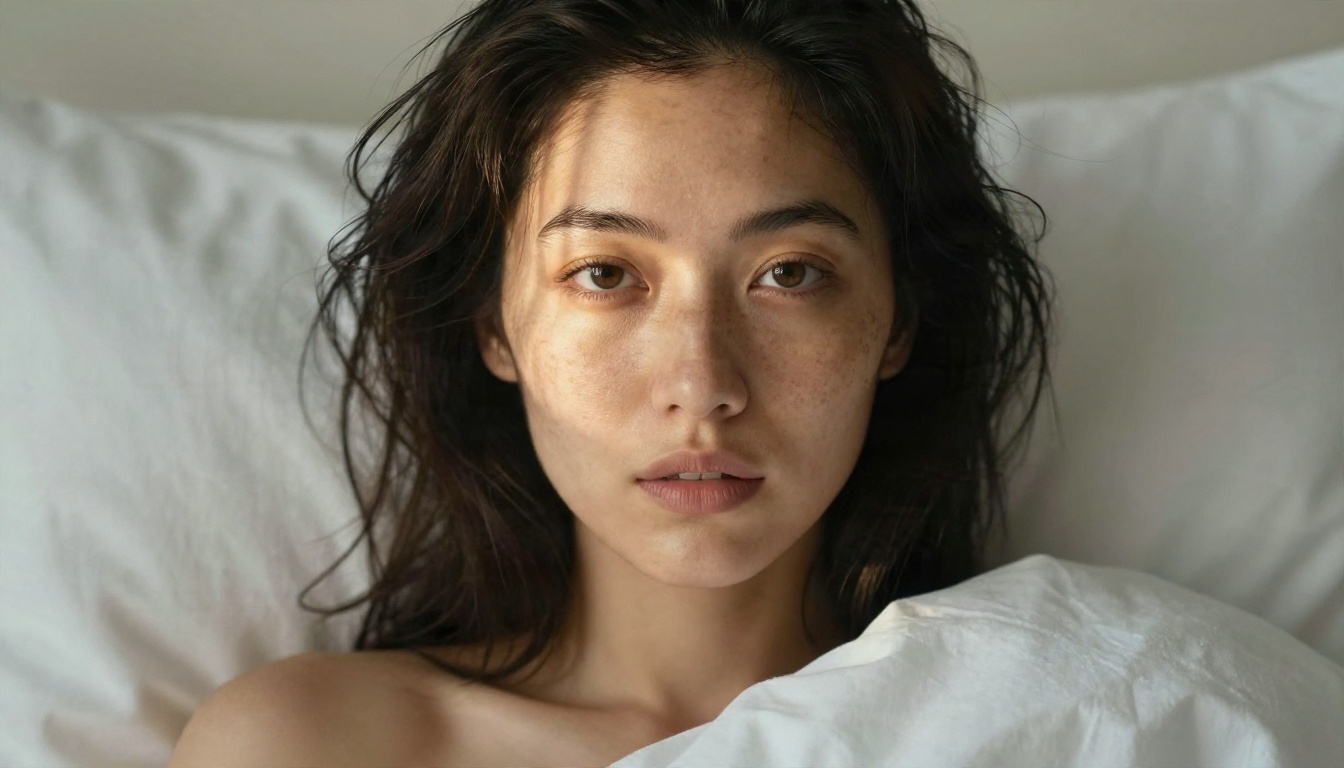
- Close-up portrait of an adult woman wrapped in a white bedsheet, tousled hair, freckles visible, shallow depth of field, warm window light.
- Adult woman in an [emerald satin slip dress] in a candlelit hotel corridor, glancing back at the camera, warm sconces, telephoto compression.
Prompts for the motion
Use these in an image to video model such as Seedance 2.5 Lite or Wan 2.7 I2V:
| Goal | Motion prompt |
|---|
| Slow reveal | Slow dolly in toward her face, she tilts her head and smiles at the lens, curtains stir softly, warm light. |
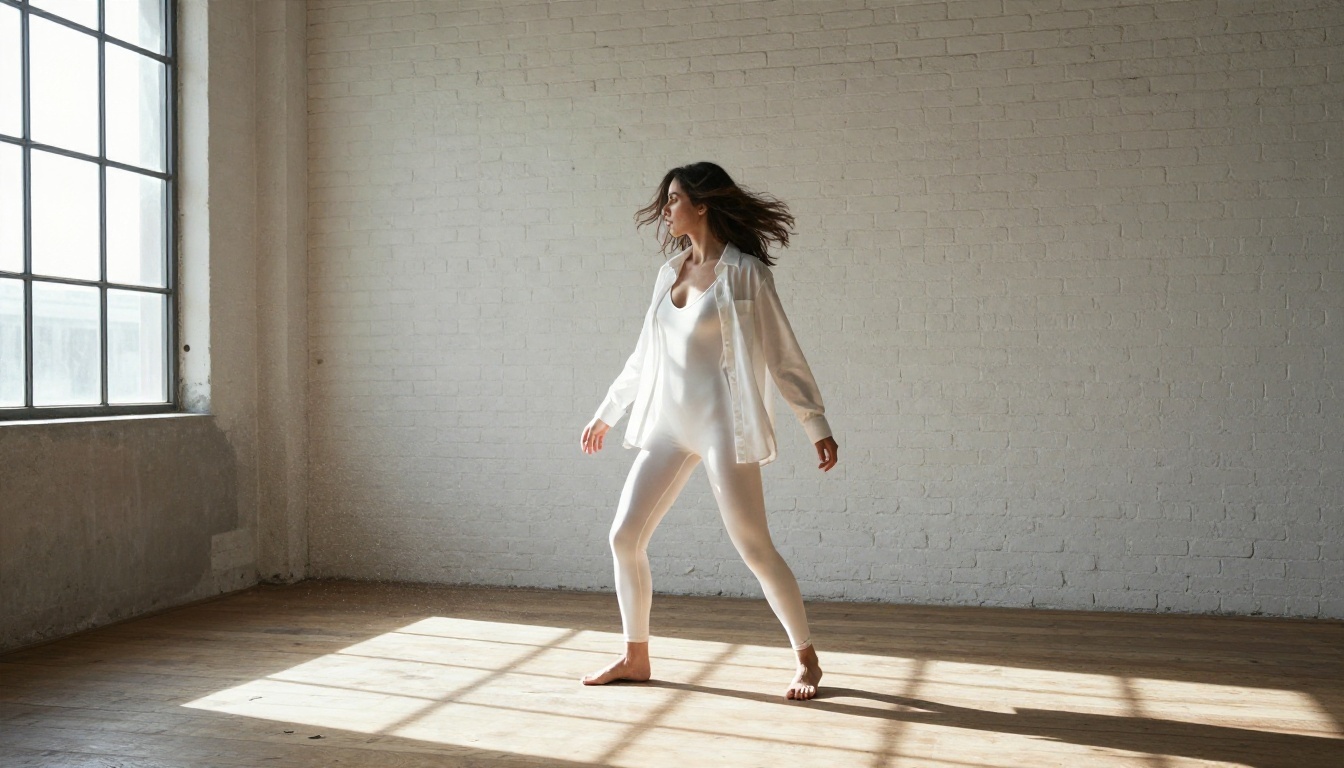
| Breeze and fabric | Gentle breeze lifts the satin robe and her hair, slow pan from left to right, soft morning light. |
| Poolside | Camera drifts low along the lounger, she turns her head toward the lens, water ripples in the background. |
| Walking away | She walks slowly down the corridor and glances back over her shoulder, camera follows at a steady distance. |
| Close and quiet | Almost still, slight breathing, a slow blink, tiny push in, shallow depth of field. |
💡 Rule of thumb: one subject action, one camera move. Stack three actions and the model starts inventing limbs.
Wording that backfires
- Long lists of adjectives about the body. The model gets confused and the face drifts.
- Asking for fast movement. Speed breaks faces and fabric first.
- Conflicting light sources. Pick one: window, lamp, or sun.
- Mentioning five outfits. One outfit per clip.
Fixing Common Problems
Even a good workflow breaks sometimes. Here is how to repair the usual failures.
Face changes mid clip
The video model is reinventing the face because the first frame is too small or too soft. Use a closer, sharper still, and pick a model with strong subject stability such as Wan 2.7 I2V. Shorter motion prompts also help.
Fabric melts into skin
This happens with busy straps or thin lace. Change the outfit in the still first. Satin slips, robes and simple swimwear animate far better than layered lingerie with many fine straps. Use PicassoIA Image Editor Pro to swap the garment before animating.
Motion looks stiff
Add one natural, small movement: a breath, a blink, a hair strand lifting. Stiff clips usually have only camera motion and a frozen subject. A tiny subject motion makes the whole thing feel alive.
The clip looks too sharp and fake
Add film language to the still: Kodak Portra 400 grain, soft highlight rolloff, a slight vignette. A photographic still gives you a photographic clip.
Keep Your Clips Private
Private content deserves a few boring habits.
Rules worth following
- Adults only. Every person depicted must be an adult, whether real or fictional.
- Consent first. Never animate a real person's photo without their clear permission. That includes exes, coworkers and public figures.
- Keep originals offline. Store source photos and finished clips on your own drive, not in a shared cloud folder.
- Strip metadata. Photos can carry location and device data. Remove it before sharing anything.
- Check platform terms. Read how long files are stored and whether you can delete them.
For couples
Some pairs use this together, picking outfits and scenes as a shared creative project. That works well when both people agree on the rules in advance: what gets made, who keeps the files, and what gets deleted. A short conversation up front prevents most regrets.
Fictional characters are the safest route
If you want zero consent questions, invent a character. Describe her once in detail, generate a consistent first frame, and reuse that description across every clip. You get a recognisable persona and no real person is involved.
Quick Start With Your Own Clip
Here is the shortest path from nothing to a finished clip.
- Open Seedream 4.5 and generate three first frames using the prompts above.
- Pick the best one and refine it in PicassoIA Image Editor Pro. Fix hands, straps and background until it is clean.
- Send the polished frame to Seedance 2.5 Lite with a one action, one camera move prompt.
- Run 4 to 6 takes. Keep the calmest one.
- If you want a longer or richer version, try the same frame in Seedance 2.5 or Wan 2.5 I2V.
The whole loop takes a few minutes once you have a prompt you like, and the unlimited options mean you never ration your attempts.
Make Your First Clip Today
You now have the full picture: a first frame from Seedream 4.5, a polish pass in Image Editor Pro, a free and unlimited video model, and prompts that keep motion calm and faces stable. The only thing left is practice. Start with one outfit, one light source and one slow camera move, then change a single detail per attempt so you can see what each change does.
Open PicassoIA, generate your first frame, and send it to video. When you want to see what else is available, from other photo animation models to upscalers and editors, browse everything at picassoia.com/en/all-models and build your own private workflow.


