Upload one selfie, pick the number 70, and a few seconds later a stranger with your eyes looks back at you. That small jolt is why an AI age progression app keeps climbing the download charts. People use them for family photo nights, birthday jokes, acting references, school projects, and plain curiosity about how time will treat their face. Some results look uncannily real. Others look like a wax figure left near a radiator.
The difference rarely comes down to luck. It comes down to which tool you pick, how good your source photo is, and a handful of settings most people leave on default. This article walks through how photo aging works, which apps are worth a try in 2027, which settings matter, and what to use when a single-button app is too limiting.
What an Age Progression App Does
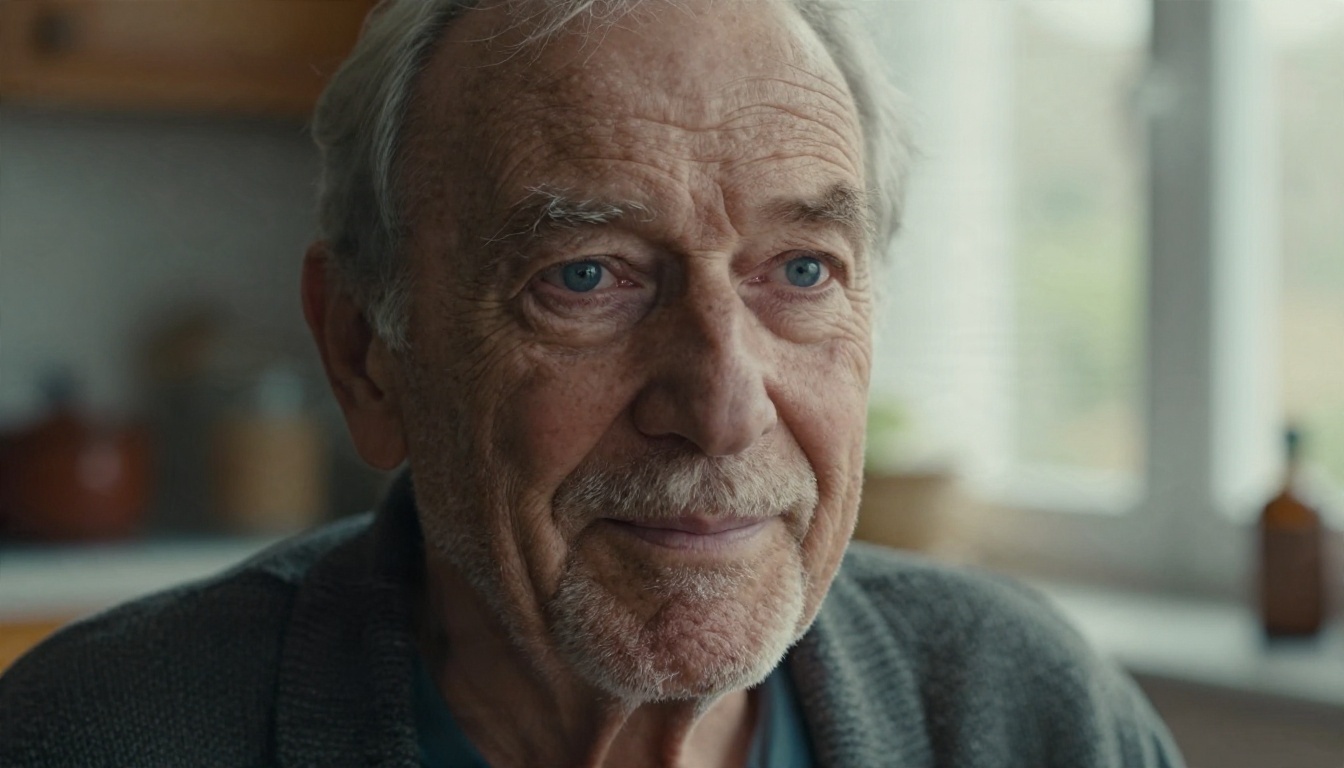
At its simplest, an age progression app takes a face and predicts how it would look at an older age. Older apps did this with crude overlays: they pasted wrinkle textures on top of your skin and darkened the eye sockets. Modern tools use generative models that rebuild the face while trying to keep the identity intact.
How the Aging Model Works
The model has been trained on huge sets of faces labeled by approximate age. It learns patterns: skin loses elasticity, the nasolabial folds deepen, eyelids droop, hair thins or turns gray, and the jawline softens. When you request age 70, it nudges your face along that learned direction while a second process tries to protect the features that make you look like you, such as eye spacing, nose shape, and the curve of your mouth.
That balance is the whole game. Push too hard toward "old" and you lose your identity. Push too hard toward identity and the result looks like you with a light filter.
Where Results Go Wrong
Most failures fall into the same few buckets:
- Identity drift: the older face looks like a different person
- Plastic skin: wrinkles appear, but the surface stays smooth and glossy
- Mismatched hair: gray hair is added, but the hairline and density never change
- Neck and hands ignored: the face ages while the neck stays twenty-five
- Heavy filters: the whole photo gets a sepia or grain wash that hides the flaws
💡 Quick test: zoom in on the ears and neck of any result. If they look younger than the face, the tool only edited the face region and the image will feel off.
Photo Aging Apps Worth Trying
The app stores are crowded, and free plans change constantly. The list below reflects what was publicly listed in late 2026. Treat pricing and limits as a snapshot and check each listing before you commit.
Age Progress Photo
The Age Progress Photo listing on the App Store shows a free download with in-app purchases. The workflow is the simplest in this roundup: upload a photo, choose a target age such as 60, and get an aged portrait. It suits quick experiments and sharing with friends, though there is little room for fine adjustment.
Age Swap
Age Swap is listed as free and was updated in July 2026. Its pitch is range: it advertises results from baby all the way to 120. That makes it handy if you want the full timeline of one face, from toddler to great-grandparent, in a single session.
Higgsfield
Higgsfield positions its age tool as part of a larger paid toolkit with a free starting tier. It offers single-photo aging, de-aging, and multi-age grids, with a focus on preserving likeness. If you want several ages side by side for one photo, the grid format saves a lot of repeat work.
MyMIG AI
MyMIG AI is a browser-based option, so there is nothing to install. One review site reports 10 free age progression credits per day without a watermark, though you should confirm that on the site itself since such terms shift often.
| Tool | Format | Pricing (as listed) | Best for |
|---|
| Age Progress Photo | Mobile app | Free with in-app purchases | One-tap aging |
| Age Swap | Mobile app | Free | Baby to 120 timeline |
| Higgsfield | Web, paid | Free starting tier | Multi-age grids |
| MyMIG AI | Browser | Daily free credits reported | No-install testing |
💡 Reality check: reviews of these apps are often promotional, and none of them is medically or forensically accurate. Use the results for fun, creative projects, and family curiosity, not as a real prediction.
Settings That Change the Result
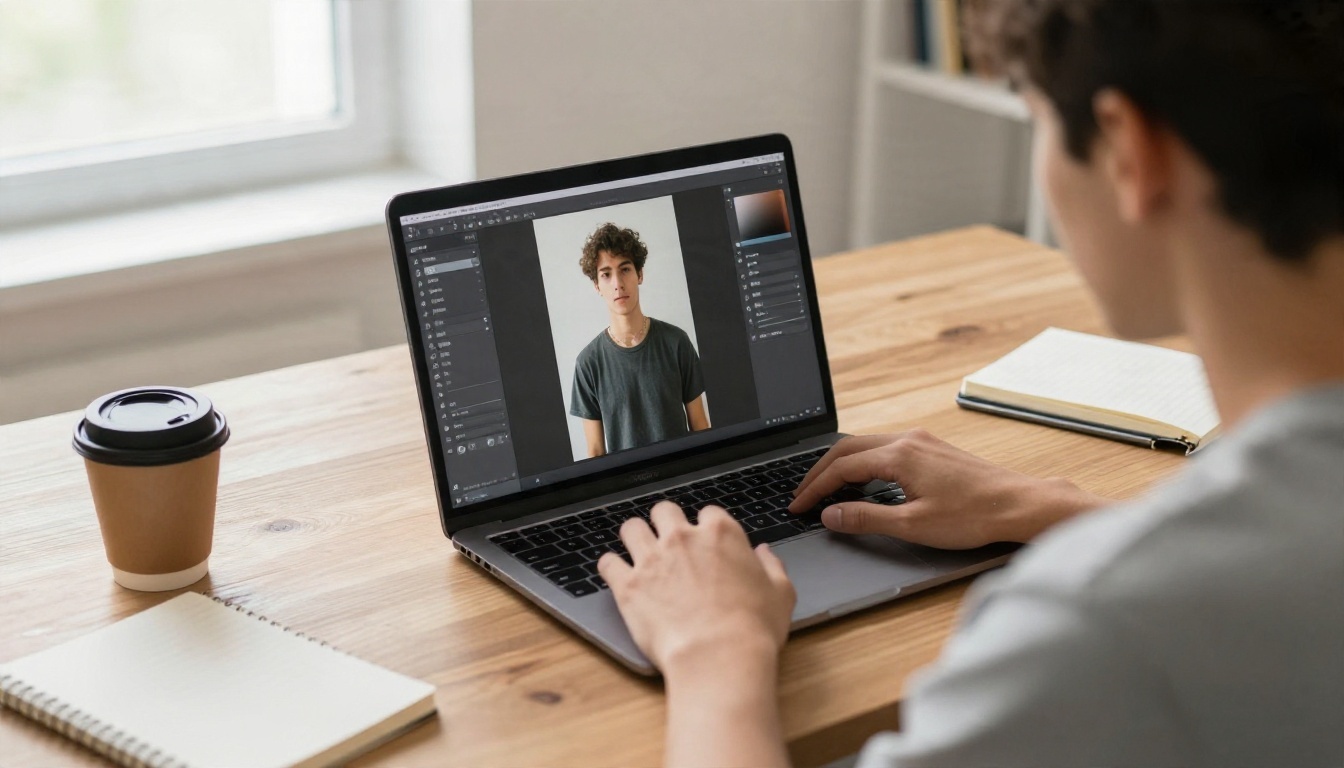
Even the simplest app has levers. Some are visible sliders. Others are hidden in your input photo. Getting these right matters more than switching between apps.
Target Age
Jumping from 25 to 90 asks the model to invent a lot. Smaller steps give more believable output. Try 45, 60, and 75 in separate runs and compare. You will often find that 60 to 65 looks the most natural, because the model has seen thousands of faces at that age with clear, consistent features.
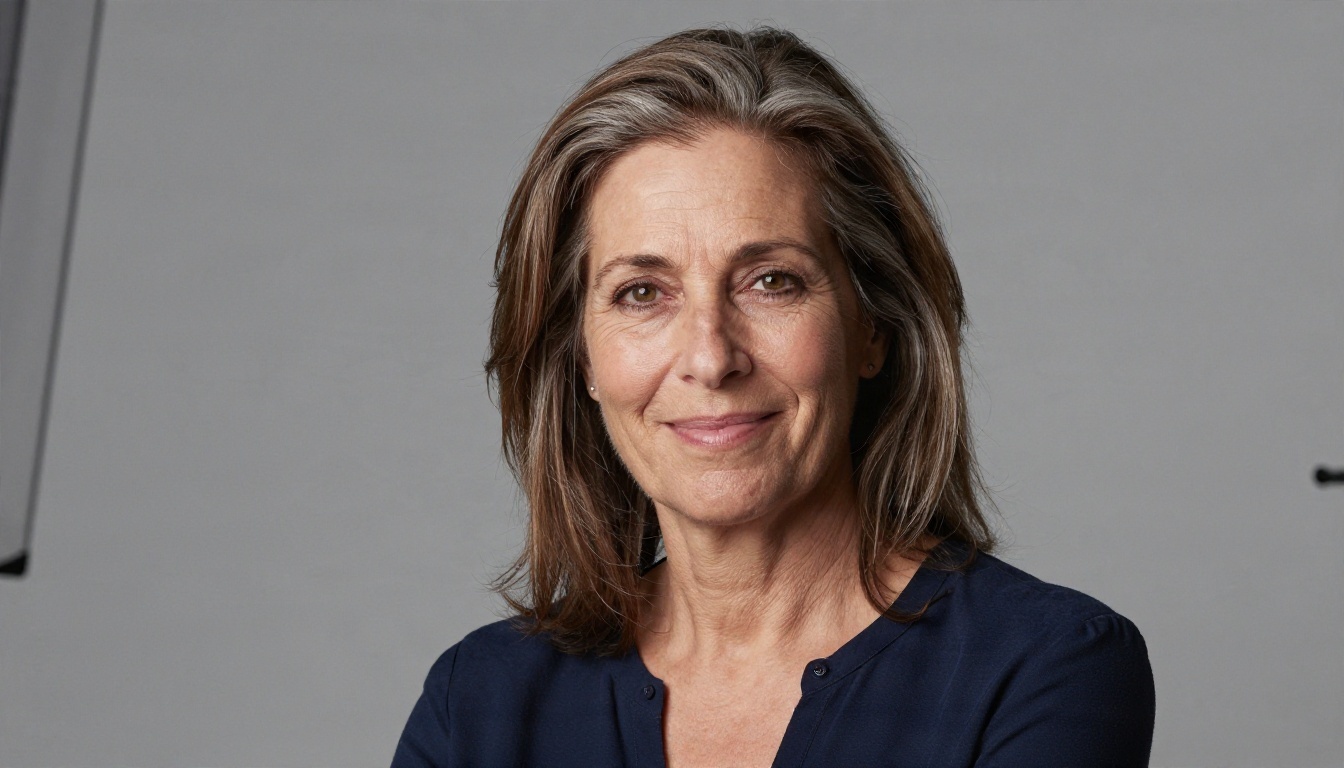
Photo Quality and Angle
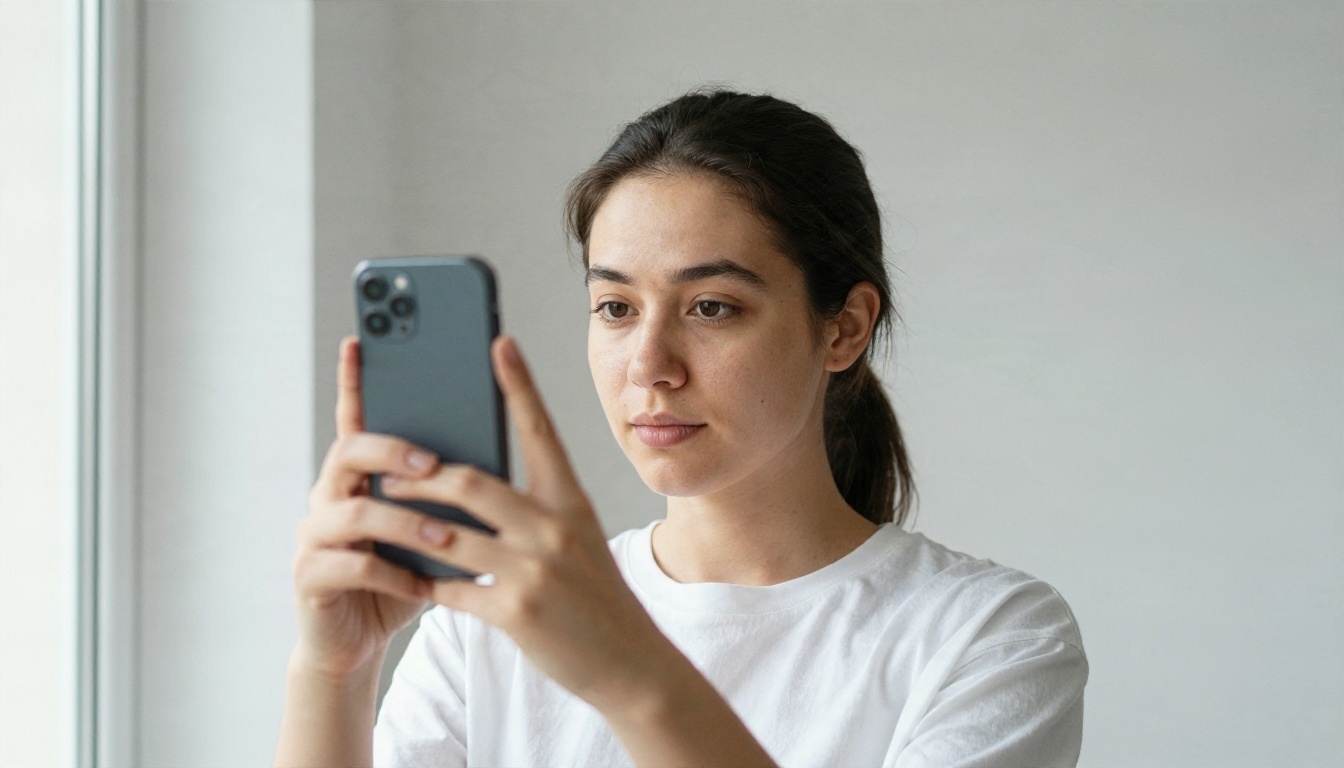
A clean source photo is worth more than any slider. The best inputs share the same traits:
- Front-facing: the face is straight to the camera, not tilted
- Even light: soft window light, not harsh overhead sun
- No obstructions: no sunglasses, hats, or hair covering the forehead
- High resolution: sharp enough to show skin pores
- Neutral expression: a relaxed face ages better than a wide grin or squint
If your only photo is small or blurry, sharpen it first with an upscaler like Real ESRGAN before running the aging step. Extra detail gives the model more to work with.
Lighting and Expression
Strong side shadows get misread as wrinkles or sagging, and the model may exaggerate them. A big smile creates deep creases that the aging model will push even further. A calm face with soft light produces smoother, more believable aging.
💡 Pro habit: take three source photos in the same light with slightly different expressions, and age all three. Pick the one where the result still looks like you.
Alternatives to Dedicated Aging Apps
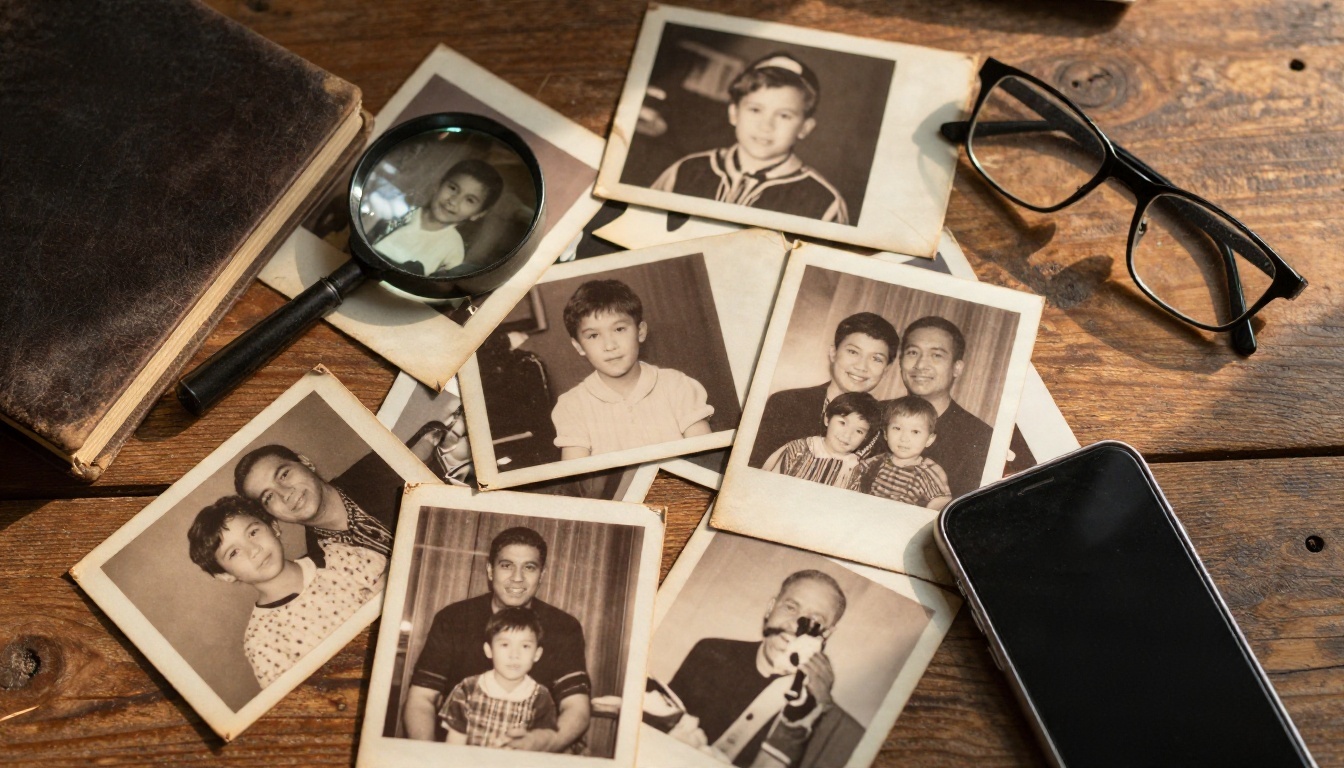
One-button apps are fun, but they have limits. You cannot say "keep my beard dark but make the hair white" or "add reading glasses and a warm smile." They also tend to put usage caps, watermarks, or upsells in your way. General image editors driven by text prompts solve that.
General AI Photo Editors
A prompt-based editor lets you describe the exact aging you want. Instead of picking a number, you write something like: "same person at 68 years old, natural gray hair, deeper smile lines, soft crow's feet, realistic skin texture, same lighting." You control hair color, skin condition, clothing, and mood in a single sentence.
On PicassoIA, several models handle this well:
The pairing that works well is two steps. First, use an editor to age the face. Second, use Change Haircut to refine the hairline, since hair is the detail most aging tools get wrong.
How to Age a Photo on PicassoIA
Here is a simple workflow using PicassoIA Image Editor Pro, which works well when you want to try many ages without counting credits. The same approach applies to Nano Banana and Flux Kontext Fast.
Step 1: Prepare the Photo
Pick a front-facing portrait in soft light. If it is small, run it through Real ESRGAN first so the skin texture is crisp.
Step 2: Upload and Write the Prompt
Open the model page, upload your photo, and write a specific instruction. A prompt that works well:
Keep the same person, face shape, and eye color. Age them to about 65. Add natural gray hair, soft wrinkles around the eyes and mouth, slightly thinner skin, realistic skin texture, same lighting and background.
Notice what the prompt protects: identity, lighting, background. Those phrases stop the model from redrawing everything.
Step 3: Generate Several Ages
Run the same photo at 45, 55, 65, and 75. Keep every other word of the prompt identical so you can compare cleanly. This is where an unlimited editor pays off, because you can experiment freely.
Step 4: Refine in Small Edits
If the face is right but the hair is wrong, do not start over. Feed the result back in with a short instruction such as "make the hair whiter and thinner at the temples." Small, targeted edits keep the likeness stable.
Step 5: Save the Best Version
Choose the result that still feels like you, then upscale it if you plan to print it or use it on a large screen.
Mistakes That Ruin Aged Photos
A few habits account for most disappointing results.
Starting with a filtered selfie. Beauty filters smooth out the exact textures an aging model needs. Use an untouched photo.
Asking for too many changes at once. "Make me 80, bald, bearded, wearing a suit, standing in a library" is a recipe for drift. Change age first, then add extras in separate edits.
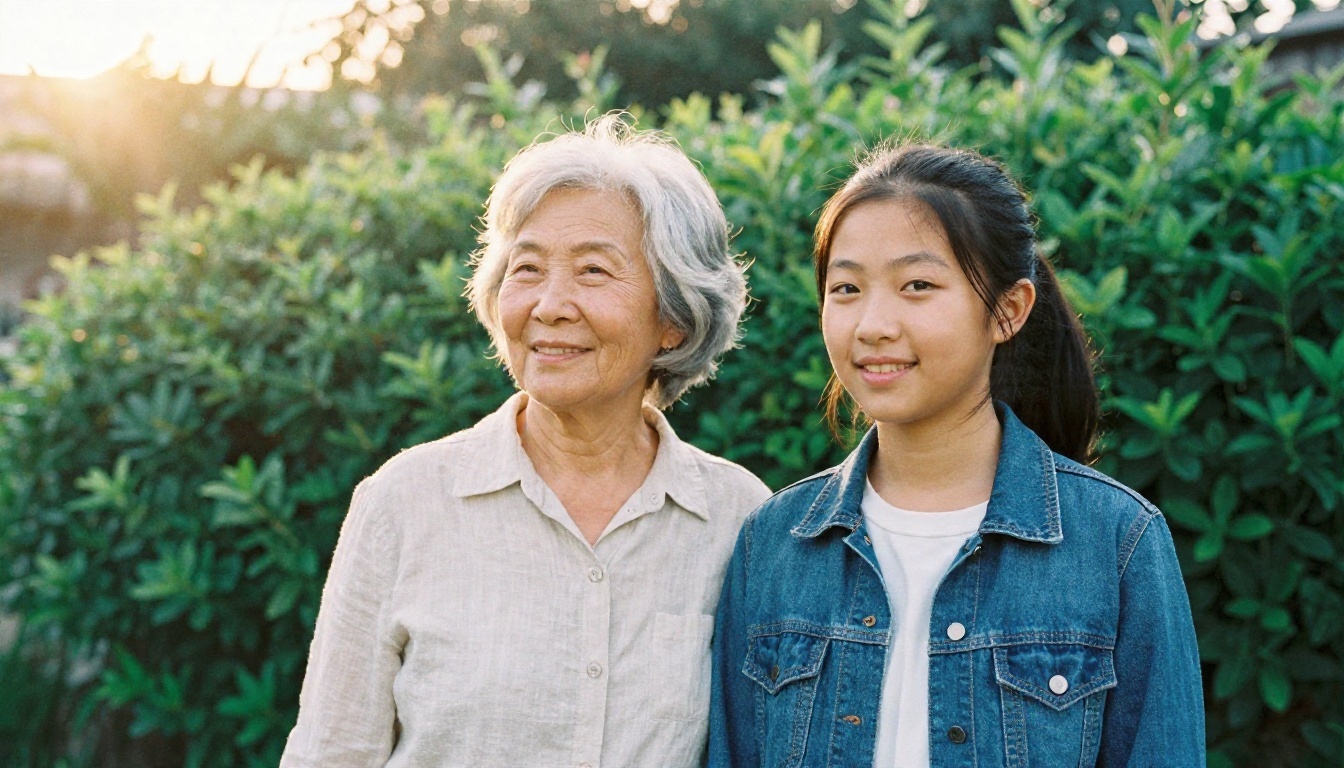
Ignoring family reference. A great trick is to look at older relatives. If your grandmother had strong laugh lines and your father went gray early, mention that in the prompt. Genetics shape how people age more than any generic average does. The photo of a grandparent and grandchild above shows how often cheekbones, eye shape, and smile lines repeat across generations.
Judging at thumbnail size. A result can look perfect on a phone and fall apart at full size. Always zoom in on the eyes, teeth, and ears.
Expecting a prediction. Smoking, sun exposure, sleep, stress, and genetics all change how a face ages. No model knows any of that from one photo. What you get is a plausible version, not your actual destiny.
Privacy and Honest Use
Faces are personal data. Before you upload a photo to any app, check three things: whether the service stores your image, whether it uses uploads to train its models, and how you can delete them. Free apps often make money some other way, so read the privacy notes.
Also be thoughtful about whose face you use. Aging a photo of yourself, or a relative who has said yes, is harmless fun. Aging a stranger's photo, or a child's photo posted by someone else, is a different story. Never present an aged image as a real photograph of a real person, and label it clearly if you share it publicly.
There are plenty of warm uses too. Families age photos of grandparents' younger selves to imagine a reunion portrait. Writers and actors use aged references to design characters across decades. Photographers build "then and now" series. Teachers use age progression to show how faces change across a lifetime.
Where Old Photos Fit In
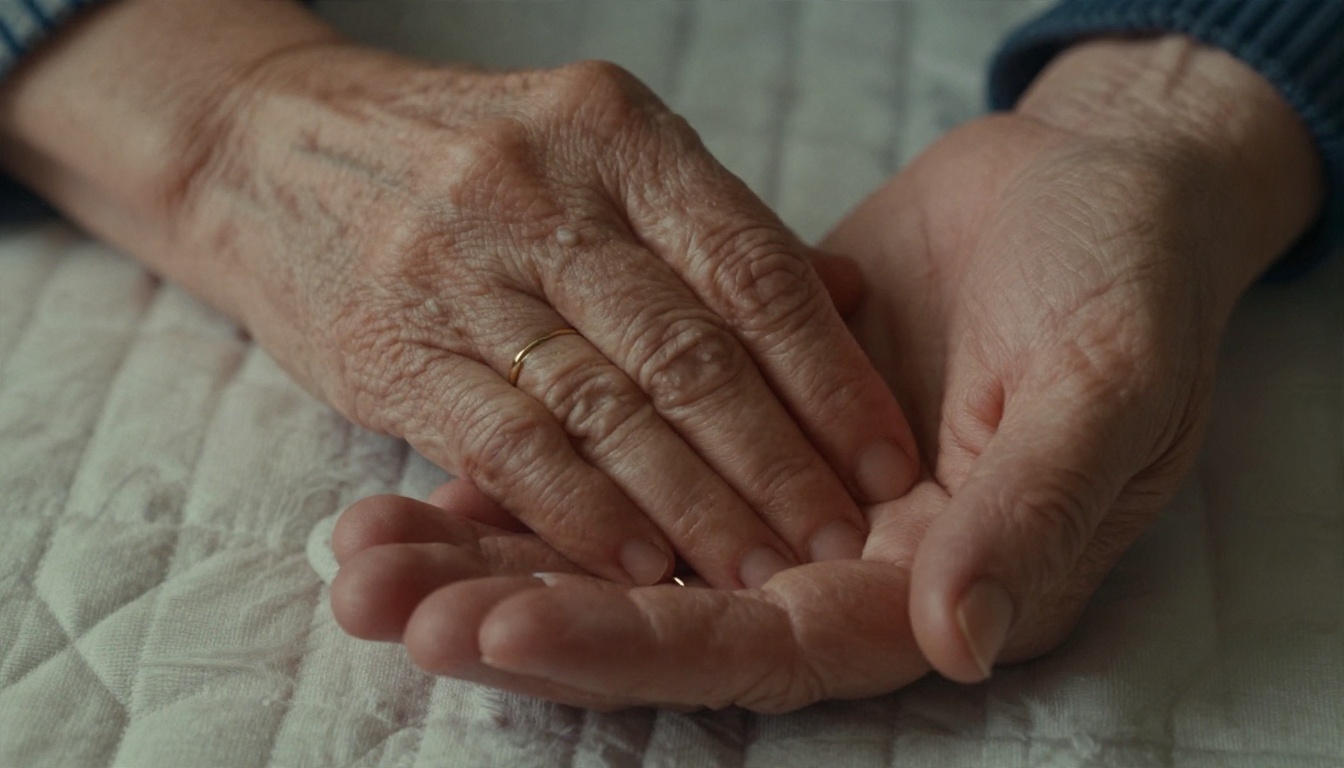
Age progression has a quiet twin: restoration. Many people use the same tools backwards. They take a faded, cracked portrait of a great-grandparent, repair the damage with AI image restoration, and then age or de-age the face to match other family photos. The result is a consistent set of portraits across generations, which looks lovely framed together.
If you want to try this, clean the scan first with an upscaler, fix scratches and noise, and only then run the age edit. Doing it in the reverse order makes the model treat damage as real wrinkles.
Try It on Your Own Photos
You do not need a special app to see yourself at 60. You need a clear photo, a specific prompt, and a few minutes of patience. Pick a soft-light portrait, open PicassoIA Image Editor Pro or Nano Banana on Picasso IA, and run the same prompt at three different ages. Compare them, tweak the hair, and keep the version that still feels like you.
Once you have a result you like, try the reverse: de-age a family photo, change the hairstyle with Change Haircut, or build a full timeline of one face from twenty to eighty. The only limit is how many variations you are willing to test, so start with one photo and see what comes back.
Sources for app details: Age Progress Photo on the App Store, Age Swap listing, Higgsfield AI Age Progression. App terms change often, so check current listings.


