You type one sentence. A few minutes later, a paper boat is drifting down a rain-soaked street, the camera sliding along beside it. That is what an AI animation generator from text does, and in 2027 it is no longer a party trick. It is a normal part of how small teams, teachers and solo creators produce short motion content without a studio.
But the marketing pages leave out the details that decide whether the tool is useful to you. How long can a clip be? What does "free" actually include? Which prompts produce smooth motion, and which ones produce melting faces? This article answers those questions with concrete prompt examples, a plain look at free options, and the limits you should plan around before you spend an afternoon on a project.
💡 Quick answer: Most text to animation tools produce clips between 5 and 10 seconds, with a few models going much longer. Free tiers exist, but they trade away length, speed, resolution or watermark-free exports. Prompt quality matters more than which model you pick.
What Text to Animation Actually Means
Animation vs. Realistic Video
The phrase "text to animation" covers two different things, and mixing them up causes most of the disappointment people report.
The first is stylized animation: watercolor, paper cutout, claymation, hand-drawn line work, stop motion. The second is realistic video, where the model simulates a camera filming a real scene. Modern text-to-video models handle both, because they learned from a huge range of footage and illustration. You choose the look through your wording.
If you ask for "a fox running through snow," you will usually get something that looks filmed. If you ask for "a hand-painted gouache fox running through snow, visible brush strokes, limited palette, flat shading," you get something closer to animation. The model is the same. The prompt does the steering.
What the Model Does Frame by Frame
A text-to-video model does not draw a character and then move it like a puppet. It generates a short sequence of frames in which each frame stays consistent with the ones around it, guided by your text. That is why it is good at fluid, natural motion like water, smoke and cloth, and why it struggles with precise, repeated, mechanical actions like counting on fingers or turning a screw exactly three times.
Knowing this changes how you write. You describe what happens and how the camera sees it, not a list of exact steps.

Prompt Examples That Work
The Anatomy of a Strong Prompt
Good animation prompts tend to have five parts, in roughly this order:
- Subject: who or what is on screen
- Action: what changes over the clip
- Style: the visual look (watercolor, claymation, flat vector, film)
- Camera: how the viewpoint moves
- Light and mood: time of day, color, atmosphere
You do not need all five every time, but the more you leave out, the more the model fills in by guessing. Guesses are fine for exploration and risky for client work.
💡 Tip: Keep it to one main action per clip. "A cat jumps onto a table" works. "A cat jumps onto a table, knocks a glass, chases a mouse, then falls asleep" almost never does inside 5 to 10 seconds.
Five Prompts to Copy
Here are prompts you can paste into a text-to-video model and adjust. Each one uses a different animation style.
| Style | Prompt |
|---|
| Paper cutout | A small paper boat drifts down a rain-soaked cut-paper street, layered paper buildings, soft parallax, slow tracking shot from the side, warm lamplight |
| Watercolor | A watercolor sailboat rocks on gentle blue waves, pigment bleeding at the edges, soft cloud shapes drifting behind, static wide shot |
| Claymation | A clay hedgehog waves at the camera and blinks, visible fingerprints in the clay, stop-motion stutter, soft studio light, shallow depth of field |
| Flat vector explainer | A flat vector water droplet rises from a lake, becomes a cloud, then falls as rain onto a green hill, clean shapes, pastel palette, locked camera |
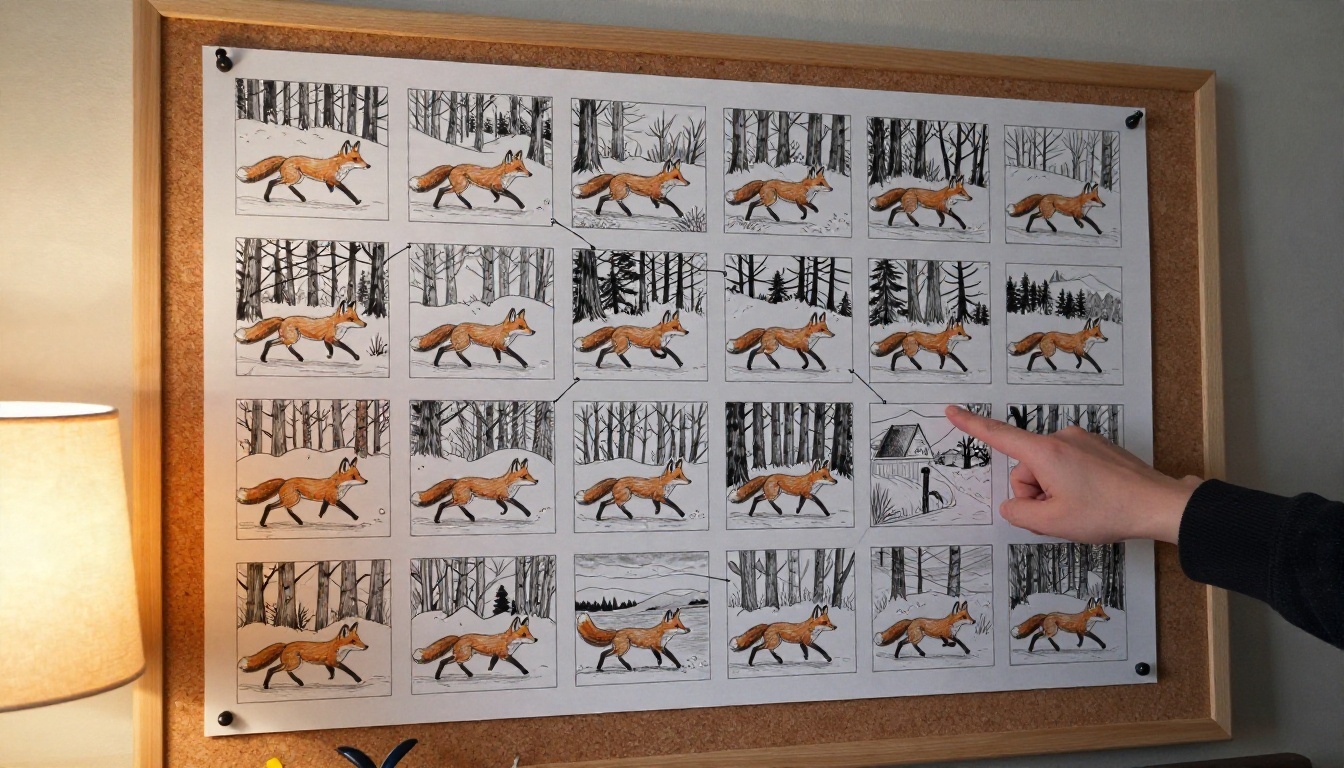
| Hand-drawn pencil | A pencil sketch of a fox running through a snowy forest, graphite lines redrawn each frame, slight boil effect, white paper background |
A few things to notice. Every prompt names a material (paper, clay, pigment, graphite). Materials are a shortcut to a consistent look, because the model already knows how each one behaves. Each prompt also states the camera in plain words, such as "locked camera" or "slow tracking shot," which stops the model from inventing random movement.
Prompts That Usually Fail
Some patterns reliably cause trouble:
- Long sequences in one prompt. The model will pick one or two events and ignore the rest.
- Exact counts. "Five birds land on the wire one at a time" often gives three or seven.
- Readable text. Signs, subtitles and logos tend to warp as they move.
- Contradictions. "Static camera with a fast orbit" gives you neither.
- Vague emotion words alone. "Beautiful and dramatic" tells the model nothing it can draw.
The fix is nearly always the same: shorten, pick one action, and say what the camera does.
Free Options Worth Using
What "Free" Usually Means
I searched for current numbers on free plans across the popular tools, and the honest finding is that they vary widely and change often. Some tools give a small monthly credit pool, some give a daily allowance, and some give a handful of generations total. Third-party roundups frequently disagree with each other, so treat any figure you read outside a provider's own pricing page with caution.
What stays fairly consistent is the type of trade-off:
| Free tier trade-off | What it looks like in practice |
|---|
| Credit caps | A few clips per day or month, then a paywall |
| Watermarks | A logo burned into the corner of every export |
| Queue priority | Free jobs wait behind paid jobs, sometimes for many minutes |
| Shorter clips | Free plans often limit duration or resolution |
| Slower or smaller models | The best model is reserved for paid users |
None of this makes free tiers useless. For testing prompts and learning what a model can do, they are great. The trouble starts when you try to produce a finished piece on a plan built for sampling.

Free Generation on PicassoIA
On PicassoIA, the most relevant free option is Seedance 2.5 Lite, listed as a free and unlimited text-to-video generator for clips up to 10 seconds. For prompt testing, that is the part that matters. When generations are unlimited, you can run the same idea five different ways without watching a credit counter.
A sensible workflow looks like this:
- Draft the idea on a free, fast model.
- Refine the prompt over several runs until the motion and style are right.
- Finalize on a higher-end model only once the prompt is settled.
That last step is where you spend money, and you spend it once rather than twelve times. Other speed-focused options include Wan 2.5 T2V Fast and LTX 2.5 Fast, both built for quick turnaround when you are iterating.
💡 Tip: Change one variable per run. If you alter the style, the camera and the subject at once, you will not know which edit helped.
Output Limits to Expect
This is the section most tutorials skip. Knowing the limits up front saves you from building a plan the technology cannot deliver.
Clip Length
The clip length you get depends on the model, and the range is wide:
Most models stay in the 5 to 10 second range because consistency gets harder as a clip grows. The longer the clip, the more likely a character's outfit shifts, a background object disappears, or the motion drifts away from your prompt.
If you need a longer piece, the practical method is to generate several short clips and edit them together, the same way a film is assembled from shots. Do not try to force a one-minute scene out of a single prompt.
Resolution and Frame Rate
Resolution varies by model and tier. Some, like Hailuo 02 and Kling v3 Omni Video, advertise 1080p output. Others, like Hailuo 02 Fast, trade resolution for speed and deliver 512p. LTX 2.5 Fast goes the other way and targets much higher pixel counts.
Frame rate is usually 24 frames per second, which gives a filmic feel. That is fine for painterly or cinematic animation. For snappy cartoon motion that traditionally runs on twos (12 drawings per second), you may find 24 fps looks smoother than you wanted, which you can offset by prompting for "stop-motion stutter" or "animated on twos."
A practical rule: draft at low resolution, then regenerate the winner at the highest resolution your model allows. Upscaling a good clip afterward is also possible with PicassoIA's video enhancement and super-resolution models.
Consistency and On-Screen Text
Two limits deserve special attention.
Character consistency. If you generate five clips of "a girl with a red umbrella," you will get five slightly different girls. The face, hair and umbrella shape will drift. Workarounds include starting from the same reference image, using an image-to-video model like Wan 2.5 I2V Fast, or keeping characters stylized and simple so small differences go unnoticed. A clay hedgehog is far more forgiving than a photoreal human.
On-screen text. Do not rely on the model to spell. Add titles, captions and logos in an editor afterward.
💡 Rule of thumb: If the clip would fail without a specific detail being exactly right (a face, a word, a number), plan to add that detail in post.
How to Use Seedance 2.5 Lite
Since it is the free option, here is a straightforward workflow for Seedance 2.5 Lite on PicassoIA.
- Open the model page. Go to the Seedance 2.5 Lite page and open the generator.
- Write the prompt. Use the five-part structure: subject, action, style, camera, light. One action only.
- Set the duration. The model supports clips up to 10 seconds. Start with a shorter clip while you are testing, since shorter clips hold together better.
- Generate. Run it and watch the full clip at least twice before judging it. Motion flaws are easy to miss on the first pass.
- Change one thing. Adjust a single element of the prompt and run again. Keep notes on what each edit did.
- Save the winner. Once a prompt works, keep the exact text. You will reuse it for variations.
If you want more fidelity after the prompt is locked, run the same text through Kling v3 Video or Veo 3.1 Fast and compare the results side by side.
💡 Tip: If you want a starting image for an image-to-video run, generate it first with a text-to-image model such as Seedream 4.5, then animate it. You get far more control over how the first frame looks.
Choosing the Right Model
There is no single best model. The right one depends on what you are making.
If you are unsure, test the same prompt on three models and keep the best. That costs very little on free or fast models, and it teaches you each model's habits quickly. For the full list, browse all PicassoIA models.
Real Uses for Short Clips
Short, 5 to 10 second animated clips fit more real jobs than people expect. Here are the ones that work best within the limits above.
Explainers and Classroom Material
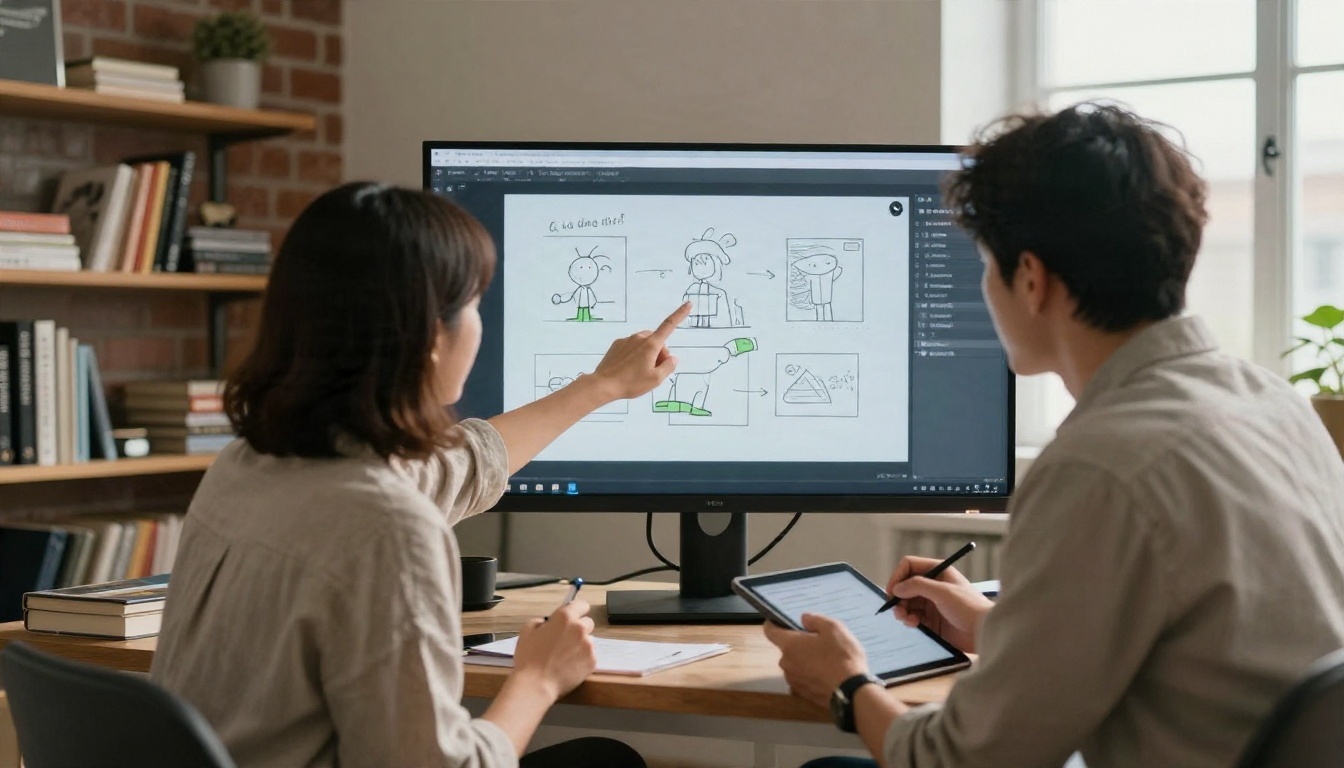
A short animated clip is a good way to show a process that a still image cannot: the water cycle, how a seed grows, how a tide moves. A flat vector or paper cutout style keeps characters simple, which dodges the consistency problem. Teachers can generate a set of short clips, one per concept, and place them in slides.

Social Posts and Small Business Promos
For a flower shop, a bakery or a local studio, a looping animated clip works well as a social post or a storefront screen. Brands that rely on a specific product look should animate a real product photo with an image-to-video model rather than describing the product in text. The clip stays faithful to the real item, and you add the price and logo in an editor.

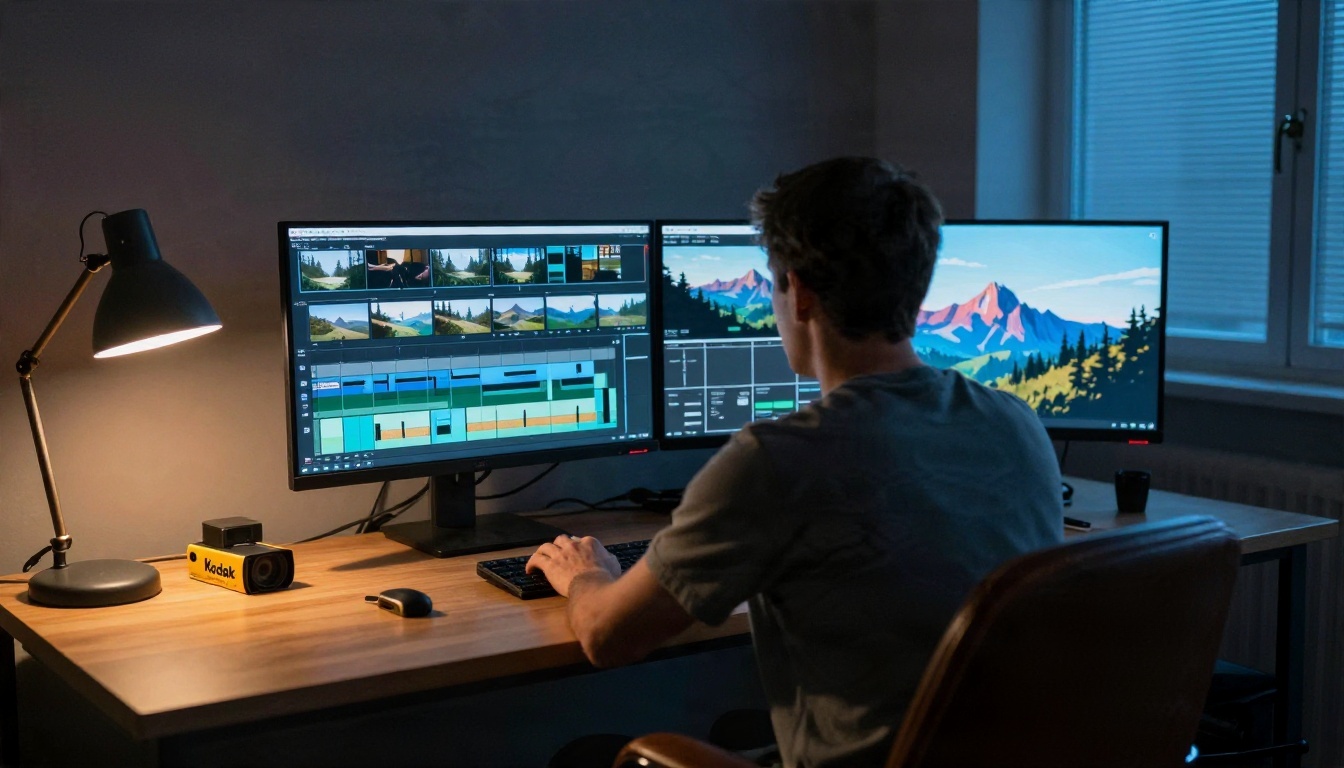
For longer pieces, build a sequence. Plan six to eight shots on paper, generate each as its own clip, then cut them together on a timeline with music, captions and transitions. Editors do this with AI footage the same way they do with any other footage, and it is the most dependable route to a finished minute of animation.
Try Your First Animation Today
The fastest way to see what an AI animation generator from text can do is to run one. Pick a single prompt from the table above, change the subject to something you care about, and generate it on a free model. Watch it twice. Change one word. Run it again.
You will find out within three or four runs which parts of your idea the model handles well and which parts you will need to fix in an editor. That is far more useful than reading another comparison chart.
PicassoIA gives you text-to-video models, image-to-video models, a text-to-image library for first frames, and video enhancement tools in one place, so you can draft, refine and finish without switching between accounts. Start with Seedance 2.5 Lite for free drafts, then compare against Kling v3 Video or Hailuo 02 when the prompt is ready. Share what you make, and keep your best prompts, because a good prompt is worth more than any single clip.