Type "AI anime nude" into a search bar and you get a wall of tools that all make the same promises: free, instant, no signup. Then you try one. The first image takes four minutes in a queue, comes back with a giant watermark, and the second attempt asks for a subscription. If that sounds familiar, you are not alone, and you are not doing anything wrong. The free tier model behind most of these apps is built to frustrate you into paying.
This article lays out what these apps actually do, which settings change the result, the limits you will hit sooner or later, and the alternatives that remove most of those limits. One rule applies to everything below: every person you generate must be an adult, and you should never use a real person's face or likeness without their consent. Everything here is about adult, non-explicit glamour and artistic work.
What People Really Search For
Anime Style vs Photoreal Results
The phrase covers two very different wishes. Some people want flat, stylized anime artwork. Others want a real-looking person dressed or styled like an anime character: pastel wigs, big colored eyes, cosplay outfits, boudoir lighting. The second group is growing fast, because photorealistic models have become much better at skin, fabric and light than any stylized generator.
That difference matters when you pick a tool. A model tuned for line art will give you clean outlines but weak skin texture. A photorealistic model will give you believable pores, fabric folds and lens blur, and it can still reproduce the anime look through wigs, makeup, costumes and color palettes.
The Adults-Only Line
Anime art has a long-standing problem: characters drawn in a youthful style are sometimes written as adults, and that gray zone is exactly why responsible platforms apply strict filters. Treat it as a hard rule. Only create adult subjects, state the age in your prompt (for example "adult woman in her mid twenties"), and keep the content suggestive rather than explicit. Anything involving minors, or youthful-looking characters in sexual contexts, is off the table everywhere, and good tools will block it.
💡 Tip: Writing "adult woman, mid twenties" in the first line of a prompt also steers the model toward mature proportions and facial features, which improves realism as a side effect.
How Free Online Apps Work
Credits, Queues and Watermarks
Nearly every free generator runs on the same three levers:
- Daily credits. You get a handful of generations, then the counter hits zero.
- Priority queues. Free users wait behind paying users, sometimes for minutes.
- Watermarks and low resolution. Free output is often small, compressed or stamped, so it is hard to use anywhere.
None of that is a bug. It is the business model. The generator costs real GPU time per image, so the free tier is a trial, not a service.
Filters and Why They Block You
Mainstream platforms run two filters. One scans your prompt for flagged words. The other scans the output image with a classifier and blurs or discards anything it considers explicit. That is why you sometimes pay a credit and get a gray placeholder back.
A few things trigger the filters more than you would expect:
- Ambiguous age words, which are blocked on purpose and should stay blocked.
- Direct anatomical terms, which many general-purpose models refuse.
- Real celebrity names, which are blocked to prevent non-consensual imagery.
Tools designed for adult glamour work handle these differently. They allow suggestive and artistic content (swimwear, lingerie, boudoir, implied nudity) while still refusing the harmful categories above.
Privacy Risks Nobody Mentions
This is the part most "free app" lists skip. Many small sites store your prompts, keep your uploads, and sometimes publish generations in public galleries. Before you upload a photo or type anything personal, check three things: does the service delete uploads, can you opt out of public feeds, and does it say who owns the output? If you cannot find answers in two minutes, assume the answer is bad.
💡 Tip: Never upload a photo of another person unless they have given you explicit permission. It is a privacy violation in many places and can be illegal.
Settings That Change Everything
You do not need dozens of sliders. Five settings do most of the work, and they behave the same across nearly every image generator.
| Setting | What it does | Practical advice |
|---|
| Prompt detail | Defines subject, outfit, light, lens | 50 to 80 words beats 10 words |
| Aspect ratio | Controls framing | 16:9 for scenes, 3:4 for portraits |
| Seed | Locks the random starting point | Reuse a seed to refine one image |
| Guidance / steps | Strictness vs creativity | Mid values give natural skin |
| Resolution | Output detail | Generate high, upscale only if needed |
Prompt Structure That Works
Most weak results come from weak prompts. A reliable structure is:
Subject and pose + outfit + environment + light direction + camera and lens + texture details.
For an anime-inspired photoreal result, add the signature features of the look: pastel wig, large violet contact lenses, glossy lips, soft studio light. Here is a prompt that works well as a template:
"Adult woman in her mid twenties with a long lavender wig, reclining on a cream velvet chaise, ivory satin robe slipping off one shoulder, sheer curtains, soft window light from the left, 85mm f/1.8 lens, visible skin pores, film grain, tasteful and non explicit."
Notice that nothing in it uses the word "anime" alone. Describing the physical costume and lighting gives the model concrete things to render, which produces a far more believable person than a vague style label.
Resolution, Seed and Steps
Generate at the highest native resolution the model offers before you reach for an upscaler. Upscaling a soft image gives you a bigger soft image. When you find a composition you like, copy the seed and change one thing at a time: the outfit, the wig color, the light. That is how you build a consistent set of images instead of rolling the dice every time.
Fixing Hands, Eyes and Skin
Three flaws show up constantly, and each has a simple fix:
- Hands: keep them simple. Hands in hair, hands resting on fabric, or hands out of frame avoid most errors.
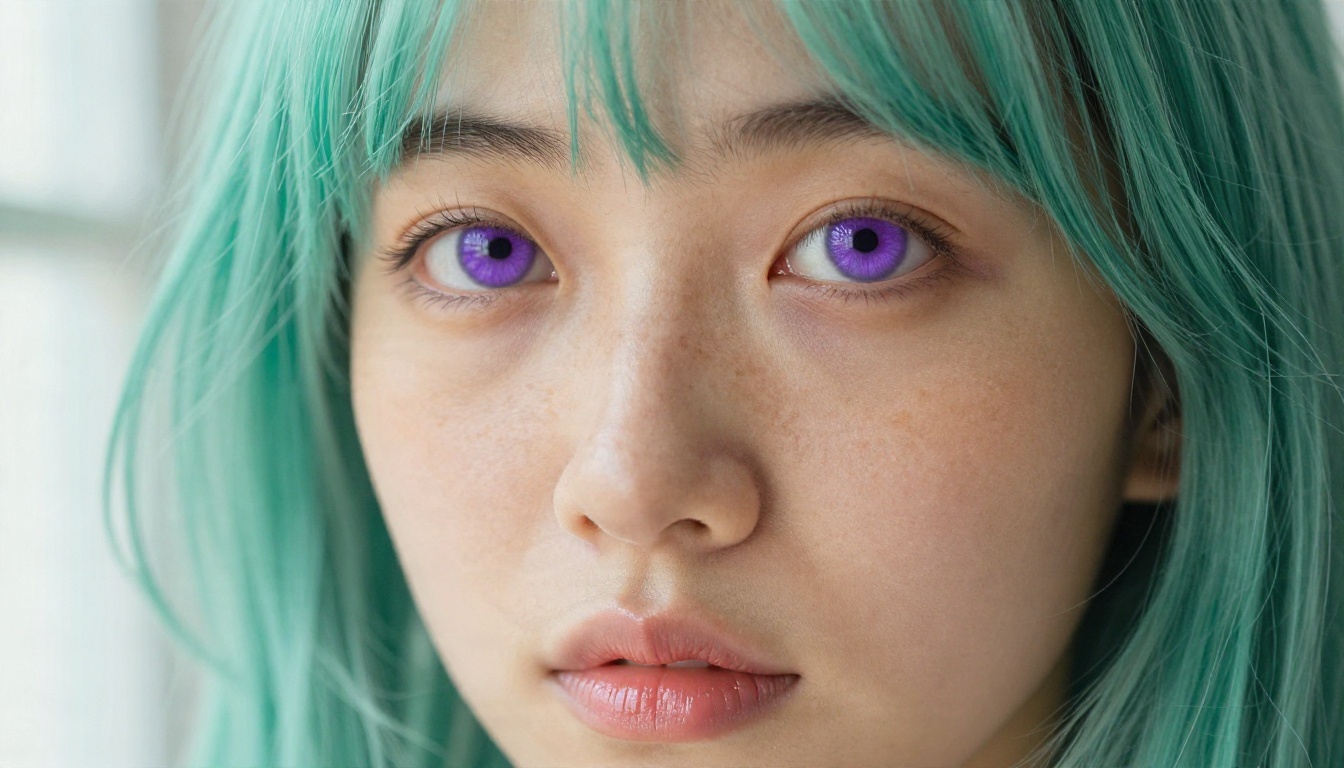
- Eyes: ask for "catchlights in the eyes" and a close focus point. Mismatched pupils usually come from distant, low-detail faces.
- Skin: plastic skin comes from over-smoothing. Add "visible pores, fine hairs, natural freckles" and avoid words like "flawless" or "perfect skin".
Limits You Will Hit
Even a good tool has boundaries. Knowing them upfront saves you from wasting hours.
| Limit | Typical free app | What to do instead |
|---|
| Generations per day | 3 to 10 | Use a tool with unlimited runs |
| Output size | Small, watermarked | Pick a 4K-capable model |
| Wait time | Minutes in queue | Choose a fast model |
| Content rules | Aggressive blur | Use a model that allows suggestive content |
| Privacy | Unclear storage | Read the policy before uploading |
| Consistency | Face changes every image | Reuse seed and descriptors |
The hardest limit to fix is consistency. If you want the same character across several images, repeat the exact descriptors (wig color, eye color, freckles, outfit family) in every prompt, and keep the seed or reference image the same.
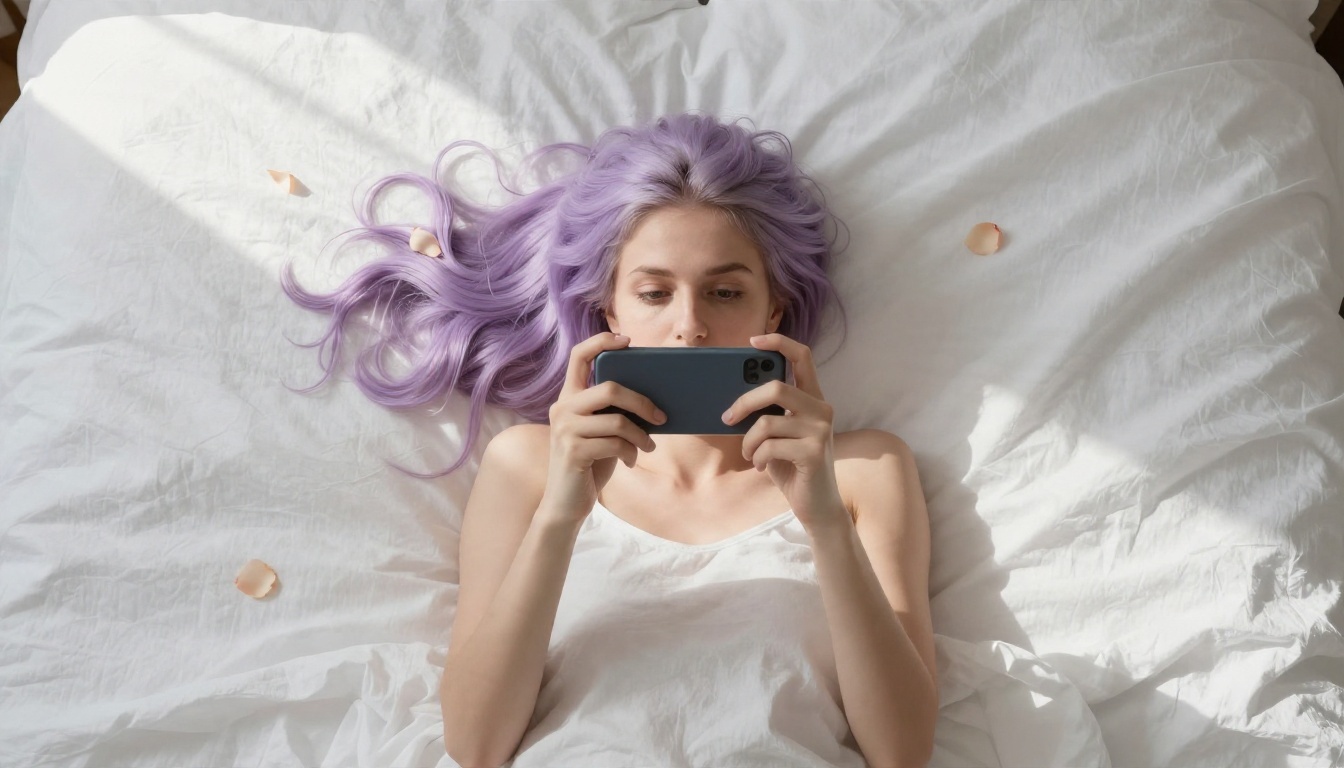
Better Alternatives on PicassoIA
If the free app loop has worn you out, the practical move is a platform where the model quality is high, the speed is fast, and the generation count is not rationed. These are the models to try, in the order I would use them for adult glamour and boudoir work.
Seedream 4.5 First
Seedream 4.5 is the strongest starting point. It produces sharp, high-resolution portraits with convincing skin, fabric and lighting, and it follows long, detailed prompts closely. That matters because the anime-inspired photoreal look depends on many small details (wig fibers, contact lens color, satin sheen) all landing at once. It also handles suggestive, artistic adult content that many mainstream models refuse.
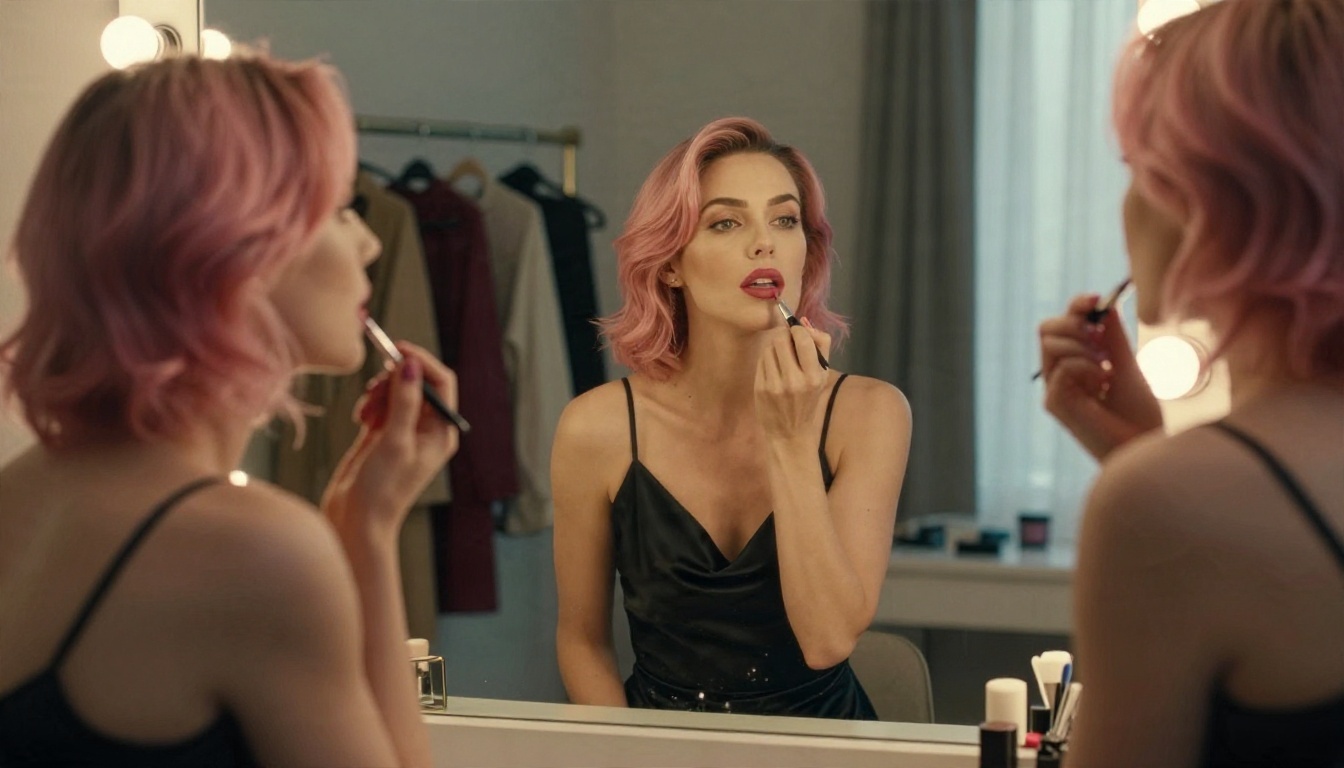
Image Editor Pro for Unlimited Runs
PicassoIA Image Editor Pro is where the unlimited generations matter. You can generate, tweak the outfit, change the wig color, adjust the lighting, and run it again as many times as you like without watching a credit counter. For anyone refining a look through ten or twenty variations, that is the difference between finishing in an afternoon and giving up after three tries.
Use it to:
- Change an outfit or hair color on an existing image
- Fix small flaws in hands or backgrounds
- Build a consistent character set across multiple scenes
Other Models Worth Trying
Once those two are in your routine, these models add range:
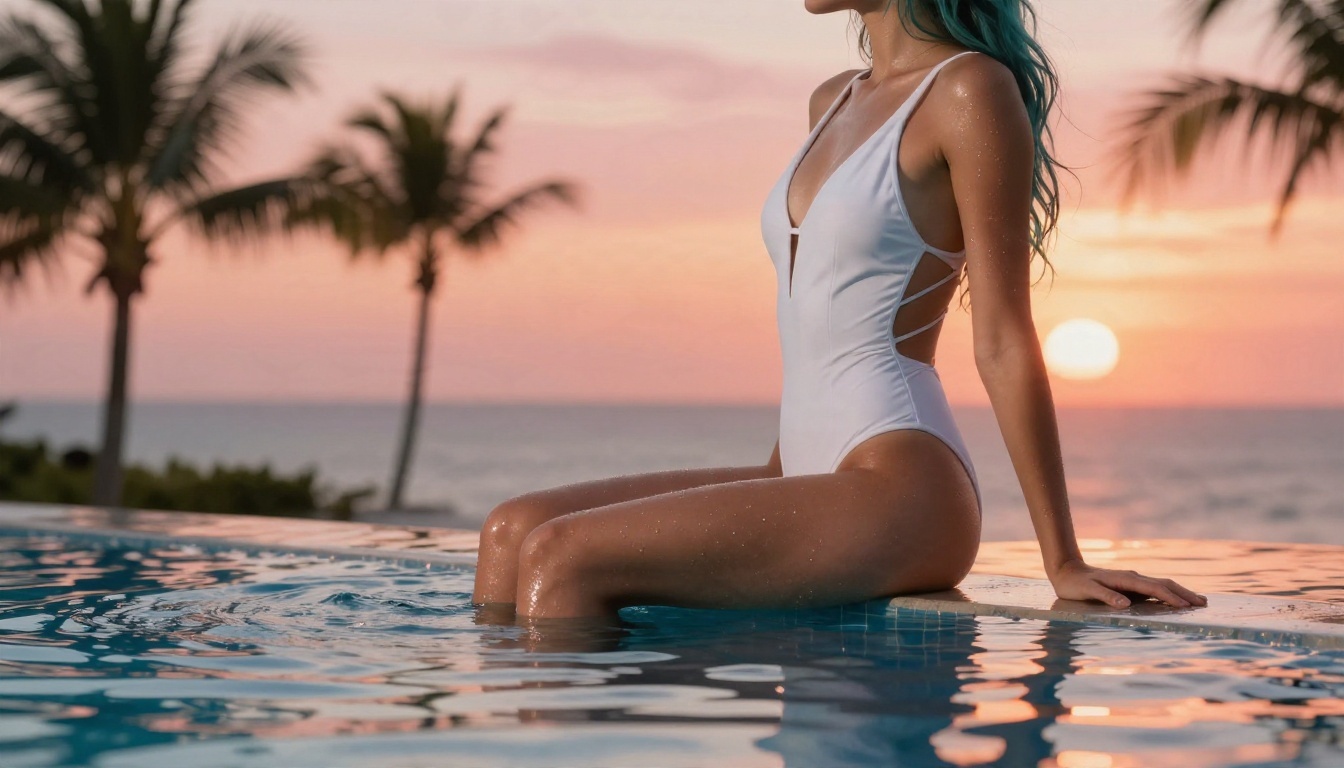
💡 Tip: Draft with a fast model like Z Image Turbo, pick the composition you like, then render the final version with Seedream 4.5 for maximum detail.
How to Use Seedream 4.5 on PicassoIA
Here is a simple routine that works for anime-inspired photoreal portraits.
- Open the model page. Go to Seedream 4.5 and open the generator.
- Write a detailed prompt. Use the structure from earlier: subject, outfit, environment, light, lens, texture. State that the subject is an adult.
- Set the aspect ratio. Choose 16:9 for scenes and environment shots, or a portrait ratio for close-ups.
- Pick the resolution. Go for the highest option available so you do not need heavy upscaling later.
- Generate and compare. Run two or three versions with small changes to the wig color, light direction or outfit.
- Refine in the editor. Take the best one into PicassoIA Image Editor Pro for outfit swaps, background fixes and extra variations.
- Upscale if needed. Finish with Real-ESRGAN for print-sized output.
Parameter tips:
- Keep prompts between 50 and 100 words. Shorter prompts leave too much to chance.
- Include lens and light language: "85mm f/1.8, soft window light from the left".
- Add texture words: "visible pores, satin sheen, fine wig fibers".
- Avoid contradictory style words. Choose one mood and stay with it.
A Quick Workflow for Clean Results
Here is how I would put everything together if I were starting from zero.
Step one: choose the look. Decide on the character concept before touching a tool: wig color, eye color, outfit, mood. Write it in one sentence.
Step two: draft fast. Run four or five quick drafts with a speed-focused model to test the composition. Do not worry about detail yet.
Step three: render the final. Take the best prompt into Seedream 4.5 and generate at full resolution.
Step four: refine. Use Image Editor Pro to adjust small things: a different robe color, softer light, a cleaner background. Since the runs are unlimited, you can afford to be picky.
Step five: upscale and save. Run the final through an upscaler, then store your prompt and seed in a note so you can recreate the character later.
Mistakes That Waste Time
- Changing five things at once. You never learn which change helped.
- Skipping the age statement. It affects both safety filters and realism.
- Over-trusting free apps. If the output is stamped and tiny, no prompt will fix that.
- Ignoring privacy. Uploading personal photos to unknown sites is the most expensive mistake of all.
Start Creating Your Own
Free AI anime nude apps are fine for a quick look, but the watermarks, queues and rationed credits turn any serious project into a grind. A platform with a strong photorealistic model and unlimited generations changes that: you iterate as much as you want, you keep the output, and you stay in control of the style.
Open Seedream 4.5 on PicassoIA, write one detailed prompt for an adult character with the wig, eyes and outfit you have in mind, and run it. Then take the best result into PicassoIA Image Editor Pro and keep refining until it looks the way you pictured it. When you want more options, browse every available model at picassoia.com/en/all-models, and pick the one that fits your next idea.


