A year ago, making a short anime scene meant hiring an animator or spending weeks learning software. Today you can type one sentence, wait a minute, and watch a girl walk through falling cherry blossoms with wind moving her hair. That is the promise of an AI anime video generator from text, and the best part is that several of them cost nothing to try.
But "free" hides a lot of fine print. Some tools stamp a watermark on every clip. Others cap you at a few generations per day. And almost all of them produce wildly different results depending on how you write your prompt. This article sorts through the noise: what these generators actually do, which prompts work, what real examples look like, and which online tools are worth your time.
💡 Quick answer: Write a short, specific prompt that names the character, the setting, the motion and the camera move. Pick a text to video model that supports anime style. Generate several short clips, then keep the best one.
What Text to Anime Video Really Means
An anime video generator takes written instructions and produces a short moving clip in a hand-drawn Japanese animation look: flat color areas, bold outlines, expressive eyes, dramatic skies and stylized motion. You describe the scene. The model draws and animates it for you.
How the Process Works
Under the hood, a text to video model has been trained on enormous collections of footage and animation. When you submit a prompt, it predicts a sequence of frames that match your words, keeping the subject consistent from one frame to the next. Anime is a favorite style because the visual language is so recognizable: speed lines, sakura petals, glowing sunsets, dramatic hair movement.
Most tools follow the same basic flow:
- You write a prompt (and sometimes pick a style or aspect ratio).
- The model generates a clip, usually between 3 and 10 seconds.
- You download it, extend it, or regenerate with a tweaked prompt.
Some generators also accept a still image as the first frame, which is called image to video. That route gives you more control over how the character looks, because you design the frame first and let the model animate it.
What Free Usually Includes
Free plans differ a lot, so check these before you commit time to any tool:
| Free plan feature | What to look for |
|---|
| Watermark | Many free tiers add a logo. Some do not. |
| Clip length | Often 3 to 6 seconds on free plans. |
| Resolution | 480p or 720p is common for free. |
| Daily limit | Anywhere from a handful of clips to unlimited. |
| Commercial use | Often restricted on free tiers. Read the terms. |
| Audio | Newer models can generate synchronized sound. |
If you only want to experiment, post to social media, or build a rough animatic, a free tier is plenty. If you need clean, watermark-free footage for a client, plan for a paid tier or choose a platform with generous free generation.
Prompts That Produce Anime Motion
The difference between a flat, jittery clip and a scene that looks like a real episode usually comes down to the prompt. Models respond well to concrete visual language and badly to vague mood words.

The Five-Part Prompt Formula
Build every prompt from five pieces, in this order:
- Style: "anime style, hand-drawn, soft cel shading, 90s anime film look"
- Subject: "a teenage girl with short silver hair and a red scarf"
- Setting: "on a rooftop above a rainy city at dusk"
- Motion: "scarf flutters in the wind, she turns her head slowly toward the camera"
- Camera: "slow push-in, shallow depth of field"
Put together: "Anime style, hand-drawn, soft cel shading. A teenage girl with short silver hair and a red scarf stands on a rooftop above a rainy city at dusk. Her scarf flutters in the wind and she turns her head slowly toward the camera. Slow push-in, shallow depth of field."
💡 Tip: Describe only one main action per clip. A 5 second video cannot hold "she runs, jumps, fights a dragon and cries." One clear movement gives the model room to animate it cleanly.
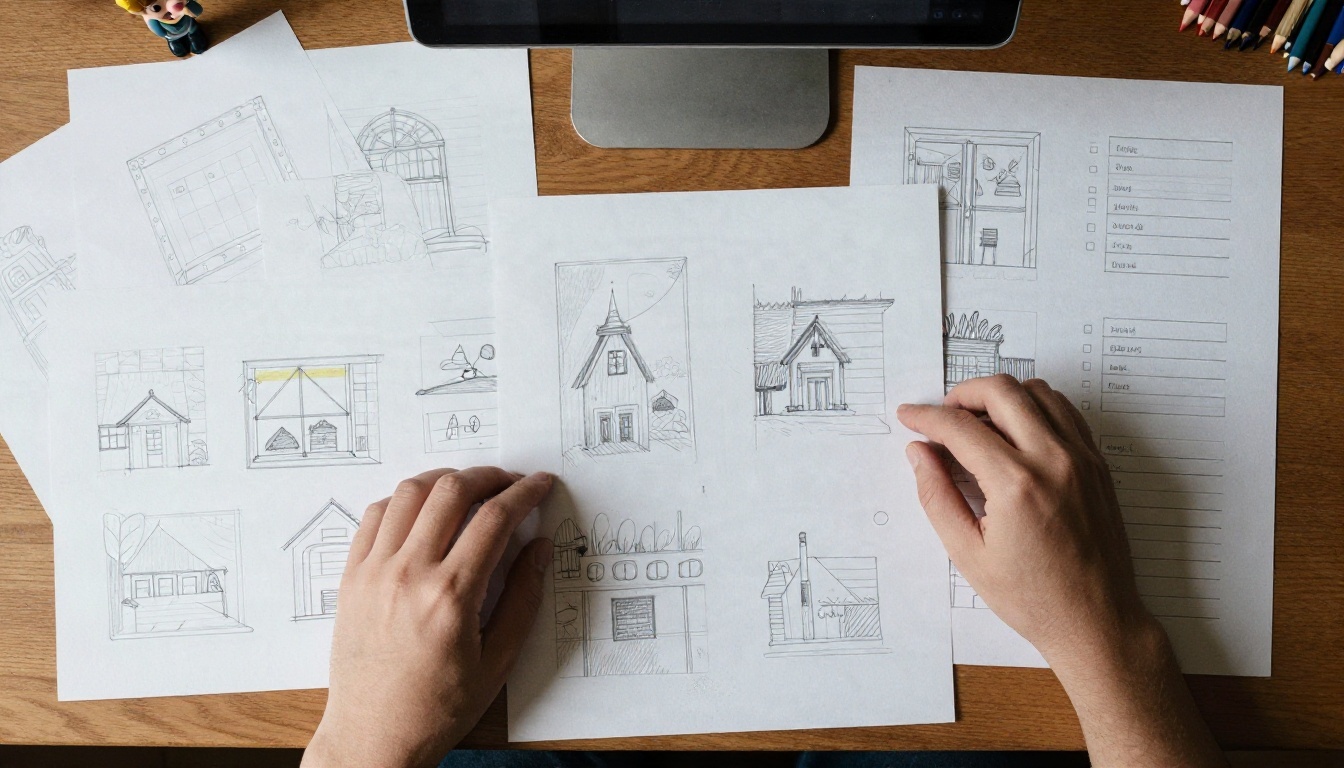
Planning helps too. Sketch your idea as three or four storyboard cards before you write prompts. Each card becomes one clip, and you stitch them together later.
Ten Prompts to Copy
Paste these as they are, or swap in your own character details.
- Anime style, soft watercolor backgrounds. A girl in a school uniform walks along a train platform as cherry blossom petals drift past. Gentle handheld camera follows from behind.
- 90s anime film look. A lone swordsman stands on a cliff at sunrise, long coat whipping in the wind. Slow low-angle shot rising toward the sky.
- Cozy anime style. A boy and his cat sit on a porch watching summer rain fall. Rain ripples in puddles, the cat flicks its tail. Static camera, warm light.
- Anime action scene. A young mage raises a staff and a ring of light spreads across the ground, leaves spiraling upward. Fast dolly-in, dramatic wind.
- Hand-drawn anime. A girl with long black hair looks out of a train window at night, city lights streaking past. Soft reflection on the glass, slow pan.
- Studio-quality anime. Two friends run through a sunflower field laughing, hair and clothes moving with the breeze. Tracking shot from the side.
- Anime fantasy. A silver-haired girl in a pale blue kimono stands before a red gate in a temple garden, petals swirling around her. Slow orbit around the character.
- Slice of life anime. A cook flips noodles in a small ramen shop, steam rising, customers chatting softly. Close-up of the pan, then a slow tilt up to a smiling face.
- Dramatic anime. A warrior kneels in a ruined stone courtyard at dusk, dust and embers floating in the air. He stands slowly and grips his sword. Wide shot, slow push-in.
- Anime romance. Two students share an umbrella on a quiet street in light rain, glancing at each other shyly. Soft focus, warm streetlights, slow dolly back.
Real Examples by Genre
Anime is not one look. Prompts that nail a quiet slice of life scene will not produce a good battle sequence. Here is how to think about the main genres, with reference frames that show the mood and composition you should describe.
Slice of Life
Slice of life scenes depend on atmosphere: wet streets, warm shop windows, soft light and small gestures. Describe weather and light carefully, because they carry the whole mood.
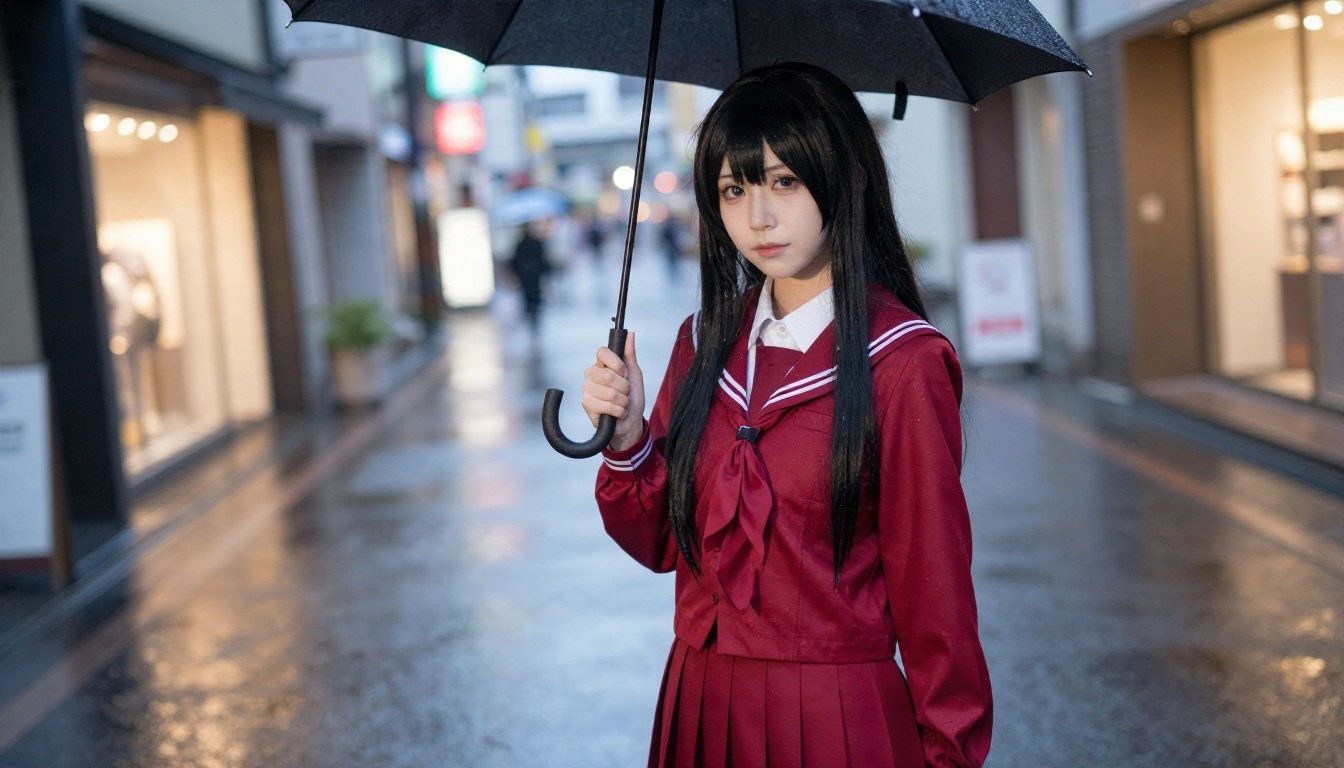
A frame like this one is a perfect model for a prompt: rain on pavement, reflected lights, a character in a school uniform, a low camera. Translate it into words ("low-angle shot, wet street at dusk, warm shop lights reflecting in puddles, girl holding a clear umbrella") and you get anime that feels lived in.
Action and Fantasy
Action prompts need a strong verb and a strong camera. Name the movement ("strikes," "leaps," "turns") and pair it with a camera that adds energy: a dutch angle, a fast push-in, a whip pan.
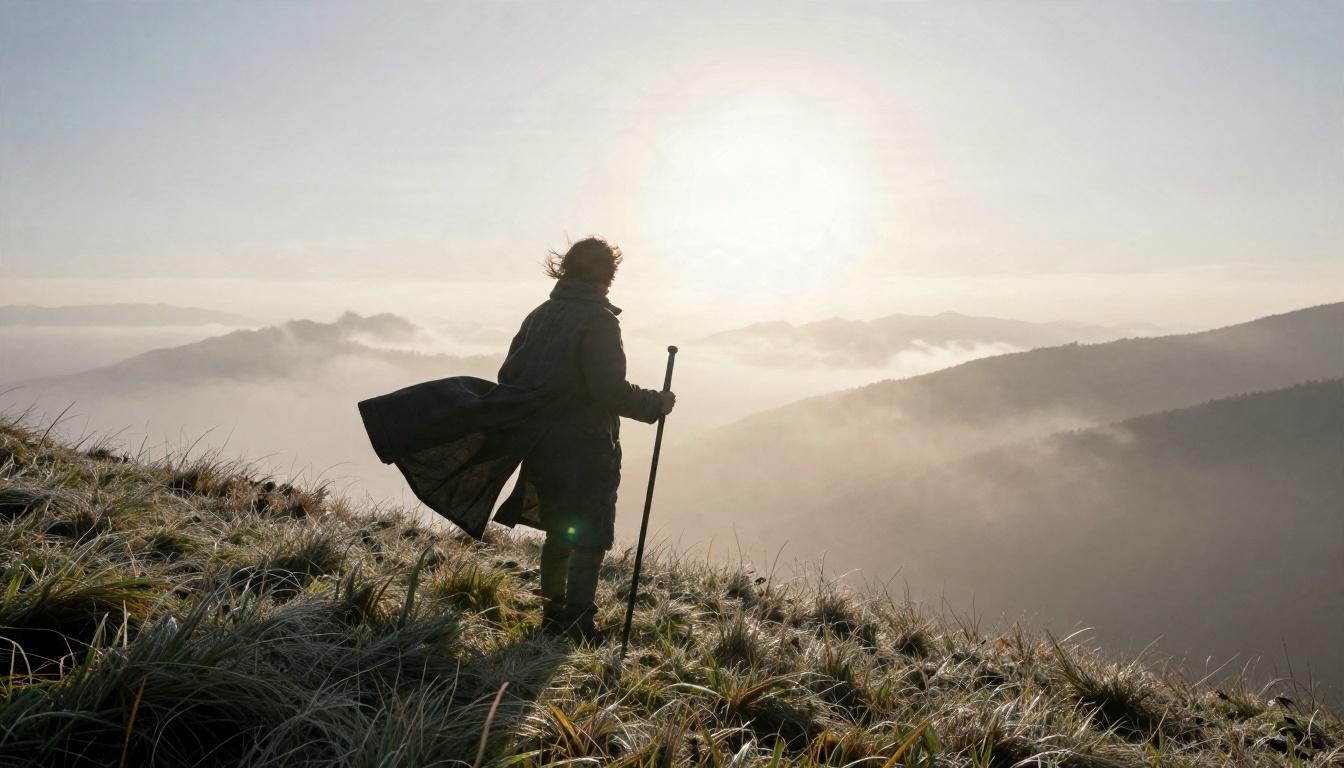
Open landscapes work brilliantly in anime. A lone figure on a ridge, mist in the valleys and a low sun give the model a clear composition to animate. Keep the action simple: coat moving, grass bending, camera slowly rising.
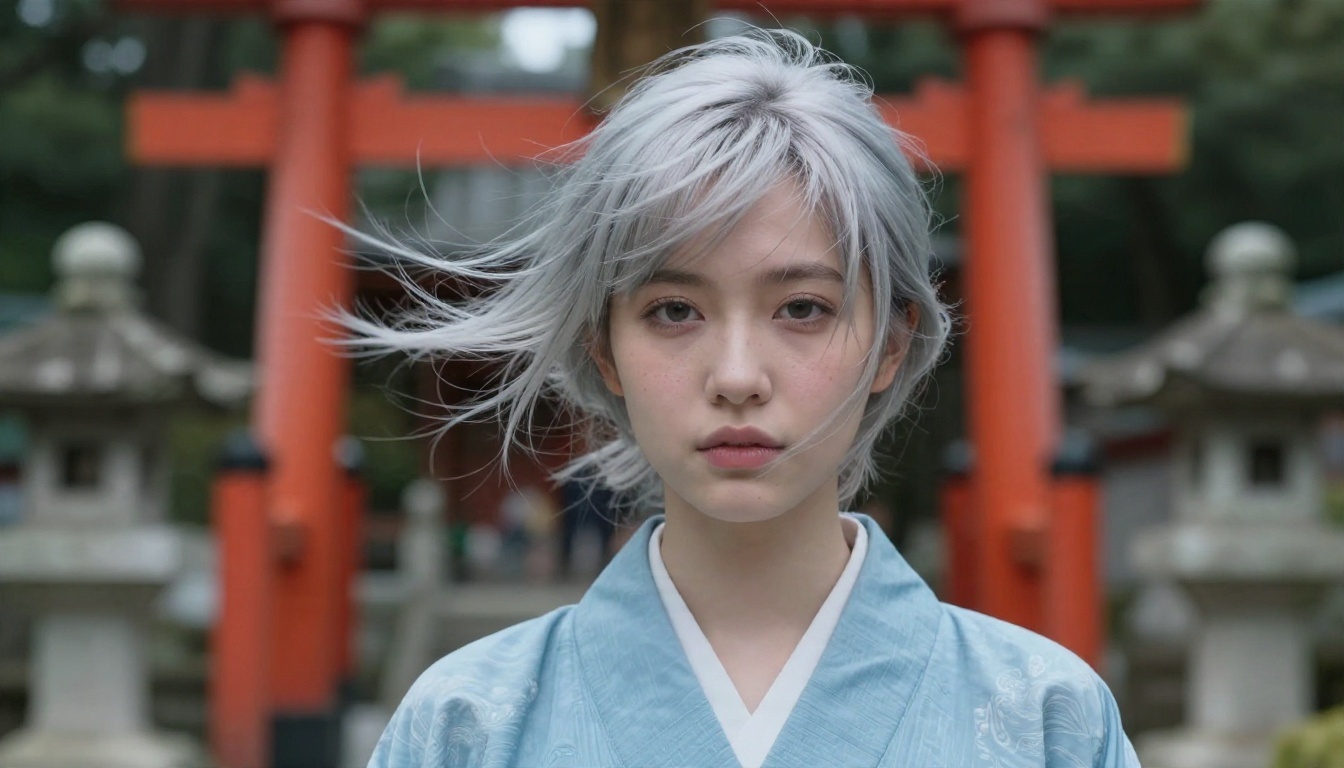
For fantasy, lean on costume and setting details such as kimono silk, torii gates, stone lanterns and floating petals.
Romance and Seasonal
Romance scenes live on small movements: a glance, a smile, petals in the wind. Seasons are the easiest emotional shortcut. Spring means blossoms, summer means cicadas and sunflower fields, autumn means red maple leaves, and winter means breath in cold air.
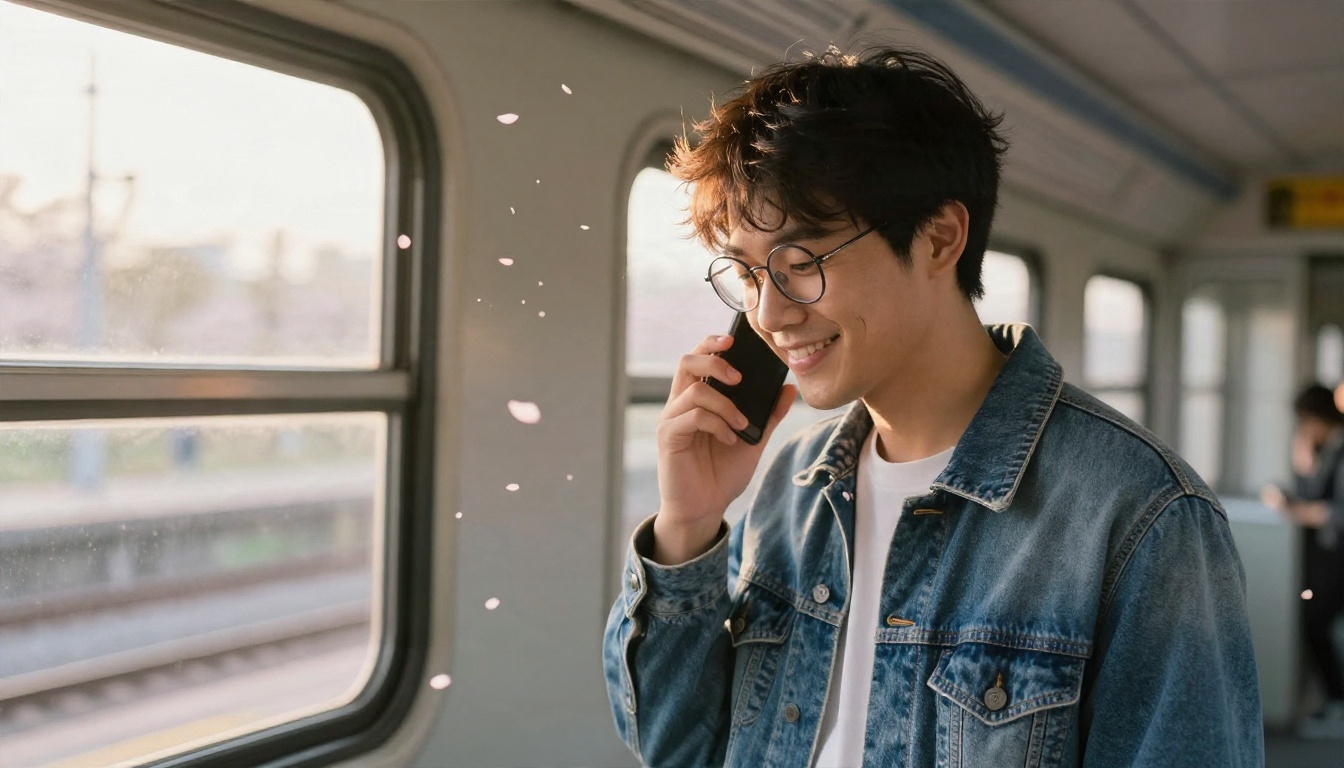
Backlight is your friend here. Writing "warm sunrise backlight, rim light on hair, petals floating" gives the model the glow that makes anime romance feel cinematic.
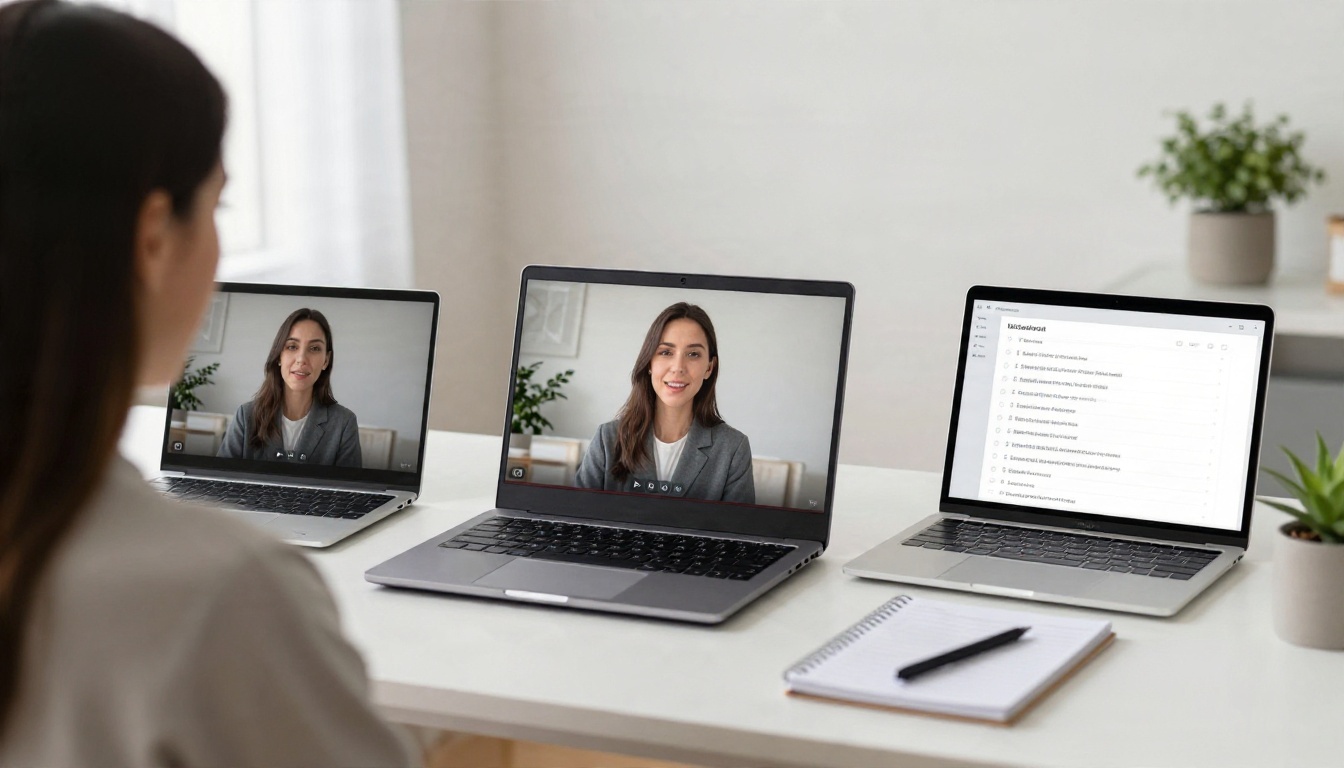
The market is crowded. Several well-known platforms advertise a free anime video generator, including Vidu, insMind, Anijam and FlexClip, and each has a slightly different focus. Free allowances change often, so treat the table below as a starting point and confirm the current limits on each site before you plan a project.
Quick Comparison Table
| Tool | Best for | Text to video | Free tier notes |
|---|
| Vidu | Anime character animation | Yes | Free trial credits before paid plans |
| insMind | Beginners, quick clips | Yes | Free tier with shorter clips and standard resolution |
| Anijam | Animation with no card needed | Yes | Free online use, no credit card required |
| FlexClip | Editing plus generation | Yes | Free maker with editing tools, limits vary |
| Seedance 2.5 Lite | Longer free clips, up to 10 seconds | Yes | Free and unlimited generation on PicassoIA |
If you want one place to try many video models with the same prompt, a platform that hosts several of them is easier than juggling separate accounts. That is where PicassoIA fits in: you can run the same anime prompt through different models and compare the results side by side.
Watch Out for Free Limits
Three traps catch beginners again and again:
- Credit burn: Failed or ugly generations still use credits on some platforms. Keep prompts short and specific so each attempt counts.
- Watermarks: A logo in the corner can ruin footage for any serious use. Check export settings first.
- Licensing: "Free to use" does not always mean "free to publish commercially." Read the terms before posting or selling anything.
How to Use Seedance 2.5 Lite on PicassoIA
Seedance 2.5 Lite is a strong choice for free anime clips because it is free and unlimited and can produce videos up to 10 seconds long. That is double the length of many free competitors, which gives your scene time to breathe.
Step by Step
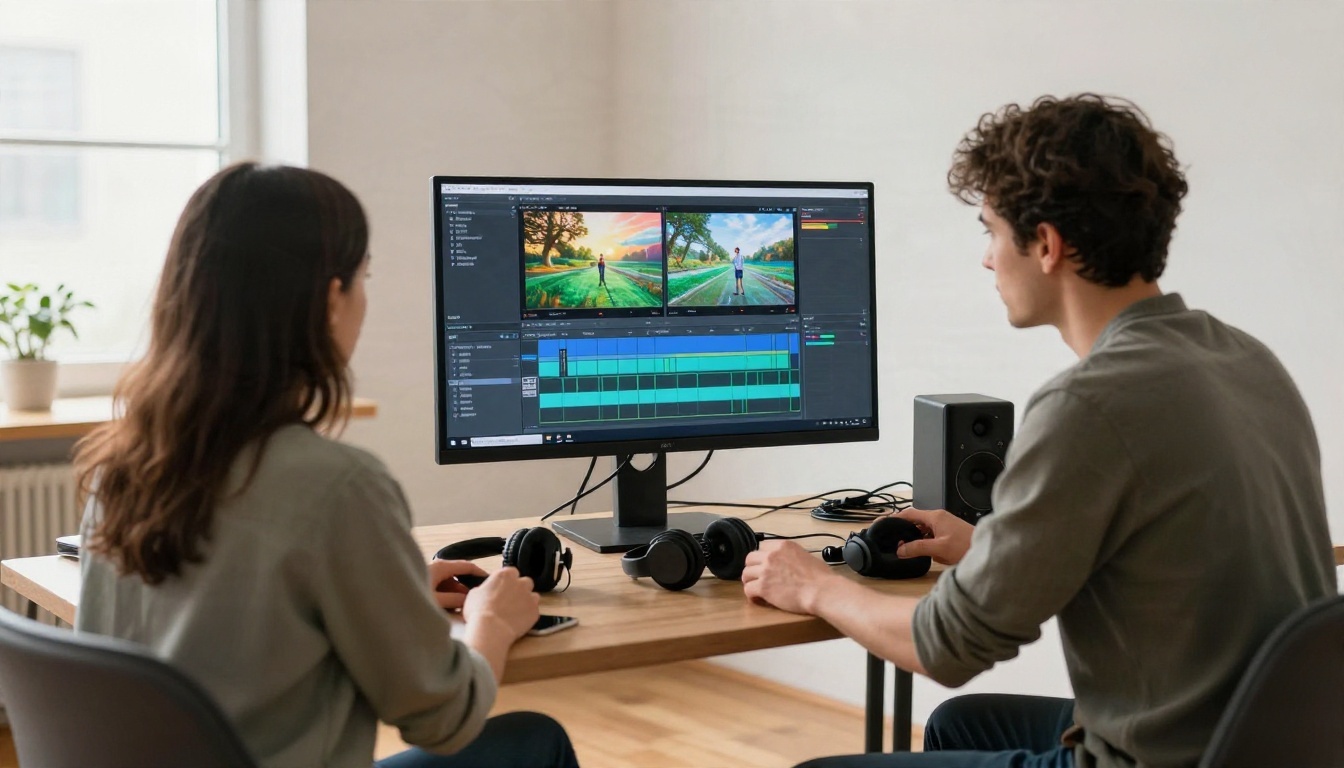
- Open the model page. Go to the Seedance 2.5 Lite page on PicassoIA.
- Paste your prompt. Use the five-part formula: style, subject, setting, motion, camera.
- Choose the duration. Start at 5 seconds for tests. Move to 10 seconds once the motion looks right.
- Pick an aspect ratio. Use 16:9 for YouTube, 9:16 for TikTok, Reels and Shorts.
- Generate and review. Watch the clip twice. The first time for the overall look, the second for flicker, face drift or odd hands.
- Refine and repeat. Change one thing at a time: the camera move, the lighting, or the action verb.
💡 Tip: Generate three versions of the same prompt before you change anything. Models are random by nature, and the best of three is often far better than the first attempt.
Settings That Matter
- Duration: Short clips stay more consistent. Long clips need simpler actions.
- Aspect ratio: Decide before you generate. Cropping later loses detail.
- Prompt length: Aim for 40 to 80 words. Shorter is vague, longer starts to contradict itself.
- Audio: If the model supports sound, mention it ("soft rain, distant train, gentle piano") so the clip feels finished.
If you want tighter control over how your character looks, design a keyframe first with an image model such as Seedream 4.5, then animate it with an image to video model. This keeps hair color, outfit and face consistent across scenes.
Fixing Common Problems
Even the best models stumble. Here is how to patch the usual issues without starting from zero.
Flicker and Face Drift
When a character's face subtly changes mid-clip, the prompt is usually asking for too much. Simplify:
- Remove extra characters.
- Cut any second action.
- Describe the face once, clearly ("short black hair, round glasses, calm expression").
- Use a still image as the first frame if the tool allows it.
Motion That Looks Stiff
If your characters barely move, you probably described a pose, not an action. Swap "a girl standing in a field" for "a girl turns toward the wind as her hair and skirt ripple." Add secondary motion too: petals, clouds, steam, water ripples, fabric. Those small background movements make the whole clip feel alive.
| Problem | Likely cause | Fix |
|---|
| Face changes mid-clip | Too many details or actions | Simplify, use a first frame image |
| Static, lifeless scene | Pose described, no action | Add a verb and secondary motion |
| Messy hands | Complex gestures | Hide hands, or use a simple pose |
| Wrong style | Style words too vague | Name the era: "90s cel anime," "soft watercolor" |
| Jerky camera | Conflicting camera moves | Use one move per clip |
Other Models Worth Trying
Free is great for practice, but different models have different strengths. When you want to push quality, motion or length, these options on PicassoIA are worth a test with your best prompt:
- Kling v3 Video: Strong cinematic motion and good character movement. A good pick for action sequences.
- Kling v3 Motion Control: Animate a character by following a reference movement.
- Wan 2.5 T2V: A reliable text to video model, with a fast version for quicker tests.
- Veo 3.1 Fast: Sharp 1080p output with sound, useful when you want audio built in.
- Hailuo 02: Smooth movement and strong prompt following at 1080p.
- Seedance 2.5: For longer scenes, up to 30 seconds.
- LTX 2.5 Fast: Quick generations when you are iterating on many prompts.
- Sora 2: Text to video with synced audio for dialogue-driven scenes.
A simple workflow that works well: draft with a free or fast model, choose the best take, then re-run that exact prompt on a higher-quality model for the final version. You can also polish the result afterward with PicassoIA's video tools such as upscaling, stabilizing and effects, and add voice or music with the text to speech and AI music generation models.
💡 Tip: Keep a prompt notebook. When a prompt works, save it with the model name and settings. Reusing winners saves hours.
Make Your First Anime Clip Today
You do not need drawing skills, a studio or a budget to make anime video anymore. You need one clear idea and a prompt that describes it well.

Here is a simple plan for the next ten minutes:
- Pick one genre: slice of life, action, fantasy or romance.
- Copy one of the ten prompts above and change the character details.
- Open Seedance 2.5 Lite on PicassoIA and generate three versions.
- Keep your favorite, then test the same prompt on Kling v3 or Wan 2.5 to compare.
- Stitch your best clips into a short scene.
Every great anime sequence starts as a sentence. Write yours, try it on Picasso IA, and see how far one prompt can take you. When you are ready to compare more video and image models, browse the full catalog at picassoia.com/en/all-models.


