Most people type "anime girl walking in the rain" into a video generator, get a stiff, glossy clip, and decide the technology just isn't there yet. The technology is fine. The prompt is the problem. A good AI anime video prompt reads less like a caption and more like a note from a director to an animator: who is on screen, what moves, where the camera sits, and what the light is doing.
This article gives you 12 prompt ideas you can paste right now, a simple formula to build your own, the settings that matter most, and a short list of free generators worth your time. Every example is written for a 5 to 10 second clip, because that is where current models are most reliable.
What Makes an Anime Video Prompt Work
Anime has a visual language that video models have clearly seen a lot of: limited but expressive motion, strong poses, wind in hair and clothes, painterly skies, and dramatic camera moves that hold a beat. When your prompt names those ingredients, the model has something concrete to aim for.
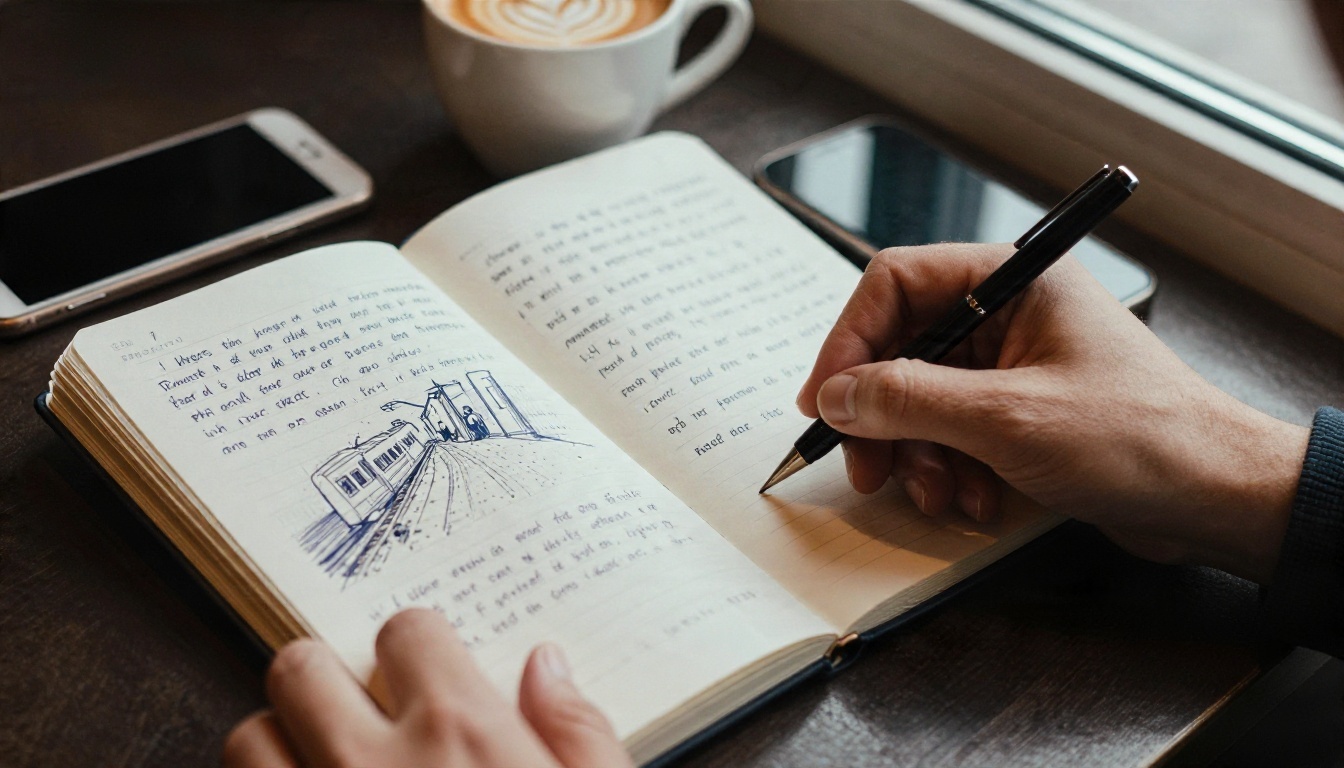
The five part formula
Almost every strong anime prompt contains the same five blocks, in this order:
- Subject: one character, described by hair, outfit and one clear emotion.
- Action: a single motion you can picture in five seconds.
- Setting: place, time of day, weather.
- Camera: shot size and movement (slow push in, low angle, side tracking shot).
- Style: the look you want, such as "hand drawn 2D anime, soft watercolor background, clean line art, film era cel shading."
Put together, it looks like this:
A girl with short silver hair and a red scarf turns toward the camera and smiles, scarf blowing in the wind, school rooftop at sunset, slow push in at eye level, hand drawn 2D anime, soft painted clouds, warm cel shading.
Why one action beats three
Models spread their attention across everything you ask for. If you write "she runs, jumps, spins and draws a sword," you usually get a blur. Write one action per clip and stitch clips together later. This is the single biggest quality jump most beginners can make.
💡 Tip: Describe motion with verbs a storyboard artist would use: turns, steps, reaches, glances, lifts, drifts, tumbles. Avoid vague verbs like "moves" or "does."
12 AI Anime Video Prompt Ideas to Copy
Each idea below includes a short note on why it works. Swap the character details and keep the structure.
Rooftop and sky scenes
Skies are where anime shines, and video models handle slow cloud drift and fabric motion very well.
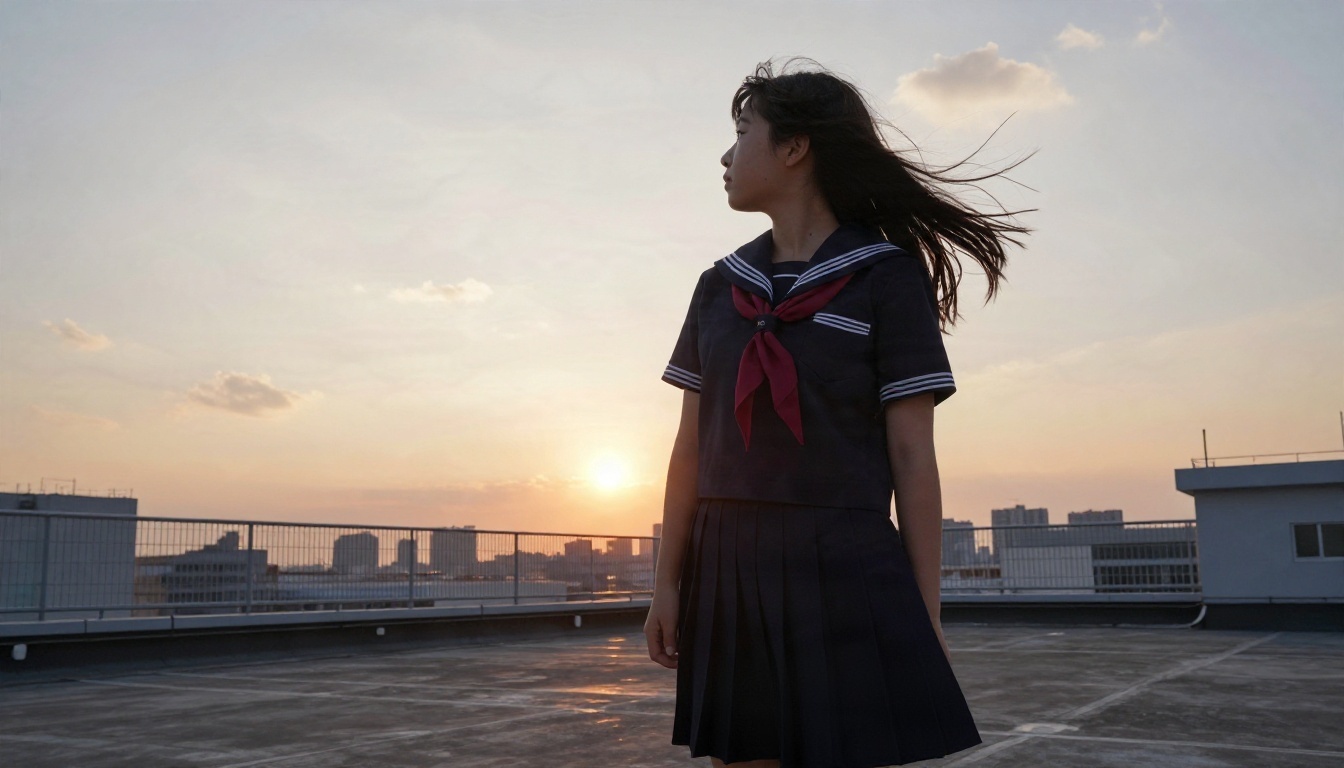
1. The sunset rooftop turn
A schoolgirl in a navy sailor uniform and red scarf stands at a chain link fence, wind lifting her hair, she turns slowly toward the camera, Tokyo skyline at sunset, low angle slow push in, hand drawn 2D anime, painted clouds, warm orange rim light.
2. The paper plane
A boy in a white shirt leans over a rooftop railing and releases a paper plane, the plane glides across a pale blue sky past drifting clouds, camera follows the plane in a smooth side tracking shot, soft watercolor anime style, gentle morning light.
3. The balcony wind moment
A young woman in a long cardigan stands on an apartment balcony at dawn, laundry flapping on a line behind her, she tucks hair behind her ear and looks at the horizon, static wide shot with subtle handheld sway, quiet slice of life anime, muted pastel palette.
Rain, night and city mood
Rain, reflections and lantern light are classic anime atmosphere. They also hide small flaws, which makes them forgiving for beginners.
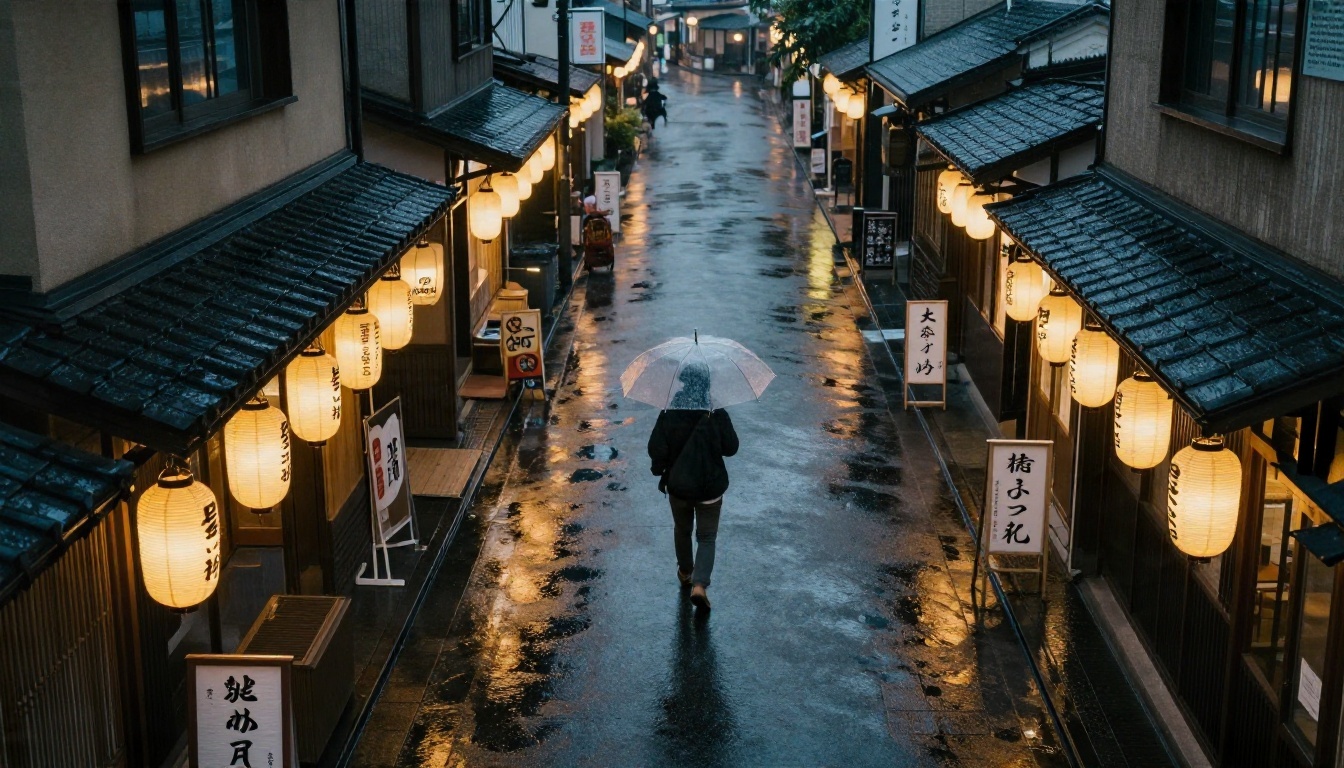
4. The umbrella walk
A lone figure with a clear umbrella walks away down a narrow shopping street at night, rain falling, paper lanterns glowing on wet asphalt, high angle slow descent toward the street, hand drawn anime, detailed reflections, soft film grain.
5. The convenience store glow
A tired office worker in a trench coat stops outside a small convenience store after midnight, breath visible in the cold, warm light spilling onto the pavement, slow dolly in from the street, moody late night anime, deep blue shadows with one warm light source.
6. The train window
A teenage girl rests her head against a train window, rain streaks running down the glass, countryside blurring past, she closes her eyes slowly, close up with shallow depth of field, gentle 2D anime, quiet and melancholic.
Romance and slice of life
Soft motion and close framing keep faces stable, which is where most models struggle.
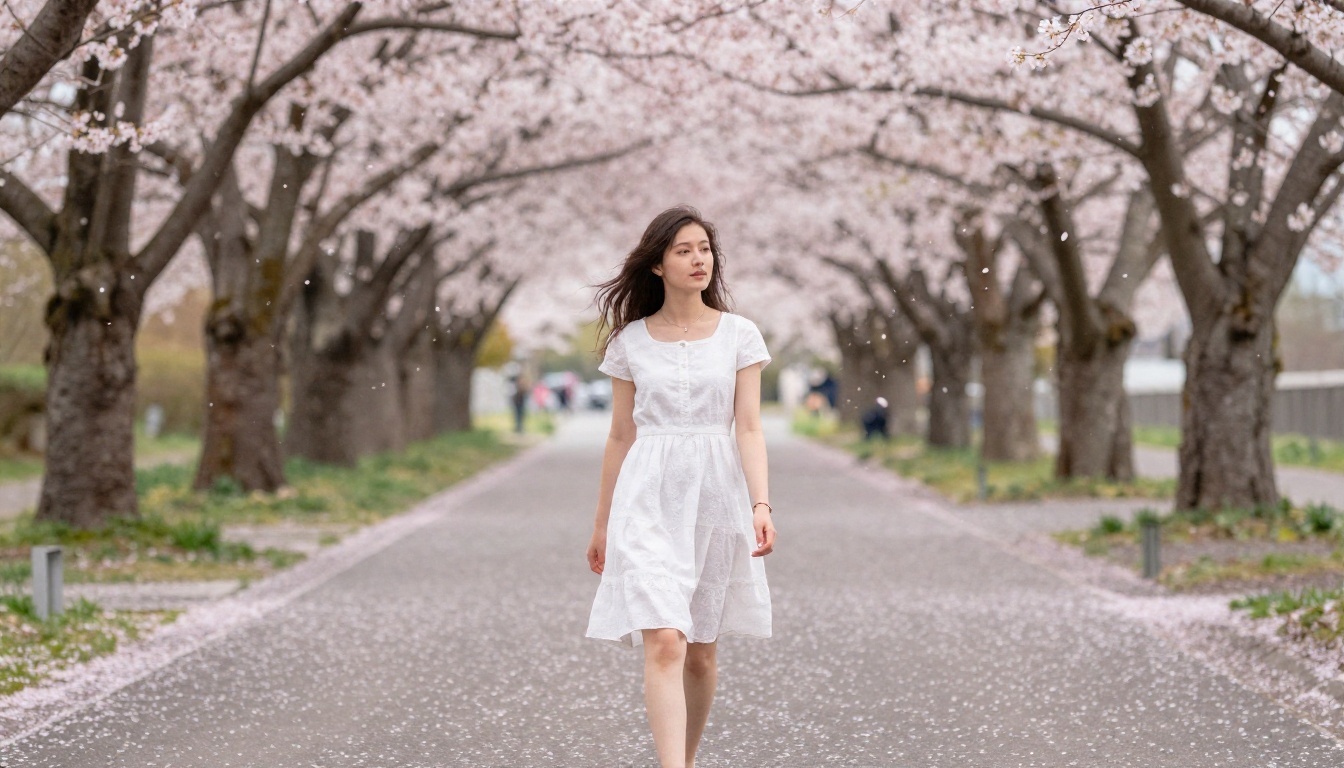
7. The cherry blossom walk
A girl in a white summer dress walks along a path beneath cherry blossom trees, petals drifting through the air, she catches one in her palm and smiles, medium shot, slow backward tracking, soft pastel anime, bright spring morning light.
8. The platform goodbye
Two friends on a quiet rural train platform at dusk, one waves as the train doors close, the other lifts a hand slowly, golden hour light, wide shot that slowly pushes in, nostalgic slice of life anime, warm amber and cool blue contrast.
Action and fantasy
Action is the hardest category, so keep the camera simple and the choreography small.
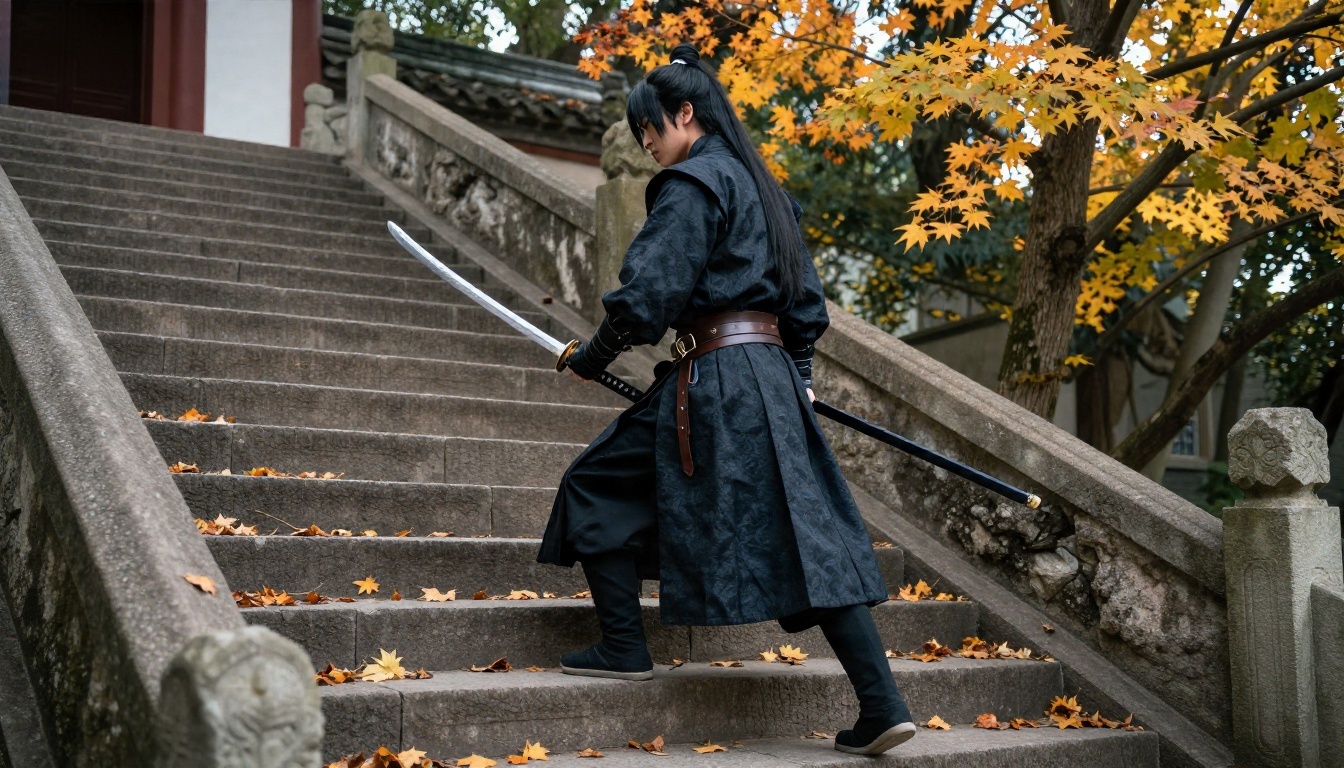
9. The temple stair draw
A swordsman in a long dark coat climbs a stone temple staircase covered in red maple leaves, he stops, rests a hand on his katana hilt, leaves swirl around his feet, low angle tracking shot, dramatic shonen anime style, sharp line art, high contrast light.
10. The magic gesture
A young mage in a hooded cloak raises one hand in a forest clearing, small points of pale light gather above her palm, her cloak ripples, slow orbit around the character, fantasy anime film look, painted foliage, soft volumetric light.
11. The mecha reveal
A giant humanoid robot stands motionless in a foggy valley at dawn, its head slowly turns toward the camera, mist rolls past its shoulders, wide low angle with a slow upward tilt, 90s anime film style, grain and subtle film dirt.
12. The cat on the windowsill
A black cat sits on a wooden windowsill with a rainy city behind it, ears twitching, tail curling slowly, a soft breeze moves the curtain, static close up, cozy anime film aesthetic, warm desk lamp light.
💡 Tip: Prompt 12 is the best first test. Animals, a static camera and tiny motion give you a clean clip in one or two tries, which tells you how a model handles anime style before you invest in harder scenes.
Settings That Change the Result
The prompt gets most of the credit, but a few settings decide whether the output looks like animation or like a filtered video.
Duration, ratio and resolution
| Setting | Recommended value | Why it matters |
|---|
| Duration | 5 seconds to start | Shorter clips hold character details better. Go to 10 seconds only after the 5 second version looks right. |
| Aspect ratio | 16:9 for scenes, 9:16 for shorts | Anime backgrounds are composed for wide frames, so 16:9 usually looks the most cinematic. |
| Resolution | 720p for tests, 1080p for finals | Test cheaply, then rerun the winning prompt at higher resolution. |
| Audio | On if the model supports it | Rain, wind and footsteps add a lot of life, even to a simple clip. |
| Seed | Lock it when you like a result | Lets you change one phrase at a time and see exactly what it did. |
Text to video or image to video
Text to video is fast and great for exploring ideas. Image to video gives you much more control over how a character looks, because the first frame is already decided. If you want the same character across several clips, generate one clean still first, then animate it each time with a different motion prompt.
A handy workflow is to build your reference still in an image model such as Seedream 4.5 or Nano Banana, then hand that image to a video model. Keep a small "character sheet" note with hair color, outfit and one signature accessory, and paste the same line into every prompt.
Camera words that work
- Slow push in: adds emotion without risking distortion.
- Side tracking shot: great for walking scenes.
- Low angle: makes characters feel heroic.
- Slow orbit: good for reveals, but keep the subject still.
- Static shot: the safest option for close ups and faces.
Free Generators Worth Trying
"Free" means different things: some tools give you a few daily credits, some give you a trial, and a few are genuinely unlimited. Here are the options on PicassoIA that fit anime work well.
| Generator | Best for | Notes |
|---|
| Seedance 2.5 Lite | Free, unlimited clips up to 10 seconds | Strong motion and a good choice for iterating on prompts without watching a credit counter. |
| PicassoIA Video | Free unlimited text or image to video | Easy entry point if you want to test many ideas in one sitting. |
| Wan 2.5 I2V Fast | Animating a reference still quickly | Good at holding the look of the source image. |
| Hailuo 2.3 Fast | Expressive faces and small gestures | Handy for slice of life and romance scenes. |
| Kling v3 Video | Cinematic camera moves | Great for final versions of your best prompts. |
| Veo 3.1 Fast | Clips with native audio | Useful when sound design matters. |
Which one should you pick first?
Start with a free, unlimited option such as Seedance 2.5 Lite, run your prompt three or four times, and keep the best take. Once you know the exact wording that works, move it to a heavier model like Kling v3 for a final render. This "cheap draft, polished final" routine saves a lot of time.
How to Use Seedance 2.5 Lite on PicassoIA
Here is the quickest route from idea to finished clip using Seedance 2.5 Lite.
Step by step
- Open the model page and choose text to video, or upload a reference still if you want image to video.
- Paste your prompt. Use one of the 12 ideas above, changing the character details.
- Set the duration to 5 seconds for your first attempt.
- Pick the aspect ratio: 16:9 for scenes, 9:16 for vertical posts.
- Generate and watch twice. The first time, look at the overall motion. The second time, check the face, hands and background for glitches.
- Change one thing. Adjust only the camera or only the action, then run it again.
- Extend to 10 seconds once you have a take you like.
Parameter tips
- Write the style phrase at the end of the prompt, and keep it short and consistent.
- If the character drifts, add the same hair and outfit description at the start of every prompt.
- If motion looks too fast, add words like "slowly," "gently" or "barely."
- If the image feels flat, name one light source: "warm desk lamp," "low sunset," "paper lanterns."
💡 Tip: Keep a plain text file of your best prompts. After ten clips, you will have a personal library you can reuse and remix.
Common Problems and Quick Fixes
Even good prompts misfire. These are the most frequent issues and what usually solves them.
Faces melt or change mid clip
Use a static or very slow camera, a close or medium shot and one subtle action. If you are using text to video, switch to image to video with a clean reference still.
The clip looks like 3D, not 2D
Add "hand drawn 2D anime, clean line art, flat cel shading, painted background" and remove words like "cinematic," "realistic" or "ultra detailed," which can pull the look toward a rendered film.
Too much happening at once
Cut your prompt down to one subject, one action and one camera move. Add a second subject only after the single character version works.
Motion feels floaty
Add physical anchors: wind, rain, falling petals, flapping fabric. Secondary motion makes the main motion feel grounded.
Backgrounds wobble
Name the background style once ("soft painted watercolor background") and avoid listing ten details in the environment. Long lists confuse the scene layout.
| Problem | Fast fix |
|---|
| Faces drift | Static camera, close shot, reference image |
| 3D look | Add "hand drawn 2D, cel shading", remove "realistic" |
| Chaotic motion | One action per clip |
| Floaty movement | Add wind, rain or fabric motion |
| Wobbly background | Shorter environment description |
Build a Short Anime Scene From Clips
One clip is a moment. Three to five clips make a scene. Here is a simple structure that works well for a 20 second piece:
- Establishing shot: wide view of the location (rainy street, rooftop skyline).
- Character reveal: medium shot with a small action.
- Close up: face or hands, static camera.
- Reaction or detail: cat, scarf, umbrella, train door.
- Closing shot: slow pull back or a sky.
Generate each as its own 5 second clip with the same character line and the same style phrase, then cut them together in any editor. Add music or ambient sound last, because a consistent soundtrack hides small differences between clips. If you need to sharpen the final export, a video upscaler on PicassoIA can raise the resolution without changing the look.
💡 Tip: Plan the cuts around motion. End one clip as the character turns left, and start the next one with the camera already facing left. The edit will feel smoother than any transition effect.
Make Your First Clip Today
You have the formula, 12 prompts, the settings that count and a handful of free tools. The fastest way to improve is to run a few of these and compare. Start with the cat on the windowsill, move to the rooftop turn, then try the umbrella walk when you are comfortable.
Open Seedance 2.5 Lite or PicassoIA Video, paste a prompt, and watch what happens. Change one phrase, run it again, and save the version you like best. When you want to try more styles, browse every video and image model at picassoia.com/en/all-models and create your own anime clips on PicassoIA.


