Most AI avatar videos look fake for one boring reason: the prompt describes a face and nothing else. No lens, no light, no gesture, no tone of voice. The model fills every gap with a generic default, and you get the same stiff presenter everyone else is posting. The fix is not a cleverer adjective. It is a prompt that reads like a shot list.
This article gives you AI avatar video prompt ideas you can copy today: talking avatars for explainers and support, UGC style ads, and on-camera presenters for training and real estate. Each example is written in plain language, and each one explains why it works so you can swap in your own subject.
💡 Quick rule: describe what the camera sees, what the person does, and how they sound. Skip anything the viewer cannot see or hear.
What Makes an Avatar Prompt Work
An avatar video is a short scene with one person who has to hold attention. That means small details carry more weight than they do in a landscape or a product shot. A hand that moves slightly too fast, light that comes from nowhere, or a smile that never changes will break the illusion within two seconds.
The Six Parts of a Strong Prompt
Almost every prompt that gives a believable result contains the same six pieces. You do not need long paragraphs. One clear phrase per part is enough.
| Part | What to write | Example phrase |
|---|
| Subject | Age range, clothing, hair, expression | "woman in her thirties, cream linen blazer, relaxed smile" |
| Action | What the person does while speaking | "small hand gesture on key words, brief nod at the end" |
| Setting | Where the scene takes place | "bright home studio, oak bookshelf, plant in a basket" |
| Light | Direction and quality | "soft morning window light from the left" |
| Camera | Framing, lens, movement | "chest-up, 85mm, slow push-in, shallow depth of field" |
| Voice | Tone, pace, accent | "warm, calm, medium pace, slight pauses between sentences" |
Notice that "Voice" sits in the same list as the visuals. Models with native audio, and lipsync models that take an audio file, both respond better when the performance is described, not only the face.
Realism Words That Actually Help
Skip "ultra realistic" and "8K masterpiece." They add little. These phrases give the model something physical to render:
- Skin: "visible pores, fine lines at the eyes, no airbrushing"
- Light: "window light from the left, soft shadow on the right cheek"
- Lens: "85mm f/1.8, creamy background blur"
- Fabric: "linen weave, natural creases at the elbow"
- Motion: "subtle head movement, natural blinking, relaxed shoulders"
Keep One Idea Per Clip
A clip of five to ten seconds can hold one sentence of speech and one gesture. If you ask for a product reveal, a laugh, a walk across the room and a text overlay, you will get a muddle. Split the idea into several clips and edit them together.
Talking Avatar Prompt Examples
Talking avatars are the most common use: a single face, a clear voice, and a message. These three examples cover explainers, support and teaching.
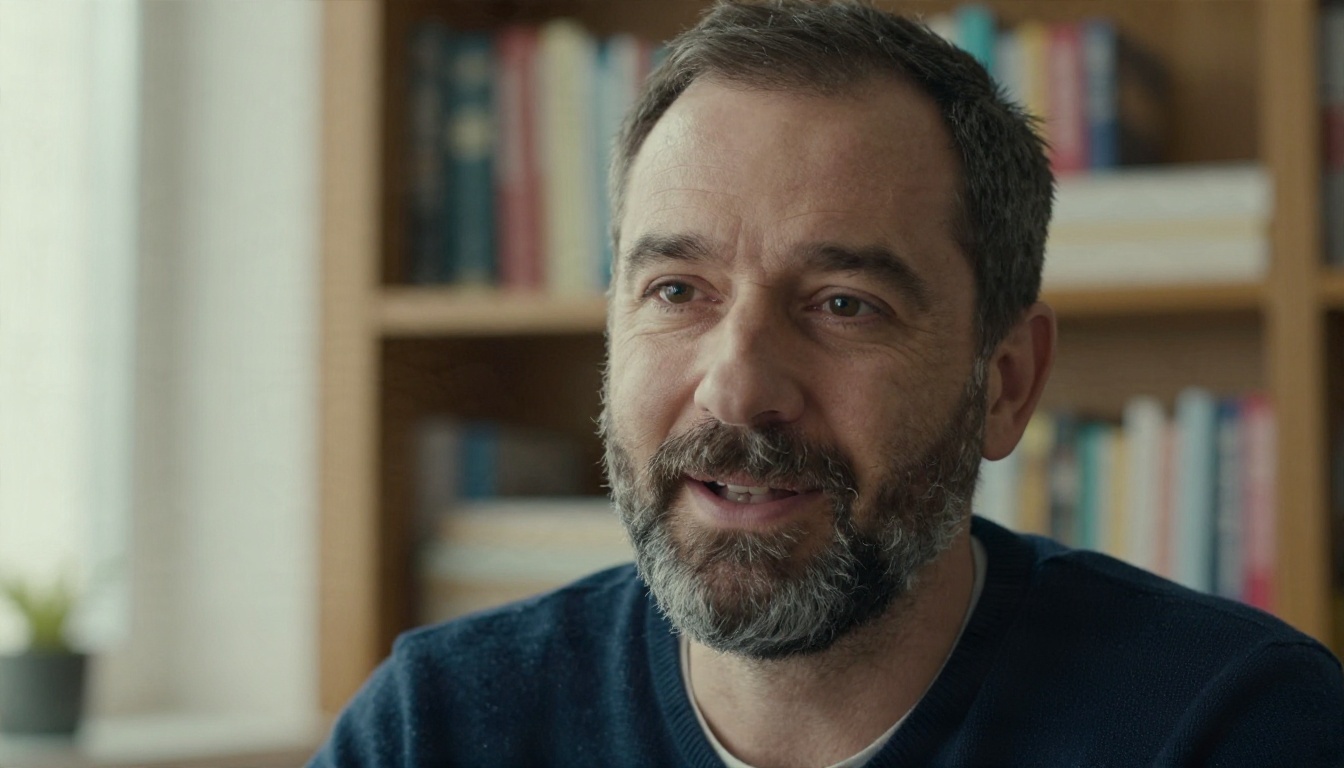
The Calm Explainer
Medium close-up of a man in his forties with a short salt-and-pepper beard and a navy sweater, seated in a quiet office. Soft window light from the left, blurred bookshelves behind him. He speaks directly to camera with a steady, warm tone, nodding slightly on important words. Subtle blinking, relaxed shoulders. 85mm lens, shallow depth of field, very slow push-in over the clip.
Why it works: the instruction "nodding slightly on important words" gives the face a rhythm. The slow push-in keeps a static shot from feeling frozen.
The Friendly Support Agent
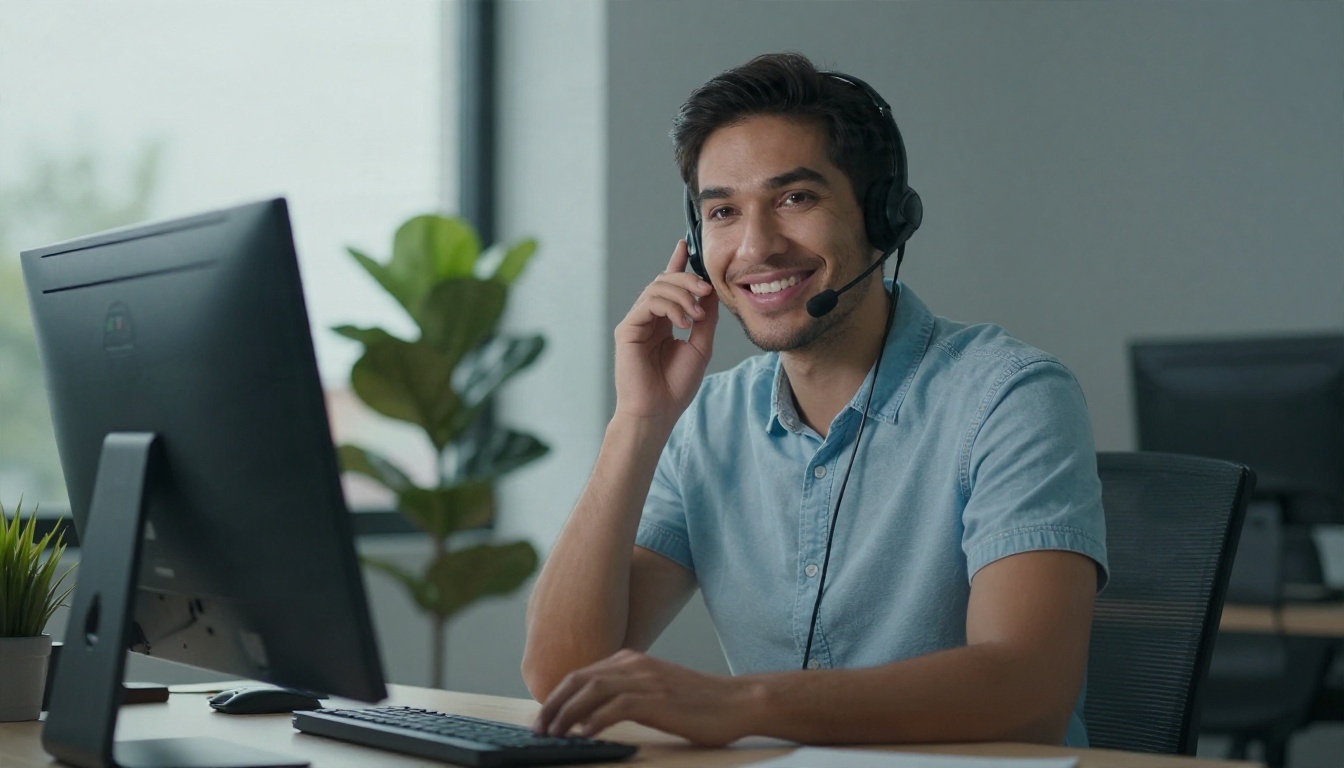
Chest-up shot of a smiling customer support agent in a light blue shirt and a lightweight headset, tidy desk with a laptop and a small plant, cool overcast daylight from the right. She greets the viewer with a quick friendly tilt of the head, then speaks in an upbeat but unhurried voice. Natural micro-expressions, eyes on the lens. 70mm lens, static camera.
Why it works: a static camera is the right call for support videos. Viewers want to read the lips and the expression, not follow camera movement. Pair it with a short script and a voice from one of the text to speech models below.
The Classroom Teacher
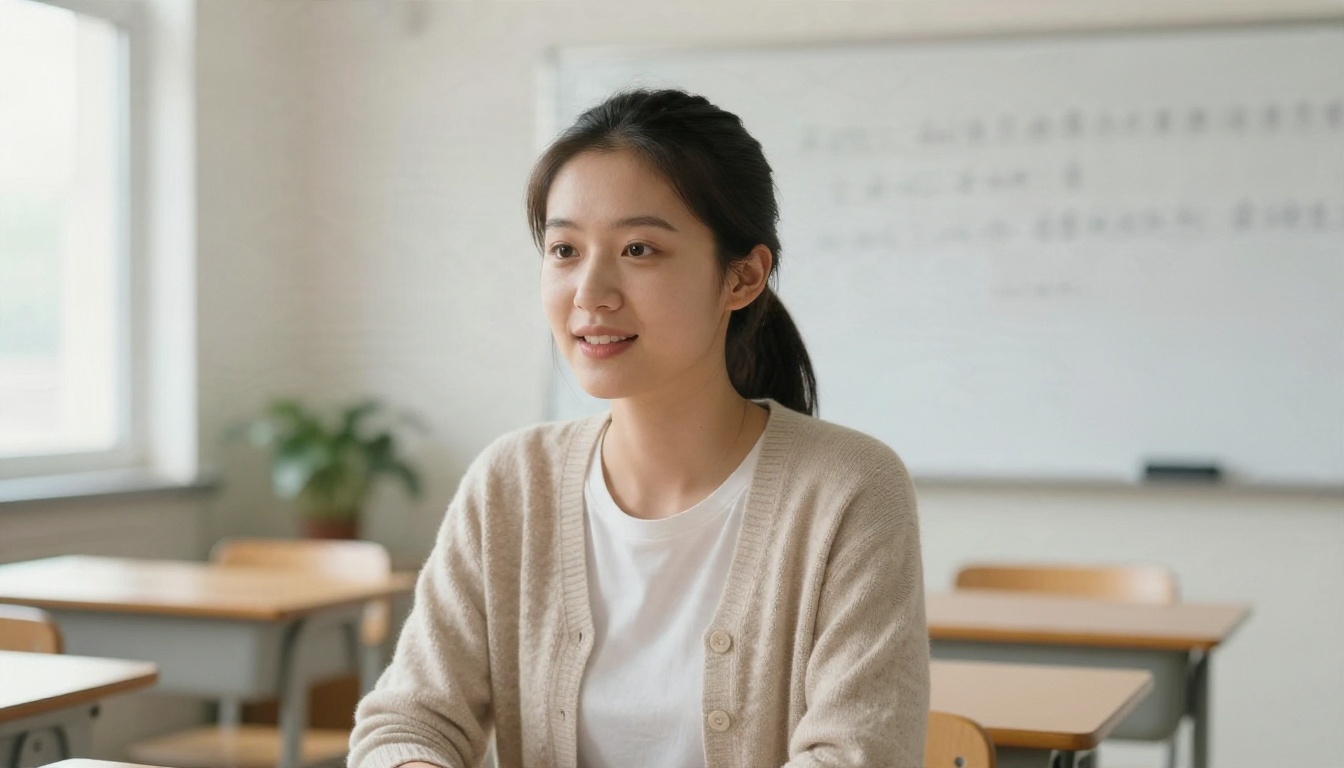
Eye-level medium shot of a young teacher with a ponytail and a knit cardigan, standing in an empty bright classroom. Tall windows on the left give diffused daylight, a whiteboard with simple handwriting sits behind her. She speaks with clear pacing, raises one finger when she introduces a new term, and smiles at the end of each sentence. 50mm lens, gentle film grain.
Why it works: the raised finger is a teaching habit viewers recognize instantly. A believable habit does more for trust than a perfect face.
Ad and UGC Prompt Examples
User-generated style ads work because they look like a real person filmed them on a good phone. Your prompt should protect that feeling: slightly imperfect framing, natural light, an everyday location.
The Skincare Product Demo

Medium shot, slight low angle, of a young woman in a sunlit kitchen holding a small ceramic skincare jar toward the camera with her right hand. Marble counter, green plants, golden afternoon light from a window on the right. She smiles, glances at the jar, then back to the lens and says one casual sentence about how it feels. Handheld phone feel, tiny natural camera sway. 35mm lens.
Why it works: "glances at the jar, then back to the lens" is the move real creators make. It shifts attention to the product without a hard cut.
💡 Tip: keep the product in one hand and let the other hand rest or gesture. Two hands holding objects is where many generators fail.
The Fitness Coach Promo
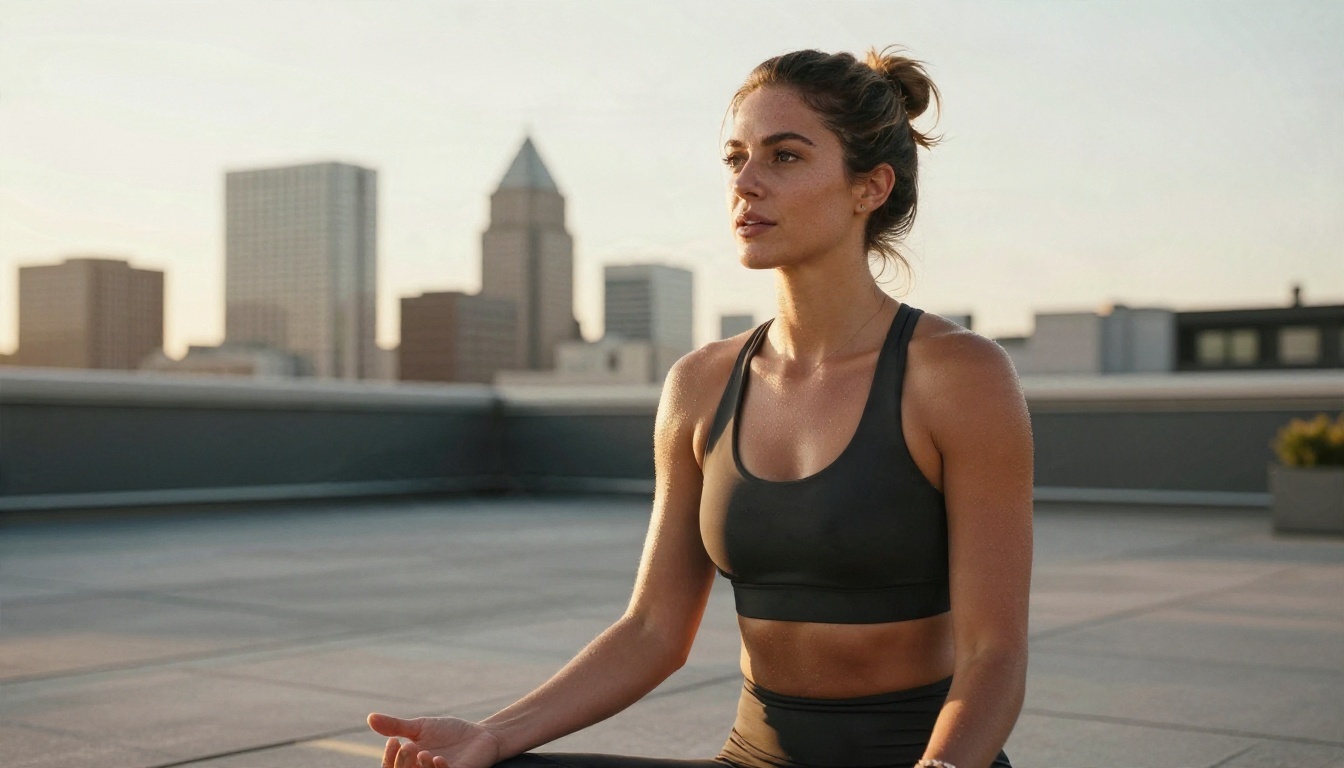
Low-angle medium shot of a fitness coach in black activewear on a rooftop terrace at golden hour, city skyline softly blurred behind. Warm backlight rims her hair from the right, a yoga mat lies in the foreground. She speaks with an energetic, confident voice, breathes in slightly between phrases, and points to the camera on the final line. 35mm lens, f/1.8.
Why it works: backlight at golden hour flatters skin and gives the scene depth with almost no extra description. The low angle adds authority.
The Problem, Fix, Result Hook
Short ads often follow a three-beat structure. Write one prompt per beat and keep the same character description in every one.
- Problem (0 to 3 seconds): "Frustrated expression, rubs the back of her neck, says one short line about the problem."
- Fix (3 to 7 seconds): "Brightens, lifts the product into frame, speaks with growing confidence."
- Result (7 to 10 seconds): "Relaxed smile, nods once, looks straight into the lens."
Copy the subject block (age, outfit, hair, setting) word for word into all three prompts. That is the easiest way to keep the character consistent between clips.
Presenter Prompt Examples
Presenters need more body and more space. The camera pulls back, hands become visible, and the person usually interacts with something: a screen, a room, a product.
The Corporate Training Host
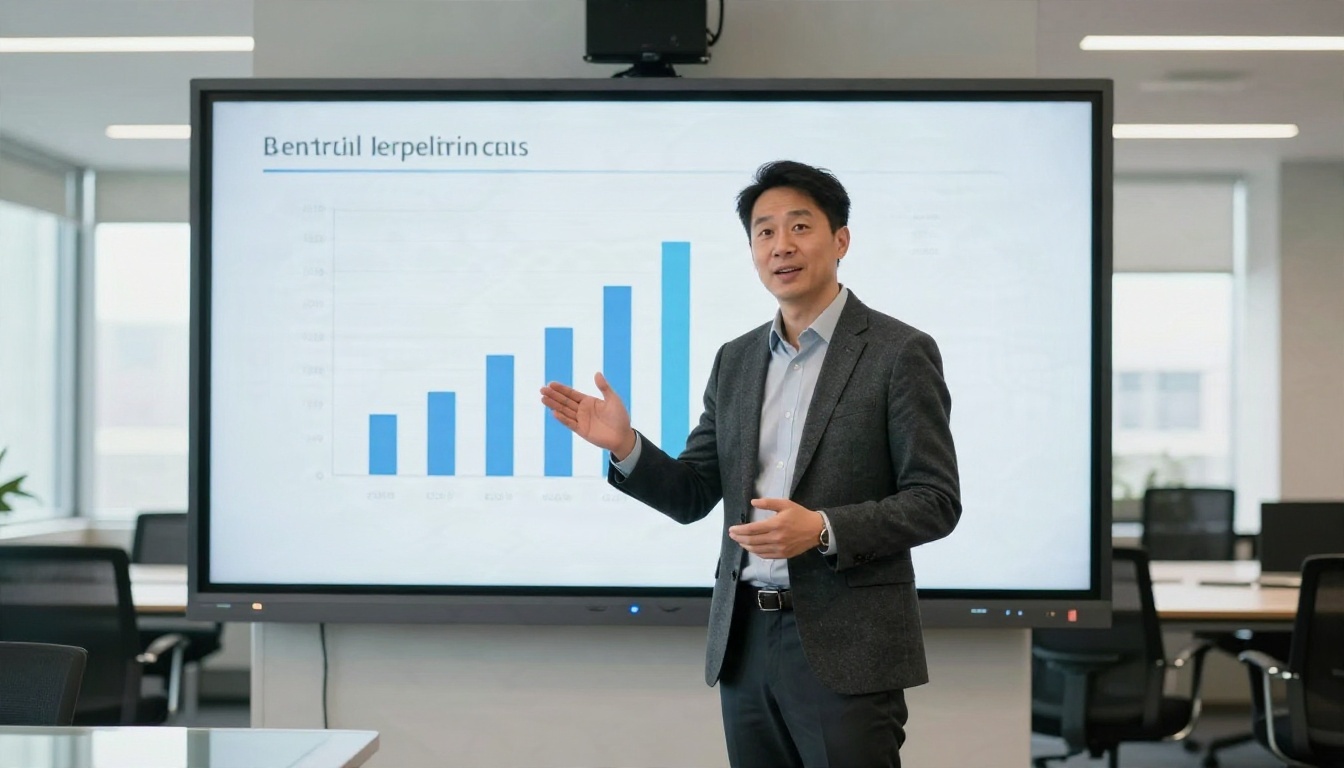
Wide shot from slightly behind and to the side of a presenter in a charcoal blazer, standing beside a wall-mounted screen with a simple bar chart. Bright training room, glass table, soft overhead light mixed with window light. He gestures toward the chart with an open palm, turns to the camera, and speaks in a measured, professional tone. 28mm lens, f/4, locked camera.
Why it works: the open palm toward the chart gives the viewer somewhere to look, which is exactly what a human presenter does. Avoid asking the model to render readable chart text. Add real numbers later in your editor.
The Real Estate Walkthrough
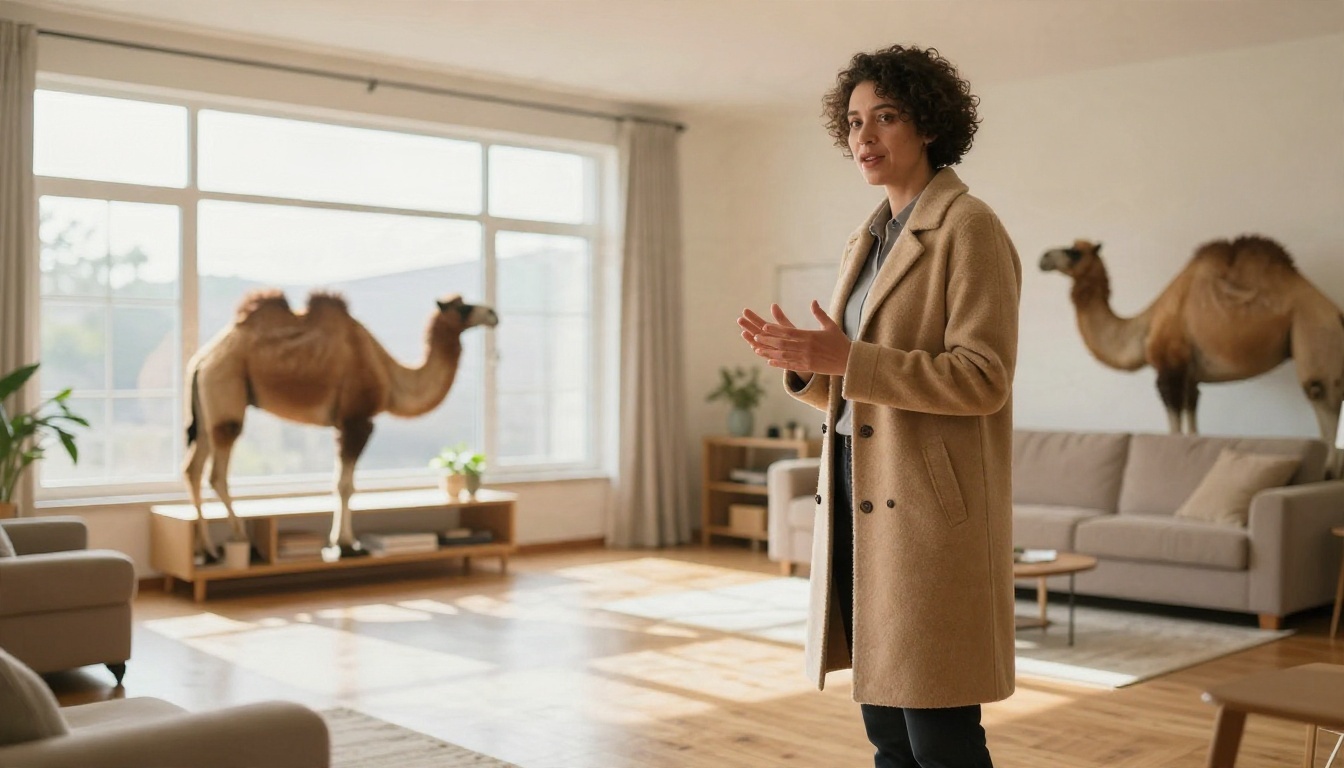
Wide low-angle shot of a real estate agent in a camel coat standing in a spacious sunlit living room, large windows behind her, hardwood floor reflecting soft light. She steps half a pace forward, sweeps one hand toward the open space, and says a single welcoming sentence. Slow dolly-in, 24mm lens, neutral warm tones.
Why it works: the sweeping hand and the half step tell the model where the person is going, so the motion feels planned instead of random.
The Studio Brand Host
This is the prompt style that suits brand intros, channel trailers and product announcements. It is also the setup used for the cover image of this article.
Eye-level medium shot of a woman in her early thirties in a cream linen blazer, seated at a desk in a bright home studio. Pale oak bookshelf, ceramic vases, a monstera in a woven basket, sheer curtains diffusing morning light from the left. A small lavalier microphone is clipped to her lapel. She speaks with a calm, trustworthy tone, gestures lightly at chest height, and finishes with a relaxed smile. 85mm lens, f/1.8.
Write the Script Before the Prompt
The most common order of work is backwards. People write the visual prompt first, then paste in whatever text they have. Do it the other way around. The script decides the length of the clip, the emotion on the face and the gesture.
Match Words to Seconds
Natural speech runs at roughly two to three words per second. That gives you a simple budget:
| Clip length | Spoken words | Good for |
|---|
| 5 seconds | 10 to 14 | A hook or a greeting |
| 10 seconds | 22 to 28 | One benefit or one step |
| 15 seconds | 35 to 42 | A short product pitch |
Over-stuffed scripts force the avatar to talk too fast, and the lips stop matching the sound.
Plan Six Frames on Paper
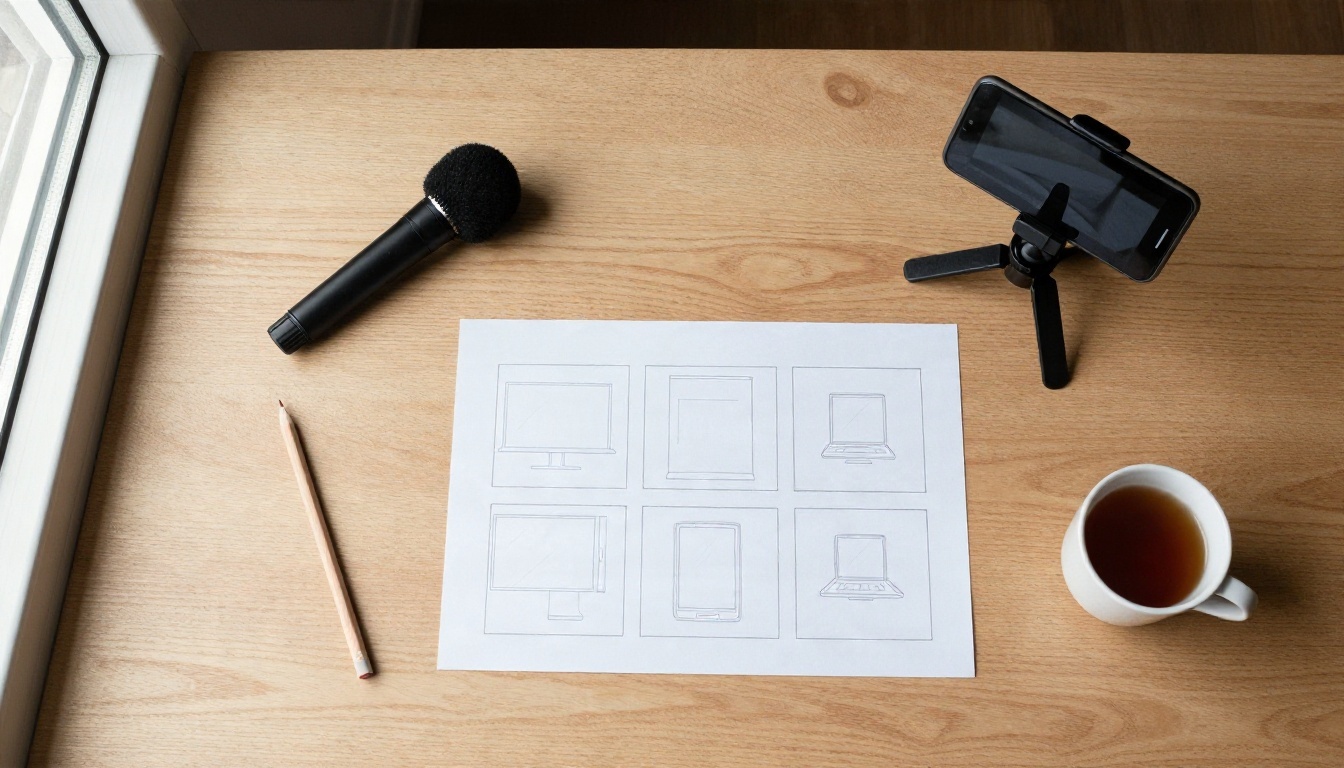
A rough storyboard with six boxes is enough. In each box write the line of speech, the camera framing and one gesture. When you later write the prompt, you are only converting the box into a sentence.
Direct the Voice Like an Actor
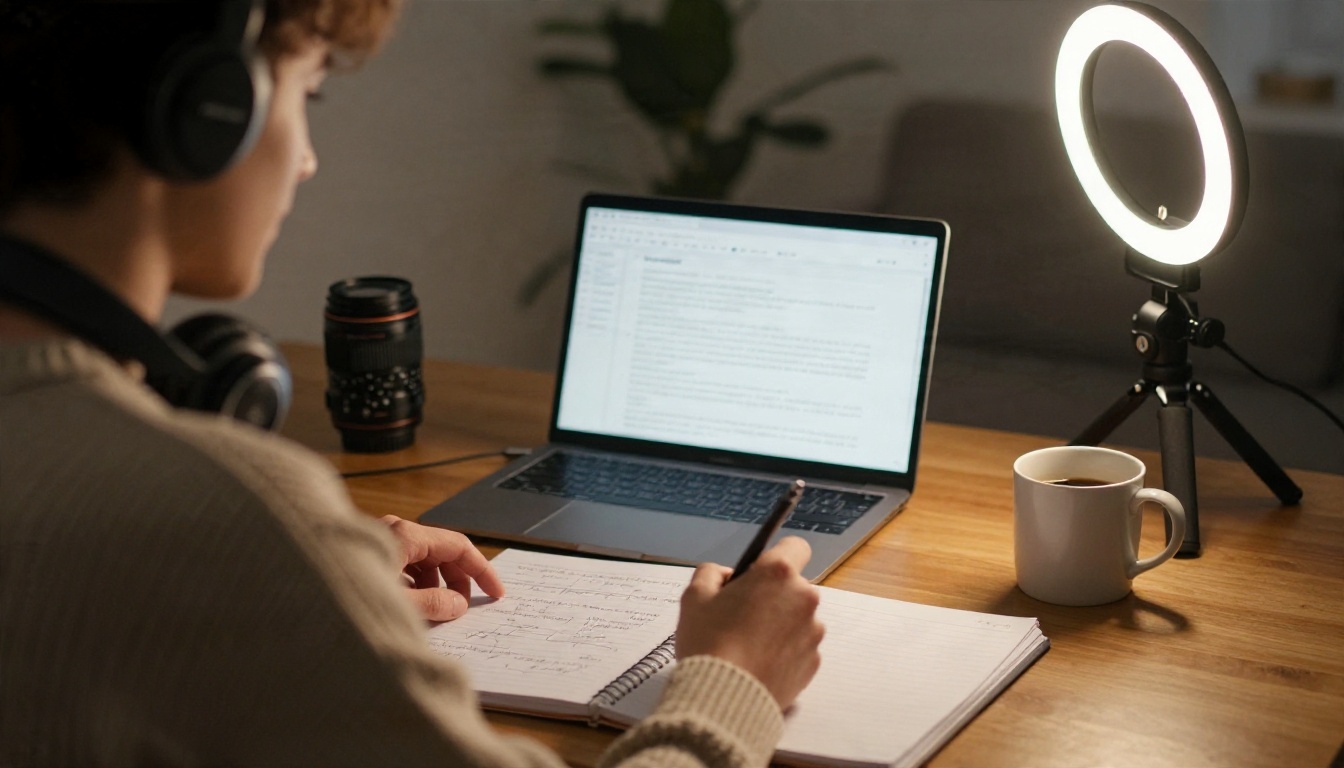
Voice direction is short and specific. Compare these two lines:
- Weak: "Speaks nicely."
- Strong: "Warm, slightly amused, medium pace, a half-second pause before the last word."
If you work with a separate voice track, generate it with a model such as Gemini 3.1 Flash TTS, Realtime TTS 2 or Speech 2.8 Turbo, then feed that audio to an avatar model.
How to Use P Video Avatar on PicassoIA
P Video Avatar is built for exactly this job: a still portrait plus a voice becomes a talking video. The steps below work the same way for the other photo-to-talking-video models in the next section.
- Prepare the portrait. Use a sharp, front-facing image with a visible face, even light and a closed or relaxed mouth. A frame like the studio host above is ideal. If you do not have one, generate it first with Nano Banana Pro, using the six-part formula and a "RAW photograph, 85mm" style line.
- Prepare the voice. Upload your recorded audio, or generate a voice track with one of the text to speech models mentioned earlier. Keep the file clean, with no background music.
- Write the performance prompt. Describe the gesture, the expression and the camera feel in two or three sentences. Do not repeat the face description, because the portrait already defines it.
- Generate a short test. Run a clip of five to ten seconds first. Check the lips, the blinking and the hands.
- Adjust one thing at a time. If the movement is too stiff, loosen the gesture line. If it is too wild, add "subtle" and "relaxed shoulders."
- Extend and edit. Generate the remaining clips with the same portrait and the same style line, then combine them in your editor.
💡 Tip: change only the audio and the gesture line between clips. Leaving the portrait and the style line untouched keeps the character consistent.
Which Model for Which Job
No single model is best at everything. Here is a practical way to pick.
| Job | Models to try | Why |
|---|
| Photo to talking video | P Video Avatar, Omni Human 1.5, Omni Human, Fabric 1.0 | Start from one portrait and one audio file |
| Match mouth to audio in existing video | Lipsync 2, Kling Lip Sync, React 1 | Fix or replace speech in a clip you already have |
| Translate and dub | Video Translate, Lipsync Precision | Reuse one presenter video in many languages |
| Full scene with native audio | Veo 3.1 Fast, Sora 2, Seedance 2.5 | Camera movement, environment and speech in one pass |
| Cinematic movement | Kling v3 Video, Kling v3 Motion Control | Strong control over body motion |
| Fast drafts | Wan 2.5 I2V Fast, Hailuo 2.3 Fast | Quick tests before a final render |
When to Use a Portrait Model
Pick a photo-to-talking-video model when the face must stay identical across many videos: a brand host, a course instructor, a recurring support agent. The portrait locks the identity, and the audio locks the message.
When to Use a Text to Video Model
Pick a text to video model with native audio when the scene matters as much as the person: a presenter walking through a room, a creator in a kitchen, a coach on a rooftop. You get movement, sound and environment from one prompt, but identity consistency takes more care.
When to Use a Lipsync Model
Pick a lipsync model when you already have footage you like and only the speech needs to change: a new script, a corrected word, or a translation.
Common Mistakes That Break the Illusion
Too Many Instructions
Prompts with eight gestures, four emotions and three camera moves produce nervous, jittery results. Choose one gesture, one emotion and one camera move per clip.
Perfect Skin and Flat Light
Over-smoothed skin reads as artificial. Ask for visible pores and a light direction. Flat, frontal light removes the shadows that give a face its shape.
Ignoring Audio Quality
A beautiful face with a hollow, noisy voice still feels fake. Record or generate clean audio, keep a steady volume and leave a short pause at the start and end of every clip so the mouth can open and close naturally.
💡 Checklist before you render: one idea per clip, subject block copied exactly, light direction stated, gesture named, voice described, script fits the seconds.
Make Your First Avatar Today
Pick one example from this article and swap three things: the person, the setting and the line of speech. Generate a still portrait with Nano Banana Pro, add a voice, and run a five second test on P Video Avatar or Omni Human 1.5. Then change a single word in the prompt and compare the two results side by side. That tiny experiment will teach you more than any long list of rules.
Ready to try? Open PicassoIA, choose a model from the table above, paste one of the prompts and see how your own talking avatar, ad or presenter turns out. You can browse every available model at picassoia.com/en/all-models.


