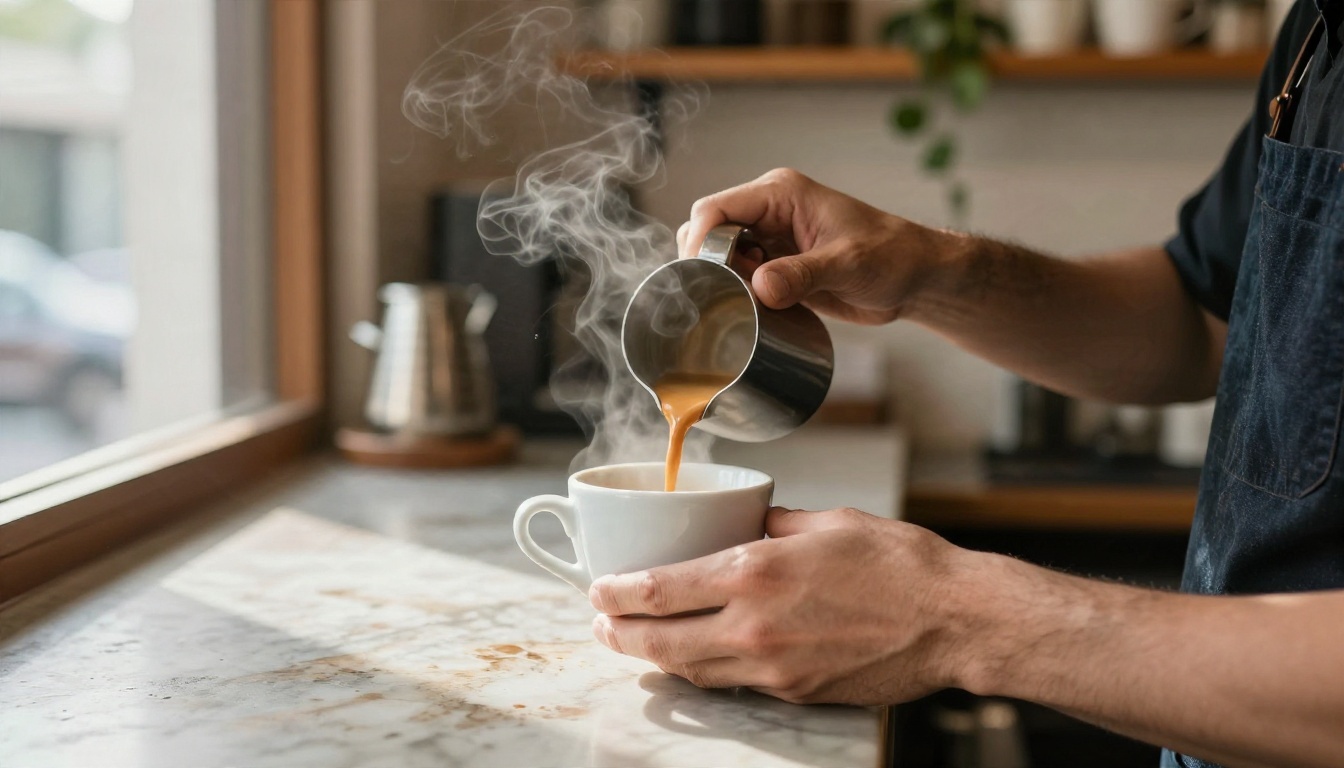
You have a voiceover, a script, and a timeline full of talking head footage that looks flat after thirty seconds. What you need is cutaway shots: steam rising from a cup, waves on a rocky shore, rain on a crosswalk. Shooting them takes a day. An AI B roll generator can give you the same kind of footage in minutes, and several tools let you do it for free.
The catch is that "free" hides a lot of fine print. Clip length, resolution, watermarks, and daily credits all decide whether the footage is usable or just a fun test. This article walks through what B roll is, what free generators can and cannot do, the prompt formula that produces clean shots, ten example prompts you can copy, and a step by step run through one free model on PicassoIA.
💡 Quick answer: Free AI B roll works best for short, simple, atmospheric shots (3 to 10 seconds). It struggles with long takes, readable text, and the same character appearing across many clips.
What B Roll Actually Means
A-roll vs B-roll in one minute
A-roll is your main footage: the interview, the presenter, the product demo. B roll is everything you cut to while that main audio keeps playing. It hides jump cuts, adds context, and keeps the viewer's eye busy.
If someone says "our bakery opens at 6 a.m.," the A-roll is their face. The B roll is dough on a floured counter, a door sign flipped to open, and golden light on a loaf. None of those shots need the speaker present, which is exactly why AI is so good at them.
Why AI suits cutaway footage
Cutaways have three traits that match what current video models do well:
- They are short. Most sit on screen for 2 to 4 seconds.
- They are about mood, not plot. Nobody checks continuity on a shot of clouds.
- They are forgiving. A slight wobble in steam or water reads as natural motion.
Compare that with generating a full scene with dialogue and consistent actors. That is where AI video still breaks. B roll plays to its strengths.
Free Generators, Real Limits
Before you build a workflow around a free tool, check what the free tier takes away. Based on what I found while researching this topic, the terms across the market vary a lot and change often, so treat any single number as a snapshot. Some tools add a watermark on every export. Some limit you to a handful of clips per month. Some cap output at 480p or 512p. A few offer real unlimited generation, but usually at a lower resolution or a shorter length.
Watermarks and resolution caps
A watermark is fine for a rough cut and useless for a client delivery. Resolution matters just as much. A 480p clip dropped into a 1080p timeline looks soft, and no amount of sharpening fixes it. If you plan to publish, check both before you spend an hour prompting.
💡 Tip: Run a super resolution pass on lower resolution clips. Upscaling a clean 5 second shot is often faster than regenerating it at a higher tier.
Clip length and daily credits
Most free tiers produce 3 to 10 second clips. That is plenty for B roll, since a typical cutaway lasts under 4 seconds. Where it hurts is the credit system: a few failed generations can burn your daily allowance. The cheapest habit is to write one careful prompt rather than five sloppy ones.
Audio, faces, and consistency
Some newer models add synchronized sound, which is handy for ambient B roll like café chatter or ocean surf. Faces and hands are still the weak spot. If a shot needs a person, keep them small in frame, from behind, or in silhouette. For anything where the same person must appear in multiple clips, expect to do extra work.
Here is how the common limits stack up:
| Limit | What you usually see on free tiers | Does it hurt B roll? |
|---|
| Clip length | 3 to 10 seconds | Rarely |
| Resolution | 480p to 1080p | Sometimes |
| Watermark | Common on capped plans | Yes, for publishing |
| Monthly or daily quota | Varies widely | Yes, if you iterate a lot |
| Audio | Silent or native audio, depending on model | Depends |
| Character consistency | Weak | Only if people repeat |
| Readable text in frame | Unreliable | Yes, avoid it |
Most weak B roll comes from vague prompts. "A cool city shot" gives the model nothing to commit to. A strong prompt works like a camera operator's note.
Subject, motion, camera, light
Use this order every time:
- Subject: what is in the frame, with one or two concrete details.
- Motion: what moves, and how fast.
- Camera: the move and the lens feel.
- Light and mood: time of day, direction, weather.
Example: "A barista's hands pour espresso into a white ceramic cup, steam curling upward. Slow push in on the cup. Soft window light from the left, shallow depth of field, warm tones."
That is 35 words, and every phrase gives the model a decision it would otherwise guess at.
Words that cause trouble
A few habits wreck otherwise good prompts:
- Asking for text on screen. Signs, labels, and logos come out garbled. Leave them out and add them in your editor.
- Stacking too many actions. Five seconds only fits one idea.
- Fast chaotic motion. Crowds running, splashing water, and rapid cuts produce artifacts.
- Contradictions. "Calm, fast, still, energetic" confuses the result.
💡 Tip: Add a negative direction in plain words, such as "no people facing camera" or "no text," if the model supports it. If not, simply leave those elements out of the description.

Ten B Roll Prompts to Copy
These are written to be pasted straight into a text to video model. Each one follows the formula above. The photos in this section show the kind of frame each prompt aims for, so you can judge whether a result matches your intent.
Food and drink
1. Coffee pour: "Close-up of a barista pouring espresso into a white ceramic cup on a marble counter, steam rising. Slow push in. Soft window light from the left, shallow depth of field."
2. Market stall: "Top-down view of a farmers market stall with crates of oranges and lemons, a vendor's hand placing a lemon into a paper bag. Static overhead camera. Soft morning light."
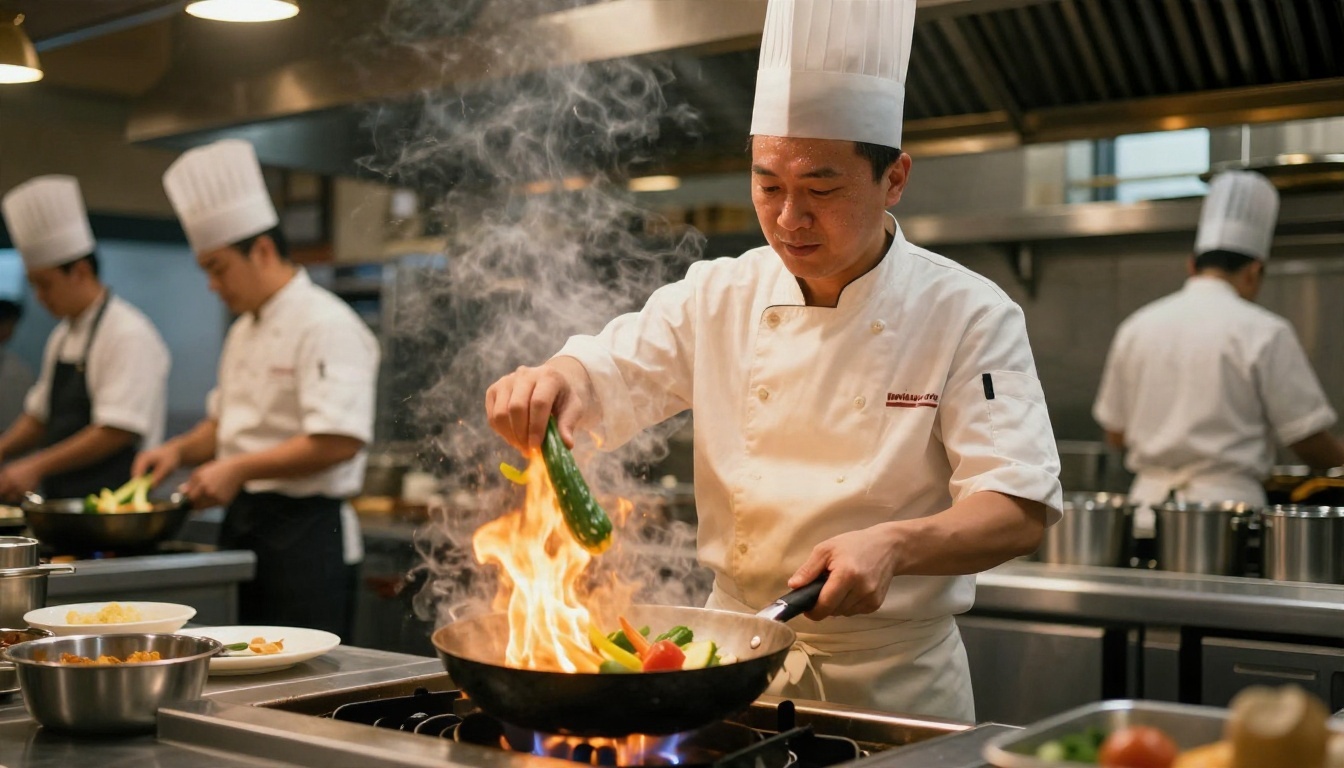
3. Restaurant kitchen: "A chef tosses vegetables in a steel pan, a small flame flickering below, steam rising. Handheld feel at eye level. Warm tungsten light."
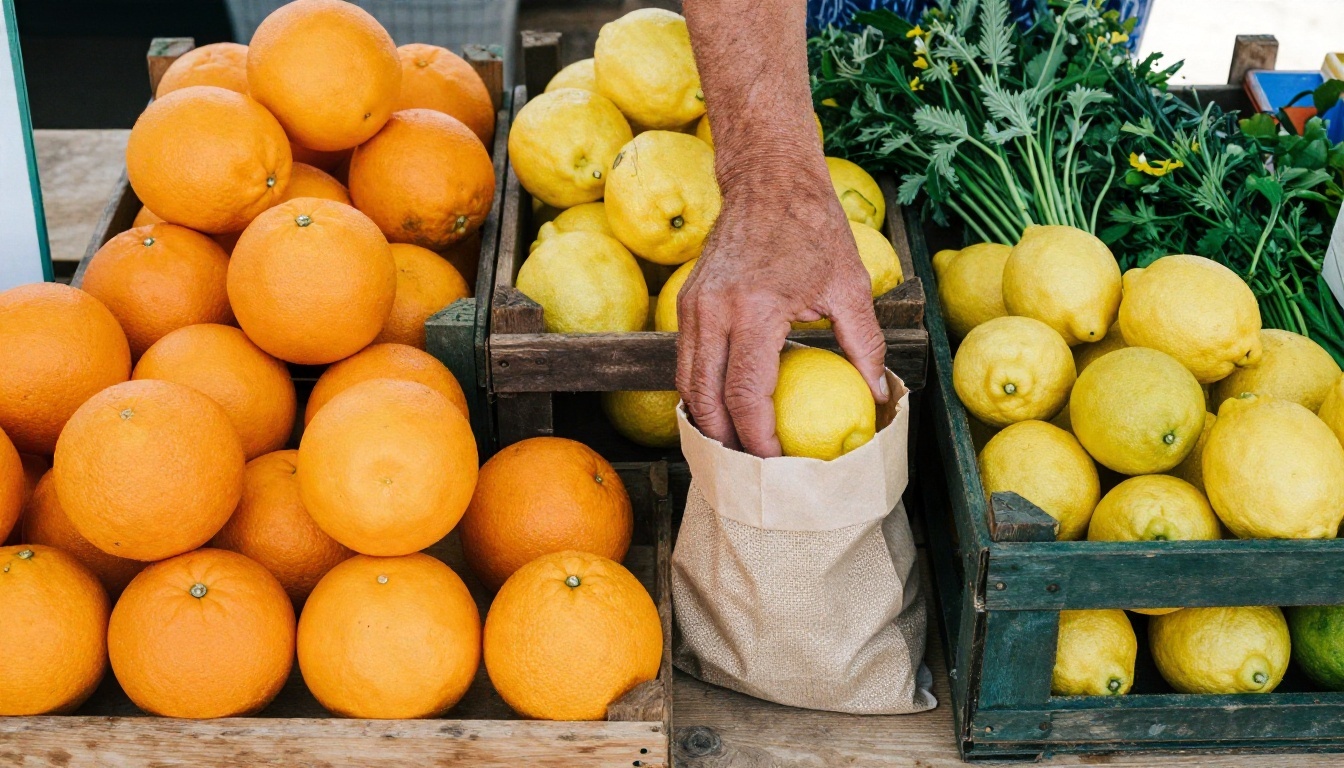
Food shots are the easiest category. Steam, sizzle, and pouring liquid have strong visual patterns that models have seen thousands of times.
Landscapes and city
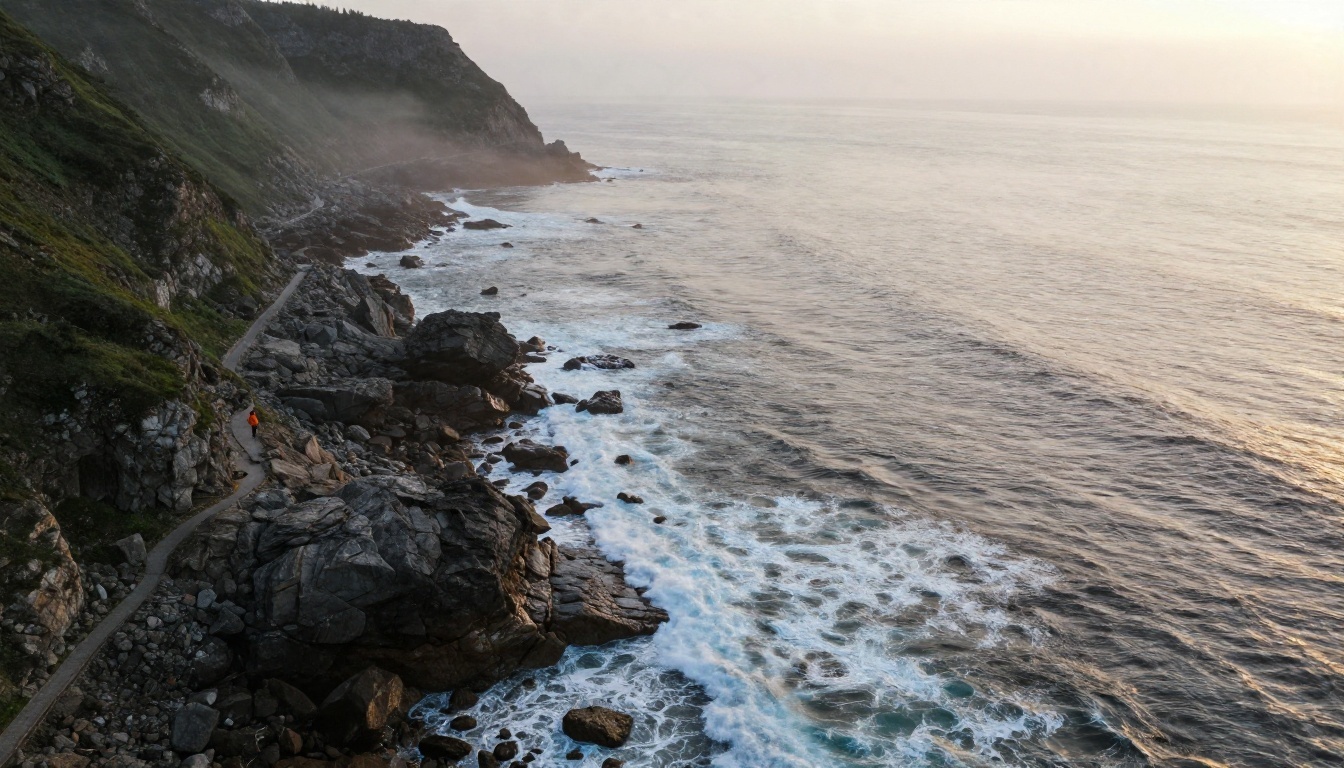
4. Coastline: "Aerial view over a rocky coastline at sunrise, gentle waves over dark stones, low mist, a small figure walking a cliff path. Slow forward drift. Golden horizon light."
5. Rainy crosswalk: "A city crosswalk at dusk in light rain, pedestrians with umbrellas crossing, wet asphalt reflecting shop windows. Telephoto compression, locked camera."
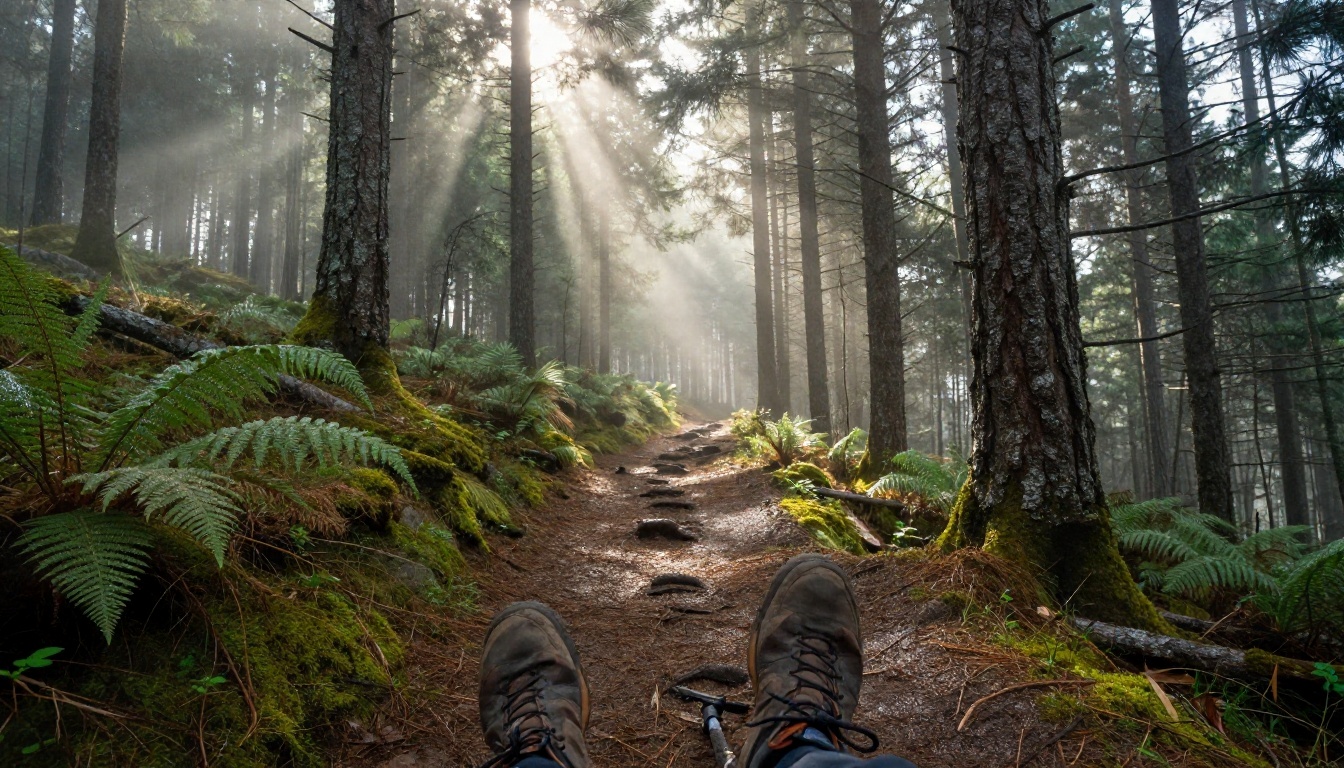
6. Forest trail: "Low camera on a damp forest trail, hiker's boots stepping forward, sunbeams through mist between pine trunks. Slow tracking shot forward."
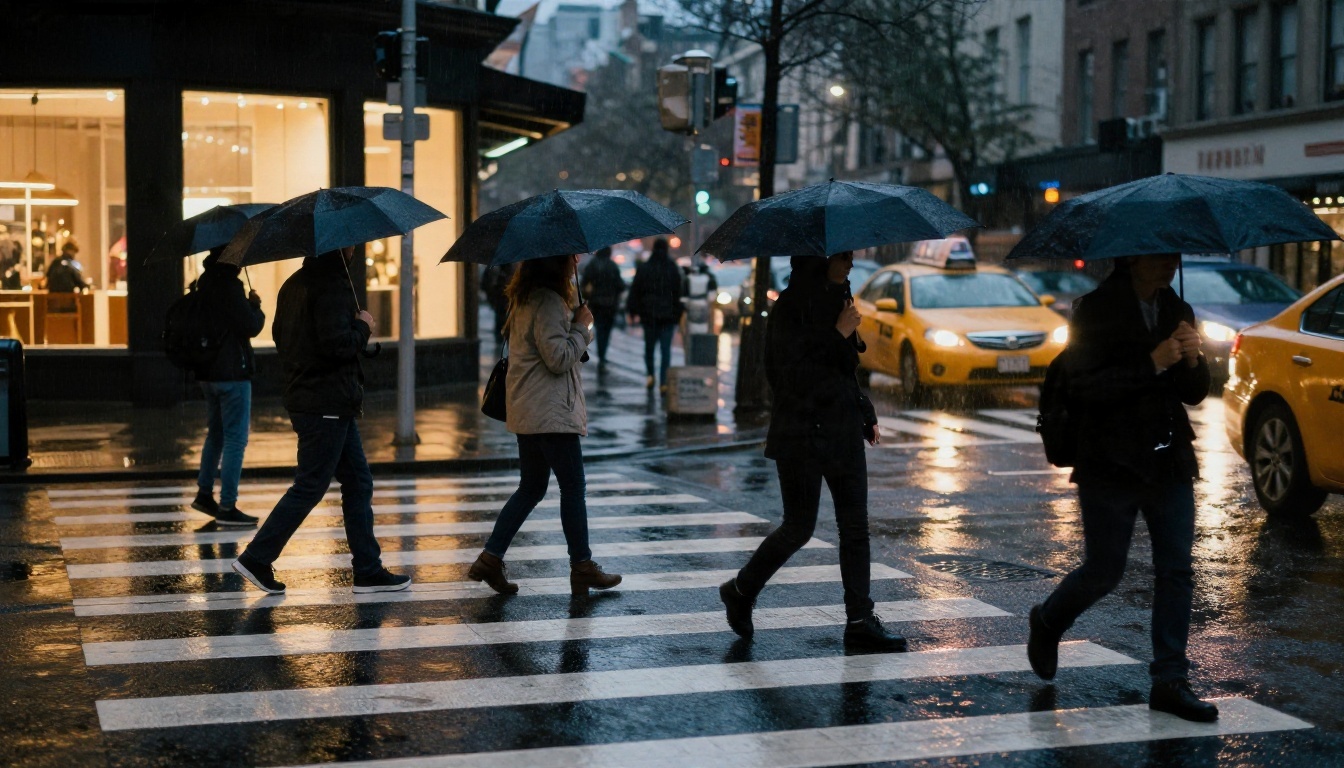
Weather and light do most of the work here. Rain, mist, and golden hour each add visual interest without asking the model to animate anything complicated.
Work and craft
7. Pottery wheel: "A potter shapes a clay bowl on a spinning wheel, wet hands steadying the walls. Slight low angle, slow push in. Daylight from a window on the left."
8. Typing a prompt: "Over the shoulder of someone typing at a laptop in a bright coworking space, soft overcast daylight, blurred colleagues behind. Gentle handheld sway."
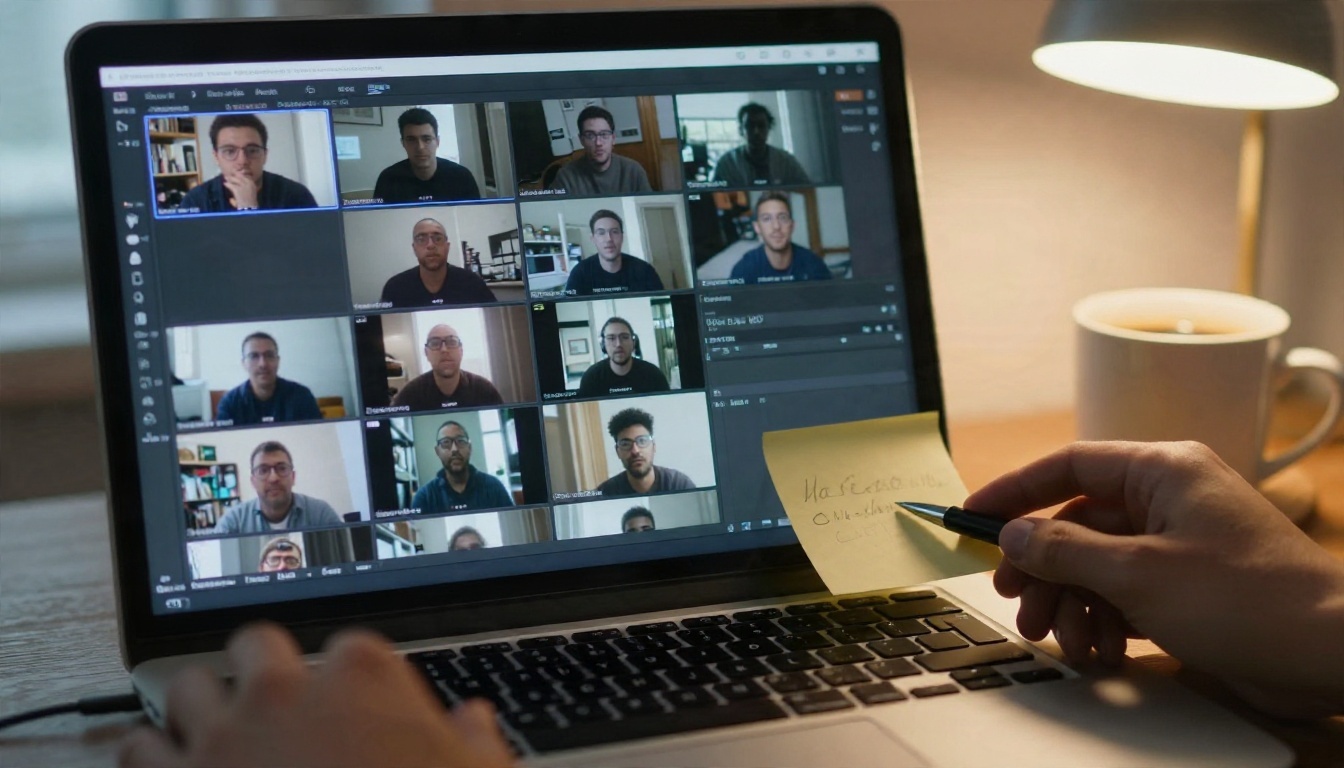
9. Reviewing clips: "Close-up of a laptop screen showing a grid of video clips, a hand moving a mouse, coffee cup beside it. Shallow focus, mixed warm lamp and cool window light."
10. Product table scene: "Hands arrange small candles on a wooden table beside a window, slow lateral slide of the camera, soft diffused light."

Craft shots are great for brand stories because hands in motion signal care and quality. Keep faces out of frame or turned away and the results stay cleaner.
Models Worth Trying
PicassoIA hosts many text to video models, and they differ in speed, length, resolution, and price. Here is how a few of them fit B roll work.
- Seedance 2.5 Lite: listed as a free and unlimited generator with clips up to 10 seconds. A good first stop when you want to iterate without watching a credit counter.
- Seedance 2.5: the longer form option, with output up to 30 seconds, for sequences where a single shot has to breathe.
- Kling v3 Video: built for cinematic motion, so camera moves and lighting feel closer to a real lens.
- Veo 3.1 Lite: adds native audio, useful for ambient B roll with sound already attached.
- Wan 2.5 T2V Fast: quick text to video for testing a prompt before committing to a slower model.
- Wan 2.5 I2V Fast: animates a still image, handy when you already have a photo you want to bring to life.
- Hailuo 02 Fast: instant clips at 512p, useful for storyboard drafts.
- LTX 2.5 Fast: quick output with up to 4K resolution for when sharpness is the priority.
- Sora 2: text to video with synchronized audio for polished, story driven shots.
A workflow I like: draft on a fast, free model, pick the three best concepts, then rerun only those on a higher quality model.
💡 Still image first? Build the first frame with Seedream 4.5 or Nano Banana, then feed it into an image to video model like Wan 2.5 I2V Fast. You control the composition before any motion is added.
How to Use Seedance 2.5 Lite
Since this model is free and offers clips up to 10 seconds, it makes a solid base for a B roll batch. Here is a practical run through.
Setting up your first clip
- Open the Seedance 2.5 Lite page on PicassoIA.
- Paste your prompt into the text field. Use the four part formula: subject, motion, camera, light.
- Choose your length. For B roll, 4 to 6 seconds is the sweet spot. You can trim in your editor, but you cannot extend a clip that ended too soon.
- Pick the aspect ratio that matches your project: 16:9 for YouTube and web, 9:16 for Reels and Shorts.
- Generate, then review the clip at full size before judging it.
Tweaking until it works
If the first result is close but off, change one thing at a time:
- Motion too fast? Add "slow" or "gentle" before the movement.
- Camera drifting oddly? Say "locked camera" or "static tripod shot."
- Lighting flat? Name a direction: "low sun from the right" or "soft window light from the left."
- Subject warping? Simplify. Remove secondary elements and keep a single focal point.
💡 Batch tip: Write all your prompts in a notes file first, then paste them one by one. It keeps the visual style consistent, because you reuse the same lighting and lens wording across clips.
Cutting AI B Roll Into Your Edit
Generating good clips is half the work. The other half is placing them so they feel like real footage.
Match color and pacing
AI clips often arrive with slightly different color temperatures. A quick pass with a warm or cool grade across the whole B roll set makes them look shot on the same day. Keep cuts between 2 and 4 seconds, and cut on motion, such as steam rising or a wave rolling in, so the transition feels natural.
Hide the seams
- Mix real and generated footage. Two real shots followed by one generated shot hides the difference better than a full AI sequence.
- Add sound. Room tone, ocean surf, or kitchen clatter glues a silent clip to the scene. If your model does not produce audio, use a music or sound generator.
- Add speed ramps. A 5 second generation stretched or sped to fit a beat looks deliberate.
- Upscale at the end. If your free clip came out at low resolution, run the final export through a super resolution tool rather than every raw clip.
When Free Is Not Enough
Free tiers are great for testing and for social clips. They stop being enough when you hit one of these walls:
| Situation | What to do |
|---|
| You need clean, watermark free delivery | Use a tool that offers unlimited, watermark free output |
| You need sharp 4K shots for a large screen | Switch to a higher resolution model such as LTX 2.5 Fast or upscale afterward |
| You need synchronized sound | Pick a model with native audio, like Veo 3.1 Lite or Sora 2 |
| You need the same character in ten clips | Generate a reference image first and animate from it |
| You need clips longer than 10 seconds | Try Seedance 2.5 for longer output, or stitch two shots |
Also keep rights in mind. Check the terms of whichever platform you use before putting AI generated footage in a paid campaign, and avoid prompts that imitate a specific brand, actor, or copyrighted scene.
Make Your Own B Roll Today
You do not need a camera crew to fill a timeline with believable cutaways. Pick one idea from the prompt list above, a coffee pour, a rainy crosswalk, a potter's hands, and run it through Seedance 2.5 Lite on PicassoIA. Look at the result, change one word, and run it again. Three rounds will teach you more about how these models read a prompt than any amount of reading.
When you want more control, explore the full catalog of text to video, image to video, and upscaling models at picassoia.com/en/all-models. Start with a five second shot, build a small library of your own clips, and let your next edit breathe.


