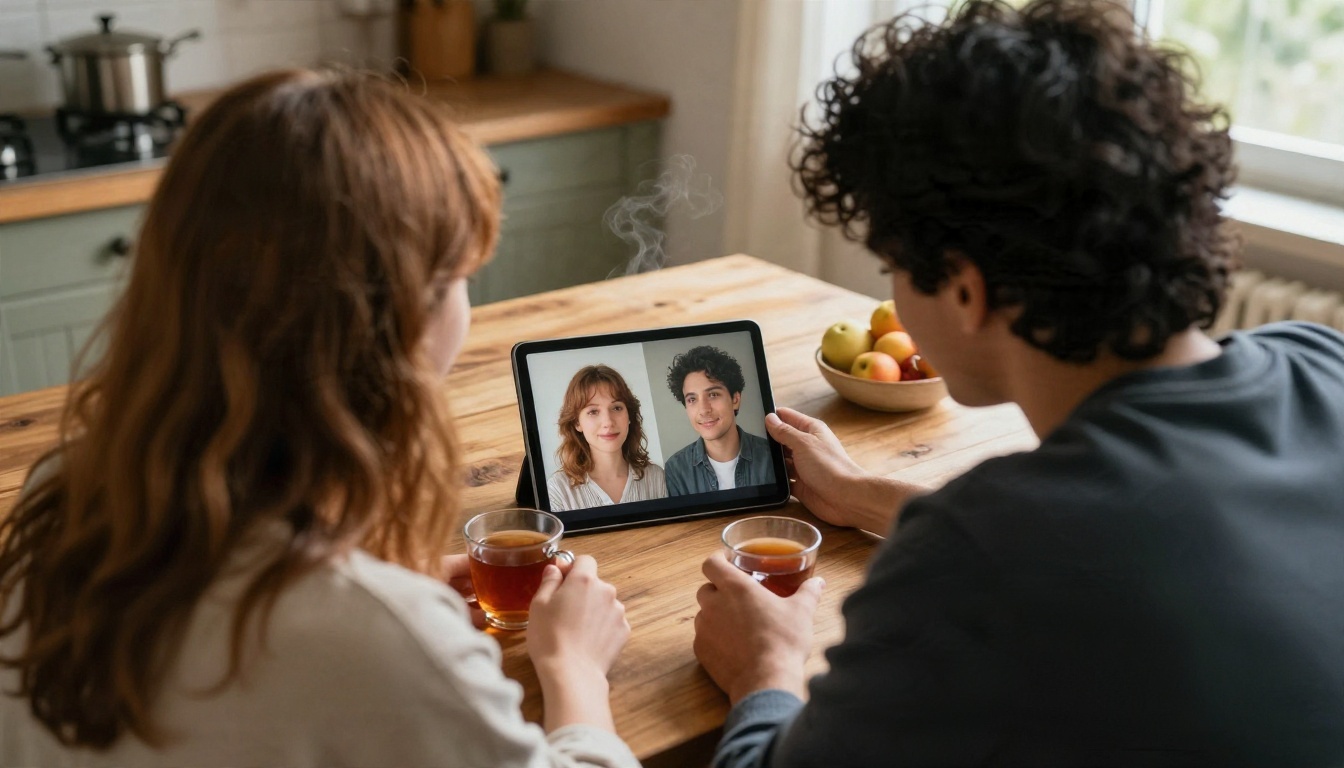
Every couple has had the conversation. Will the baby have your eyes or mine? Your curls or my straight hair? It usually ends in laughter and a lot of guessing. An AI baby face generator for couples turns that guessing into something you can actually see: you upload one photo of each parent, and the tool blends their features into a realistic portrait of a child who could be theirs.
This article shows how these generators work, what "free" and "online" really mean in practice, which parent photos give the best results, and how to build your own baby portraits step by step on PicassoIA. You will also get a straight answer on how accurate the results are (spoiler: it is a fun prediction, not a medical one).
What an AI Baby Generator Does
At its simplest, a baby face generator takes two faces and produces a third one. The process feels like magic, but the logic is easy to follow once you break it down.
How the blending works
The AI looks at each parent photo and picks out measurable traits: face shape, eye spacing, nose width, lip fullness, brow line, skin tone, hair colour and texture. It then builds a new face that mixes those traits, usually leaning on a mix of both parents and softening everything toward baby proportions: rounder cheeks, a larger forehead, bigger eyes relative to the face, and smoother skin.
Modern image models do this far better than the old "morph" apps. Older tools simply cross-faded two photos, which gave you a ghostly double exposure. Current models generate a brand new face from scratch, so you get proper skin texture, believable lighting and natural hair instead of a blurry average.
What it cannot tell you
Be honest with yourself here. An AI baby generator is a creative prediction, not a genetic test. It cannot read DNA, it does not know which gene variants each of you carries, and it has no idea whether your child will inherit your grandmother's red hair. What it can do is show one plausible, good looking outcome based on how the two faces look today.
💡 Tip: Run the same two photos three or four times. Each run gives you a slightly different child, which is much closer to how real family resemblance works.
Free and Online: What to Expect
Search for this topic and you will see "free baby generator" everywhere. Some of those tools are genuinely free. Many are trials with a catch. Here is how the common options compare.
Free tools versus paid ones
| Option | Cost | Typical limits | Photo quality |
|---|
| Basic morph apps | Free, with ads | Low resolution, watermark | Blurry, ghost like blend |
| Freemium baby generators | Free tier, paid upgrade | A few tries a day | Decent, often locked to small sizes |
| General AI image editors | Credits or free tier | You write the prompt | Sharp and photorealistic |
| Subscription photo apps | Monthly fee | Auto renewing plans | Good, but locked to presets |
The general AI image editors give you the most control. Instead of pressing one button and accepting whatever appears, you decide the baby's age, the lighting, the clothes and the background. That is also where PicassoIA fits in, which we will get to shortly.
Privacy before you upload
You are handing over two face photos, so treat that seriously. Before you use any online tool, check three things:
- Does the site say how long photos are stored? Look for deletion within days, not "indefinitely".
- Is there a clear way to delete your uploads? If there is no button or contact route, skip it.
- Are you the owner of both photos? Only upload faces of people who agreed. Never use a stranger's photo, and never generate children's faces from photos of real minors without the parents' consent.
💡 Tip: If you are unsure about a site, use a cropped photo with no background details, no location tags and no other people in the frame.
Choosing Parent Photos That Work
The single biggest factor in how good your result looks is the quality of the two input photos. A great tool with poor photos still gives poor results.
The ideal source photo
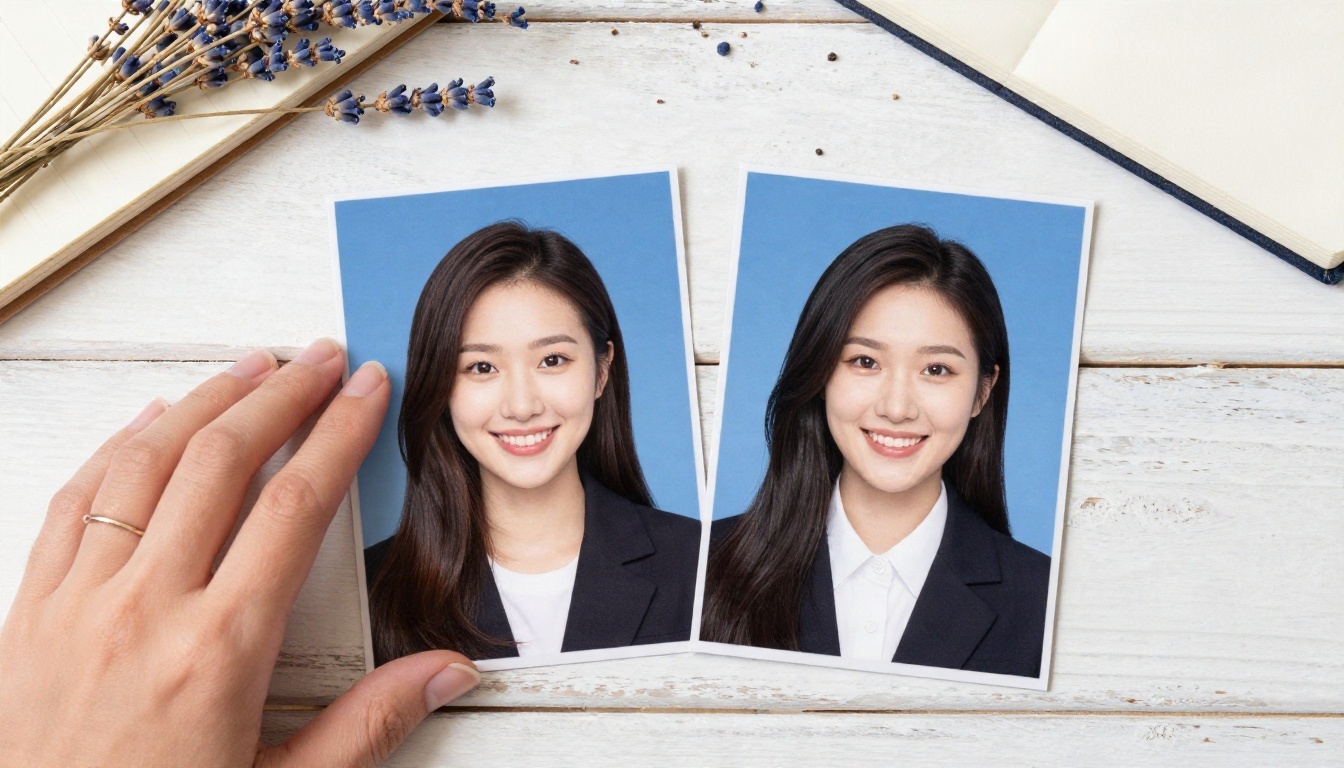
Think "passport photo, but friendlier". The model needs to see the face clearly and evenly.
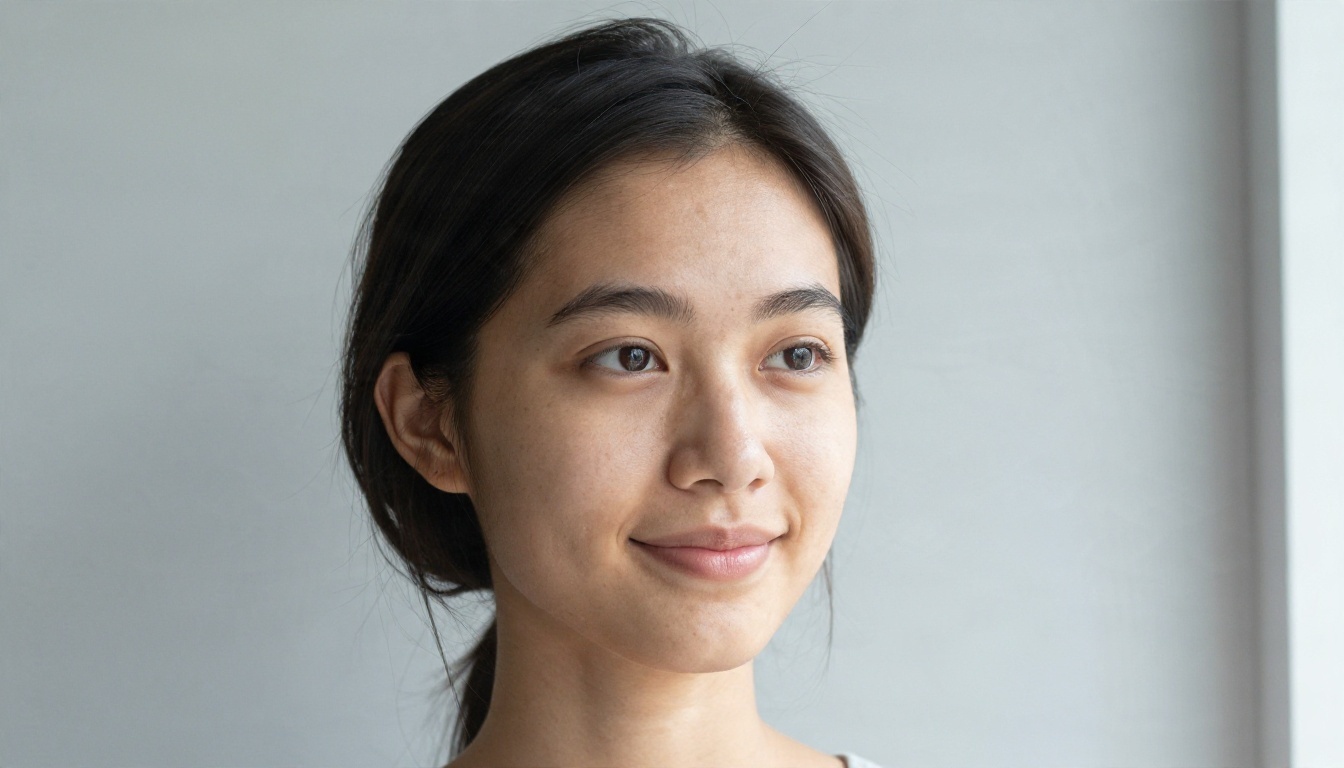
Here is the checklist:
- Face the camera straight on. A slight turn is fine, but profile shots lose half the information.
- Use soft, even daylight. A window works perfectly. Avoid harsh sun that casts shadows under the nose and eyes.
- Keep a neutral or relaxed smile. Big grins and pulled faces distort the shape of the eyes and cheeks.
- Show the whole face and hairline. Hair covering the forehead or one eye hides useful detail.
- Pick a sharp, high resolution image. At least 1000 pixels on the short side is a good floor.
Mistakes that ruin results
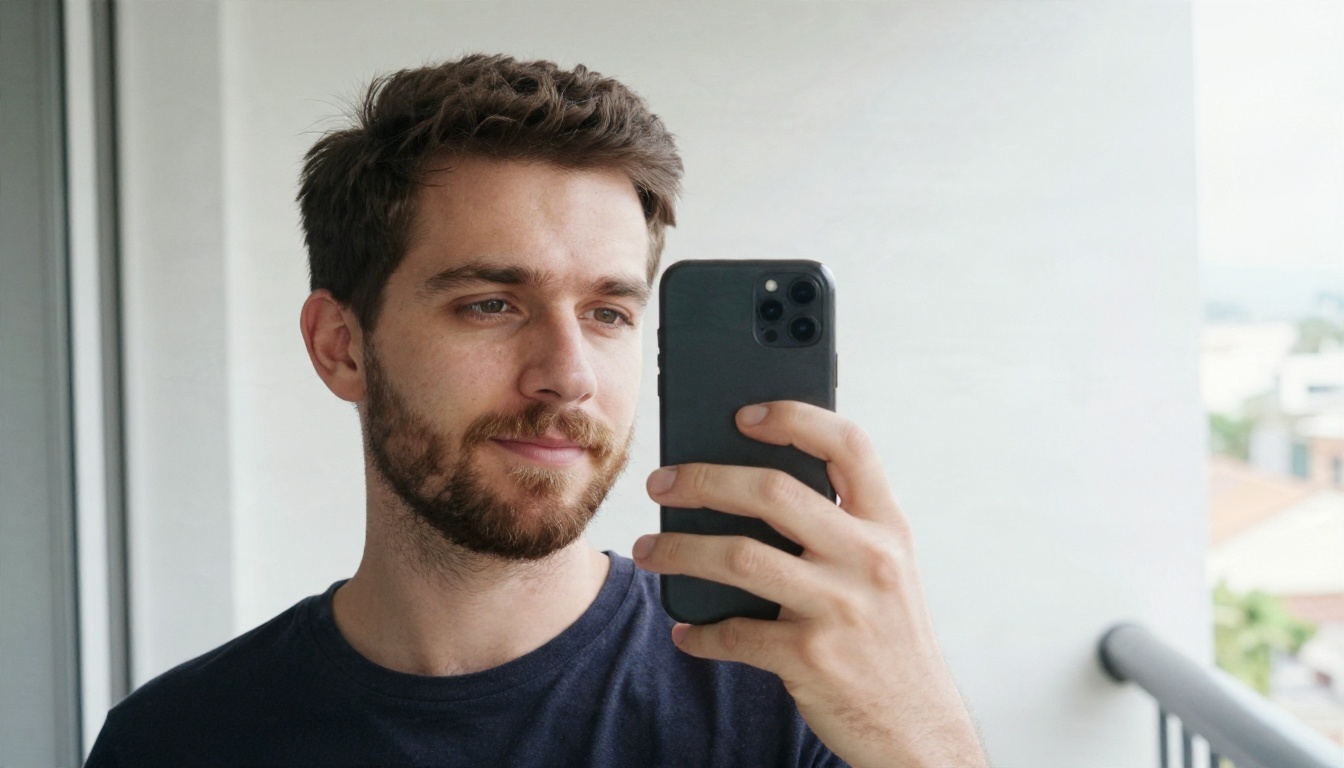
Most disappointing outputs come from the same handful of mistakes. Watch out for these:
- Heavy filters. Beauty filters smooth skin and reshape features, so the AI blends a face that does not exist.
- Sunglasses or hats. The eyes are the most important feature for baby resemblance.
- Group photos. Cropping one face out of a crowd usually leaves it tiny and pixelated.
- Mismatched lighting. One warm indoor photo and one cold outdoor photo can create odd skin tones in the blend.
- Old, scanned prints. Fine if they are sharp, but faded colour confuses hair and skin tone.
How to Use Nano Banana on PicassoIA
PicassoIA does not hide behind a single "make a baby" button. Instead, you work with powerful image models and describe the result you want. For parent photos, Nano Banana is a great fit because it accepts several reference photos at once and edits them based on a plain text description.
Step by step
- Open the model page. Go to Nano Banana on PicassoIA.
- Upload both parent photos into the Image Input field. The model supports multiple images, so add one photo of each parent.
- Write your prompt. Describe the child, not the parents. Mention age, hair, expression, clothing, lighting and background.
- Choose the output format. JPG is lighter for sharing, PNG keeps the most detail.
- Generate and compare. Run it a few times, change one detail per run, and keep your favourites.
Prompt examples that work
The more specific you are, the more realistic the result. Here are three starting points you can paste and adjust:
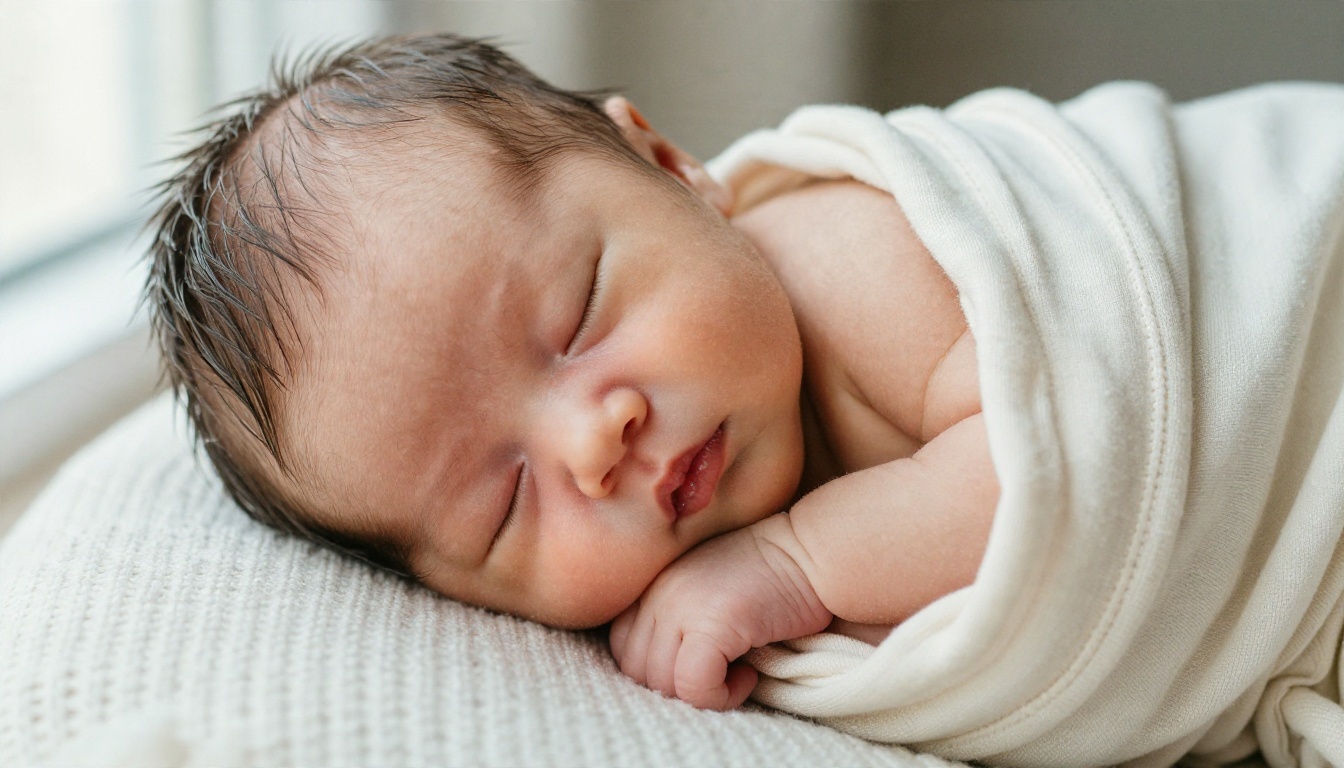
Newborn: "A photorealistic portrait of a sleeping newborn baby that blends the facial features of the two people in the reference photos, soft window light, cream muslin blanket, shallow depth of field, natural skin texture."
Toddler: "A photorealistic portrait of a smiling two year old child who inherits features from both reference people, sitting on a sunny lawn, golden hour light, 85mm lens, natural colours."
School age: "A photorealistic portrait of a seven year old child with facial features that combine both reference people, neutral grey background, even studio lighting, natural expression."
💡 Tip: Say "blends the features of both reference people" instead of naming traits. If you force "her eyes and his nose", the result often looks pasted together.
Which Models Fit Which Job
Different PicassoIA models shine at different parts of the process. Use this table as a quick map.
| Goal | Model | Why it helps |
|---|
| Blend two parent photos | Nano Banana | Accepts multiple reference images and edits by text |
| Sharper, higher detail results | Nano Banana Pro | Produces up to 4K output with finer skin detail |
| Fast quick drafts | Nano Banana 2 Lite | Quick turnaround for testing prompts |
| Natural portrait photography | Seedream 4.5 | Realistic skin and lighting at high resolution |
| Detailed text instructions | GPT Image 2 | Follows long, specific prompts closely |
| Styled and fine tuned looks | Flux 2 Klein 9B Base LoRA | Good when you want a consistent look across many images |
| Sharpening a finished portrait | Clarity Pro Upscaler | Raises resolution without a plastic look |
Sharpening the final portrait
Once you pick a favourite, run it through an upscaler before printing or sharing. Clarity Pro Upscaler adds believable detail to skin and hair, while P Image Upscale is a good pick when you need a result in about a second. For a crisp, clean finish, Recraft Crisp Upscale is another solid choice.
Age progression: newborn to toddler
One fun trick is to keep the same two parent photos and change only the age in the prompt. Generate a newborn, then a one year old, then a toddler, then a school age child. Keep the lighting and background wording the same each time so the face stays recognisable across the series.
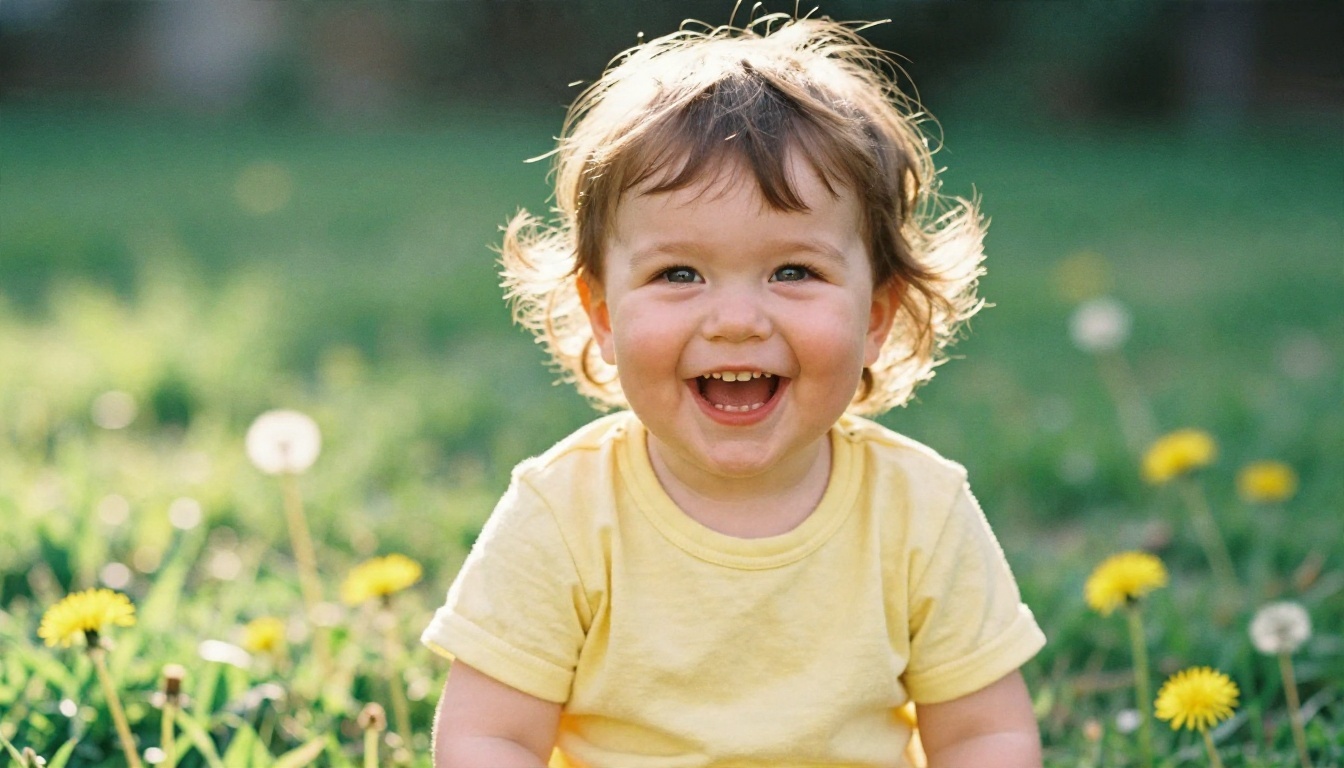
If the face drifts between ages, use your favourite result as an extra reference image. Add it to the Image Input list along with the parent photos, and the model will anchor on that child instead of inventing a new one.
The Genetics Reality Check
It helps to know what happens in real life, because it will shape how you read the pictures.
Eye colour and hair myths
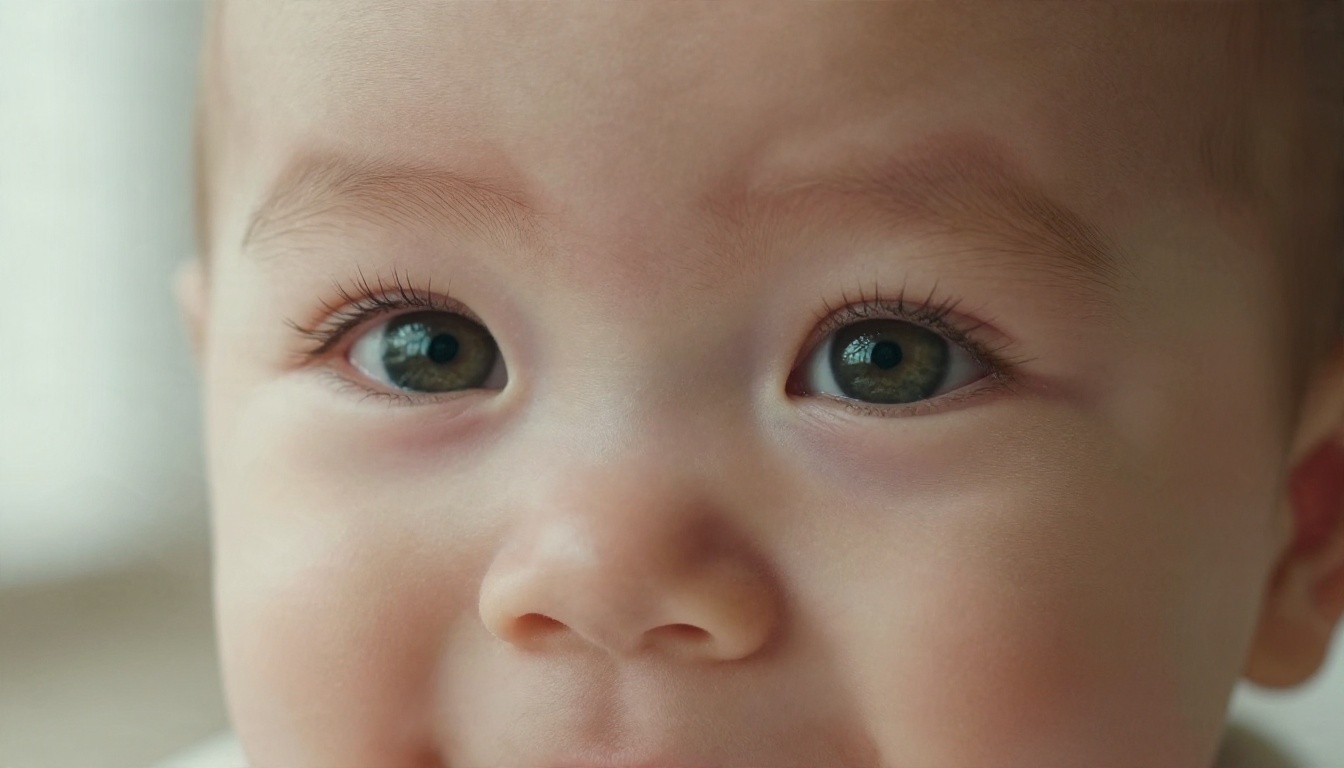
Many people grew up with the idea that brown always beats blue, or that curly hair always wins. Real inheritance is messier. Eye colour involves several genes, and hair texture can land anywhere between the two parents. Newborns also change a lot: many babies are born with blue grey eyes that settle into their final colour months later, and early hair often falls out and regrows in a different shade.
An AI generator usually picks the most visually dominant feature in each parent photo. So if one of you has very strong features, the generated child will often lean that way. That is a visual habit of the model, not a genetic rule.
Why siblings differ
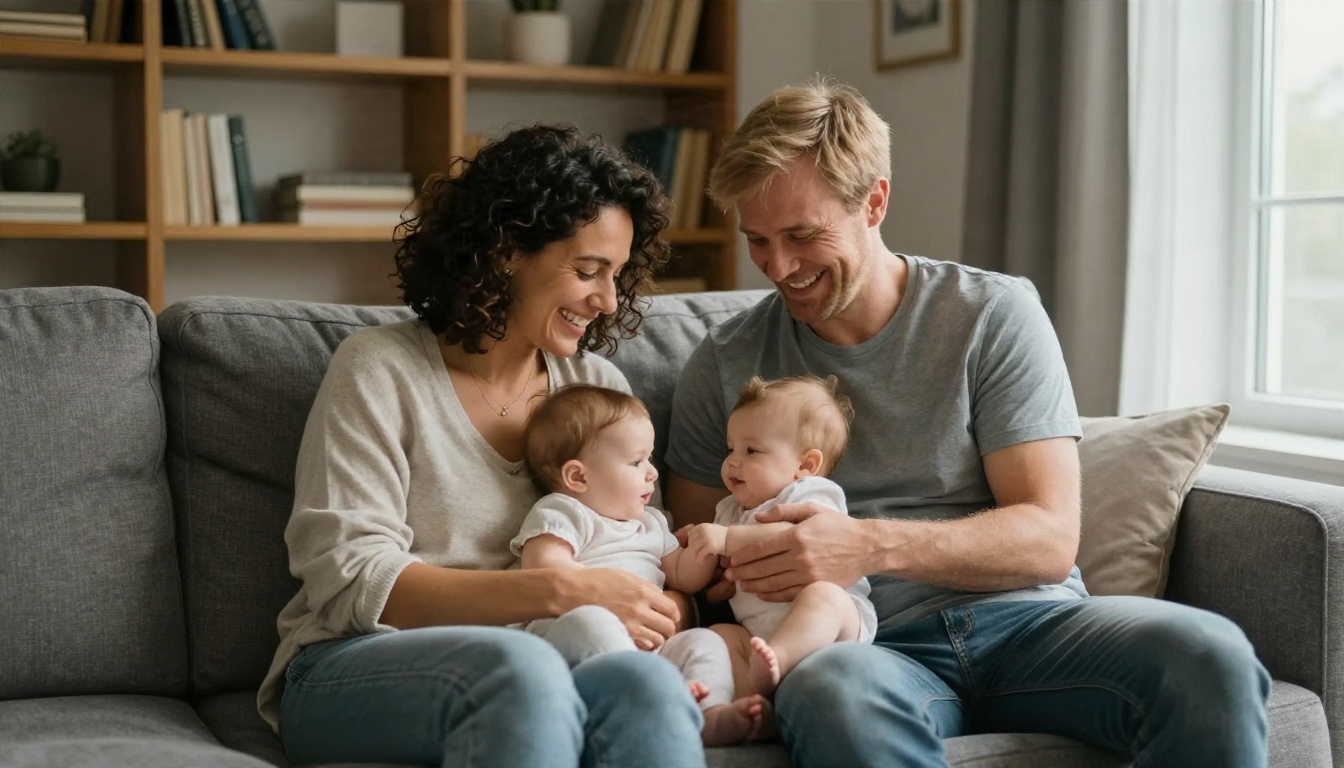
Two children from the same parents can look quite different. Each child receives a different random mix of genes, which is exactly why one generation of your baby portrait should never be treated as "the answer". Think of each result as one sibling out of many possibilities. Ten generations give you ten siblings.
Fun Ways to Use Your Results
Once you have a portrait you love, there are plenty of ways to put it to use.
Pregnancy announcements and reveals
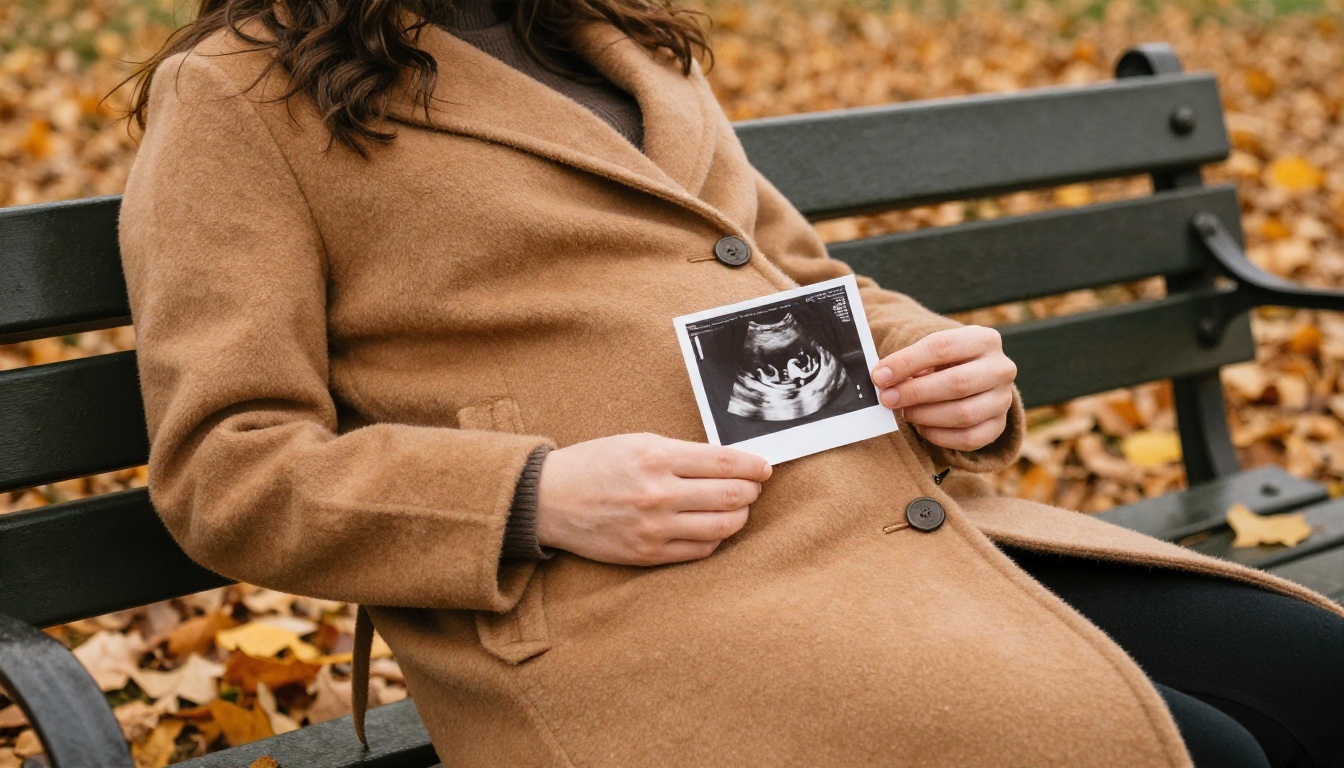
Plenty of expecting parents print a "predicted baby" portrait and tuck it into a card for grandparents, or share it alongside the real ultrasound photo as a playful announcement. It lands especially well with family members who love guessing games.
Couples games and keepsakes
You do not need to be expecting to enjoy this. Many couples use it as a laugh on a date night, a friendly bet about which parent "wins" the face, or a keepsake in a photo album. A few ideas:
- The "who wins" game. Generate ten babies and count which parent each one resembles more.
- Different styles. Try a vintage film portrait, a studio headshot and a casual outdoor photo with the same parents.
- Make it a series. Create the same child at ages 1, 5 and 10 and frame them as a set.
- Add the grandparents. Upload one parent plus one grandparent for a different, funny result.
💡 Tip: Keep the tone light. These pictures are a game, and the best ones usually start a conversation, not settle a debate.
Make Your Own Baby Portraits
You do not need a special app or a paid plan to see what your baby could look like. Take one clear photo of each parent, open Nano Banana on PicassoIA, add both photos, and describe the child you picture: newborn or toddler, sunny lawn or soft window light, film grain or studio polish.
Try a few runs, compare them, and keep your favourite. If you want more detail, test the same prompt on Nano Banana Pro or Seedream 4.5, then sharpen the winner with an upscaler. When you want to see what else is available, browse every model at picassoia.com/en/all-models.
The first result takes about a minute. The second one is usually the one that makes you laugh out loud. Go and create your baby portrait today.


