You upload two photos, wait a few seconds, and a stranger's face appears on screen: a baby with her eyes and his chin. Then it blinks, smiles and turns toward the camera. That is the pitch behind every AI baby generator video, and it explains why the format spreads so quickly in family group chats, pregnancy announcements and couples' social feeds. It is also easy to get wrong. Blurry inputs, mismatched lighting and the wrong motion settings produce a baby that looks like a wax figure or a stock photo from 2009.
This article walks through what these tools really do, which free online options are worth your time, what good results look like, and the exact settings that separate a believable clip from an uncanny one. You will also see a step-by-step workflow on PicassoIA that turns a predicted baby portrait into a short video.
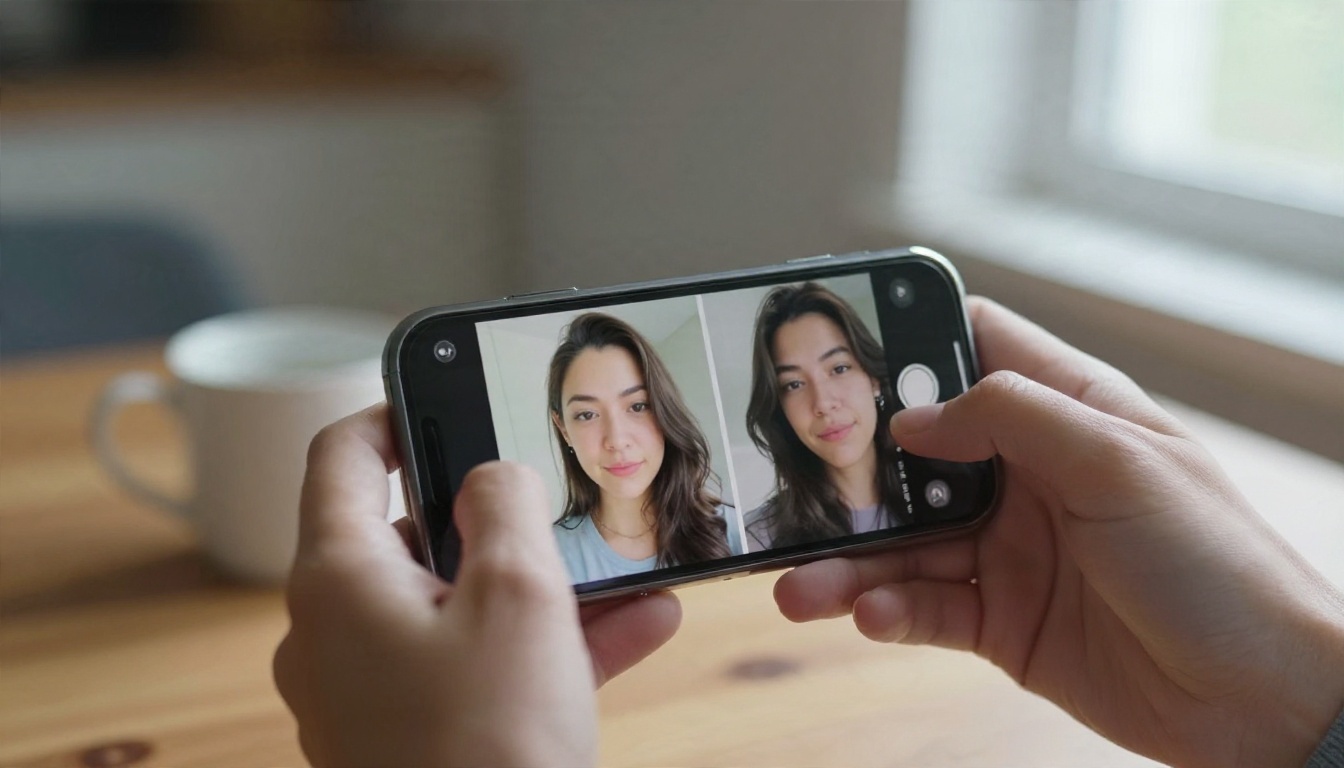
What an AI Baby Generator Video Is
An AI baby generator takes a photo of each parent, blends their facial features, and produces an image of an imagined child. The "video" part comes second: the still portrait is animated so the baby moves, smiles or looks around, usually for 5 to 10 seconds.
Two steps, not one
Most people assume a single button does everything. In practice there are two separate jobs:
- Face blending. A model reads both parents' photos and builds a plausible child's face, with a chosen age and gender.
- Image to video. A second model animates that portrait with natural motion, and often adds ambient sound.
Tools that bundle both steps hide the settings. Doing them separately gives you far more control over the final look, which is why this article treats them as two stages.
It is entertainment, not genetics
💡 Reality check: No AI tool can predict a real child's appearance. Eye color, hair texture and facial structure depend on genetic combinations that a photo cannot reveal. Treat the result as a creative portrait of a possible baby, the way a caricature is a portrait of a possible face.
That framing matters for expectations, and it matters for sharing. Nobody should present these clips as medical or genetic information.
Why These Videos Went Viral
Three reasons explain the popularity. First, the input is effortless: two selfies. Second, the result is personal, so people share it even when it is imperfect. Third, short video feels alive in a way a still image does not, and a baby's smile in motion triggers an instant emotional response.
Who actually uses them
| Audience | Typical use | What they care about |
|---|
| Expecting parents | Announcement reveal for family | Warm, natural look |
| Couples | Fun "what if" content | Speed, free access |
| Friends and siblings | Joke clips, group chats | Funny, exaggerated results |
| Content creators | Short-form social videos | Clean 720p or 1080p export |
| Writers and designers | Character references | Consistent face across shots |
"Free" comes in several flavors, and the differences decide whether you end up with a usable clip or a watermark.
Types of free tools
Browser-based baby face apps. You upload two photos and get a still image. Many place a watermark on the free output or limit you to a few tries per day.
General image models with reference input. Models such as Nano Banana accept reference photos and a text prompt, so you can describe the child's age, outfit and setting yourself. This gives you more steering than a one-button app.
Image-to-video models. Once you have the portrait, a model like Wan 2.5 I2V Fast or Hailuo 2.3 Fast animates it. Seedance 2.5 Lite is listed on PicassoIA as a free and unlimited video generator for clips up to 10 seconds, which is useful when you want to try many variations.
What to check before you upload
- Watermarks: Look at the free export before you spend time on edits.
- Photo storage: Read how long uploaded photos are kept.
- Resolution: Anything below 720p looks soft on a phone screen once shared.
- Output length: 5 seconds is enough for a reveal, 10 seconds suits a story post.
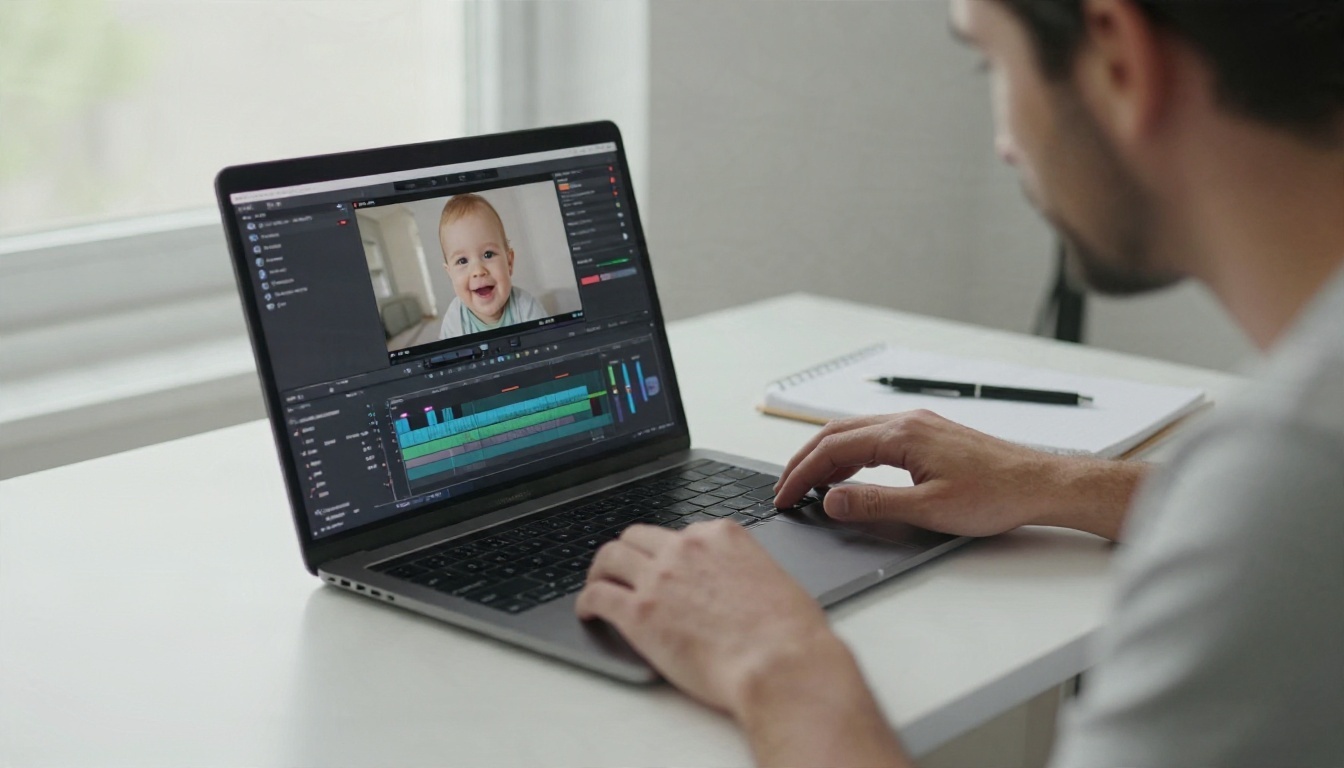
Quick comparison of approaches
| Approach | Cost | Control | Video quality | Best for |
|---|
| One-click baby app | Free with limits | Low | Basic | Quick jokes |
| Image model plus video model | Free tiers available | High | High | Realistic clips |
| Full video model with prompt only | Varies | Medium | High | Stylized scenes |
Real Examples and What They Show
Examples teach more than descriptions, so here is what good results tend to share.
The portrait that works
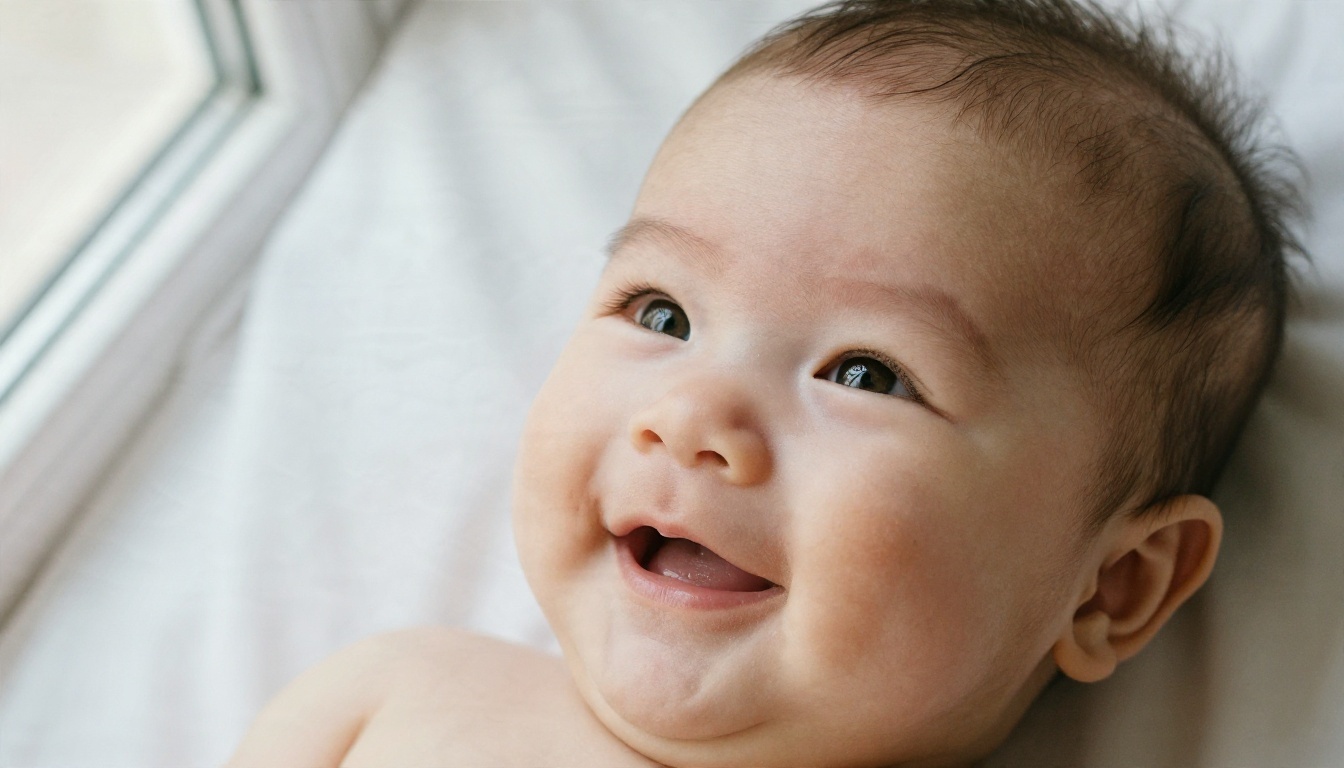
A strong predicted baby is calm, front-facing and evenly lit. The skin has tiny details: peach fuzz, soft shadows under the eyes, a slight sheen on the cheeks. The expression is relaxed rather than a forced grin. When the starting frame looks like this, almost any image-to-video model can animate it convincingly.
The nursery reveal
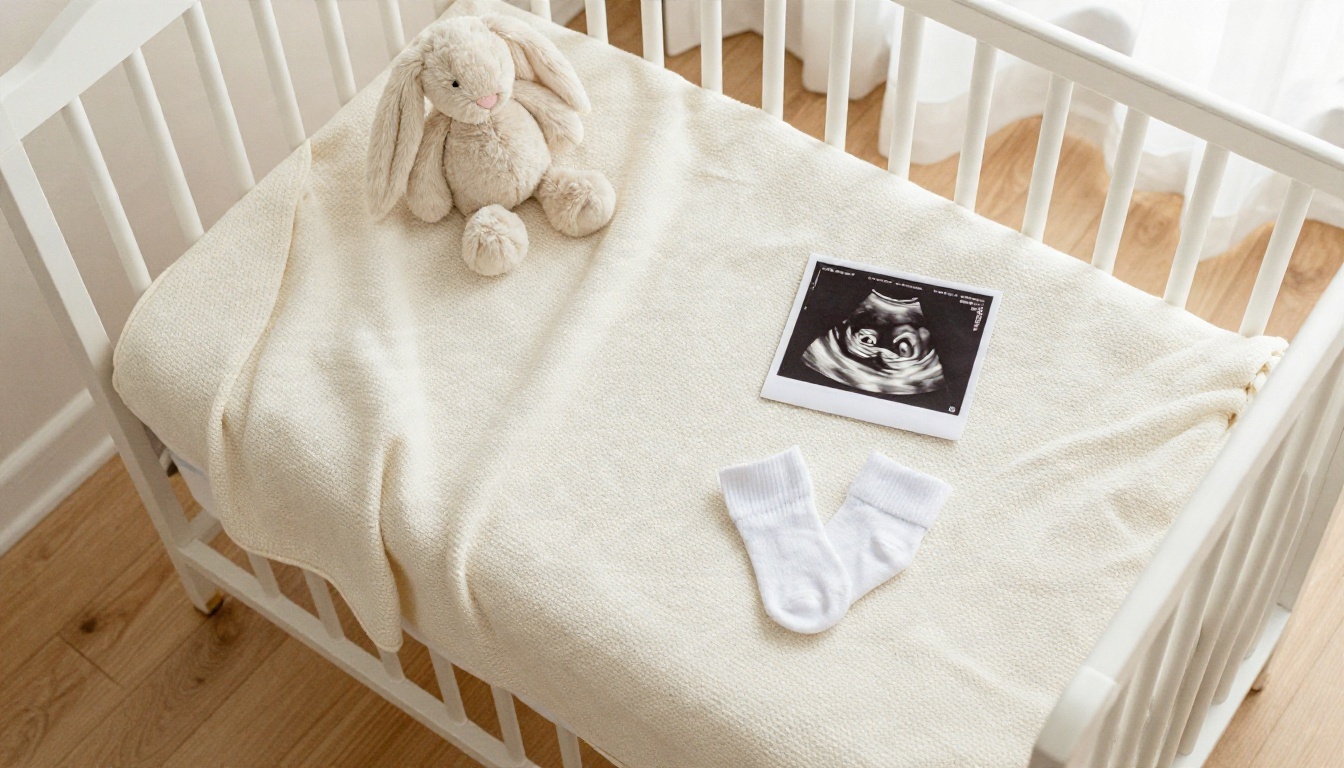
Another popular format places the predicted baby in a nursery-style setting, with a crib, blanket and a printed ultrasound beside it. The still image sets the mood, and the video adds a soft head turn or a blink. It works because the scene tells a story before the baby even moves.
The reaction clip
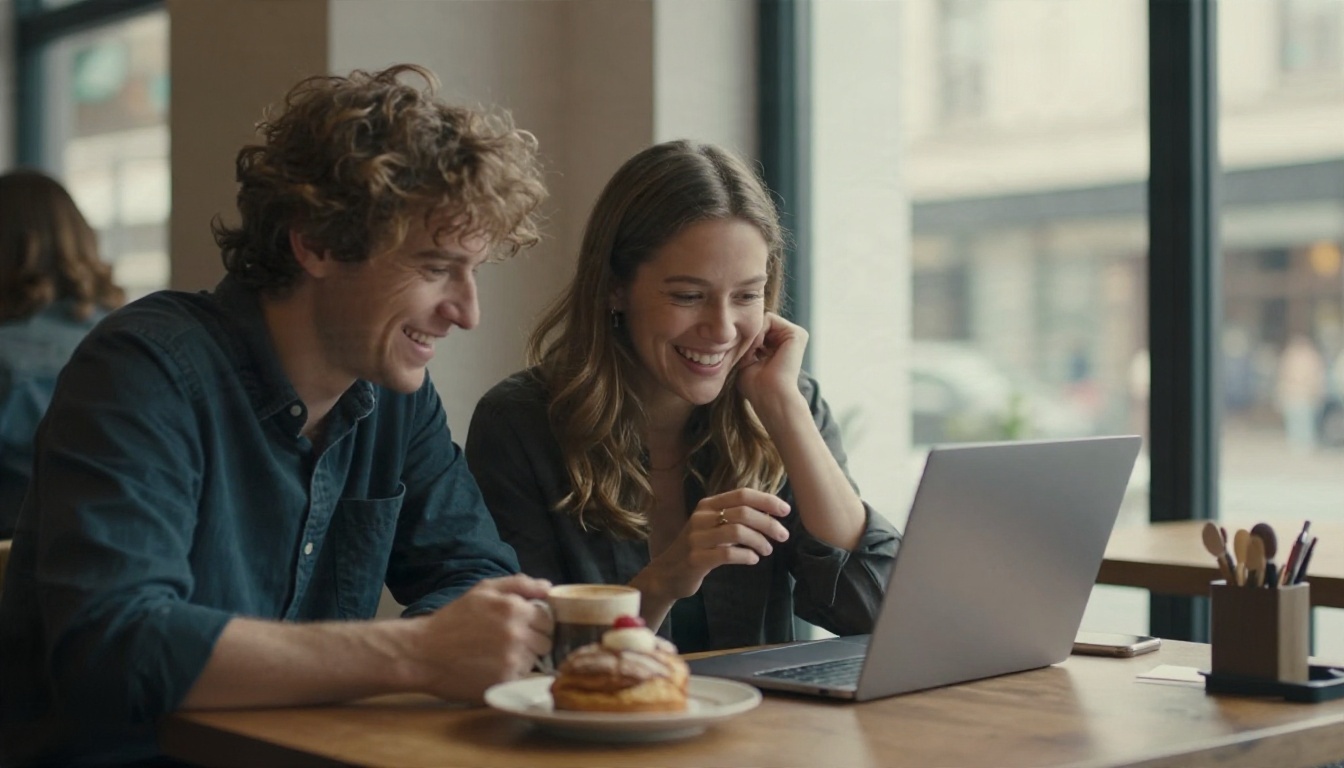
Often the most shared version is not the baby at all. It is the couple watching the result for the first time. Filming that reaction and cutting it next to the generated clip doubles the emotional payoff, and it avoids the uncanny feeling that can come with a synthetic face alone.
Settings That Decide the Result
This is where most attempts succeed or fail. The same two parents can produce a stunning portrait or a plastic-looking face depending on a handful of choices.
Input photo rules
- Use a front-facing, neutral-expression photo for each parent.
- Pick photos with similar lighting. One warm indoor shot and one harsh flash photo confuse the blend.
- Avoid sunglasses, heavy filters, hats and group shots.
- Use a high-resolution original, not a screenshot of a screenshot.
- Keep both faces at a similar distance from the camera.
Prompt settings for the portrait
If your tool accepts a text prompt, describe the baby's age and setting in plain language. Something like: "photorealistic portrait of a six-month-old baby, soft window light, plain white bedsheet, natural skin texture, front-facing, relaxed expression." The phrases natural skin texture and soft window light push the result away from the glossy look.
Settings for the video step
| Setting | Recommended value | Why |
|---|
| Duration | 5 seconds | Longer clips drift and the face starts to change |
| Resolution | 720p or higher | Sharp enough for phone screens |
| Motion strength | Low to medium | High motion warps eyes and mouth |
| Camera movement | Slow push-in or static | Fast pans break facial consistency |
| Prompt | One action only | "Smiles and turns head" beats a list of five actions |
| Audio | Optional, soft ambient | Gentle room tone feels natural |
💡 Pro tip: Write the motion prompt as if you were directing a real newborn photo session. Babies blink slowly, move their heads a little and rarely make sudden gestures. Prompts that respect that rhythm produce more believable clips.
Common mistakes
- Asking for too much motion. Walking, laughing and waving in 5 seconds makes the face melt.
- Starting from a smiling teeth-baring image. Open mouths are the hardest to animate cleanly.
- Using different-quality parent photos. The blend leans toward the sharper one.
- Skipping the review. Always watch the clip twice, once for faces and once for hands and background.
How to Make It on PicassoIA
PicassoIA hosts both halves of the workflow, so you can build the baby portrait and then animate it without leaving the platform. This tutorial uses Nano Banana for the portrait and Wan 2.5 I2V Fast for the video.
Step 1: Create the baby portrait
- Open the Nano Banana page and add your two parent photos as reference images.
- Write a prompt that names the age, light and setting, for example: "a photorealistic portrait of a six-month-old baby combining the facial features of both references, soft window light, white cotton sheet, natural skin texture."
- Generate several versions and pick the one with the calmest expression.
- If you want a sharper result, try Seedream 4.5 as an alternative image model and compare.
Step 2: Animate it
- Open the Wan 2.5 I2V Fast page.
- Upload your chosen baby portrait as the first frame.
- Write a short motion prompt: "the baby slowly blinks, smiles softly and turns toward the camera, gentle natural light, slow camera push-in."
- Pick 720p and the shortest duration first.
- Generate, review, then adjust the prompt if the face shifts.
Step 3: Try other video models
Different models interpret motion differently, so testing two or three is worth it:
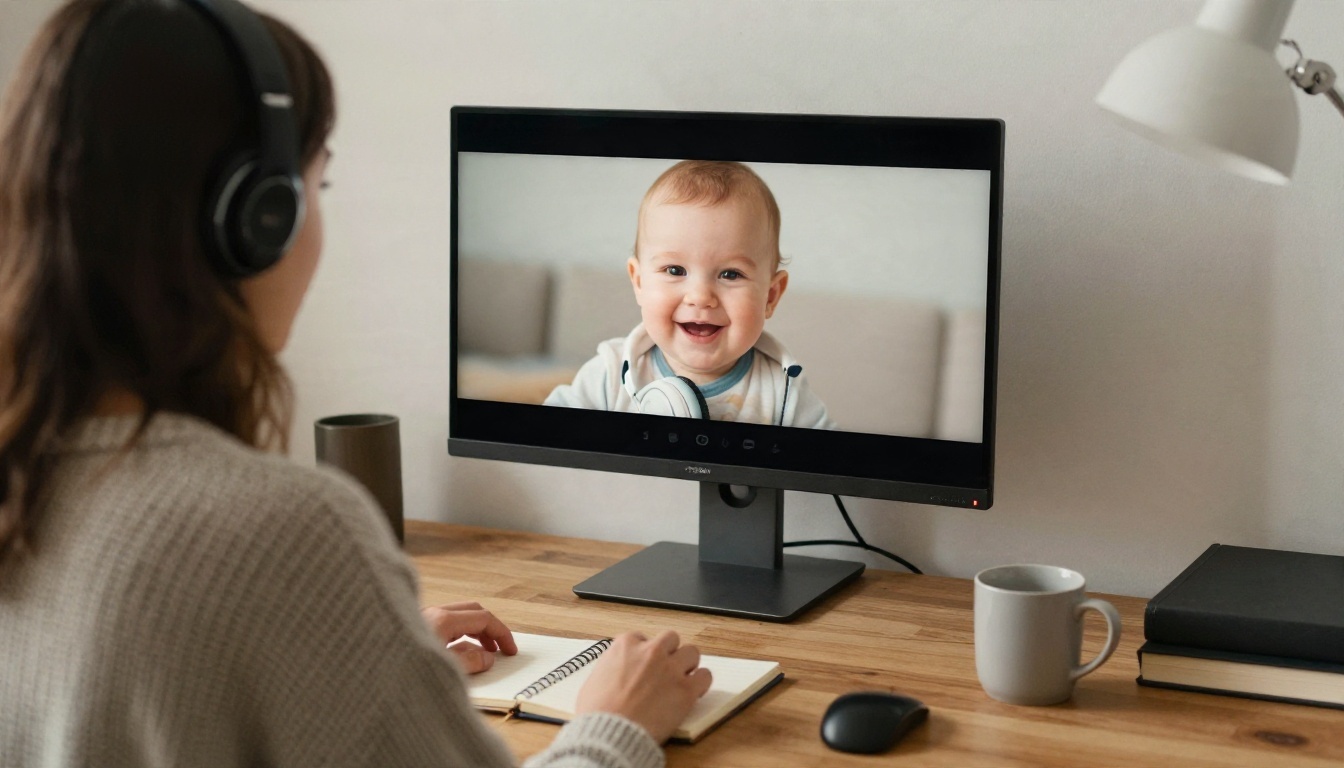
💡 Workflow shortcut: Generate three portraits, animate the best one with two different models, and compare. That costs a few minutes and usually beats endless re-prompting on a single model.
Polish the result
If the clip looks soft, a super resolution or video enhancement model can sharpen it. If a small detail looks wrong, a video editing model such as P Video Edit lets you adjust a clip with a text prompt instead of regenerating from scratch.
How Accurate Are the Results?
Honest answer: accurate enough to be fun, not accurate enough to trust.
What the AI gets right
- General skin tone blend
- Hair color and rough hair texture
- Face shape tendencies, such as rounder or longer
- Overall "family resemblance" feeling
What it gets wrong
- Eye color changes that appear months after birth
- Real facial development, since newborn faces shift quickly
- Dominant versus recessive trait inheritance
- Anything beyond what the two photos show
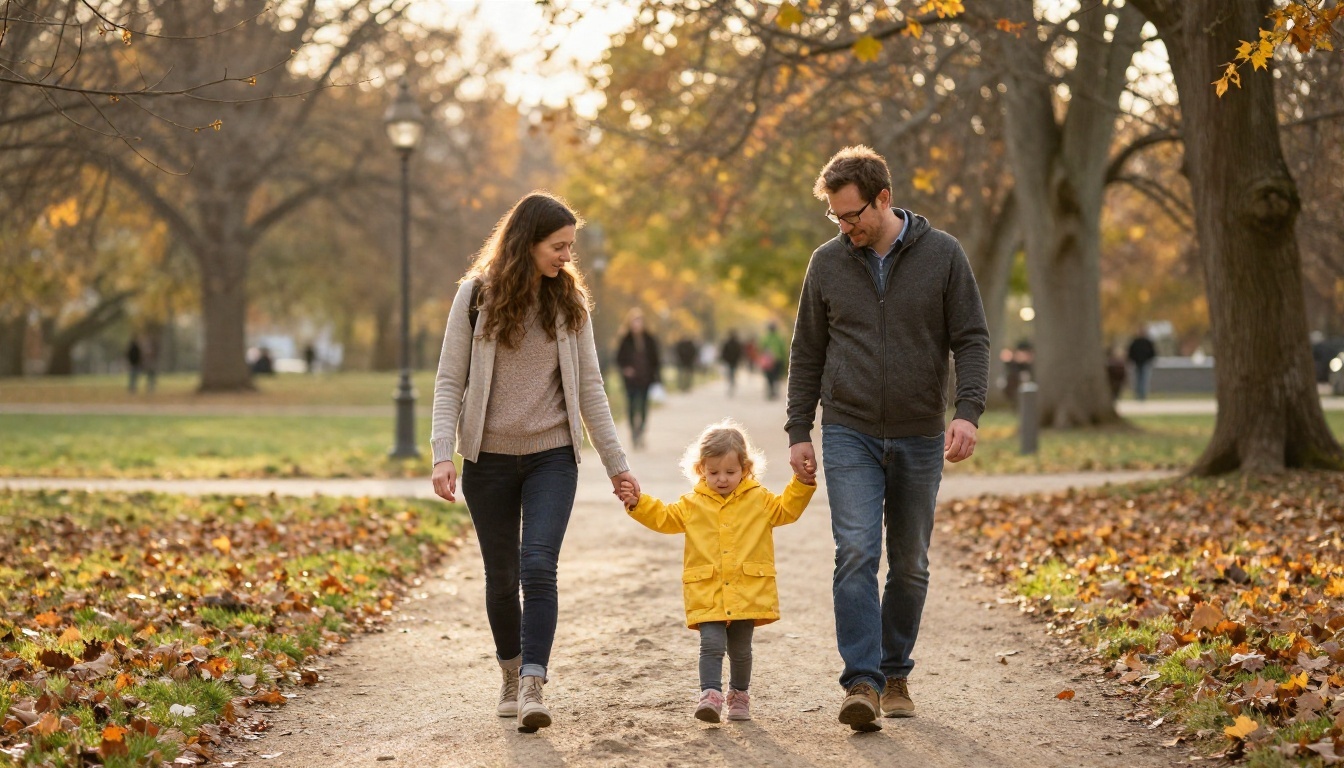
A real child will rarely match the generated image, and that is a good thing. The clip is a keepsake of the anticipation, not a forecast.
Privacy and Responsible Use
Photos of faces are sensitive data. A few habits keep this fun and safe.
Before you upload
- Get consent. Only use photos of people who agreed, especially if you plan to post the result.
- Avoid photos of real children without a parent's permission.
- Check deletion options. Prefer tools that let you remove uploads.
- Label the clip. When sharing publicly, say it is AI-generated so nobody mistakes it for a real baby.
Where not to use it
Do not present a generated baby as a real child in contexts such as official documents, fundraising or anything that could mislead others. Keep the clips in the playful, personal category where they belong.
Frequently Asked Questions
Can I make an AI baby video from one parent photo?
Yes, but the result will lean heavily toward that single face. For a believable blend, use both parents.
Do I need to pay?
Not necessarily. Several image and video models offer free tiers or free generation options, and PicassoIA lists some video models as free and unlimited. Check the model page for current limits.
How long should the video be?
Five seconds is the sweet spot. Longer clips give the face more time to drift away from the original portrait.
Can I add a voice or music?
Yes. Some video models create ambient audio natively, and you can add a lullaby or voiceover with text to speech or AI music models available on the platform.
Why does the baby look too perfect?
Because prompts and models both favor polished faces. Add phrases like natural skin texture, soft shadows, slight redness on cheeks to bring back the imperfect look of a real infant.
Make Your Own Baby Video Today
The fastest way to see how this works is to try it with your own photos. Pick two clear portraits, build a calm baby portrait with Nano Banana, then animate it with Kling v3 Video or Wan 2.5 I2V Fast. Change one setting at a time, keep the motion gentle, and compare results side by side.
Once you have a clip you like, share it with the people it is meant for, and keep the original files for the day the real baby arrives. You can browse every image and video model on PicassoIA at picassoia.com/en/all-models and build your own version in a few minutes.


