You finish editing a video, drop in a popular song because it fits the mood perfectly, hit upload, and a few hours later your channel gets a copyright claim. Sound familiar? It happens to beginners and experienced creators alike, and it is the main reason people search for an AI background music generator free no copyright tool. The idea is simple: instead of licensing someone else's track, you describe the mood you want and an AI model composes a brand new piece of music for you, made for your video and nobody else's.
This article shows how that works in practice. You will see which models are worth using, how to write prompts that produce usable background tracks, how to mix the audio under your voice, and what to check before you publish on YouTube or Instagram Reels.
💡 Quick answer: Generate an original instrumental with a text-to-music model, keep it free of vocals and sound-alike prompts, mix it quietly under your voiceover, and keep a record of your prompt and the platform terms. That workflow removes most of the risk that comes with commercial songs.
Why Creators Want Copyright-Safe Music
The Claim Problem
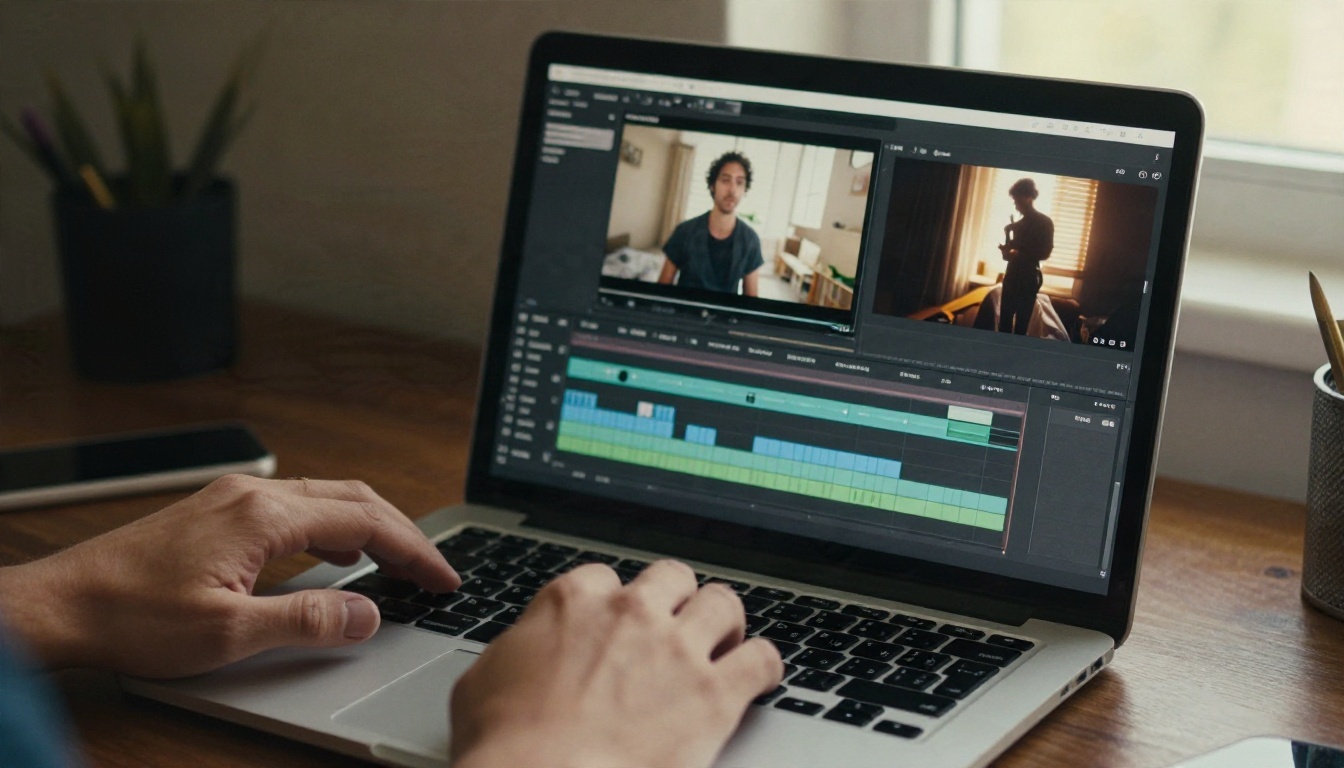
Automated systems on video platforms compare your audio to a huge database of registered recordings. If a few seconds of your soundtrack match, you can end up with muted audio, blocked regions, redirected ad income, or in the worst case a strike against your channel. Short clips are not exempt. A 15 second Reel with a trending song can be muted in some regions overnight.
The usual alternatives all have friction:
- Stock music libraries often require a subscription, and the same popular tracks show up in thousands of videos.
- Free music packs can have unclear licenses or attribution rules that are easy to forget.
- Platform sound libraries are limited by where you post, and they may not travel with you if you repost to another network.
- Hiring a composer gives you quality, but it is slow and expensive for a weekly upload schedule.
What "No Copyright" Really Means
Here is the honest part. "No copyright" is shorthand, and it can be misleading. A track generated by an AI model is not the same thing as a track with zero legal status. What creators really want is music that will not trigger claims and that they are allowed to use commercially. Those are two separate questions:
| Question | What to check |
|---|
| Will a claim system flag it? | Is the piece original, and not an imitation of a known song? |
| Can I monetize with it? | Do the platform's terms allow commercial use of the output? |
| Can I reuse it on other networks? | Does the license limit where the file can be published? |
| Is a credit needed? | Does the service ask for attribution? |
Rules about ownership of AI-generated audio differ between countries and change often, so treat any tool's terms as the final word for your project, and keep a note of the date you generated each track.
How AI Background Music Works
From Prompt to Track
A text-to-music model is trained on large amounts of audio paired with descriptions. When you type something like "calm lo-fi piano, soft vinyl texture, 80 BPM, no vocals," the model predicts audio that matches those words, building rhythm, harmony and instrument sound together. You get a new file rather than a clip stitched from existing songs.
The quality of the result depends on three things: how specific your description is, how good the model is at holding a style for the whole duration, and how you handle the output afterward. The first and third are in your hands.
Why It Fits Short Video
Background music has a different job from a hit single. It should support the picture without competing with it. That makes it a natural match for AI generation:
- No lyrics needed. Instrumentals avoid the biggest source of accidental similarity to existing songs.
- Length on demand. You can ask for 15 seconds for a Reel or three minutes for a tutorial.
- Mood matching. Upbeat for an unboxing, ambient for a travel montage, tense for a story video.
- Fast iteration. If the first take feels off, adjust one phrase and generate again in a minute or two.
Best Models for Background Tracks
PicassoIA groups its audio tools under AI music generation, and several models there suit background work. Here is how they compare for this job.
Music 2.6 for Fast Full Tracks
Music 2.6 is a strong first choice if you want a finished-sounding piece quickly. It produces full songs from a text prompt, and it works well when you want an instrumental that has a clear beginning, middle and end. For a YouTube intro, an outro bed, or a looping track under a talking-head video, it is easy to get something usable in a few attempts. If you like to compare generations, the earlier Music 2.5 and Music 1.5 are available as well, and each has a slightly different feel.
Lyria 3 and Lyria 3 Pro
Lyria 3 is Google's music model, and it handles detailed instrument and mood descriptions well. If you need longer pieces, such as a ten minute study video or a podcast bed, Lyria 3 Pro is built for full-length output. The older Lyria 2 is still handy for quick sketches.
Stable Audio 2.5 for Loops
Stable Audio 2.5 leans toward instrumental textures, ambient beds and loop-friendly material. If your video needs a steady, unobtrusive layer rather than a melody that grabs attention, this model is a good pick.
ElevenLabs Music for Prompts
The ElevenLabs Music model follows plain-language instructions closely, which helps when you know the scene but not the musical vocabulary. Try something like "gentle acoustic guitar for a cooking video" and see what comes back.
| Model | Best for | Typical use |
|---|
| Music 2.6 | Quick, polished full tracks | Intros, outros, Reels beds |
| Lyria 3 | Detailed mood control | Vlogs, product videos |
| Lyria 3 Pro | Long, full-length pieces | Tutorials, podcasts, streams |
| Stable Audio 2.5 | Ambient textures and loops | Focus videos, backgrounds |
| ElevenLabs Music | Plain-language prompting | Quick sketches, ideas |
💡 Tip: Generate the same prompt on two different models. The comparison teaches you more about what each one does well than any description can.
How to Use Music 2.6 on PicassoIA
This walkthrough uses Music 2.6, but the same flow applies to most music models on the platform. Exact options can vary by model, so follow the fields you see on the page.
Step by Step
- Open the model page. Go to Music 2.6 on PicassoIA and sign in.
- Write your style prompt. Name the genre, the mood, the main instruments and the tempo. Add "instrumental, no vocals" so you get a clean background bed.
- Handle lyrics. If the model offers a lyrics field, leave it empty or use an instrumental marker, since you want background music rather than a song.
- Generate and listen. Play the result through headphones first, then through your phone speaker, because that is where most viewers will hear it.
- Refine one thing at a time. If the drums are too busy, change that single phrase. Changing everything at once makes it hard to tell what worked.
- Download and label the file. Name it with the model, date and mood, for example
music26-2026-11-04-warm-acoustic. You will thank yourself later.
Prompt Tips
- Lead with the use case. "Background music for a calm morning routine vlog" beats a vague "nice music."
- Limit the instruments. Two or three is plenty. More instruments usually means a busier, more distracting track.
- State the energy. Words like "steady," "gentle build," or "light groove" help.
- Say what to avoid. "No vocals, no sudden drops, no heavy bass" keeps the track from fighting your voice.
Prompts That Work for YouTube and Reels
The two platforms reward different things. YouTube viewers often sit through longer videos, so a soft, consistent bed works. Reels reward a strong first second, so the track should land with a clear rhythm quickly.
YouTube Formulas
For longer videos, think in terms of a bed that can run without becoming tiring:
- Tutorial or explainer: "Light instrumental electronic groove, soft synth pads, muted drums, 95 BPM, minimal melody, no vocals, steady energy."
- Travel vlog: "Warm acoustic guitar with gentle percussion, open and optimistic, 100 BPM, instrumental."
- Study or focus video: "Slow ambient piano with soft texture, 70 BPM, very little change over time, no vocals."
- Documentary style: "Cinematic strings and low piano, thoughtful and restrained, slow build, instrumental."

Reels Formulas
Short clips need an immediate hook:
- Product reveal: "Bright upbeat pop instrumental, clapping percussion, 120 BPM, punchy start, no vocals, 15 seconds."
- Food or home content: "Playful ukulele and light claps, cheerful, 110 BPM, instrumental, short."
- Transformation montage: "Energetic indie groove with driving drums, rising energy, clear beat, instrumental, 20 seconds."
- Aesthetic day in my life: "Dreamy lo-fi beat with warm keys and vinyl crackle, laid-back, 85 BPM, instrumental."

💡 Trick: For Reels, generate a track around 30 seconds and trim it to the best 15. Cutting at a natural beat sounds cleaner than asking for a very short generation.
Pre-Publish Checklist
Before you upload, run through this list. It takes two minutes and prevents most problems.
| Check | Why it matters |
|---|
| Prompt names no artist, band or song | Sound-alike requests can produce music that resembles a registered work |
| Track is instrumental | Fewer elements that could echo existing songs |
| Terms allow commercial use | Needed if the video earns ad revenue or promotes a business |
| You saved the prompt, model and date | Gives you a record if a dispute ever comes up |
| You listened to the full track | Catches any passage that sounds oddly familiar |
| Same file for every platform | Avoids mismatches if you repost |
If a claim ever appears anyway, which can happen with automated systems, dispute it with your record of how the track was made. A clear prompt log and the model's terms are your best evidence.
Common Mistakes
- Asking for a famous style by name. "Make it sound like [artist]" is the fastest route to a track that resembles something registered. Describe the sound instead: instruments, tempo, mood.
- Using vocals by default. Sung lyrics compete with your voiceover and increase similarity risk. Choose instrumentals for background use.
- Skipping the listen-through. Some generations have a short odd passage near the end. Trim it or generate again.
- Forgetting loudness. A track that is too loud buries your voice and makes viewers leave.
- Mixing AI music with real songs. If you layer a trending sound over your generated track, the claim risk comes right back.

Mixing Music Under Voice and Video
A great generated track can still sound wrong if the mix is off. Background music should be felt more than heard.
- Under a voiceover: Set the music roughly 15 to 20 decibels below your voice, then raise or lower it by ear. If you can follow the words easily on a phone speaker, you are in a good place.
- During pauses: Raise the level slightly in silent moments and bring it back down when speech resumes. Most editors have an automatic ducking option for this.
- At the start and end: Add a short fade in and a longer fade out. Hard cuts sound abrupt and give the video an amateur feel.
- On cuts: Where possible, line up major scene changes with the beat. Even a small adjustment makes the edit feel intentional.
Other audio tools on the platform can help finish the job. PicassoIA also offers text-to-speech for voiceovers and speech-to-text for captions, so you can build the entire soundtrack and subtitles for a video in one place. You can see everything available on the all models page.
💡 Pro habit: Keep a small folder of three or four generated tracks that work well for your channel, such as one calm, one upbeat and one cinematic. A consistent sound across videos also gives your channel a recognizable feel.
Make Your Own Soundtrack Today
The best background music is the kind nobody notices until it is missing. With an AI music model, you can describe the mood, generate a track in minutes, and publish with far less worry than you would have with a borrowed song. Start with one video: pick a mood, write a short instrumental prompt, and compare a couple of takes.
Open Music 2.6 on PicassoIA, try the prompts from this article, and then test Lyria 3 or Stable Audio 2.5 with the same description. Within an hour you can have a small library of original tracks ready for your next YouTube upload or Reel. Experiment freely, keep notes, and let your own sound take shape.


