You recorded a perfect interview, and a café playlist sat underneath every sentence. Or you grabbed a clip for a project and the soundtrack drowns the voice. An AI background music remover promises to fix that in a few clicks, and in 2027 several free online tools actually deliver decent results. The catch is that "free" comes with caps, and "remove" does not always mean "erase". This article shows what these tools do, which ones are worth a try, how to get vocals only, and where the limits bite.
What a Music Remover Really Does
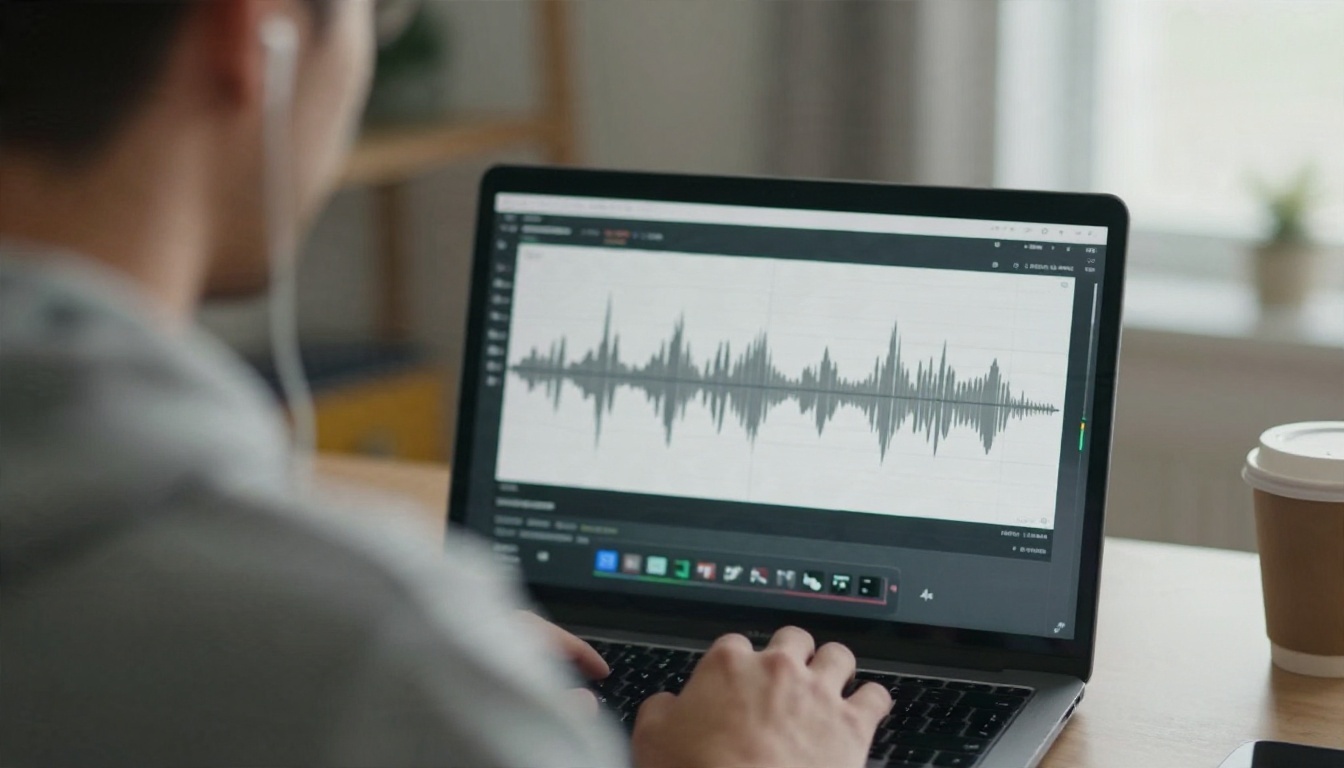
Most people picture a delete button for sound. That is not how it works. A background music remover is a stem separator: a neural network listens to a mixed file and predicts which parts of the signal belong to the voice and which belong to everything else. It then writes two (or more) new files.
Stems, Not Erasing
The model rebuilds each layer from scratch based on patterns it has seen in thousands of songs and recordings. Typical outputs:
- Vocals only: the voice, spoken or sung.
- Instrumental: drums, bass, guitars, keyboards, synths, everything that is not a voice.
- Optional extras: separate drums, bass, piano or "other" tracks on tools that split four to six stems.
So when you "remove music", you are really choosing the vocal stem and discarding the rest. That distinction matters for quality, because the vocal stem is an estimate, not a perfect extraction.
Why Background Music Is Hard
Music and speech share the same frequency range. A snare hit can sit right on top of a consonant, and a sustained pad can mask the warm part of a voice. Separation models do well on pop songs with clear lead vocals. They struggle with:
- Quiet speech under loud music
- Choirs and stacked harmonies
- Heavy reverb or echo on the voice
- Mono recordings from old phones or call audio
💡 Rule of thumb: the louder the voice sits above the music in the original file, the cleaner the result. If you still have the original recording with separate tracks, use those instead.
Dozens of web apps wrap the same handful of open models and a few proprietary ones. Names you will see most often include LALAL.AI, VocalRemover.org, Moises, StemSplit, and browser tools built on Demucs, the open source separation model. Desktop users also run Ultimate Vocal Remover, which has no upload limits because it runs on your own computer.

What Free Tiers Allow
Published limits change often, and the numbers I found were inconsistent between vendor pages and review sites. Treat the table below as typical ranges, then check the current pricing page before you plan a big batch.
| Tool type | Typical free allowance | Common catches |
|---|
| Browser vocal remover (no account) | One file at a time, a few minutes of audio | Small file cap, MP3 output only, ads |
| Freemium stem splitter | Roughly one short file per day, around 10 minutes | Account required, watermark or lower bitrate |
| Subscription studio app | Limited free minutes per month | Full stems and WAV locked behind a plan |
| Open source on your own PC | Unlimited | Setup time, a decent GPU helps |
Upload caps on free plans commonly sit somewhere between 10 MB and 100 MB, and some tools allow far more on paid tiers. Duration limits of 10 minutes or less per file are common.
Which One to Pick
Choose based on the job, not the brand:
- Quick single clip, no signup: a browser vocal remover is fine.
- A song with clean vocals for a remix or karaoke: a freemium splitter with four stems usually gives the best balance.
- Hours of podcast or video audio: local open source tools beat any free web tier, because there is no daily cap.
- Sensitive or unreleased material: run it locally. Uploading to a free web service means your file sits on someone else's server.
How to Get Vocals Only
The workflow is nearly identical across tools. Here is a version that consistently gives cleaner vocal stems.
Prepare the File First
Garbage in, garbage out. Before uploading:
- Export as WAV or high bitrate MP3 (256 kbps or above). Low bitrate files already have artifacts the model will amplify.
- Trim silence at the start and end so you do not waste free minutes.
- If the source is a video, extract the audio track first and upload only the audio. It is faster and often avoids size caps.
- Normalize loud peaks so nothing clips.
Run the Separation
- Upload the audio to your chosen tool.
- Select vocals (or "voice") as the stem to keep. If there is an option for "lead vocal vs backing vocals", pick lead for speech.
- Choose the highest quality model offered, even if it is slower.
- Download the vocal stem as WAV if the free tier allows it.
Clean Up the Result
Even a good stem usually carries faint traces of the music, called bleed. A quick pass helps:
- Apply a gentle noise gate to silence the gaps between words.
- Use a mild low cut around 80 Hz to remove rumble.
- Run a light de-ess if the separation made high frequencies sharp.
- Add a touch of room reverb if the voice sounds too dry and sterile.
Real Limits You Will Hit
Marketing pages say "99% clean". Real files tell a different story. These are the limits that matter in practice.
File Size and Duration
Free tiers throttle you in three ways at once: file size, length per file, and files or minutes per day. A one hour podcast episode in WAV is far over most free caps. Workarounds that stay within the rules:
- Split long audio into chunks and process them across several days.
- Convert to a smaller format before upload, then separate.
- Process only the sections where music is actually present.
Bleed and Artifacts
Expect a watery, slightly metallic quality on the vocal stem, especially on sibilant sounds like "s" and "sh". The effect is most obvious when you listen on headphones. On a phone speaker, most viewers will not notice.
| Source material | Typical result |
|---|
| Studio pop song, clear lead vocal | Very good, minor bleed |
| Live concert recording | Fair, crowd noise stays |
| Interview with quiet background music | Good, tiny residue |
| Speech under loud EDM | Poor to fair, voice sounds thin |
| Old mono recording | Fair, more artifacts |

Copyright and Platform Rules
Separating a track does not change who owns it. A vocal stem lifted from a commercial song is still that song. Posting it on a video platform can trigger a content claim, and a remix released without permission can be taken down. Use separation on audio you own, have licensed, or have permission to edit. For content you publish, original or licensed music is the safe route.
💡 If the goal is only to avoid a copyright claim on your own video, removing the music and adding a new, licensed or original track is more reliable than muting.
Removing Music From Video Clips
Video adds a step, but not a hard one. Phone clips are the most common case: you filmed something nice, and a speaker nearby was playing a song.

Extract, Separate, Re-attach
- Pull the audio out of the video with any editor or converter.
- Run it through your stem separator and keep the vocal stem.
- Drop the cleaned vocal back onto the video timeline and mute the original audio.
- Check lip sync at the start and end of the clip. Separation should not shift timing, but exports sometimes do.
When Muting Beats Separating
Sometimes the voice is not worth saving. If the clip is a scenic shot with no speech, skip the separator and just mute it. Then lay a fresh track underneath. That brings us to the part most articles skip.
Replace It With Original Music
Once you have stripped the old soundtrack, silence feels wrong. You need a bed of music that fits the clip and is safe to publish. This is where an AI music generator earns its place in the workflow.
PicassoIA does not offer a stem splitter, so the removal step happens in the tools above. What it does offer is a set of AI music generation models that produce a replacement soundtrack from a text prompt. A few worth knowing:
How to Use Lyria 3 on PicassoIA
Lyria 3 turns a text prompt, or up to 10 reference images, into a 30 second music clip. It is a good match for a video that just lost its original soundtrack.
- Open the Lyria 3 model page on PicassoIA.
- Write a specific prompt: genre, instruments, mood and tempo. Example: "Warm acoustic guitar and soft brushed drums, relaxed 90 BPM, light and optimistic, no vocals".
- Optionally upload up to 10 reference images (stills from your video work well) so the music picks up the visual mood.
- Generate, listen, and adjust the prompt. Change one thing at a time: tempo first, then instruments, then mood.
- Download the clip and place it under your cleaned vocal stem. Lower the music about 12 to 18 dB below the voice so speech stays clear.
💡 For narration, ask for "no vocals" and "minimal melody". Busy melodies compete with speech and bring back the very problem you just solved.
Prompts That Work Under Speech
- "Soft lo-fi piano, slow tempo, sparse, no drums, calm"
- "Ambient pad with gentle pulse, 70 BPM, cinematic but quiet"
- "Light ukulele and handclaps, upbeat 110 BPM, friendly, no vocals"
- "Minimal electric piano, warm bass, relaxed, background corporate feel"
If you need longer than 30 seconds, loop a section, or use Lyria 3 Pro for a full track.
Need the Words Back?
When separation damages a vocal and you want to rebuild subtitles, run the vocal stem through a transcription model such as GPT 4o Transcribe. Clean stems transcribe far better than the mixed original, which is a quiet bonus of removing the music first.
Common Problems and Fast Fixes

The Voice Sounds Robotic
This is the classic artifact of over-aggressive separation. Try a different model or a higher quality setting, then blend a little of the original mix back in at low volume. A touch of music residue often sounds more natural than a sterile vocal.
Some Music Is Still Audible
- Run the separator twice: once on the original, once on the vocal stem.
- Use a noise gate to cut the gaps.
- Try a different tool. Each model has its own blind spots.
The Free Limit Ran Out
Wait for the daily reset, split the job across several accounts of your own services only if the terms allow it, or switch to a local open source tool. For regular work, local processing is the most dependable fix, and it keeps your files private.
Instrumental or Karaoke Track Needed
Flip the process: keep the instrumental stem and drop the vocal. Karaoke nights, practice sessions and cover rehearsals all rely on exactly this. The same quality limits apply, so expect a faint ghost of the singer in the loudest sections.
Quality Check Before You Publish
- Listen on headphones and a phone speaker.
- Compare the first 10 seconds against the original.
- Check that breaths and consonants are still there. If they vanished, the voice will sound unnatural.
- Make sure you hold the rights to publish the audio.

Quick Answers
Can AI remove background music perfectly? No. It gets close on clean sources and leaves artifacts on messy ones.
Is there a truly unlimited free option? Open source tools you run locally have no daily limits. Web tools almost always cap size, length or daily use.
Can I get vocals only from any song? Technically yes. Legally, only if you have the rights to use the result.
What is better for a video: separating or replacing the music? If the voice matters, separate. If it is just ambience, mute and replace with an original track.
Build Your Own Soundtrack
Removing music is the repair step. Creating the right music is where the project gets its personality. Once your vocal stem is clean, open Lyria 3, write a one sentence description of the mood you want, and listen to three variations. Try a slower tempo, swap the instruments, and see how the same narration changes character. You can browse every available music, image, video and voice model at picassoia.com/en/all-models and build the full piece, from cleaned dialogue to original score, in one place.


