Posting every day used to mean a camera, an editor, a copywriter and a lot of free evenings. Now a single phone and the right AI based social media applications can handle most of that load. The catch is that the market is crowded, half the "free" plans stop working after three posts, and many apps solve the same small problem in slightly different ways. This article sorts the noise into something usable: what these apps actually do, which free options are worth opening, how real creators put them to work, and where generative image, video and audio models fill the gaps that scheduling tools leave behind.
What Counts as an AI Social App
The phrase gets used loosely, so let's pin it down. An AI based social media application is any tool that uses machine learning to help you plan, create, edit or publish content for platforms like Instagram, TikTok, YouTube Shorts, LinkedIn or X. That covers a lot of ground, and it helps to split it into three groups.
Three types of tools
Management apps handle the business side: drafting captions, suggesting posting times, scheduling across channels and summarizing what performed. Buffer is the best known example with a free plan. Hootsuite and FeedHive sit higher up the price ladder, and in my research Hootsuite showed no free tier while FeedHive offered a short trial rather than a permanent free plan.
Design and editing apps such as Canva and CapCut sit in the middle. They give you templates, auto captions, background removal and quick resizing, with AI features layered on top of a regular editor. Canva has a free tier, and its AI tools are a big part of why people sign up.
Generative apps create the raw material itself: photos, short videos, voiceovers and music from a text prompt or a reference image. This is the group that changes what a one person team can produce.

Where each type fits
Most creators end up with one tool from each group. A scheduler keeps the calendar honest, an editor polishes clips, and a generative platform supplies visuals when you have no footage, no budget for a shoot, or no time. Trying to make one app do everything usually ends in mediocre results across the board.
💡 Tip: Pick your bottleneck first. If you stall at writing captions, start with a management app. If you stall at having nothing to show, start with a generative one.
Free Options Worth Using Today
"Free" comes in three flavors: a permanent free plan with limits, a free trial that expires, and a free tier of a freemium product that hides the useful features. Only the first is something you can build a routine on. Plans and limits change often, so check each pricing page before you commit your workflow to it.
Scheduling and caption writing
Buffer's free plan is the usual starting point, covering a small number of channels with basic scheduling and an AI assistant that rewrites or shortens captions. It will not replace a strategist, but for a creator posting three to five times a week it removes the daily "what do I write" friction. Paid plans start at a few dollars per channel per month, which is why many solo creators stay on free for a long time.
Design and quick edits
Canva's free tier gives you templates for carousels, thumbnails and story frames, and its Magic Studio tools can generate layouts from a prompt. CapCut is the default pick for trimming short clips, adding captions and syncing cuts to a beat. Both are strong at assembling content, though neither is built to invent a convincing original photo or a cinematic clip from nothing.
Original images, video and audio
This is where a generative platform earns its place. On PicassoIA you can produce images, video and audio from one account, and several models are positioned with free access on their pages. That matters for creators who would otherwise juggle four separate subscriptions.

| Need | Typical free route | Where it falls short |
|---|
| Caption drafts and scheduling | Buffer free plan | Few channels, light analytics |
| Templates and layouts | Canva free tier | Best assets sit behind paid plans |
| Short clip editing | CapCut | Not a source of original footage |
| Original photos | Generative image models | Needs a clear prompt |
| Original video clips | Generative video models | Short clip length per generation |
| Voiceover and music | Generative audio models | Needs a script and a mood |
Real Examples From Working Creators
Lists of apps are easy to find. What is harder to find is a picture of how people stitch them together, so here are three patterns that show up again and again.
The solo lifestyle creator
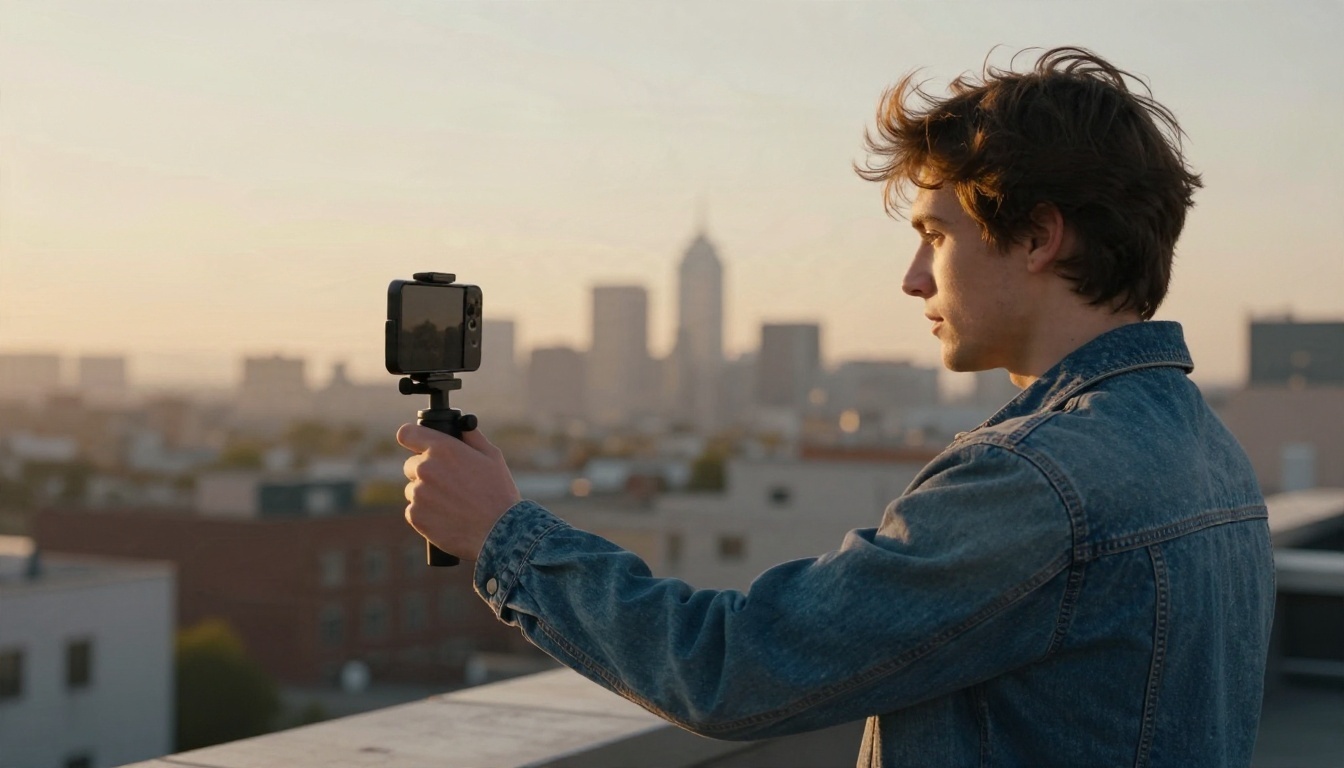
She films on a phone, but the weak spot is variety. Three days of morning coffee shots get repetitive. Her routine: draft the week's themes in a notebook, ask a writing assistant for caption options, then generate a handful of supporting visuals, such as a styled flat lay or a travel style backdrop, with an image model. She films only the personal moments, and AI fills the b-roll.
The small shop owner
A ceramics seller photographs mugs on her workbench, which looks honest but not always polished. She uses background removal to isolate each product, drops it into generated lifestyle scenes, and upscales the result so it stays sharp on a large phone screen. One afternoon of shooting becomes a month of varied posts, and her customers still see the real product.

The podcaster turned clip maker
Long audio does not travel on social feeds. A podcaster pulls short moments, adds animated visuals generated from a single still frame, and layers captions on top. Voice translation lets the same clip reach audiences in other languages without re-recording a word.
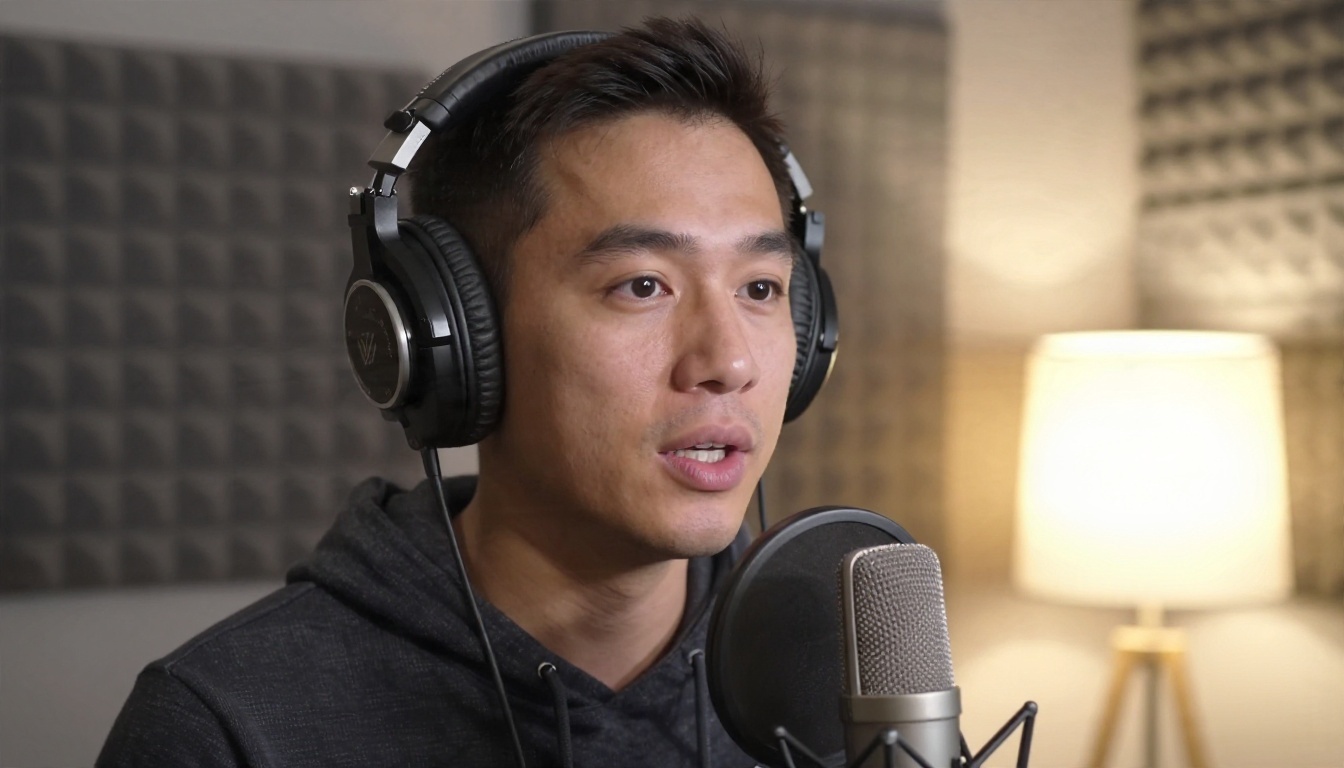
Image Models for Feed Content
Photos still carry most of the feed. Static posts and carousels get saved and shared in a way that a quickly scrolled video often does not, so a reliable image model is the foundation of most creator stacks.
Photos that stop the scroll
For realistic people, products and scenes, Seedream 4.5 is a strong first pick, with sharp detail and 4K output that holds up when Instagram compresses it. Nano Banana Pro is handy when you want edits that respect the original photo, such as swapping an outfit or changing a background while keeping the face consistent. Qwen Image 3 is another option for photorealistic scenes, and Flux 2 Klein 4B Base is a fast choice when you want to generate many variations and pick the best.
A prompt that works well for feed photos follows a simple pattern: subject and action, setting, light direction, lens, and texture. For example: "a woman laughing at a cafe window table, morning light from the left, 50mm lens, shallow depth of field, visible knit texture on her sweater." Vague prompts give vague pictures.

Cutouts, upscaling and cleanup
Three small utilities save more time than any flashy generator:
- Background removal: Remove Background gives clean cutouts for product posts and sticker style overlays.
- Product cutouts: Product Cutout handles objects with tricky edges.
- Upscaling: Real ESRGAN lifts a small image to 4x its size so it stays crisp on large screens.
💡 Tip: Generate at the highest resolution the model allows, then crop for each platform. Cropping down is lossless in practice. Stretching up is not.
Video Models for Reels and Shorts
Short video gets the most reach on most platforms, and it is also the most expensive thing to make by hand. Generative video models cut that cost sharply, especially for b-roll, intros, product reveals and atmosphere shots.
Text to video for fresh clips
Kling v3 Video is a dependable choice for cinematic motion and believable physics. Veo 3.1 Fast turns text into 1080p clips quickly, and the full Veo 3.1 is there when you want to push quality. Sora 2 produces clips with synced audio, which is useful when you want ambient sound without a separate editing pass. For quick drafts, Wan 2.5 T2V Fast keeps iteration cheap.
Animate a still photo
A neat trick for creators: generate or shoot a strong still, then bring it to life. Wan 2.5 I2V Fast animates a single image into a short clip, so your best photo becomes a Reel with gentle camera movement, drifting hair, passing clouds or steam rising from a cup. If you need a character to follow a specific movement, Kling v3 Motion Control lets you drive the motion from a reference.
Audio, Voice, and Captions
Sound is half of a video, and it is the half creators neglect. A mediocre clip with a clean voiceover and fitting music outperforms a beautiful clip with muffled audio.
Voiceovers and translation
v2 Multilingual produces natural voiceovers in over thirty languages, which is handy for faceless channels and explainers. Dubbing translates an existing video into many languages, so one post can reach several markets. When a generated character needs to speak, Lipsync 2 matches mouth movement to the audio track.
Music that fits the mood
Licensing is the hidden headache of social video. Generating your own track avoids hunting for a safe song. Music composes a song from a text prompt, Music 2.6 generates full tracks, and Lyria 3 Pro creates longer pieces when you need a bed for a mini documentary.
A Weekly Workflow That Holds Up
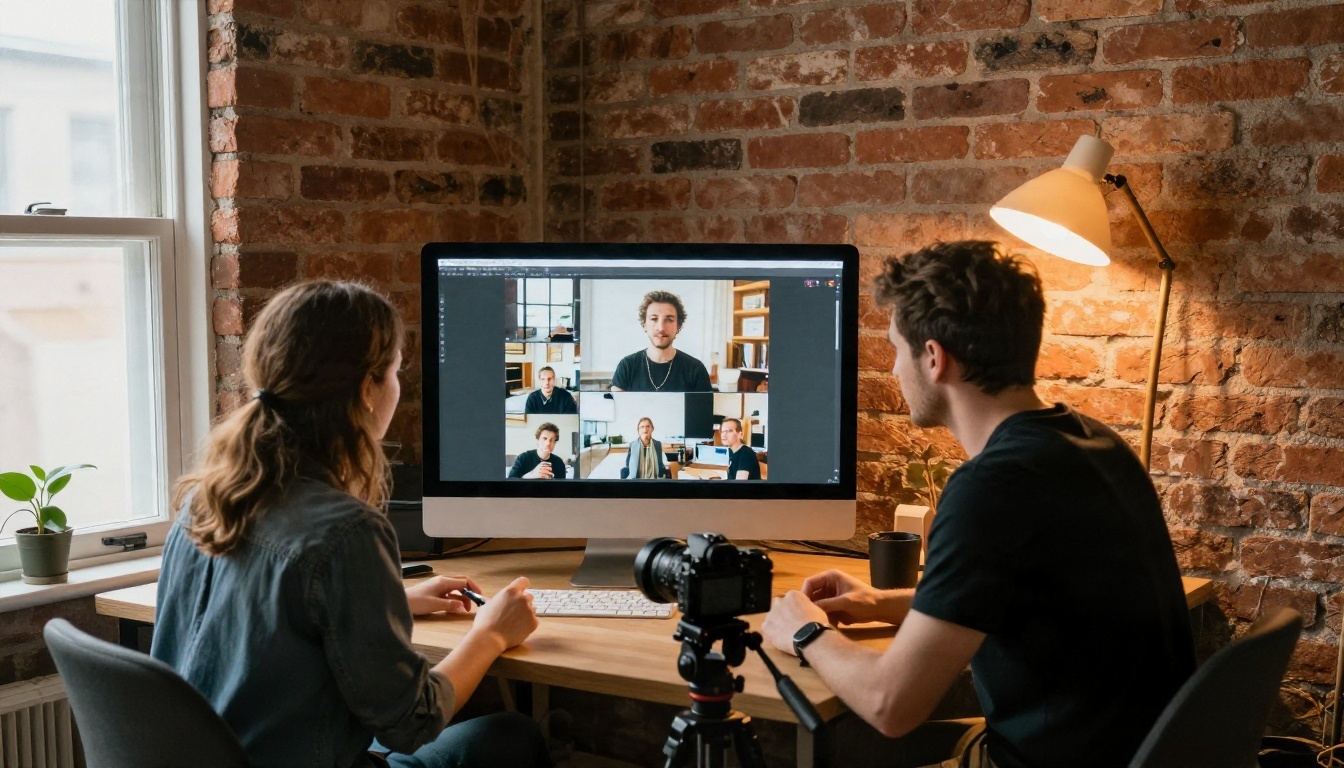
Tools do not build an audience. Routine does. Here is a simple weekly loop that uses the apps above without taking over your life.
- Monday, plan (30 minutes). Pick three themes. Ask an AI writing assistant for ten caption angles per theme and keep the best five.
- Tuesday, generate visuals (60 minutes). Use Seedream 4.5 or Nano Banana Pro for stills. Save the three strongest as hero images.
- Wednesday, animate (45 minutes). Turn two hero images into short clips with Wan 2.5 I2V Fast or Kling v3 Video.
- Thursday, add sound (30 minutes). Record or generate a voiceover with v2 Multilingual, add a track, and drop captions in CapCut.
- Friday, schedule (20 minutes). Load everything into Buffer's free plan, spread across the next seven days, and walk away.
That is roughly three hours a week for a month of consistent output, and most of it is waiting for generations to finish.

Mistakes to Avoid
Posting raw output. Generated images and clips are a first draft. Crop, color match and trim them so your feed looks like one person made it.
Chasing every platform. Choose two. A tight presence on two platforms beats a thin one on six.
Hiding the process when it matters. Many platforms now ask creators to label realistic AI content, and audiences respond better to honesty than to a surprise. If a clip looks like real footage but is generated, say so in the caption.
Ignoring free plan limits. Free tiers change. Keep your project files and exports saved locally so you can move to another tool in an afternoon if one disappears or caps you.
Skipping the audience. Tools help you produce, but comments and replies are how people decide to follow you. Answer them yourself.

💡 Tip: Keep one "voice document" with three sentences describing how you sound. Paste it into any writing assistant before you ask for captions, and the output will drift far less from your style.
Make Your First Post Today
You do not need a full stack to begin. Open Buffer or a similar free scheduler for the calendar, then use PicassoIA for the part nobody else gives you for free: original visuals. Generate a photo with Seedream 4.5, animate it with Wan 2.5 I2V Fast, add a voiceover or a track, and schedule it for tomorrow morning.
Try one idea this week and see which part of the workflow feels natural. If you want to browse everything available, from image and video generators to voice, music and upscaling tools, head to picassoia.com/en/all-models and pick the model that matches your next post.


