Type "AI bikini pic" into a search bar and you get two kinds of results: tools that bury you in watermarks and paywalls, and tools that spit out waxy, six-fingered beach scenes nobody would mistake for a photograph. There is a better route. With the right model, a decent prompt and about two minutes, you can produce a swimwear portrait that looks like it came off a real camera: honest skin, believable fabric, natural light.
This article walks through exactly that. You will see what a good AI bikini pic looks like, which free and no sign up options are worth your time, the models that handle swimwear best, nine photo examples with the settings behind them, and prompts you can paste straight into a generator.
What Is an AI Bikini Pic?
An AI bikini pic is a synthetic photo of a person in swimwear, created from a text description (or an edit of an image you already have) by an image model. Nobody posed. No beach was visited. The model builds the scene pixel by pixel from your words.
People search for it for very different reasons, and the reason changes which tool you should pick.
Who Uses These Images
- Fashion and swimwear brands testing color palettes and lookbooks before a real shoot.
- Travel and lifestyle creators who need a beach, pool or boat scene for a post, a thumbnail or a mood board.
- Illustrators and designers who want a realistic pose reference with controllable lighting.
- Hobbyists who just enjoy seeing how close a model can get to a real photograph.
💡 Tip: Decide your goal first. A mood board tolerates small flaws. A product mockup or a profile-sized portrait does not, and that is where model choice starts to matter.
What "Realistic" Actually Means
Most bad results fail in the same few places: glossy airbrushed skin, fabric that melts into the body, hands with the wrong number of fingers, and lighting that comes from nowhere. A photorealistic result gets the opposite things right.
- Visible pores, tiny freckles and uneven tan lines instead of porcelain skin.
- Ties, seams and ribbed fabric that sit on the body with believable tension.
- Light that has a direction, such as low sun from the left, with matching shadows.
- Depth of field that behaves like a real lens, with softly blurred backgrounds.
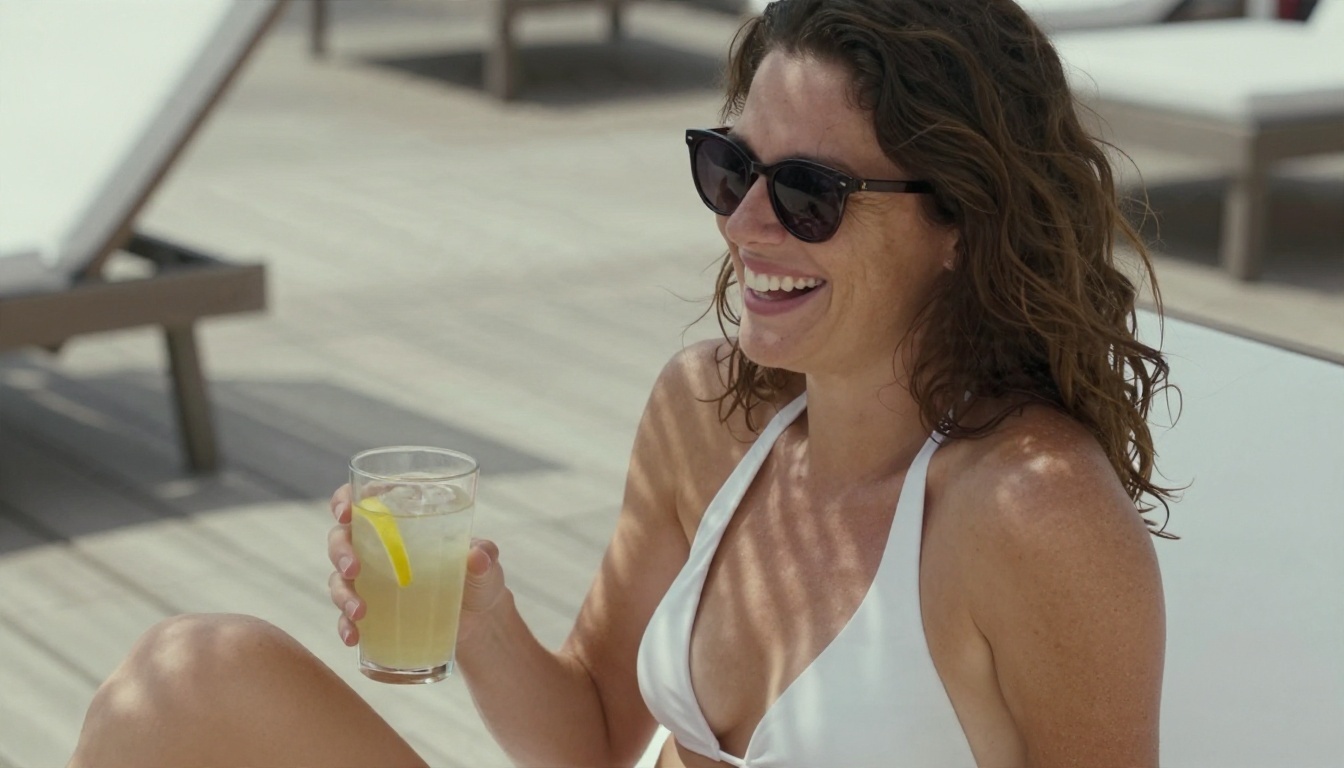
The photo above is a good benchmark. Notice the sunglasses pushed into the hair, the light freckles and the soft palm shadow across the shoulders. Those small, slightly imperfect details are what sell a photo as real.
Free and No Sign Up Options
"Free" and "no sign up" sound like the same promise. They are not, and it pays to know the difference before you spend an evening on a tool.
The Real Trade-Offs
Tools that ask for no account at all usually hold something back. Here is what you tend to find.
| Option type | What you get | What you give up |
|---|
| Anonymous web demos | Instant access, nothing to register | Small resolution, watermarks, slow queues, weak anatomy |
| Free tier with account | Better models, higher resolution | Daily limits, sometimes credits that run out |
| Open-weight models run locally | Total control, no queue | A strong graphics card and a lot of setup |
| Unlimited editors | No counting generations, fast iteration | A short account step |
A no sign up tool is fine for a quick test of a prompt idea. When you want a sharp, watermark-free file, a free account on a platform with strong models saves far more time than it costs. Creating that account takes about a minute, and it buys you a model that gets hands, fabric and skin right on the first or second try instead of the twentieth.
Quick Checks Before You Trust a Generator
- Resolution. If the output is 512 pixels wide, it will fall apart the moment you crop or post it.
- Watermarks. A watermark across the middle of the frame ruins the file for anything useful.
- Rights and privacy. Check whether your prompts and uploads are stored or shared.
- Consistency. Run the same prompt three times. If two out of three are broken, move on.
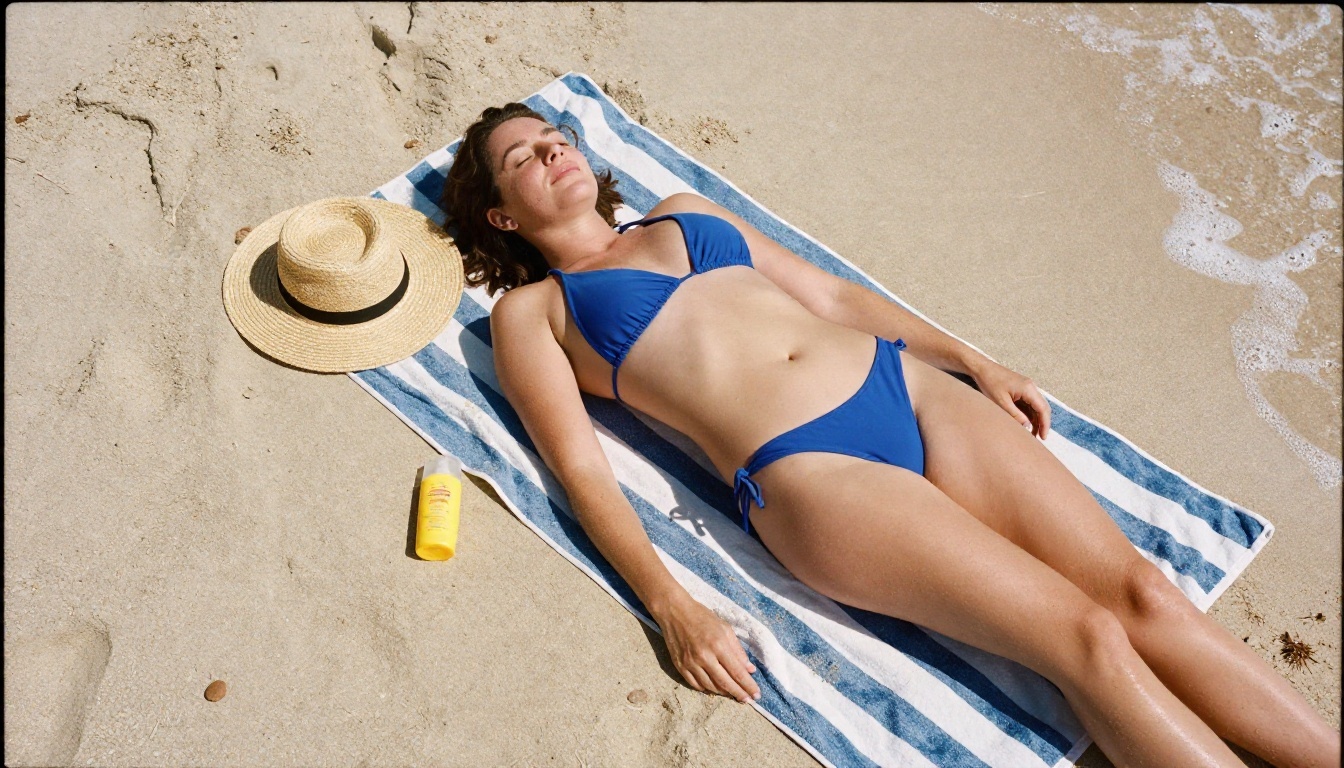
This top-down composition is a nice stress test. Small props, a repeating towel pattern, crisp midday shadows and a human figure all have to stay coherent at once. Weak models smear at least one of them.
Best Models for Bikini Pics
Swimwear is demanding. It involves a lot of exposed skin, wet textures, fine straps and strong sunlight, which means a model that is merely "good at landscapes" often stumbles. These are the ones worth using, in the order I would try them.
Seedream 4.5 First
Seedream 4.5 is the model I reach for first on swimwear. It renders skin with real micro-texture, handles wet hair and water droplets well, and follows long, detailed prompts without ignoring half of them. It also outputs at high resolution, so a beach portrait still looks crisp when you zoom into the fabric weave. For polished, photographic bikini work it is the strongest all-rounder on the platform.
PicassoIA Image Editor Pro
PicassoIA Image Editor Pro is built for fast iteration, and its unlimited generations change how you work. Instead of rationing attempts, you can tweak the swimsuit color, swap the beach for a pool, adjust the time of day and run it again. It is also the easiest place to refine an image after the first pass, which is where most good results actually come from.
Other Strong Picks
- Nano Banana Pro produces clean 4K images and is excellent when you want precise edits to an existing picture.
- Nano Banana is a lighter option for quick edits and generations.
- Z Image Turbo is very fast, which makes it handy for testing ten prompt variations in a few minutes.
- Qwen Image 3 Pro delivers photorealistic results with good scene logic.
- Flux 2 Klein 9B Base LoRA is useful when you want a particular style applied consistently.
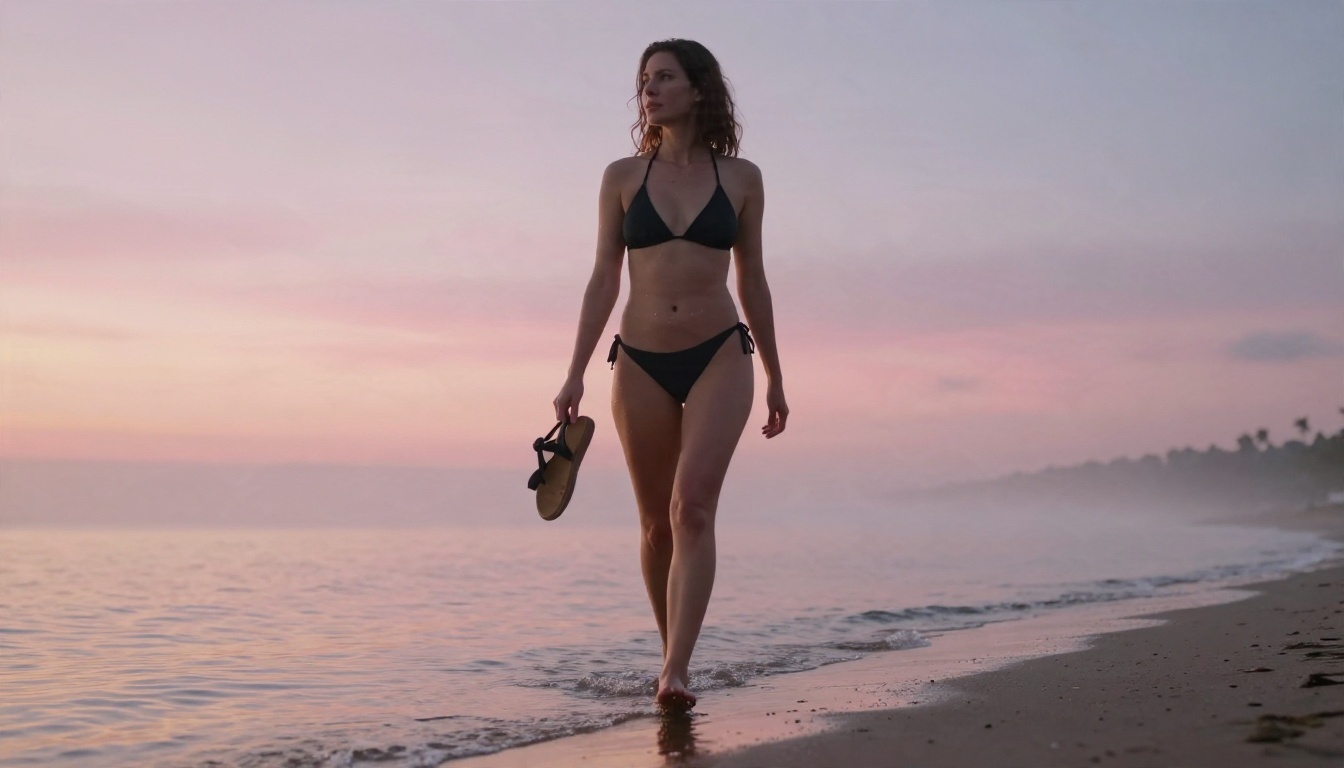
Sunrise backlight is one of the hardest lighting setups: rim light on hair, glints on wet skin, a reflective shoreline. A strong model keeps all of that physically believable.
💡 Tip: All of these models, plus dozens more, are listed at picassoia.com/en/all-models. If one model struggles with your idea, switching takes seconds.
How to Use Seedream 4.5 on PicassoIA
Here is the exact workflow I use. It takes about two minutes per image.
- Open the model page. Go to Seedream 4.5 on PicassoIA and sign in with a quick free account.
- Write the prompt in layers. Start with the subject and pose, then the setting, the light, the camera and the film feel. Aim for 50 to 80 words.
- Set the aspect ratio. Pick 16:9 for wide beach scenes and 3:4 or 4:5 for portraits meant for a phone feed.
- Generate, then read the result critically. Check hands, straps and where the fabric meets skin before you judge the mood.
- Change one thing at a time. If the light is flat, edit only the light line. If you change five details at once, you will never know which one helped.
- Refine in the editor. Take your favorite result into Image Editor Pro for color tweaks, background changes or quick fixes.
- Upscale if needed. For print or large banners, run the final file through a super resolution model.
Parameter tips that matter:
- Keep the prompt concrete. "Golden hour sun from camera left" beats "beautiful lighting".
- Name a lens, such as 85mm f/1.8 for portraits or 24mm for wide scenes.
- Mention skin and fabric texture on purpose. Models respond to it.
- Avoid stacking ten adjectives about beauty. They push the result toward the airbrushed look.
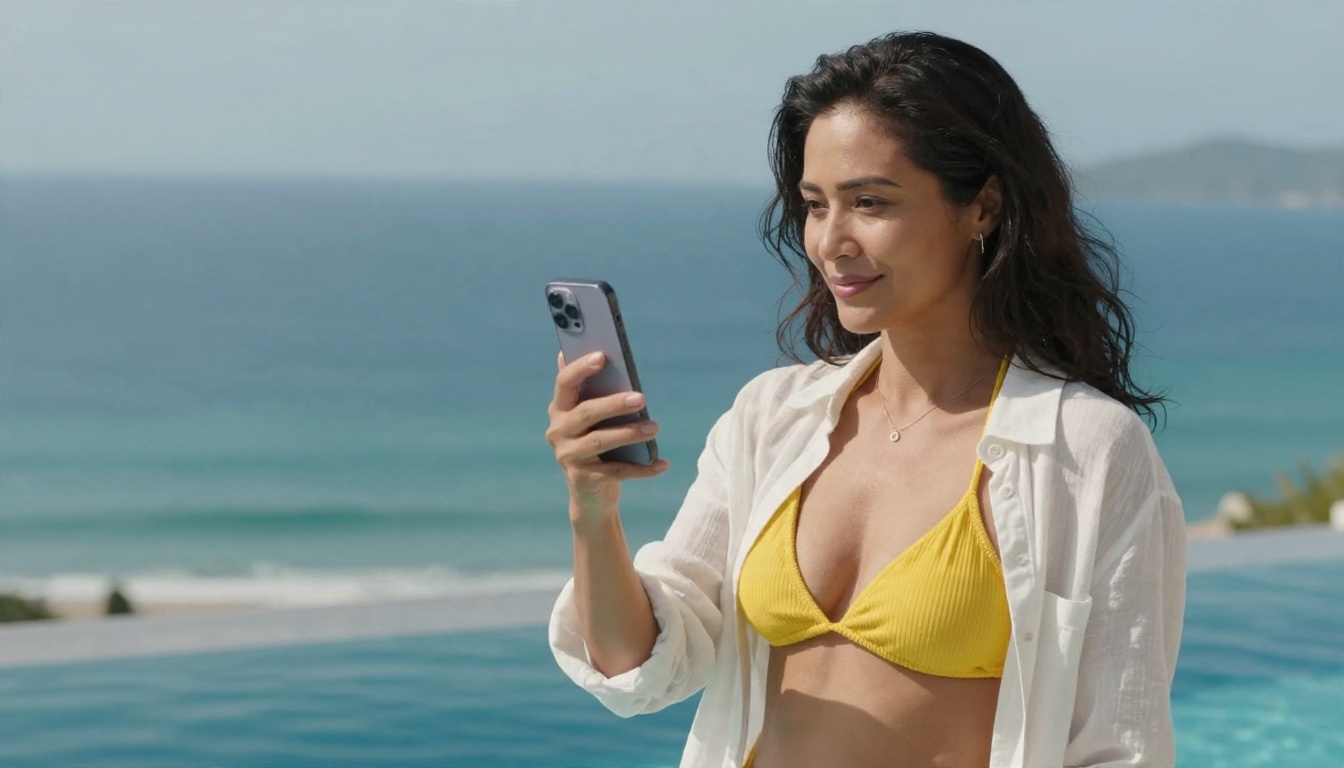
Soft overcast light, like in this infinity pool scene, is forgiving. If you are new to this, start with overcast prompts. They hide small errors better than hard noon sun does.
Prompts That Actually Work
A prompt is a mini photo brief. The more it reads like instructions to a photographer, the better the output.
The Five-Layer Formula
- Subject and pose: "adult woman in a terracotta triangle bikini, looking over her shoulder with a relaxed smile"
- Environment: "quiet Mediterranean cove, white pebbles, limestone cliffs, small wooden boat"
- Light: "low golden-hour sun from camera left, warm rim light on the hair"
- Camera: "85mm f/1.8, shallow depth of field, eye-level"
- Texture and film feel: "visible skin pores, damp ribbed fabric, Kodak Portra 400 grain"
Put them in that order and you rarely get surprises.
Copy-Ready Prompts
Poolside daylight:
Adult woman in a pink gingham bikini floating on her back in a clear pool, sunglasses on, noon sun with caustic patterns on the pool floor, 28mm lens at water level, droplets on skin, natural colors, fine film grain, photorealistic.
Sunrise walk:
Adult woman in a black sporty bikini walking along a wet shoreline at sunrise, sandals in one hand, pink and gold sky reflected in thin water, backlit hair, 50mm f/2, soft sea mist, Kodak Portra 400 grain.
Boat day:
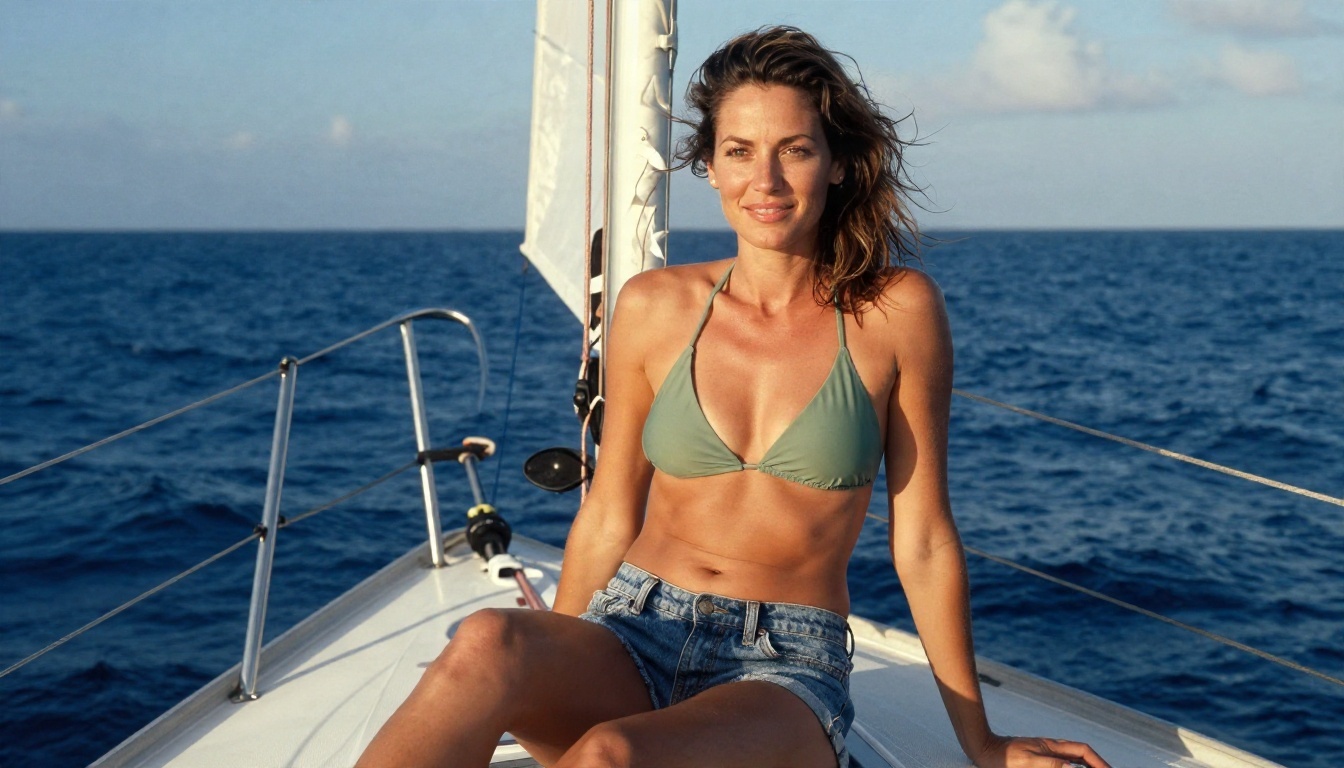
Adult woman in a sage green bikini top and denim shorts on the bow of a sailboat, smiling at the horizon, late morning light from front right, 70mm f/2.8, salt-dried hair, natural skin texture.
Terrace at dusk:
Adult woman in a navy bikini with a sheer white wrap over her shoulders, leaning on a whitewashed terrace wall above a harbor, string lights switching on, warm sunset on her face, 85mm f/1.8, bokeh of boats.
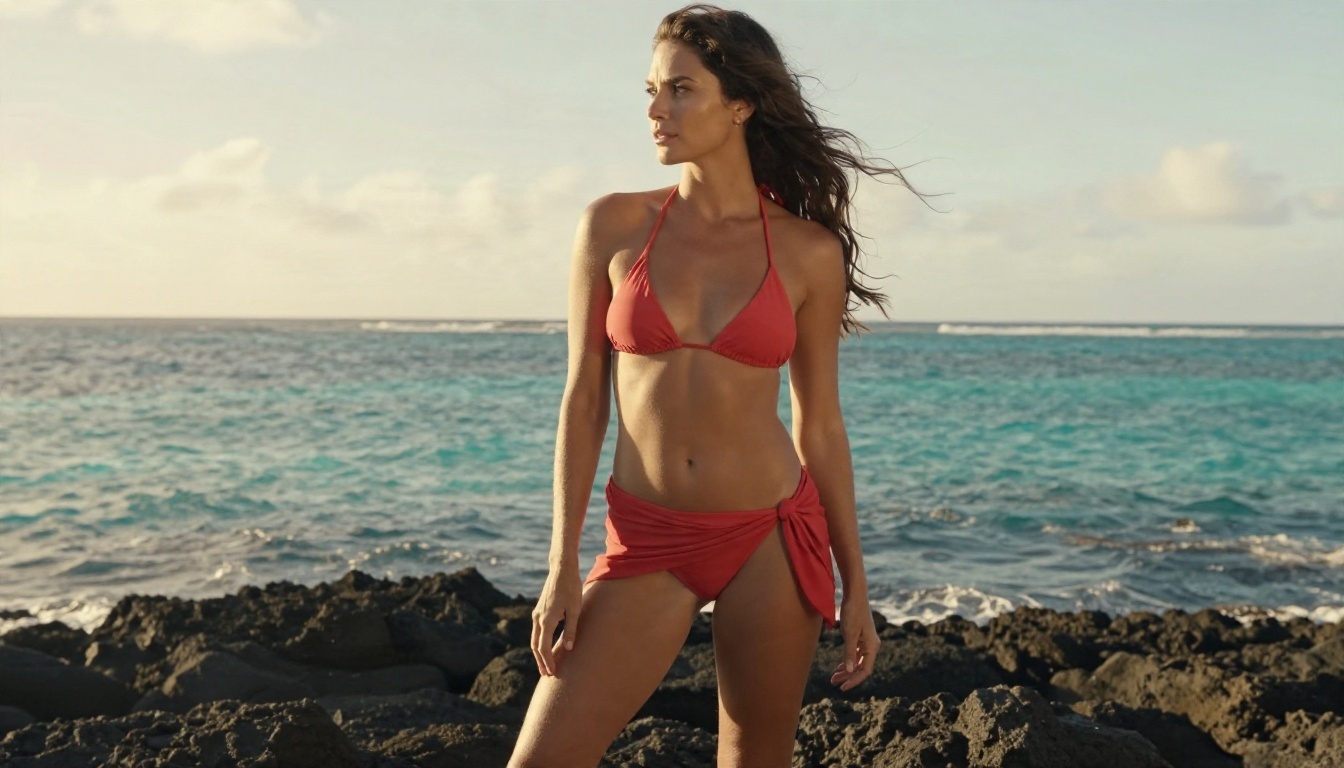
Wide shots like this one use a short lens (24mm) to keep the rocks, water and sky sharp. The wind in the hair adds motion without any need for a video tool.
Examples by Setting
Here is how different settings change what you should put in the prompt.
Beach Scenes
Sand reflects light upward, so skin gets a warm bounce on the underside of the face and arms. Mention it: "warm light bouncing off pale sand". Add foam, footprints or a towel to anchor the scene in a place.
Pool and Resort
Water creates caustics, which are rippling light patterns on skin and tiles. They are a signature of a real pool photo. Ask for "caustic light patterns" and "water droplets on skin", and results jump in realism. Overcast days give you soft, even light that flatters nearly any model output.
Boats and Travel
Lifestyle scenes feel less posed when the subject is doing something: sitting with knees up, adjusting a strap, squinting at the horizon. Candid prompts produce more natural body language than "standing, facing camera".
Golden Hour and Dusk
Low light is the most flattering and the most forgiving. A single warm source plus the blue of the sky behind gives you a color contrast that feels cinematic without any special effects.
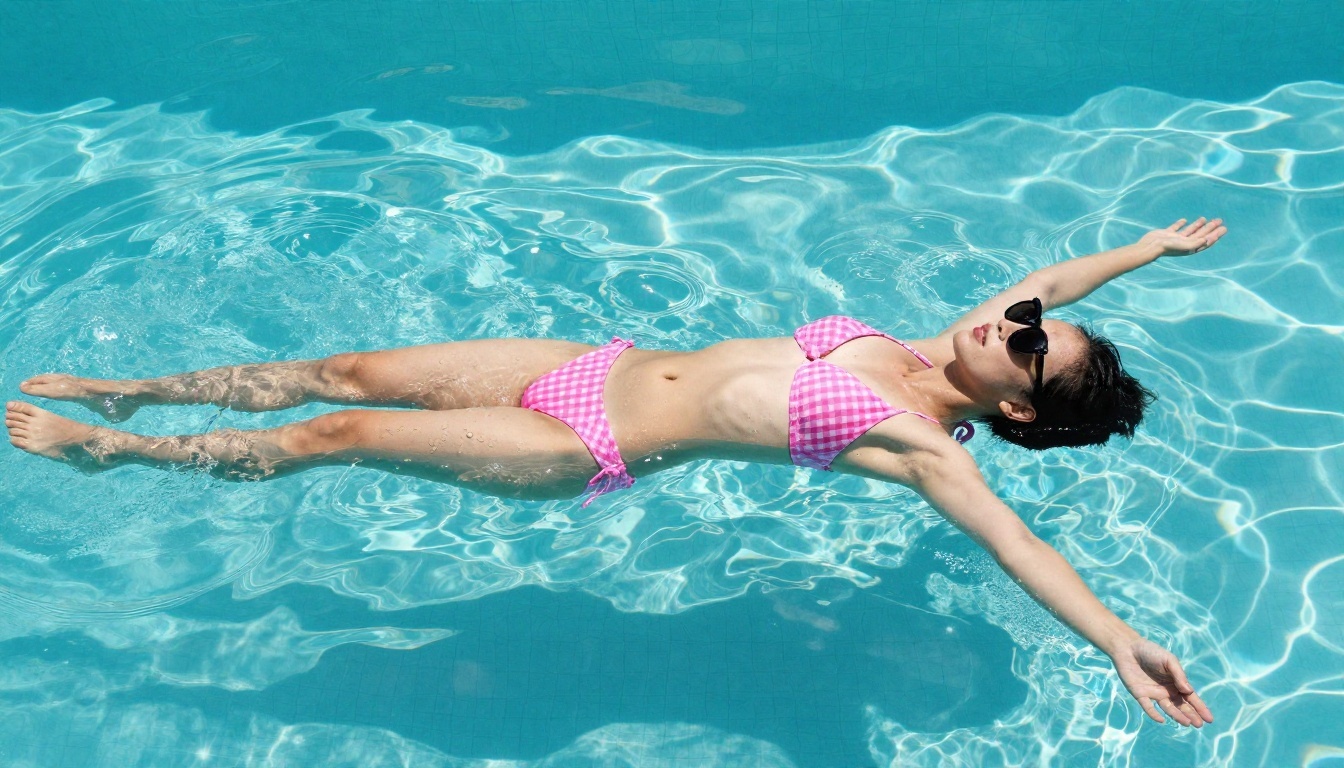
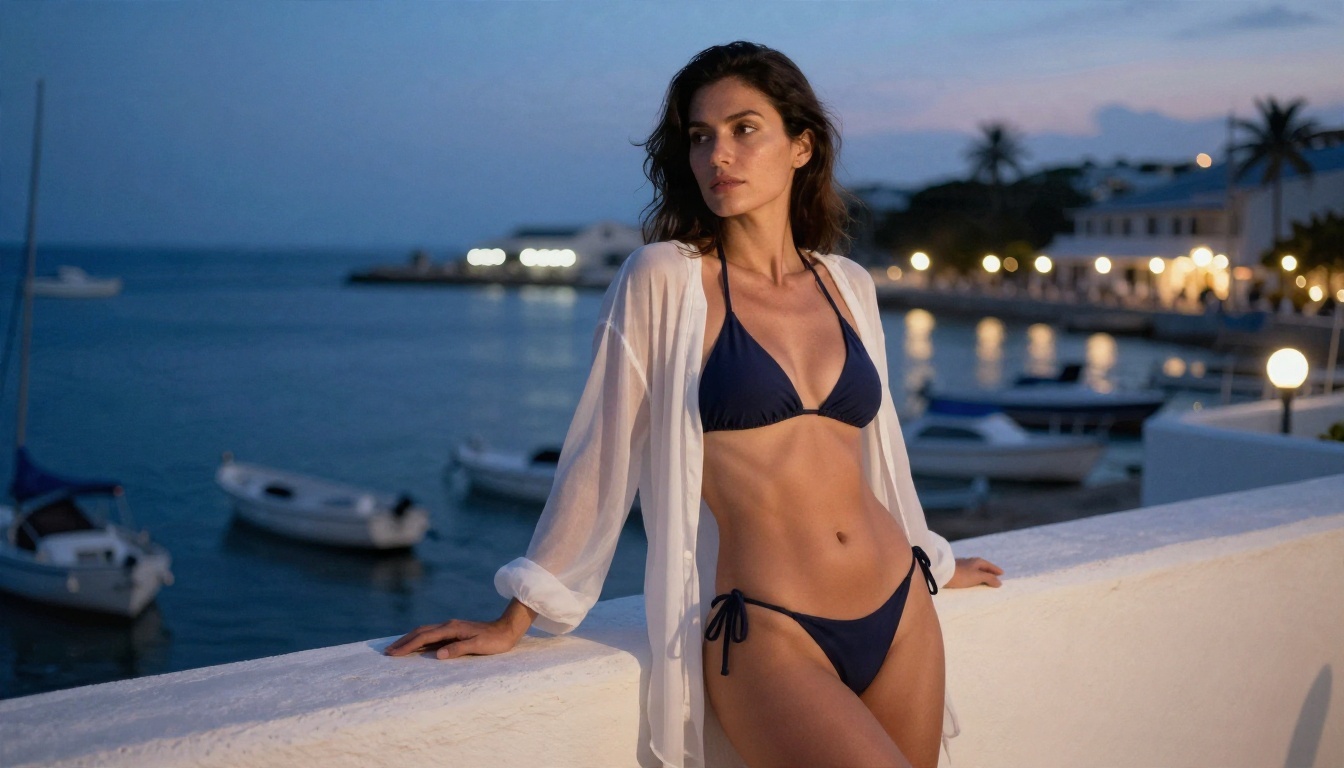
The pool float and the harbor terrace sit at opposite ends of the light spectrum, bright noon and soft blue hour, yet both rely on the same rules: one clear light direction, one clear lens choice and visible texture.
Mistakes and Safety Rules
Five Mistakes That Ruin Results
- Vague prompts. "Hot girl at beach" gives the model nothing to work with. Describe the light, lens and setting.
- Too many adjectives. Piling on "perfect, flawless, stunning" produces the plastic look you were trying to avoid.
- Ignoring hands. If hands are hidden or simple (holding a hat, resting on a hip), they come out cleaner. Complex finger poses are a gamble.
- Mixing lighting cues. "Golden sunset" and "harsh noon sun" in one prompt confuse the model. Pick one.
- Skipping the edit pass. The first output is rarely the best. Spend two minutes in an editor.
Keep It Respectful and Safe
Generating an imaginary person in swimwear is one thing. Using a real person's image is another, and the line matters.
- Only depict adults. Never generate or edit images that suggest anyone under 18.
- Do not use real people without consent. No editing a coworker's, classmate's or stranger's photo, and no face swaps onto swimwear images.
- No deceptive use. Do not present generated images as photos of a real event or a real individual.
- Keep it tasteful. Swimwear photography is about style, light and mood. Stay on the suggestive-but-not-explicit side of the line.
- Label when it matters. If you publish for a brand or a client, say the image is AI generated.
💡 Tip: If you want a consistent character across many images, describe a fictional person in detail (hair, build, skin tone, signature accessories) and reuse that description. You get continuity without involving anyone's real likeness.
Make Your Own Bikini Pics Today
You now have the full picture: what separates a believable AI bikini pic from a waxy one, why a short account step beats a no sign up demo for quality, and a repeatable prompt formula. The fastest way to see it work is to try it.
Open Seedream 4.5, paste one of the prompts above, and change a single detail: the swimsuit color, the time of day, the lens. Then bring your favorite result into PicassoIA Image Editor Pro and iterate with unlimited generations until the light and texture feel right. If you want to compare models side by side, browse the full lineup at picassoia.com/en/all-models.
Start with the sunrise shoreline prompt, spend ten minutes experimenting, and you will have a set of beach, pool and sunset images that look like they came from a real shoot.


