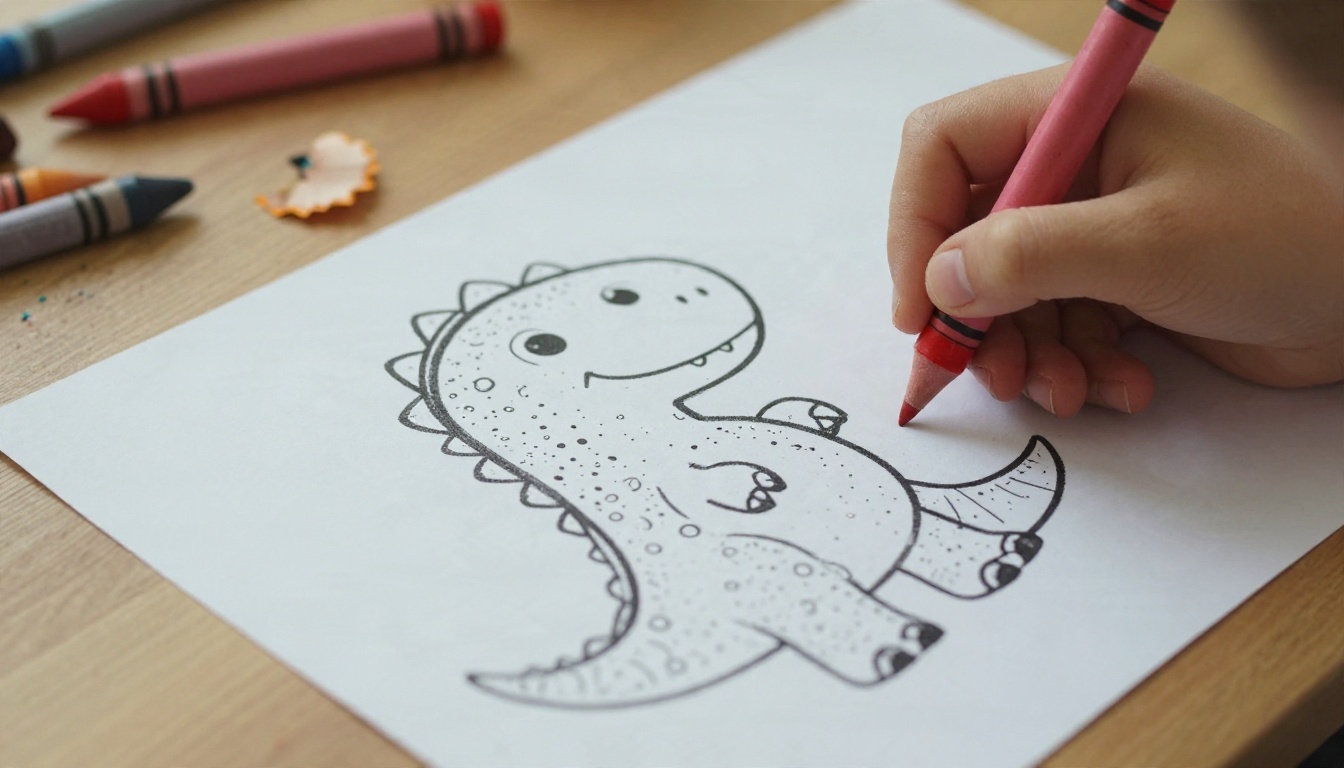
It is 7:40 on a rainy Saturday, the crayon box is open, and your kid wants a coloring page of a "purple dinosaur who is also a firefighter." You do not own that book. You will not find that page in any store. With a text-to-image model, you can have it on the printer in about a minute, and that is exactly why AI coloring pages for kids have become a favorite trick of parents, teachers and childcare workers.
But there is a catch. A model that can draw anything can also draw things you never asked for, and a messy printout wastes ink, paper and a child's patience. This article gives you tested prompt formulas, safe wording habits, theme ideas sorted by age, and printer settings that produce crisp black lines every time.
Why AI Coloring Pages Work So Well
Store-bought books are fixed. AI pages are custom, which changes how kids react to them.
Personal Beats Generic
A child who asked for a "blue whale wearing rain boots" will color it with far more focus than a random whale from a book. The page already belongs to them. Teachers report the same thing with reading levels: when a worksheet features a student's favorite animal, even reluctant kids pick up a pencil.
Unlimited Variations, Zero Clutter
You can print one page, three pages or thirty, and recycle the leftovers. No half-used coloring books pile up in a drawer. If a page turns out too hard, you regenerate it with thicker lines in seconds.
Quick Wins for Busy Adults
Restaurant waiting time, a sick day, a long car trip with a portable printer at the destination: a good prompt takes under a minute to write. Once you have a template, you only swap one or two words.
💡 Tip: Keep a note on your phone with your two or three best prompt templates. Swapping the subject is faster than writing from scratch.
Safety here has two parts: the content of the image and the process of making it. Both matter when the end user is a small child.
The Five-Part Prompt
A reliable coloring page prompt has five ingredients. Miss one and the model fills the gap with its own guess.
| Part | What it does | Example wording |
|---|
| Subject | Names the main character | "a friendly baby elephant" |
| Action or scene | Gives it something to do | "splashing in a small puddle" |
| Line style | Controls thickness and detail | "thick clean outlines, simple shapes" |
| Fill rule | Keeps the page printable | "pure white background, no shading, no gray, no filled black areas" |
| Audience | Sets the tone | "for a 4 year old, cheerful, child friendly" |
Put together: "A friendly baby elephant splashing in a small puddle, black and white coloring page, thick clean outlines, simple shapes, pure white background, no shading, no gray, no filled black areas, cheerful and child friendly, for a 4 year old."
Words That Keep Results Child-Friendly
Some phrases steer the model toward gentle, rounded results. Others invite trouble.
Use these:
- "friendly," "smiling," "cute," "cheerful," "storybook"
- "rounded shapes," "simple background," "large open areas"
- A named, wholesome setting: "meadow," "kitchen," "playground," "beach"
Avoid these:
- Vague open-ended words like "scary," "dark," "realistic horror," "battle"
- Names of real people, brands or copyrighted characters
- Anything you would not want printed and taped to a fridge
The goal is not to fight the model. It is to give it so little room for surprises that a bad result becomes unlikely.
Check Before You Print
Treat every generated page the way you would treat a book from a stranger: flip through it first. Look at the whole image, not just the main character. Backgrounds sometimes contain odd shapes, stray lettering or distorted faces. If anything looks off, regenerate. Never hand a child a page you have not looked at.
💡 Tip: Add "no text, no letters, no words" to every prompt. Garbled lettering is one of the most common flaws on generated pages, and kids notice it.
Sit With Younger Kids
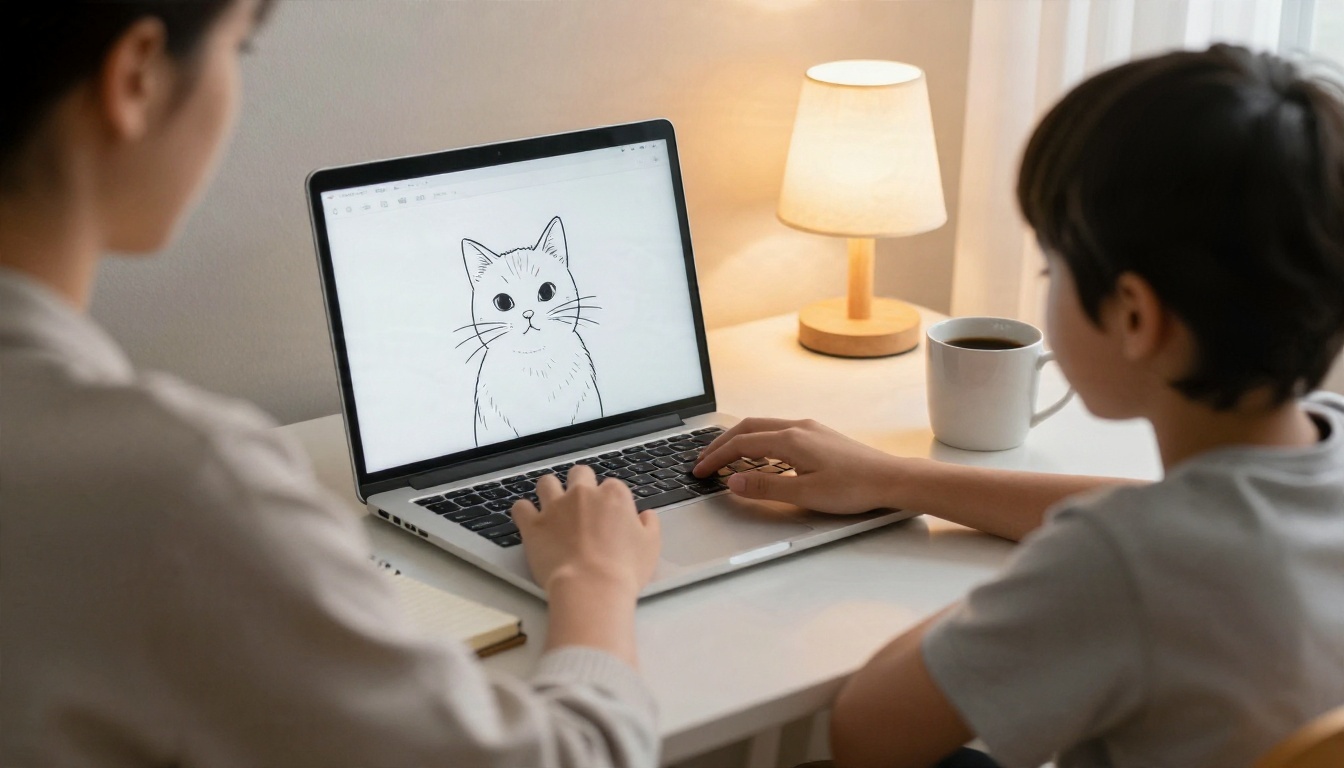
For children under seven, the best safety tool is you. Let them say what they want to see while you type. It turns prompt writing into a shared game, and you stay in control of exactly what the model receives.
Themes That Kids Actually Finish
Not every subject makes a good page. The winners share clear silhouettes, recognizable shapes and room for creativity.
Animals and Nature
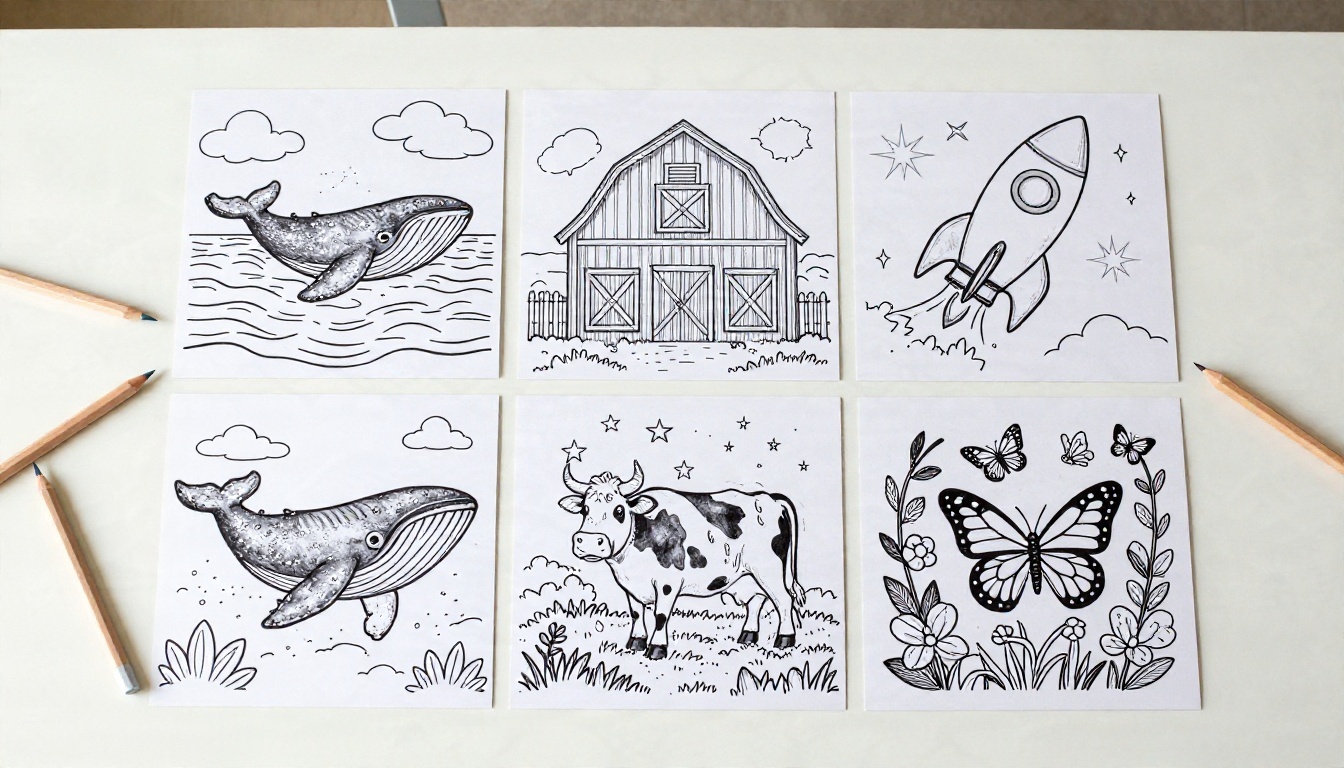
Elephants, whales, owls, butterflies, ladybugs and pandas have been favorites for generations because their bodies break down into big, easy shapes. Add a small setting like a pond or a tree so the page does not feel empty.
Vehicles and Space
Rockets, tractors, fire trucks, trains and submarines appeal strongly to kids who like machines. Ask for "side view" so wheels and windows stay clear and readable.
Everyday Adventures
"A bunny baking a birthday cake" or "a bear learning to ride a bike" gives kids a story to invent while they color. Pages with a tiny narrative keep attention longer than a lone animal on a blank background.
Seasonal and Holiday Pages
Pumpkins, snowflakes, kites, Easter eggs, spring flowers. Generate these a day or two before the holiday and you have a calm activity for the long afternoon before guests arrive.
Match Detail to Age
This is the single biggest quality lever. A page that is too detailed frustrates a toddler. A page that is too simple bores an eight-year-old.
| Age | Line thickness | Detail level | Prompt phrases to add |
|---|
| 2 to 3 | Very thick | One large subject, no background | "extra thick outlines, one big shape, no background" |
| 4 to 5 | Thick | Simple subject plus 1 or 2 objects | "thick outlines, simple background, large areas" |
| 6 to 8 | Medium | A scene with several elements | "medium outlines, scene with details, some patterns" |
| 9 to 12 | Fine | Patterns, textures, layered scenes | "fine line art, intricate patterns, detailed scene" |
Toddlers and Preschoolers
Chunky crayons need big spaces. Ask for "one large subject filling the page." Skip backgrounds completely. A whale with a single wave beneath it is plenty.
Early Elementary
At this age children enjoy small patterns, like scales on a fish or bricks on a house. Ask for "simple patterns on the main subject, medium lines."
Older Kids
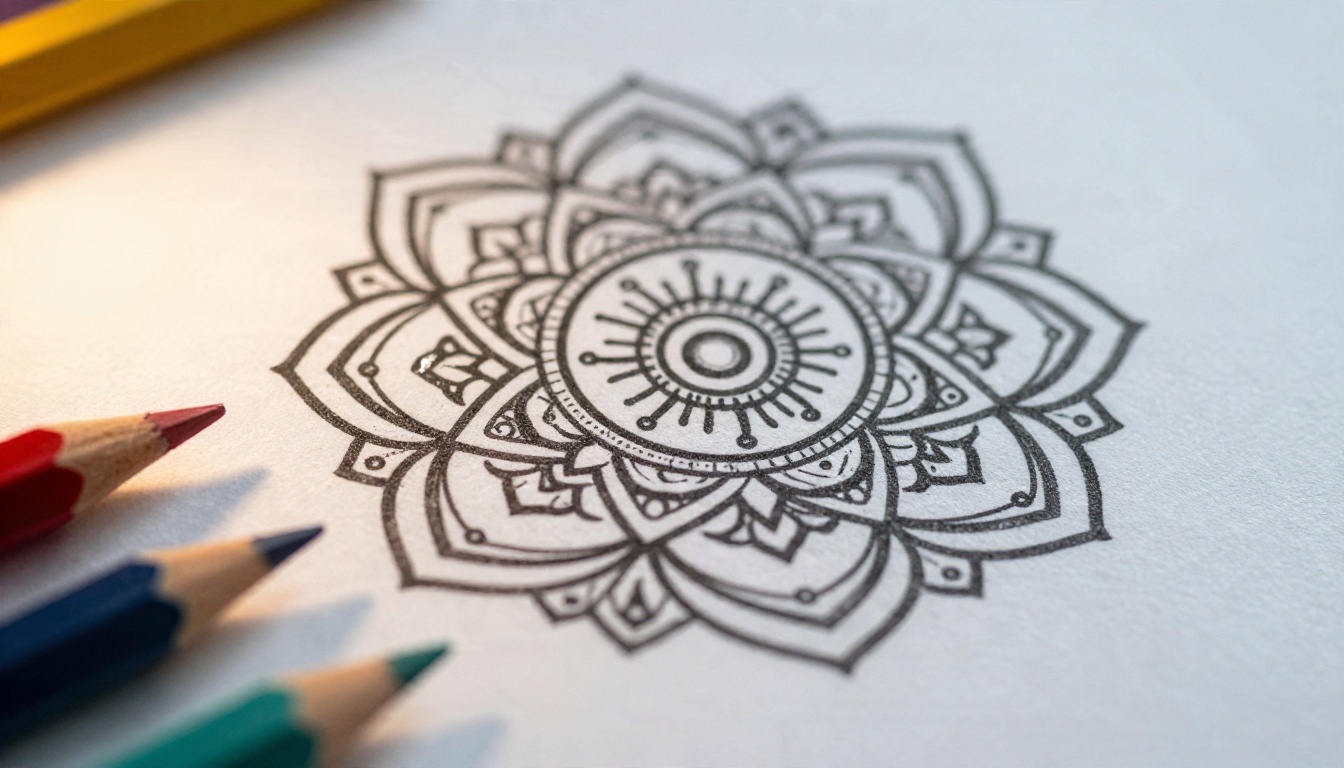
Pre-teens often like mandalas, ornate animals and layered landscapes. Fine line art works, and colored pencils will do the job better than markers.
Classroom Use
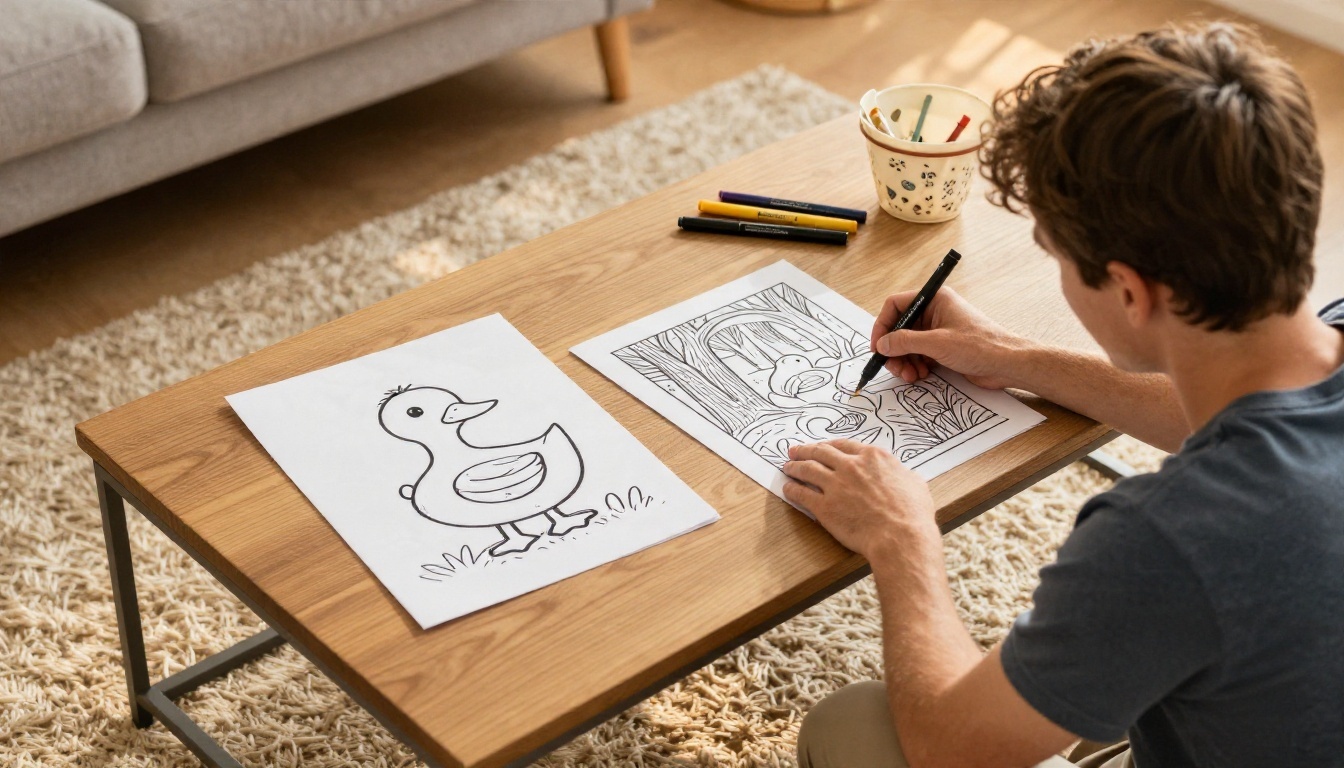
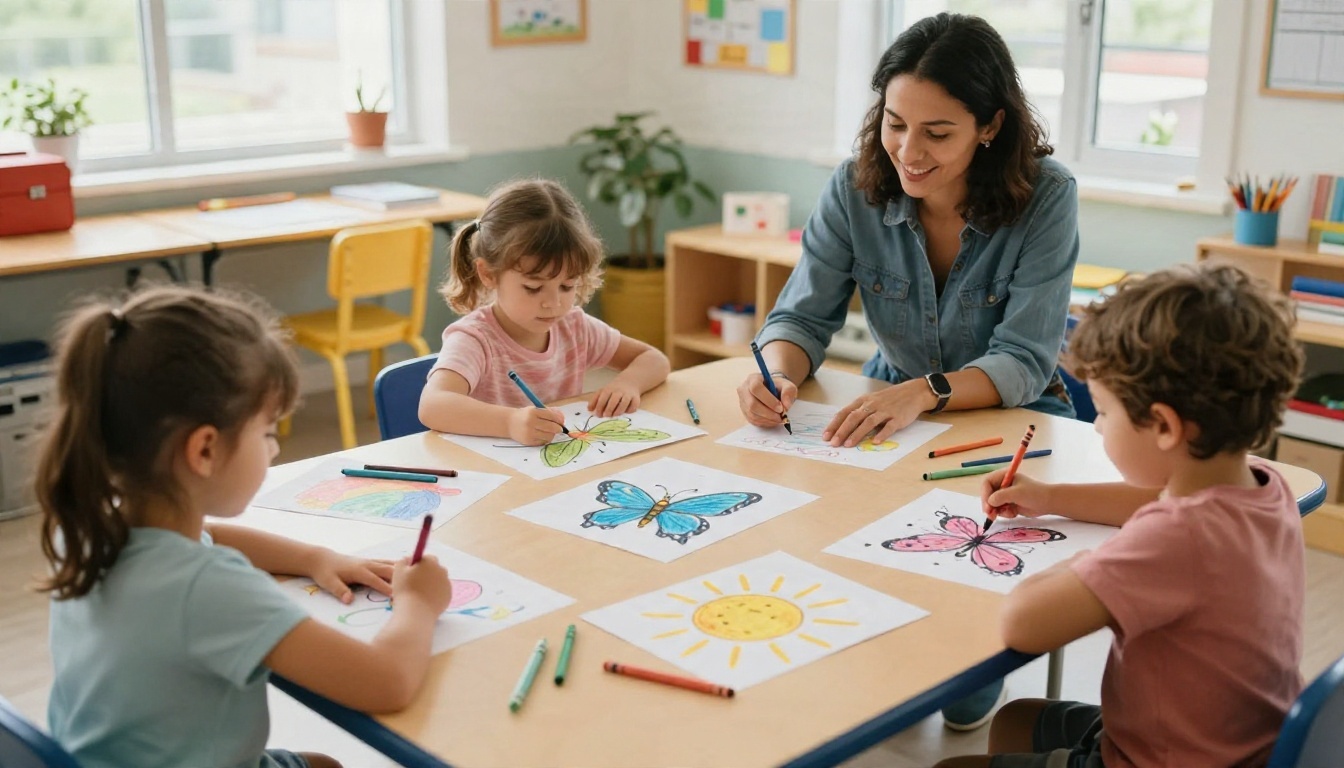
In a group setting, print the same theme at two difficulty levels. Kids who finish fast get the detailed version, and kids who need more time stay with the simple one. Nobody feels singled out.
Which Model Should You Use?
Coloring pages are line art, so you want a model that follows instructions closely, keeps backgrounds clean and avoids stray gray tones. A few options on PicassoIA stand out.
| Model | Best for | Notes |
|---|
| Ideogram v4 Balanced | Clean line art with obedient prompts | Good default; handles "no shading" rules well |
| Ideogram v4 Quality | Detailed pages for older kids | Slower, sharper fine lines |
| Seedream 4.5 | Complex scenes with many objects | Strong layout and composition |
| Nano Banana | Quick edits to an existing page | Handy for "remove the background" or "make lines thicker" |
| Qwen Image 3 | Reliable general results | Good with longer prompts |
| Flux 2 Klein 4B Base | Fast drafts | Useful for testing many themes quickly |
Try Two Models on One Prompt
Run the same prompt through two models and keep the cleaner result. Differences in line weight and background cleanliness show up fast, and you will learn which one suits your printer and your kids.
How to Use Ideogram v4 Balanced on PicassoIA
This is the workflow I recommend for a first coloring page.
- Open the model page. Go to Ideogram v4 Balanced on PicassoIA.
- Paste your five-part prompt. Use the formula from earlier: subject, action, line style, fill rule, audience.
- Choose a portrait or square ratio. A standard sheet of paper is taller than it is wide, so a 3:4 or 2:3 ratio avoids big white margins. Wide ratios leave you with a tiny image in the middle of the sheet.
- Generate two or three variations. Pick the one with the cleanest outlines and the fewest strange details.
- Add a negative-style line if the model gets creative. Repeat "no shading, no gray, no filled black areas, no text" at the end of your prompt.
- Download the highest resolution available. Higher resolution means smoother lines when printed.
- Fix weak spots with an editor. If one corner has a stray shape, open the image in Nano Banana and ask it to remove that object while keeping everything else unchanged.
💡 Tip: If the image looks soft after downloading, run it through Real ESRGAN for a 4x upscale. Sharper edges make a visible difference on paper.
Prompt Examples to Copy
Toddler page: "One large smiling sun with a round face and simple rays, black and white coloring page, extra thick outlines, pure white background, no shading, no gray, no text, for a 2 year old."
Preschool page: "A friendly bear and a rabbit sharing a picnic blanket with a basket and an apple, thick clean outlines, simple meadow background, no shading, no gray, no text, cheerful, for a 4 year old."
Older kid page: "A detailed owl sitting on a branch surrounded by leaves and flowers, fine line art, intricate feather patterns, black outlines on white, no shading, no filled black areas, no text, for a 10 year old."
Printing Tips That Save Ink and Paper
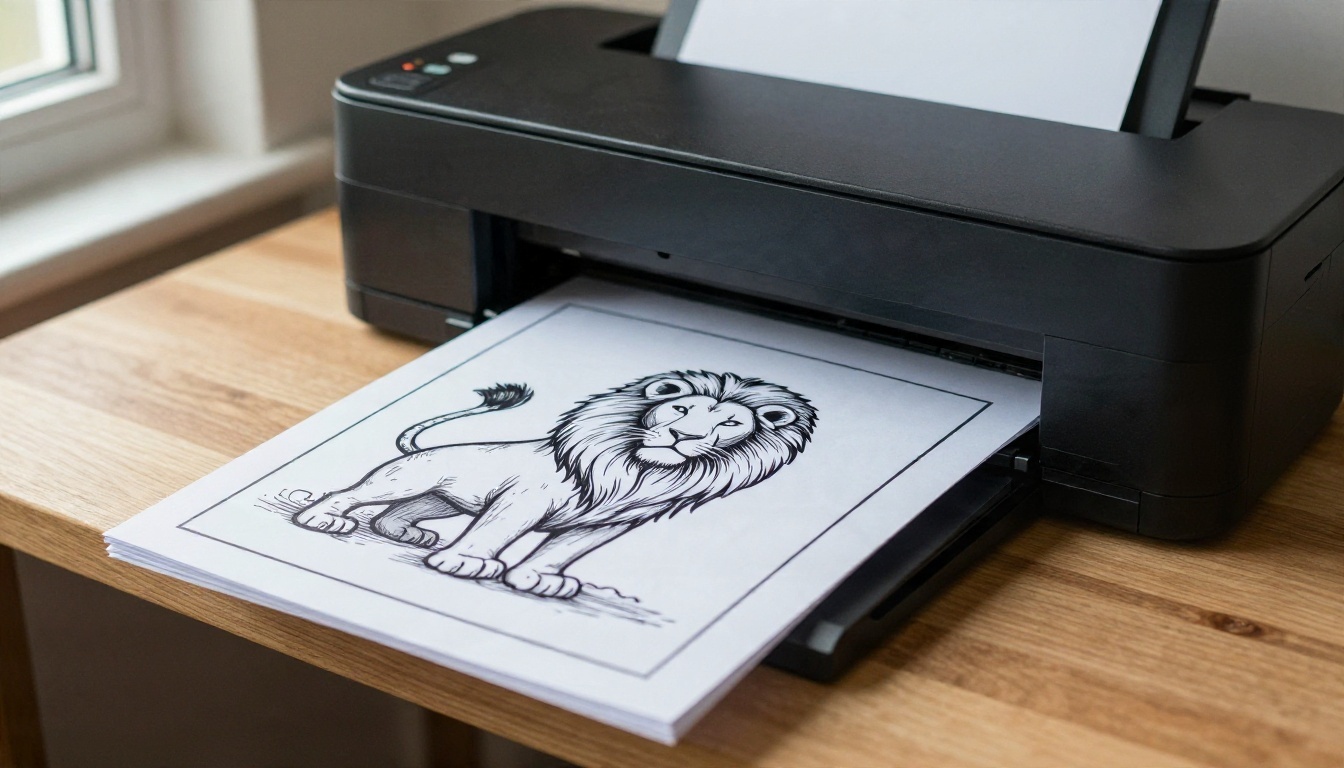
A great image can still turn into a bad page if the print settings fight against it.
Pick the Right Paper
Plain 20 lb copy paper is fine for crayons and colored pencils. For markers, step up to 24 lb or 28 lb paper so ink does not bleed through to your table. For watercolor pencils or light paint, use cardstock or watercolor paper that your printer can handle. Check the printer's maximum paper weight first.
Set Your Printer Properly
- Print mode: choose grayscale or "black ink only." Color mode may mix cyan, magenta and yellow into black, which wastes color ink and makes lines look slightly brown.
- Quality: "Standard" is enough for thick lines. Use "High" for fine line art.
- Scaling: use "Fit to page" with small margins so nothing gets cut off.
- Orientation: match the page. Portrait images should print in portrait.
Fix Gray Backgrounds Before Printing
Some results come back with a faint off-white or gray tint on the background. That tint burns through ink. Open the image in any basic editor, increase contrast or use "levels" so the background becomes pure white. In many cases a single tweak solves it.
Print Several Pages per Sheet
Small kids often lose interest quickly. Print two pages per sheet for quick wins, or four pages per sheet for tiny "pocket" sets that fit into a bag for a restaurant or waiting room.
Cut Your Ink Costs
- Use draft quality for the first test print.
- Print only the pages kids actually request.
- Keep digital files organized by theme so you never regenerate something you already liked.
- Reuse the back of misprints as scrap paper for scribbling.
| Problem | Likely cause | Quick fix |
|---|
| Lines look gray and thin | Low resolution or draft mode | Upscale the image and switch to standard quality |
| Page has a gray box around it | Off-white background | Raise contrast before printing |
| Image is tiny on the sheet | Wide ratio on tall paper | Regenerate in a 3:4 portrait ratio |
| Markers bleed through | Paper too thin | Use heavier paper or place a spare sheet underneath |
Make Coloring Time Better
The page is only half the experience. A few small habits change how long a child stays with it.
Offer Choices, Not Instructions
Hand over a mixed set of crayons, markers and pencils and let the child pick. Skip commands like "stay in the lines." Many kids color outside the lines for years, and that is part of how fine motor skills develop.
Display the Result
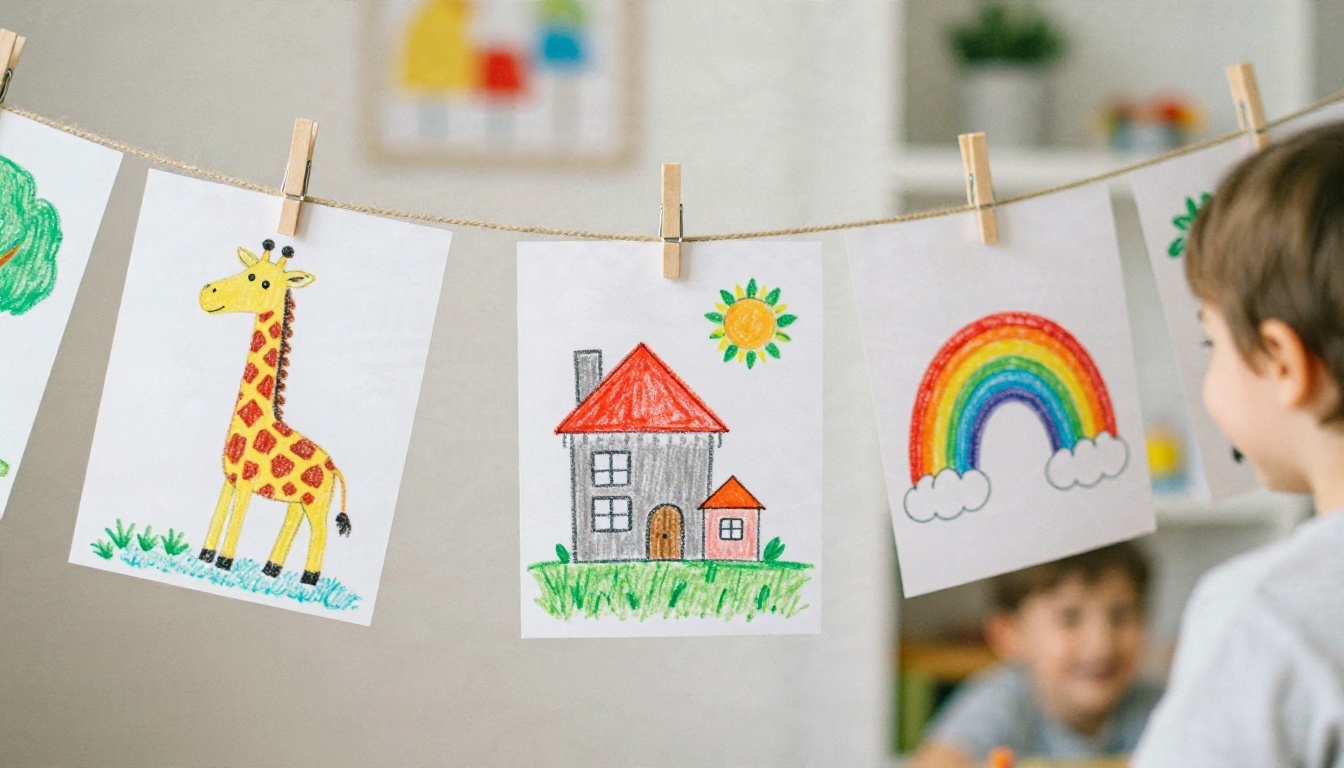
Clip finished pages to a string, tape them on a door or send a photo to a grandparent. A displayed page tells a child that their work matters, and they will ask for another one.
Make It Cross-Generational
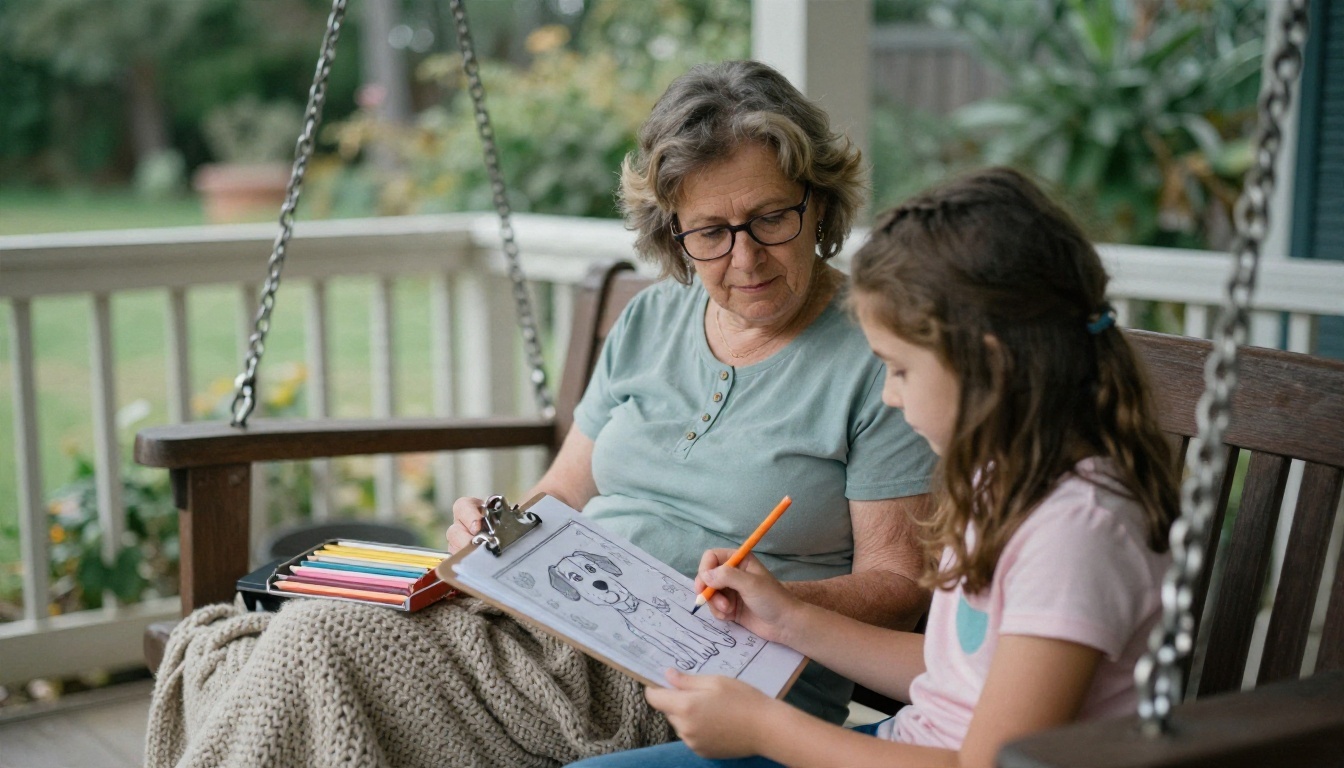
Coloring does not have to be a solo activity. A grandparent with a tin of pencils and a grandchild with a favorite animal page make a quiet, happy hour on any porch. Generate a page together and each color half.
Build a Weekly Theme
Pick a theme for the week, such as ocean animals, and generate five pages with growing difficulty. By Friday your child has a small collection of finished artwork and has picked up some new words along the way, like "jellyfish" and "octopus."
A Quick Safety Checklist
Run through this list every time you generate pages for children.
- Write the prompt yourself, or sit with your child while they dictate it.
- Use friendly, specific wording and keep scenes simple.
- Add "no text" and "no shading" to avoid garbled lettering and gray areas.
- Review the entire image, background included, before printing.
- Skip real names, brands and copyrighted characters to avoid imitation and odd results.
- Regenerate rather than edit when a page has more than one flaw.
- Keep generation on an adult device, not on an account a young child can use alone.
Start Your First Page Today
You do not need design skills, special software or a big budget. You need one sentence, a model that follows instructions, and a printer with some paper in it. Start with a simple animal, a thick-line prompt and a quick look at the result before it hits the tray.
Open Ideogram v4 Balanced on PicassoIA, paste one of the prompts above, and change the subject to whatever your kid is obsessed with this week. Try the same prompt in Seedream 4.5 too and compare the results. When you are ready to try more styles and tools, browse the full library at picassoia.com/en/all-models. Your next rainy Saturday just got a lot easier.


