Most creators don't have a tool problem. They have a tab problem. One subscription for pictures, another for clips, a third for voiceovers, a fourth for background music, and a credit card statement that reads like a phone book. An AI creative suite fixes that by putting image, video, voice and music generation in one place, with one login and one budget. This article breaks down what each category does, which models are worth your time, what free plans actually give you, and what the pricing really looks like once you start producing every week.
💡 Quick answer: If you only make occasional posts, free tiers are enough. If you publish video weekly, plan your budget around video credits first, because video costs far more than images, voice or music.
What a Creative Suite Really Means
A suite is not just a long list of tools. It is a set of models that hand work to each other without you exporting, renaming and re-uploading files all day.

One Account, Four Media Types
The four pillars of a modern suite look like this:
- Image: text to image, photo editing, upscaling and background removal.
- Video: text to video, image to video, and clip restoration.
- Voice: text to speech, voice cloning style voiceovers, and dubbing into other languages.
- Music: full songs from a prompt, instrumental beds, and restyled covers.
A good suite lets you generate a product photo, turn it into a five second clip, add a narrated line and drop a soundtrack under it. Four outputs, one afternoon.
Why Scattered Subscriptions Hurt
When every medium lives on a different site, three things go wrong. You pay for idle seats you barely use. You lose track of which credits expire when. And your files end up in six download folders with names like final_v3_REAL.
| Problem | Scattered tools | Single suite |
|---|
| Billing | 4 to 6 invoices | One balance |
| File handoff | Manual export and upload | Same workspace |
| Style consistency | Hard to keep | Reuse the same source image |
| Free trial limits | Reset separately, easy to waste | Easier to track |
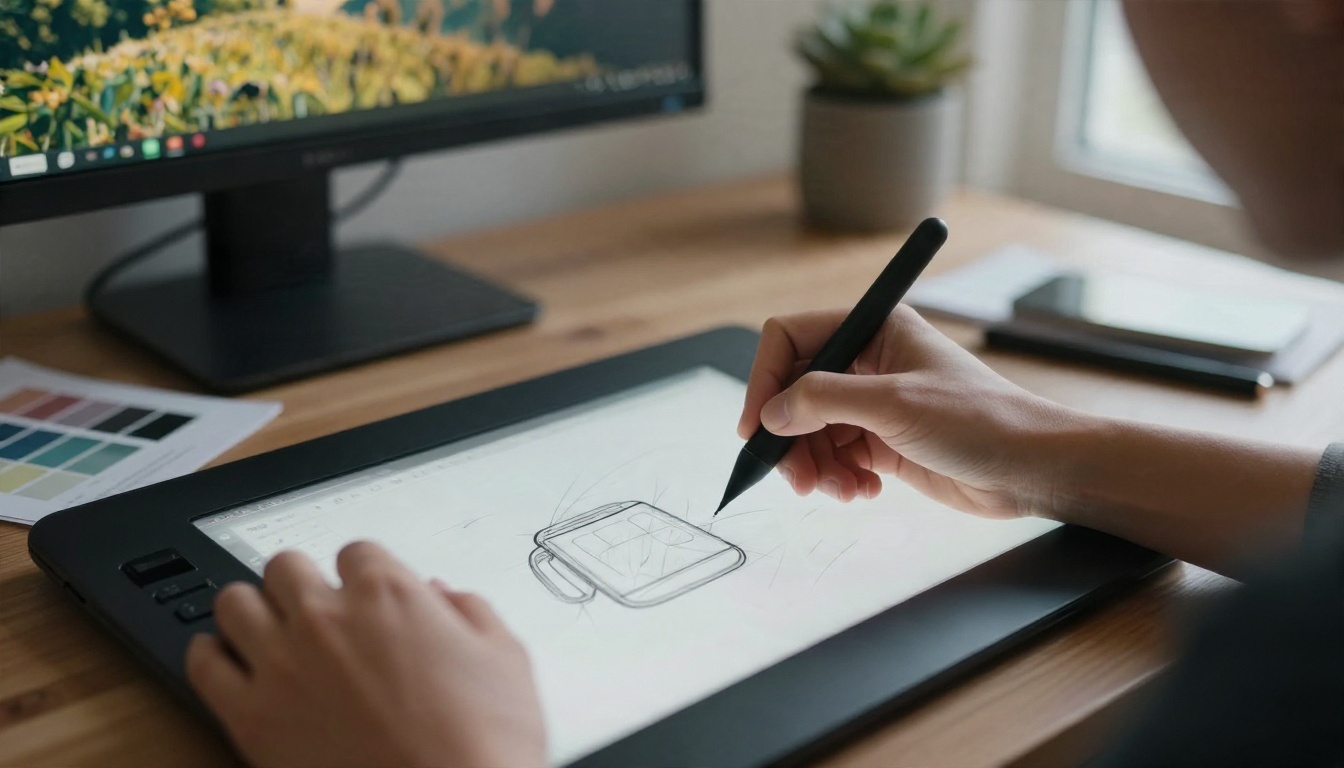
Images are the cheapest and fastest medium, so they are also where you should experiment most. Cheap iterations teach you what a prompt can do before you spend video credits on it.
Text to Image Models
Different models have different personalities, and picking the right one saves retries:
- Seedream 4.5 produces sharp 4K images and handles people, product shots and detailed scenes well.
- Seedream 5 Pro is a good pick when you want crisp 2K output with strong prompt following.
- Nano Banana Pro works well for 4K generation and its model page highlights a free way to try it.
- Nano Banana 2 Lite is built for speed when you need many drafts quickly.
- Nano Banana handles both generation and conversational edits.
- Qwen Image 3 Pro leans photorealistic, which suits portraits and lifestyle scenes.
- Flux 2 Klein 4B Base is a lighter model that suits fine-tuned looks and quick tests.
💡 Tip: Write the prompt like a photographer's shot list: subject, setting, light direction, lens, mood. Vague prompts waste credits.
Editing, Upscaling and Cutouts
Generation is only half the job. The other half is fixing and finishing:
Video is where the budget disappears, so choose with care. Most AI video tools produce clips of a few seconds to roughly ten seconds, and many now add synchronized audio.

Text to Video Options
These are the models most creators reach for first:
- Kling v3 Video gives cinematic motion and is a solid default for story clips.
- Veo 3.1 Fast turns text into 1080p video quickly.
- Veo 3.1 Lite keeps native audio at a lighter cost.
- Sora 2 produces text to video with synced audio, and Sora 2 Pro pushes to higher definition.
- LTX 2.5 Fast is made for 4K results in seconds.
- Ref2Video builds video from your own reference images, video and audio.
Need to polish a finished clip? Real ESRGAN Video upscales footage toward 4K.
Choosing by Speed and Budget
| Goal | Pick this type | Why |
|---|
| Fast drafts for social | Fast or Lite models | Low cost per attempt |
| Story or ad clip | Kling v3 Video or Veo 3.1 Fast | Better motion and detail |
| Hero shot for a launch | Sora 2 Pro | Higher definition output |
| Keep a character consistent | Ref2Video | Uses your reference material |
💡 Money saver: Build the first frame as a still image, approve it, then animate. Rejecting a still costs almost nothing. Rejecting a video costs real credits.
Voice used to be the hardest piece to fake. Now narration for a short ad, a tutorial or a podcast intro can come from text in under a minute.
Voiceovers in Many Languages
Read your script out loud before generating. If you stumble on a sentence, the model will too, and the result will sound stiff.
Dubbing a Video for New Audiences
Dubbing translates videos into 90+ languages. For a creator with an existing audience, this can be the single best return on a small spend, because one video becomes ten without a reshoot.
Stock music licensing is a quiet budget killer. Generating a track that fits the exact length and mood of your clip is both cheaper and faster.
Full Songs from a Prompt
- Lyria 3 makes original music from a text description, and Lyria 3 Pro extends that to full length songs.
- Lyria 2 is the earlier option if you only need a short instrumental bed.
- Music 2.6 generates full songs, and its model page mentions a free way to try it.
- ElevenLabs Music composes songs from a plain text prompt.
Covers and Restyles
Music Cover restyles an existing song into another genre. Handy for testing how a melody feels as lo-fi, acoustic or orchestral before you commit.
💡 Prompt formula for music: genre, tempo, mood, main instrument, and what the track is for. For example: warm acoustic folk, 90 BPM, hopeful, fingerpicked guitar, intro for a travel vlog.
Free Options and Their Limits
Free is real, but it always comes with a catch. Knowing the catch tells you when to stay free and when to pay.

What Free Usually Means
Across the market, most AI creative tools now offer some free access. Surveys of pricing pages in 2026 suggest the large majority have a free tier, and for video generators roughly three out of four do. The usual restrictions:
- Watermarks on exported images or clips.
- Daily or monthly credit caps that run out after a handful of generations.
- Slower queues during busy hours.
- Lower resolution or shorter clip length.
- Personal use only licensing on some plans.
Free image generation is the most generous. Free video is the tightest. Voice and music sit in the middle, with enough room to test but rarely enough to run a weekly show.
Smart Ways to Stay Free
- Draft in images first. Use unlimited or cheap image tools to lock composition before animating anything.
- Batch your video. Plan a week of clips, generate them in one sitting, and don't waste credits on casual tests.
- Use fast and lite models for drafts and save the premium model for the final render.
- Reuse audio. One music bed can serve several clips.
- Check each model page for free access notes, since several models on the platform mention free options right in their descriptions.
💡 Reality check: Free tools are best for learning what you like. The moment a project earns money, check the license terms for commercial use.
The Real Cost of Pricing
Sticker prices are misleading. A plan that looks cheap can be expensive per finished minute of video.
Subscriptions Versus Credits
Two billing models dominate:
| Model | How it works | Best for | Watch out for |
|---|
| Flat subscription | Monthly fee for a fixed allowance | Steady, predictable output | Unused allowance is wasted |
| Pay per credit | Buy credits, spend per generation | Irregular or seasonal work | Video drains credits faster than anything else |
| Bundled suite | One balance across image, video, voice, music | Mixed media creators | Compare per-output cost, not headline price |
For context, general market surveys put the typical starting price of a paid AI tool near $20 a month, while image tools range from free to well over $100 a month at the top tier, and video tools climb higher still. Prices change often, so confirm current numbers on each vendor's own page before you subscribe. Products such as Midjourney, Artlist and many others have shifted their plans several times already.
Sample Monthly Budgets
These are rough planning shapes, not price quotes. Use them to decide how much of your allowance should go where.
| Creator type | Mostly spends on | Suggested split |
|---|
| Social media manager | Images and short video | 50% image, 40% video, 10% music |
| Podcaster | Voice and music | 60% voice, 30% music, 10% image |
| Small shop owner | Product images and promo clips | 55% image, 35% video, 10% voice |
| Filmmaker or ad creator | Video and sound | 70% video, 15% voice, 15% music |
A simple workflow that keeps spending low:
- Generate three or four image options with a fast model.
- Polish the winner with Image Editor Pro and upscale if needed with Real ESRGAN.
- Animate it once with Kling v3 Video or Veo 3.1 Lite.
- Record narration with Speech 2.8 Turbo.
- Add a soundtrack from Lyria 3.
Five steps, five tools, one workspace, and only one expensive step.
Start Creating on Picasso IA
You don't need to decide everything today. Pick one small project, such as a 10 second product teaser, and run it through the whole chain: a still image, one animation, one voiceover line and one music bed. You will learn more about your own preferences in an hour of making than in a week of comparing pricing pages.
On Picasso IA, every model above lives in a single catalog, so you can switch from a picture to a clip to a song without opening a new account. Browse the full catalog at picassoia.com/en/all-models, start with a free option or a fast model, and spend premium credits only on the shots you already know you want.

Open the catalog, type your first prompt, and see what your idea looks like by tonight.


