Your family is scattered across three time zones, the kids refuse to sit still, and the last decent group photo is from a wedding four years ago. Sound familiar? An AI family photo generator solves exactly this problem. You type a few lines describing who is in the picture, where they are and how the light looks, and a minute later you have a portrait that feels like a real afternoon with real people.
This article walks through how these tools work, which free online makers give the most natural faces, and how to write prompts that avoid the plastic, over-smoothed look everyone recognizes. You will also find occasion ideas, a step-by-step tutorial and fixes for the most common glitches.
💡 Quick answer: For the most lifelike results, use a photorealistic text-to-image model, describe light and lens like a photographer would, and keep the group small (2 to 5 people) in your first attempts.
What an AI Family Photo Generator Does
A family photo generator is an image model that creates people, places and lighting from a written description. Instead of searching stock libraries for "happy family on couch" and settling for strangers with perfect teeth, you build the exact scene you want: the number of people, their ages, their clothes, the room, the time of day.
Text-to-Image vs Photo-Based Makers
There are two broad types of tools, and picking the right one saves a lot of frustration.
| Type | What you provide | Best for | Weak spot |
|---|
| Text-to-image | A written prompt only | Invented families, cards, mockups, memorial scenes | Faces are new people, not your relatives |
| Reference-based editing | One or more existing photos plus a prompt | Putting real relatives in one scene, restoring old prints | Needs clear, well-lit source photos |
| Custom-trained model | 10 to 20 photos of one person | Consistent likeness across many images | Takes time to set up |
Most readers start with text-to-image because it needs nothing but words. Once the scene looks right, you can move to reference-based editing to bring real faces in.
Who Uses These Tools
- Parents who want a holiday card without booking a studio in December.
- Adults with distant relatives who want a single image showing everyone together.
- Genealogy fans restoring faded prints from grandparents' albums.
- Small businesses that need believable family imagery for ads, websites or brochures.
- Writers and designers building character references for stories and projects.
Free Online Makers Worth Using
The word "free" gets stretched a lot online. Some sites give you three watermarked images and then ask for a card number. Others, like PicassoIA, let you try several different models from one place so you can compare results on the same prompt.
What "Free" Really Means
Before you commit to any generator, check four things:
- Watermarks. Are free images clean enough to print on a card?
- Resolution. Anything below 1024 pixels on the long side looks soft in print.
- Commercial use. Can you use the image on a business site?
- Model choice. One model is rarely best at everything: group portraits, close-ups and outdoor scenes each favor different engines.
Models Compared for Family Scenes
I ran the same prompt through the models below: "a family of four on a picnic blanket, golden hour, 85mm lens, natural skin texture." Here is how they differ in practice.
| Model | Strength for family photos | Watch out for |
|---|
| Seedream 4.5 | Sharp 4K detail, believable skin, good group layouts | Needs specific lighting words to avoid flat results |
| Nano Banana Pro | Strong at following multi-person instructions and editing | Can over-brighten faces if the prompt is vague |
| Imagen 4 | Clean photographic look, good outdoor light | Fewer stylistic quirks, so prompts must carry the mood |
| GPT Image 2 | Excellent at following long, detailed descriptions | Occasionally too polished for candid scenes |
| Flux 2 Klein 9B Base LoRA | Flexible, works well with style adapters | Best results need some prompt tuning |
My habit: draft with one model, then run the identical prompt through a second one. Differences in hands, eyes and fabric make the winner obvious in seconds.
How to Use Seedream 4.5 on PicassoIA
Seedream 4.5 is a reliable first pick for family scenes because it renders skin pores, fabric weave and soft background blur without the waxy finish. Here is the workflow I follow.
- Open the model page. Go to the Seedream 4.5 page on PicassoIA.
- Write your scene in one paragraph. Name each person by age and role (for example, "a father in his late thirties, a mother, a seven-year-old girl with braids").
- Add light and lens. Phrases such as "soft window light from the right" and "85mm f/1.8, shallow depth of field" push the image toward photography.
- Choose a 16:9 ratio for wide scenes or a 4:5 ratio for portraits and cards.
- Generate, then compare. Create two or three variations before changing anything.
- Adjust one thing at a time. Swap the outfit, change the time of day or reduce the number of people. Changing everything at once makes it impossible to see what helped.
Settings That Matter
- Resolution: pick the highest option for anything you plan to print.
- Prompt length: 60 to 120 words is the sweet spot. Shorter prompts get generic faces, longer ones start to contradict themselves.
- Seed: if you like a composition, keep the seed and edit only the wording.
💡 Tip: Ask for "natural skin texture, visible pores, subtle film grain." This single sentence removes much of the airbrushed look.
Prompts That Produce Real Families
Prompts for people work differently from prompts for landscapes. Faces are the first thing viewers judge, so the details that make skin and expression believable carry more weight than the background.
The Five-Part Formula
Build every prompt from these pieces, in this order:
- Subject and action: who is there and what they are doing ("laughing together", "walking hand in hand").
- Ages and clothing: concrete details like "a four-year-old in denim overalls."
- Setting: the room or place, with two or three objects that make it real.
- Light: direction and quality, such as "low golden sun from behind, soft fill from the blanket."
- Camera: lens, aperture and angle, for example "85mm f/1.4, eye level."
Living Room Prompt
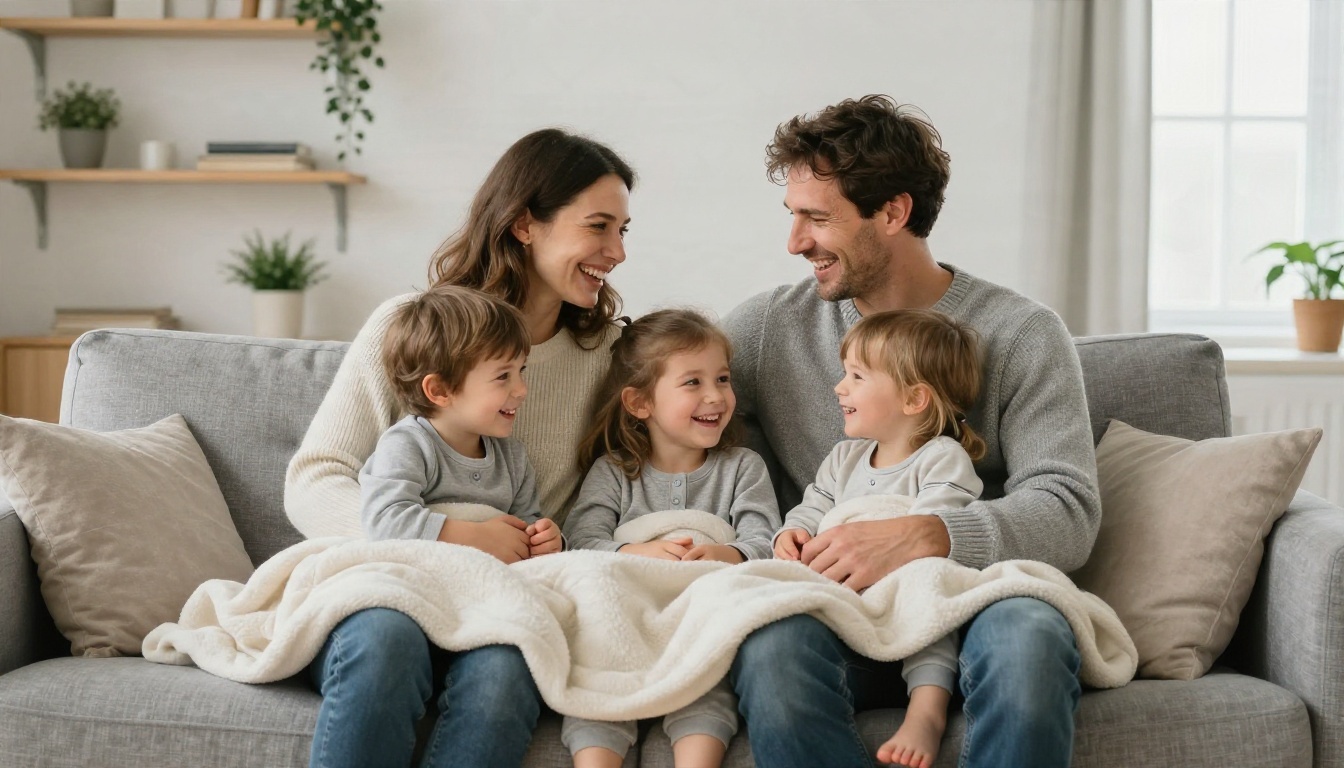
A family of four laughing on a gray linen sofa in a bright Scandinavian living room, parents in chunky knit sweaters, two kids in cotton pajamas sharing a wool blanket, soft window light from the right, potted plants and wooden shelves behind them, 35mm f/2 lens at eye level, natural skin texture with visible pores, Kodak Portra 400 film grain.
This is the prompt behind the image near the top of this article. The sofa, blanket and plants give the model anchors, which keeps the scene from drifting into a generic catalog look.
Beach Prompt
Elevated wide shot of a family walking barefoot along wet sand at golden hour, parents holding the hands of two children between them, gentle waves reflecting a peach sky, long shadows and footprints trailing behind, 24mm lens f/5.6, backlit sun haze, natural skin tones.
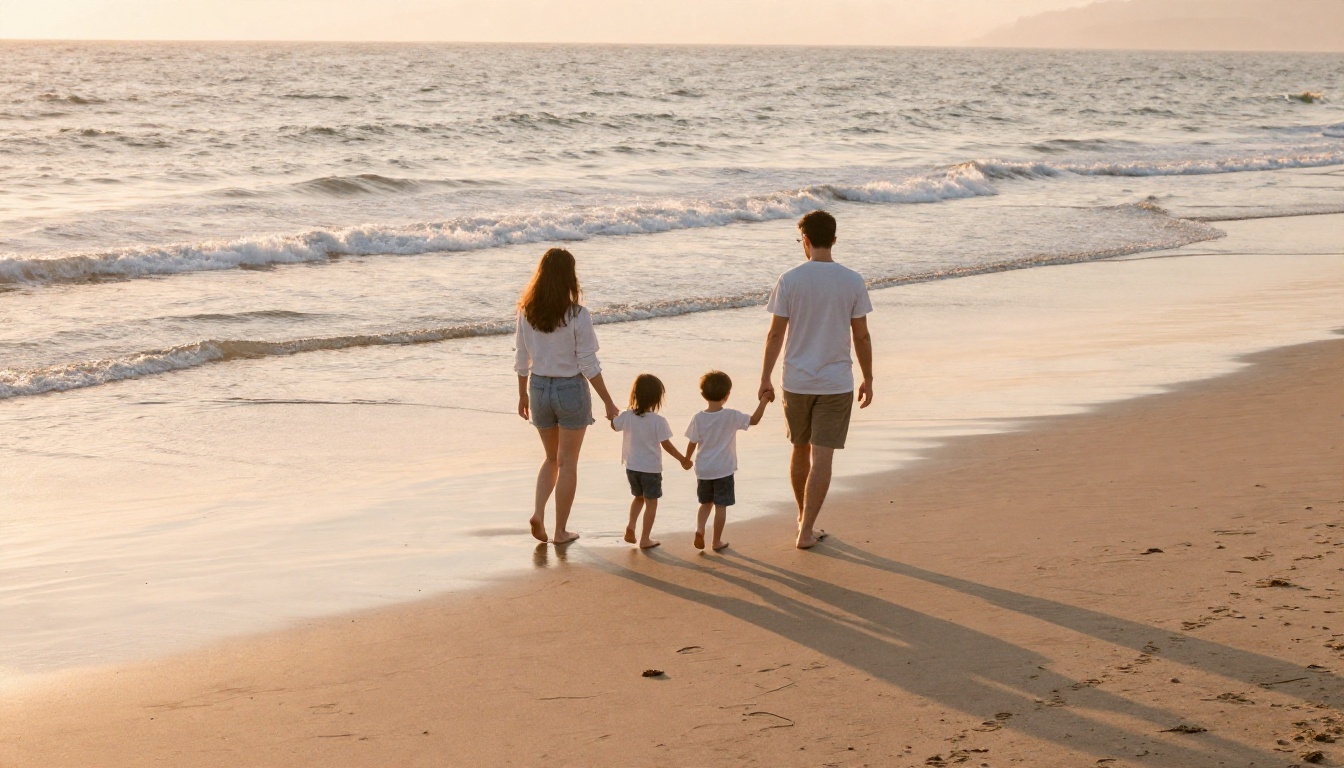
Wide shots are forgiving. Faces are small in the frame, so minor glitches are far less visible than in a close-up.
Newborn Prompt
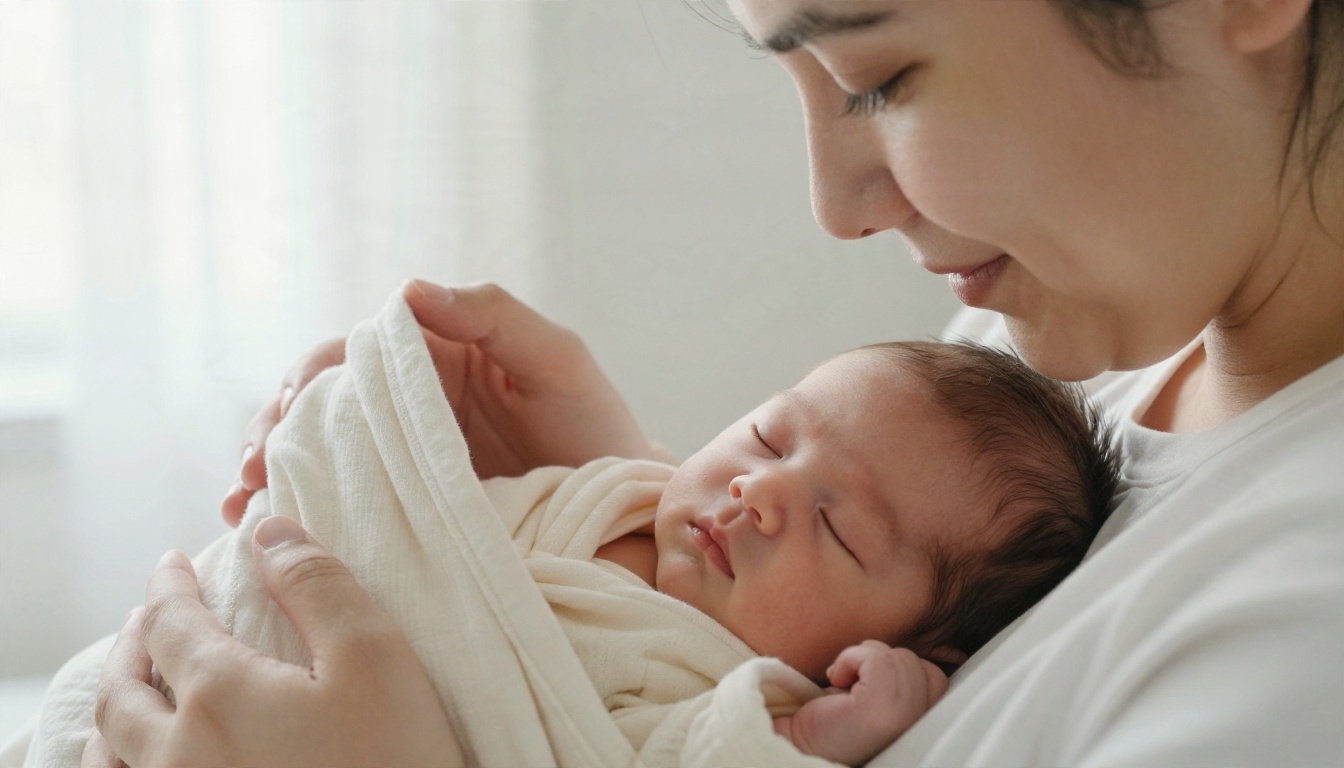
Close-up of new parents gazing down at a sleeping newborn in a cream muslin blanket, mother's hand cradling the head, father's large hand beneath, white bedroom with sheer curtains, soft side light from the left, 100mm macro lens f/2.8, detailed skin texture, tiny eyelashes.
Notice that the prompt names the hands. When hands are a deliberate part of the composition, the model gives them more attention.
Words That Help and Words That Hurt
| Use these | Avoid these |
|---|
| "candid", "mid-laugh", "unposed" | "perfect", "flawless" |
| "visible pores", "freckles", "laugh lines" | "smooth skin", "airbrushed" |
| "soft window light", "golden hour" | "bright lighting", "HD" |
| "35mm", "85mm", "f/1.8" | "ultra realistic 4K masterpiece" |
| "worn knit sweater", "linen shirt" | "nice clothes" |
The right column triggers the glossy, over-processed look that makes AI portraits obvious at a glance.
Ideas for Every Occasion
Once the basic formula clicks, you can adapt it to nearly any event. These are the scenes people request most.
Holiday Cards
A real tree, real fairy lights and a cozy room beat any generic backdrop. Ask for warm tungsten light mixed with window light, and include small details like wool socks, a fireplace or ornaments in hands.
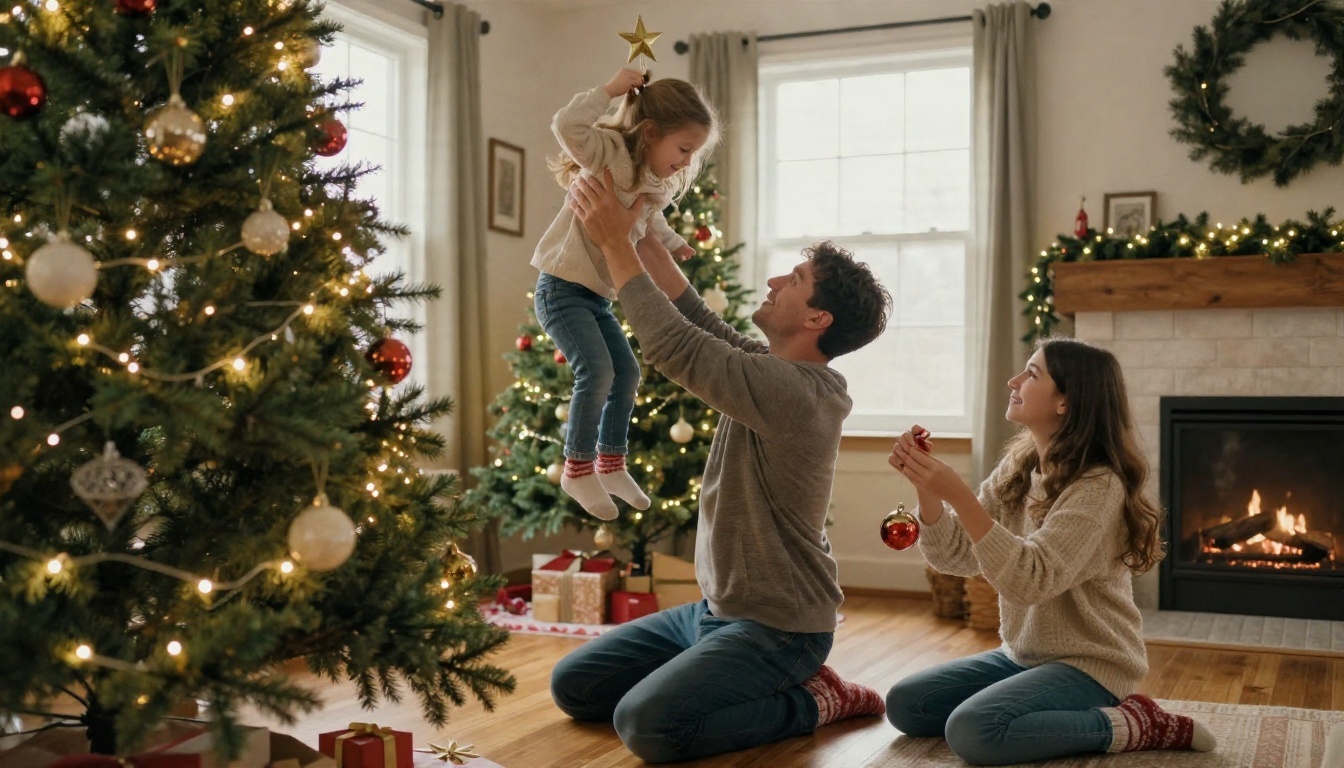
💡 Card tip: Generate in a wide ratio, then leave a calm area (wall, sky or tree) where you can place your greeting text later.
Multi-Generational Dinner
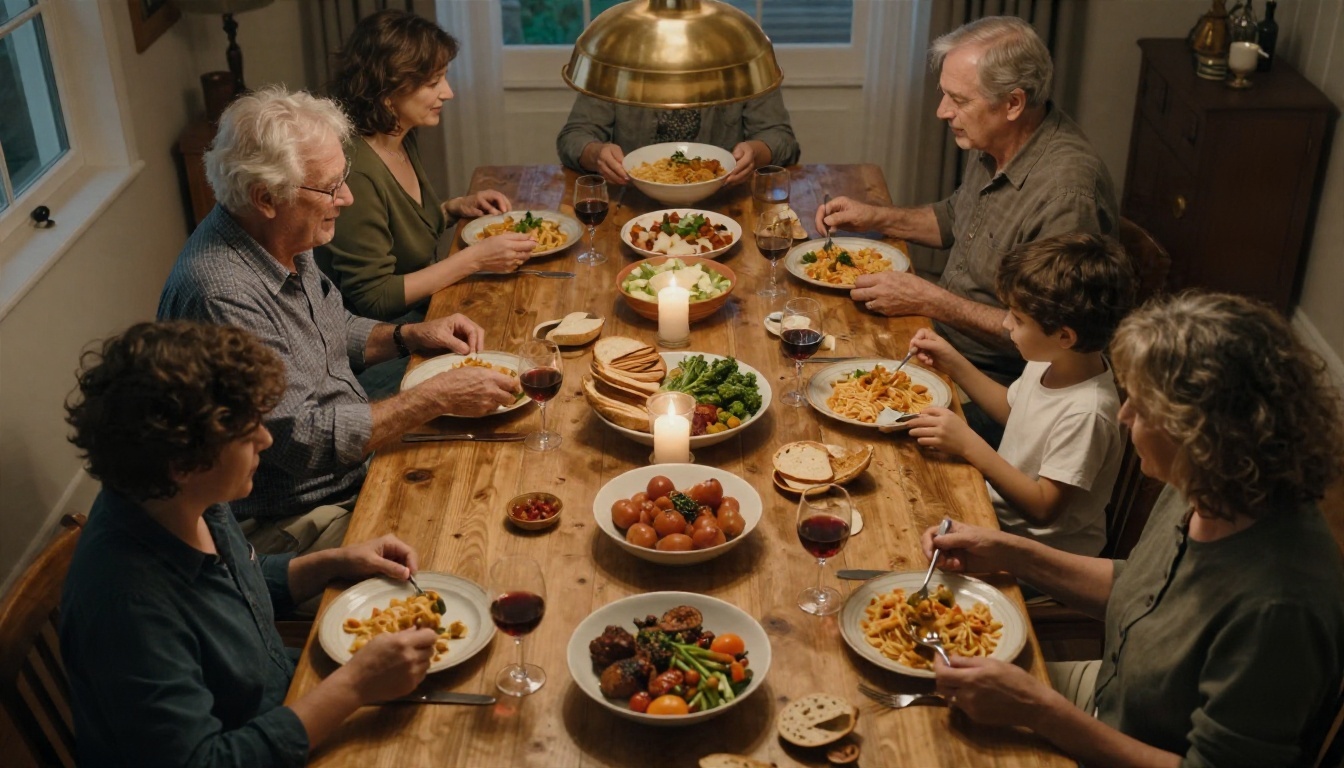
A top-down shot of a long wooden table with hands passing bowls conveys warmth without needing perfect faces. It is also a smart way to include many relatives, since heads are small and the food does the storytelling.
Classic Studio Portrait
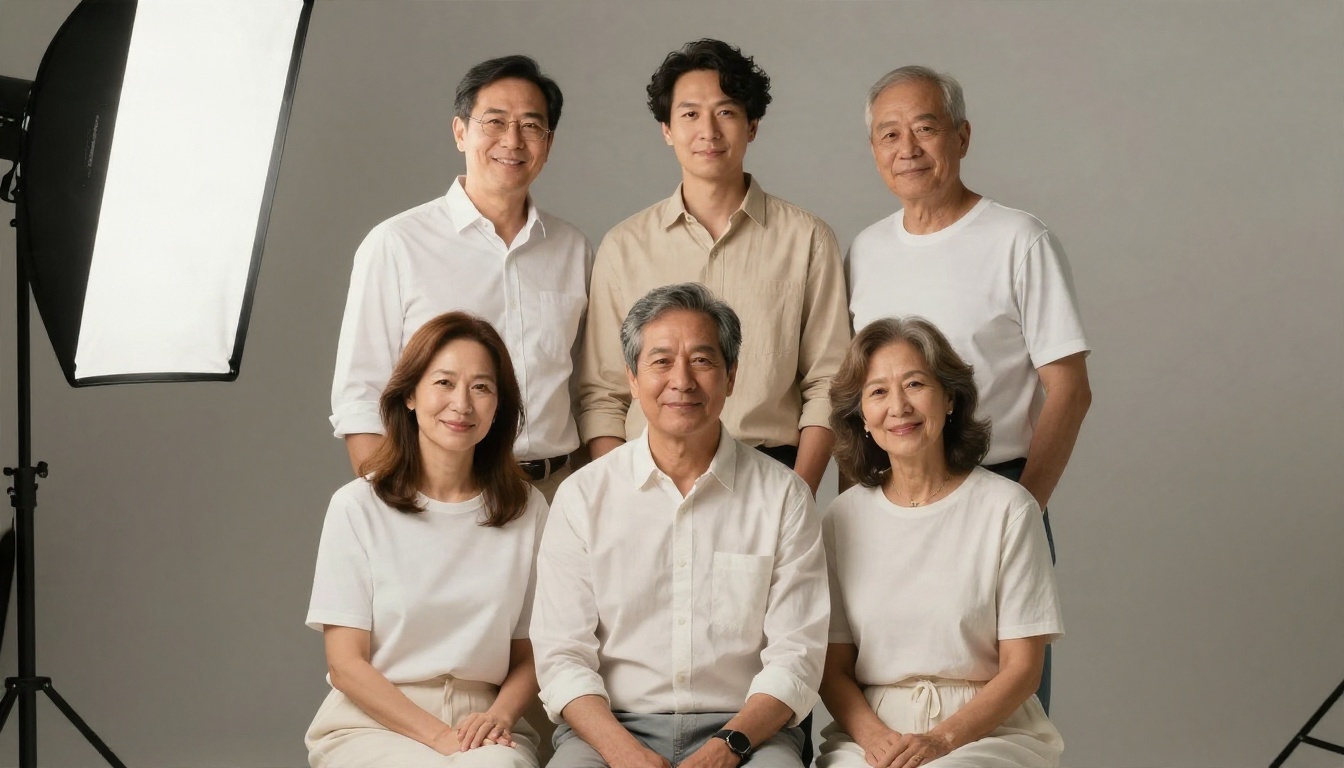
For formal portraits, coordinate the palette. Tell the model "white, beige and denim outfits, seamless warm gray backdrop, large softbox from camera left with reflector fill." The triangle composition (tallest person at the back, shorter ones angled forward) reads as professionally arranged.
Family With Pets
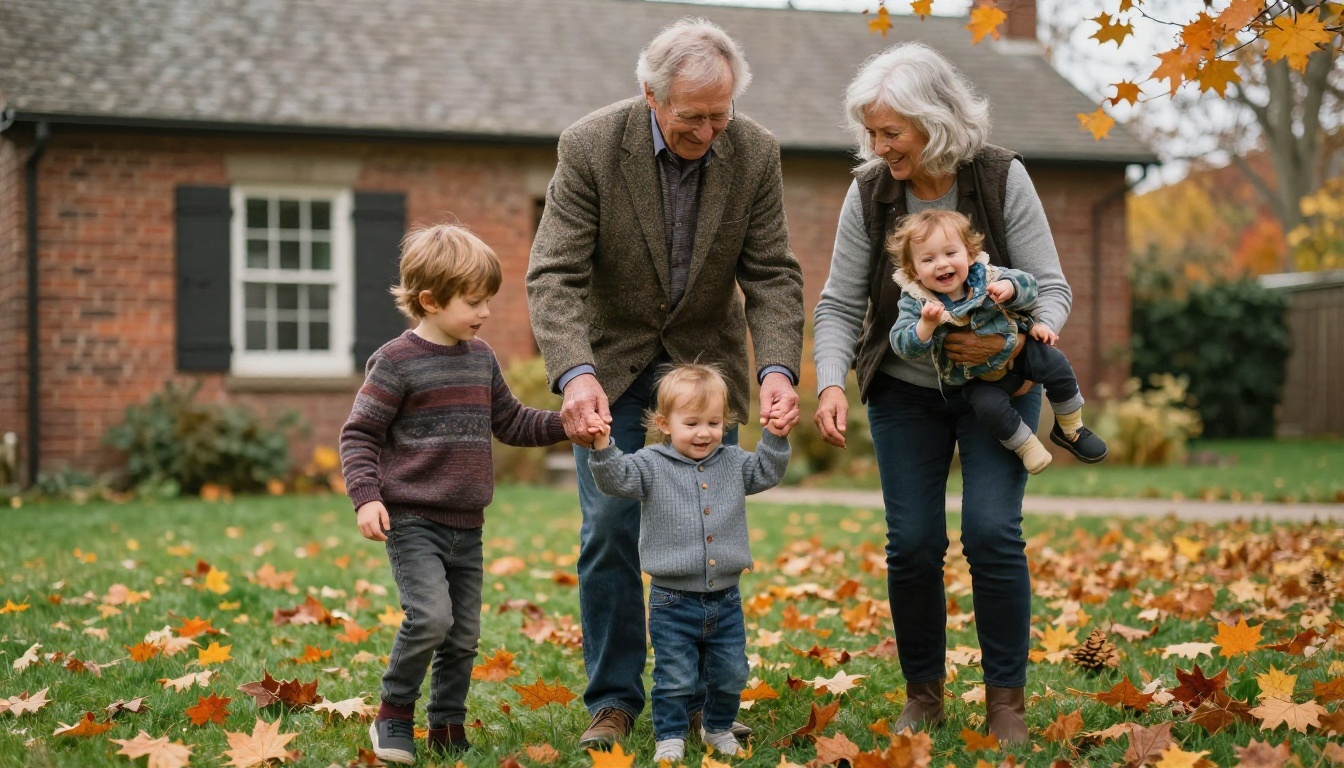
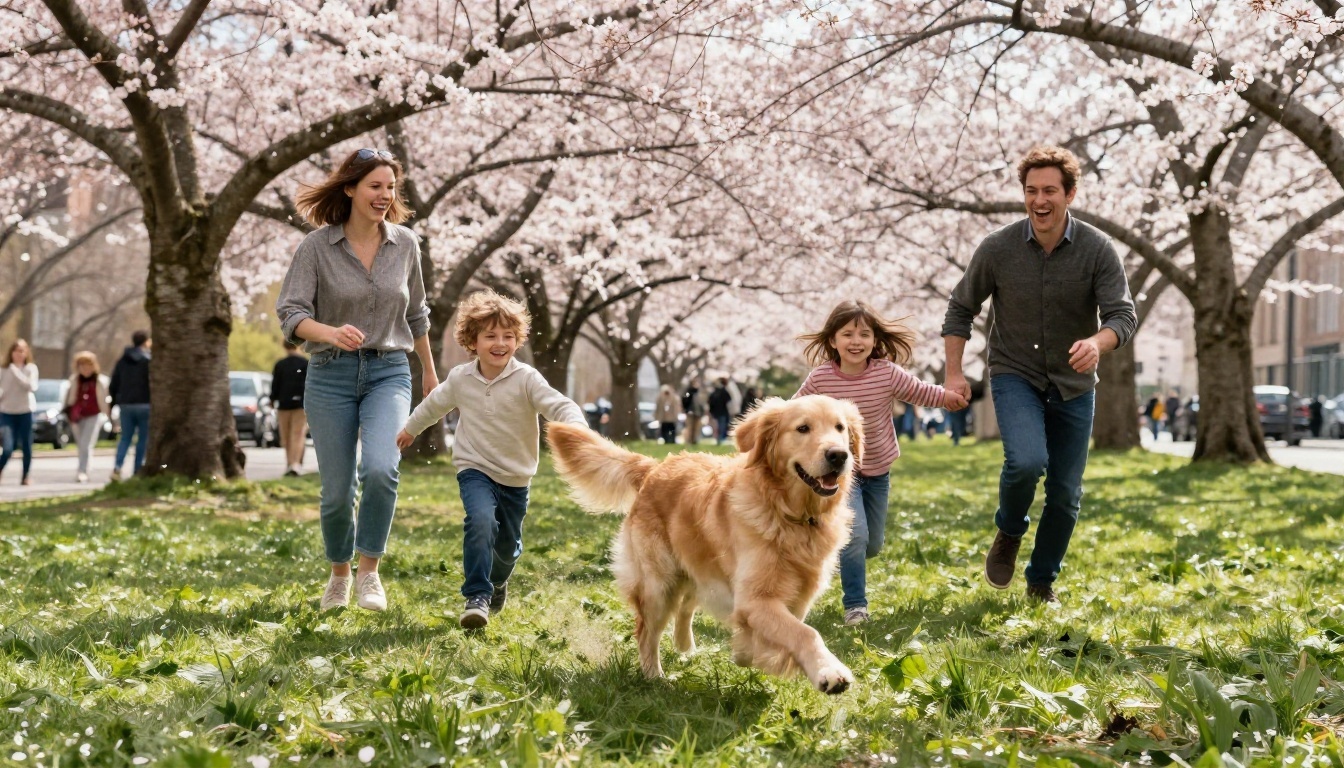
Dogs and cats add motion and personality. Pick a fast shutter phrase such as "motion-freezing shutter" and a location with natural texture, like a park with petals falling or a grassy field.
More Scene Starters
- Backyard barbecue with string lights at dusk
- Grandparents reading to grandchildren by a window
- Road trip stop with everyone leaning on a dusty car
- Baking day in a flour-covered kitchen
- Winter walk in matching scarves
- Graduation morning with the whole family on the front steps
Fixing Common Problems
Even the best models slip now and then. Here are the issues I see most and the fastest fixes.
Hands and Fingers
Extra or fused fingers still appear in group shots. Reduce the risk by giving hands a simple role (resting on a shoulder, holding a hand) or by choosing a framing where hands are small or hidden. If a result is otherwise perfect, an inpainting edit on just the hand usually saves it.
Faces That Look Waxy
This happens when the prompt asks for "perfect" or "beautiful" people. Replace those words with concrete features: "crow's feet when smiling," "a small scar on the chin," "slightly uneven teeth." Real faces are asymmetrical, and the model responds to that detail.
Everyone Looks the Same Age
When ages are vague, models default to the same adult face in different sizes. Give each person a specific age and distinguishing trait: "a grandmother with silver hair and round glasses," "a teenage boy with a faded baseball cap."
Fix Checklist
| Symptom | Quick fix |
|---|
| Plastic skin | Add "visible pores, film grain" and remove "perfect" |
| Strange hands | Simplify the pose or inpaint the area |
| Merged faces | Reduce people to 4 or fewer, then expand |
| Flat lighting | Name a light direction and time of day |
| Wrong proportions | State relative heights ("father a head taller than mother") |
Restoring Old Family Photos
A generator is only one half of the story. Many people arrive at this topic with a shoebox of faded prints from grandparents or great-grandparents. Photo restoration tools can remove scratches, repair tears, reduce noise and sharpen faces, and some can add natural color.
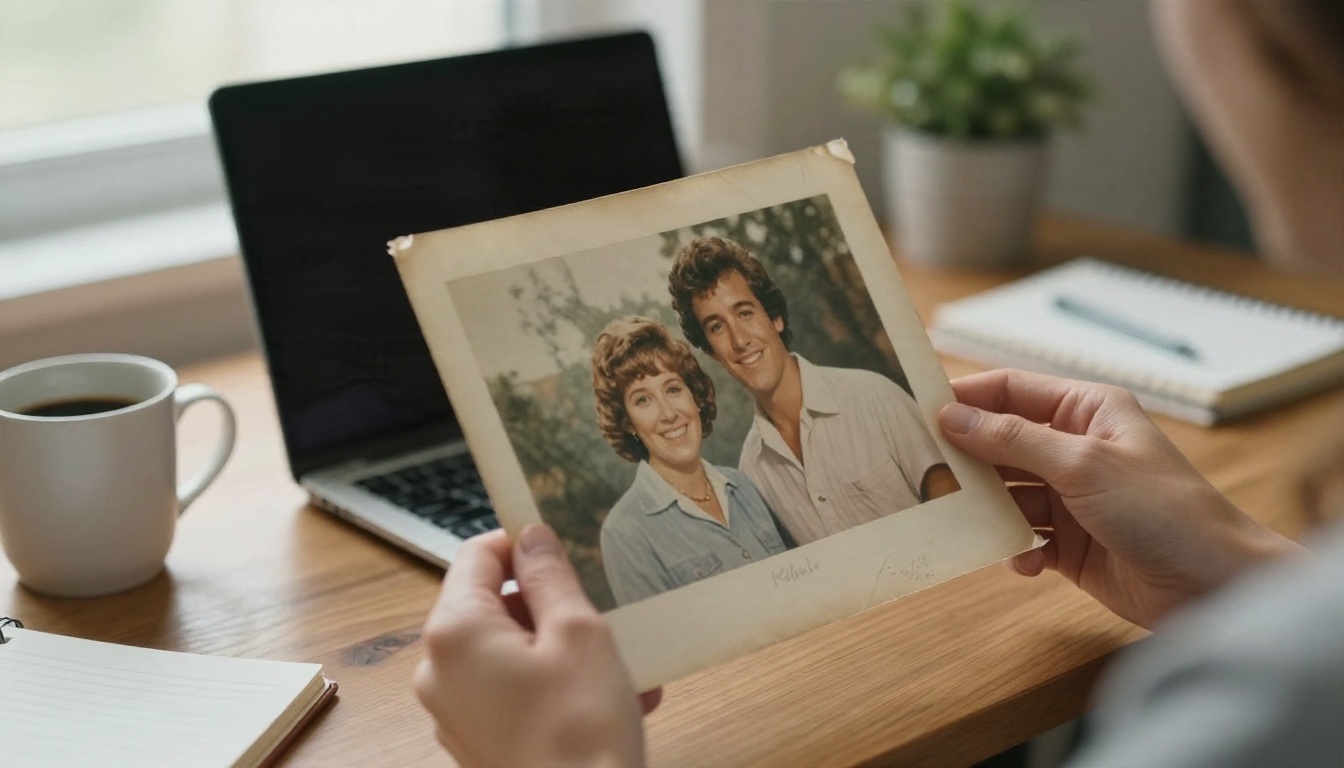
A good routine:
- Scan the print at 600 dpi or photograph it flat in daylight, avoiding glare.
- Run a restoration or upscale pass to rebuild detail.
- Use an editing model such as Nano Banana Pro to describe the fix in plain words, for example "remove the crease across the left side and keep the faces unchanged."
- Compare with the original. If a face looks different, run it again with a stricter instruction.
If you want a consistent likeness of one relative across many new scenes, a custom-trained model is the right tool. P Image Trainer lets you train a small adapter from a handful of photos, so the same face shows up in a kitchen scene, a holiday card and a beach shot.
Privacy and Honest Use
Family images involve real people, and sometimes children, so a few ground rules are worth following.
- Ask before using a relative's face. A quick message to your cousin is enough, and it avoids awkward surprises.
- Be careful with children's photos. Many families keep minors' likenesses out of public posts, even when AI is involved.
- Label generated images if you share them publicly, especially if they depict events that never happened.
- Do not present invented scenes as real documentation. A made-up reunion photo is fine for a card or a story. It is not evidence of an actual gathering.
- Keep source photos private and delete uploads you no longer need.
Used with this mindset, a generator becomes a creative tool for memories, not a tool for fabricating history.
Make Your Own Family Photos Today
You now have the formula, the model comparison, the prompts and the fixes. The fastest way to see what works is to run a first test.
- Open Seedream 4.5 on PicassoIA.
- Paste the living room prompt from above and change the ages, clothes and room to match your own family.
- Generate three versions and pick the one with the most natural expressions.
- Run the same prompt through Imagen 4 or GPT Image 2 and compare.
- Save your best prompt as a template for the next occasion.
Start with a small scene, two or three people and one clear light source. Once that looks right, add siblings, grandparents and the dog. Within a handful of tries you will have a set of images you actually want to print, frame or send to the relatives who could not make it. Open PicassoIA, type the first line of your scene, and see your family appear.


