A full sleeve takes dozens of hours. A leg piece can take months. Nobody wants to find out halfway through that the dragon looks wrong on their forearm or that the flowers on the thigh clash with the geometric calf. That is exactly the problem an AI full body tattoo generator solves: you describe the design, see it on a realistic body in seconds, change what bugs you, and only then book the appointment. This article shows how to do that for sleeves and legs, which prompts work, which models handle skin and linework best, and how to carry a finished concept to a real artist. Everything here can be tried free online.
What an AI Tattoo Generator Does
An AI tattoo generator turns a text description into an image of a tattoo, either as a flat design or, more usefully, as ink sitting on a believable arm, leg or torso. You type something like "black and grey koi sleeve with peonies and waves, wrapping from shoulder to wrist" and get a photo-style preview. You can then regenerate, change the style, swap the animal, or ask for a different body placement.
Why Preview Before You Ink
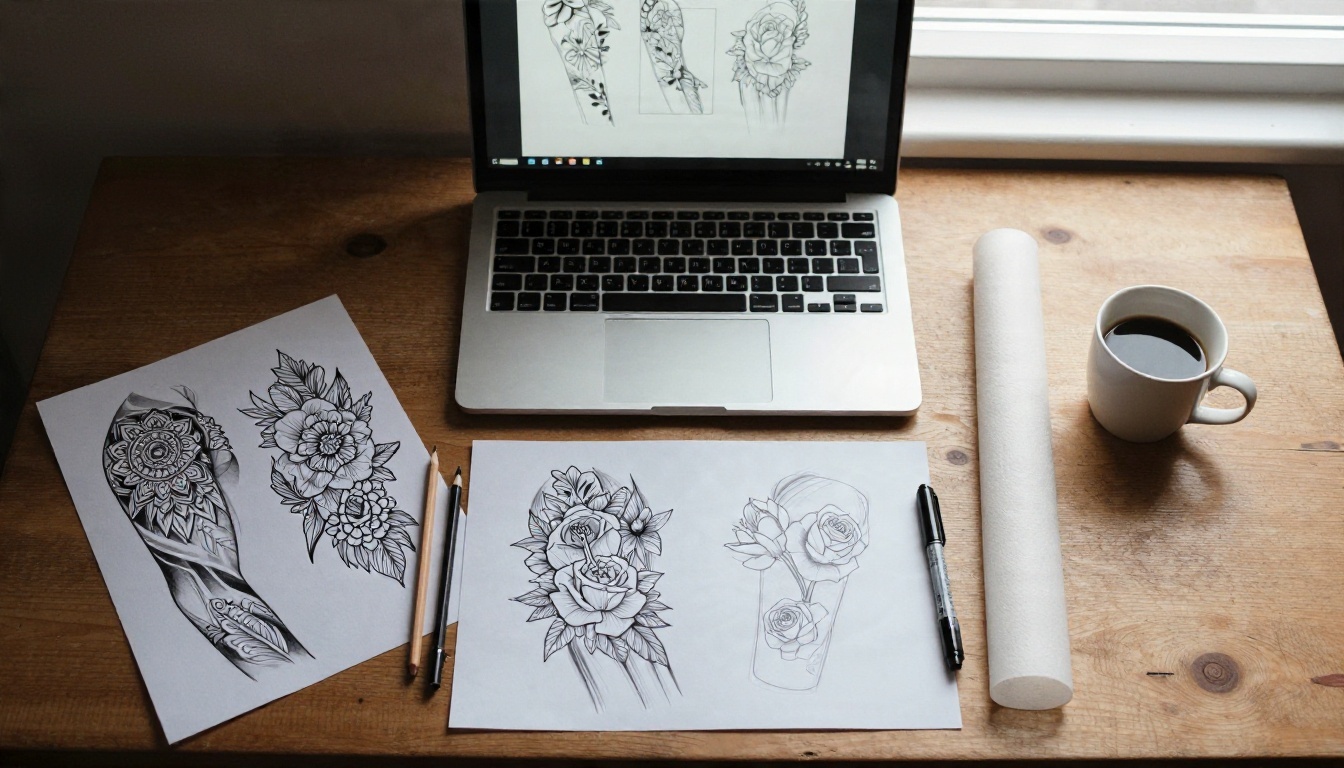
Tattoos are permanent, and large pieces are expensive. A preview lets you test ideas that would be costly to test any other way.
- Flow check: does the design follow the muscle lines of the arm or fight them?
- Balance check: is one leg busier than the other?
- Style check: does fine-line look better on you than bold traditional?
- Conversation starter: artists respond faster to a clear reference than to a vague idea.
💡 Treat the generated image as a mood board, not a blueprint. Your artist will redraw it to fit your real anatomy, and that is how it should work.
What It Cannot Do
Be honest about the limits. A generator does not know the exact curve of your calf, your skin tone under studio light, or how ink spreads over ten years. It also cannot replace a stencil. What it does well is shorten the distance between "I want something with a snake and roses" and "here is exactly the snake and the roses I mean."
Sleeve Designs That Work
Sleeves are the most requested large tattoo, and also the easiest to preview, because the arm is a simple cylinder with a clear start and end.
Full Sleeve From Shoulder to Wrist
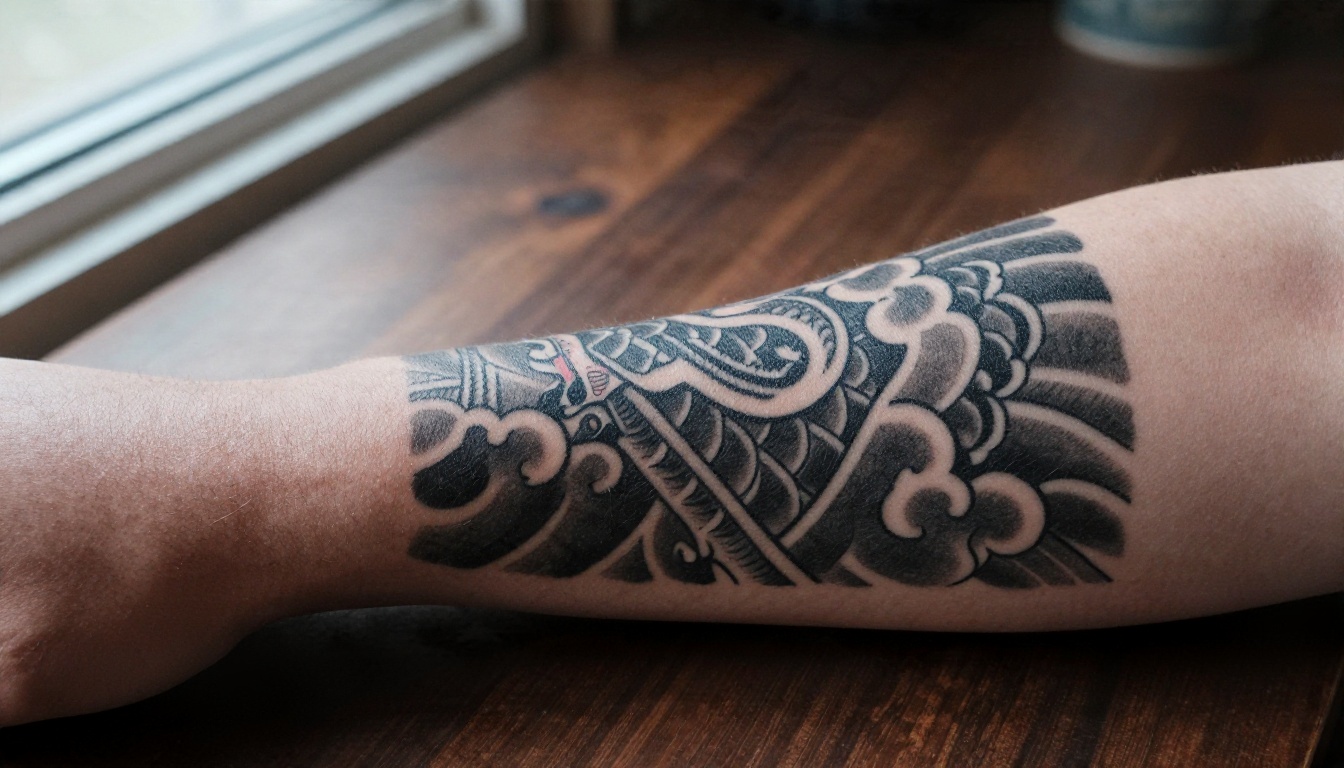
A full sleeve needs one idea that holds together: a Japanese theme with dragon, clouds and waves, a nature scene, a biomechanical look, or a collection of symbols tied by a shared background. The generator is great at testing that background layer, the clouds, smoke, waves or geometric filler that connects separate elements. Without it, a sleeve looks like stickers on skin.
Half and Quarter Sleeves
Not ready for the commitment? Ask the generator for a half sleeve (shoulder to elbow or elbow to wrist) with a clean edge. Leaving a space for growth is common: many people start with a single large element and add around it later. Try generating the same design twice, once finished with a hard edge and once fading into open skin, and compare.
Sleeve Styles Compared
| Style | Look | Best for | Prompt words to use |
|---|
| Japanese | Bold outlines, waves, clouds | Dragons, koi, tigers | "irezumi, wind bars, black and grey" |
| Black and grey realism | Smooth shading, depth | Portraits, animals | "photorealistic shading, soft gradients" |
| Fine-line | Thin delicate lines | Botanicals, minimal art | "single needle, delicate, light stipple" |
| Traditional | Thick lines, saturated color | Eagles, roses, daggers | "bold outline, limited palette" |
| Watercolor | Soft color washes | Flowers, birds | "watercolor splashes, no outline" |
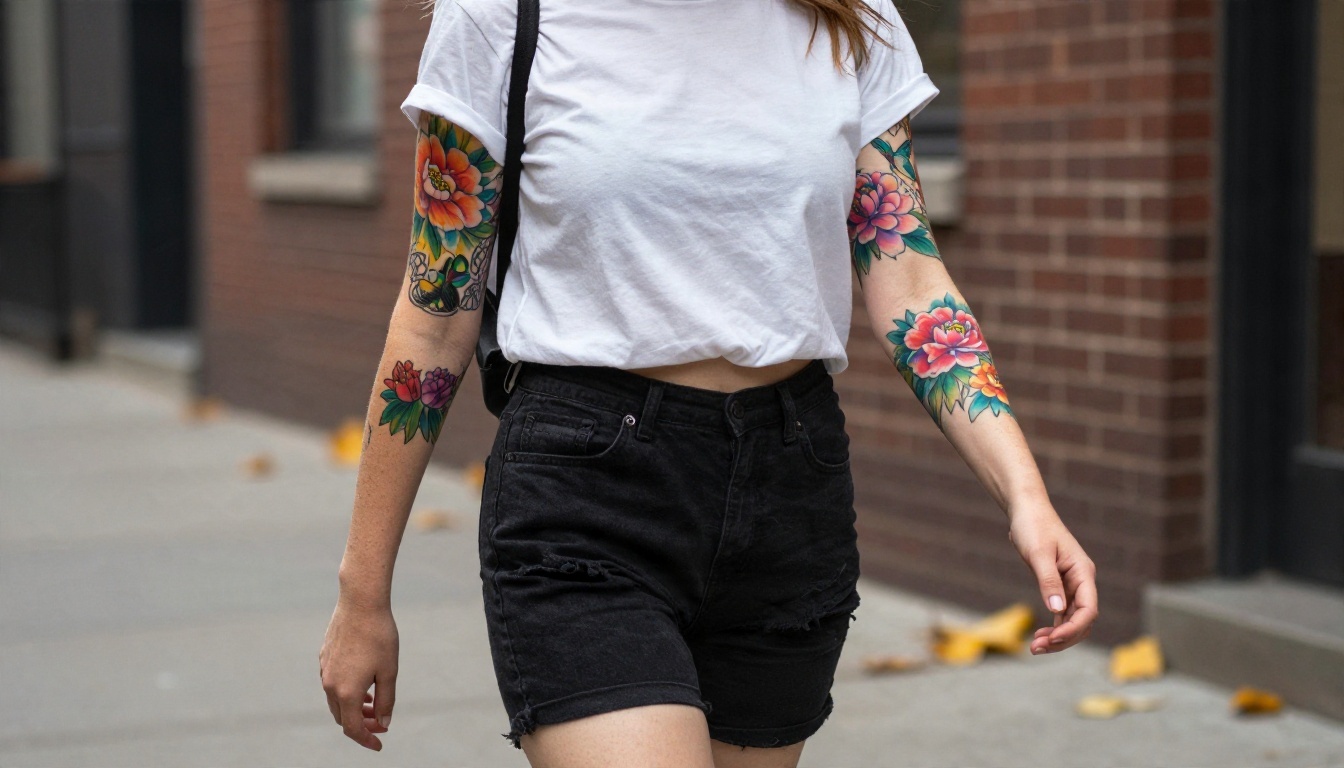
Watercolor looks stunning in a generated image, because the AI can render any gradient. Be careful here: real watercolor tattoos without outlines can fade faster, so ask your artist how they build contrast. A generated preview is not a promise of how ink will age.
Leg Designs and Placement
Legs offer more room than arms, and the shape changes a lot between thigh, knee, shin and calf. That makes them a good place to use a generator, since the preview shows whether a design bends well around curves.
Thigh to Ankle Designs
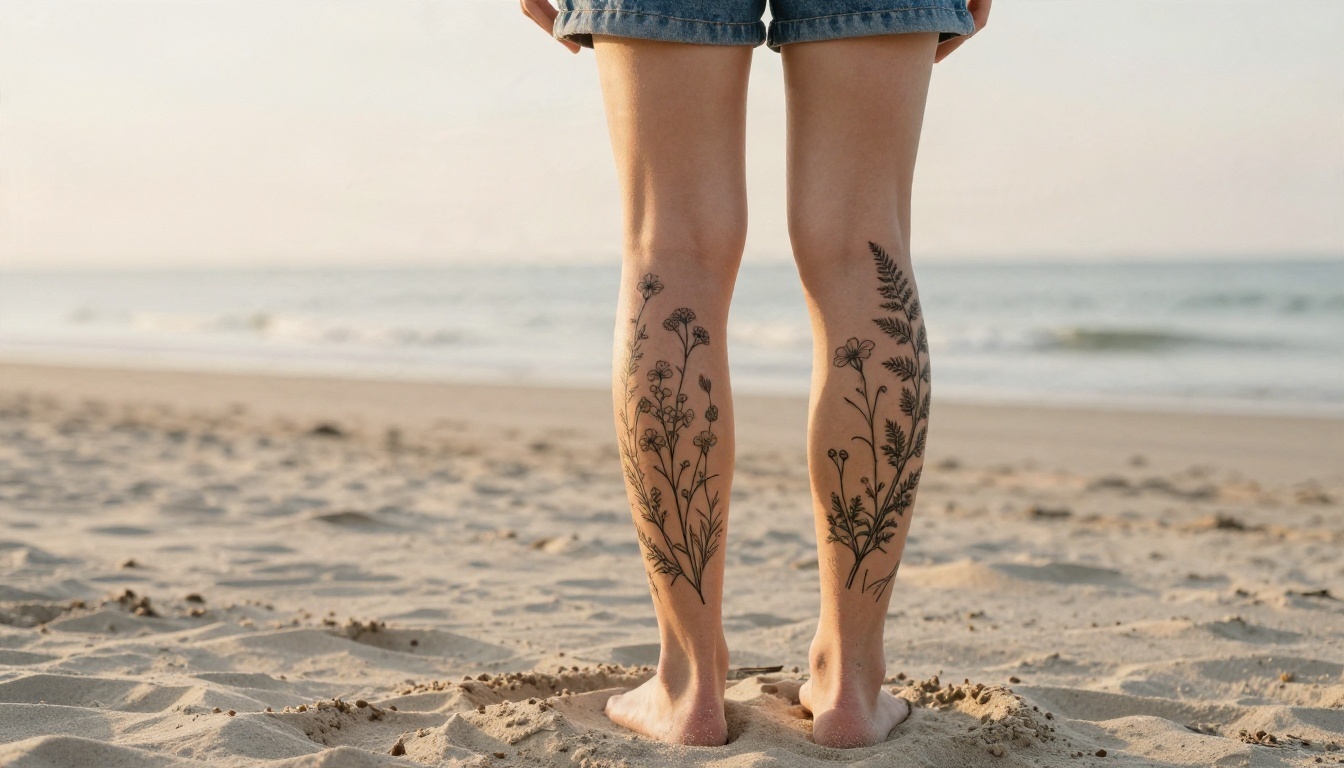
Vertical themes suit legs: climbing vines, tall trees, snakes, swords, waterfalls, architecture. They lengthen the line of the leg and give the artist a natural top-to-bottom flow. When writing the prompt, mention "wrapping around the leg" or "running vertically from hip to ankle" so the generator does not return a flat square design.
Calf and Shin Pieces
The calf is a favorite first leg spot, because it is visible, pain is moderate, and the muscle gives a nice canvas. The shin is flatter and bonier, which hurts more, and works well for symmetrical or geometric designs. Ask the AI for the same artwork on both and compare how it reads.
Knees and Thighs
The knee is a tricky joint, because skin stretches when you bend. Mandalas, spider webs and rounded patterns are classic here. Generate the design with the leg straight and bent if your tool lets you add that to the prompt, so you can see how the pattern behaves in motion.
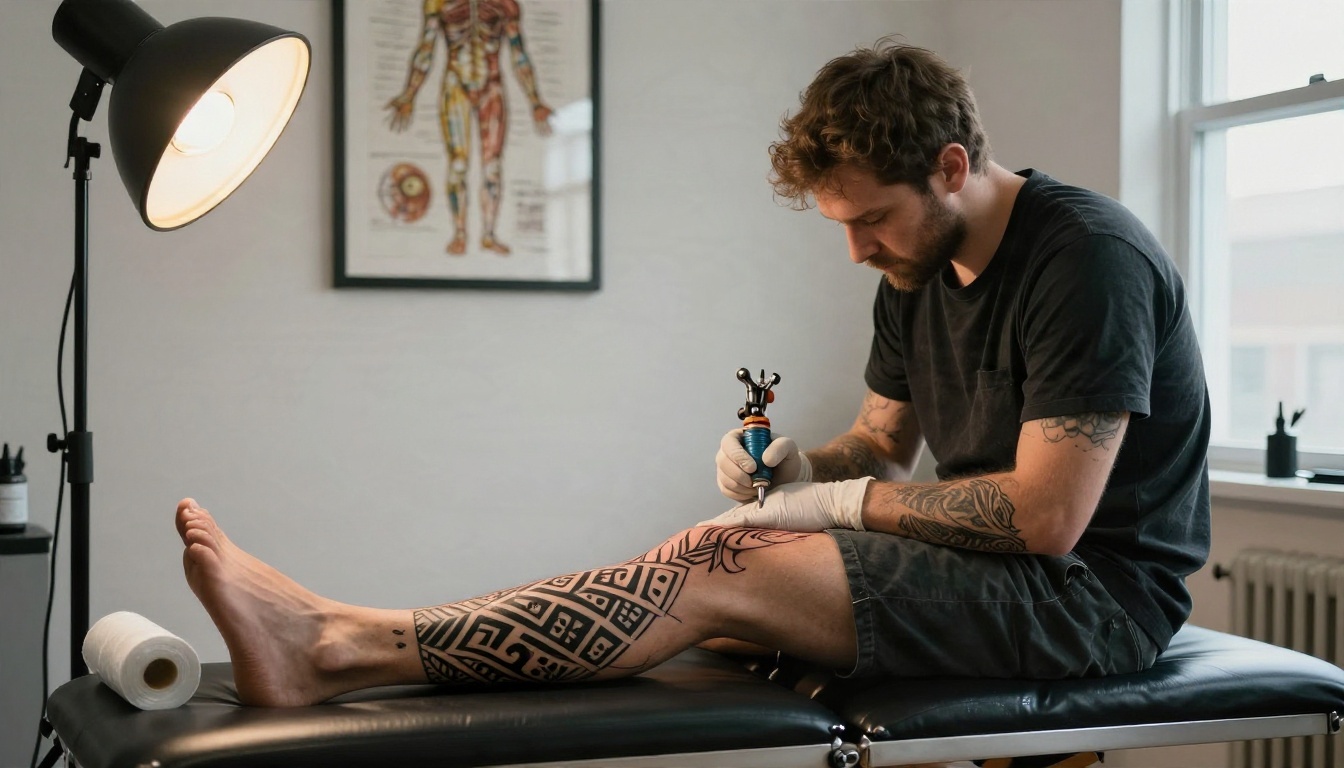
💡 Placement affects pain and healing. Ribs, feet, inner elbows and knee pits are more sensitive. Outer thigh and outer calf tend to be easier. Ask your artist before you fall in love with a spot.
Prompts You Can Copy
Good prompts are specific about five things: subject, style, placement, shading, and background. Vague prompts produce generic results. Below are prompts tested to work across most modern image models. Replace the nouns with your own.
Sleeve Prompts
- "Photograph of a man's right arm with a full sleeve tattoo, Japanese dragon, waves and clouds, black and grey with fine shading, shoulder to wrist, studio window light, realistic skin texture"
- "Woman's left arm with a floral sleeve, peonies, hummingbirds and ferns, fine-line style with light stipple shading, natural daylight, skin pores visible"
- "Forearm tattoo in traditional style, eagle clutching a dagger, bold outlines, red and yellow ink, hard side light"
Leg Prompts
- "Full leg tattoo from thigh to ankle, wildflowers and a snake wrapping around the calf, fine-line, golden hour light, low angle photograph"
- "Blackwork geometric tattoo from knee to ankle, sacred geometry and dotwork, matte black ink, clean studio background"
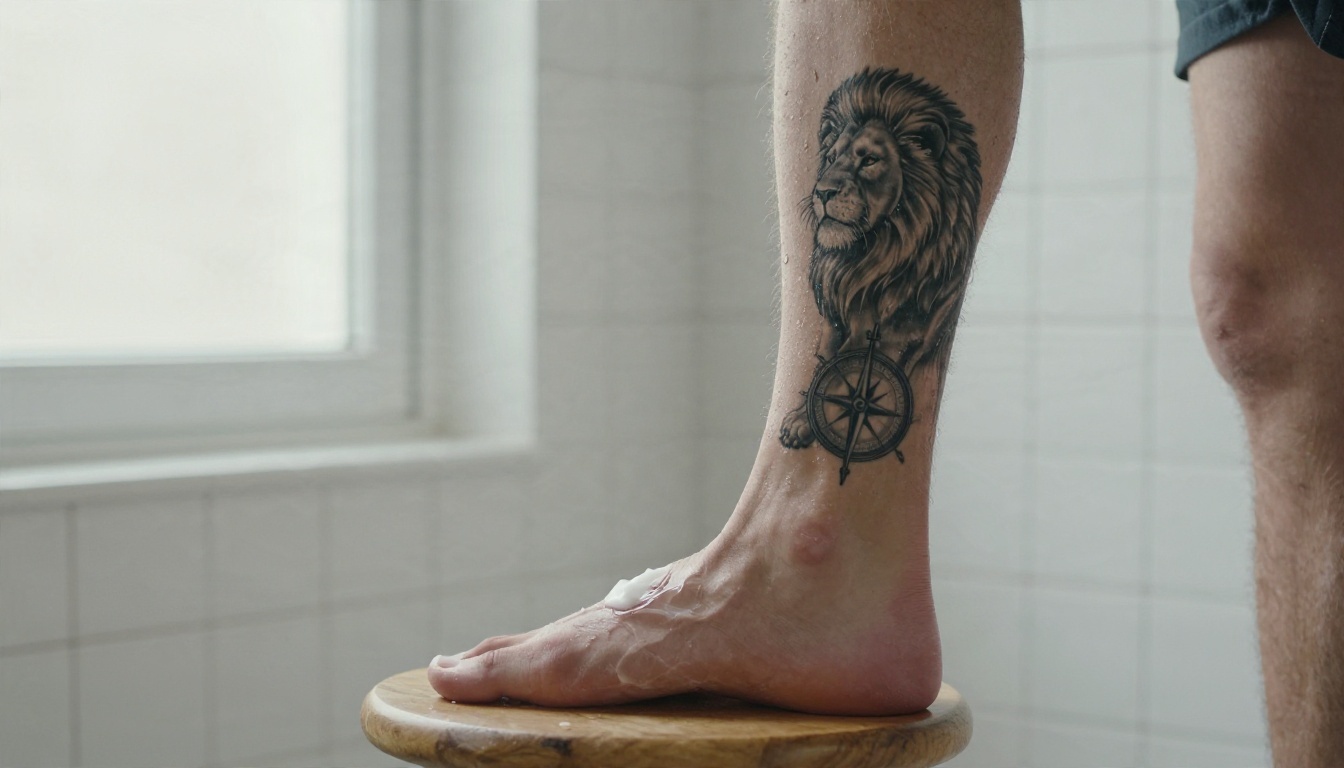
- "Lion and compass realism on the lower leg, black and grey, soft gradients, healed tattoo, natural bathroom light"
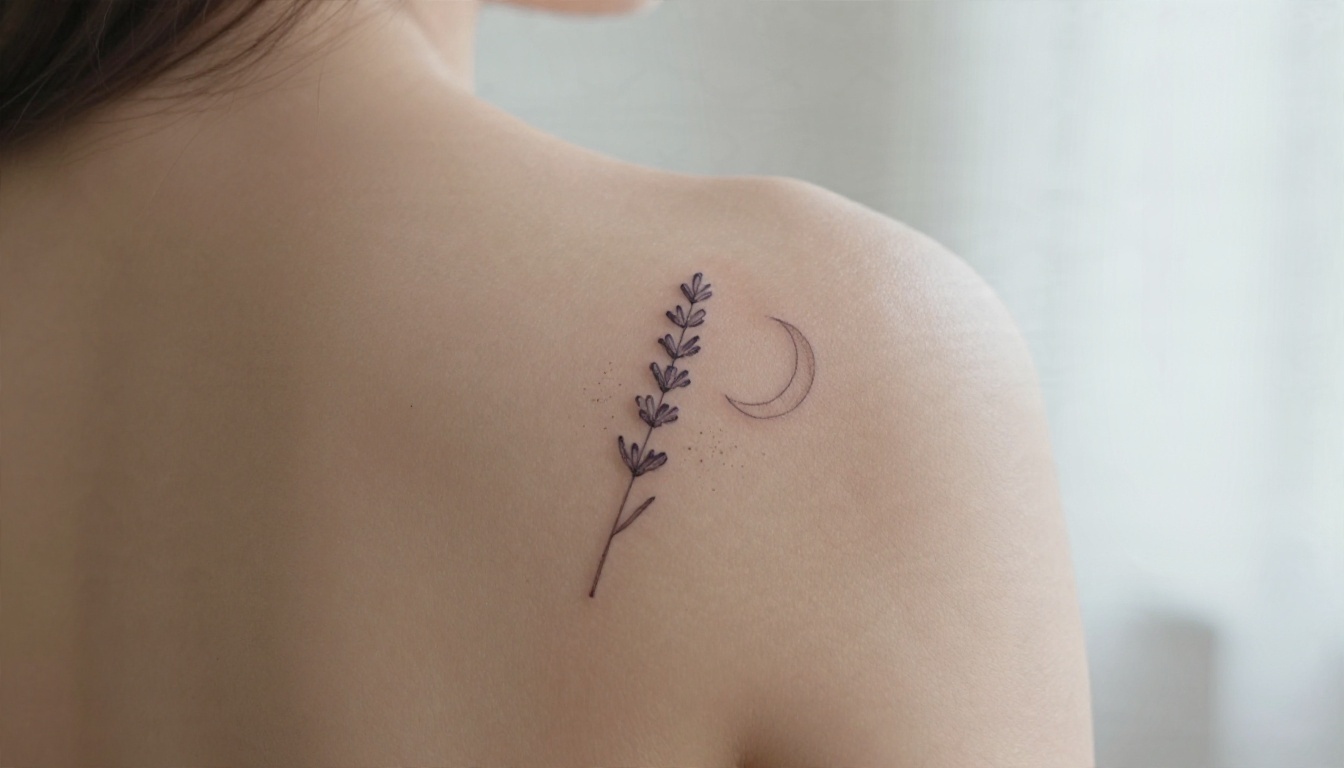
A Simple Prompt Formula
Use this order and you will rarely go wrong:
- Body part and angle: "close-up of a forearm", "full leg, low angle"
- Subject: "koi fish and peonies", "wolf and pine forest"
- Style: "fine-line", "blackwork", "Japanese irezumi"
- Shading and color: "black and grey", "limited red palette"
- Camera and light: "85mm lens, soft window light, natural skin texture"
The last line matters more than people expect. Adding lens, light and "visible skin pores" pushes the output from flat sticker toward a photograph, and that is what you need to judge whether a tattoo really looks right on a body.
Words That Cause Trouble
Some terms confuse generators. "Tribal" can pull in cliché patterns, "realistic portrait" of a specific named person may be refused or distorted, and long lists of unrelated objects create cluttered, muddy results. Keep it to one main idea and two or three supporting elements.
How to Generate in Five Steps
You do not need special software. Any strong text-to-image model on PicassoIA can create tattoo concepts. Here is a workflow that works well.
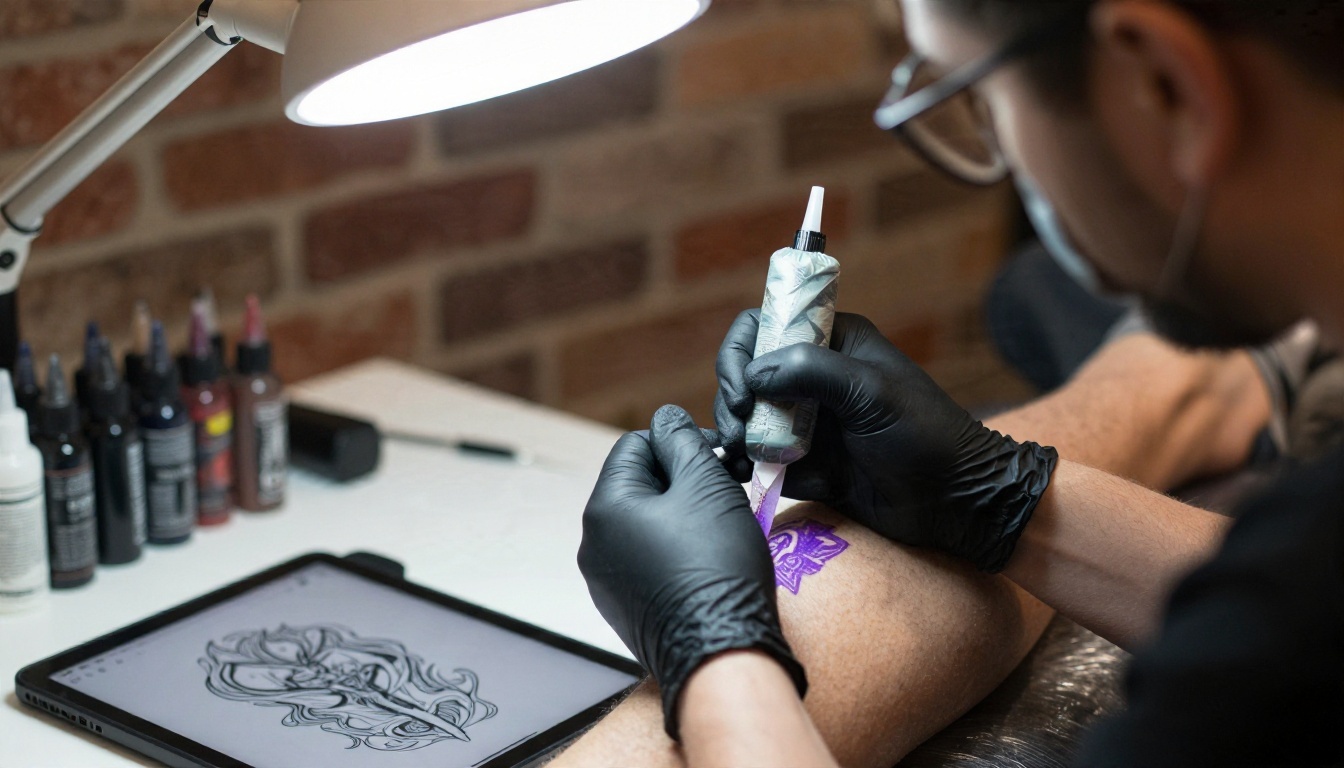
Step 1: Pick a Model
For photoreal skin and clean linework, start with Seedream 4.5. It handles fine detail well and returns sharp images up to 4K, so tiny lines and shading stay readable. Open the model page on PicassoIA and you can start typing at once.
Step 2: Write the Prompt
Use the five-part formula from above. Write it as plain sentences. Skip long strings of tags.
Step 3: Set the Frame
Choose a 16:9 or 3:2 ratio for a full arm shot, and a tall ratio like 2:3 or 9:16 when you want a full leg in frame. If the tool offers a resolution option, pick the highest one, since you will zoom into the details.
Step 4: Generate Several Versions
Make at least four versions. Change one thing per run, such as the style or the placement. Keep the seed fixed if the tool allows it so the changes are easy to compare.
Step 5: Refine and Save
When one version looks close, edit it. Nano Banana Pro is useful for this because you can upload an image and ask for changes, such as "make the clouds denser" or "remove the rose on the wrist," without losing the rest of the picture. Save the best three images for your artist.
💡 Upload a photo of your own arm or leg as a reference when the model supports image input. Seeing the design on your own body shape is far more convincing than on a stock model.
Best Models for Tattoo Concepts
Different models have different strengths. This table shows where each one fits for tattoo work.
For Lettering and Quotes
Text is where many generators fail. If your tattoo includes a word or a short date, use Ideogram v4 Quality and put the text in quotes inside your prompt. Keep it to one or two words. Then have your artist redraw the lettering by hand, since typography on skin needs real spacing and thickness.
For Flat Flash Sheets
Sometimes you do not want a body preview. You want a clean drawing on white to hand over as a stencil base. Recraft v4.1 Pro produces crisp, print-ready images, which suits this need.
Planning a Full Body Tattoo Project
A full body tattoo is not one design. It is a plan, and the generator is a planning tool. The strongest approach is to build it in layers over time.
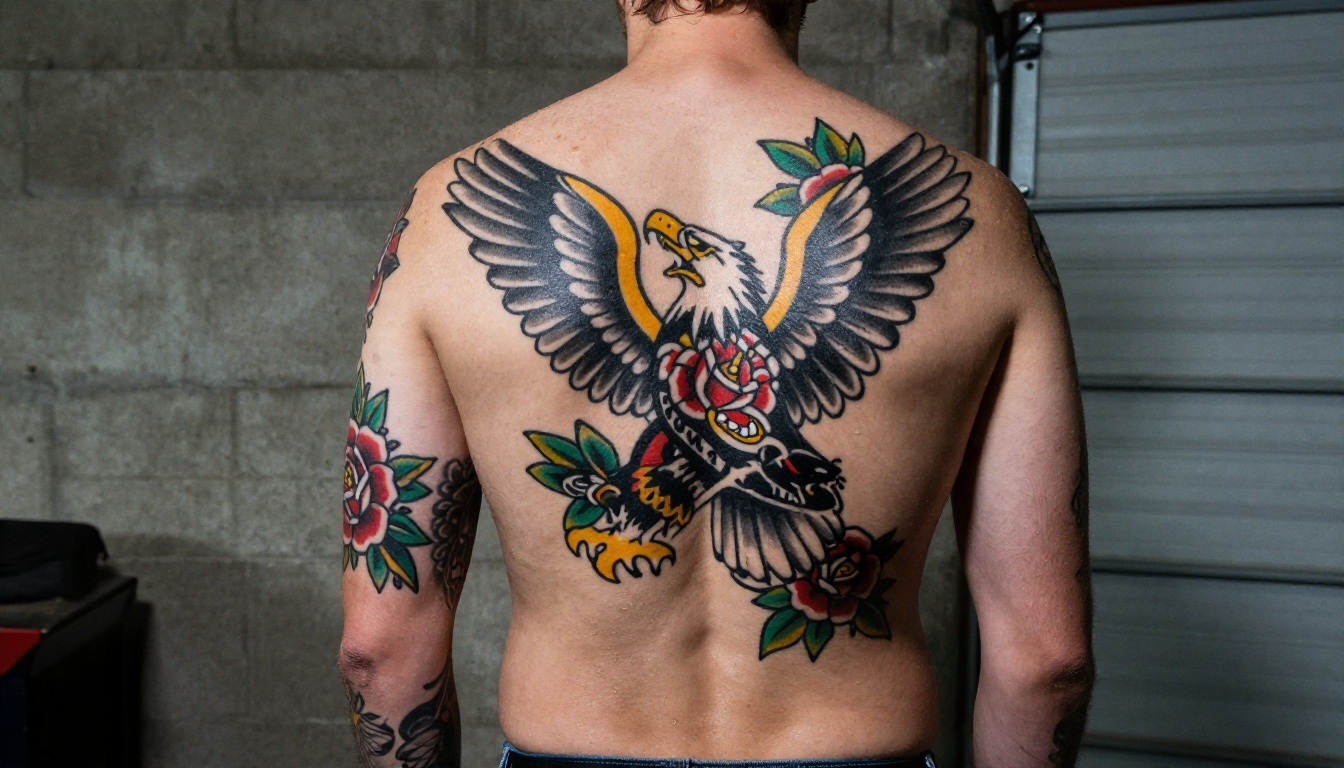
Pick One Visual Language
Mixing every style creates chaos. Choose one main style and one accent. For example, Japanese for large pieces and fine-line for small fillers. Generate your whole plan in the same style words so the previews match.
Order the Work
Most artists suggest starting with the piece you care about most, then building outward. Arms and legs first, then torso and back, with background filler last. The generator can test that order: create the same body with only the first piece, then with the first and second, and see how the story builds.
Budget Time and Money
A sleeve often takes 20 to 40 hours, depending on detail. Legs can take longer. Plan sessions weeks apart so skin heals. A clear reference cuts sketching time and avoids rework, which saves both hours and money.
From Screen to Skin
The preview is only step one. These are the actions that turn it into a tattoo you will still like in twenty years.
Take It to the Right Artist
Look for an artist whose portfolio matches the style you generated. Showing a fine-line image to a traditional specialist wastes everyone's time. Bring two or three generated images plus a short note on what you like and what to change. Expect the artist to redraw, simplify and adjust it. A good artist will respect your idea and improve it.
💡 Never ask an artist to copy another artist's work exactly. Use the AI image as inspiration, then let them add their own touch.
Aftercare for Big Pieces
Large tattoos need careful healing. Wash gently with fragrance-free soap, pat dry, apply a thin layer of recommended ointment, and avoid soaking, direct sun and tight clothing on fresh ink. Follow your artist's instructions over anything you read online.
Free Online Limits and Tips
Many tools offer a free tier, but the limits differ: some cap the number of images, some lower the resolution, and some add watermarks. On PicassoIA you can try the models above and compare their output side by side before settling on one.
Save Credits With Smart Testing
- Test the idea at a lower resolution, then regenerate the winner at full size.
- Change one variable at a time.
- Keep a text file of prompts that worked.
- Generate sleeves and legs separately, then combine the best ideas.
Mistakes to Avoid
- Copying a real person's tattoo: it is their story, not yours.
- Too much detail: tiny elements blur together over time. Ask for bolder shapes if the design is small.
- Ignoring placement: a design that looks great on a flat image may bend badly on a leg.
- Skipping the artist's opinion: they know how ink behaves in skin.
Make Your First Design Today
The cheapest tattoo mistake is the one you catch on a screen. Open PicassoIA, pick Seedream 4.5, and type a single sentence about the sleeve or leg piece you have been thinking about. Generate four versions, change the style in the next round, and keep the one that still feels right after a week. Then refine it with Nano Banana Pro and bring it to your artist. To try every image model in one place, browse all PicassoIA models and start experimenting with your own ideas.


