You point your phone at a patchy lawn, tap a button, and a lush cottage garden appears on screen. That is the promise of every AI garden design app on the store charts right now. The reality is messier. Some apps give you a genuine free preview, others show a blurred result and a paywall, and a few produce gardens with trees the size of a garden shed sitting on a three metre patio.
This article sorts the useful from the frustrating. You will see what these apps really do, which free options are worth your time, how the popular names stack up, and what to use when an app falls short. You will also see how a general AI image model can handle the same job with more control and no subscription.

💡 Quick answer: Most free garden design apps give you a handful of previews, then ask for payment. If you want unlimited experiments, a photo-editing AI model gives you more freedom than a single-purpose app.
What These Apps Actually Do
Before comparing anything, it helps to know that "garden design app" covers three very different kinds of tool. Mixing them up is the number one reason people feel disappointed after downloading one.
Photo Redesign Tools
You upload a photo of your yard, pick a style such as cottage, modern or Mediterranean, and the AI repaints the space. These are the apps that get the most attention because the results look dramatic. They are great for mood and inspiration, and weak at exact measurements. The AI is generating pixels, not a surveyed plan.
Layout and Planning Tools
These work more like a digital drawing board. You enter dimensions, drag in beds, paths and trees, and get a top-down or 3D plan. They are accurate about space but ask you to do the design work yourself. Planner 5D is a well-known example of this family, and its free tier is generous with 3D planning, though exports can carry watermarks.
Plant Database Tools
Some apps focus on what to grow. You enter your climate zone, sun exposure and soil, and they suggest plants that will survive. They rarely produce pretty pictures, yet they prevent expensive mistakes.
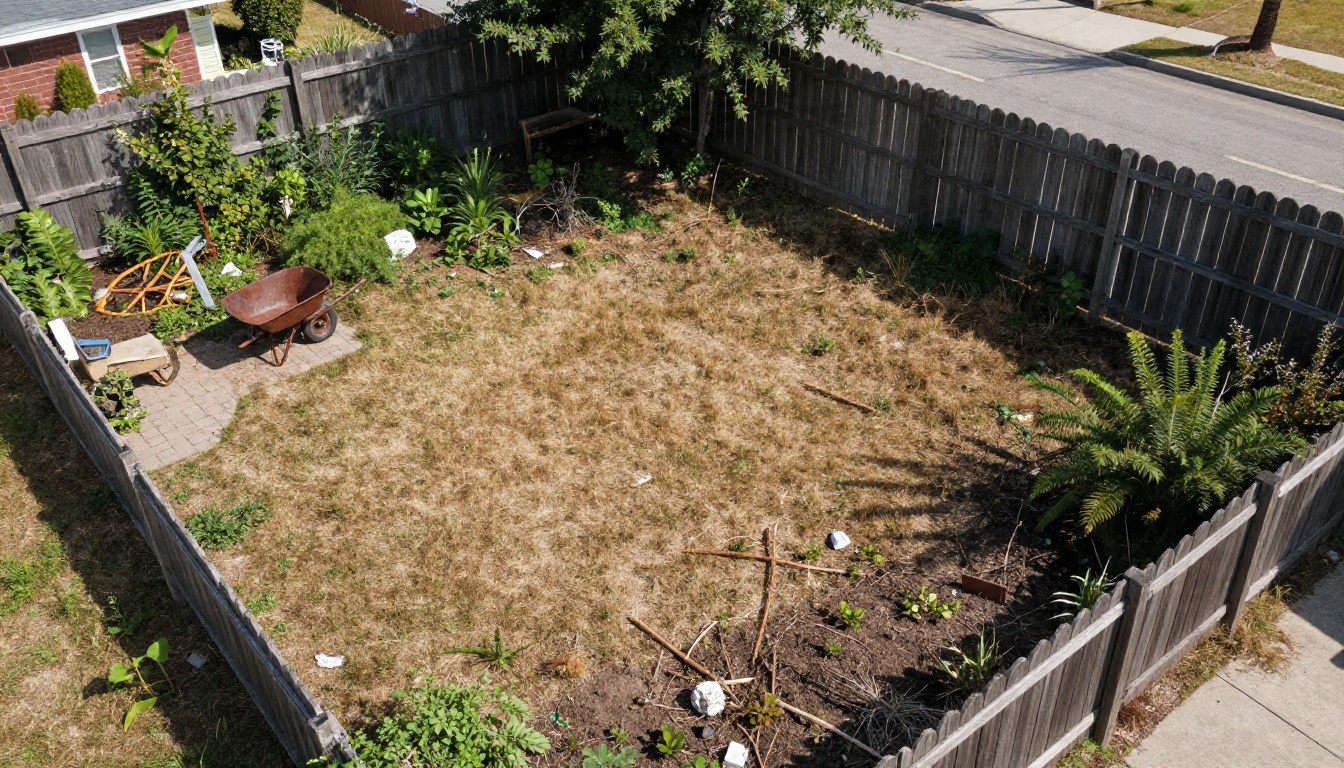
The best workflow combines all three: a photo redesign for inspiration, a layout tool for measurements, and a plant database to check what actually survives in your region.
Free Options Worth Your Time
"Free" is the most flexible word in app marketing. Here is what it usually means in practice.
What Free Really Means
A recent round of 2026 roundups tested about eight garden design apps, and one vendor test reported that only three let you preview a redesigned garden without paying or entering payment details. That ratio matches what most people experience: a small free allowance, then a subscription prompt.
Typical free models include:
- Credit packs: a couple of free generations, then paid credits
- Trial periods: full access for a few days, then a recurring charge
- Watermarked exports: you can design for free but cannot save a clean image
- Locked features: the free tier works, but the style presets you want are premium
Free Versus Paid at a Glance
| App type | Typical free offer | Typical catch |
|---|
| Photo redesign apps | 2 to 3 free previews | Credits run out quickly |
| 3D planners | Free basic planning | Watermarks on exports |
| Plant tools | Free search and lists | Premium for personalised plans |
| Store subscription apps | Free download | Most features behind a premium plan |
💡 Tip: Always check whether a trial needs a card. A "free trial" that auto-renews is a subscription in disguise. Set a calendar reminder the day you start.
Honest Reviews of Popular Apps
Treat every ranking you read online with caution, including this one. Many "best of" lists are published by the apps themselves, and the number one pick tends to be the publisher's own product. The notes below are based on what the 2026 roundups and store listings report, so verify current terms yourself before relying on them.
Remodel AI
This app tops two roundups, though both come from its own founder's blog. The claim is three full-quality garden designs with no credit card and no watermark on the free tier. That is a strong offer if it holds, so test it with one photo and confirm the terms in your own account.
Ogrovision
One roundup rates it best for garden-specific style presets, which is a real advantage if you want results that look like gardens instead of generic interiors with grass. Reported pricing is two free credits, then about $2.99 for ten credits. That is cheap for experiments, but it adds up if you try dozens of variations.
iScape
A veteran in this space, iScape is mostly about plant placement. Free features are limited, and the app suits people who already know roughly what they want and need to see how plants fit together.
Store Apps With High Ratings
Search the App Store for "AI garden design" and you will find a crowd of near-identical apps. One listing, AI Garden Design: Landscape AI, shows a 4.7 rating from roughly 7,600 ratings, which looks impressive. Yet reviewer complaints for apps in this group repeat the same themes: inaccurate overlays and unrealistic scale. Another, Landscapy AI, states on its own store page that all features require a premium subscription.
Quick Verdict Table
| App | Best for | Free access | Watch out for |
|---|
| Remodel AI | Fast photo makeovers | Reported 3 free designs | Reviews are vendor written |
| Ogrovision | Garden style presets | 2 free credits | Credits cost money after |
| iScape | Plant placement | Limited free features | Less dramatic visuals |
| Planner 5D | 3D layout | Free basic planning | Watermarked exports |
| Landscapy AI | Casual browsing | None reported | Premium subscription required |
Where Free Apps Fall Short
After comparing the field, a few problems show up again and again.
Scale Gets Ignored
AI redesign apps often paint a mature tree where you have room for a shrub. The picture looks gorgeous and then your actual yard disappoints you. Always measure your space with a tape and compare the proposed plants with their real mature size.
Plants Do Not Match Your Climate
A beautiful design that uses lavender in a damp shaded corner will fail. Most photo apps do not check hardiness zones, sun hours or soil. Use a plant database or your local nursery to validate every plant before buying.
Style Presets Feel Repetitive
When thousands of homeowners use the same five presets, results start looking alike. If you want something that feels like your home, you need more control over the prompt than a preset button provides.
Watermarks and Resolution Limits
Free exports are often low resolution. That is fine for a mood board and useless if you want to print a plan for a landscaper. An upscaler such as Real ESRGAN can sharpen a low-resolution concept image up to 4x, which helps when you hand an image to a contractor.
Alternatives Using AI Image Models
If a single-purpose app limits you, a general AI image model offers a different route. Instead of choosing from ten presets, you describe exactly what you want in plain language and iterate as many times as you like.
Why General Models Work
Modern image models understand garden vocabulary surprisingly well. They know what a gravel garden looks like, what a pergola with climbing roses implies, and how light behaves on wet stone. You can specify the plants, hardscape materials, time of day and mood, and change one detail at a time.
Models Worth Trying on PicassoIA
Pros and Cons Versus Dedicated Apps
Pros
- Far more control over plants, materials and mood
- No limit to a small number of presets
- One tool for gardens, patios, balconies and interiors
- Results do not look like everyone else's
Cons
- No automatic measurements or planting calendar
- You need to write a decent prompt
- Scale accuracy still depends on your own checking
How to Use Nano Banana on PicassoIA
Here is a simple workflow for redesigning a real yard photo with Nano Banana, which can both edit an existing photo and generate from text.
Step by Step
- Take a clear photo. Stand at the spot where you would normally view the garden. Shoot in daylight, keep the horizon level, and avoid heavy shadows.
- Open the model page. Go to the Nano Banana page on PicassoIA and choose the image editing option so you can upload your photo.
- Upload the photo. Use the original, uncropped image so the AI can keep the shape of your yard.
- Write a specific prompt. Describe the changes, not just a style. For example: "Replace the lawn with a curved flagstone path, add layered perennial borders with lavender and ornamental grasses, keep the fence and house unchanged, natural afternoon light."
- Generate and compare. Create several versions. Change one element per attempt, such as the path material or the planting colour, so you can see which choice made the difference.
- Refine with edits. Ask for small corrections: "make the shrubs smaller," "remove the tree on the left," or "use gravel instead of paving."
- Upscale the keeper. Run your favourite through Real ESRGAN if you plan to print it.
Prompt Tips That Help
- Keep what matters. Say "keep the house and fence unchanged" so the AI does not redesign your building.
- Name plants. "Foxgloves, delphiniums and roses" gives a much better result than "pretty flowers."
- Mention scale. Phrases such as "small shrubs" or "young multi-stem birch" prevent oversized trees.
- Set the light. "Soft overcast morning" and "golden hour from the left" change the entire feel.
- Avoid text. Image models still struggle with lettering, so leave signs and labels out.
💡 Use the Image Editor Pro for volume. If you expect to run dozens of variations, PicassoIA Image Editor Pro is built for unlimited editing, which removes the worry of burning through credits.
Garden Styles to Test First
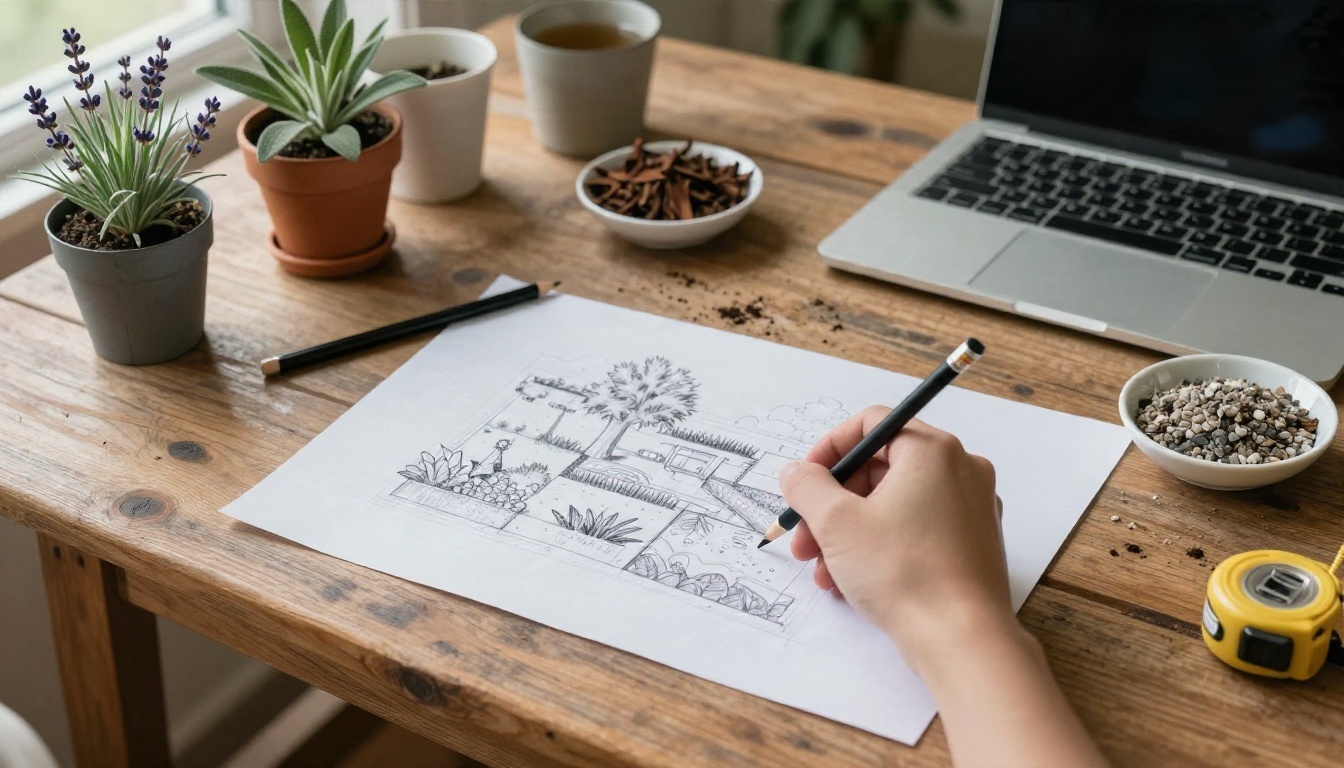
Previewing a few very different directions is the cheapest way to find out what you actually like. These five styles make a good starting set.
Cottage Garden
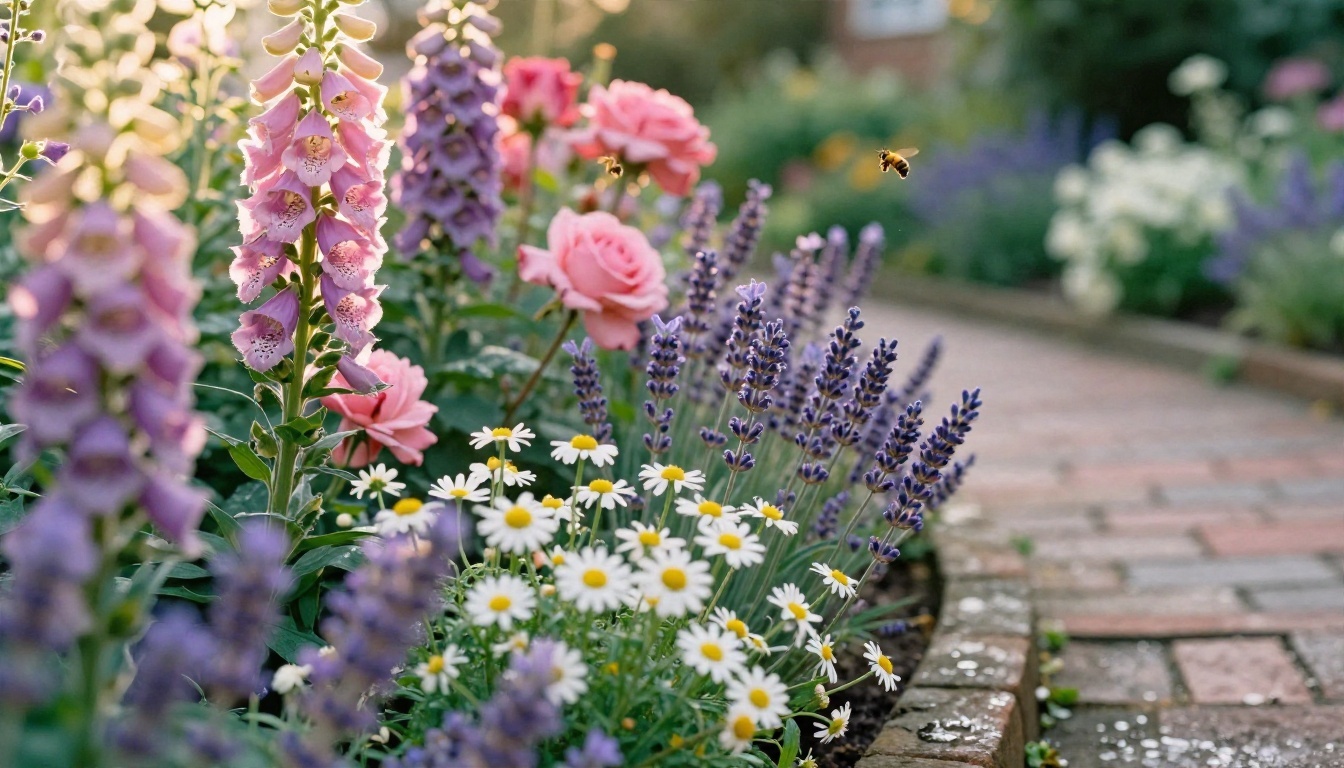
Dense, layered borders full of foxgloves, roses and lavender. The look is forgiving, because a little mess is part of the charm. It suits traditional houses and people who enjoy cutting flowers.
Modern Minimalist
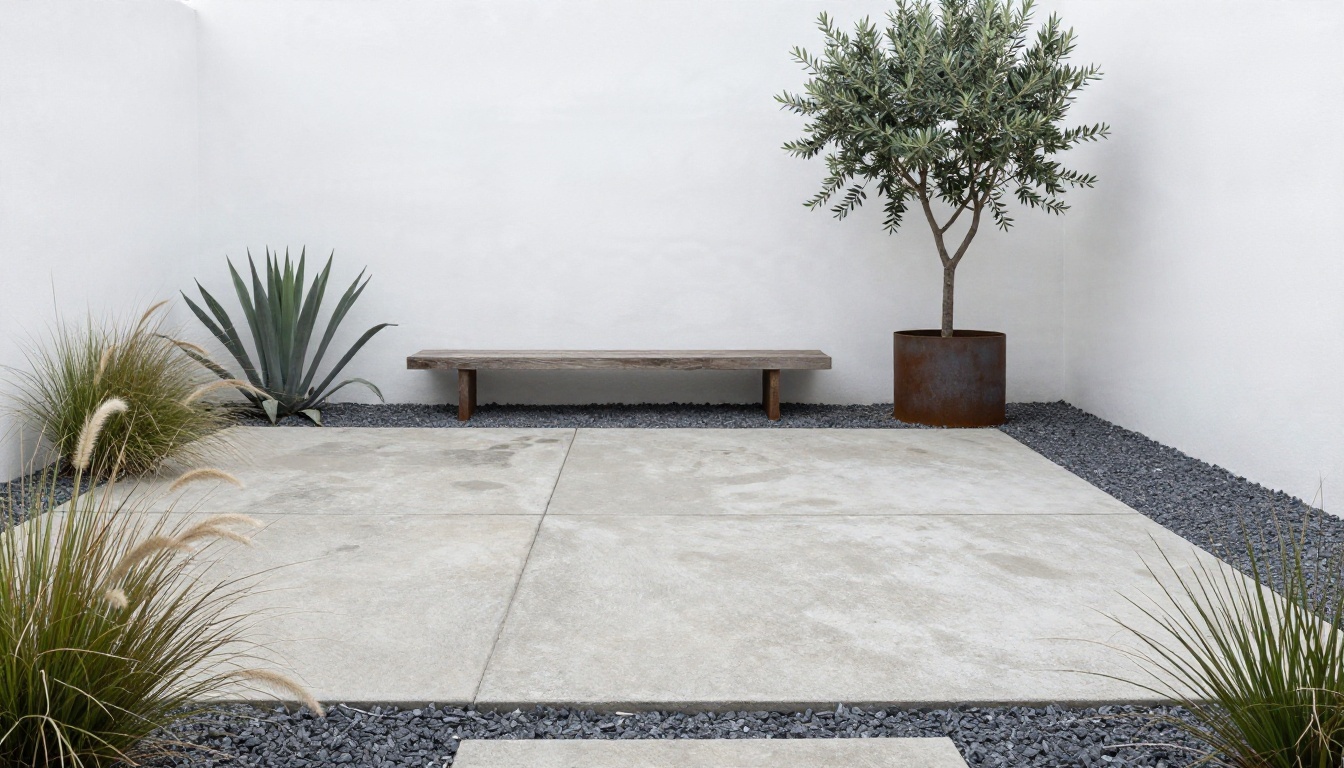
Pale pavers, gravel, a handful of structural plants and clean edges. It needs very little care, but proportions matter, so test several layouts before ordering stone.
Japanese Inspired
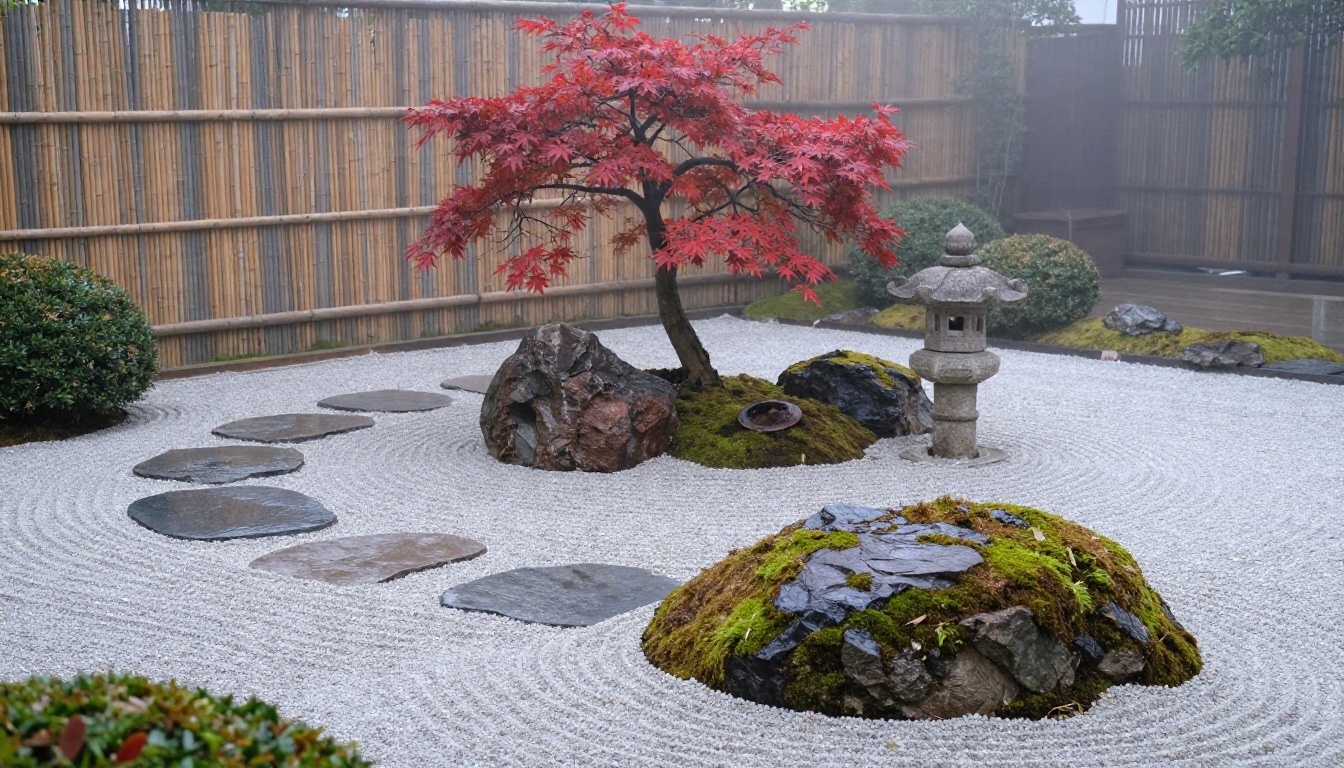
Raked gravel, moss, stepping stones, a maple and clipped evergreens. The style depends on restraint, which makes it a good candidate for AI previews because you can test how little is enough.
Productive Raised Beds
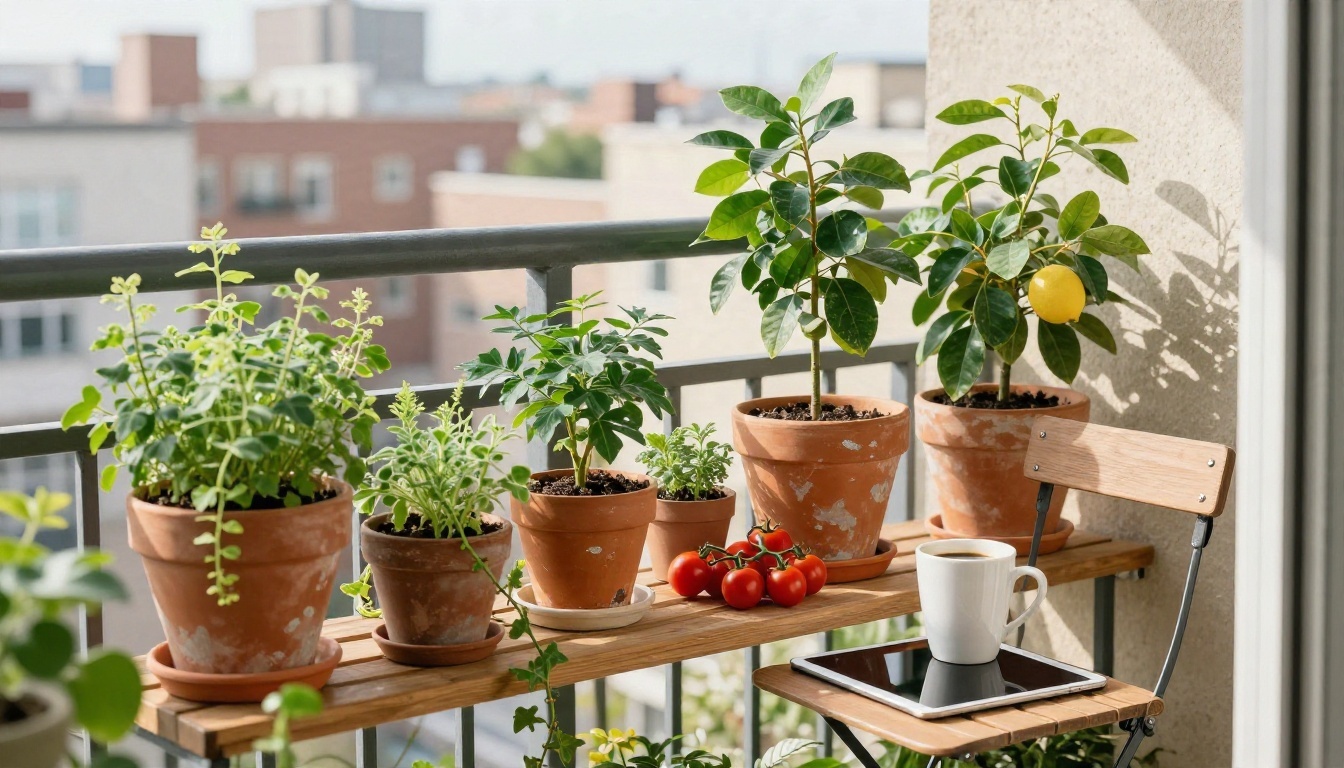
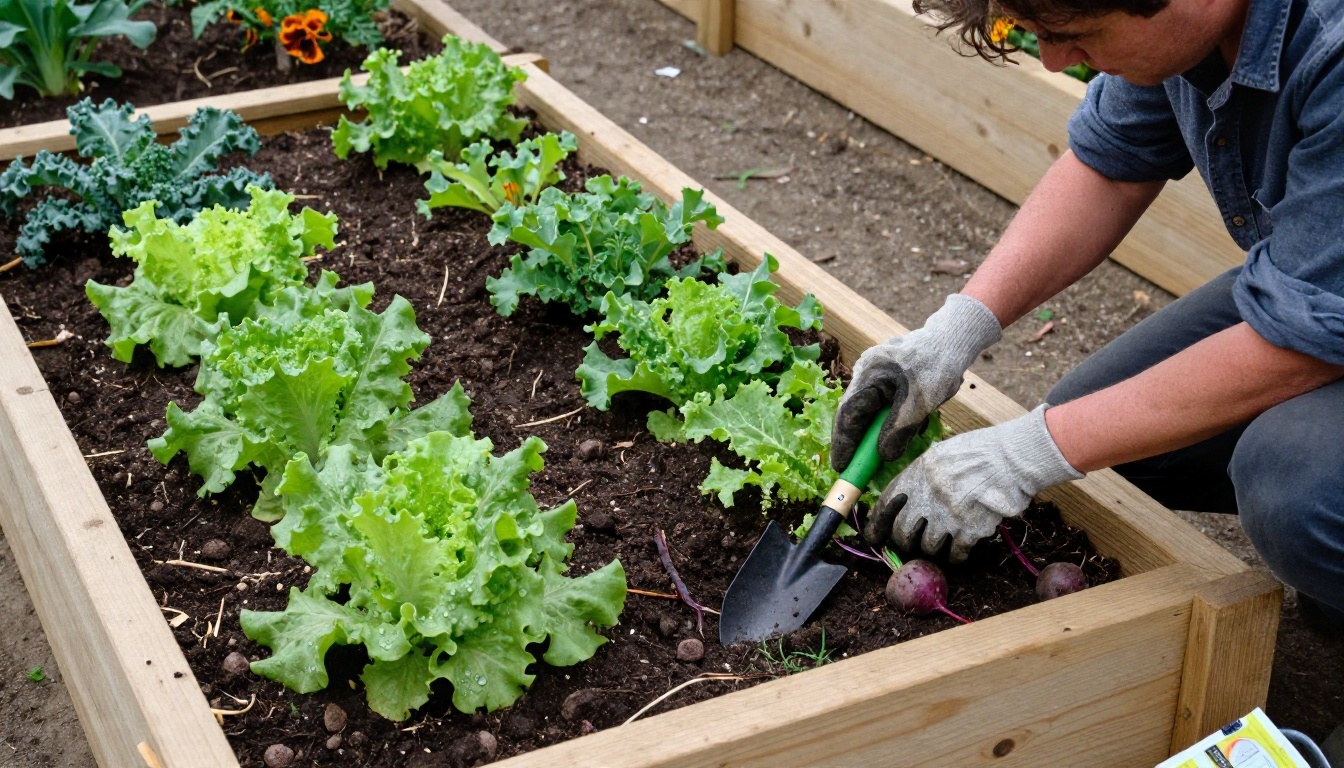
Cedar beds, herbs and vegetables, with flowers mixed in to attract pollinators. When you preview this style, be honest about how much time you can spend weeding and watering.
Evening Entertaining Space
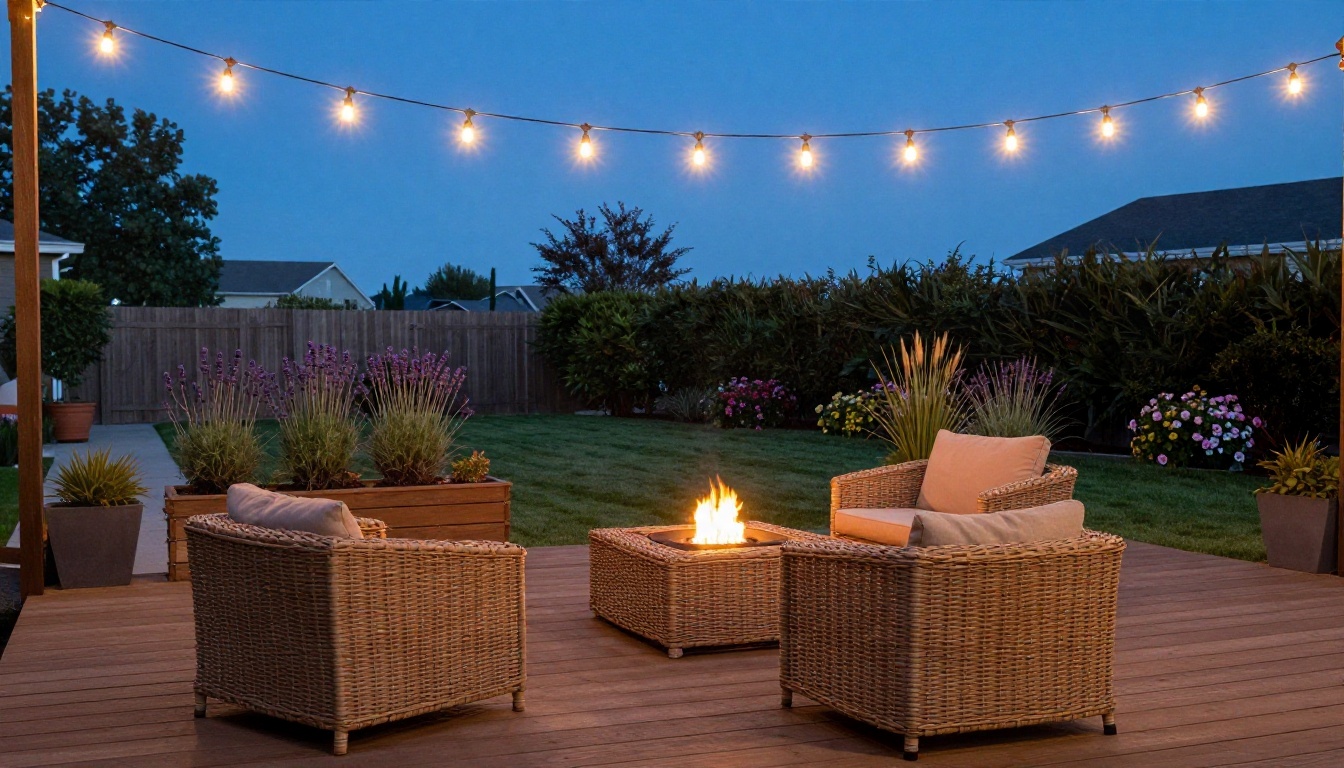
A deck, soft lighting, a fire bowl and planters. This style is about how the space feels after sunset, which is exactly the kind of detail a floor plan cannot show. Try prompts that specify blue hour and warm lighting.
A Simple Decision Checklist
| Question | If yes | If no |
|---|
| Do you want fast inspiration? | Use a photo redesign app or Nano Banana | Start with a layout planner |
| Do you need exact measurements? | Use a 3D planner or sketch on paper | A rough preview is fine |
| Do you expect many revisions? | Use an unlimited editor | A credit based app may be enough |
| Are you unsure about plants? | Check a plant database first | Pick from your nursery's list |
Design Your Garden Today
You do not need a landscaper's budget to see what your yard could look like. Start by taking one photo of the space that bothers you most. Run it through a free app to check whether the credit offer is genuine, then try the same photo with a flexible model such as Nano Banana or Seedream 4.5 and compare the results side by side.
Write three different prompts: one calm and minimal, one lush and layered, one built around how you want to use the space on a summer evening. Keep your favourite, check every plant against your local conditions, and measure before you buy anything.
Ready to see your own backyard reimagined? Open PicassoIA, upload a photo, and experiment with as many garden ideas as you like. The first preview costs nothing, and it may save you from a very expensive planting mistake.


