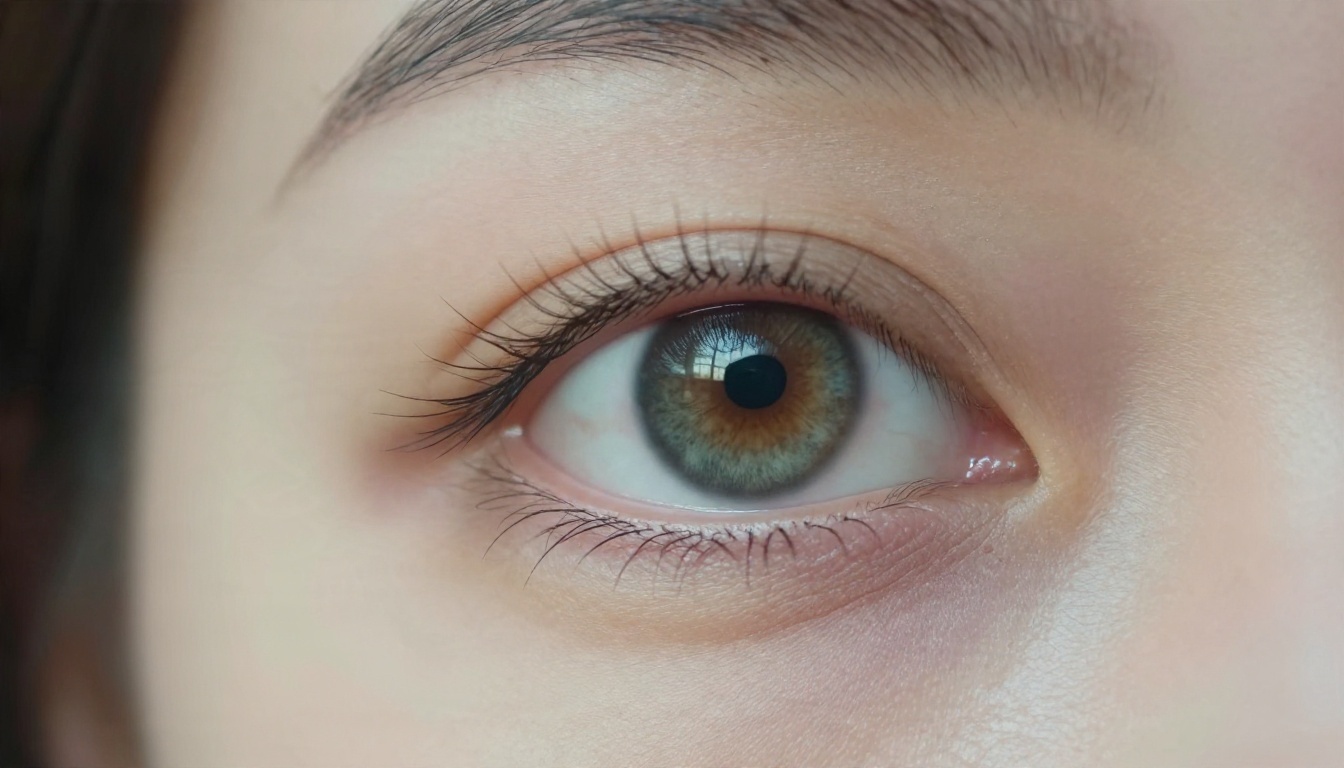
Type a few lines of text, wait a few seconds, and a person who never existed looks back at you. Pores, stray hairs, a small asymmetry in the smile. That is where AI generated faces are today, and the gap between a believable portrait and a waxy, over smoothed one comes down to three things: the generator you pick, the words you write, and the photographic settings you describe. This article walks through all three, with real examples, copyable prompts and a short list of settings that make a face feel photographed instead of rendered.
What AI Generated Faces Really Are
An AI generated face is a synthetic portrait produced by an image model from a text description or a reference photo. No camera is involved, and no real person sits behind it unless you deliberately feed in someone's photo. The model has been trained on enormous numbers of images, and it predicts what a face with your described traits would look like under your described light.
💡 Quick definition: a generated face is an image of a fictional person. If it resembles a real individual, that is coincidence or misuse, not the design.
How the Models Build a Face
Modern text to image systems start from noise and refine it step by step toward an image that matches your prompt. Faces are one of the hardest subjects because humans are extremely sensitive to tiny errors. A slightly off eye highlight or a lip edge that is too clean will trigger that uncanny feeling instantly.
Newer models handle this far better than the early generators. They keep the two eyes consistent, place teeth believably, and render skin with micro variation instead of a flat airbrushed surface.
Why Some Faces Look Fake
Most "obviously AI" portraits share the same problems:
- Over smoothed skin with no pores or fine hair
- Perfect symmetry that real faces never have
- Flat, frontal lighting with no shadow direction
- Dead eyes with no catchlight or the wrong one
- Plastic hair where strands merge into a helmet
Every one of these can be steered by what you write. That is the good news.
Free Generators Worth Trying
You do not need a paid subscription or a powerful computer to make a convincing face. Several strong models are available on PicassoIA, and most can be tried without a big upfront commitment. The right one depends on whether you want speed, maximum realism or editing control.
Text to Image Models for Portraits
| Model | Best for | Strength with faces |
|---|
| Z Image Turbo | Fast drafts | Sharp results in seconds, great for testing prompts |
| Seedream 4.5 | High resolution portraits | Detailed skin and hair at up to 4K |
| Nano Banana Pro | Consistent characters and edits | Strong identity control and natural expressions |
| Imagen 4 | Photographic realism | Clean lighting and believable eyes |
| Qwen Image 3 | Natural prompts | Understands long descriptive sentences well |
| Realistic Vision v5.1 | Classic photoreal look | Film like tones and lifelike skin |
| GPT Image 2 | Instruction following | Follows detailed directions on pose and wardrobe |
A sensible workflow: draft with Z Image Turbo until the composition feels right, then rerun the final prompt in Seedream 4.5 or Imagen 4 for the polished version.
Fixing and Upscaling Faces
Even a good generation can come out soft around the eyes. Real ESRGAN upscales images up to 4x and recovers edge detail on eyelashes, brows and hair. Run it as the last step, never before you have chosen your final image.
Editing a Face Without Starting Over
Sometimes the face is right but one thing is wrong: the haircut, the background, the expression. Instead of regenerating, use an editing model. Nano Banana can change details while keeping the person recognizable, and Change Haircut swaps hairstyles on an existing portrait in one step.
Prompts That Produce Real Faces
A face prompt is not a list of adjectives. It reads more like a short photographer's brief. The model needs to know who is in the frame, what they are doing, where they are, how the light falls, and what camera captured it.
The Prompt Formula
Use this order. It works across nearly every model above.
- Subject: age range, build, skin tone, hair, one or two distinct features
- Expression and pose: half smile, looking off camera, head turned slightly
- Setting: window, street, studio, meadow
- Light: direction, softness, time of day
- Camera: focal length, aperture, distance
- Texture and film: pores, fine grain, natural color
💡 Tip: put the unusual details early. "Faint scar through the left eyebrow" at the end of a 100 word prompt is often ignored.
Here is the formula applied to a real prompt:
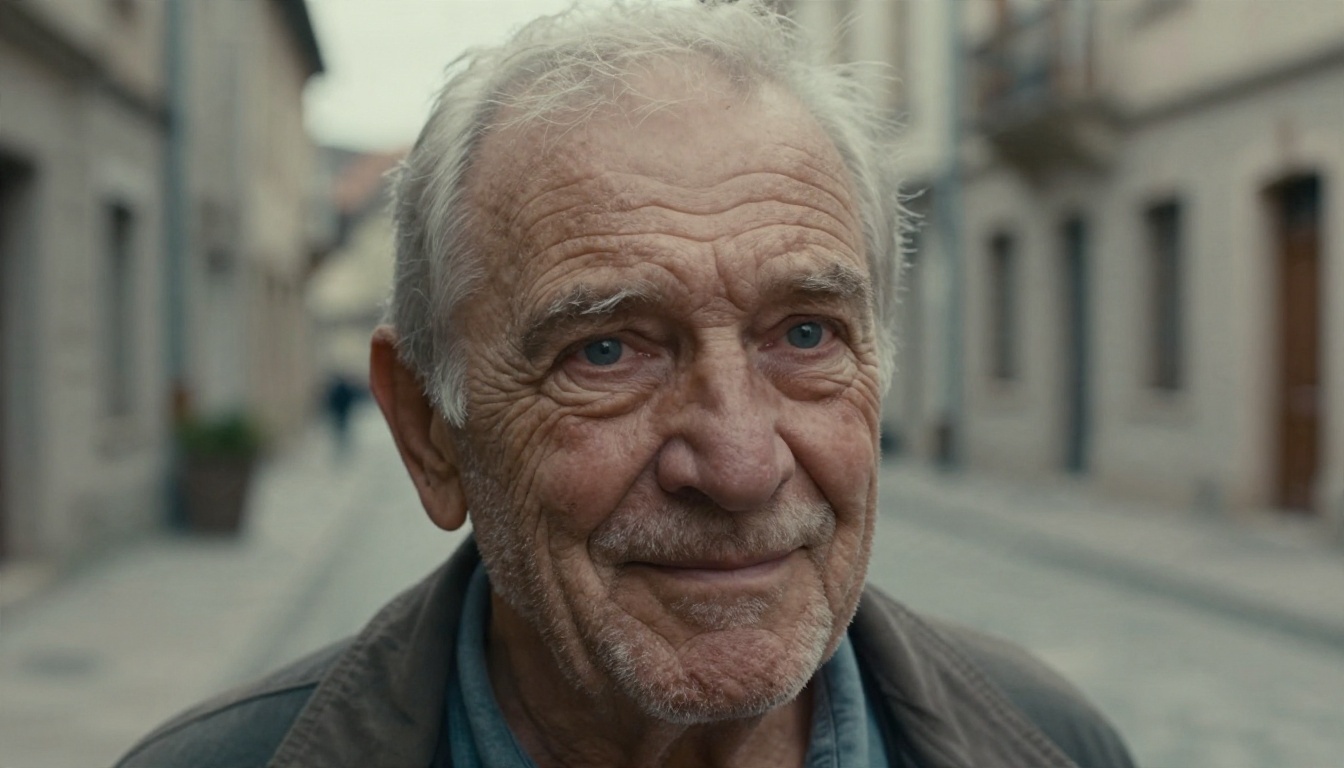
"Close up portrait of a fictional elderly man with deep wrinkles, silver stubble and cloudy blue gray eyes, smiling gently on a cobblestone street in a small European town, soft overcast daylight from above, 85mm f/1.8 shallow depth of field, visible skin pores, age spots and weathered texture, Kodak Portra 400 film grain."
Ten Prompt Building Blocks to Copy
Mix and match these phrases. Each one pushes the model toward a specific, believable detail.
| Goal | Phrase to add |
|---|
| Real skin | "visible pores, fine peach fuzz, natural unretouched skin" |
| Real eyes | "moisture in the eyes, window shaped catchlight" |
| Imperfection | "slight asymmetry in the smile, uneven eyebrows" |
| Age | "laugh lines, faint forehead creases, sun weathered cheeks" |
| Hair | "individual flyaway strands, slightly tousled" |
| Candid feel | "caught mid laugh, not posing, looking just past the lens" |
| Film look | "Kodak Portra 400, fine organic grain, lifted blacks" |
| Depth | "85mm f/1.8, creamy background blur, eyes tack sharp" |
| Soft light | "large window light from the left, gentle shadow falloff" |
| Anti plastic | "no beauty filter, no skin smoothing, no airbrushing" |
Examples Across Ages and Styles
Seeing the same approach applied to different people shows how flexible it is. Every image in this article was made from a text prompt only, with no reference photo of a real person.
Young Adults in Warm Light
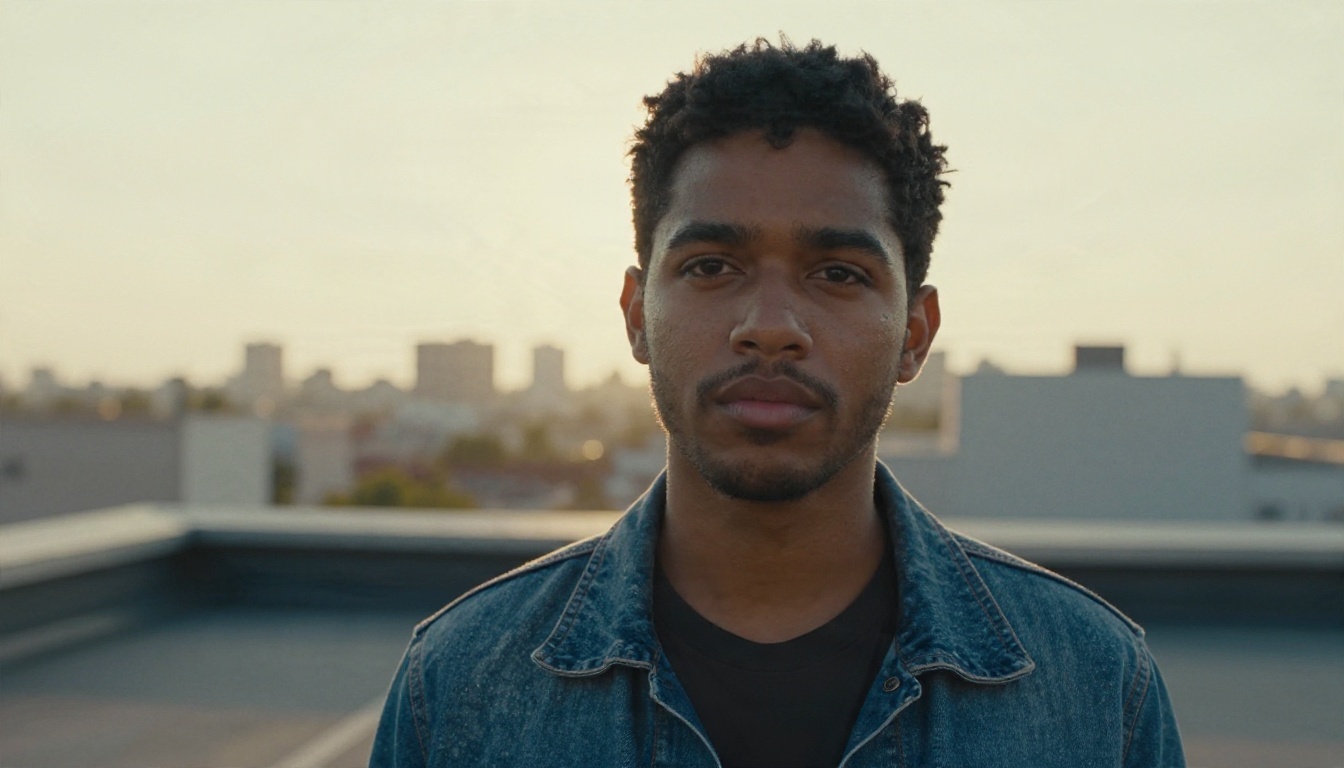
A low angle shot of a young man on a rooftop at golden hour shows how backlight creates a soft rim on hair and shoulders while the face stays readable. The prompt specified "warm sunlight from behind" and "slight sheen on skin," which keeps the face from going flat.
Candid Beats Posed
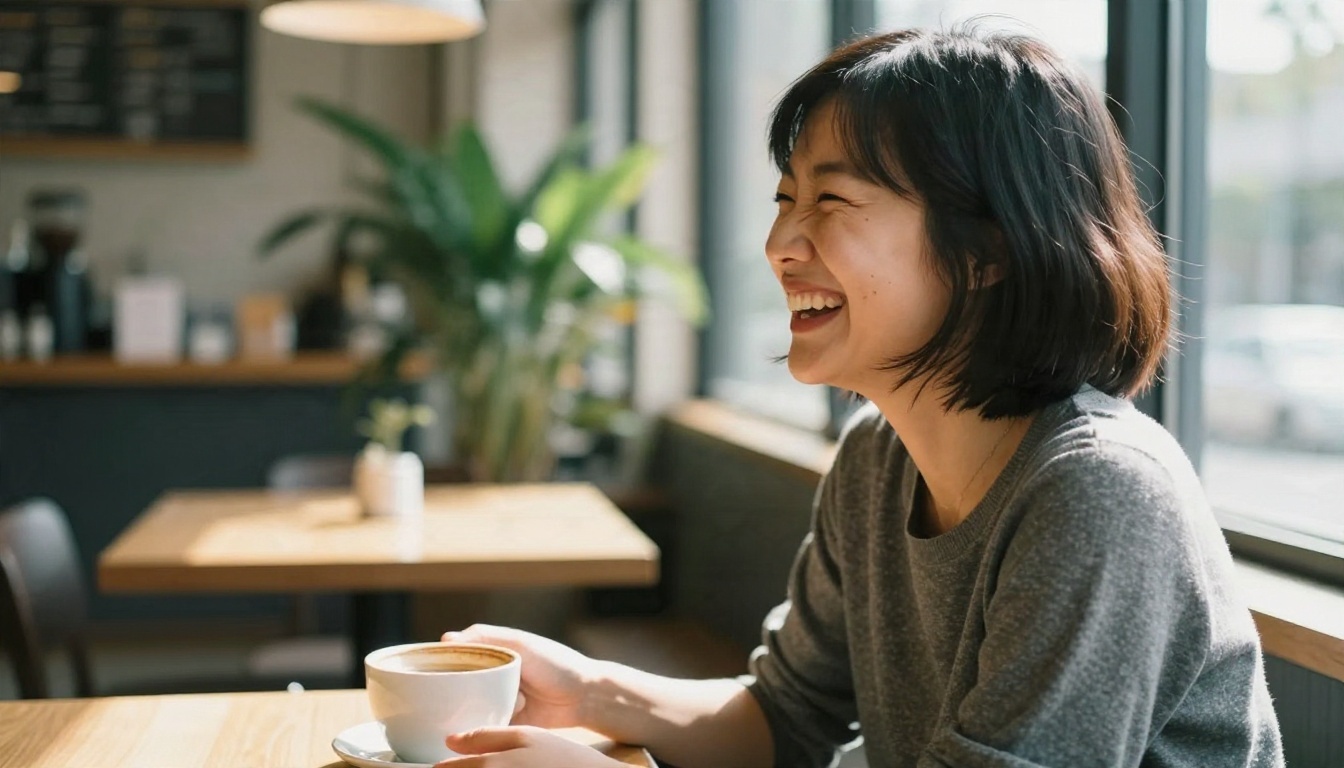
Look at the cafe example above. The laugh, the squinted eyes and the slight head turn make it feel like a photo someone took without asking. Posed, symmetrical, camera facing portraits are the ones that most often read as synthetic. When in doubt, ask for a moment instead of a pose.
Diverse Groups in One Frame
Group portraits are harder because the model has to keep several faces distinct. Describe each person separately, with age and one memorable trait, and keep the lighting simple. A single large softbox from the front left gives everyone clean, even detail.
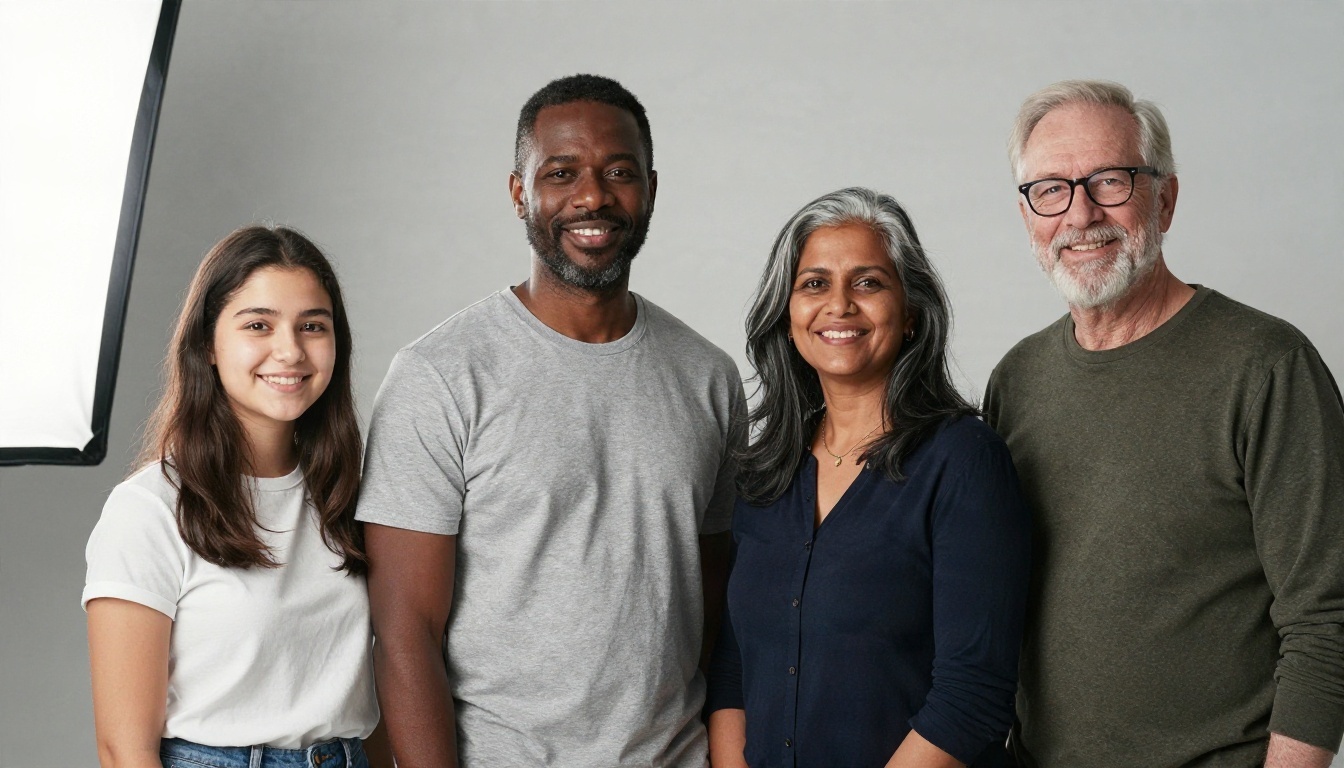
💡 Tip: for groups, use Nano Banana Pro or Seedream 4.5. Both handle multiple subjects with fewer merged features.
Realistic Settings That Matter
Good faces are photographs in disguise. If you write like a photographer, the model responds like a camera.
Light Direction and Softness
Light does more for realism than any facial detail. Three setups cover most needs:
- Window light from one side: soft, natural, forgiving. Ideal for everyday portraits.
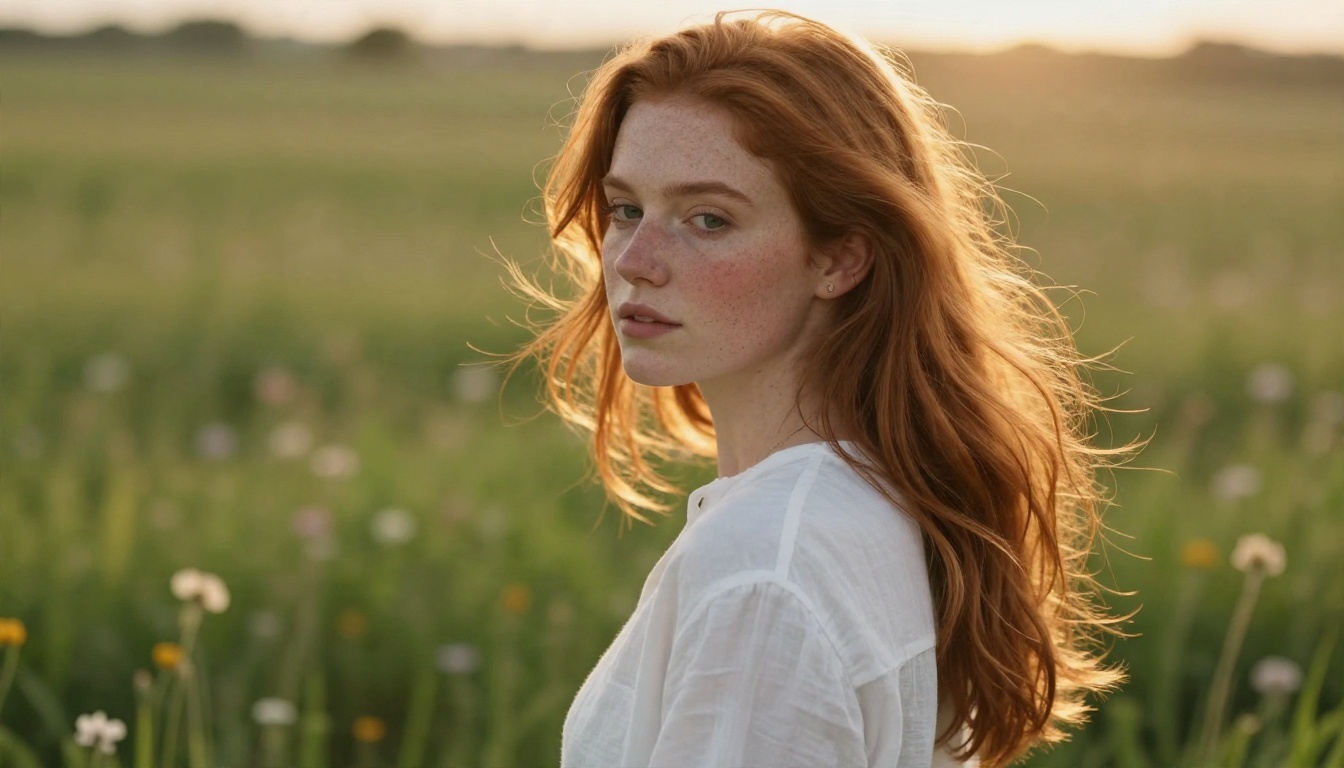
- Golden hour backlight: warm rim on hair, gentle glow on the cheeks.
- Single hard light from above and to one side: a dramatic, moody look with a small triangle of light on the shadow cheek.
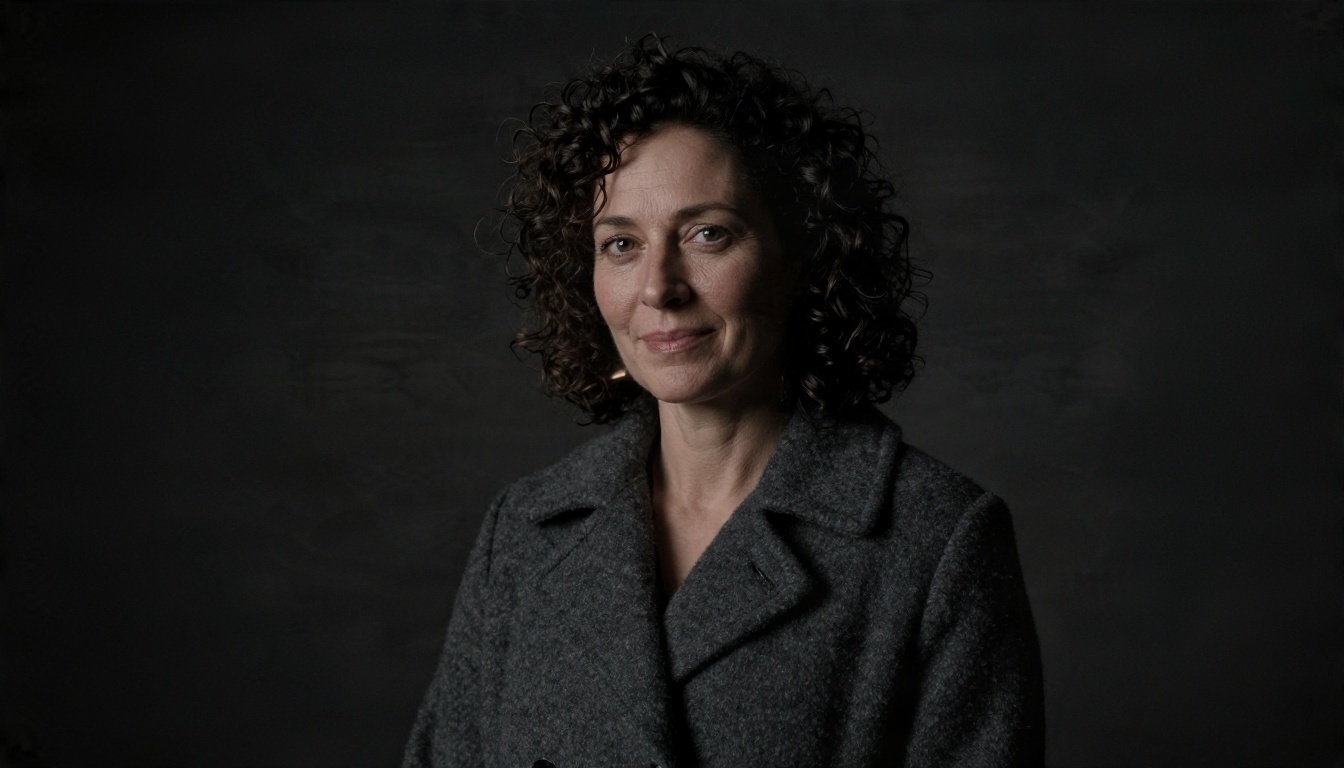
The studio example above used one hard light from the upper right against a dark backdrop. The fine hair and smile lines survive because the light is directional, not because the prompt asked for "more detail."
Lens and Distance
Focal length changes the face itself:
| Lens | Effect on a face | Use it for |
|---|
| 35mm | Wider, shows environment, slight distortion up close | Street and candid scenes |
| 50mm | Natural, close to human vision | Everyday portraits |
| 85mm | Flattering compression, soft background | Classic headshots |
| 100mm macro | Extreme detail on skin and eyes | Texture close ups |
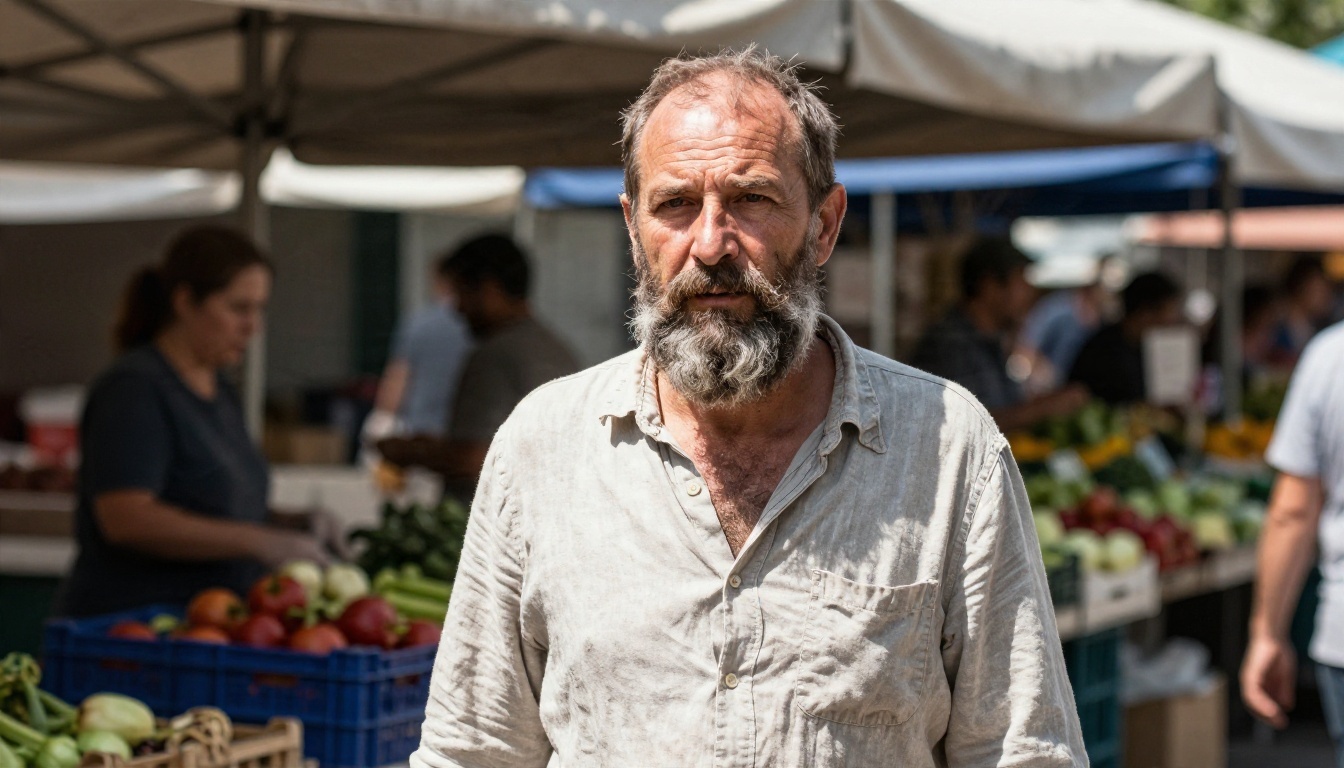
An environmental portrait at 35mm, like the market scene below, keeps the person in context and feels more documentary than a tight headshot.
Skin Texture and Film Grain
Two small phrases do a surprising amount of work: "visible skin pores" and "fine film grain." Grain hides the tiny digital smoothness that gives AI images away, and pore detail stops the model from airbrushing. For a warm, natural palette, naming a stock like Kodak Portra 400 is a reliable shortcut.
Common Mistakes and Fast Fixes
Most failed faces come from a short list of habits.
| Mistake | What you get | Fix |
|---|
| Writing "beautiful, perfect face" | Generic, symmetrical mask | Describe specific features and flaws |
| No light described | Flat, frontal look | Name the direction and softness |
| Too many style words | Muddy, over rendered skin | Keep one film or lens reference |
| Huge prompts with conflicts | Ignored details | Trim to the most important 60 to 90 words |
| Upscaling too early | Amplified errors | Choose the final image first, then upscale |
Hands, Teeth and Ears
These are the classic weak spots. If a generation has odd teeth, try a closed mouth smile or a softer expression. For ears, add hair that partly covers them or frame the shot from a three quarter angle. Rerunning with a new seed often fixes small flaws faster than rewriting the prompt.
Consistency Across Several Images
If you need the same fictional person in multiple scenes, choose an editing capable model like Nano Banana Pro and reuse the same portrait as a reference. Flux 2 Klein 4B Base is another option when you want to experiment with tuned styles around a consistent face.
Using Synthetic Faces Responsibly
Generated faces have legitimate and creative uses. They also carry real risks, and a few simple habits keep you on the right side of both.
Good Uses
- Mockups and design: website heroes, app screens, pitch decks
- Fiction and games: character references for writers and tabletop players
- Privacy: avatars and profile images that do not expose a real person
- Testing: placeholder faces for software demos
- Concept art references: mood boards for photographers and directors
Lines Not to Cross
- Do not generate faces of real people without their consent
- Do not use a synthetic face to pose as a real, verified person
- Label synthetic imagery when context could mislead viewers
- Avoid fake reviews, fake testimonials and fake identity documents
💡 Rule of thumb: if a viewer would feel tricked on finding out the face is synthetic, add a label or choose a different approach.
Make Your Own Faces Today
You now have the full pipeline: pick a generator, write a photographer's brief, describe light and lens, and fix flaws with an editing or upscaling pass. The fastest way to improve is to run the same prompt in two or three models and compare. Try Z Image Turbo for quick drafts, Seedream 4.5 for a polished final, and Real ESRGAN for the last sharpening pass.
Open Picasso IA, paste one of the prompts from this article, change the age, the light or the location, and see how much one detail shifts the whole portrait. Browse every model at picassoia.com/en/all-models and build your own set of believable faces today.


