You have a haircut idea saved on your phone, but you can't tell whether it will suit your face, and the salon chair is not the place to find out. That is the whole reason AI hairstyle changers exist: you upload a photo, type or pick a style, and a minute later you see yourself with a bob, curtain bangs, a fade or copper red hair. The catch is that "free" and "no signup" mean different things on different sites, and the fine print around photo upload and daily limits decides whether a tool is actually useful.
This article sorts the marketing from the reality. You will see what a free hairstyle changer does under the hood, what "no signup" usually hides, which photos give believable results, which limits to expect, and how to run your own haircut tests with image editing models on PicassoIA.
What an AI Hairstyle Changer Does
A hairstyle changer is an image editing model pointed at one task: keep your face, skin tone, pose and background, and replace only the hair. Older "virtual makeover" apps pasted a flat hair overlay on top of your head, which is why the results looked like a wig. Modern tools regenerate the hair region from scratch, so the strands follow your head shape, pick up the light in your photo, and fall naturally around your ears and shoulders.

Most tools fall into three groups:
- One click preset tools: you pick from a gallery of haircuts and colors. Fast, but limited to what the site offers.
- Prompt based editors: you write "short wavy lob with side part, honey blonde" and the model follows. More freedom, a bit more trial and error.
- Reference photo tools: you upload a second picture of a haircut you like and the tool tries to transfer it to your head.
💡 Tip: If a tool only offers a handful of presets, it is a template engine. If it accepts free text, it is a real editing model, and you can describe almost any cut.
Why people use them
The honest use cases are practical. People want to check a big chop before cutting off ten inches, test a hair color before paying for bleach, try bangs without commitment, or show a stylist exactly what they mean. A preview also settles arguments with a partner, a friend, or yourself.
What they cannot do
A preview is not a promise. The AI doesn't know your hair density, your cowlick, or how thick your curls are when dry. It shows the shape and color, not the daily styling effort. Treat it as a mood board with your own face on it.
What "No Signup" Really Means
Searching for a free hairstyle changer returns dozens of sites that say no signup, no credit card. Some of that is true. A quick look at the public pages shows the pattern: the Krea hairstyle changer app advertises a free try with no sign-up, and the insMind page says you can start without logging in, while noting that higher quality downloads or extra editing options may need an account. A Pixelbin review makes the same point about some tools: the basic preview works anonymously, but exporting the result may not.
These are vendor claims and they change often, so check the live page before you rely on them.
The four flavors of "free"
| Type of free | What you get | Typical catch |
|---|
| Truly open | Upload, generate, download, no account | Daily cap by IP or device |
| Preview only | See the result on screen | Download locked or watermarked |
| Credit based | A few free generations | Account needed after the first tries |
| Trial | Full features for a short time | Card requested, auto renewal |
How to spot a bait and switch
Run this thirty second test before you upload anything personal:
- Open the tool in a private browser window.
- Look for a login wall before the upload button. If it appears, it is not no signup.
- Generate one image and try to download it.
- Check for a watermark across the face or in a corner.
- Look for a pricing link near the download button.
If all five steps pass, the tool is as free as it claims for a casual try.
💡 Tip: "No signup" does not mean "no data." Skim the privacy policy for how long uploaded photos are kept, and whether they are used to train models.
Photo Upload: What Works Best
The photo you upload decides about 70 percent of the quality you get back. The model has to find your hairline, ears and neck, and anything blocking those spots creates strange blends.
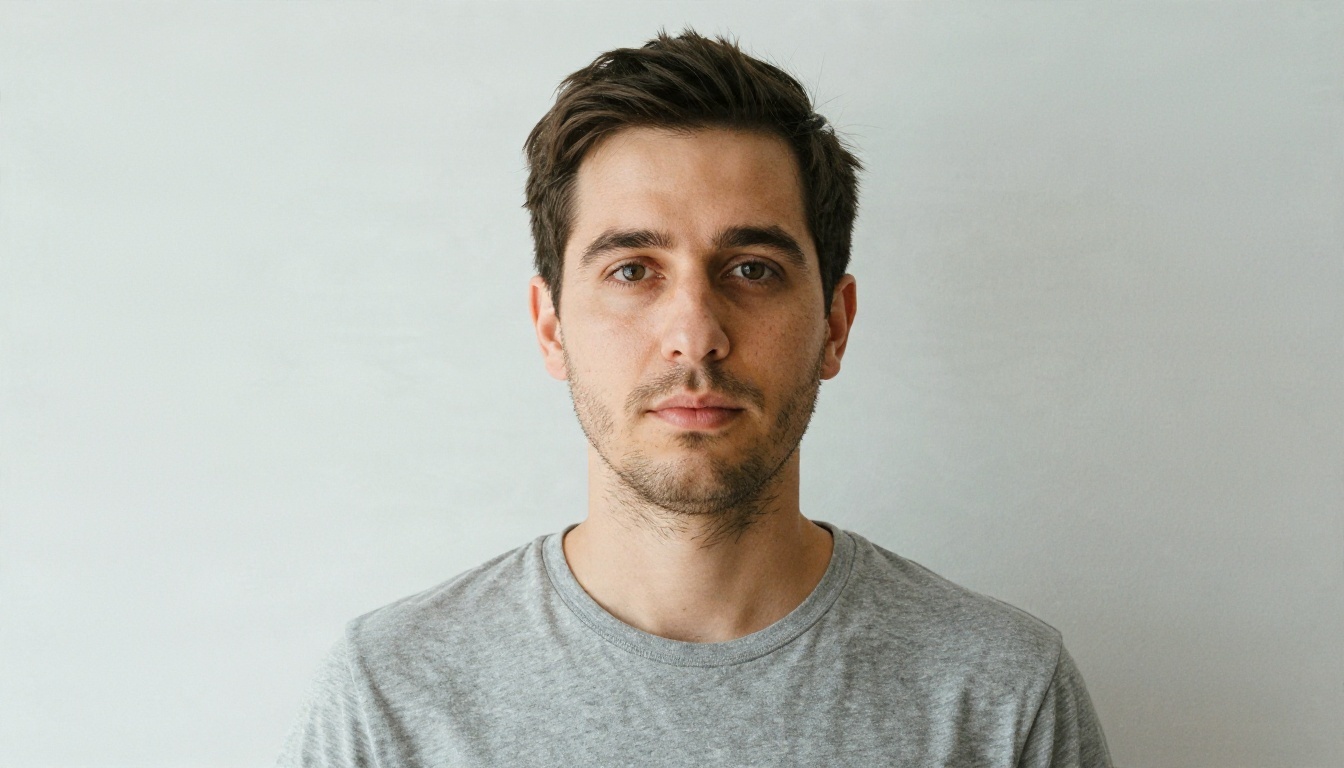
The ideal source photo
- Face the camera straight on, or within about 20 degrees.
- Pull your hair back or keep it simple. A flat starting point gives the model more room.
- Show your ears and hairline. That is where most editing errors happen.
- Use soft, even light. A window in front of you beats a ceiling bulb.
- Plain background. Less clutter means fewer stray artifacts around the head.
- Resolution of 1000 pixels or more on the short side.
Photos that cause trouble
| Problem photo | What goes wrong |
|---|
| Hat, hood or headphones | The tool invents hair through the object |
| Heavy shadows on the forehead | Hairline looks smudged |
| Sunglasses | Bangs overlap the frame strangely |
| Group shots | Wrong person edited, or several changed |
| Extreme selfie angle | Head shape distorts the new cut |
| Filters and beauty modes | The model copies the smoothing, so skin looks plastic |
Privacy before you upload
Use a photo you are comfortable sharing. Don't upload images of other people unless they agreed, and never upload photos of children to a tool you haven't checked. If a site doesn't state how long it keeps files, assume it keeps them.
Limits You Will Hit
Free tools have to pay for GPU time somehow, so every one of them has boundaries. Knowing them in advance saves frustration.

The common ceilings
| Limit | Typical range | Why it exists |
|---|
| Generations per day | A handful to a few dozen | GPU cost |
| Output resolution | Often capped near 1024 pixels | Faster, cheaper renders |
| Watermark | Corner stamp or full overlay | Free tier branding |
| Queue wait | Seconds to several minutes | Shared servers |
| File size on upload | Around 5 to 10 MB | Bandwidth |
| Styles available | Preset gallery only | Simpler product |
| Commercial use | Often not allowed | License terms |
Which limit actually matters
For a personal haircut test, resolution and watermark rarely matter. You need to see the shape and the color on a phone screen. What matters is the number of tries, because a good result usually takes three to six attempts with small prompt changes.
For content creators or anyone using the image publicly, the license and the watermark matter most. Read the terms before you post anything.
💡 Tip: If you hit a daily cap, don't create ten accounts. Switch to a different tool or an image editing model on a platform with a broader free allowance, and keep your best prompt handy.
Realistic Results: What to Expect
Quality varies more than most reviews admit. These are the patterns that show up again and again in real use.
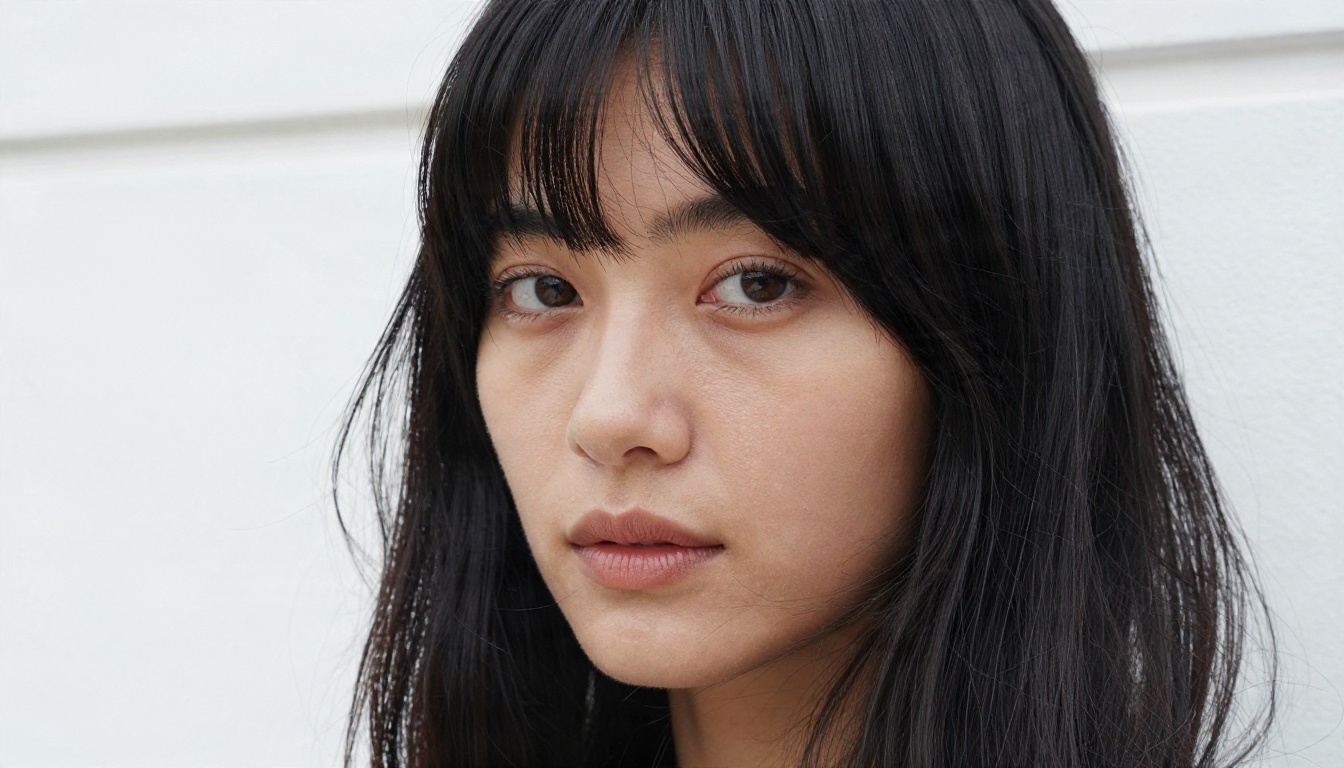
What looks convincing
- Bangs and fringes. The forehead area is simple, so models handle it well.
- Hair color changes. Shifting from brown to copper or blonde is the easiest edit, because shape stays the same.
- Length changes in straight hair. Bobs, lobs and long layers land cleanly.
- Parting changes. Side part versus middle part is a small edit with a big visual impact.
What still goes wrong
- Curls and coils. Tight textures can come out too loose, or too uniform.
- Updos and braids. Fine structure tends to blur or repeat.
- Very short cuts on long hair. The tool must invent your neck and ears.
- Hairline accuracy. Receding hairlines are sometimes "fixed" without you asking.
- Skin tone drift. Strong dye colors can tint the face by reflection.
Matching a cut to your face
Face shape advice is everywhere, and most of it is a loose rule of thumb. Use the AI preview instead of the rules: generate the same cut on your photo, then ask whether you like how it looks. A blunt bob on a round face may look great, whatever the chart says.
How to Use Image Editing Models on PicassoIA
You don't have to depend on a single hairstyle app. General image editing models can change hair on an uploaded photo if you describe the result clearly. On PicassoIA, several suit this job:
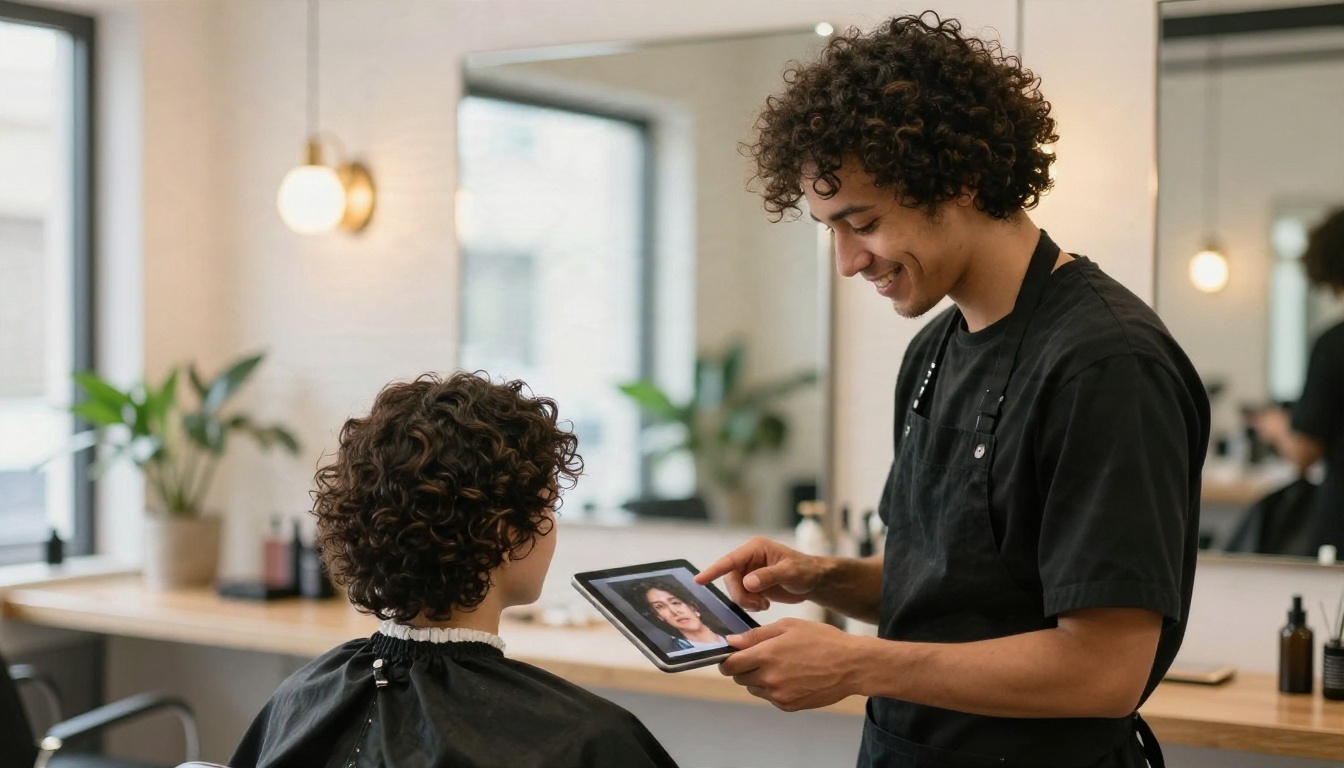
Step by step with Nano Banana
- Open the model page and choose the image editing input.
- Upload your photo. Use the straight on, hair back portrait described above.
- Write one clear instruction. For example: "Change only the hairstyle to a shoulder length blunt bob with a side part, keep the face, skin, clothing and background exactly the same."
- Set the aspect ratio to match your photo so nothing gets cropped.
- Generate, then compare the result against your original.
- Adjust one thing at a time. Change length, then color, then parting, instead of rewriting the whole prompt.
- Save the best version and the exact prompt that made it.
Current free allowances and output sizes vary by model, so check the model page for the numbers that apply today.
Prompt formula that works
Change only the hair + [length and cut] + [texture] + [color] + [parting or bangs] + keep face, skin, clothing and background unchanged
The last clause matters most. Without it, models sometimes smooth your skin, swap your outfit, or shift your expression.
Prompt examples
| Goal | Prompt |
|---|
| Short and sharp | "Change only the hair to a chin length blunt bob, straight, platinum blonde, keep everything else identical." |
| Soft and framed | "Change only the hair to long layers with curtain bangs, jet black, keep the face and background unchanged." |
| Color test | "Keep the exact hairstyle but change the color to deep copper red with subtle warm highlights." |
| Men's cut | "Change only the hair to a medium length textured top with a low fade on the sides, dark brown, keep the beard and face unchanged." |
| Curly look | "Change only the hair to shoulder length natural curls, medium density, dark brown, keep the face unchanged." |
Haircut Ideas Worth Testing
Don't test one look. Test a short list so you can compare. Here are groups that deliver clear differences on screen.
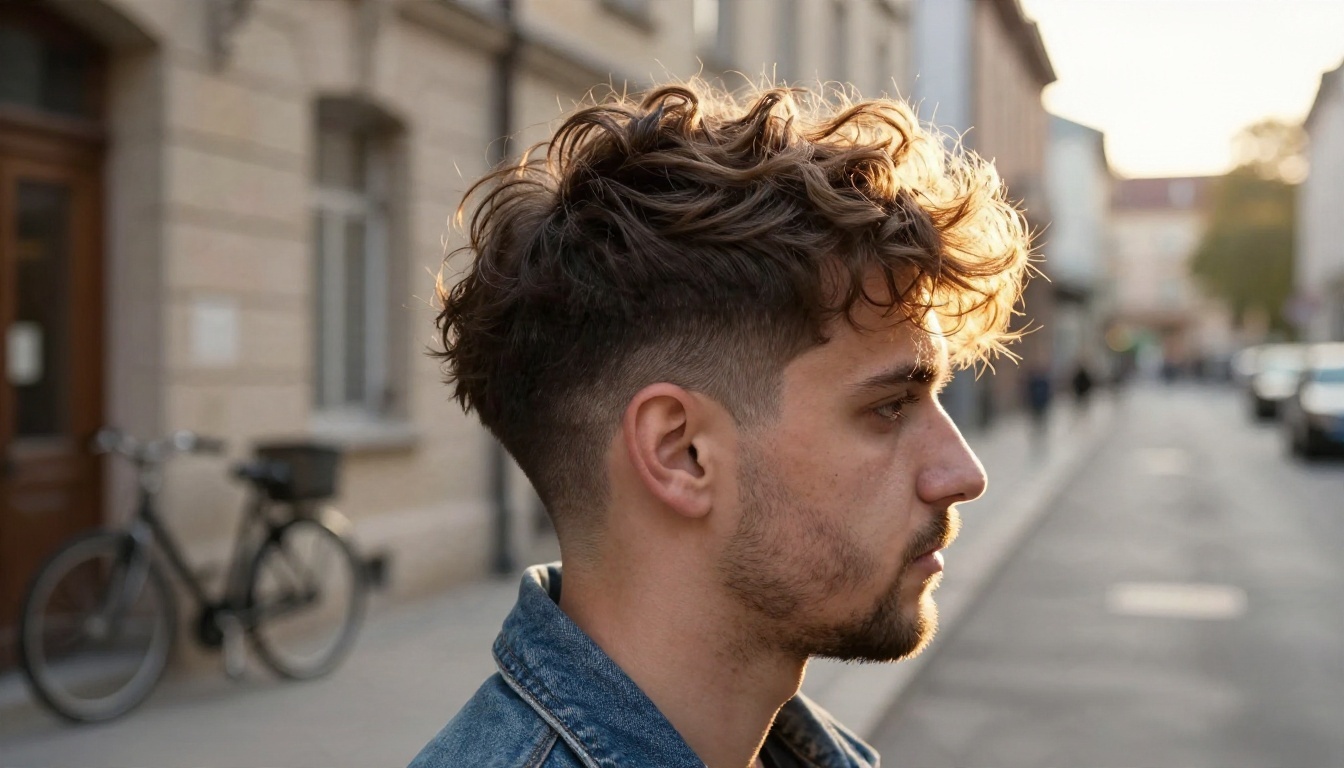
For longer hair
- Long layers with face framing pieces
- Curtain bangs parted in the middle
- Shaggy lob with a bit of texture
- Blunt bob at the jawline
For shorter hair
- Pixie with longer top
- Textured crop
- Low or mid fade with a longer top
- Buzz cut for a hard reset
For color
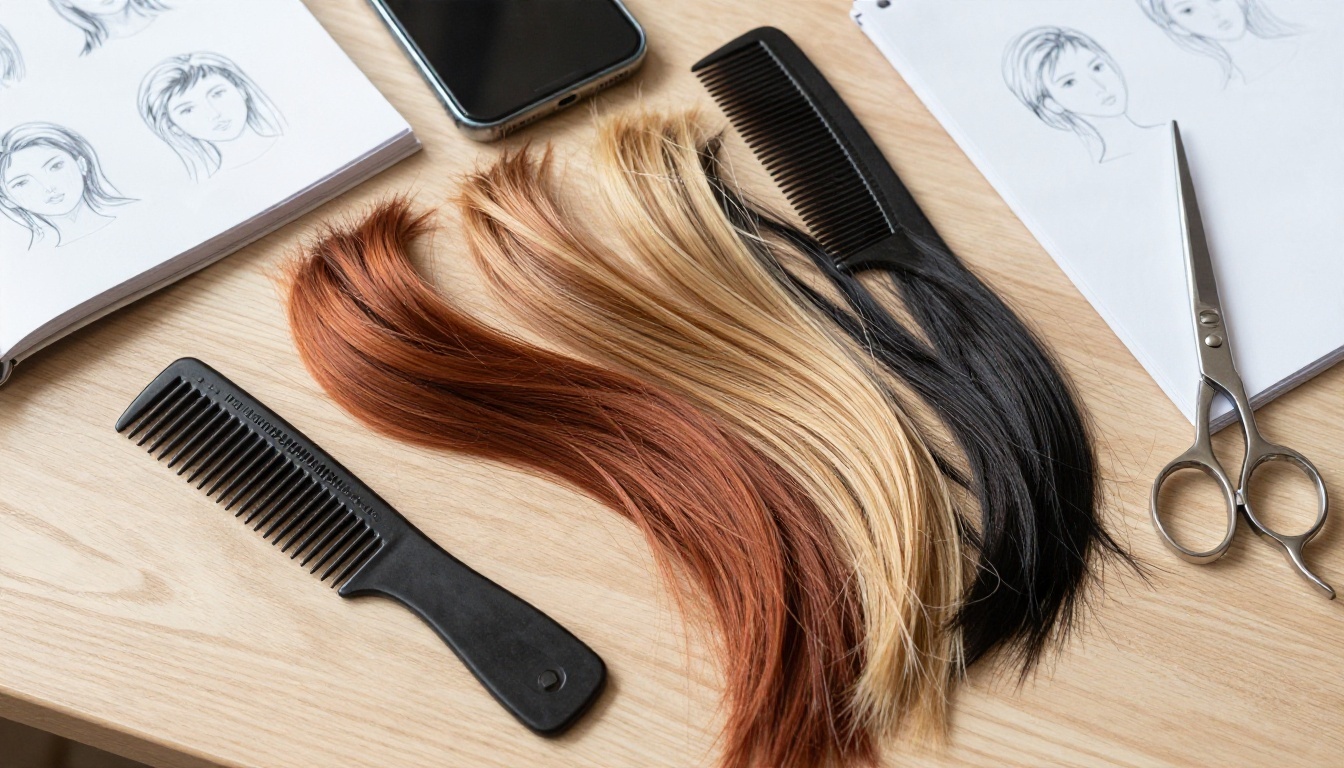
Color previews are the most reliable use of an AI changer, so run a small palette:
| Color family | Examples | Works best on |
|---|
| Warm | Copper, honey, caramel | Warm or neutral skin tones |
| Cool | Ash blonde, plum, blue black | Cool or fair skin tones |
| Natural | Espresso, chestnut, dark blonde | Almost everyone |
| Bold | Silver, pastel pink, burgundy | People ready for upkeep |
💡 Tip: Generate each color on the same hairstyle. Changing cut and color together makes it impossible to tell which one you like.
Mistakes That Waste Your Free Tries
Most disappointing results come from the same handful of errors.

- Uploading a photo with hair covering the face. The model guesses the hairline and often guesses wrong.
- Writing a paragraph. A short, specific instruction beats a long vague one.
- Changing five things at once. You can't tell what caused a flaw.
- Skipping the "keep everything else" clause. Faces drift without it.
- Trusting one result. Generate several variations before judging a cut.
- Ignoring your real hair type. A sleek bob on naturally coily hair needs heat styling every day.
- Showing only the AI image to a stylist. Bring the preview and a photo of your current hair, so they can judge the gap.
Take it to the salon
The best use of a preview is a conversation. Show the stylist your generated image, say what you like about it (length, shape, color, fringe), and ask what it would take to get there with your hair. A good stylist will tell you quickly whether it is realistic.
Compare Looks Before You Decide
Generating is the easy part. Deciding is harder, so make it systematic.
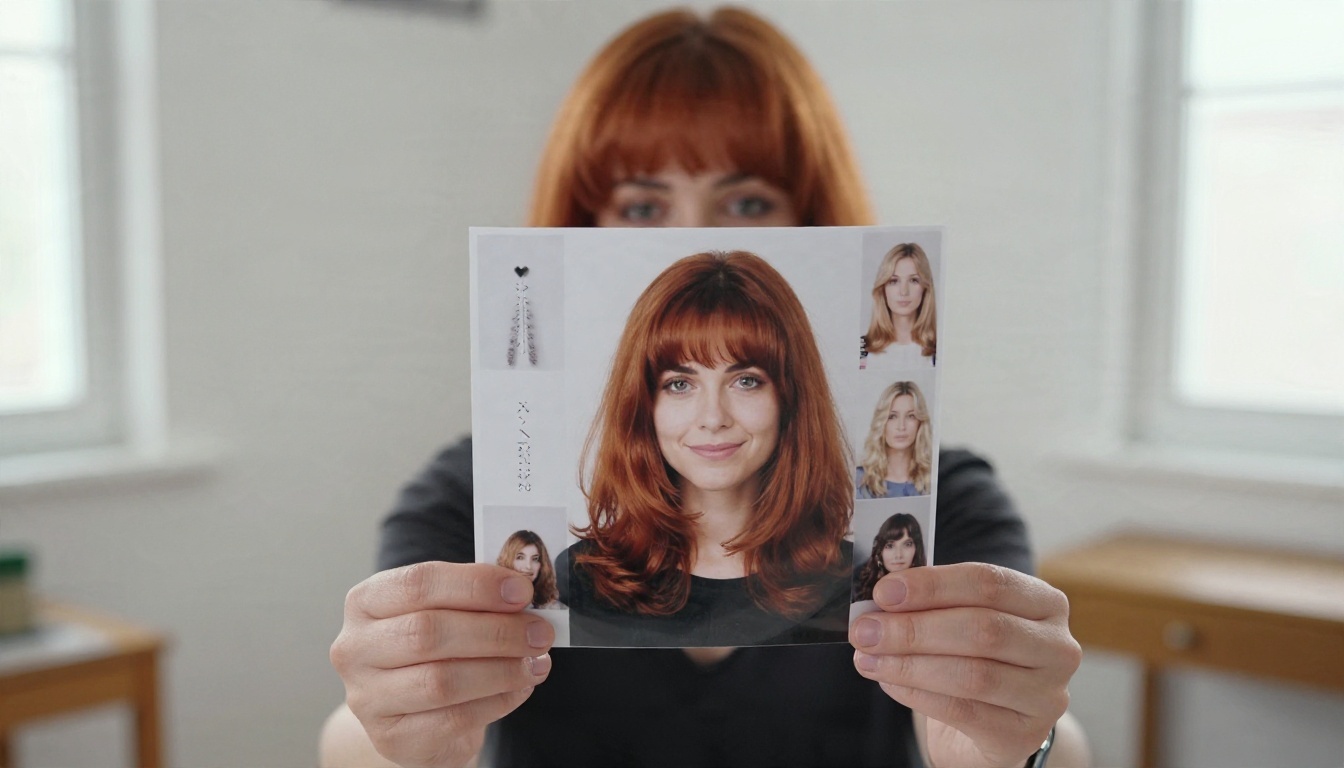
A simple scoring routine:
- Save four to six versions in one folder.
- Rate each from 1 to 5 on how it looks, how much upkeep it needs, and how it fits your daily life.
- Wait a day. The look you still like tomorrow is usually the right one.
- Ask two people for a gut reaction, without telling them which one you prefer.
If two options tie, pick the one that is easier to grow out. A cut is permanent for months, and an AI preview is not.
Try Your Own Hairstyle Test
A free hairstyle changer is a low risk way to settle a high stakes decision, as long as you know what "no signup" and "free" actually allow. Check for the login wall, watch for watermarks, use a clean front facing photo, and expect to try several prompts before you land on a result you trust.
When you want more control than a preset gallery gives you, open Picasso IA and try the editing models above. Start with Nano Banana, upload one straight on photo, write a single clear instruction, and compare three cuts and three colors side by side. Then, if you want a sharper image to share or save, run your favorite through Seedream 4.5. Your next haircut should not be a surprise, so go and test a few looks today.


