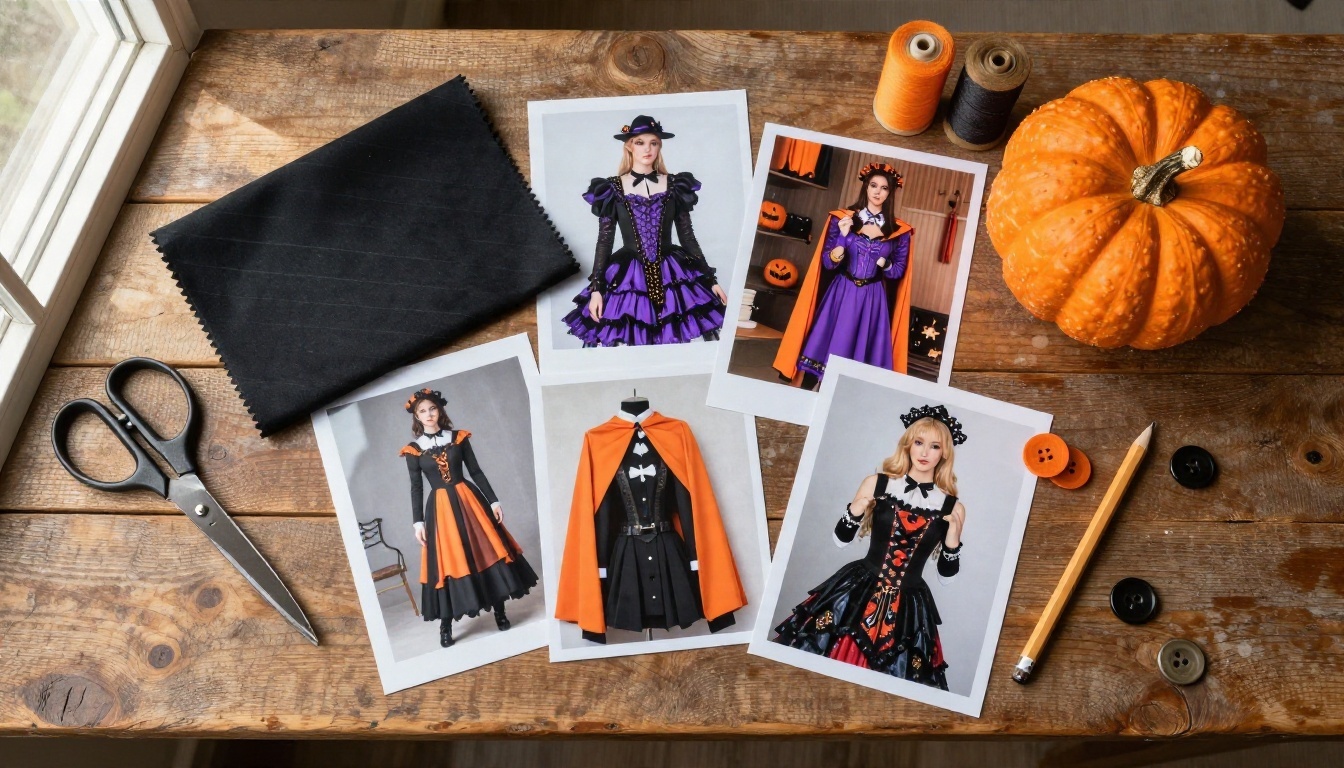
AI Halloween Costume Generator Free: Online Tool, Prompts and Ideas
Picture your Halloween costume before you spend money on it. This article shows which free online tools generate photorealistic costume previews, gives you copy-ready prompts, and lists costume ideas for solo, couple, kid and group looks.
Every October the same thing happens. You scroll through hundreds of costume photos, buy a wig you will wear once, and realize on the 31st that the whole look does not work together. An AI Halloween costume generator fixes that problem in about thirty seconds. You describe the character, the fabric, the setting and the mood, and you get a photorealistic preview of the finished look. No sewing, no returns, no regrets.
This article shows you which free online tools actually produce believable costume photos, how to write prompts that do not come out plastic, and which costume ideas are worth generating first. You will also find a step by step tutorial, a comparison table, and a short checklist for turning a picture on your screen into something you can wear.
Why Use an AI Costume Generator
Costume shopping is a guessing game. Product photos are lit by professionals, sizes run small, and the "premium" cape you ordered arrives as a shiny trash bag. A generator flips the order of operations: you see the result first, then decide what to build or buy.
Preview Before You Spend
Think of the generated image as a mood board that happens to look like a photograph. If the crimson velvet you imagined looks garish next to pale skin, you find out in one render instead of after a shipping delay. People who plan group costumes get the biggest benefit, because five people can compare options in a shared chat instead of arguing over descriptions.
Zero Cost to Experiment
Most modern image models on the web offer a free tier or a free trial allowance. You can run a dozen variations of the same witch, swap the hat, change the hair, move the scene from a living room to a foggy street, and still pay nothing. That freedom is the real value. The tenth idea is usually better than the first.
Ideas You Would Never Search For
Typing "Halloween costume" into a search bar returns the same twenty results. A generator lets you combine things nobody sells together: a 1920s detective who is also a ghost, a mushroom forager with glowing spores, a lighthouse keeper from a drowned town. Weird mashups are what win costume contests.
💡 Quick tip: Generate three wildly different concepts first, then pick one and refine it. Refining a mediocre idea rarely beats choosing a stronger one early.
Free Online Tools That Work
Not every free generator is equal. Some give you cartoonish faces, some limit you to three images a day, and some bury the output under watermarks. Here is how the models available on PicassoIA compare for costume work.
If your goal is a believable photograph of a person in costume, start with Seedream 4.5. It handles velvet nap, latex texture, lace edges and skin pores without that waxy look that gives AI images away. It also follows long prompts well, which matters when you list ten costume details in one go.
Image Editor Pro for Unlimited Tries
PicassoIA Image Editor Pro is the one to open when you plan to iterate a lot. Because generations are unlimited, you can push through thirty versions of a skeleton bodysuit without watching a counter. It is also strong for edits: change a hat, recolor a dress, add a prop.
Nano Banana for Editing Your Own Photo
Want to see yourself as the character? Upload a clear selfie to Nano Banana and describe the outfit. It is built to keep identity stable while changing clothes, makeup and background, which makes it the fastest route to a personal costume preview. For sharper output, Nano Banana Pro is worth a try.
How to Write Costume Prompts
The difference between a flat result and a gorgeous one is nearly always the prompt. Vague prompts such as "scary witch costume" return generic stock imagery. Specific prompts return photographs that look like someone actually wore the outfit to a party.
The Five Part Formula
Build every prompt from the same five blocks, in this order:
Subject and pose: who is wearing it and what they are doing.
Setting: the room, street or landscape behind them.
Lighting: direction, temperature, time of day.
Camera: lens and distance, such as "85mm f/1.8, shallow depth of field".
Here is a prompt that follows the formula:
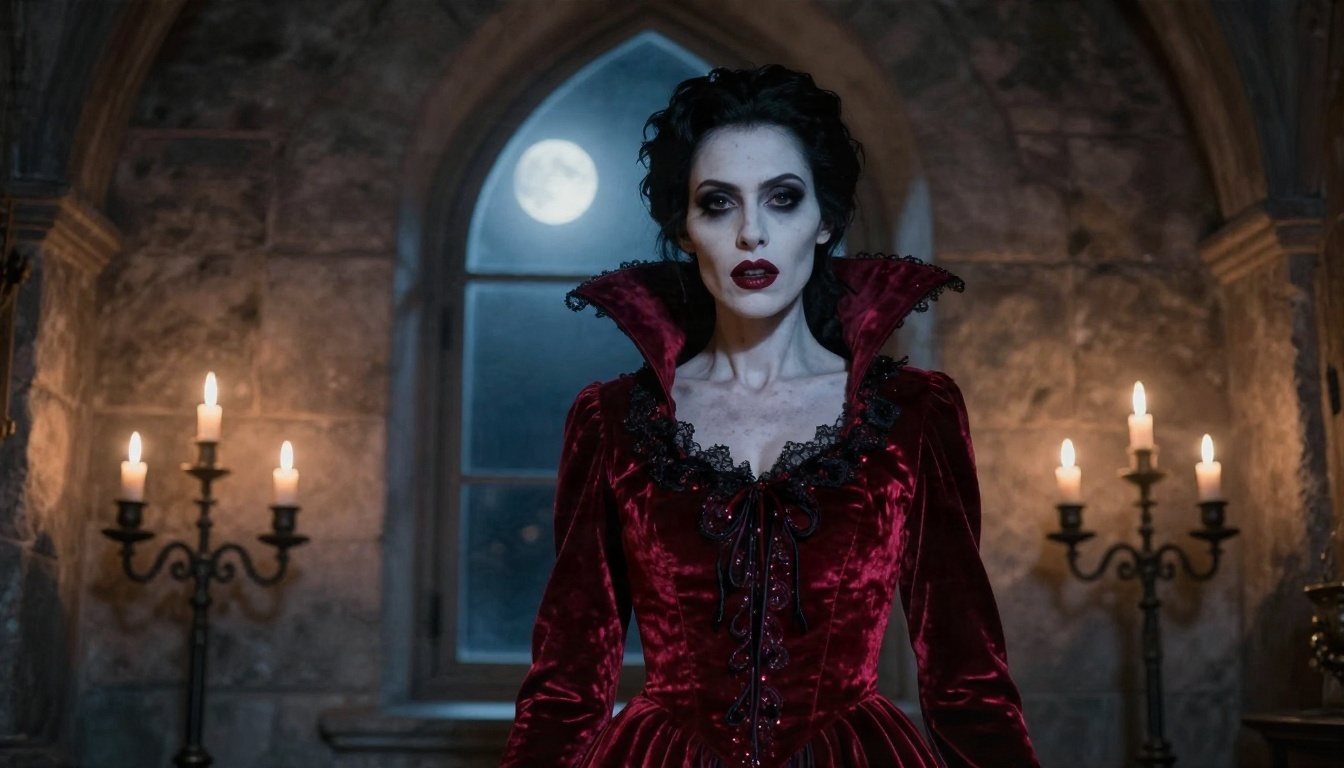
A woman in her thirties standing in a candlelit stone hallway, dressed as a gothic vampire countess, crimson velvet gown with a lace collar and silver brooch, pale skin with visible pores, dark red lipstick, flickering candlelight from below and cold moonlight from a narrow window behind her, 50mm f/1.8 lens, shallow depth of field, rough stone texture, natural film grain, Kodak Portra 400 color
Lighting and Fabric Words
Two groups of words do most of the heavy lifting. For light, use phrases like "soft window light from the left", "golden hour from behind", "warm porch lamp", "overcast daylight". For material, write what you would feel with your fingers: "velvet with visible nap", "rough burlap", "matte latex", "frayed linen", "brushed brass buttons". Models respond strongly to tactile language, and the output gains that grounded look photographers call texture.
Mistakes That Ruin Results
Mistake
What Happens
Fix
One line prompt
Generic, clip art feel
Use all five parts
Too many characters
Faces blend together
Generate one person at a time
Asking for readable text
Garbled letters
Skip text or keep it to one word
No lighting cue
Flat, studio look
Name direction and time of day
Style words like "digital art"
Cartoonish output
Ask for "photograph" and a film stock
💡 Pro move: Write a reusable base prompt for the camera and lighting, then swap only the costume line. You keep a consistent look across ten ideas, which makes them easy to compare.
Costume Ideas Worth Generating
Here are concepts that translate especially well into AI previews, with a short prompt seed for each. Paste them into any tool above and add your own lighting and camera lines.
Classic Monsters Done Right
Old favorites work because the visual vocabulary is already strong. Push each one past the cliché with a specific era or setting.
Vampire countess: crimson velvet, lace collar, candelabras, stone corridor.
Witch of the marsh: moss green cloak, bone charms, wet leaves, dusk fog.
Mummy archaeologist: aged linen wraps, brass compass, torn explorer vest.
Werewolf in progress: half torn flannel shirt, subtle prosthetic fur on the forearms.
Skeleton bodysuit: matte white ribs on black fabric, forest clearing.
Gore and Special Effects Makeup
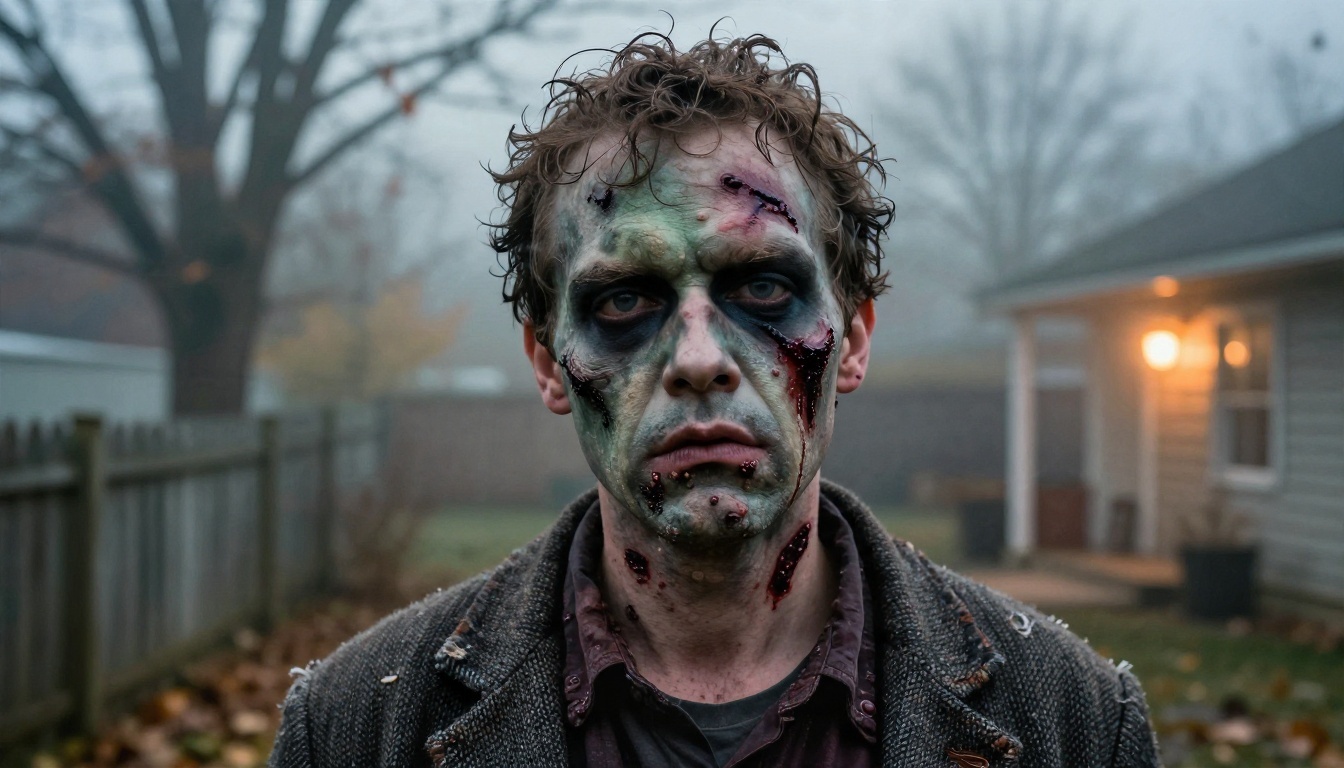
Makeup is where previews save the most time. Instead of buying three wound kits, generate the look first and decide how much latex you truly need. Try prompts like "grey green skin, sunken eye shadows, latex wound on the cheek, restrained fake blood streaks". The word restrained matters: without it, models pour on blood and the result turns cartoonish.
Other makeup based ideas that preview well:
Porcelain doll with painted cracks along one cheek
Plague doctor with a leather beak mask and dried herbs
Corpse bride with muted blue lips and wilted flowers
Zombie office worker in a stained shirt and loosened tie
Couple Costumes That Match
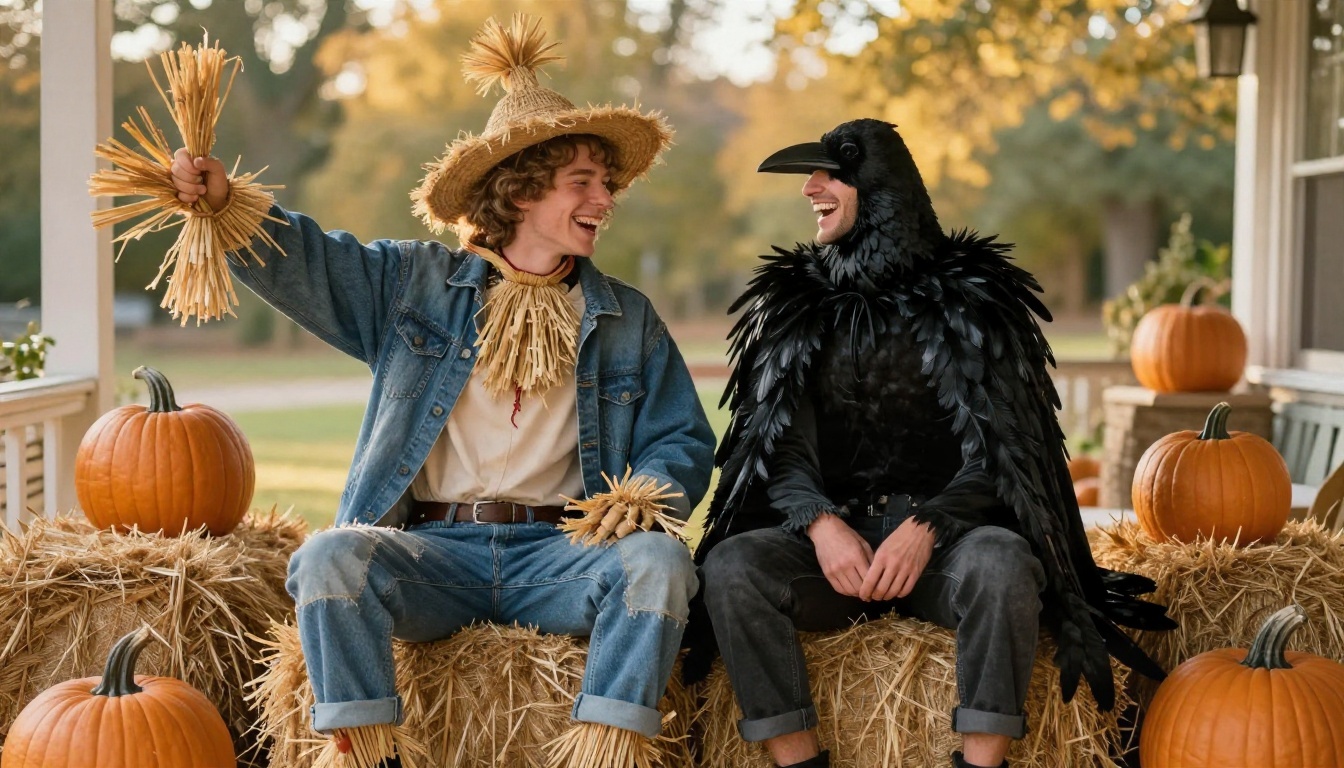
Couple and best friend costumes are tricky because two outfits have to look good together. Generate them as one scene with both characters in the prompt, and keep the descriptions parallel: "on the left, a scarecrow with straw and patched denim; on the right, a crow with a feathered black cape". Good pairings to try:
Scarecrow and crow
Detective and ghost victim
Lighthouse keeper and mermaid
Astronaut and alien houseplant
Pirate captain and sea monster
Family and Kid Costumes
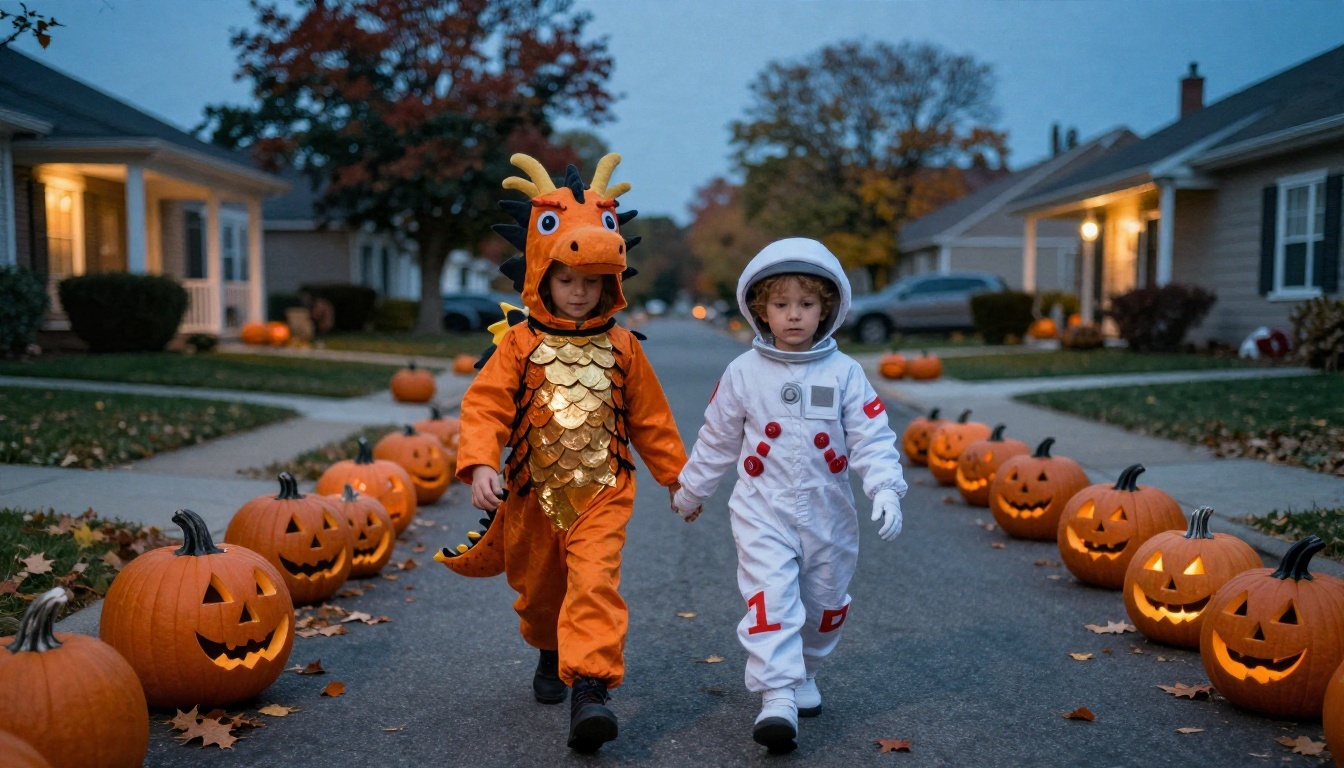
Kids change their minds every day, so previews help parents too. Show your child three generated options and let them choose. Keep costumes comfortable and safe in the prompt: "felt dragon scales on a soft hooded sweatshirt" is easier to sew than armor, and a foil astronaut suit reads as an astronaut even from across the street. Add a wide shot with a street lined with jack-o-lanterns to picture the whole trick or treat scene.
Group Costumes for Parties
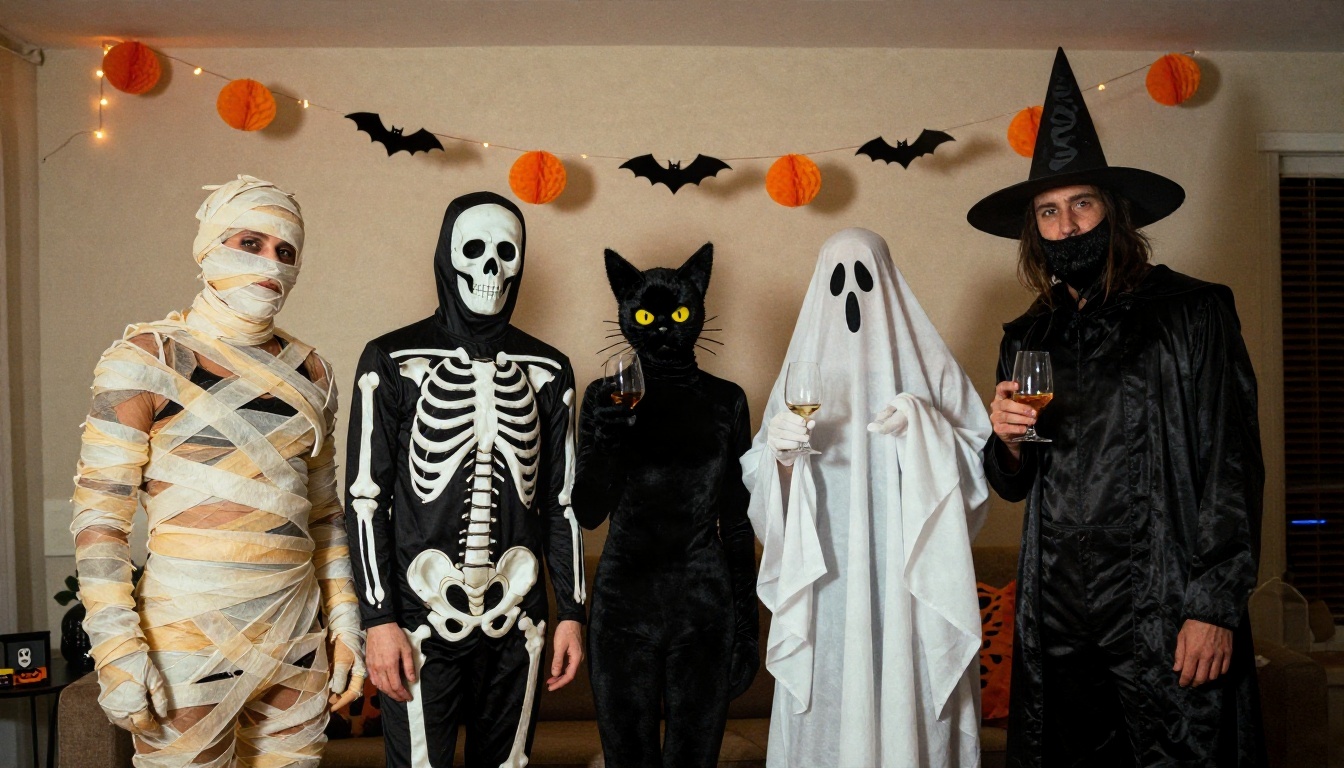
Group previews are the hardest to generate in a single image because models can mix up faces and outfits. The easier workflow is to produce one character per image using the same lighting and camera lines, then place the pictures side by side in a shared album. If you do want a single group photo, limit it to three or four characters and describe each one by position.
How to Use Seedream 4.5 on PicassoIA
Seedream 4.5 is the best starting point for photorealistic costume previews. The steps below take about two minutes.
Open the model page. Go to the Seedream 4.5 page on PicassoIA and sign in. New accounts receive free credits to test it.
Paste your base prompt. Use the five part formula from earlier. Keep the first prompt around 60 to 120 words.
Choose a wide aspect ratio. Pick 16:9 for scenes and environments, or a portrait ratio like 3:4 if you only care about the outfit and face.
Generate two or three variations. Change one thing at a time: the hat, the fabric color, the time of day. This shows you which detail actually moves the result.
Refine with an edit pass. Open the best image in PicassoIA Image Editor Pro and fix details such as the color of a cloak or the shape of a hat.
Upscale if you plan to print. Run the final through Real ESRGAN for a sharper 4x version you can show a tailor or a makeup artist.
💡 Parameter tip: If faces look too smooth, add "visible skin pores, natural imperfections, film grain" to the prompt. If the clothing looks flat, add one fabric word per garment.
Starter Prompts to Copy
Use these as they are, or edit the details.
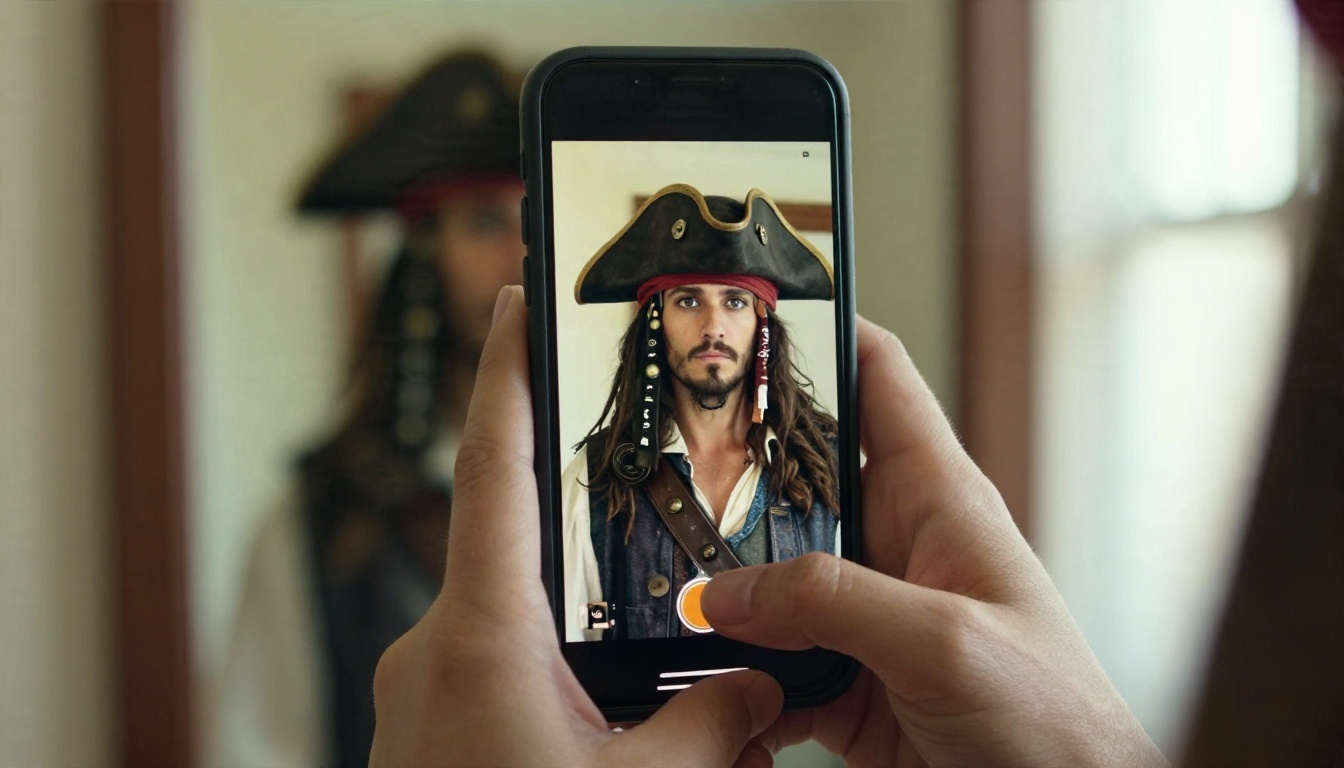
Pirate captain: "A man in a weathered tricorn hat and red sash, brass buttons, salt stained leather coat, standing on a wooden dock at dawn, soft diffused window light, 50mm f/1.8 lens, film grain, Kodak Portra 400."
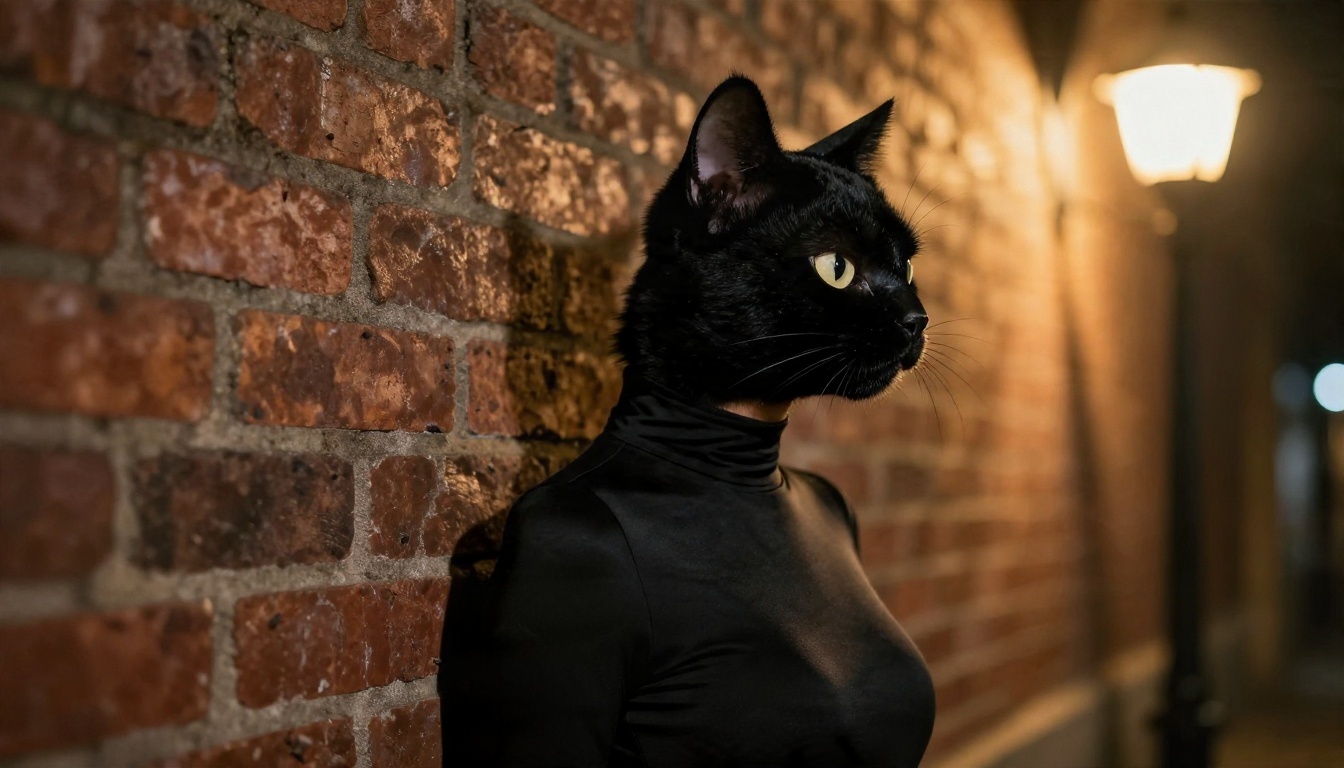
Black cat: "A woman in a fitted black bodysuit with velvet ears and subtle whisker makeup, leaning on a brick wall at night, single warm street lamp from above right, 85mm f/1.4 lens."
Mushroom forager: "A person in a moss green hooded cloak with a wicker basket of mushrooms, standing in a damp pine forest at dawn, soft overcast light, 35mm f/2 lens, wet leaf texture."
Turn Previews Into Real Costumes
A great picture is only useful if it leads to a real outfit. Here is the practical side.
Build a Shopping List From the Image
Look at the generated photo and write down every item you can name: hat, collar, cloak, belt, gloves, boots, props. Then sort the list into three groups: have it, can buy it secondhand, and must make it. Thrift stores are great for velvet, tweed and leather. The "must make" group is usually small, such as a single prop or a piece of makeup.
Brief a Tailor or Makeup Artist
A picture is a better brief than any paragraph. Bring the generated image and point at the parts that matter. Tell them the image is an inspiration, not a spec, since AI fabrics can look better than real ones. A makeup artist can match the shading of a zombie wound in minutes if they can see it.
Match Your Real Lighting
If you plan to take photos at a party, previews with warm lamp light tell you what to expect: velvets look richer, pale makeup looks warmer, and glitter reads more subtly. Generate one scene with daylight and one with candlelight, then pick the version that works in both.
Costume Element
Looks Best In
Watch Out For
Velvet and lace
Warm candlelight
Black swallowing detail
Latex and makeup
Overcast light
Harsh flash flattening texture
Metallic foil
Dusk with warm lamps
Glare in phone cameras
White sheets and gauze
Soft indirect light
Looking dirty in orange bulbs
Free Limits and Safe Practices
Free tools are generous, but they have edges. Knowing them keeps you from hitting a wall at 11 pm on October 30.
Free Credits and Daily Limits
Most services give a starting allowance and then slow down or ask for payment. Plan your session: spend your first few generations on concept tests, and save the remaining credits for the final polish. If you want to iterate without counting, PicassoIA Image Editor Pro offers unlimited generations, which fits costume work where you need many small variations.
Using Real Faces Respectfully
Only upload photos of yourself or people who agreed to it. Changing a friend's outfit as a joke is fine when they are in on it. Posting an altered photo of someone who did not ask for it is not. Avoid recreating a real public figure's face for a costume graphic, and keep previews of children in private chats rather than public feeds.
Know What AI Still Gets Wrong
Hands, text on signs and small jewelry still produce errors. Count the fingers before you share. Do not trust the exact stitching or seams in a generated garment; they are decorative. Treat the image as a look, not a sewing pattern. If a detail seems impossible, such as a cloak that floats in still air, ask for it more simply and try again.
Quick Troubleshooting
Face looks plastic: add "natural skin texture, visible pores" and lower the number of beauty words.
Costume looks like a cheap party store outfit: specify real fabrics and a specific era.
Colors feel muddy: name two or three exact colors and a film stock such as Kodak Portra 400.
Background steals attention: add "shallow depth of field, blurred background".
Make Your Own Costume Preview Today
Halloween is the one night where the strangest idea in your head is allowed to walk out of the front door. The only thing standing between you and a great costume is a bit of planning, and planning has never been cheaper. Open Seedream 4.5, paste one of the starter prompts above, and see what appears. Then try the same costume in Image Editor Pro with a different light, a different hat, a different mood.
Generate five versions tonight. Show them to your friends, pick the winner, and head to the thrift store with a real picture in your pocket. If you want to go further, upscale your favorite with Real ESRGAN, print it, and tape it to the sewing table.
Start creating on Picasso IA and bring your best costume idea to life before the first trick or treater knocks.