AI Headshot Generator for Business: Team Photos, Cost, and Prompts
A practical look at using an AI headshot generator for business: how team photos stay consistent, what you actually pay compared with a photographer, which mistakes ruin results, and ready-to-use prompts for LinkedIn, websites and company profiles.
Your team page has been half empty for months. Two people left, three joined, and the old photos were shot in three different offices with three different lighting setups. Booking a photographer means coordinating calendars, renting a room, and waiting two weeks for retouched files. An AI headshot generator for business shortens that whole chain to an afternoon, and the output can look like a real studio session if you know how to steer it.
This article walks through how business headshots are made with AI, how to keep a whole team looking like one company, what it costs compared with a traditional shoot, and which prompts actually produce usable portraits.
Why Businesses Switch to AI Headshots
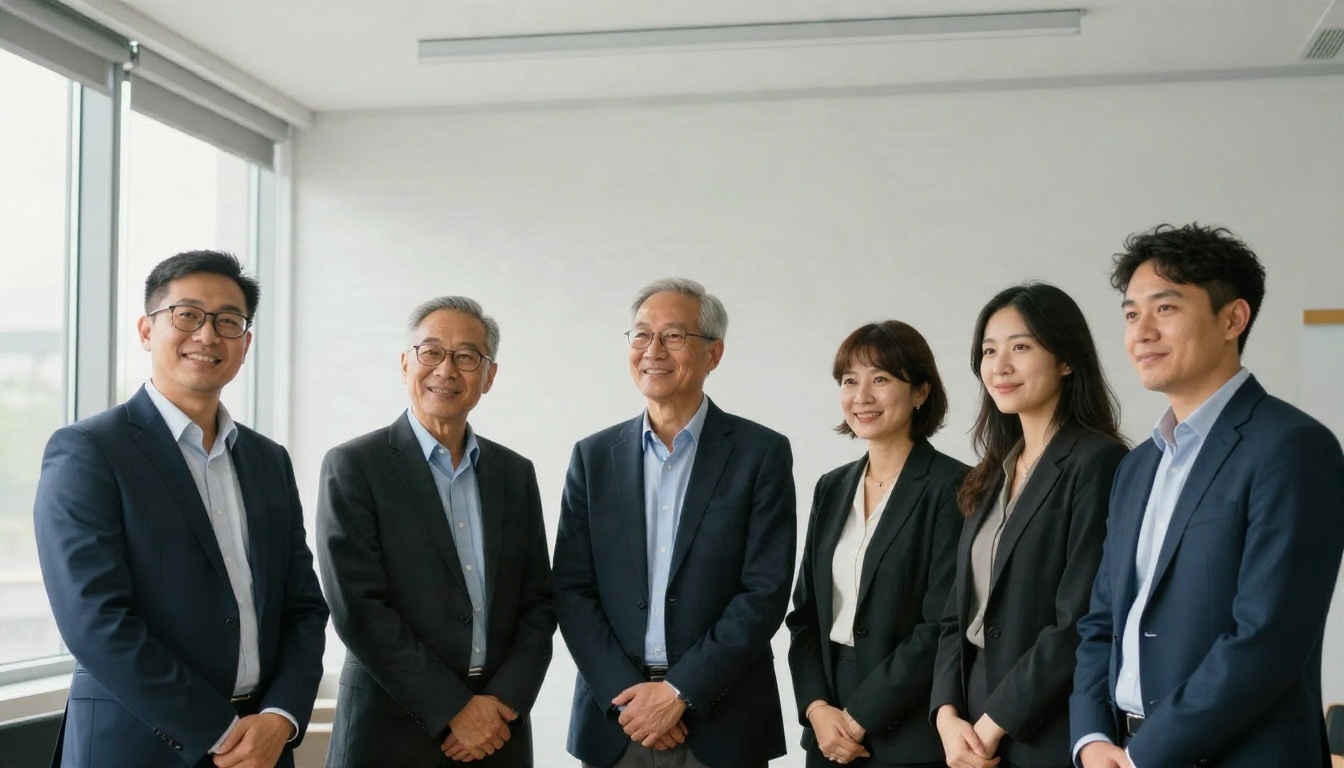
A business headshot has a narrow job. It has to look like the person, feel trustworthy, and match the other portraits on the same page. That is a harder brief than it sounds, which is why so many company "About" pages look patchy.
The Old Problem With Photo Shoots
Traditional shoots are good, but they are rigid. Someone is on holiday on shoot day. A new hire starts a week after the photographer leaves. A remote employee lives four time zones away and sends a selfie instead. Within a year the page is a mix of studio portraits, cropped conference snapshots and phone pictures.
What AI Changes
AI generation removes the scheduling problem. You describe the lighting, wardrobe, background and framing once, then reuse that description for every person. The result is a set of portraits with the same color temperature, the same crop and the same backdrop, whenever each person is added.
💡 Tip: Consistency matters more than perfection. A page where ten people share the same soft grey backdrop and the same head size looks more professional than a page where three portraits are brilliant and seven are not.
Who Benefits Most
Small companies that cannot justify a full studio day for six people.
Remote teams spread across cities and countries.
Fast-growing startups where new hires arrive monthly.
Freelancers and consultants who want a LinkedIn photo, a website portrait and a speaker bio shot that all match.
Recruiting teams who need fresh portraits for job pages and outreach emails.
How AI Business Headshots Actually Work
There are two broad approaches, and they behave very differently.
Reference Photo Services
Most dedicated headshot apps ask each person to upload a set of selfies, usually between ten and twenty. The service trains a small personalized model on those images and then generates dozens of portraits in preset styles. This gives strong likeness, but it is slow, and each person has to complete the process individually.
Prompt Based Generation
The second approach uses a general image model and a detailed written prompt. You describe the person, outfit, lighting and background in words. Models like Seedream 4.5 and Nano Banana Pro produce photorealistic portraits with natural skin texture, and editing models can start from an existing photo of a person to keep their likeness while changing wardrobe or background.
Approach
Likeness
Speed
Best for
Reference photo service
Very high after training
Hours per person
Individual executives
Prompt only generation
Depends on description
Seconds per image
Concept art for fictional staff, stock style portraits
Photo based editing
High, starts from a real photo
Minutes
Matching an existing team to a new style
💡 Tip: If the portrait represents a real employee, always start from a real photo of that person. Prompt only generation invents a face, which is fine for mockups and illustrations of "a typical manager" but not for a team page.
Team Photos That Look Like One Company
Matching a team is where AI earns its keep. The trick is to treat the visual style as a template, not as a mood.
Lock the Style Sheet
Write down six things before you generate anything:
Background: pale grey seamless, blurred office, or plain white.
Lighting direction: soft key light from camera left, gentle fill from the right.
Lens and framing: 85mm look, chest up, eyes at the upper third.
Wardrobe palette: navy, charcoal and white, for example.
Expression: relaxed half smile, no teeth, or a warm open smile.
Color grade: natural, slightly warm, film like.
Paste that block at the end of every prompt. Only the subject description changes.
Keep Head Size Identical
The most common giveaway of a mismatched team page is head size. One person fills the frame while another floats in empty space. Specify "head and shoulders, face occupying roughly one third of frame height" in every prompt, then crop to a shared ratio afterward.
Handle Different Skin Tones and Ages
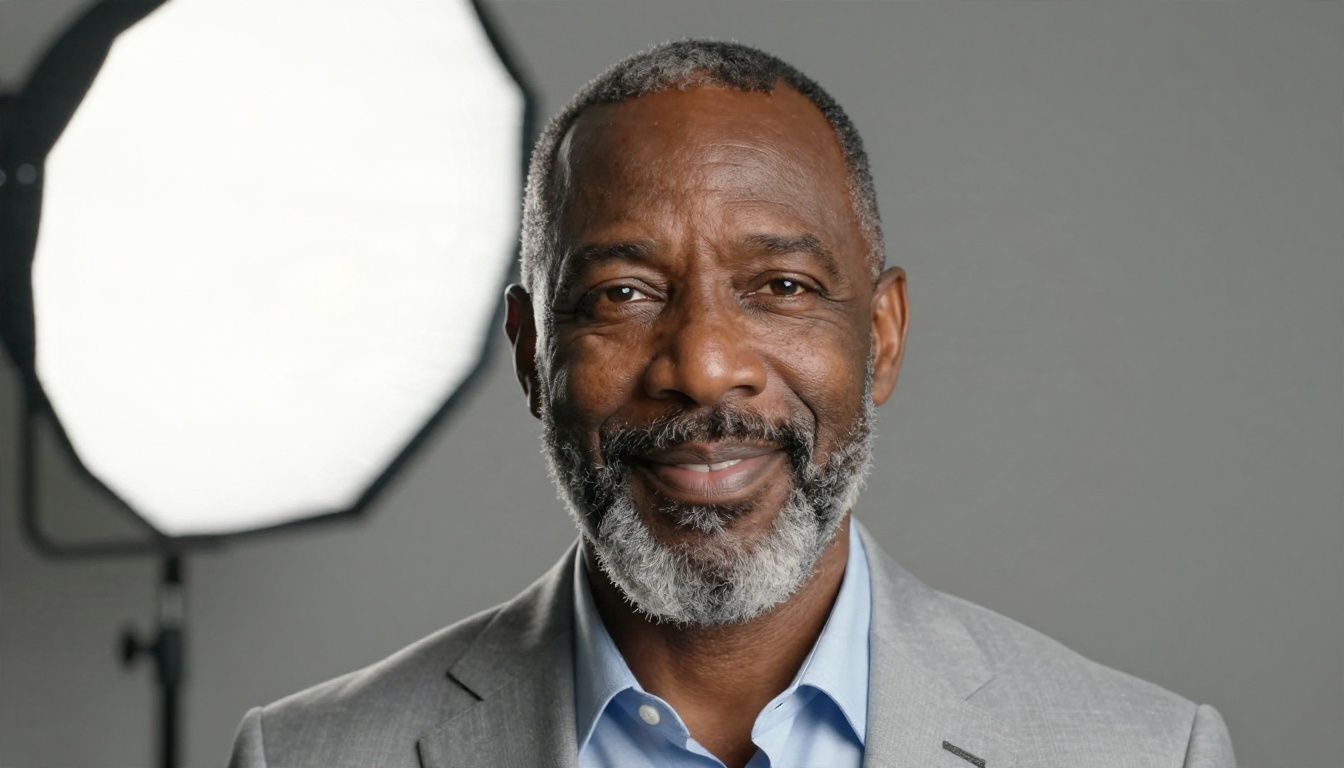
Lighting that flatters one skin tone can wash out another. If your team is varied, test the style sheet on at least three very different people before committing. Ask for "soft diffused light, natural skin texture, no heavy retouching" so that freckles, laugh lines and pores stay intact. A portrait with every wrinkle erased looks like an avatar, not a colleague.
Clean Up Backgrounds Afterward
Sometimes the face is perfect but the background drifts. Use Remove Background to cut the person out, then place everyone on the same backdrop in your design tool. It is a fast way to rescue a good portrait and guarantees that the grey behind person A is exactly the grey behind person B.
The Real Cost of Business Headshots
Pricing is where AI looks most dramatic, but the honest comparison has several layers.
Photographer Rates
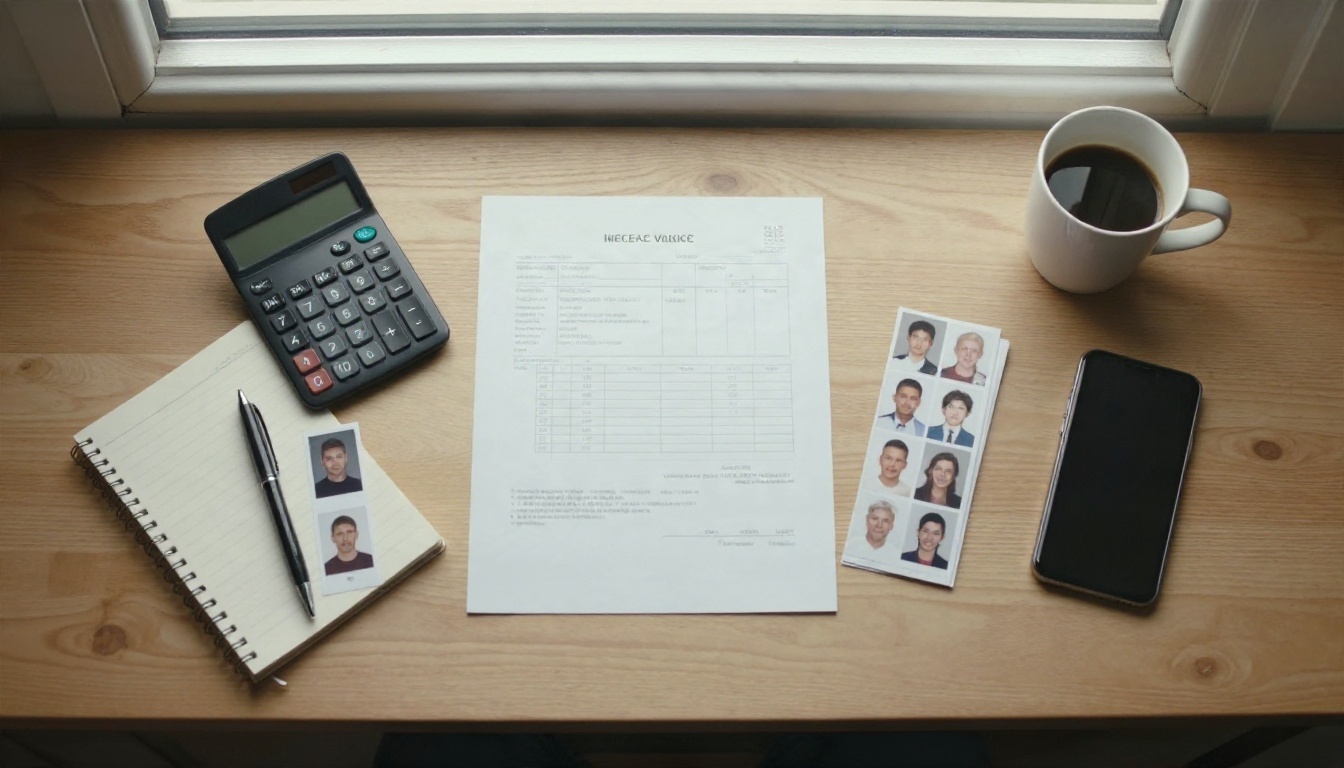
A professional corporate headshot session commonly runs from about one hundred fifty to five hundred dollars per person, depending on city, retouching and licensing. Team days are often priced as a half day or full day, plus travel and a studio fee if you do not host the shoot in your office. For a ten person company, you are realistically looking at a few thousand dollars and a few weeks of lead time.
Dedicated AI Headshot Apps
Entry packages from the popular headshot services sit roughly in the range of twenty nine to forty dollars for a batch of forty to sixty portraits, one person at a time. Team plans usually price per seat, with figures that start around twenty dollars per person per month on subscription tiers or somewhere above forty dollars per person for one time team batches. Larger companies are normally quoted custom enterprise pricing. Figures change often and differ by vendor, so confirm current numbers, commercial licensing and data retention terms before you pay.
Prompt Based Workflow
Using a general image platform costs the least per portrait, but it asks more of you. You are paying in setup time rather than in subscription fees. Once your style sheet works, each additional portrait costs only a few seconds of generation.
Option
Typical cost per person
Turnaround
Effort on your side
Studio photographer
Roughly 150 to 500 dollars
1 to 3 weeks
Scheduling, travel, wardrobe
Dedicated headshot app
Roughly 30 to 45 dollars
Hours
Upload selfies, pick favorites
Prompt and edit workflow
Lowest, mostly your time
Minutes
Write style sheet, review output
Hidden Costs Worth Counting
Retakes. Every unusable batch is time, even when the money is small.
Review time. Someone has to approve each portrait, and teams with ten people can burn an afternoon on opinions.
Licensing. Check whether the portraits can be used commercially, in advertising, and on printed material.
Privacy. Employee faces are personal data. Check how long uploaded photos are stored and whether they are used for training.
💡 Tip: Run a pilot with two or three volunteers before buying for the whole team. If they say "that looks like me" without hesitation, you can scale. If they hesitate, adjust the workflow first.
Prompts That Produce Real Results
Good business headshot prompts read like a photographer's shot list. They specify light, lens and texture instead of adjectives like "stunning" or "perfect".
The Prompt Formula
Use this order: subject, wardrobe, expression, background, lighting, lens, texture, color grade. Models respond well to a predictable structure because the most important elements come first.
Prompt 1: Classic Corporate Portrait
Headshot of a woman in her thirties with shoulder length brown hair,
charcoal blazer over a white blouse, calm half smile, softly blurred
modern office background, soft window light from the left with a gentle
fill on the right, 85mm f/1.8 lens, sharp eyes, natural skin texture
with visible pores, subtle film grain, Kodak Portra 400 color
Prompt 2: Clean White Background
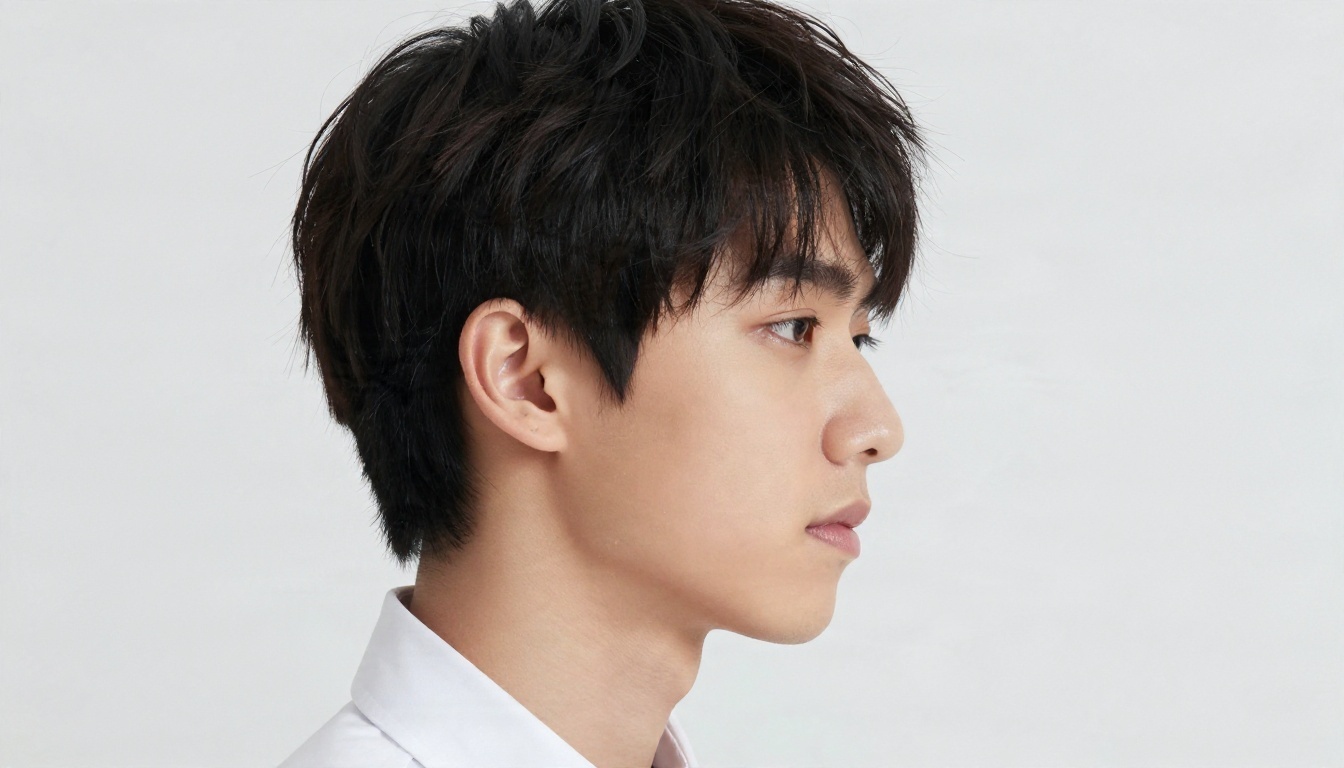
Head and shoulders portrait of a young man in a white shirt and dark
tie, plain white seamless backdrop, soft butterfly lighting from above
front, 100mm f/2.8 lens, neutral relaxed expression, crisp hair
strands, natural skin tones, no retouching look
Prompt 3: Outdoor Executive Look
Portrait of a smiling woman in a cream blazer standing in front of a
glass office building, golden hour sunlight behind her creating soft
rim light, blurred city street background, 85mm f/1.4 lens, shallow
depth of field, detailed fabric weave, warm natural color
Prompt 4: Quiet Authority
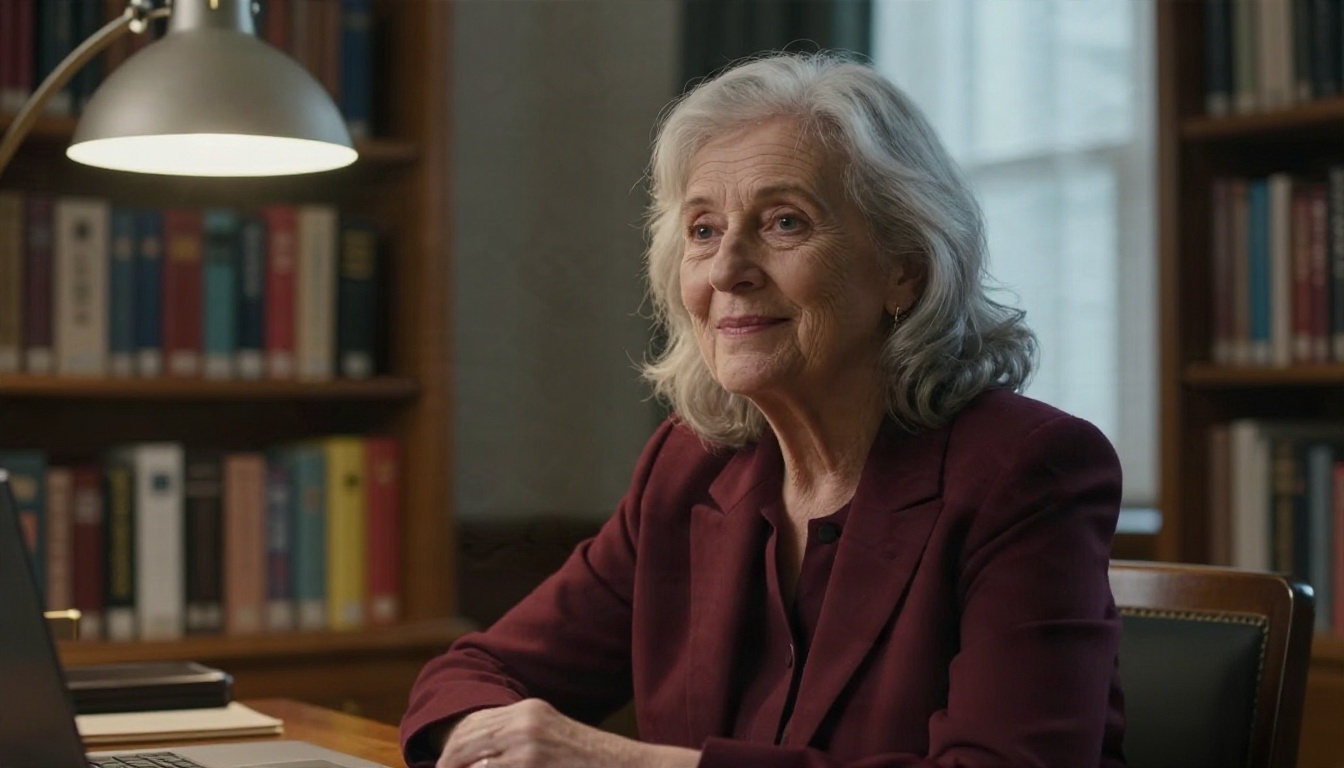
Medium shot of an older woman with silver hair in a burgundy blazer,
seated in a calm office with warm wooden shelves, soft lamp glow mixed
with cool window daylight, 70mm f/2 lens, thoughtful warm smile,
realistic skin texture and fine lines, film grain
Words That Help and Words That Hurt
Helps
Hurts
"natural skin texture, visible pores"
"flawless, perfect skin"
"soft window light from the left"
"dramatic cinematic lighting"
"85mm lens, shallow depth of field"
"ultra HD, 8K, masterpiece" alone
"relaxed half smile"
"big smile" with no detail
"plain grey seamless backdrop"
"professional background"
How to Use Seedream 4.5 on PicassoIA
Seedream 4.5 handles portrait detail well, including skin, hair and fabric, which is exactly what business headshots depend on. Here is a straightforward workflow.
Step by Step
Open the model page on PicassoIA and choose the Seedream 4.5 text to image tool.
Paste your style sheet prompt with the subject description first and the lighting, lens and color notes after.
Set the aspect ratio to match where the portrait will be used. Use a square or 4:5 frame for profile pictures, and a wider frame if you plan to crop later.
Generate several variations and compare them side by side. Look at the eyes, the hands if visible, and the collar.
Adjust one thing at a time. If the light is too harsh, change only the lighting sentence. Changing everything makes it impossible to see what worked.
Save the winning prompt as the template for the rest of the team.
Parameter Tips
Keep prompts between 40 and 90 words. Shorter prompts leave too much to chance, longer ones start to contradict themselves.
Name a real lens length such as 85mm or 105mm. It biases the model toward natural facial proportions.
Ask for "natural skin texture" every time. Without it, some outputs look airbrushed.
Add "no text, no logos" so that collars and backgrounds stay clean.
Other Models Worth Testing
Nano Banana Pro and Nano Banana are strong when you want to edit an existing photo, such as changing a shirt color or swapping a messy background.
Qwen Image 3 Pro is a good alternative when you want a different rendering of skin and lighting to compare.
Flux 2 Klein 4B Base is a lighter option for quick drafts while you refine the prompt.
PicassoIA Image Editor Pro is handy for repeated edits on the same portrait without worrying about generation limits.
💡 Tip: Generate at the highest resolution available, then use Clarity Pro Upscaler when a portrait needs to appear on a large banner or in print.
A Workflow for a Whole Team
Here is a process that works for teams between five and fifty people without turning into a project of its own.
Step 1: Collect Source Photos
Ask each person for two or three clear, well lit photos taken in the last year. Front facing, no sunglasses, no heavy filters. A phone photo by a window is enough.
Step 2: Decide the Look in One Meeting
Show three style sheet options. Let the team vote, then freeze the choice. Reopening the debate halfway through is the surest way to end up with mismatched portraits.
Step 3: Generate in Batches
Process everyone with the same prompt block. Generate three to five variations per person and let each person choose their favorite. Letting people pick their own photo makes adoption far smoother.
Step 4: Quality Check Together
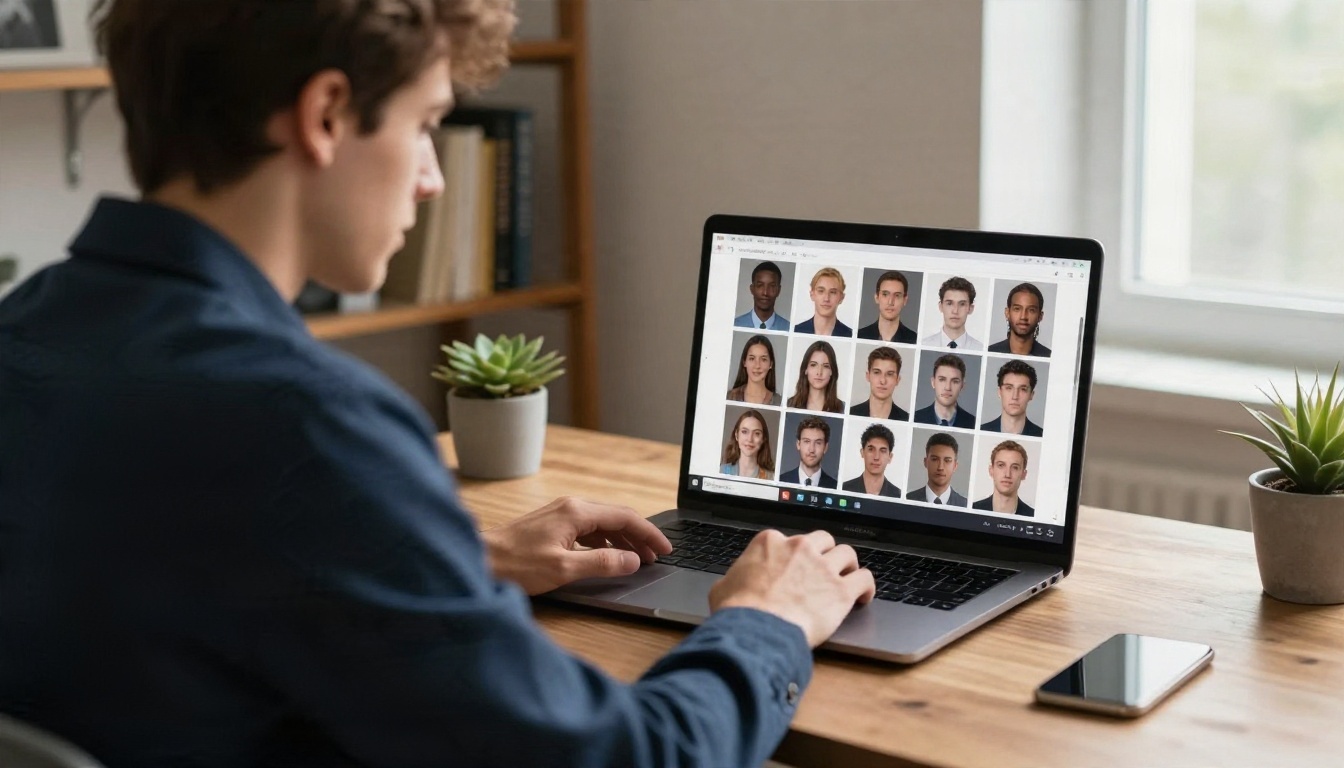
Put all final portraits in a single grid and look at them as a set. Check head size, brightness, background tone and eye line. Fix outliers with an editing pass instead of regenerating from scratch.
Step 5: Export for Each Channel
Website: wide crop, high resolution.
LinkedIn and Slack: square crop, face centered.
Email signature: small, compressed, still sharp at 200 pixels.
Press kit: original high resolution file.
Mistakes That Ruin Business Headshots
Most failed AI headshots share the same handful of problems, and all of them are avoidable.
Over Smoothed Skin
If a portrait looks like plastic, colleagues notice immediately. Ask for visible pores and natural texture, and avoid words like "flawless". A few lines around the eyes make a person look approachable and real.
Likeness Drift
When a portrait no longer resembles the person, it creates an awkward moment on the first video call. Compare each result to the source photo, particularly the jawline, eyebrows and hairline. If it drifts, regenerate from the original photo instead of from the prompt alone.
Wardrobe Mismatch With Your Industry
A tie works for a law firm and looks strange for a design studio. Match clothing to the culture of your company and the audience of the page. Smart casual with a clean shirt or a plain knit often reads better than a stiff suit.
Misleading Representation
Do not use AI generated faces of people who do not exist to pretend you have a larger team. Customers, candidates and partners expect that a portrait on a team page belongs to a real employee. Keep AI portraits for real people, and label stock style or illustrative images as such.
Ignoring Consent
Tell your team how their photos will be processed, where results are stored, and who can use them. Get a clear yes from each person, and let anyone opt out and send their own photo instead.
💡 Tip: Keep a short internal note that records which tool, which prompt and which date produced each portrait. When someone leaves or updates their look, the replacement is quick and consistent.
Quick Picks by Use Case
Goal
Suggested approach
Model to try
Fresh LinkedIn portrait for one person
Start from a real photo, change background and light
You do not need a studio, a calendar full of bookings or a large budget to give your company a consistent, professional face. Pick one person on your team, write a style sheet using the prompts above, and generate a first set of portraits on Picasso IA. Change one detail at a time, compare the results side by side, and keep the version that looks most like a real photograph taken on a good day.
Once the first portrait feels right, repeat the process for everyone else and watch your team page turn into a matching set. To compare more image models, editors and upscalers, browse everything at picassoia.com/en/all-models, then run your first headshot test this week.