You have a photo of two people standing side by side, and you want them to hug. Maybe it is a sister you have not seen in years, a grandparent who is no longer around, or a couple photo that never captured the moment you wished it had. An AI hug video from a photo makes that happen in about a minute: upload one image, describe the embrace, and an image-to-video model animates the arms, shoulders and faces into a short, natural clip.
The tricky part is not finding a tool. It is getting a hug that looks like a hug, with no extra limbs, no fused faces and no stiff robotic squeeze. This article walks through how the process works, which free online makers are worth your time, the best settings for realistic results, and the exact prompts you can copy.
What an AI Hug Video Really Is
A hug video generator is not a special filter. It is an image-to-video model that takes your photo as the opening frame and predicts how the scene could move over the next five to ten seconds. When your prompt says "the two people step toward each other and hug," the model draws on millions of examples of human movement to fill in the motion.
That is why a hug is one of the hardest requests you can make. Two bodies have to overlap, arms have to wrap around backs, and faces have to stay recognizable while heads tilt and cheeks touch. Models that handle physical contact well produce clips that feel emotional. Models that do not produce a blur of skin tones.
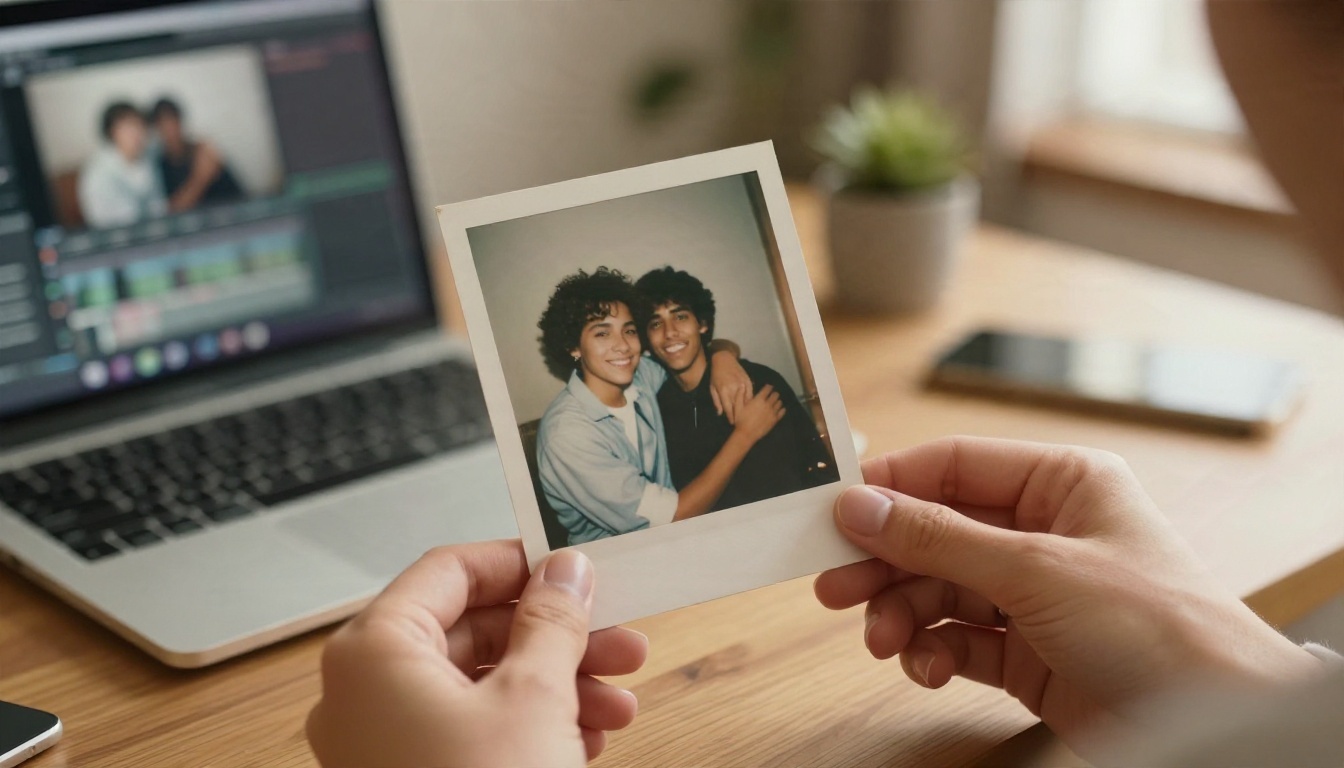
Image to video vs. old photo effects
Older apps used a fixed template: they pasted your faces onto a pre-recorded hug. The result looked fake because the clothes, hair and lighting never matched. Modern image-to-video models animate your actual photo, so the clothing folds, shadows and background all stay consistent with the original picture.
Who uses hug videos
- Families reuniting loved ones in a single frame
- Couples making anniversary or long-distance clips
- Memorial tributes where a hug was never captured
- Content creators posting emotional short-form videos
- Gift makers adding a moving photo to a card or message
Free Online Makers That Work
Plenty of sites advertise a free hug video, then hide the export behind a paywall or stamp a watermark across the clip. On PicassoIA, several image-to-video models can do the job, and one of them is built for unlimited use.
| Model | Best for | Max length | Notes |
|---|
| Seedance 2.5 Lite | Free, unlimited hug clips | 10 seconds | 480p and 720p, first and last frame control |
| Wan 2.7 I2V | Faithful faces, gentle motion | 5 seconds | Strong at keeping identity stable |
| Wan 2.5 I2V Fast | Quick drafts | 5 seconds | Good for testing prompts cheaply |
| Kling v3 Video | Cinematic, polished hugs | 5 to 10 seconds | Smooth body physics |
| Hailuo 2.3 Fast | Fast photo animation | 6 seconds | Natural expressions |
| Veo 3.1 Fast | Hugs with realistic ambient sound | 8 seconds | Native audio |
💡 Tip: If your goal is a free hug video with no per-clip cost, start with Seedance 2.5 Lite. You can run as many attempts as you need, which matters because hug clips often take two or three tries to feel right.
Why unlimited attempts matter
Hugs are unpredictable. One generation might give you a perfect embrace, and the next might fold an arm through someone's torso. A free, unlimited maker lets you treat every attempt as a draft rather than a purchase, so you can tweak the prompt, change the seed and pick the best version.
Pick the Right Source Photo
Your photo decides about 70 percent of the final quality. Even the best model cannot fix a source image that confuses it. Before you upload anything, check it against this list.
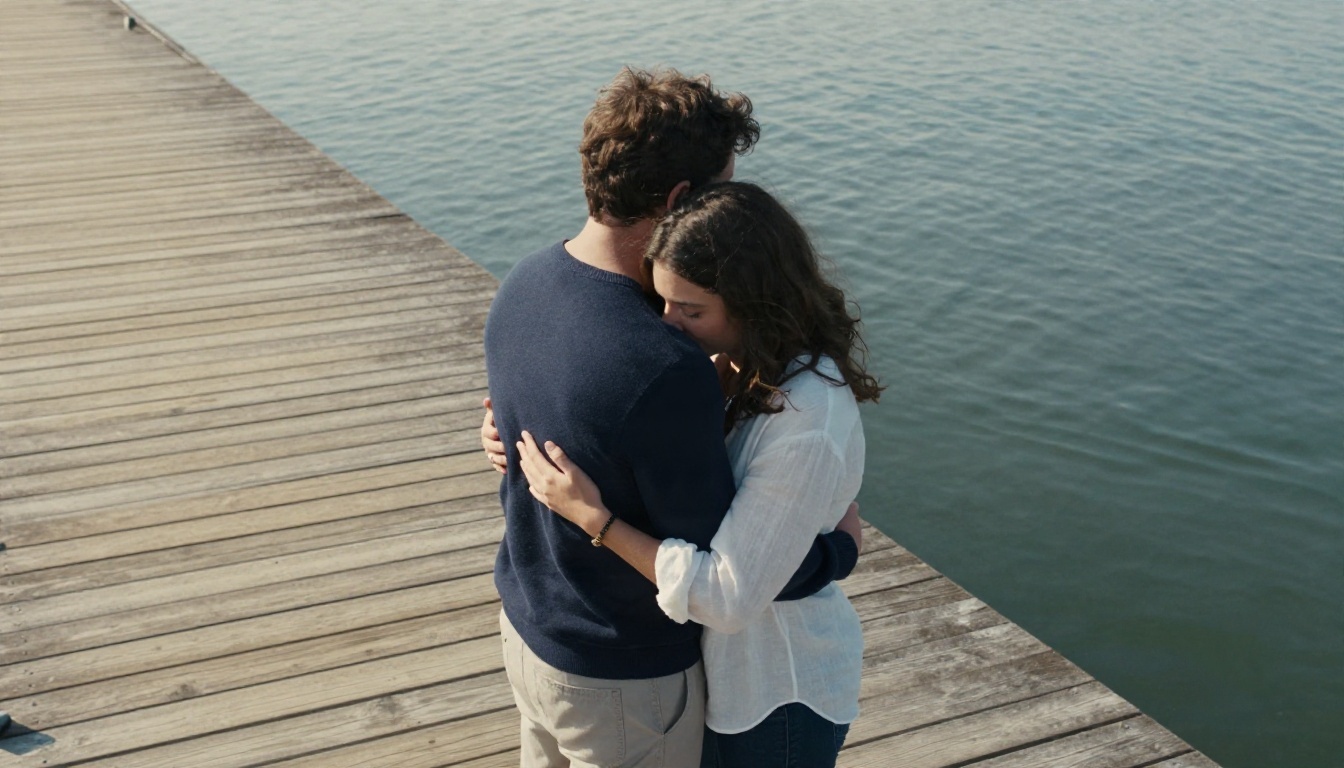
What makes a strong starting frame
- Both people fully visible, from at least the waist up
- Faces turned toward the camera or slightly toward each other
- A clear gap between them, so the model has room to close it
- Sharp focus and good light, with no heavy motion blur
- Arms relaxed at the sides, not crossed or hidden in pockets
What to avoid
| Problem | Why it fails | Fix |
|---|
| Group of four or more | The model picks the wrong two people | Crop to the two you want |
| Sunglasses and hats | Faces drift during motion | Use a photo where eyes are visible |
| Cropped at the chest | No arms to animate | Choose a wider shot |
| Heavy filters | Skin turns plasticky | Use the original, unedited file |
| Very low resolution | Details smear | Upscale the photo first |
💡 Tip: If the only photo you have is small or soft, run it through a super resolution model before animating it. A sharper input gives the video model more facial detail to hold onto.
What if the two people are in separate photos
This is common with memorial and long-distance projects. Use an image editing model such as Nano Banana to place both people into one frame, standing side by side in a matching setting. Keep the lighting direction consistent, then use that merged image as the starting frame for the video. Nano Banana Pro is a good choice when you need sharper skin and clothing detail.
How to Make It on PicassoIA
Here is the full process using Seedance 2.5 Lite, the unlimited option. The same steps work for the other image-to-video models in the table, with small differences in length and resolution.
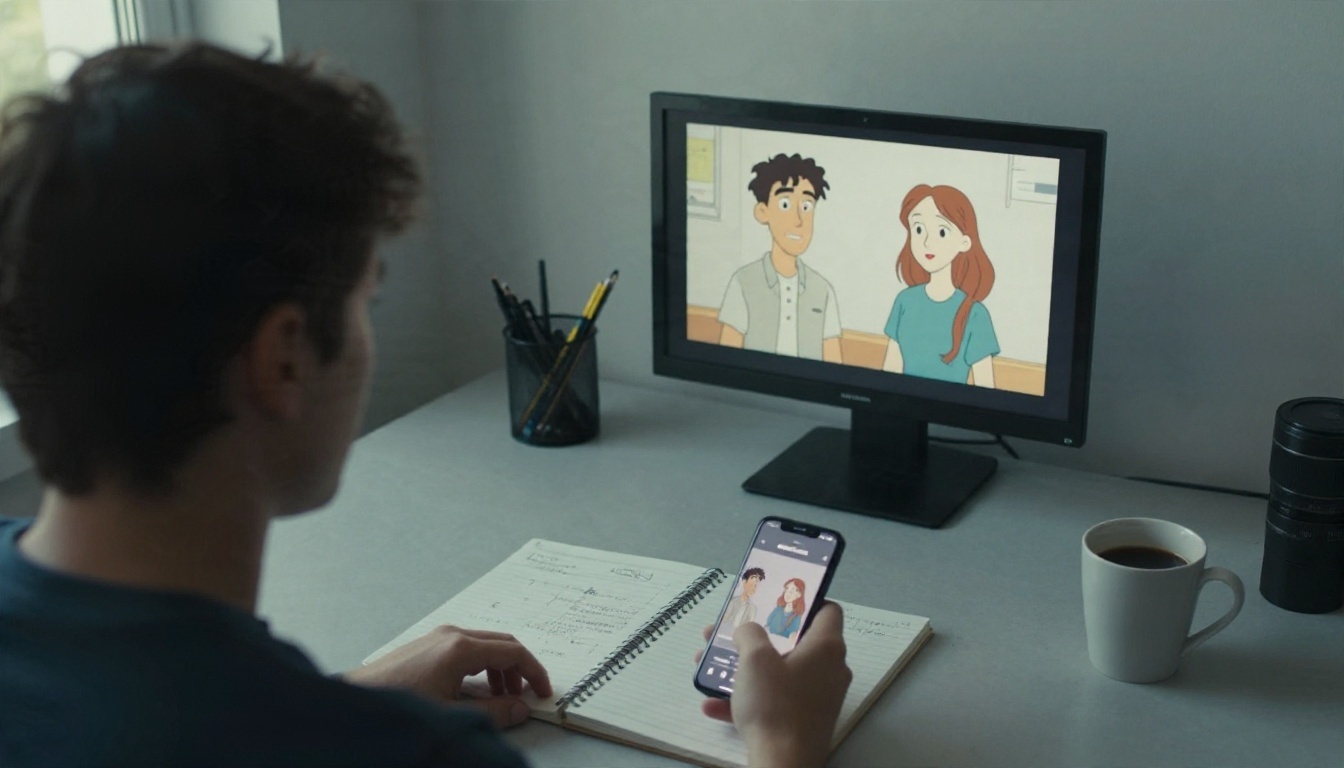
Step 1: Open the model and upload
Open the Seedance 2.5 Lite page and add your photo in the Input image field. The clip uses this picture as its opening frame and inherits its aspect ratio, so a vertical photo gives you a vertical video that is ready for Reels, Shorts and TikTok.
Step 2: Write the motion prompt
Describe what happens in order, from the first second to the last. Name the people by visible traits rather than by name, and describe the hug itself. Here is a prompt that works well for most photos:
The two people stand facing the camera, then turn toward each other and smile. They step forward and wrap their arms around each other in a warm, gentle hug, heads tilting slightly together. Soft natural light stays constant. The camera holds steady with a very slow push in. Natural, realistic motion, faces stay sharp and unchanged.
Step 3: Set resolution and duration
Choose 720p for the final version. Use 5 seconds while testing, then switch to 10 seconds once the motion looks right. A longer clip gives the hug room to settle instead of rushing through it.
Step 4: Decide on audio
Leave Save audio on if you want ambient sound, or switch it off for a silent clip you plan to score with your own music. Silent versions are easier to edit later.
Step 5: Generate, review and repeat
Press generate and watch the whole clip, not just the first two seconds. Look at the hands, the faces during head contact, and the final frame. If something is off, change one thing at a time: the prompt wording, the seed, or the starting photo.
💡 Tip: Write down the seed number of any generation you like. Reusing it with a slightly edited prompt keeps the overall motion while letting you fix small flaws.
Best Settings for a Natural Hug
After enough attempts, patterns show up. These settings produce the most reliable results across models.
Recommended settings table
| Setting | Recommended value | Reason |
|---|
| Resolution | 720p | Sharper faces, fewer smeared edges |
| Duration | 5 s for tests, 10 s for finals | Slow hugs look more genuine |
| Aspect ratio | Match input image | Prevents cropping and stretching |
| Camera movement | Static or very slow push in | Fast camera motion confuses body shapes |
| Prompt length | 40 to 80 words | Enough detail without conflicting commands |
| Audio | On for sharing, off for editing | Flexibility in post |
| Seed | Fixed once you find a good one | Repeatable results |
Use a last frame for control
Seedance 2.5 Lite lets you add an optional Last frame image. If you have a second photo, or can generate one, of the two people already embracing, this tells the model exactly where the clip should end. The model then only has to figure out the path between the two frames, which removes most of the guesswork and gives you a far more predictable hug.
Keep the motion slow
The biggest beginner mistake is asking for an energetic hug with jumping, spinning or running. Those motions demand huge changes to body position and usually break the faces. A slow, warm embrace is both easier for the model and more emotional for the viewer.
Prompts You Can Copy
Different relationships call for different body language. A hug between old friends looks different from a hug between a parent and a child. Adjust the wording to match.
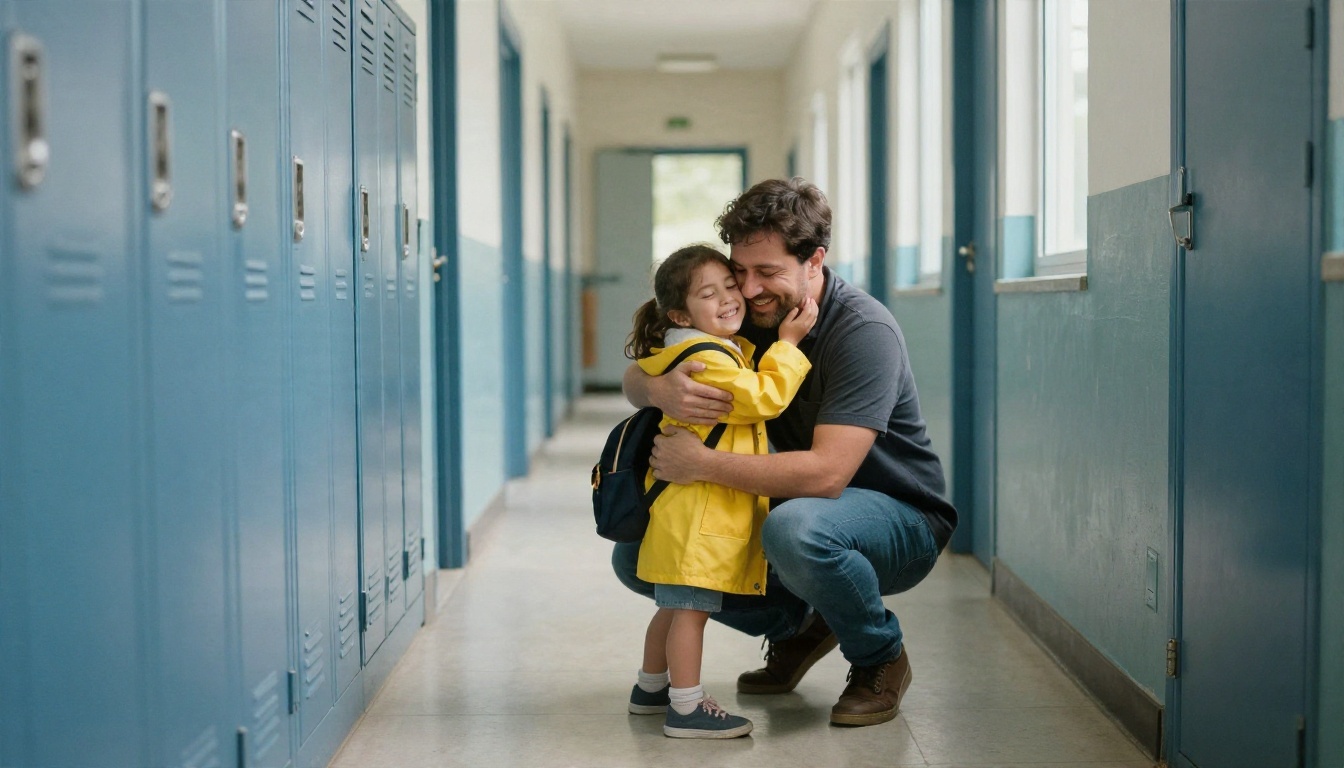
Family and parent hugs
The adult kneels slightly as the child runs one step forward and reaches up. The adult wraps both arms around the child, who hugs back around the neck. Both smile with closed eyes. Soft daylight, steady camera, natural motion.
Couple hugs
The couple turn toward each other, one person places their hands on the other's back, and they pull close in a long, calm embrace. Heads rest together, eyes close softly. Gentle breeze moves the hair and clothing. Slow camera push in.
Friends and sibling hugs
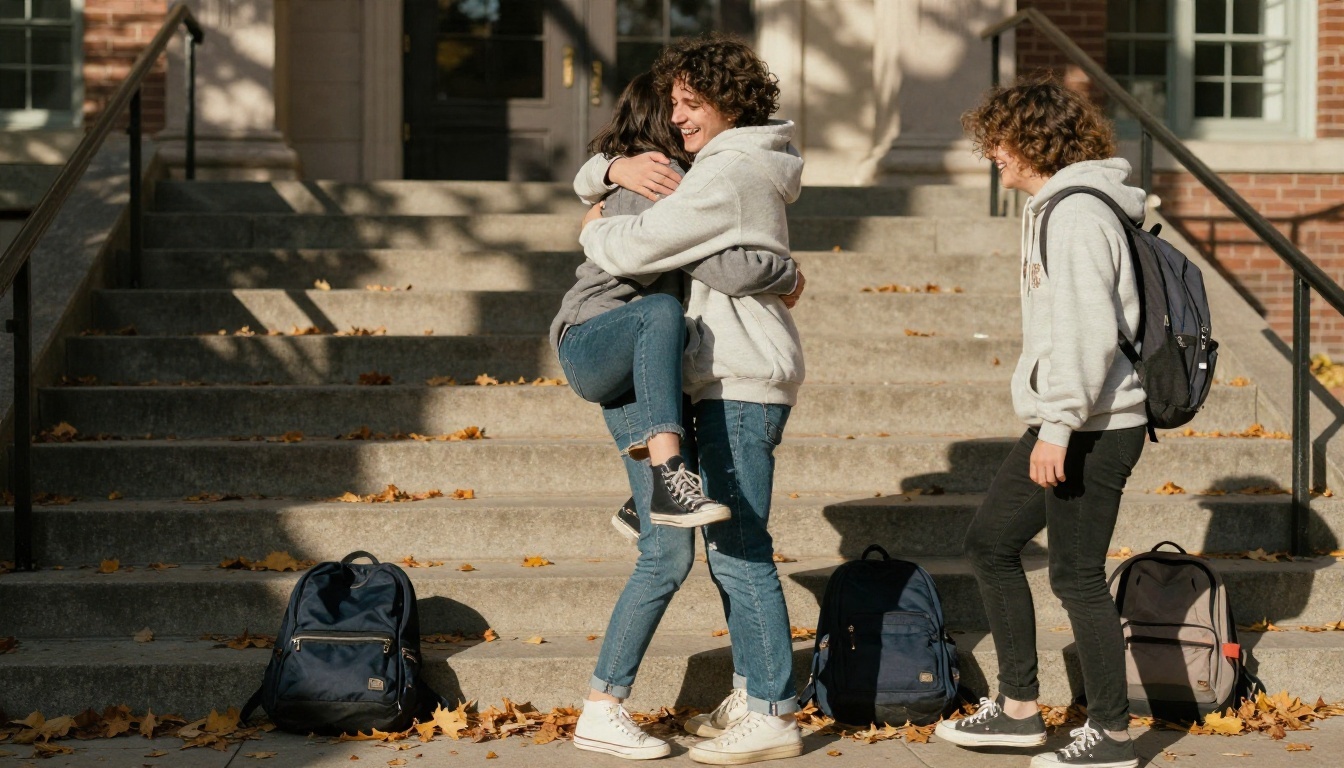
The two friends laugh, step toward each other and share a quick, tight hug with a friendly pat on the back. Shoulders relax and both smile broadly. Natural afternoon light, camera stays still.
Reunion hugs
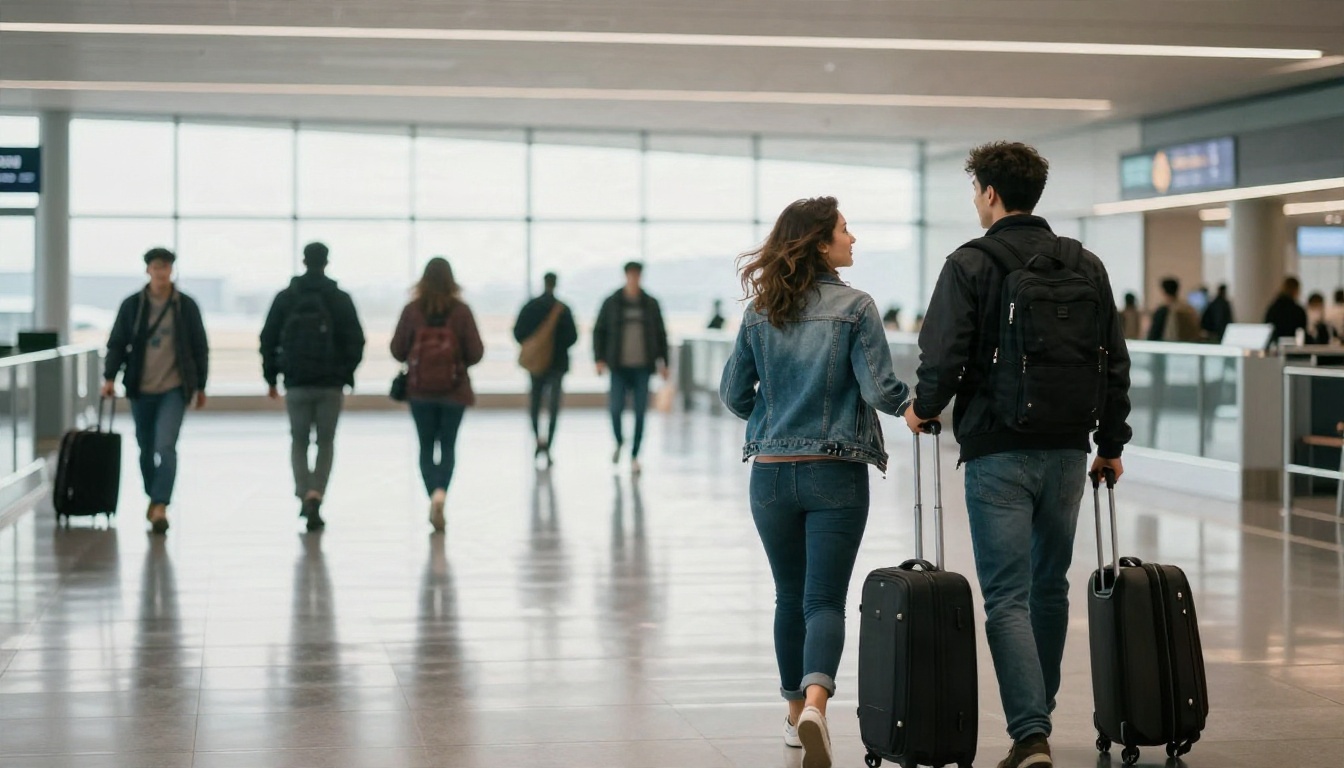
The woman hurries two steps toward the man, who opens his arms. They embrace tightly, her face pressed to his shoulder, his hand on the back of her head. Background travelers move softly. Camera holds steady.
Memorial and tribute hugs
For tributes, keep the movement quiet and respectful. Ask for a slow, peaceful embrace with no sudden motion, and avoid prompts that change facial expression dramatically. Subtle motion preserves the likeness of the person, which is the whole point of a tribute.
💡 Tip: Say what should stay the same. Phrases such as "faces stay sharp and unchanged" and "clothing and hairstyle stay the same" give the model a clear boundary and cut down on drifting features.
Pets count too
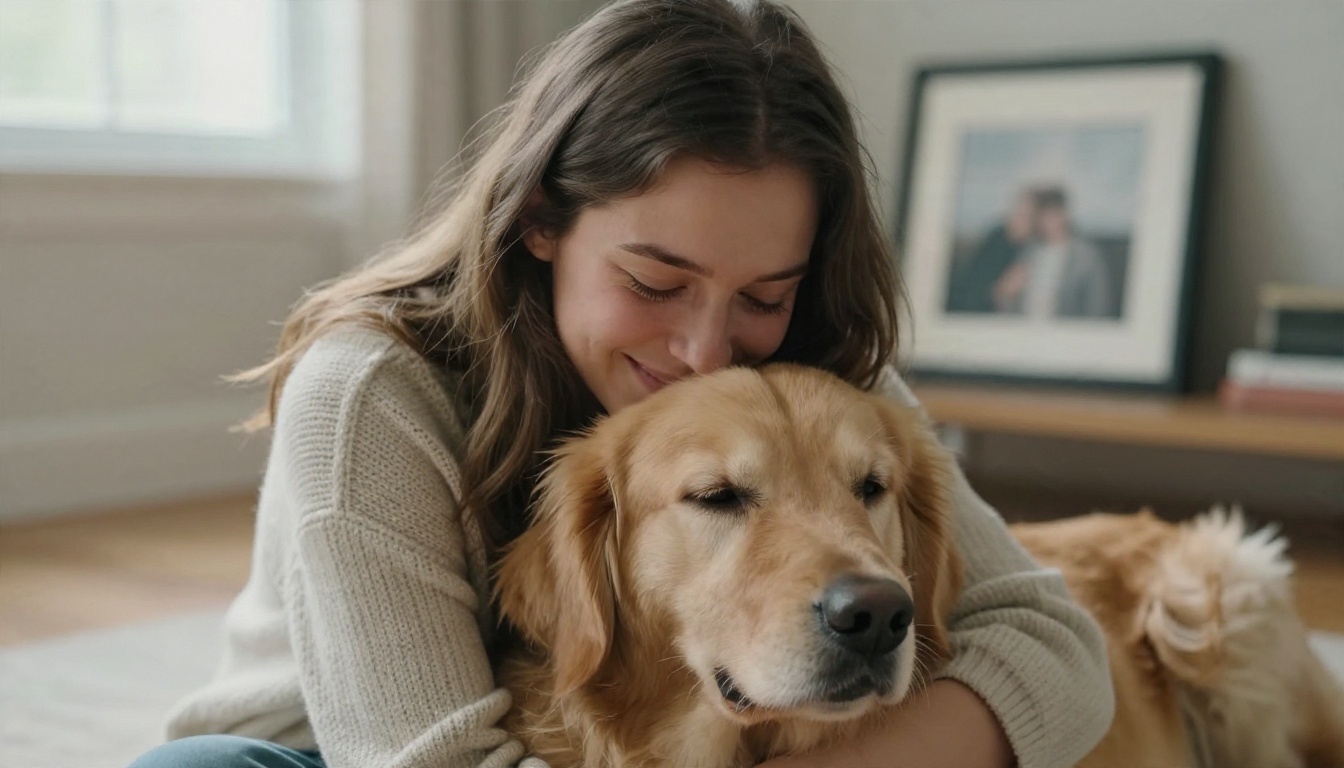
The same approach works for a person and a pet. Try: "The woman leans forward and wraps her arms around the dog's neck, resting her cheek on its fur. The dog stays calm, tail moves slightly. Soft window light, steady camera."
Fix Common Problems
Even with good settings, things go wrong. Here is how to deal with the usual suspects.
| Problem | Likely cause | What to try |
|---|
| Faces melt during contact | Too much motion in too little time | Use 10 seconds and slow the prompt |
| Extra arms or hands | Prompt describes too many actions | Reduce to one clear action |
| People swap positions | Ambiguous description | Name them by clothing color |
| Background wobbles | Camera instruction too strong | Ask for a static camera |
| Hug never happens | Starting gap too wide | Crop closer or add a last frame |
| Skin looks waxy | Over-filtered source photo | Use the original photo |
Try several models
Each model has its own personality. Wan 2.7 I2V tends to hold identity well. Kling v3 Video gives smooth, cinematic body physics. Hailuo 2.3 Fast is quick and keeps expressions natural. If one model struggles with your photo, the next one may get it right on the first attempt.
Add sound afterward
A silent hug can feel flat. If your chosen model does not generate audio you like, a video to sound effects model such as Video To SFX v1.5 can add rustling fabric and soft ambient sound that matches what happens on screen. Pair it with a quiet piano track and the clip is ready to share.
Share and Use Your Clip
Once you have a hug you love, think about where it will live. Different platforms have different needs.
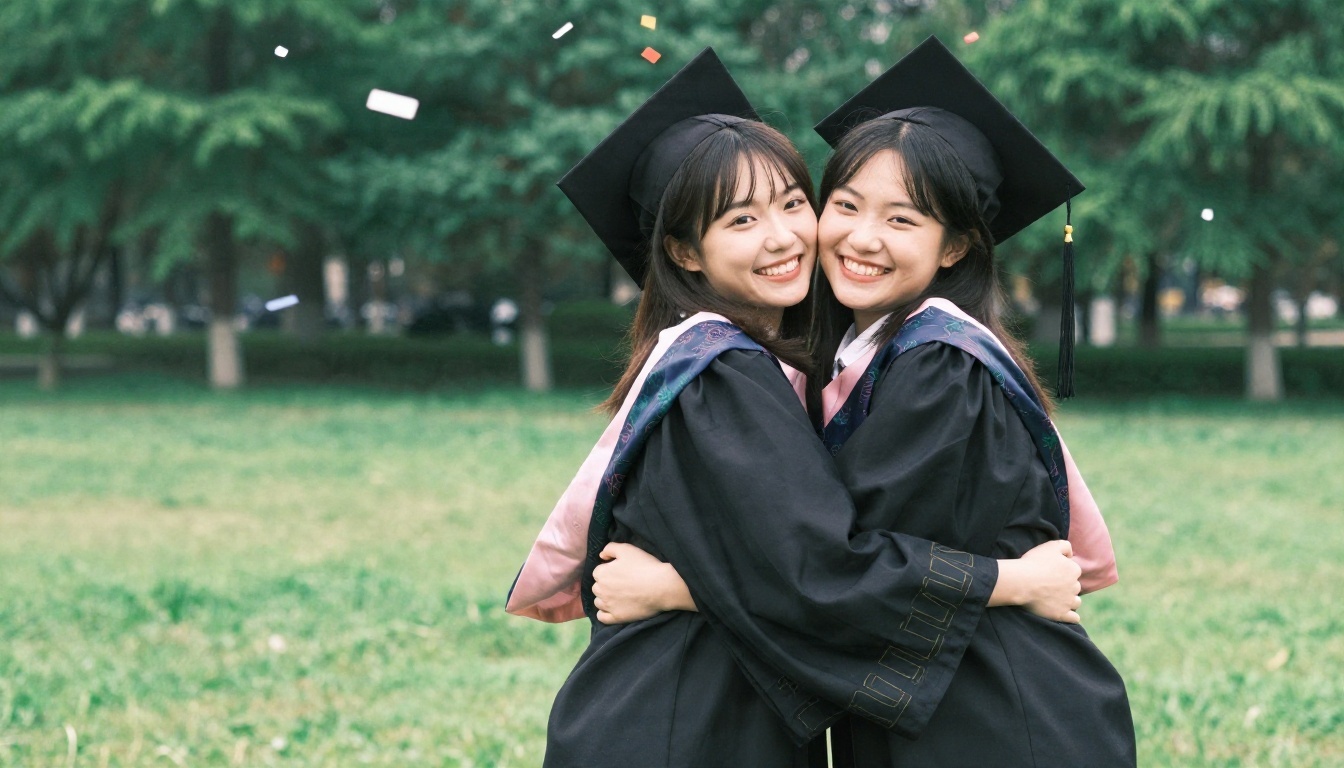
Platform quick reference
| Platform | Best ratio | Ideal length |
|---|
| Instagram Reels | 9:16 | 5 to 10 seconds |
| TikTok | 9:16 | 5 to 10 seconds |
| WhatsApp or messages | Match source | 5 seconds |
| YouTube Shorts | 9:16 | Up to 10 seconds |
| Memorial slideshow | 16:9 | 5 to 10 seconds |
Be honest and respectful
Only animate photos of people you have the right to use, and tell viewers when a clip is AI generated, especially in memorial or family projects where the context is emotional. Never use someone's photo to create a hug they would not want shown. Used with consent and care, these clips are a lovely way to give a still memory a little movement.
Frequently asked questions
Can I really make a hug video for free?
Yes. Seedance 2.5 Lite is built for unlimited generation, so you can run as many tests as you need.
How long does it take?
Most clips finish in about one to three minutes, depending on duration and resolution.
Do I need two people in one photo?
Ideally yes. If you have two separate photos, merge them into one frame first with an image editing model.
Will the faces look like the originals?
Usually, if you use a sharp photo, slow motion and a prompt that says faces stay unchanged. Wan 2.7 I2V is a strong pick when likeness matters most.
What is the best length for a hug video?
Five seconds is enough for a quick hug, while ten seconds lets a longer embrace feel natural.
Make Your Own Hug Video Today
You do not need editing skills, expensive software or a subscription to bring a photo to life. Pick a sharp picture with room between the two people, write a slow and specific prompt, choose 720p, and let the model do the rest. If the first attempt is not perfect, adjust one setting and try again.
Open Seedance 2.5 Lite on PicassoIA, upload your photo and generate your first hug clip in minutes. When you want to compare results, try Wan 2.7 I2V, Kling v3 Video or Hailuo 2.3 Fast with the same prompt, and keep the version that feels the most like the moment you imagined. Browse every available option at picassoia.com/en/all-models and start creating.


